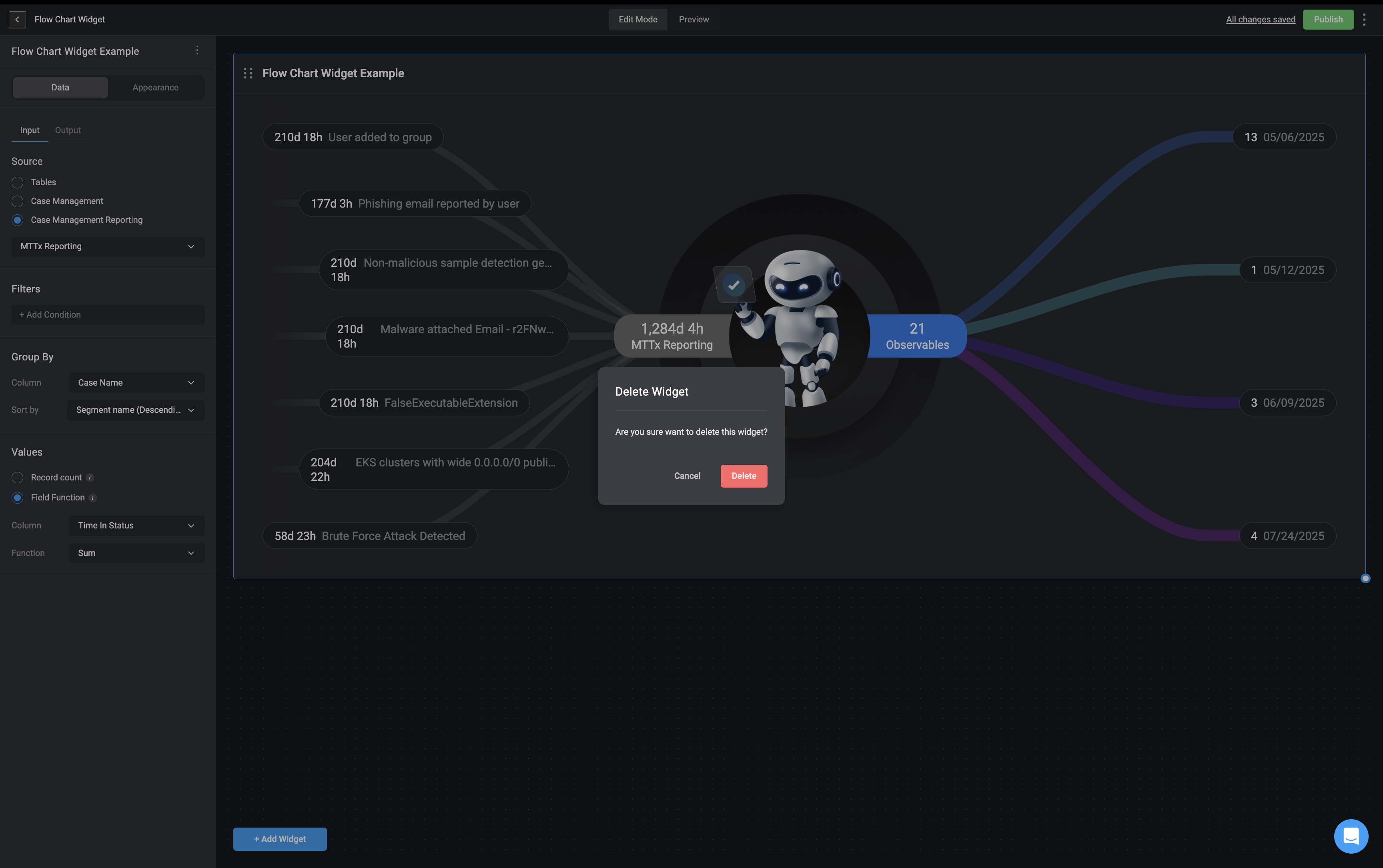
Adding a Flow Chart Widget
1
Add a Widget to the Dashboard
In the Edit Mode tab of the Dashboards Building Interface, click the “add a widget” button and select the ‘Flow Chart’ widget.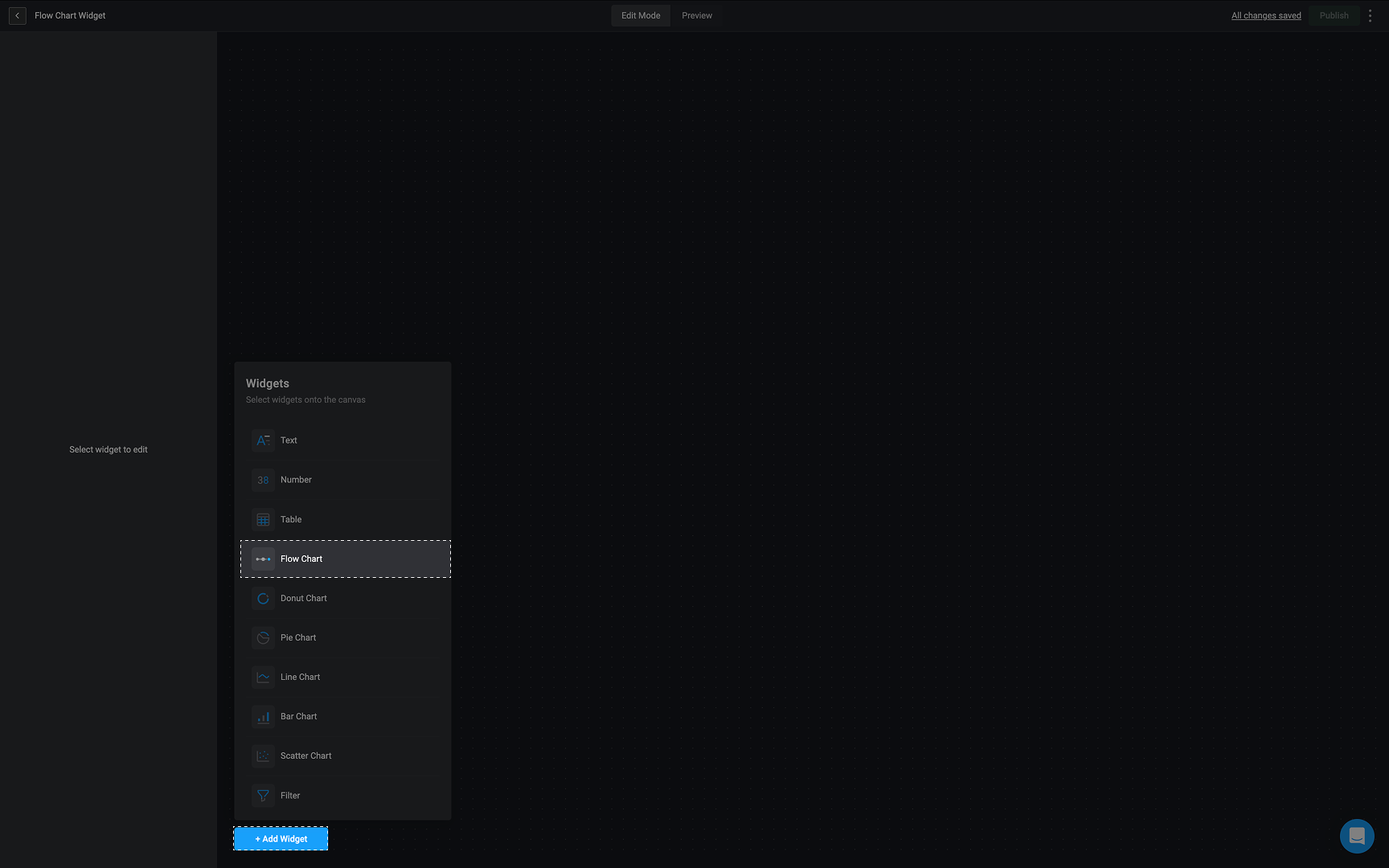
2
Name Your Widget
In the sidebar in the top left corner, double-click on Untitled widget and provide a name for the selected widget.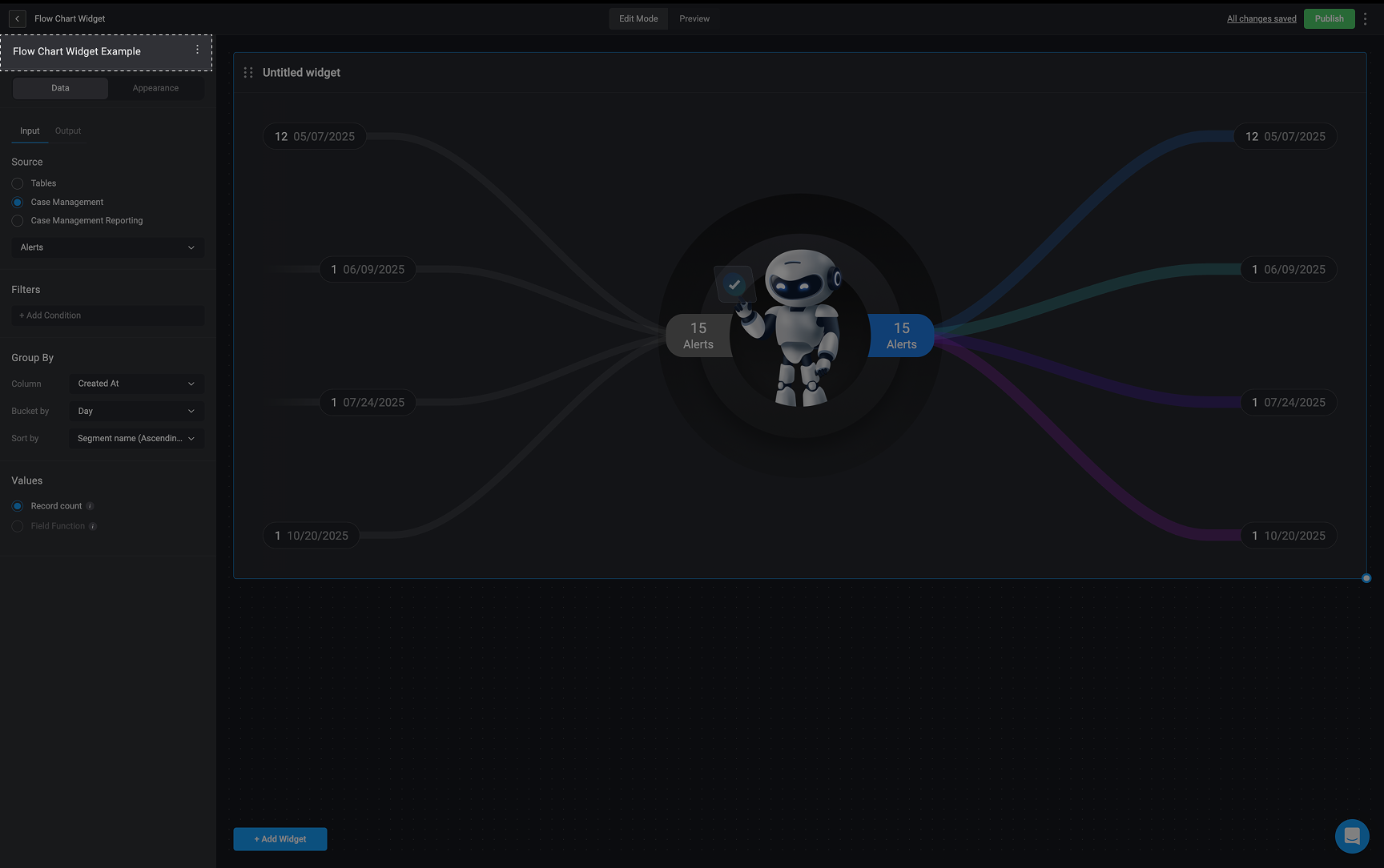
3
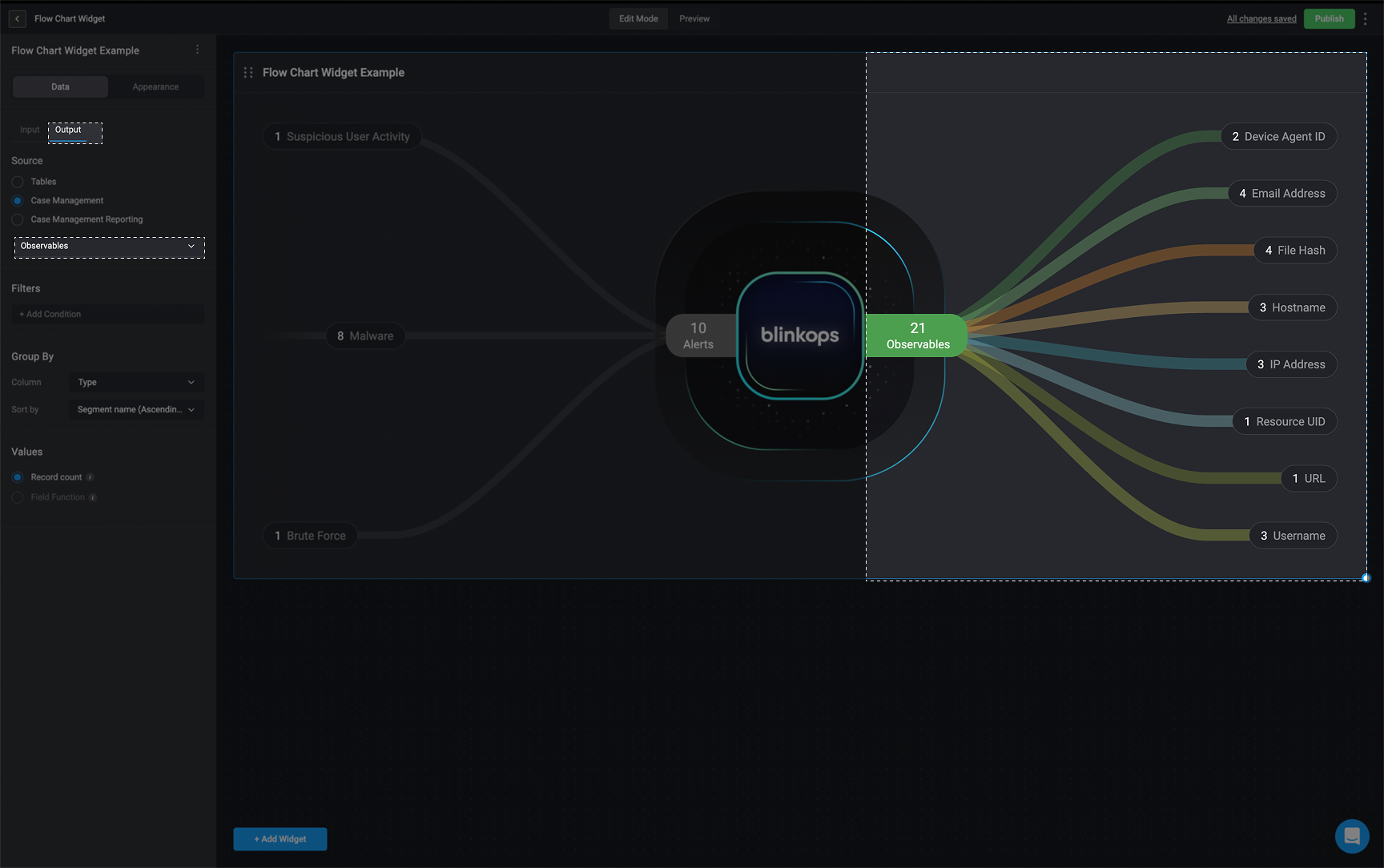
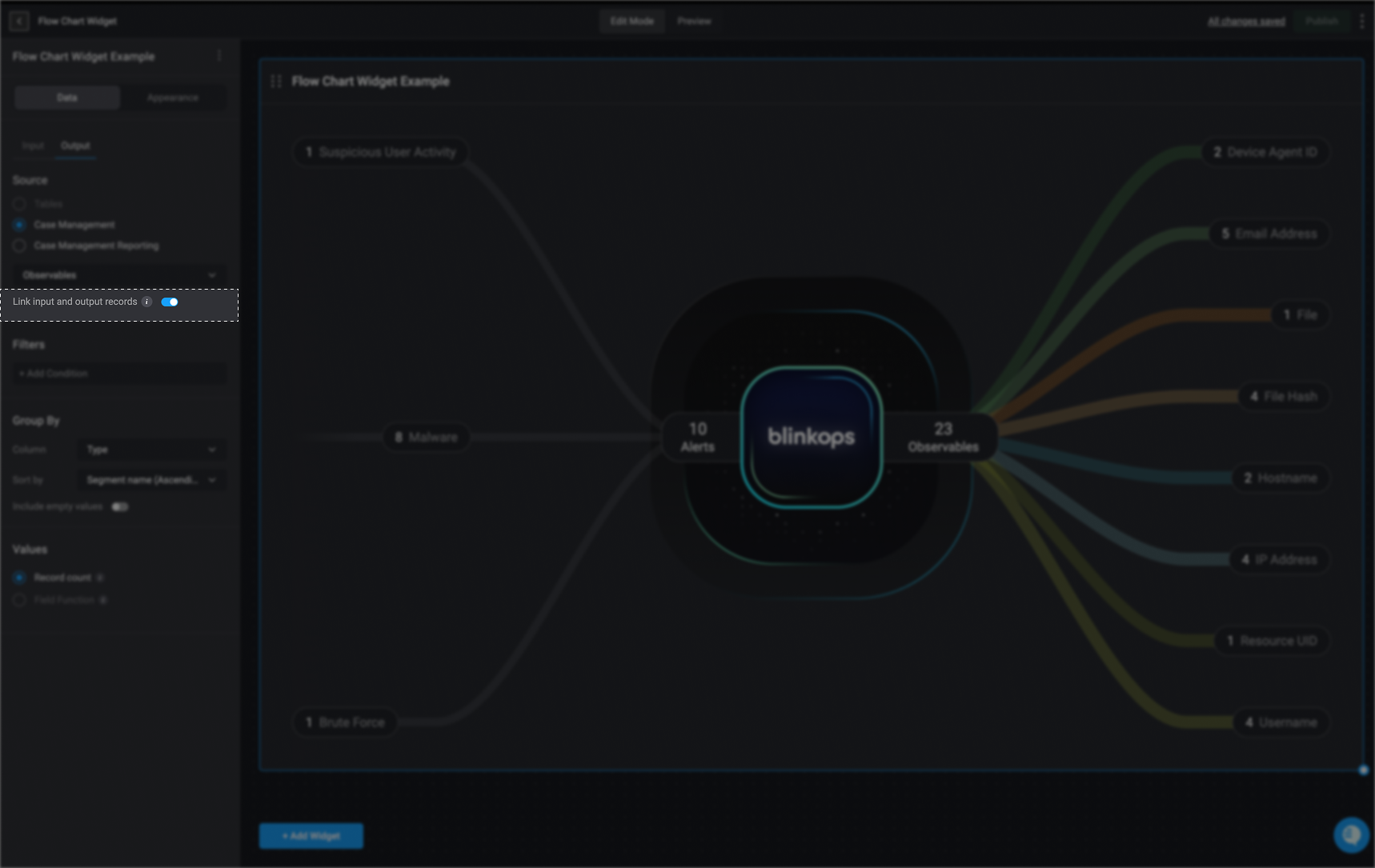
Configure the Input and Output
- Input
- Output
3.1
Choose a Data Source for the Input
Choose a data source: Tables, Case Management Tables or Case Management Reportings and proceed by selecting the specific table column from the data source you would like to use.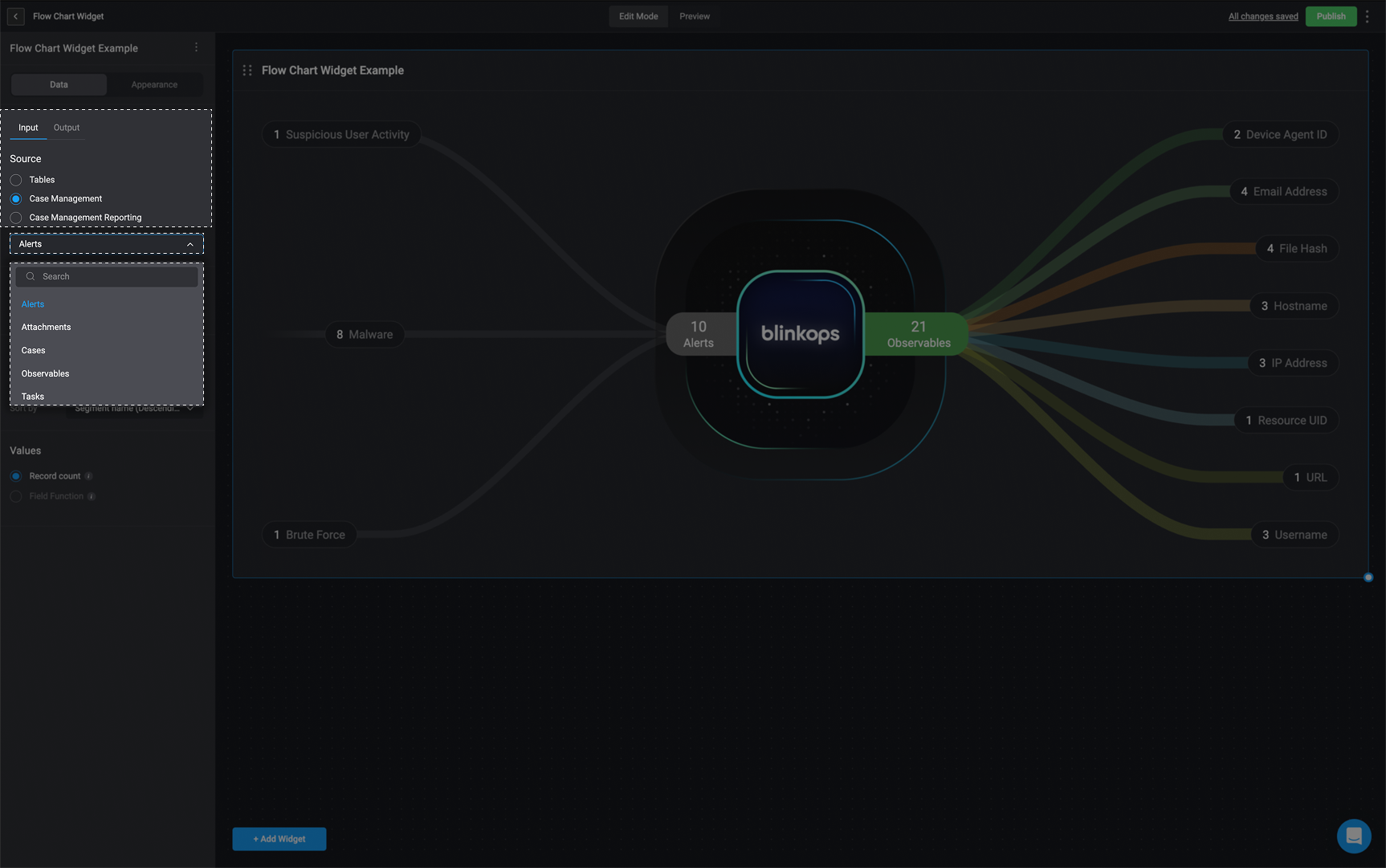
4
Apply Filters to the Input or Output of the Flow Chart Widget (Optional)
Under the Filters section, you can use the condition builder to define one or more conditions that determine which records are included, filtering the underlying data accordingly. You can also create nested conditions to group related conditions together and apply their own 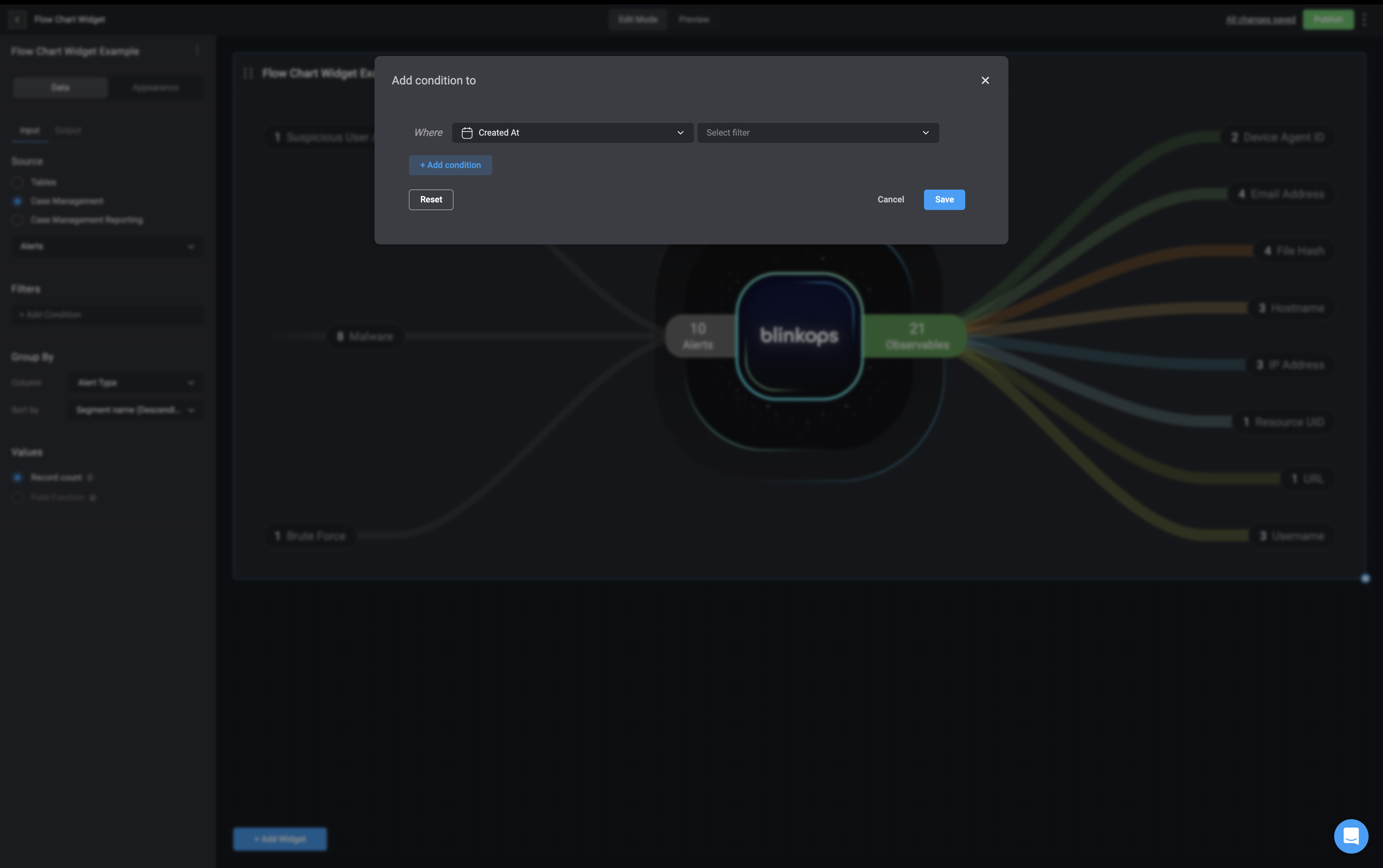
AND or OR logic, enabling more advanced and precise filtering.5
Configure Number Display
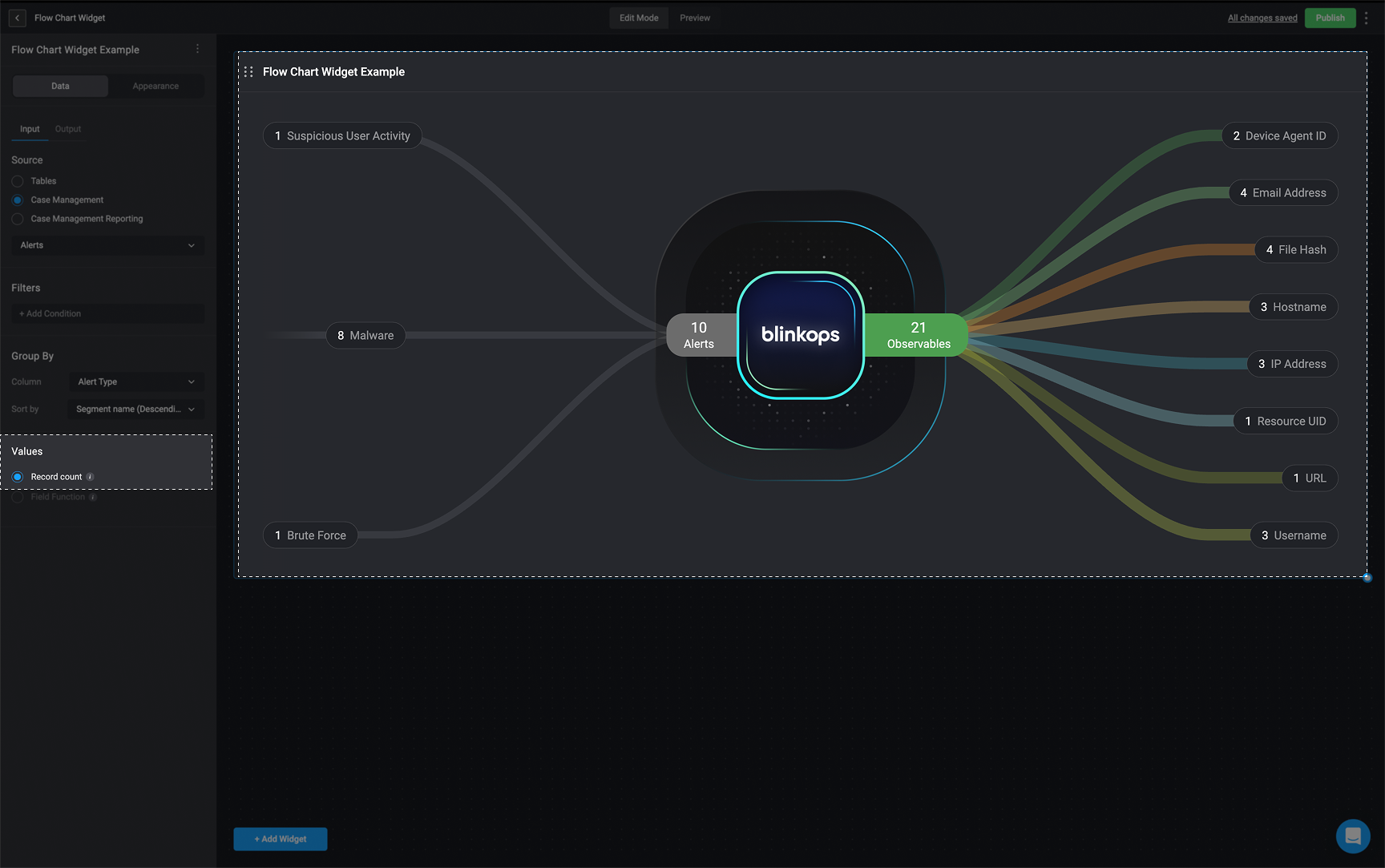
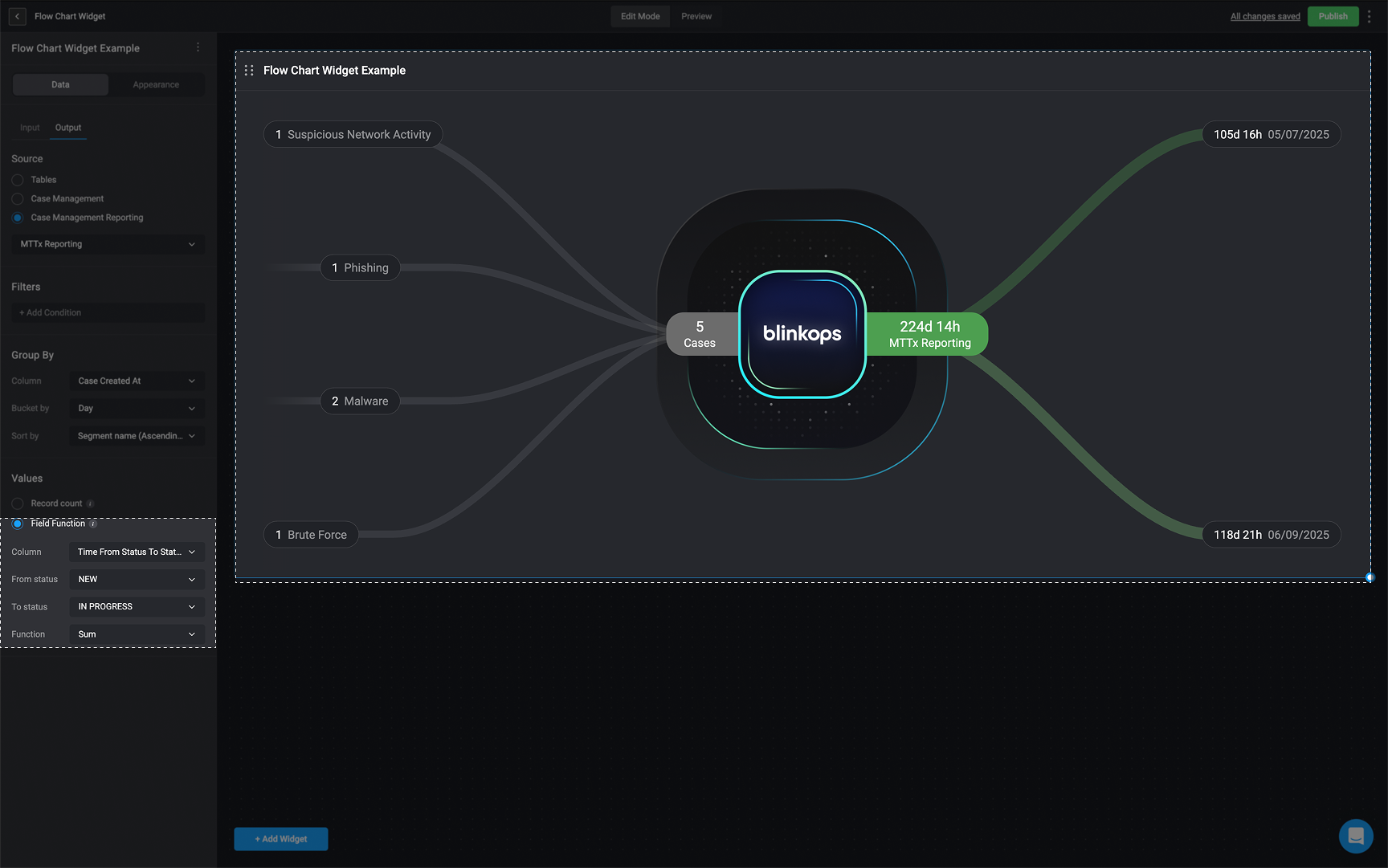
Under the Numbers section:
-
If you select Record Count: It will display the number of records available on the selected source table on the Flow Chart widget.
-
If you select Field Function (You can only add a Field Function if the selected column is a numeric value).
- Choose a column:
Time from Case Open to Status,Time from Status to Status,Time in Status,Time to Close,Time to Assign - Choose the sum operation that will be used to calculate the selected column values:
Sum,Maximum,Minimum,AverageorMedian.
- Choose a column:
Customize the Flow Chart Widget
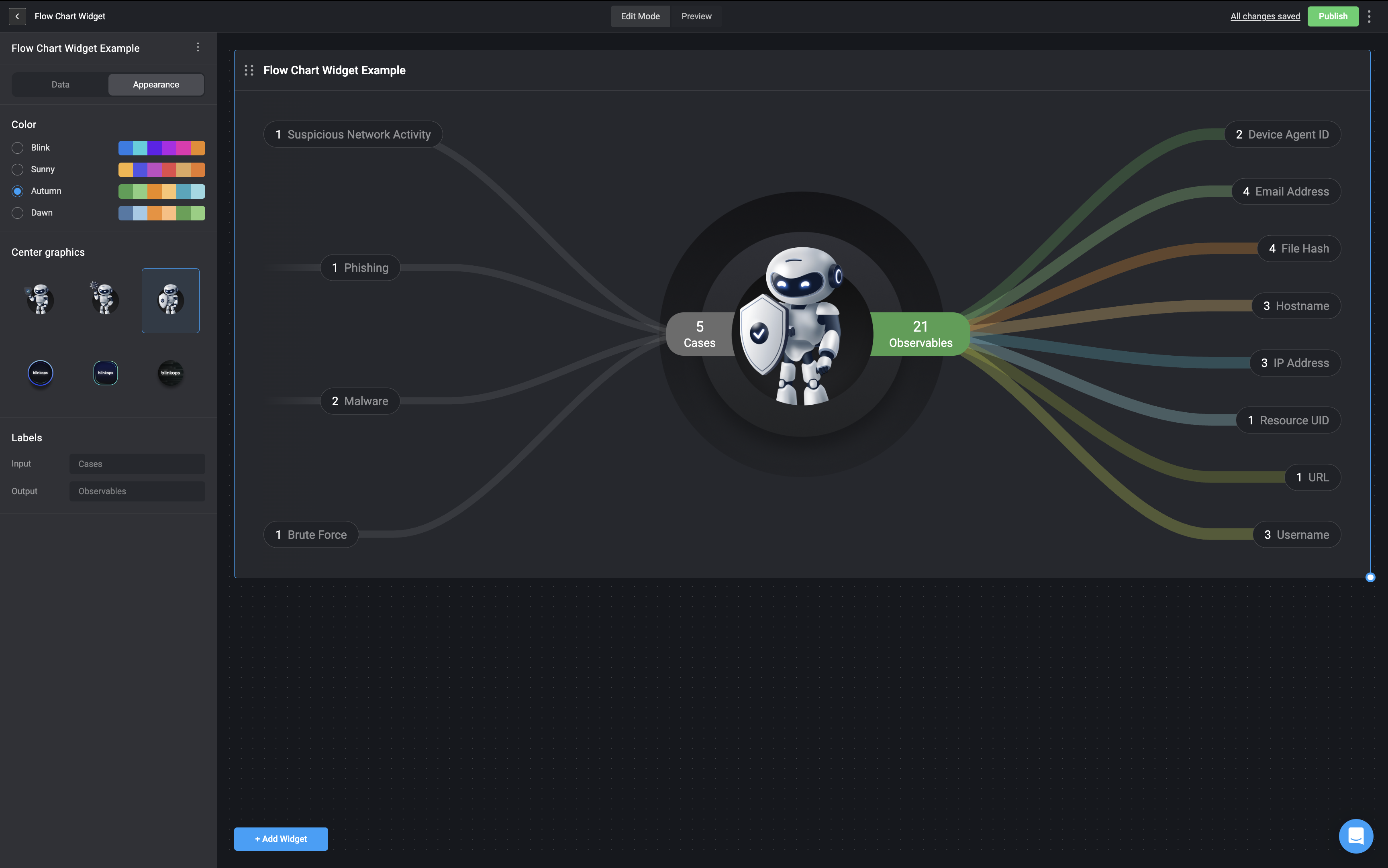
In the Appearance tab, you can fully customize the Flow Chart Widget to match your dashboard’s style and needs. You have control over the color theme, central graphic, and labels for inputs and outputs:- Select a color theme – Pick a color palette that fits your dashboard’s look.
- Choose a central graphic – Select the image or icon to display at the center of the widget.
- Set labels – Define labels for the inputs and outputs to clarify the flow of information.
Editing a Flow Chart Widget
In the Data tab, any changes you make will be automatically applied to the Flow Chart widget in real time.Deleting a Flow Chart Widget
1
Select Delete Button
In the left-hand sidebar, click the icon in the top-right corner and then select the delete button.
2
Confirm Widget Removal
The Flow Chart widget will be removed from your Dashboard Building Interface.