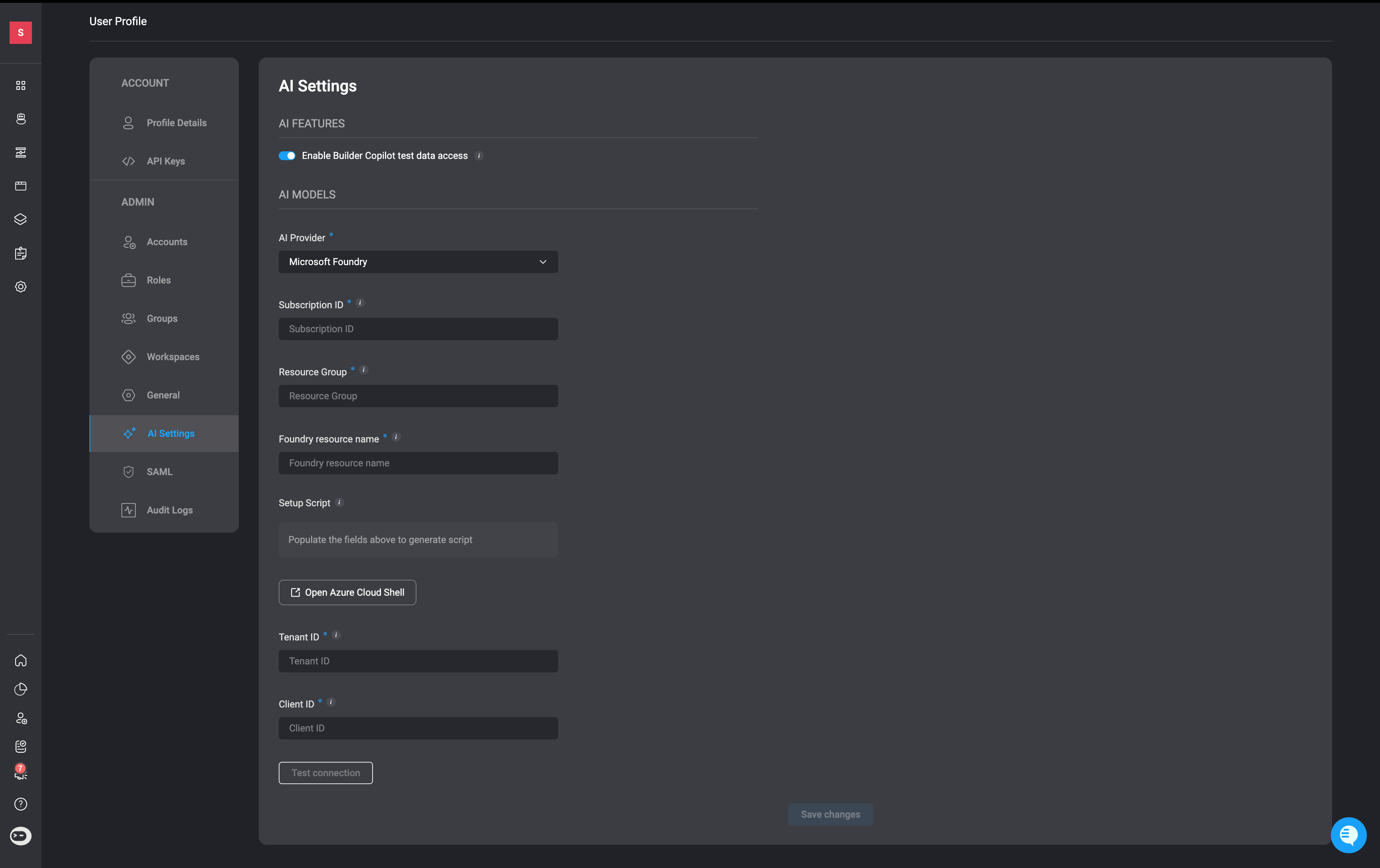
AI Features
Enable Builder Copilot test data access- When enabled, the Builder Copilot can access workflow testing execution data from the current session to generate more context-aware and precise configuration suggestions. When disabled, suggestions are based only on the workflow definition and user input.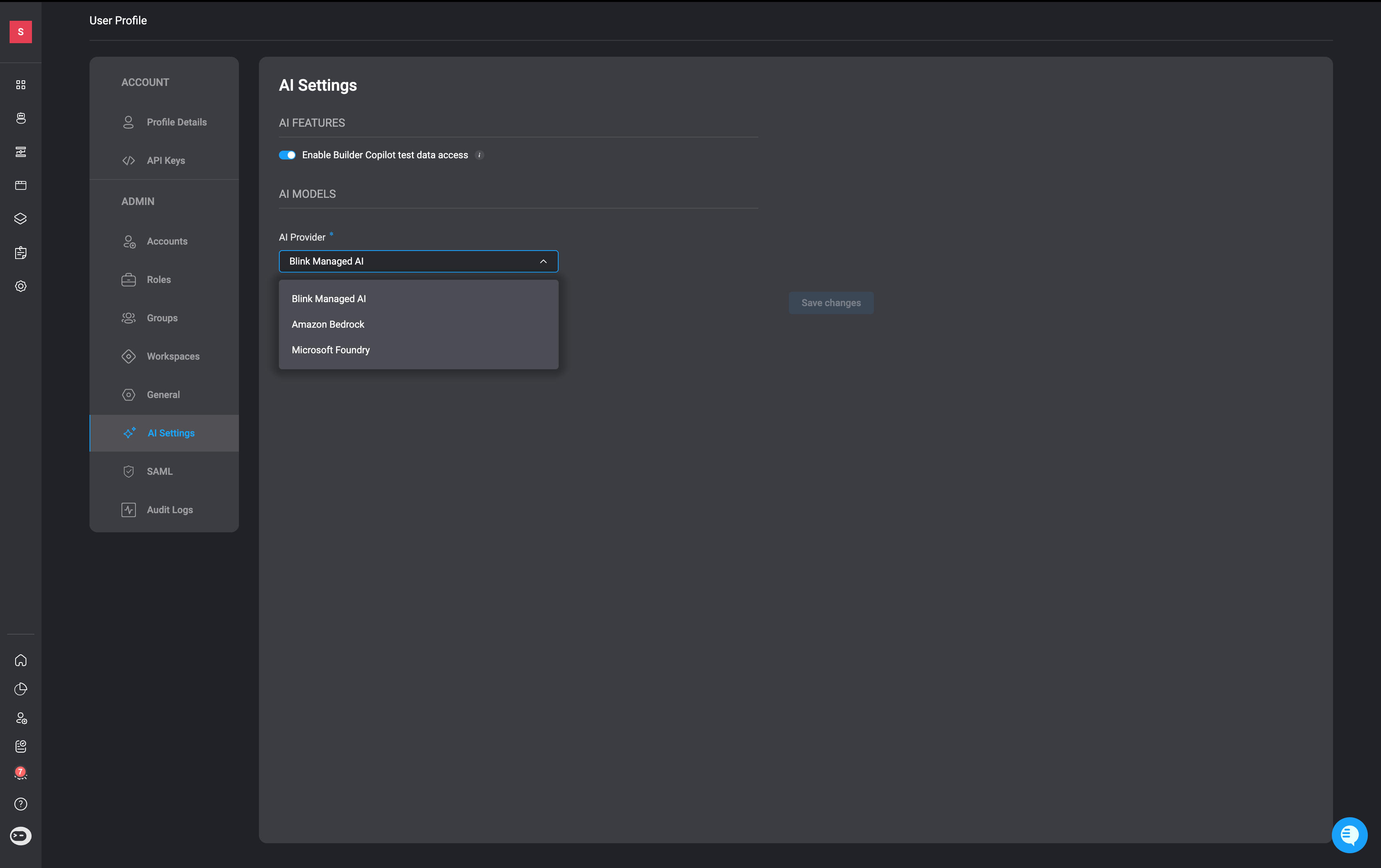
AI Models
Blink supports three options for AI infrastructure:- Blink (recommended) – Uses Blink-managed AI infrastructure through Blink’s Amazon Bedrock account. This is the default option and provides a fully managed experience, with all AI requests routed through Blink.
- Amazon Bedrock – Uses your own Amazon Bedrock account. When selected, all AI-related requests are executed through your AWS infrastructure, giving you full control over your AI resources and billing.
- Azure AI Foundry- Enables Blink to use AI models from your own Azure subscription (via Azure AI Foundry) instead of Blink’s shared AI infrastructure. When active, all AI calls are routed through your account.
How to Configure the Chosen AI Model
- Amazon Bedrock
- Microsoft Foundry
Amazon Bedrock Prerequisites
- An AWS account with permission to deploy CloudFormation stacks and create IAM roles.
When you select Amazon Bedrock as your AI Model, all platform-wide AI operations are routed directly through your organization’s Amazon Bedrock account. This includes Agents, Agent Blink, Builder Copilot, and other AI-powered capabilities across the Blink platform.
Limitations
Important to Note: Knowledge sources, in the Agent Builder, are not currently supported when using Amazon Bedrock as the AI provider. Knowledge functionality is available only when using Blink as the AI provider
Setup Steps
1
Open AI Settings
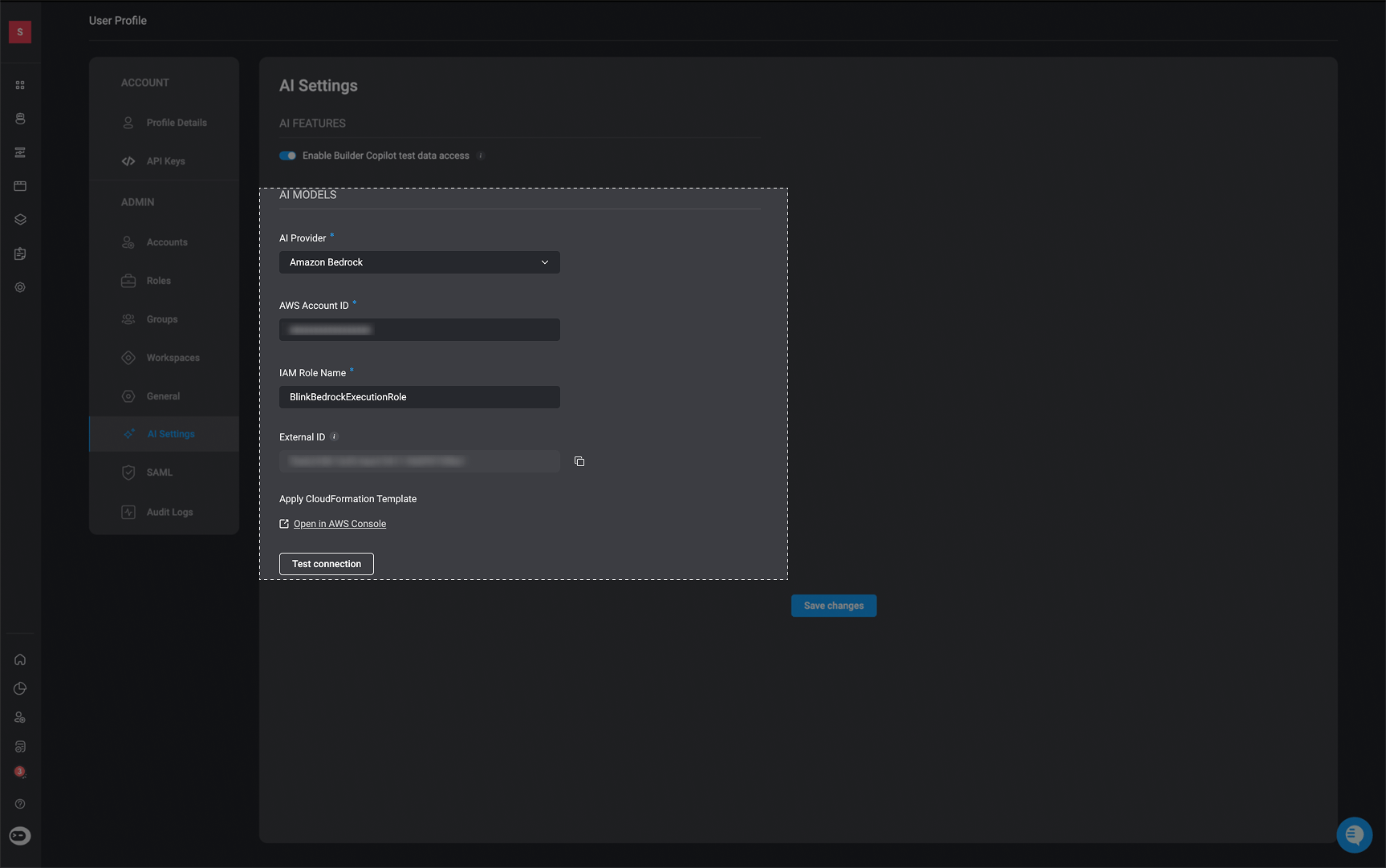
Navigate to Account Settings → AI Settings → AI Models.
2
Select "Bedrock" as the AI provider
In the AI Provider dropdown, select Amazon Bedrock.
3
Note your External ID
Blink automatically generates a unique External ID for your account and displays it on screen.
What is the External ID?It is a secret token that Blink embeds in every
AssumeRole request. Your IAM trust policy must require it, which prevents any other AWS account from assuming your role even if they know your Role ARN. Do not share it.4
Enter your AWS Account ID and IAM Role Name
Fill in:
-
AWS Account ID — the 12-digit numeric ID of the AWS account where Blink should operate (e.g.
123456789012). -
IAM Role Name — the name you want to give the IAM role that Blink will assume. The default suggestion is
BlinkBedrockExecutionRole; you can use any name that fits your naming conventions.
5
Deploy the IAM Role via CloudFormation
Click Open in AWS Console. This opens the AWS CloudFormation quick-create page with all parameters pre-filled:
In the AWS Console, scroll to the bottom, acknowledge the IAM capability checkbox, and click Create stack. Wait for the stack status to reach
CREATE_COMPLETE (usually under 2 minutes).What does the stack create?A single IAM role in your account. The role’s trust policy allows Blink’s AWS account to assume it — but only when the correct External ID is presented.The role’s permission policy grants the following actions, scoped to Anthropic foundation models and cross-region inference profiles only:
bedrock:InvokeModelbedrock:InvokeModelWithResponseStreambedrock:Conversebedrock:ConverseStreambedrock:CountTokens
6
Test the connection
Return to the Blink AI Settings page and click Test connection. Blink will attempt to assume the role and invoke a lightweight Bedrock call using the values currently in the form - no need to save first.A success confirmation means the role and permissions are correctly configured.
7
Save the configuration
Click Save changes to activate the integration.
Reverting to Blink’s Default Provider:Switch the AI Provider dropdown back to Blink and save. The IAM role in your AWS account is not deleted automatically — you can clean it up by deleting the
blink-bedrock-access CloudFormation stack.Reverting to Blink’s Default ProviderSwitch the AI Provider dropdown back to Blink and save. The app registration and federated credential in your Azure tenant are not removed automatically — you can delete them via the Azure Portal if no longer needed.
Required Bedrock Model Access
The customer must enable access to the following cross-region inference profiles in their AWS account before the integration will work. All are from the Anthropic provider in Bedrock.How to enable: AWS Console → Amazon Bedrock → Model access → Manage model access → select each model below → Request model access.Note: All models in the table must be enabled
How to Confirm a Model is Ready:Go to AWS Console → Amazon Bedrock → Playgrounds → Chat, select the model, and send a test message. A successful response confirms the model is accessible.