

Using the Self-service portal via Teams
We have created the bot for Teams to seamlessly execute apps available in the Self-service portal directly from your Teams environment. Every Workflow that is exposed in the portal is automatically exposed to the bot for Teams.Connecting Teams to the Blink platform
To execute Workflows from Teams, a connection between your Teams workspace and your Blink account must be created.- In your Teams application, navigate to Apps on the left-hand side of your screen. You will be redirected to the Team’s App Marketplace. In the search bar, type “Blink Ops” and click the “Add” button.
- The Blink App will be added to your Teams application, and a conversation with the Blink Teams Bot will automatically open.
Granting admin consent for bot actions
Workflow actions that send messages through the Blink Teams bot require a one-time admin consent in your Microsoft Entra tenant. Until an admin grants consent, these actions fail, even if users already added the Blink app in Teams. The following actions require admin consent:- Send Message Via Teams Bot
- Update Bot Message
- Delete Bot Message
- Ask a Question via Microsoft Teams
- Microsoft Teams Interactivity
- In the Teams admin center, go to Teams apps > Manage apps.
- Search for Blink and select it.
- Go to the Permissions tab, and under Org-wide permissions, click Review permissions and consent.
- Review the requested permissions and click Accept.
Admin consent applies to your entire tenant, but it does not install the Blink app for any user. To limit which users can access the Blink app, go to the Teams admin center > Teams apps > Manage apps > Blink and set its availability to specific users or groups.
The Microsoft Teams connection in bot actions
Bot actions still require a Microsoft Teams connection, but Blink uses it only to identify your Microsoft tenant. The bot sends messages with its own permissions, which are granted by admin consent. The permissions of your connection, or of the app registration behind it, do not affect bot actions. Make sure the connection belongs to the same tenant in which admin consent was granted.If a bot action fails with
Blink MS Teams App is not installed in the provided tenant or with a message asking you to consent for app permissions, admin consent was not granted in the tenant of the Microsoft Teams connection used by the action.Executing a Workflow via Teams
- In your teams app, navigate to the Blink App and start a conversation by entering /portal.
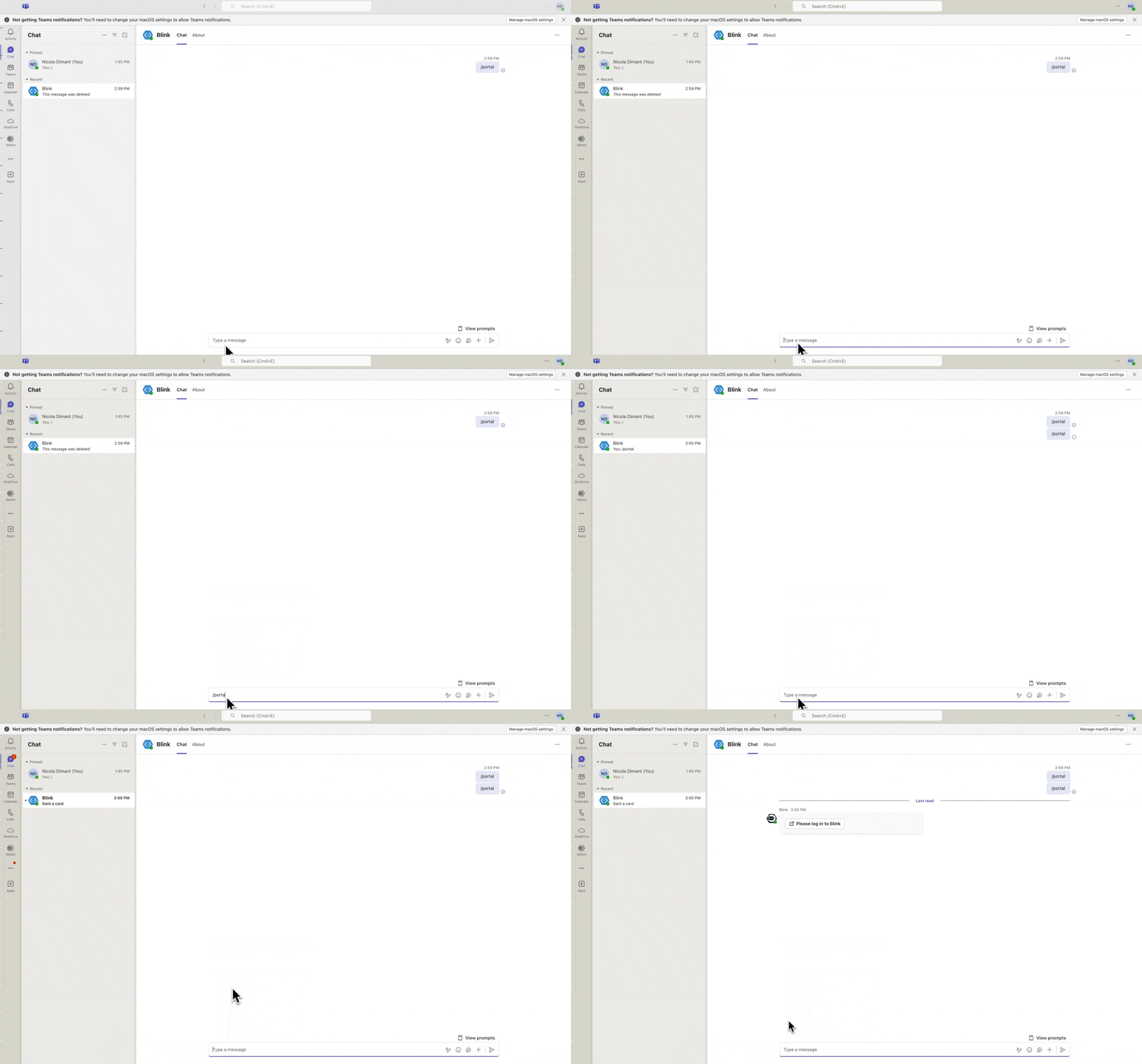
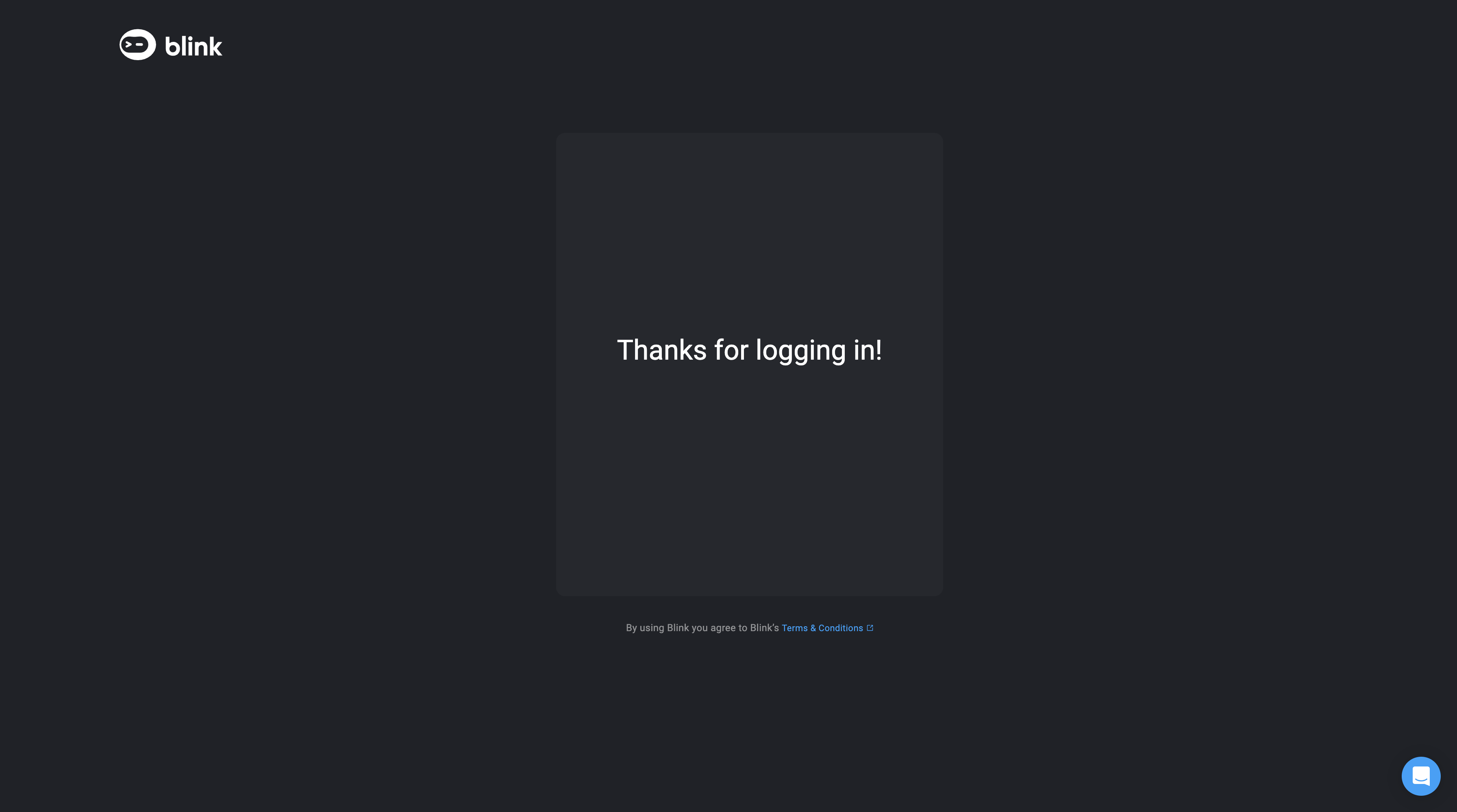
- If you are not logged in to the Blink platform, you will receive a message to Go to login page. Click Go to login page and log in to Blink. If you logged in successfully, Thanks for logging in will appear.
- Enter /portal and click the open dialogue button. A pop up will appear with a dropdown menu containing a list of all items available in the Self-service portal is displayed.
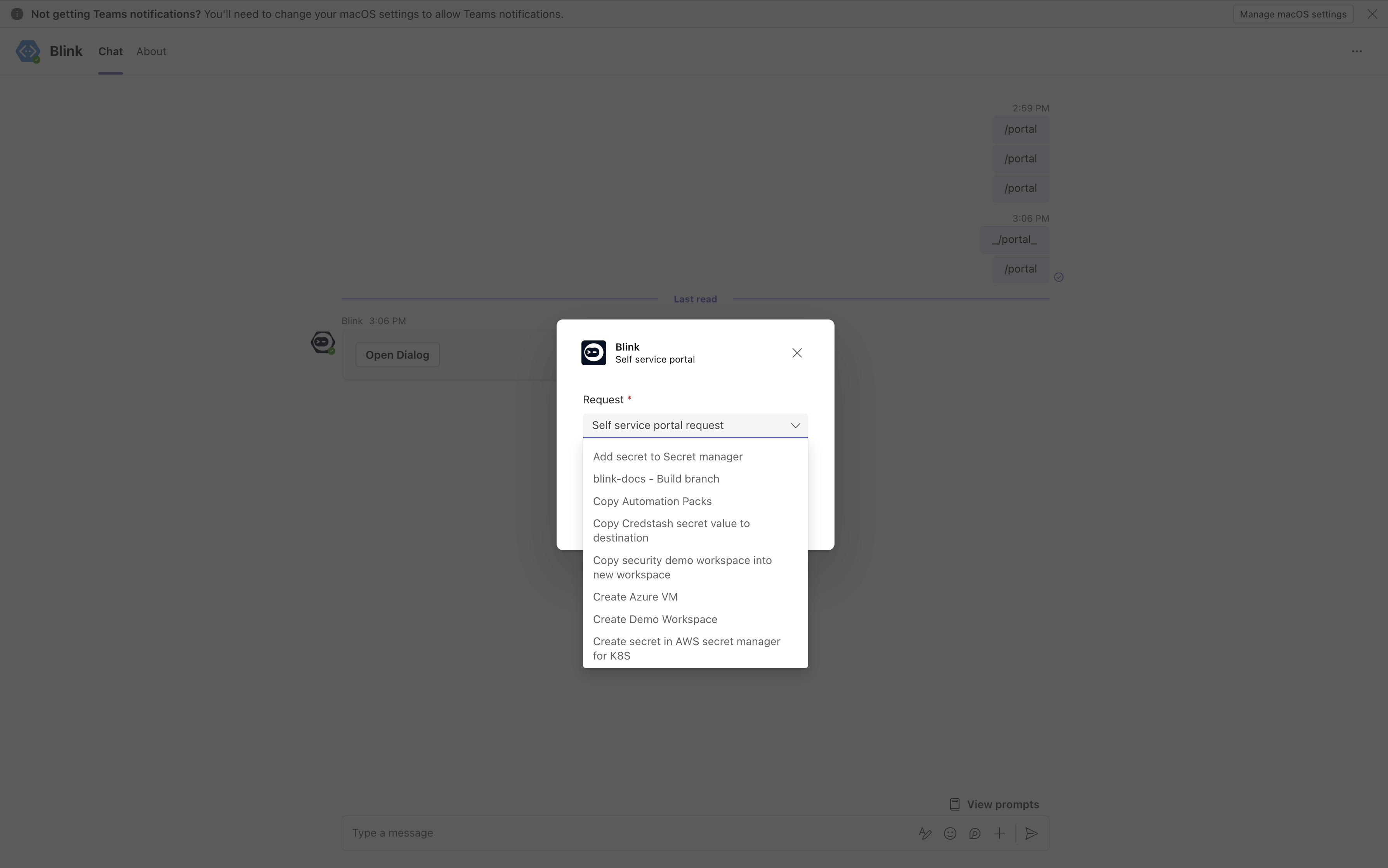
- Click on any item in the portal. You will receive a message that the Workflow is running. If the Workflow needs input parameters, you will be prompted to enter them before running. The Blink bot will notify you of your request, the Workflow state and its results.