

The Tool Bar
The Tool Bar Panel provides analysts with a centralized set of tools designed to maximize efficiency and effectiveness when managing a case. Each tool offers specific functionality to streamline investigation, documentation, and collaboration throughout the incident lifecycle. Note: A blue activity indicator () appears on the tab of any tool that has had any activity- created, modified, or updated- since you last opened that tool.
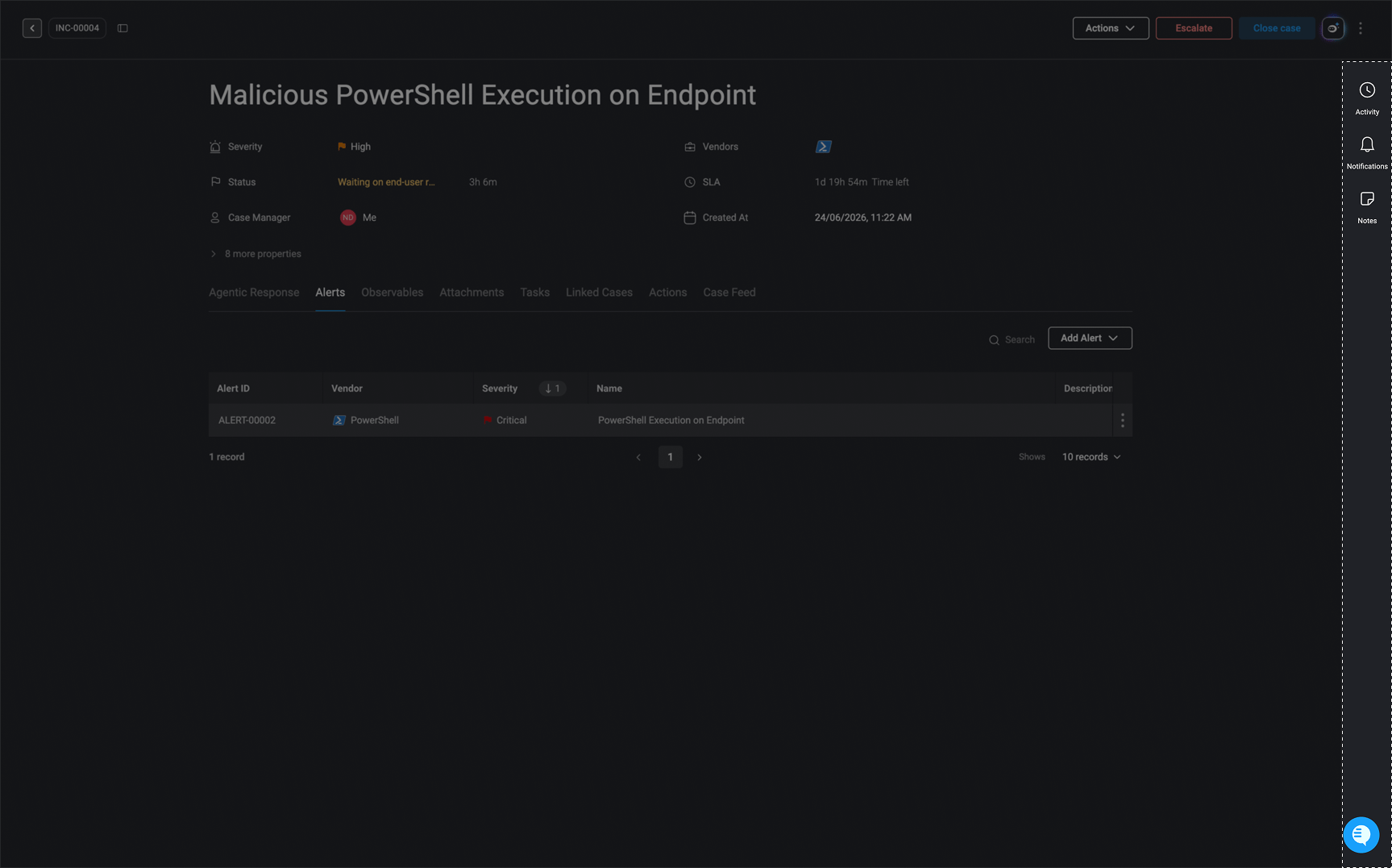
Activity
-
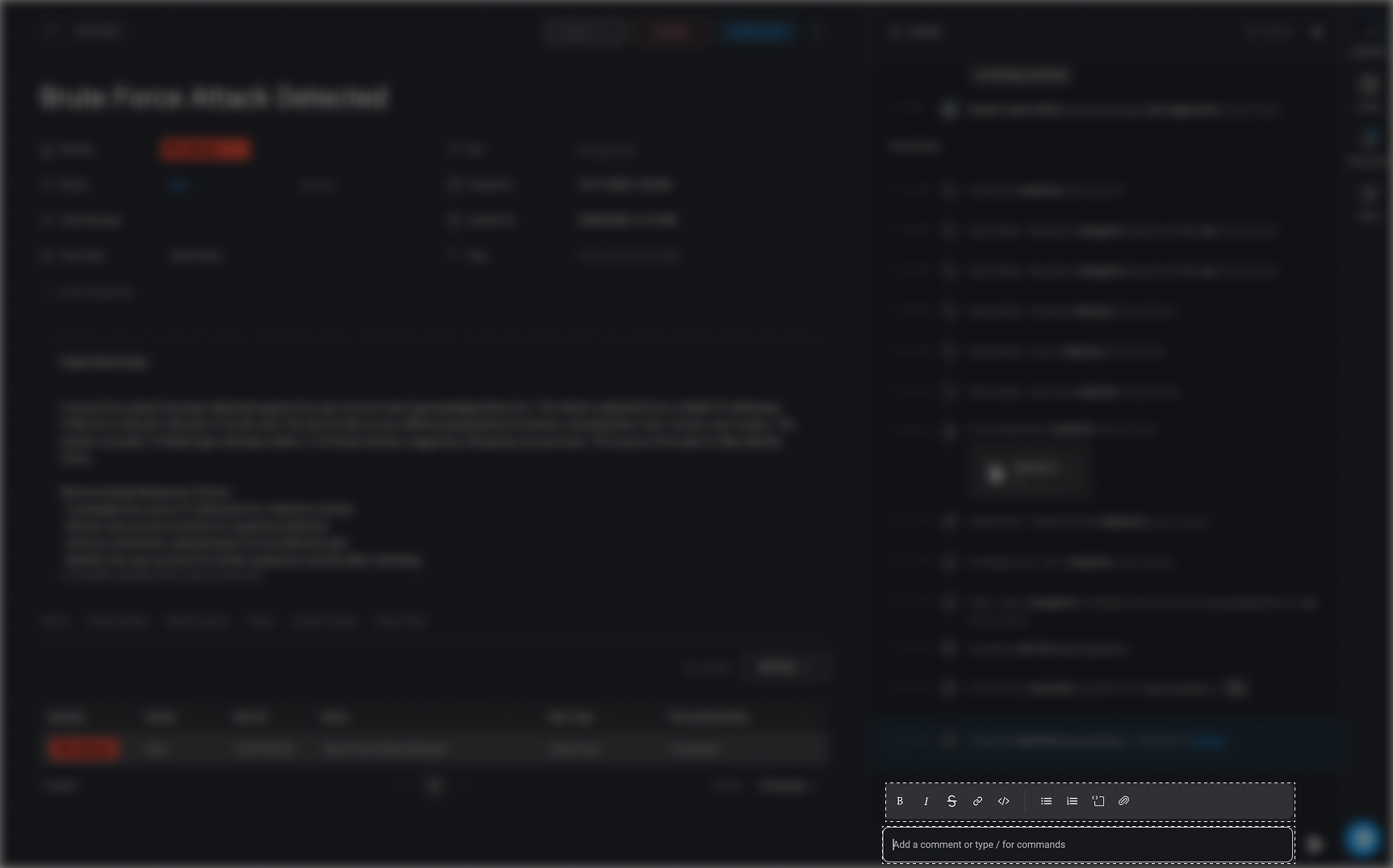
The Activity section provides a complete history of the case, including the creation of linked entities and any subsequent updates or changes. Activities are organized into the following tabs to help you quickly find relevant information:
- All- Displays all activity associated with the case.
- User Activity— Displays actions performed by users.
- Workflow Activity— Displays actions performed by workflows.
- Attachments— Displays activity related to files attached to the case.
- Comments— Displays comments added by users who have access to the case.
- You can edit any comments already posted in the timeline by hovering over the comment, clicking the icon, making your desired changes, and clicking the button
-
To streamline your search for specific case-related details, use the search bar or click the icon, in the top-right corner, to narrow down information based on case Details, case objects, users, or timeframes.
Note: We ensure a secure and forensically reliable case timeline, with all edits comprehensively logged.
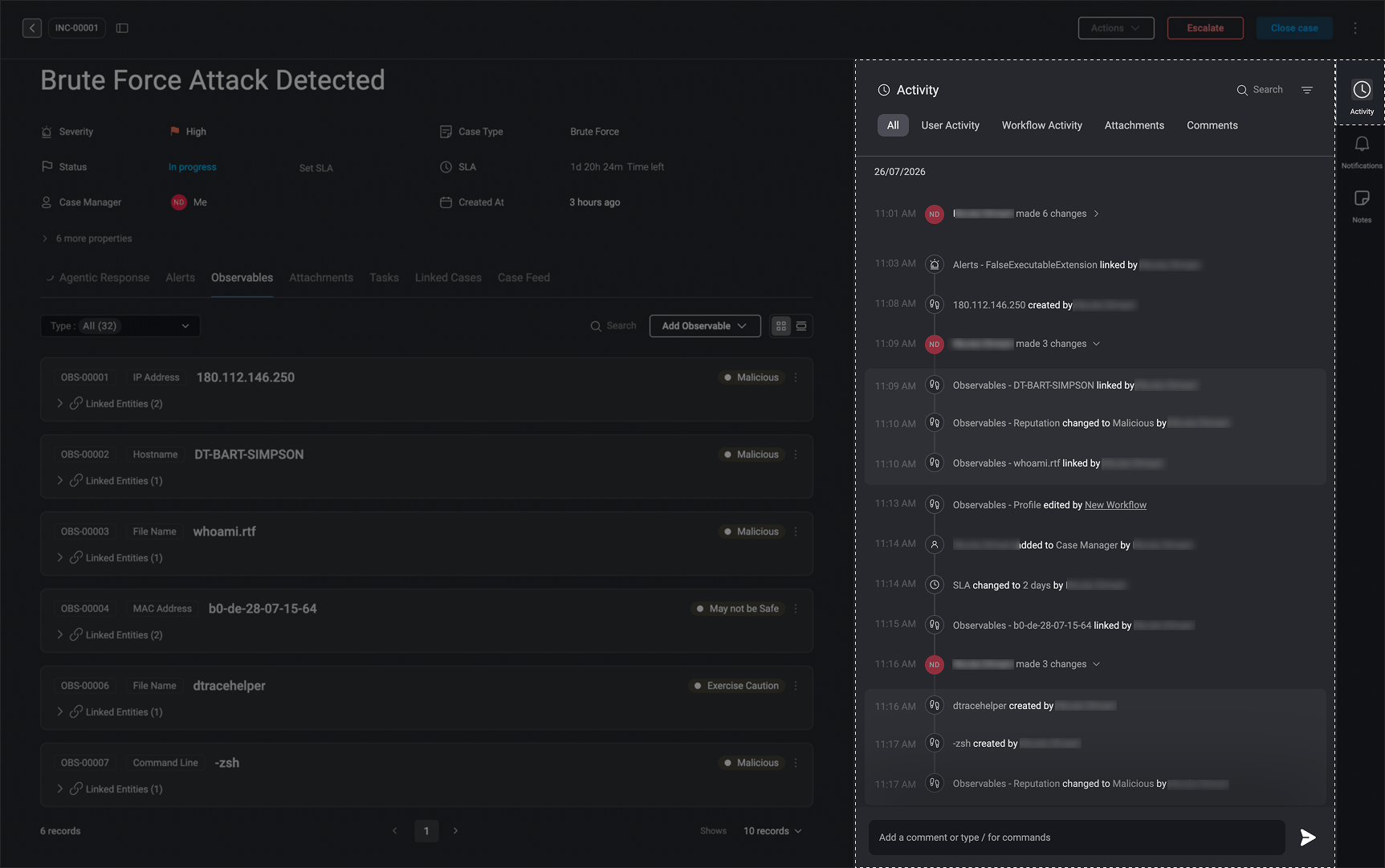
- You can customize your comments by clicking on the text input field and selecting from various formatting options, including bold, italics, strikethrough, adding links and code formatting.
- Use the @ symbol in the text input field to tag collaborating users. Type the username after the @ symbol to filter the list.
- Use the forward slash () character in the text input field to trigger workflows on the case level or its linked entities (e.g., alerts, observables)
-
You can easily attach a file in two ways:
- Drag and drop the file directly into the text input field.
- Click on the text input field, then select the icon to browse and choose a file.
Notifications
In notification section, you can view all questions asked on the Case through the Ask a Question on a Case action. You will also see a notification in the Case Timeline whenever new questions are available.
Analysts can respond directly from this view. Each answer is automatically added to the Case Timeline, and once submitted, the related Ask a Question on a Case action resumes, allowing the workflow to continue seamlessly.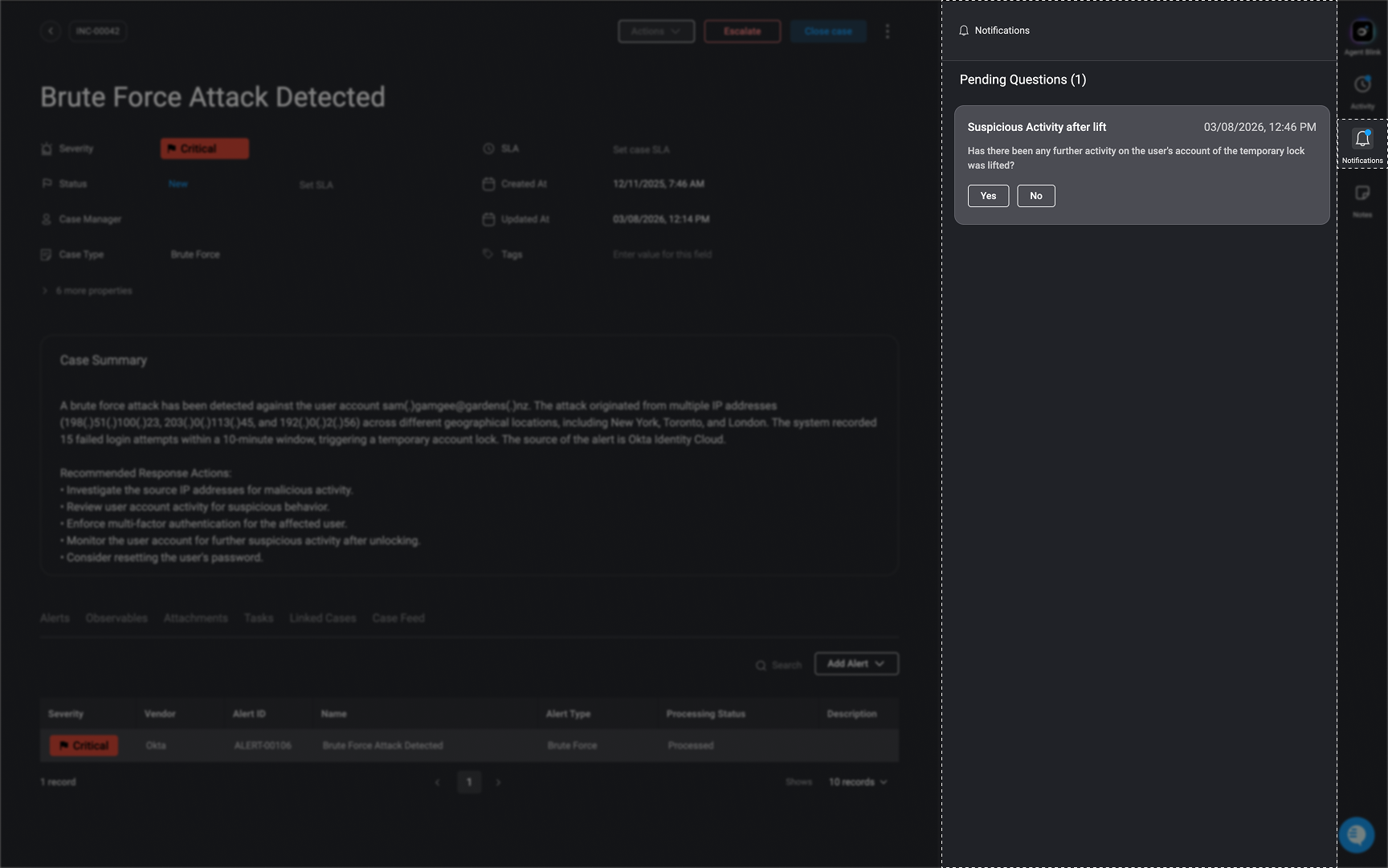
Notes
Note: When using
HTML in the rich text editor, only elements supported by the rich text editor will be rendered. Any unsupported HTML may not be displayed as expected.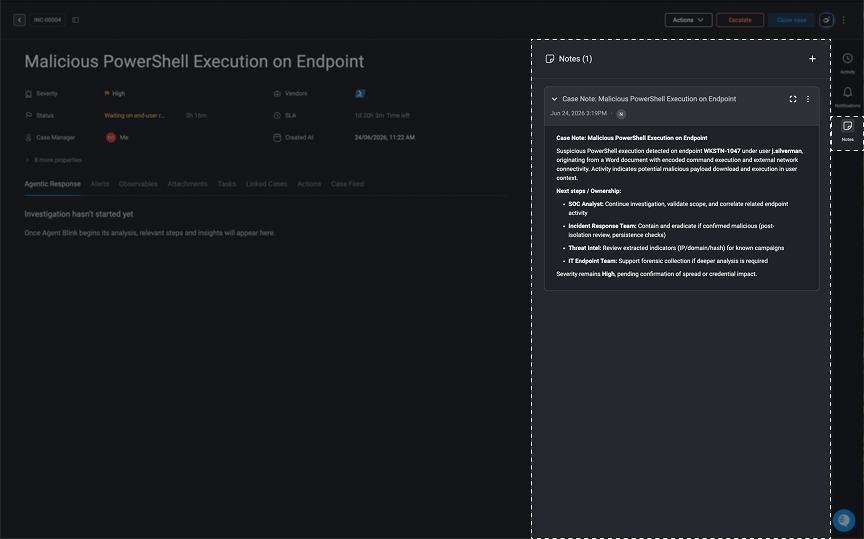
- Create one or multiple notes to document the incident investigation and capture analyst insights related to the case.
-
In the top-right corner of the Notes tool:
- Click the in the top-right corner to add a new note. Content can be customized and formatted using the rich text editor (e.g., bold, italics,
strikethrough, underline, etc.). - Click the to expand or collapse the note
- Click the to expand the Notes tool to full screen for improved visibility.
- Drag and drop or paste images directly into the Notes section for quick uploads. Once added, images can be resized and repositioned as needed.
- Click the in the top-right corner to add a new note. Content can be customized and formatted using the rich text editor (e.g., bold, italics,
Any changes or updates made to the selected note is saved automatically
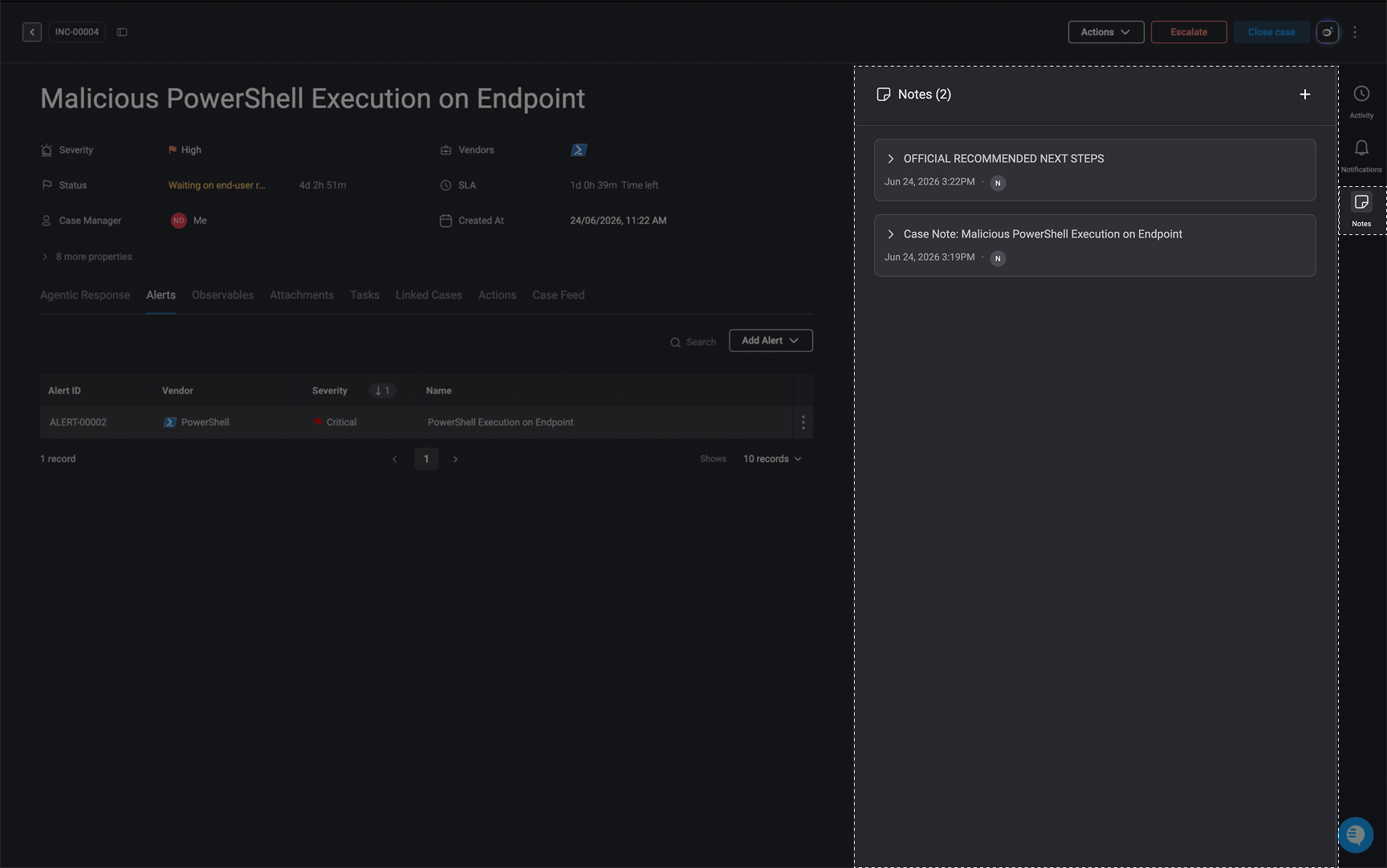
Notes Settings
- Click the menu to access note settings, where you can:
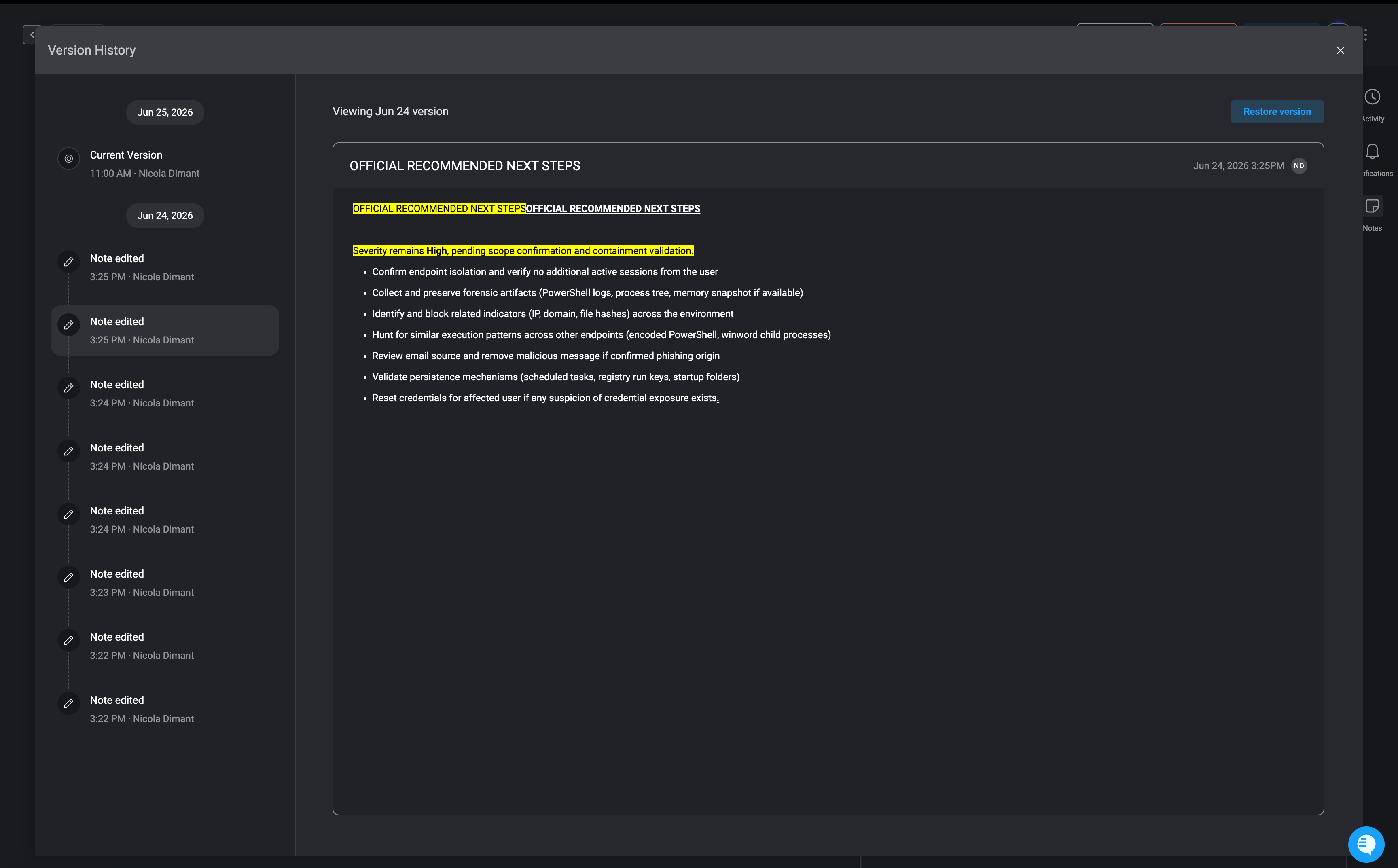
- Version History – View the selected note’s version history and compare changes across versions.
- Yellow – Highlights content that was added and changed in the selected version.
-
To restore a previous version, click ‘Restore Version’ in the upper-right corner of the selected notes version history.
- Delete- Deletes the note permanently.