

How Triage Rules Work
Triage Rules determine how alerts are processed based on their attributes and the organization’s handling policies.- Alert processing: An alert enters Blink’s Automated Case Management for processing.
- Rule evaluation: Enabled rules are evaluated in order of priority against case fields, alert fields, and observables.
- Condition matching: The first rule whose conditions match is selected. Any rules below it are not applied.
- Rule enforcement: The matching rule’s actions are applied to determine how the alert or case is handled.
Configuring Triage Rules
Each rule defines the conditions that determine which cases or alerts it applies to, the actions to perform when those conditions are met, and its priority.1
Navigate to Case Management Settings
In Case Management Settings, open the Triage Rules tab under the General Settings section and add a new rule.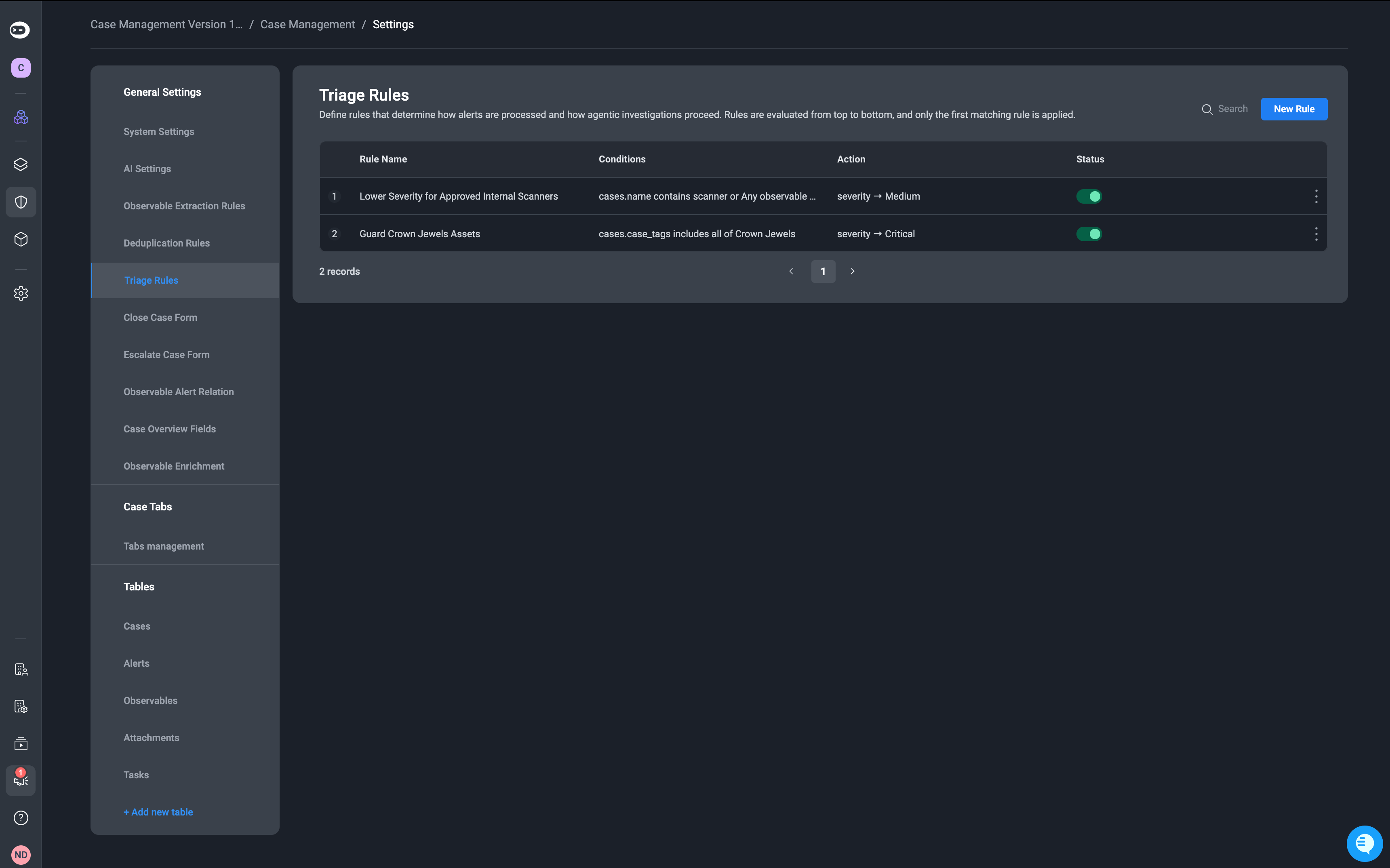
2
Define the Triage Rule's Name and Description
Give the rule a name and provide a short, clear description explaining the rule’s purpose.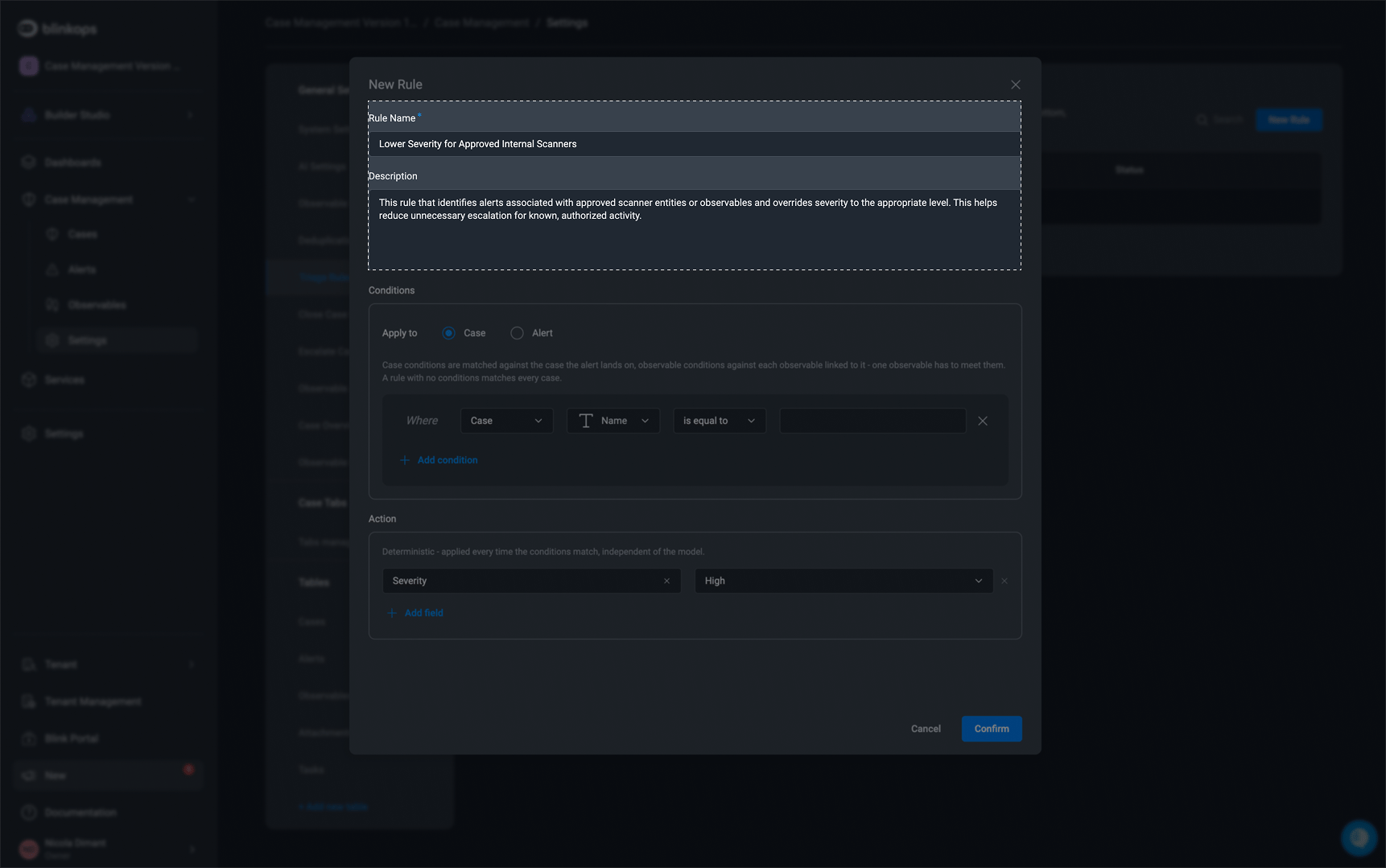
3
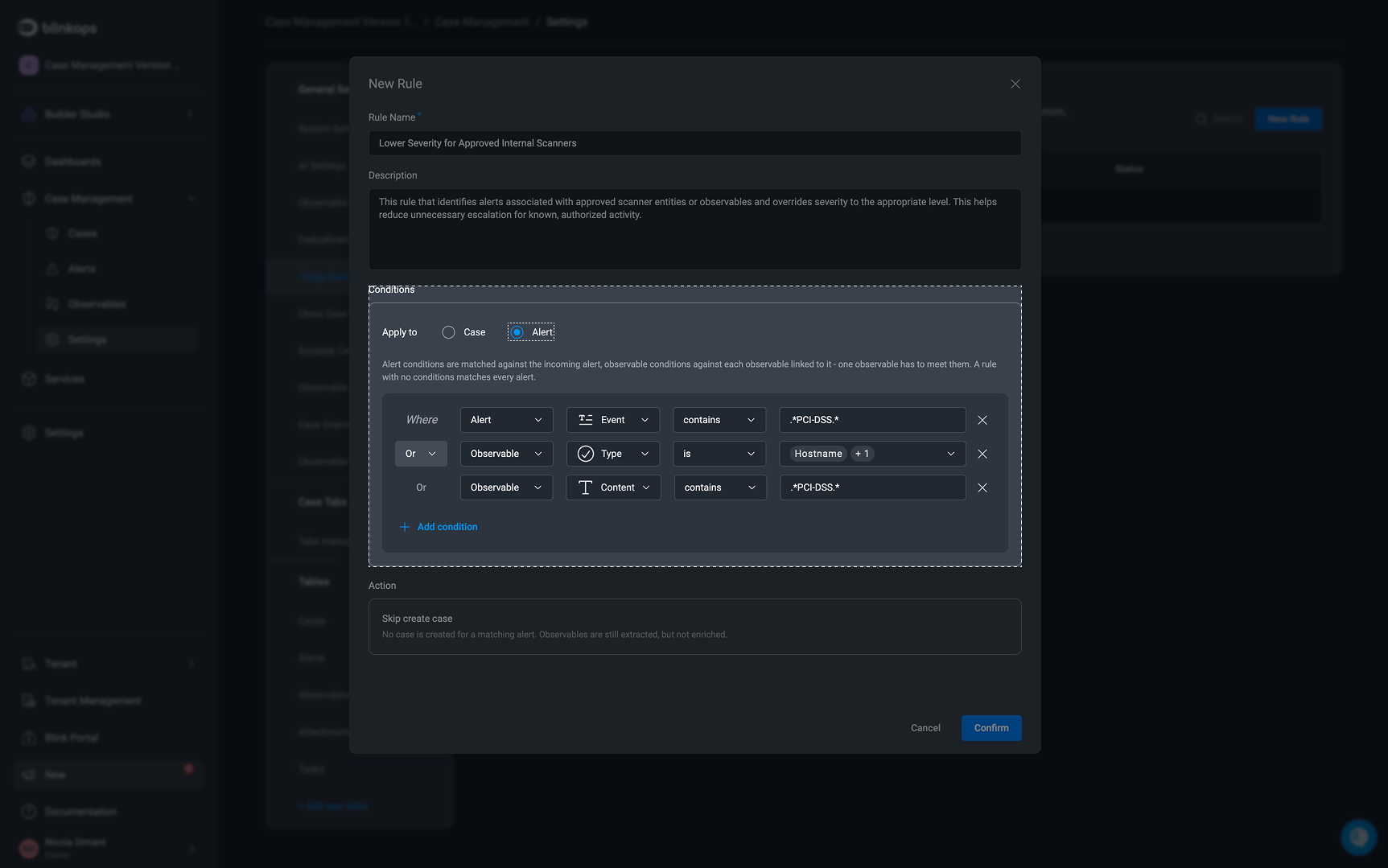
Conditions
- Case
- Alert
Case conditions are matched against the case fields of the case the alert lands on. Observable conditions are matched against each observable linked to it, and at least one observable must meet them.
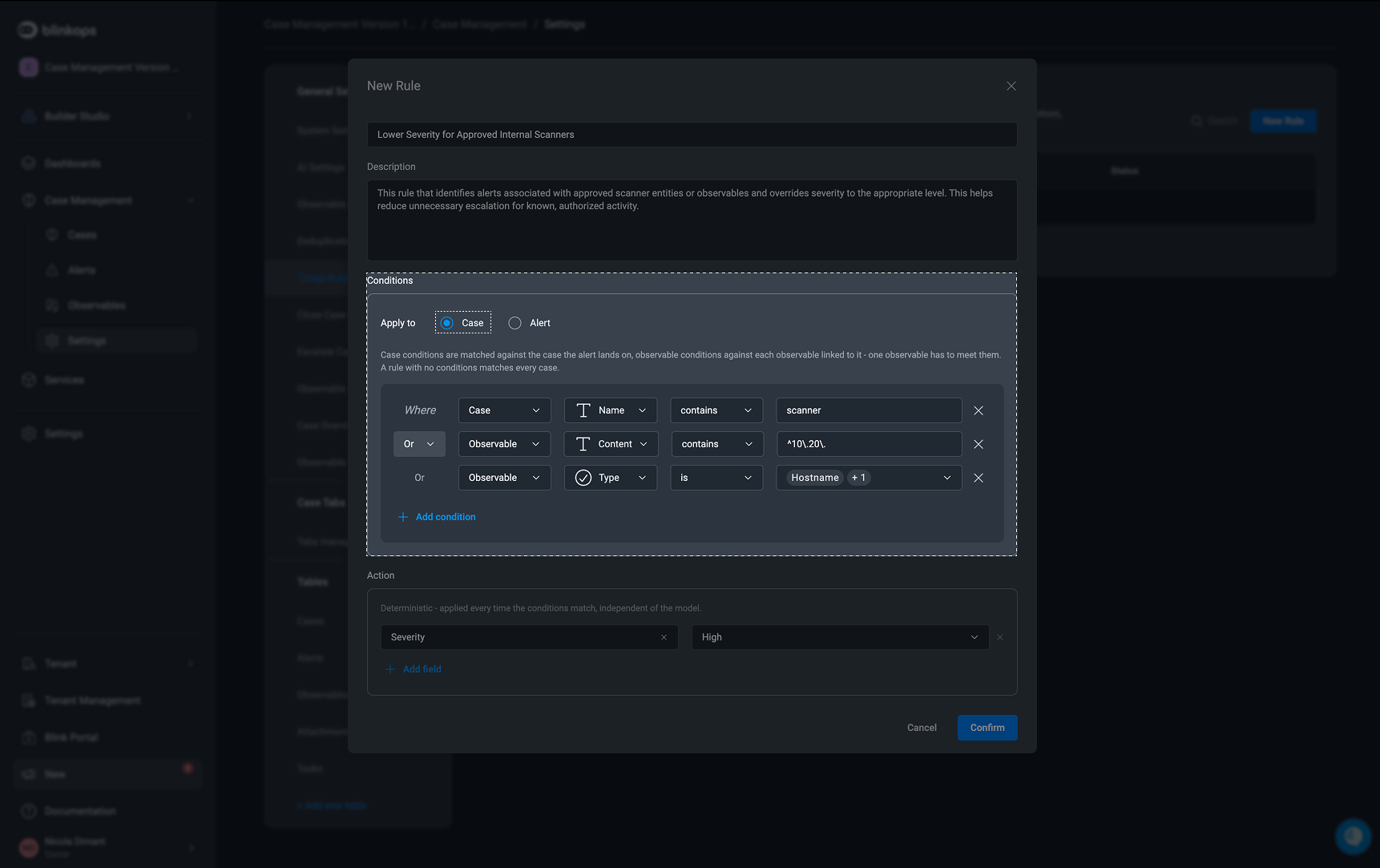
Note: A rule with no conditions matches every case.
4
Actions
- Case
- Alert
When a Case rule matches, its actions are applied to the case: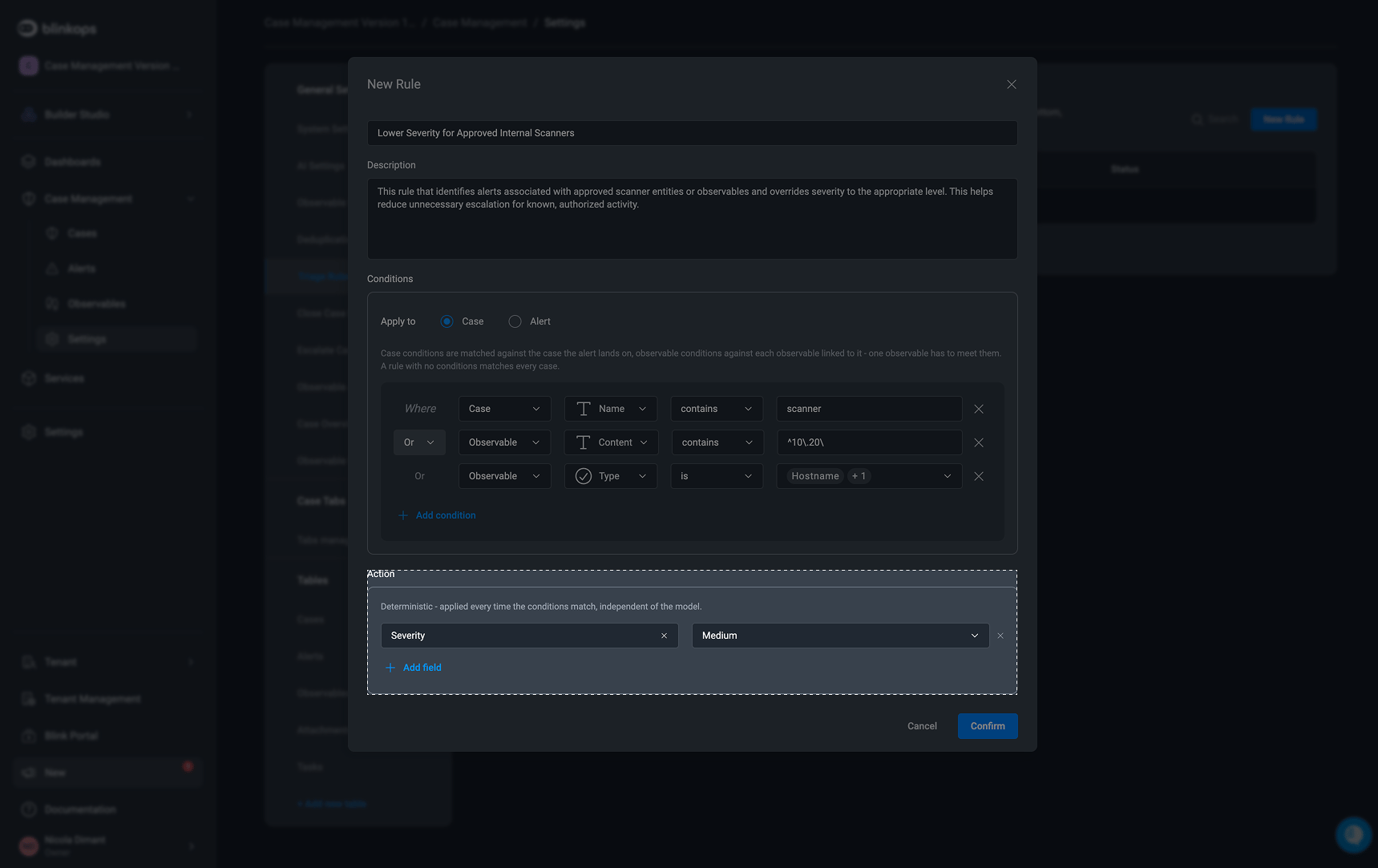
- Add field: Set one or more field values on the case. For example, set the case’s severity or verdict to a policy-defined value.
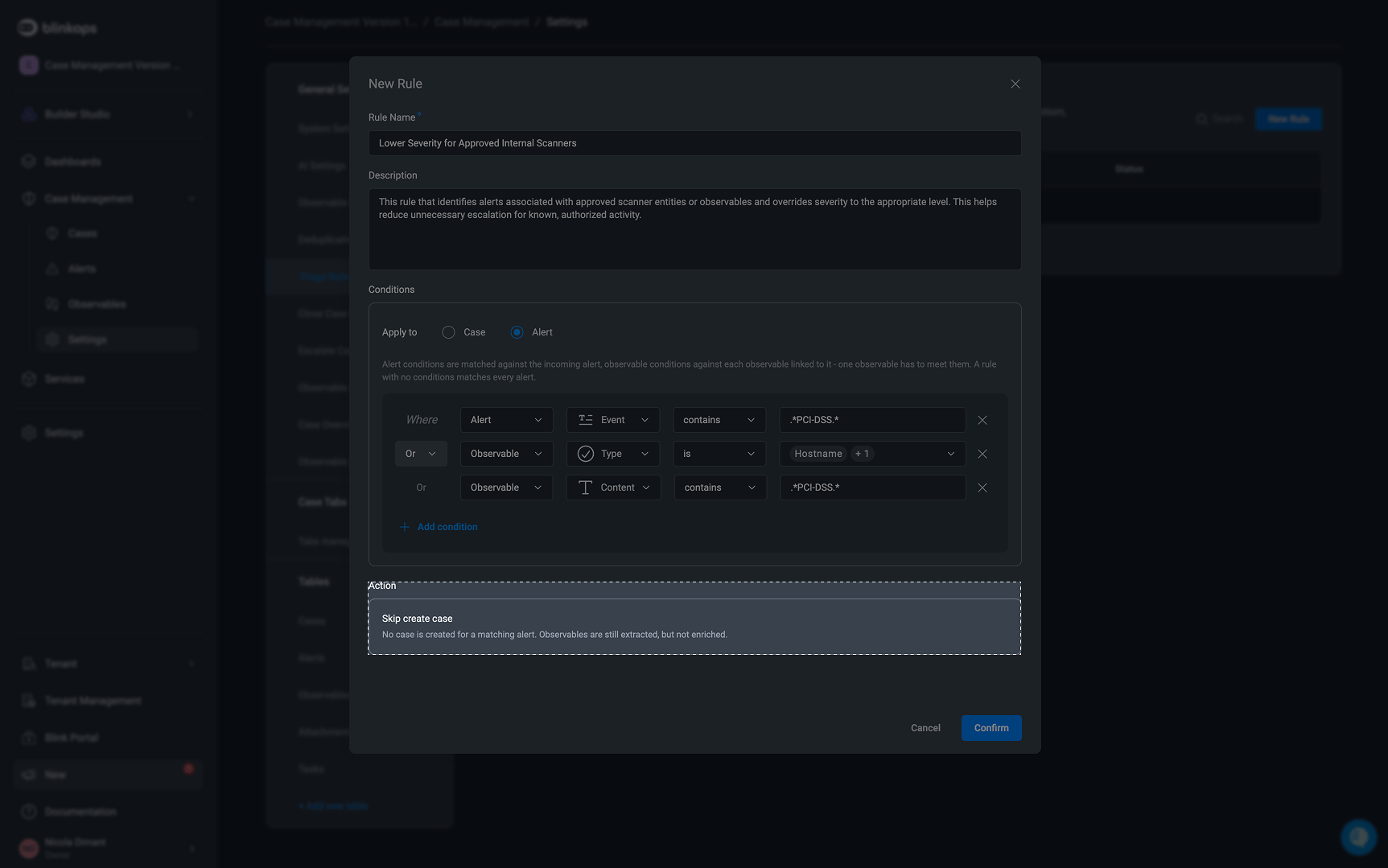
5
Enable the Triage Rule and Set its Priority
Enable the rule, then click and drag it to the desired position in the list to set its priority.
5.1
Rule Priority
Rules are evaluated in order of priority, and only the first matching rule is applied. If several rules match the same alert or case, only the highest-priority one takes effect, and the rules below it are ignored.Place more specific rules above more general ones. For example, a rule that sets the severity to critical for alerts involving privileged accounts should be placed above a rule that lowers the severity of alerts from approved internal scanners. Otherwise, the more general rule could match first and the specific rule would never be applied.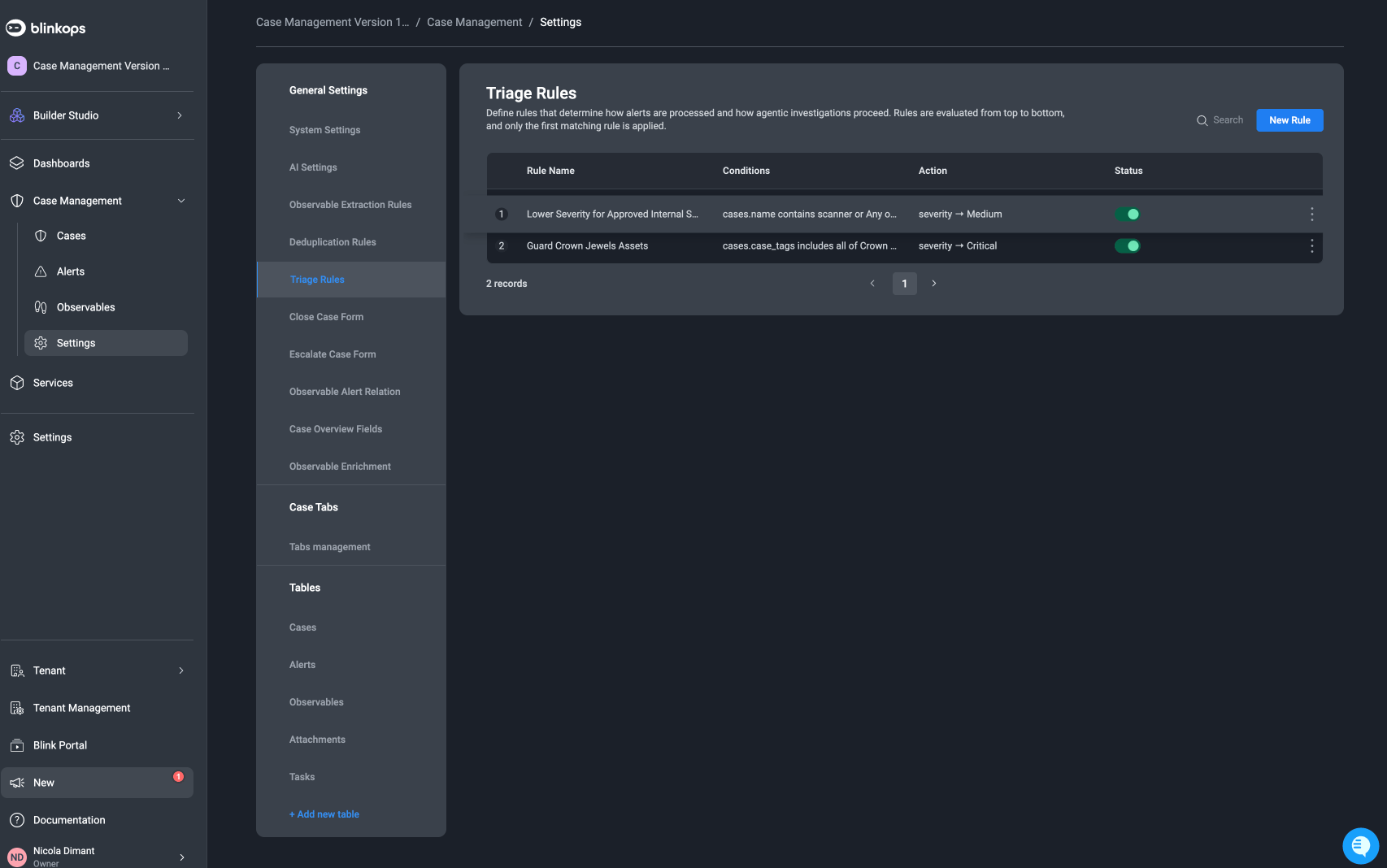
Managing Triage Rules
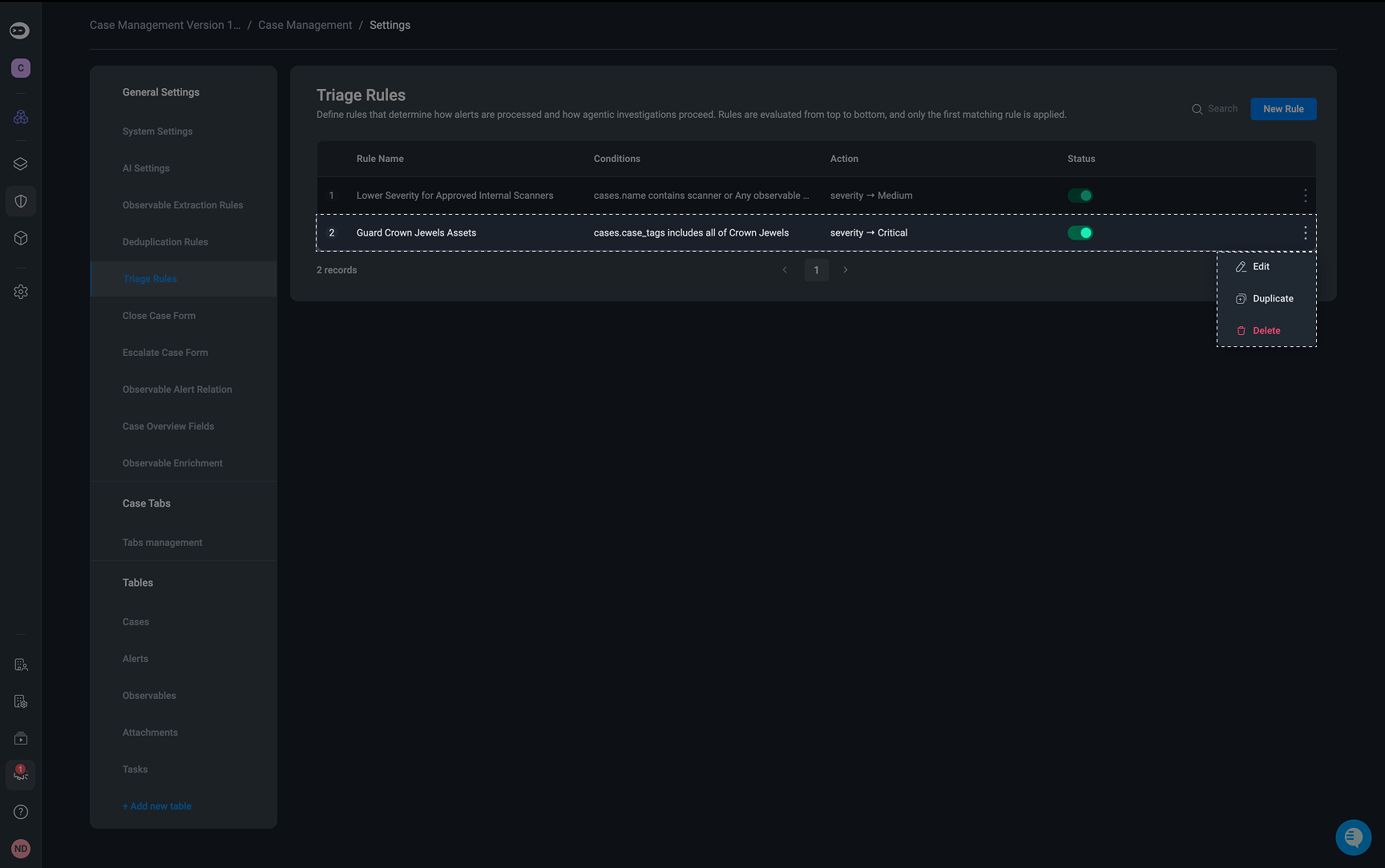
In the Triage Rules table, users can manage triage rules as organizational requirements evolve or to suit their organizational needs:- Create: Define the rule’s conditions, actions, and priority.
- Edit: Update its conditions, actions, or priority.
- Enable: Activate the triage rule for alert processing.
- Disable: Prevent the triage rule from affecting alert processing.
- Duplicate: Duplicate an existing rule to create a copy with the same conditions and outcome.
- Delete: Remove a rule that is no longer needed.
Apply Triage Rule Action
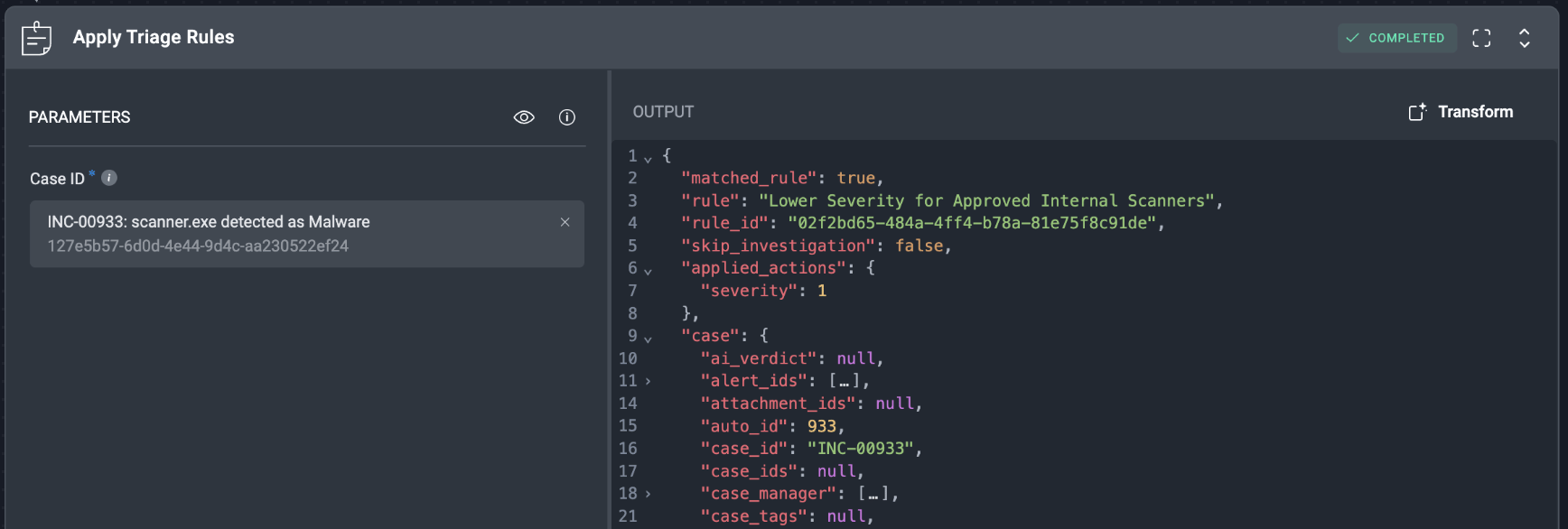
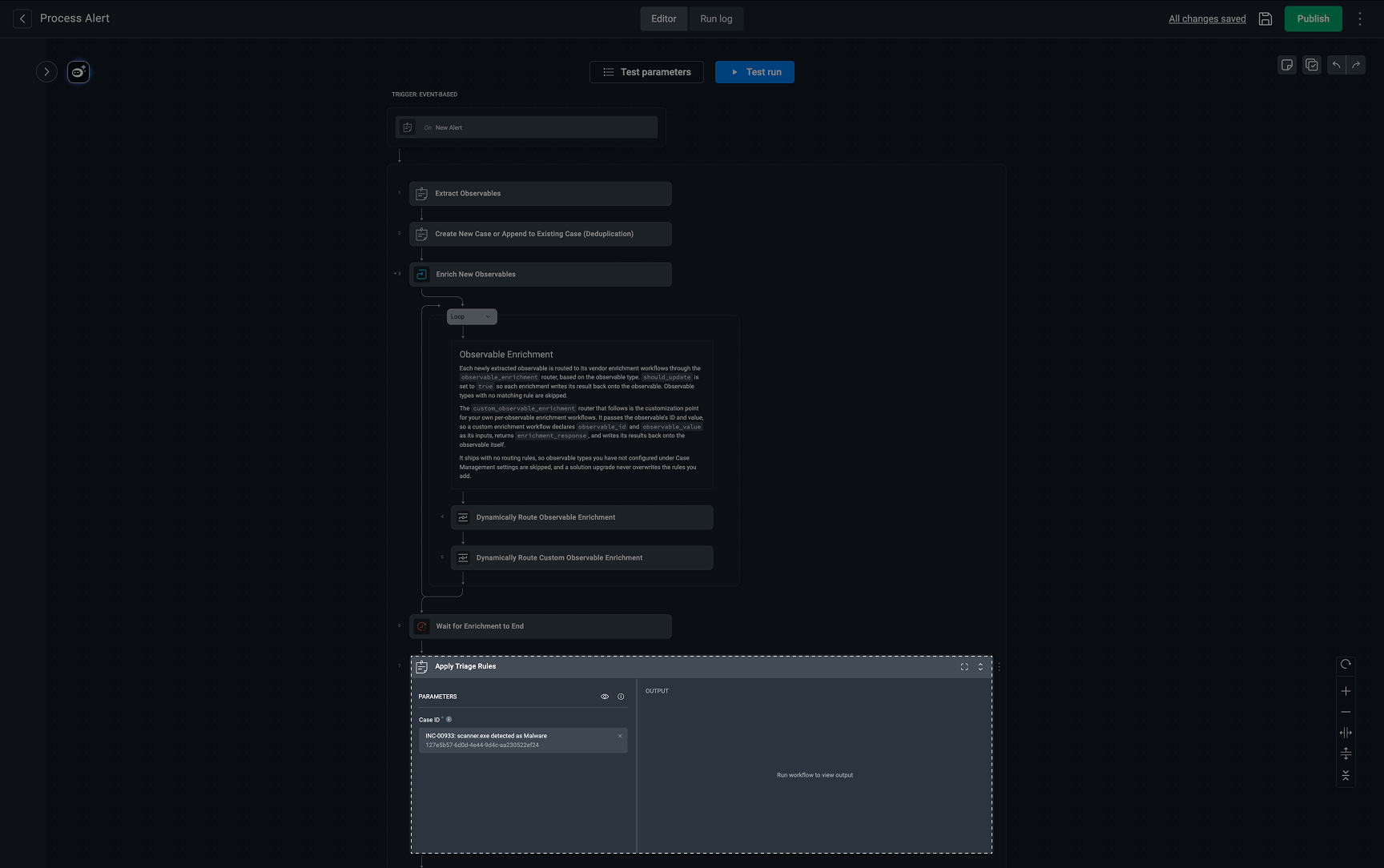
The ‘Apply Triage Rule’ action is located in the alert processing workflow, after observable enrichment. At this stage, the action evaluates the configured Case rules against the case and its associated data. When a rule matches, its actions are applied to the case, using the case ID to identify the target case.The action’s output includes a
log that shows which rule matched and which actions were applied. 'Apply Triage Rule' Action Output Example
'Apply Triage Rule' Action Output Example
Triage Rules Best Practices
- Prioritize critical assets and identities. Define explicit handling requirements for privileged accounts, production systems, and compliance-sensitive resources.
- Order rules from specific to general. Only the first matching rule is applied, so place specific rules above broader ones.
- Use specific conditions. Avoid overly broad rules that could affect unrelated alerts or cases.
- Review exceptions regularly. Keep policies aligned with changes to assets, approved tools, and organizational requirements.
- Check rule outcomes. Review the
login the Apply Triage Rule action’s output to confirm which rule matched and which actions were applied, and refine rules as needed.