1
Navigate to Case Settings
From the left-hand navigation panel, open Settings, then select the Cases tab.
2
Add a Connected Source
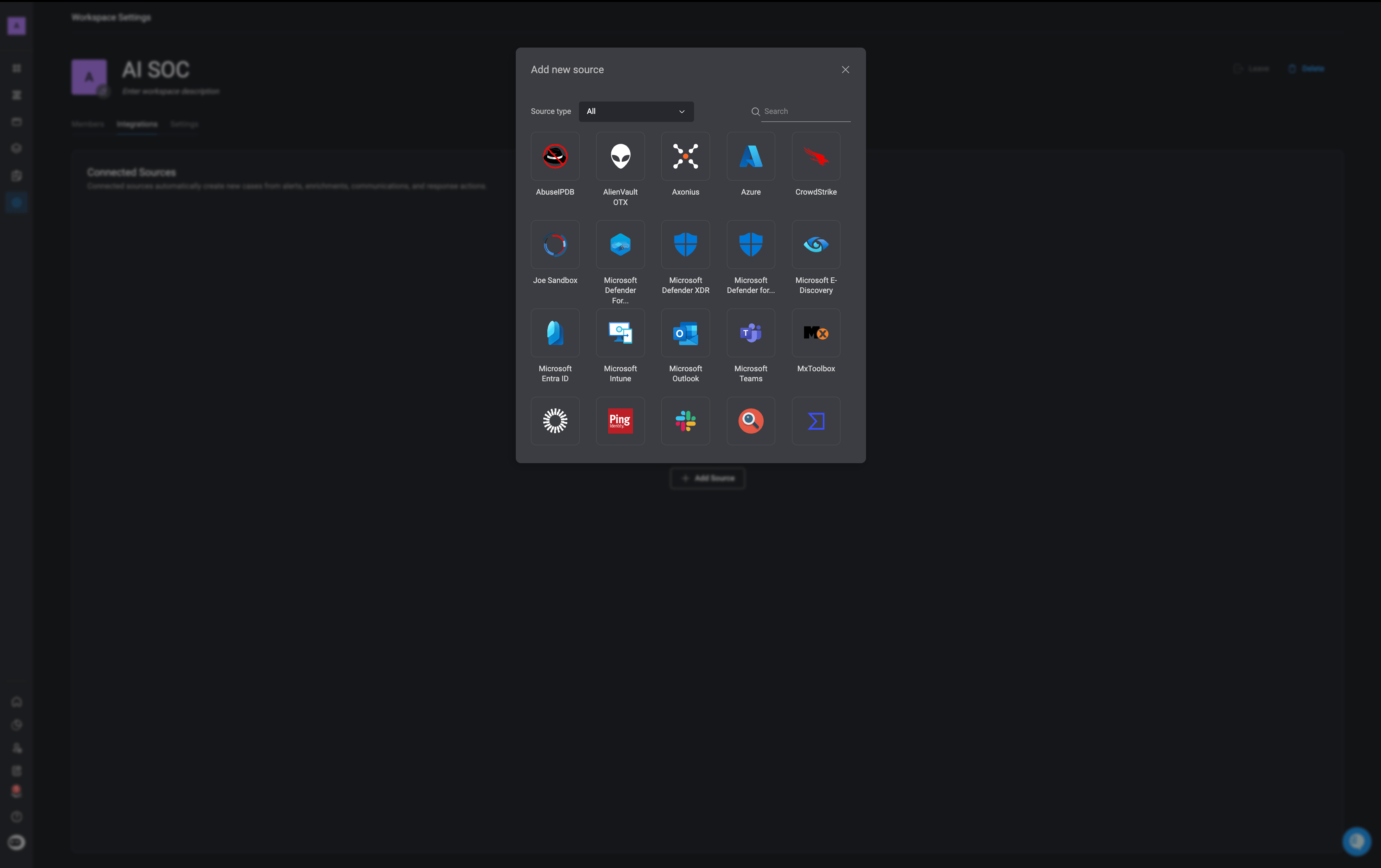
In the Connected Sources section, click Add New. Select a supported source from the list or use the search bar to find a specific vendor.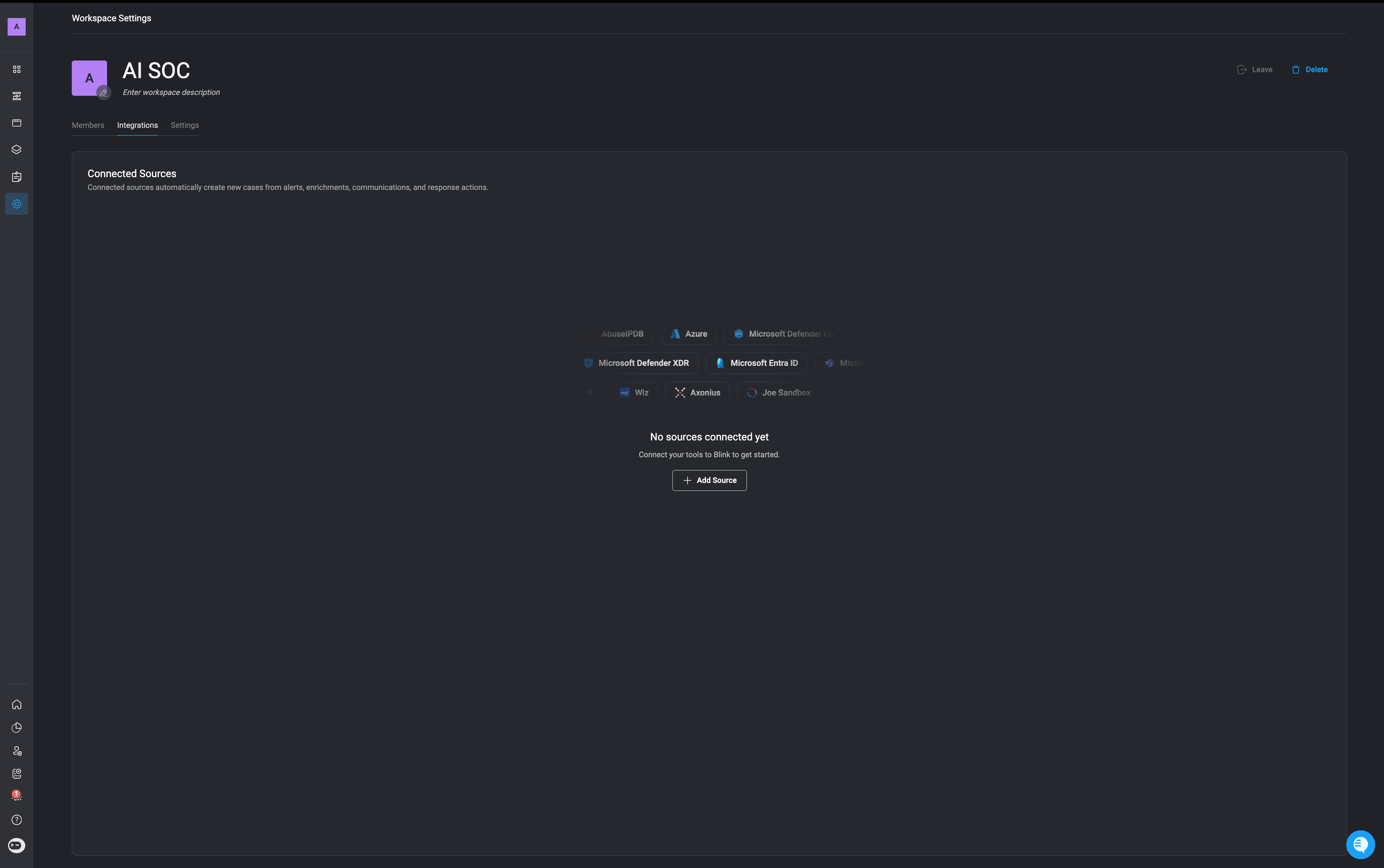
3
Select a Connection
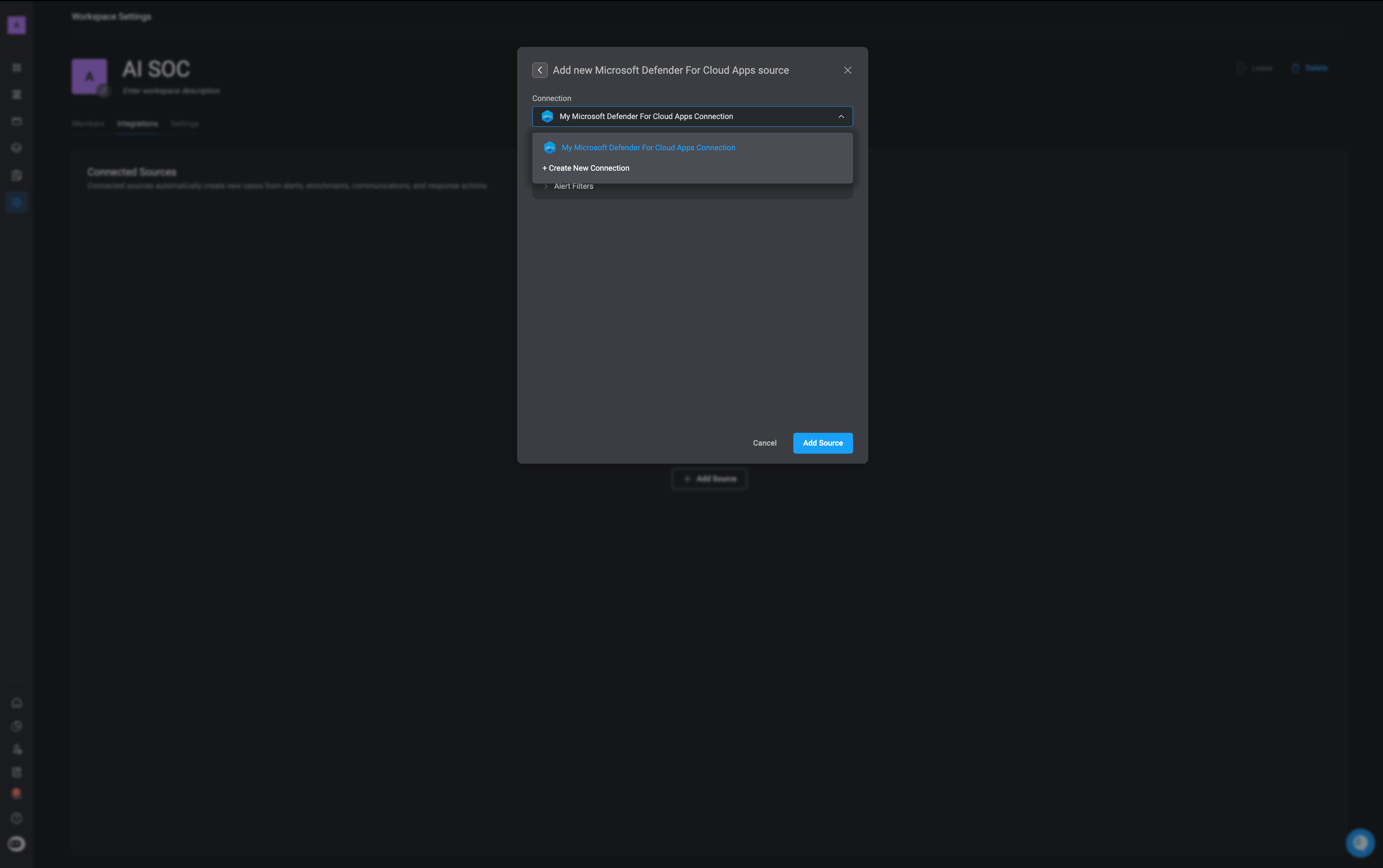
Choose an existing connection from the Connection dropdown or create a new one.
4
Configure the Source Capabilities
By default, the supported source type is enabled automatically for the connected source:
- Alert Source — Ingest alerts from the selected source into Blink.
- Enrichment Source — Retrieve additional context to support investigations.
- Response Actions — Enable actions that Agent Blink can use to respond to or remediate cases.
5
Configure Alert Filters
When the Alert Source is enabled, configure optional filters to control which alerts are ingested. Alert filters help reduce unnecessary noise and processing by ensuring that only relevant alerts are ingested.
You can filter alerts by: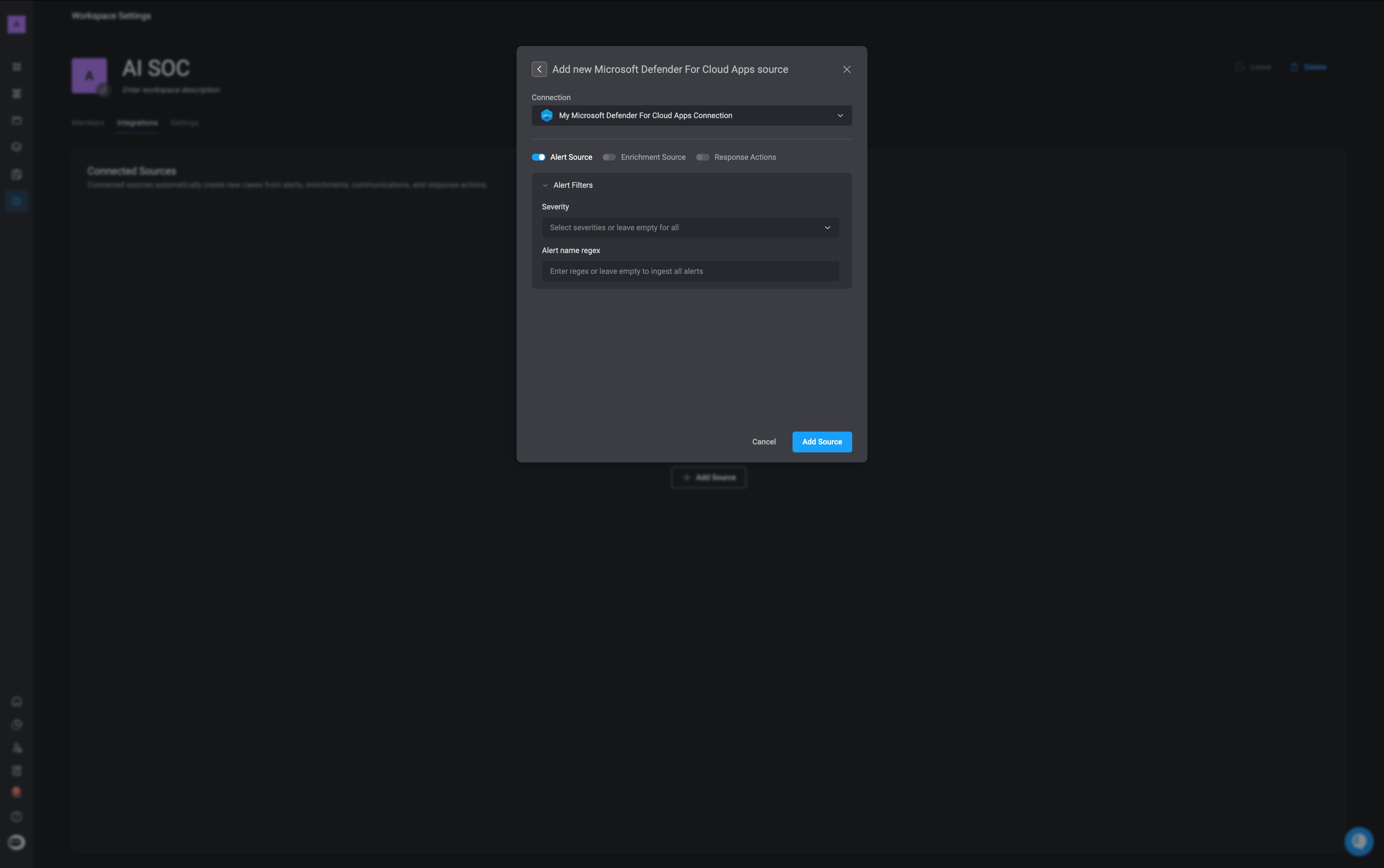
- Severity
- Alert-name regex
6
Add the Source
Review the configuration, then click Add Source to complete the setup.
7
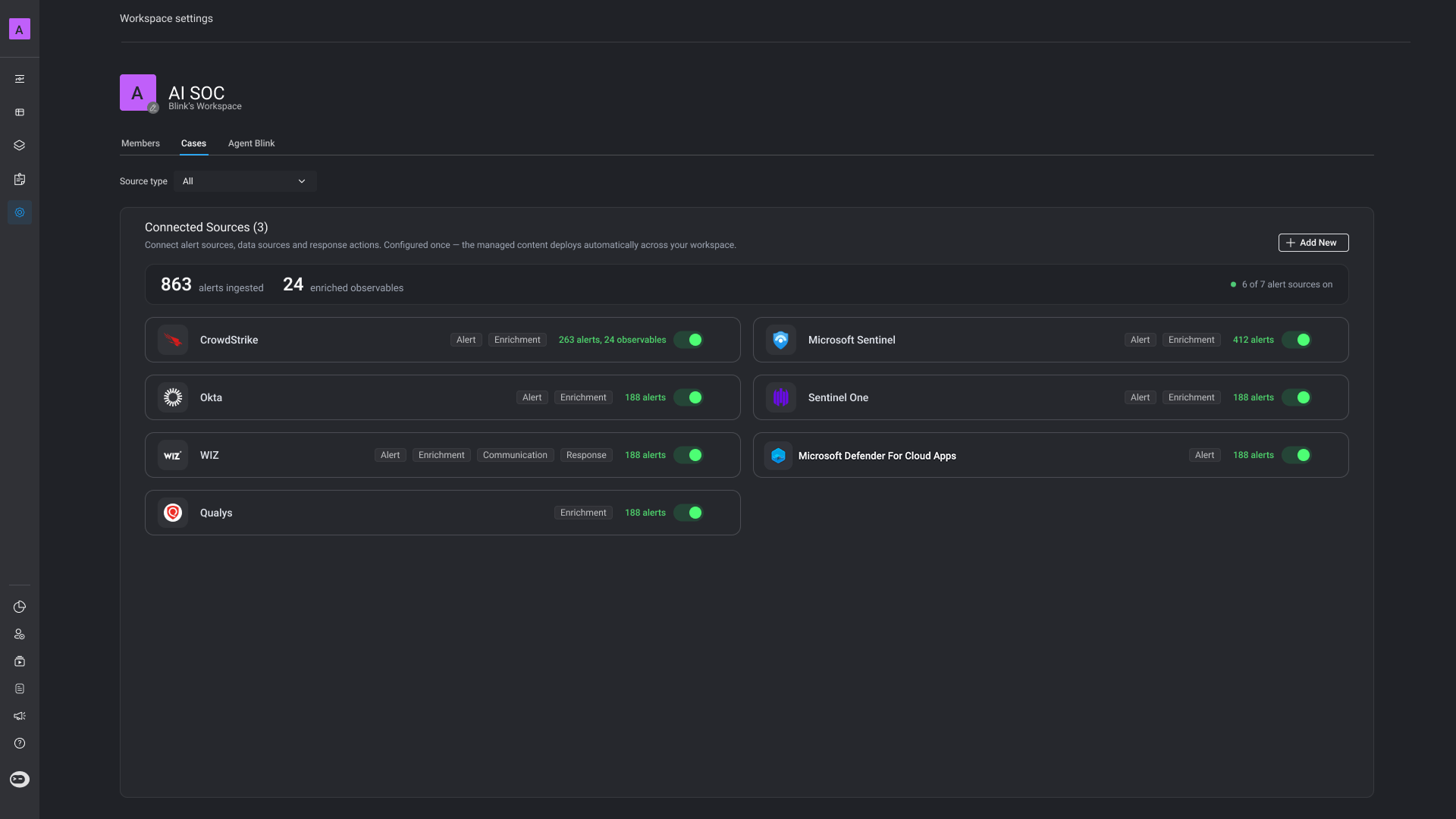
Review Connected Source Activity
After the source is added, you can monitor its activity from the Connected Sources section. The summary displays the number of alerts flowing into Cases, the number of observables enriched, and how many connected sources are currently enabled.Each source card also shows its configured source type, current status, and the number of alerts or enrichments it has processed.Use the Source type filter to quickly view alert, enrichment, or response sources.