

Implementing Slash Commands
To get Slack Slash Commands up and running with Blink, create the command in your Slack app and configure Blink to receive and handle the incoming requests.Creating a Slash Command
You need two things to create a command:- A Slack app
- The name of your new command
- Go to your App Management dashboard. If you don’t already have a Slack app, create one.
- Select the app you want to configure.
- In the navigation menu, under Features click Slash Commands.
- Click Create New Command.
-
Define your new slash command in the configuration screen that appears.
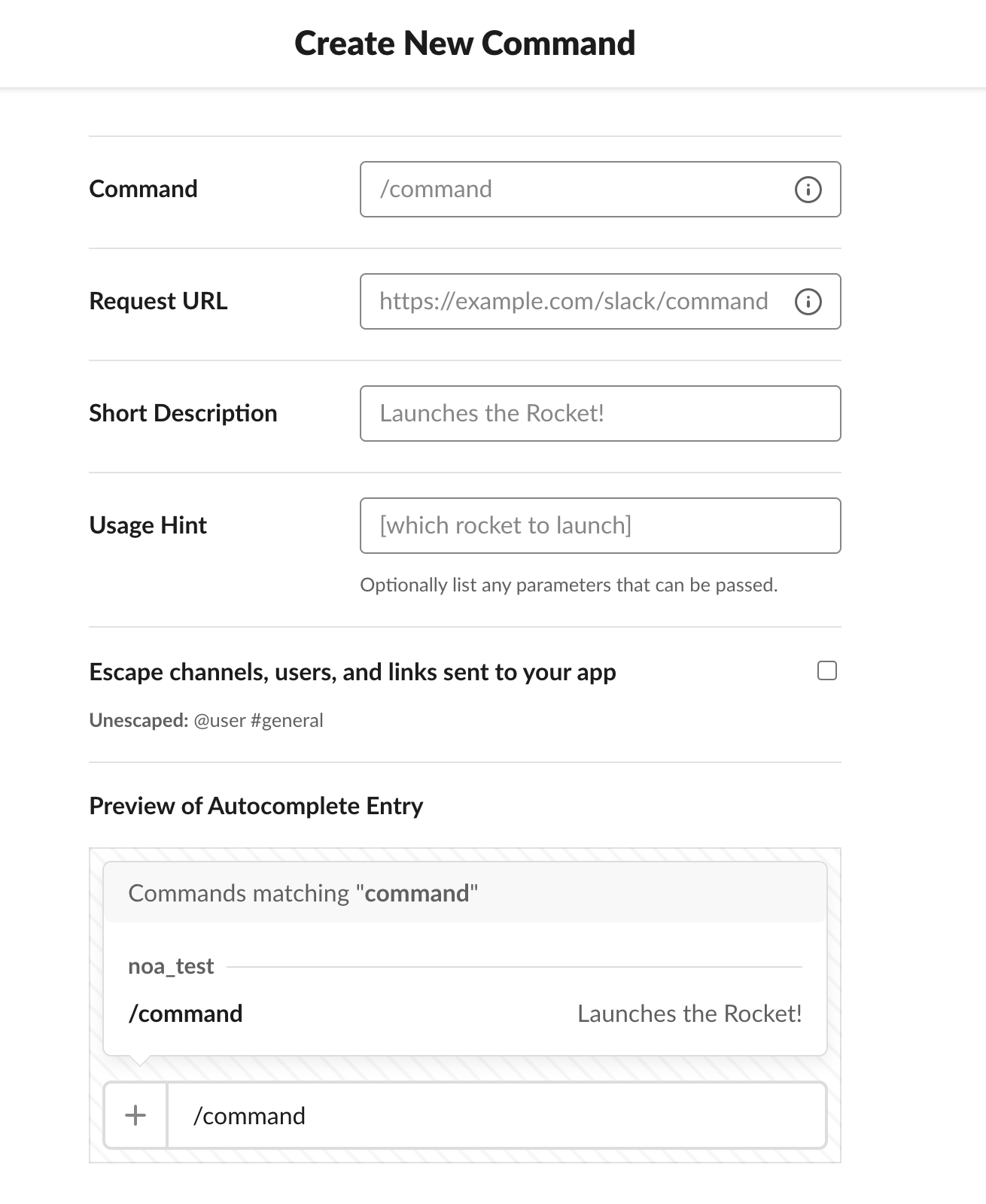
A reminder: The Request URL is taken from the Slack Command webhook setup in Blink. For further information on webhooks, please refer to Blink’s Webhooks documentation.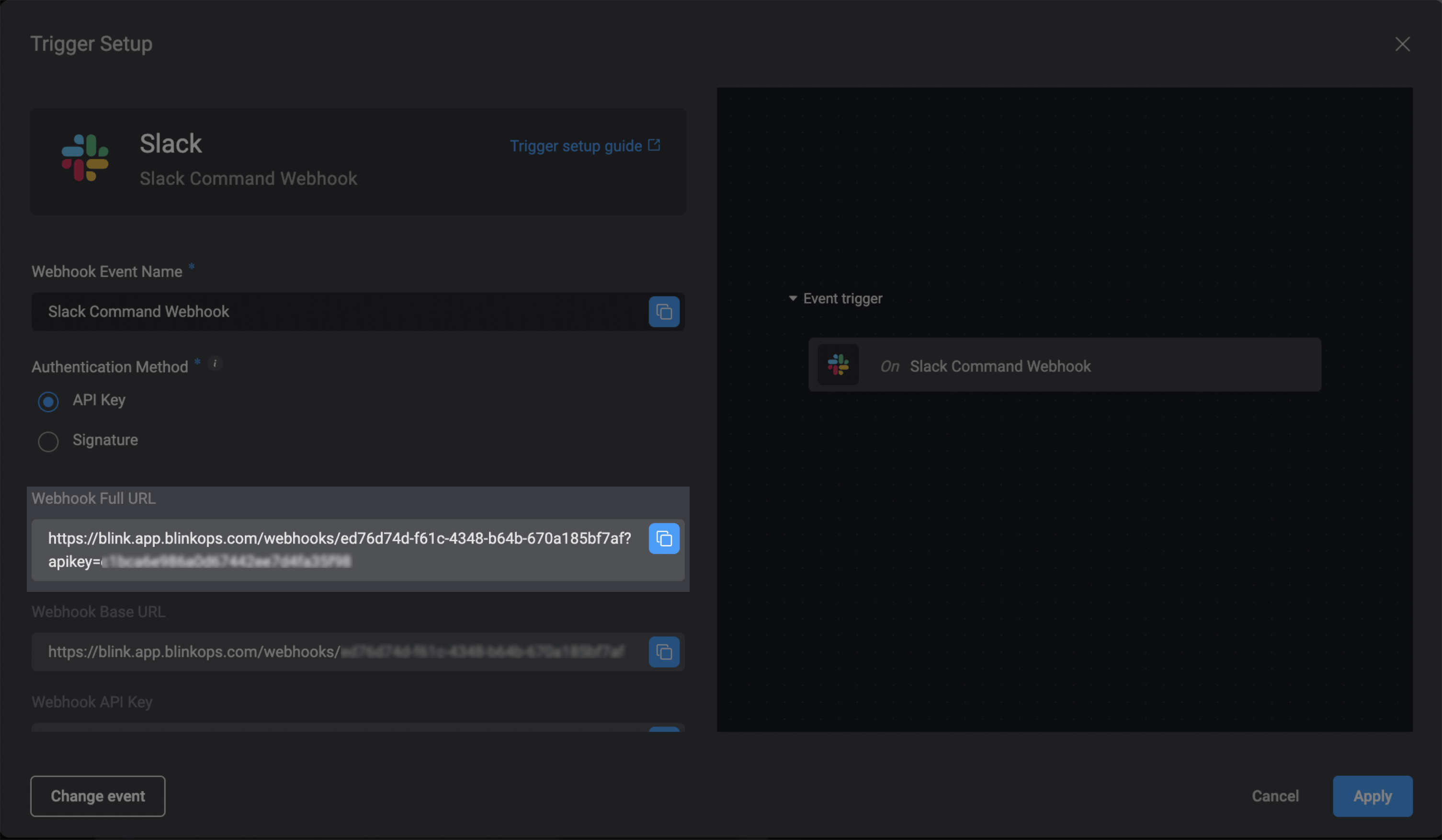
Receiving Commands
When a slash command is invoked, Slack sends an HTTP POST to the Request URL you specified. This request contains a data payload describing the source command and who invoked it. Blink sends an empty response back to Slack that confirms the message has arrived.For more information regarding Slack Slash Commands, refer to Slack’s documentation.