

Creating an Artemis connection
Using API Key
To create the connection you need:- An API Address
- An API Key
Obtaining the credentials
- Log in to Artemis.
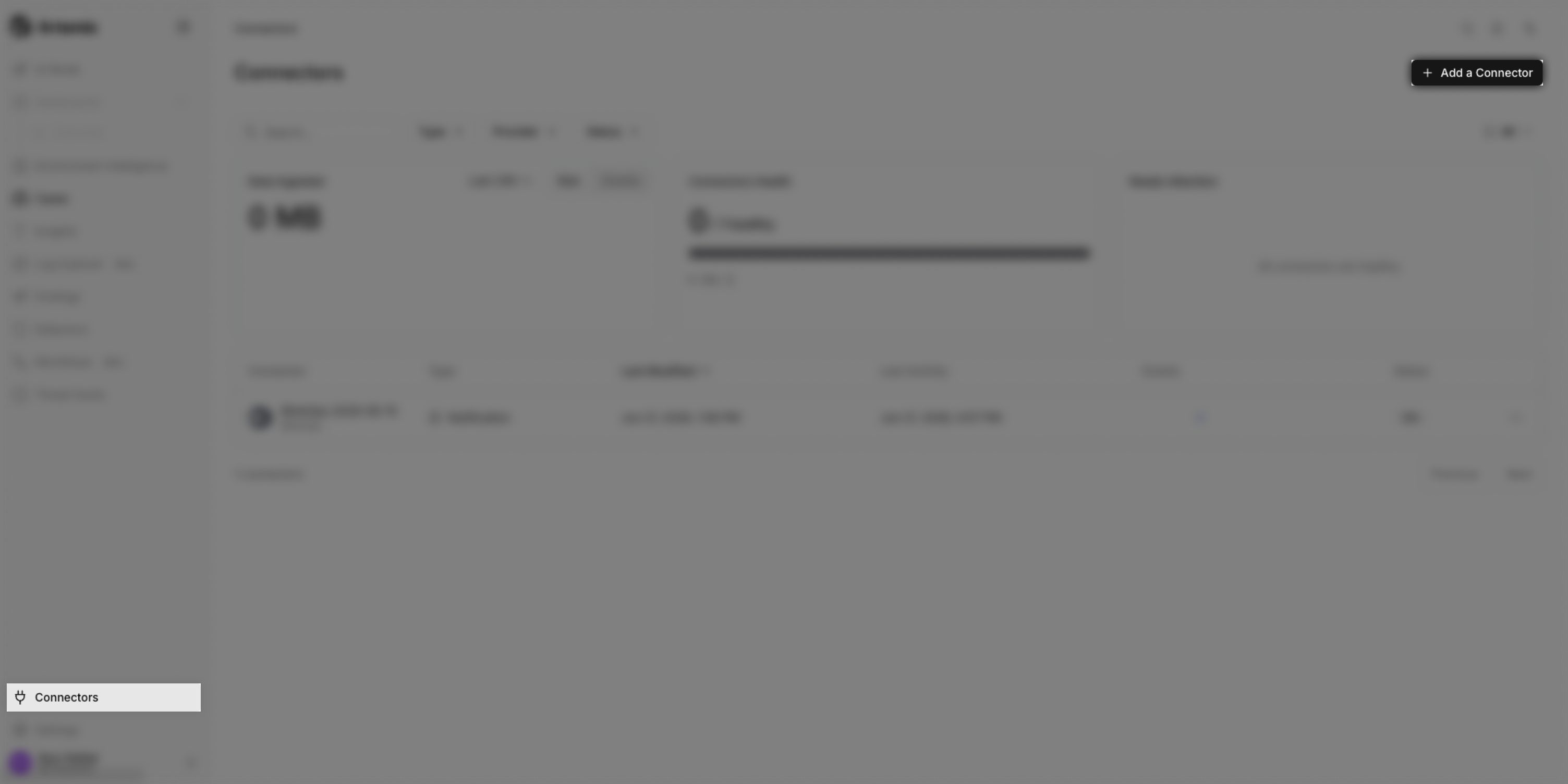
- Navigate to Connectors and then click + Add a Connector.
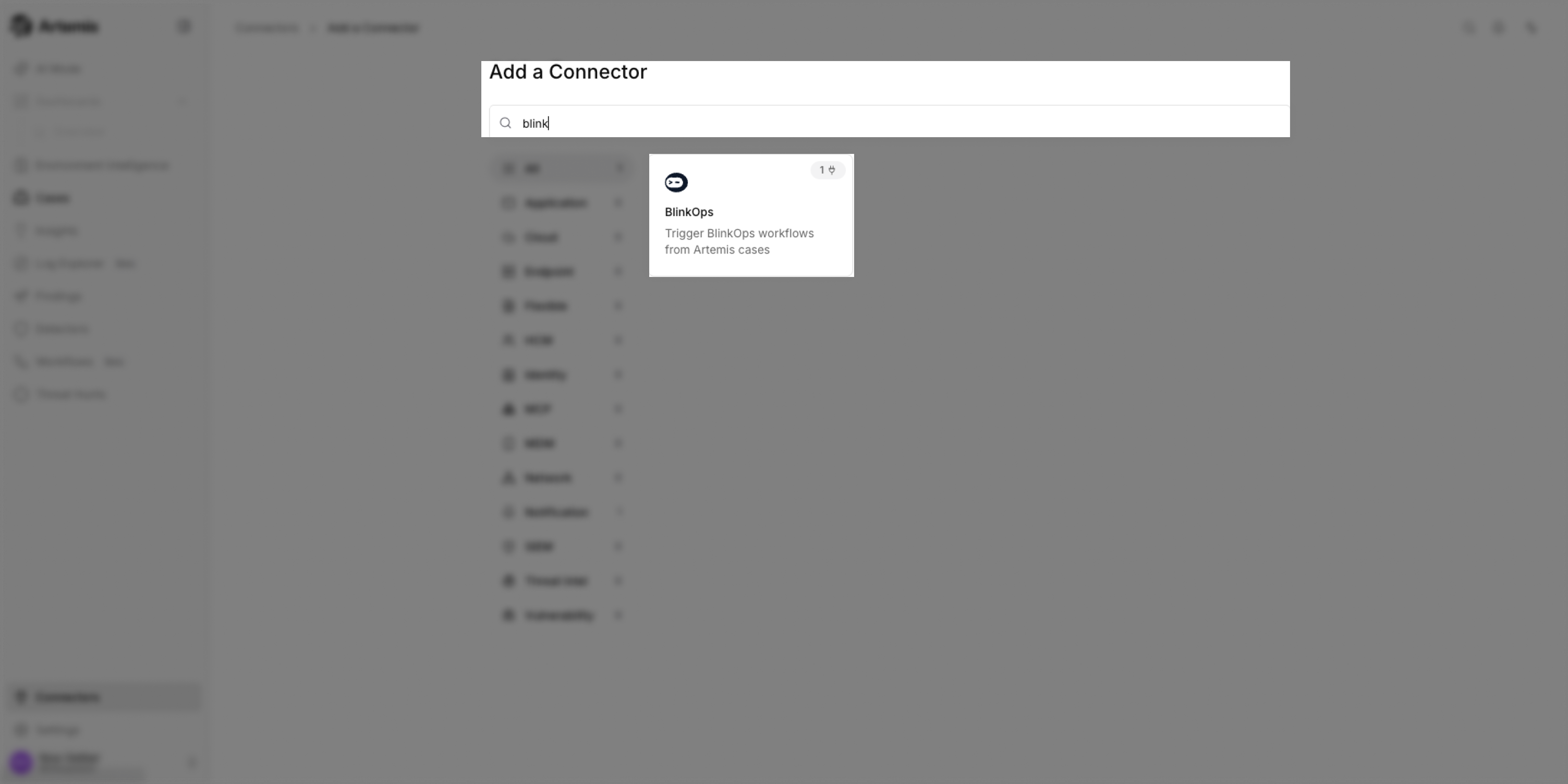
- Search for BlinkOps connector.
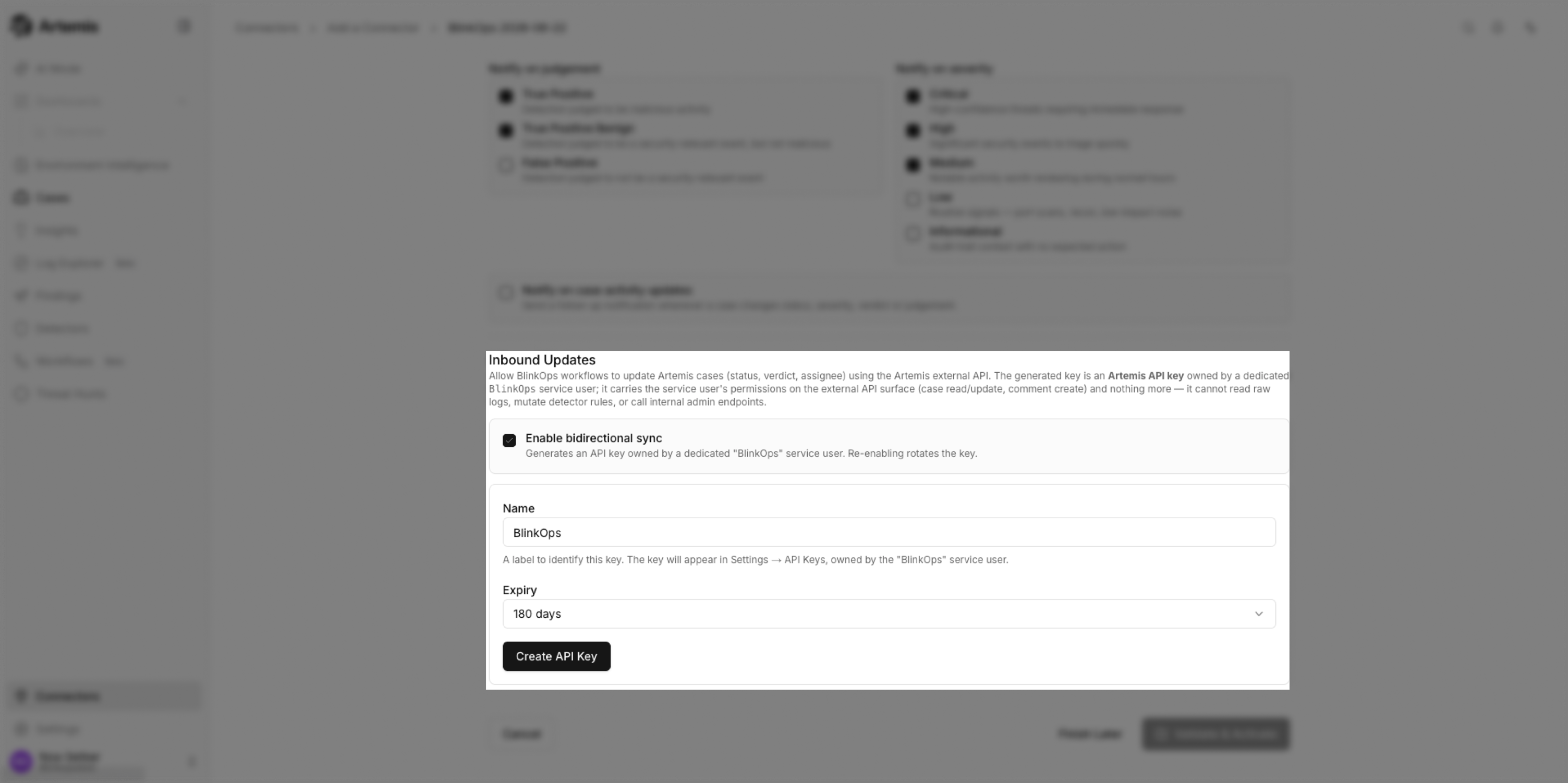
- Scroll down to the Inbound Updates section and select Enable bidirectional sync. Then choose a Name and Expiry for your API key, and click Create API Key.
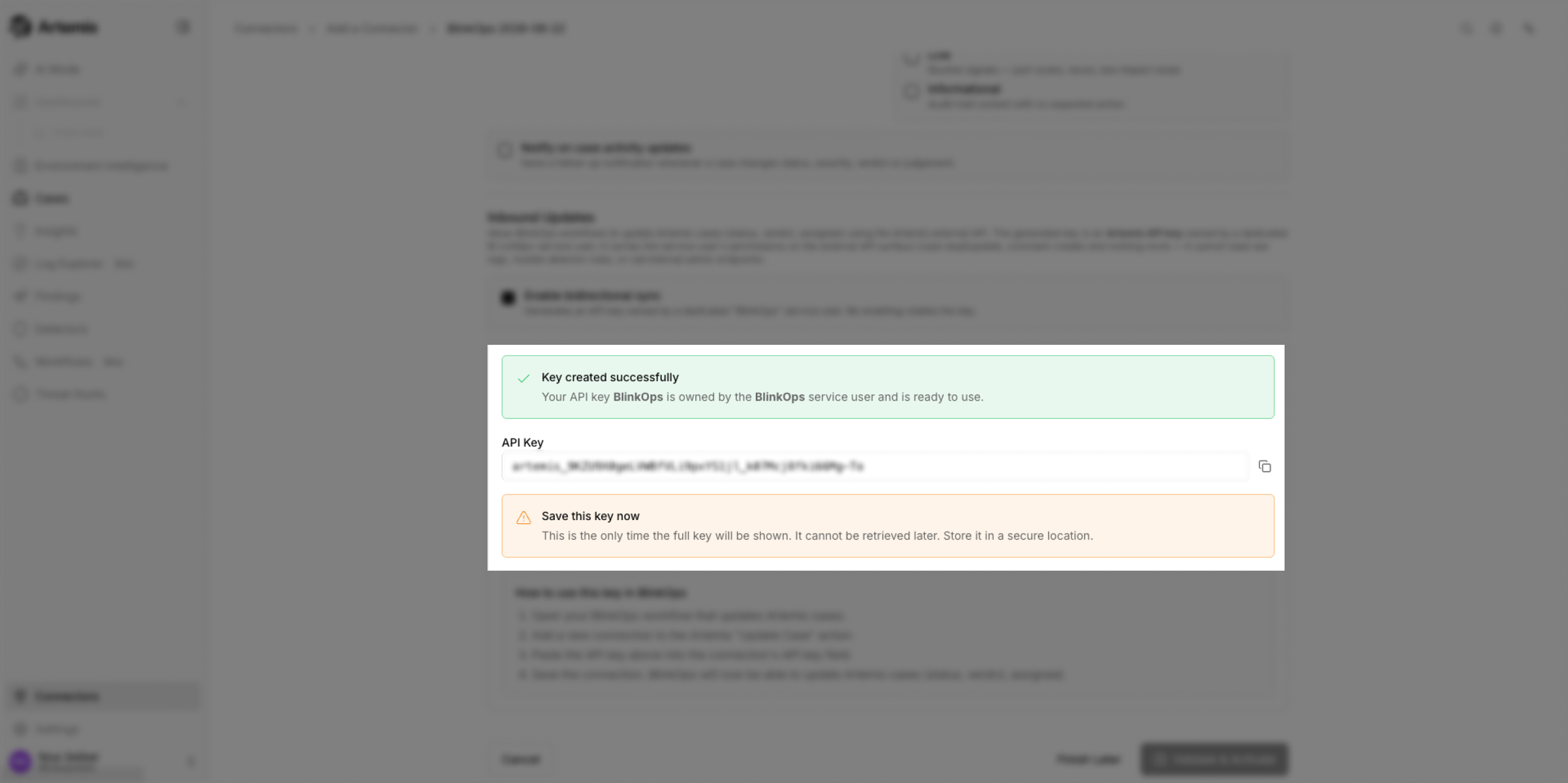
- Copy the generated API key and store it in a secure location.
All required permissions for BlinkOps actions are already included in the connector’s API key.
Creating your connection
- In the Blink platform, navigate to the Connections page > Add connection. A New Connection dialog box opens displaying icons of external service providers available.
- Select the Artemis icon. A dialog box with name of the connection and connection methods appear.
- (Optional) Edit the name of the connection. At a later stage you cannot edit the name.
- Select API Key as the method to create the connection.
- Fill in the parameters:
- The API Address
- The API Key
- (Optional) Click Test Connection to test it.
- Click Create connection. The new connection appears on the Connections page.