

Creating a 1Password Users connection
Using Client Secret
To create the connection you need:- An API Address
- A Client ID
- A Client Secret
Obtaining the credentials
- Sign in to your account on 1Password.
-
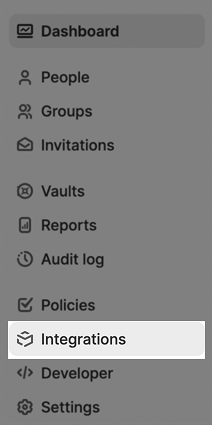
Click on Integrations.
-
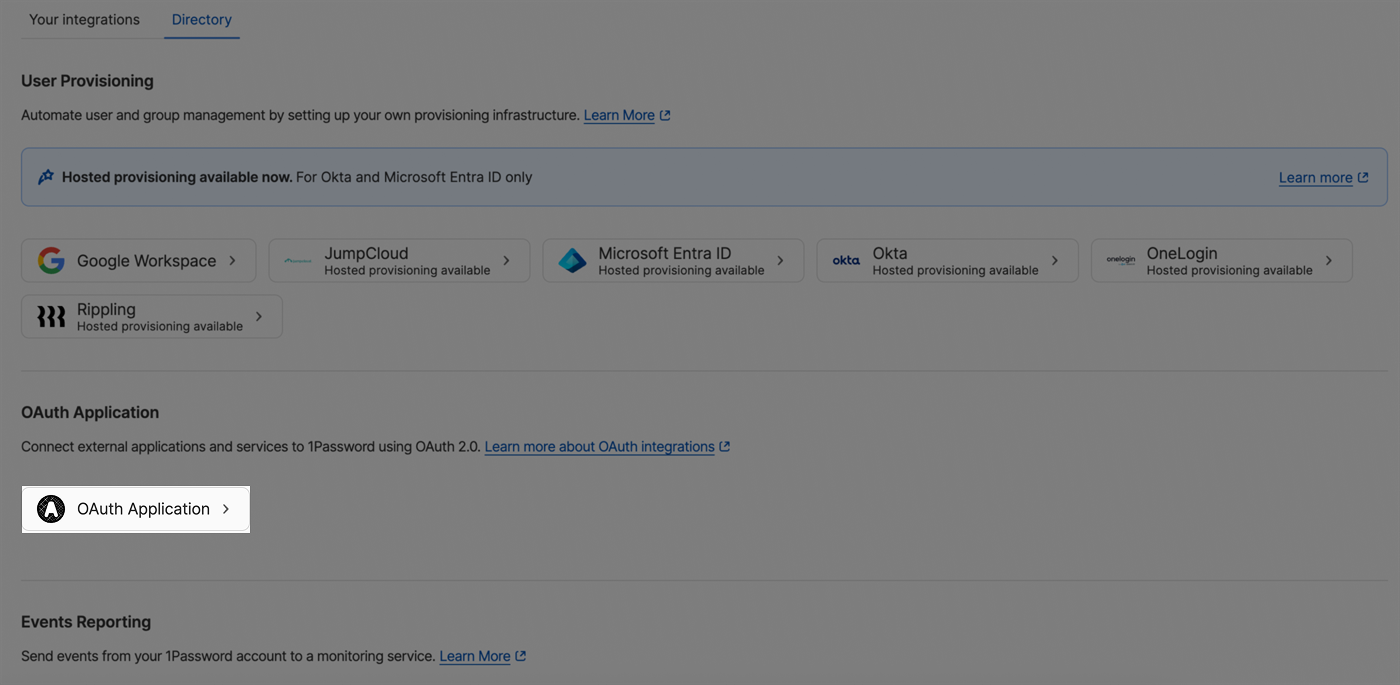
Click on OAuth Application.
-
Fill the following fields :
- Application Name
- Description
- Redirect URL (You can use https://example.com since this field is not relevant for this type of OAuth but it’s still required).
- Select the following scopes : Get User, List Users, Suspend User, Reactivate User.
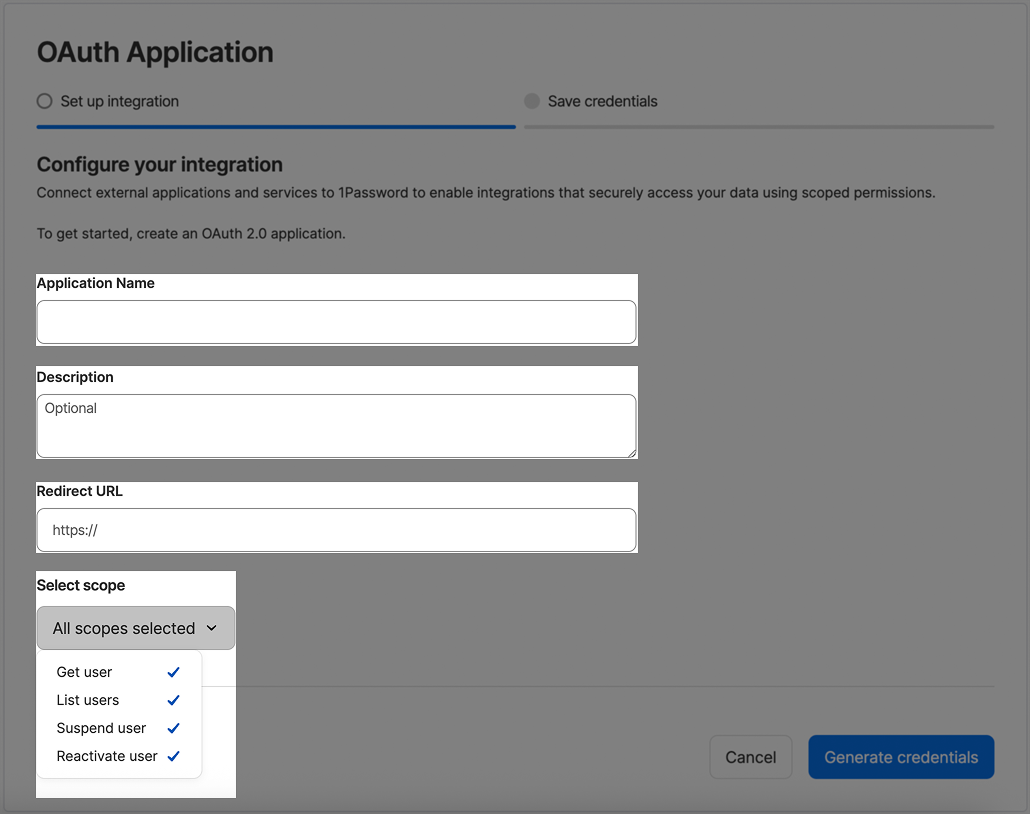
- Click on Generate Credentials
-
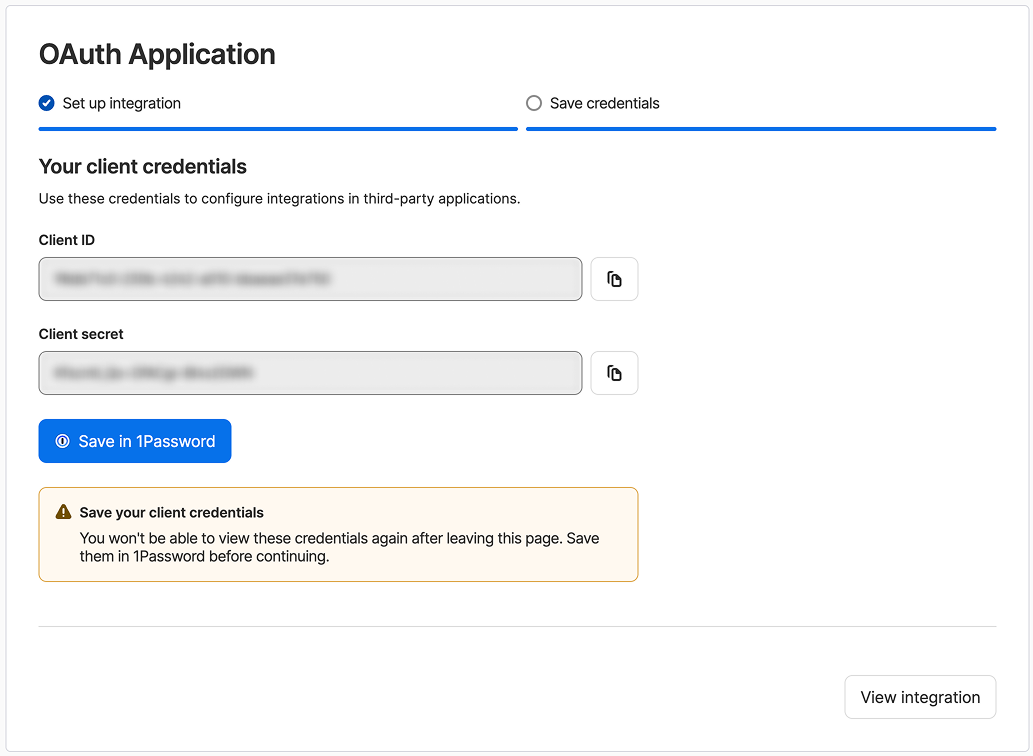
Copy your credentials and use them to create a connection on Blink.
Creating your connection
- In the Blink platform, navigate to the Connections page > Add connection. A New Connection dialog box opens displaying icons of external service providers available.
- Select the 1Password Users icon. A dialog box with name of the connection and connection methods appear.
- (Optional) Edit the name of the connection. At a later stage you cannot edit the name.
- Select Client Secret as the method to create the connection.
- Fill in the parameters:
- The API Address
- The Client ID
- The Client Secret
- (Optional) Click Test Connection to test it.
- Click Create connection. The new connection appears on the Connections page.