> ## Documentation Index
> Fetch the complete documentation index at: https://docs.blinkops.com/llms.txt
> Use this file to discover all available pages before exploring further.
# Sharing Packs
> Share workflow packs with other workspaces to enable cross-team automation collaboration in Blink.
## Sharing Packs to Workspaces
Use the steps below to share a pack with one or more workspaces. Sharing allows you to maintain a central source of truth while enabling teams in different workspaces to access the same packs and its workflows
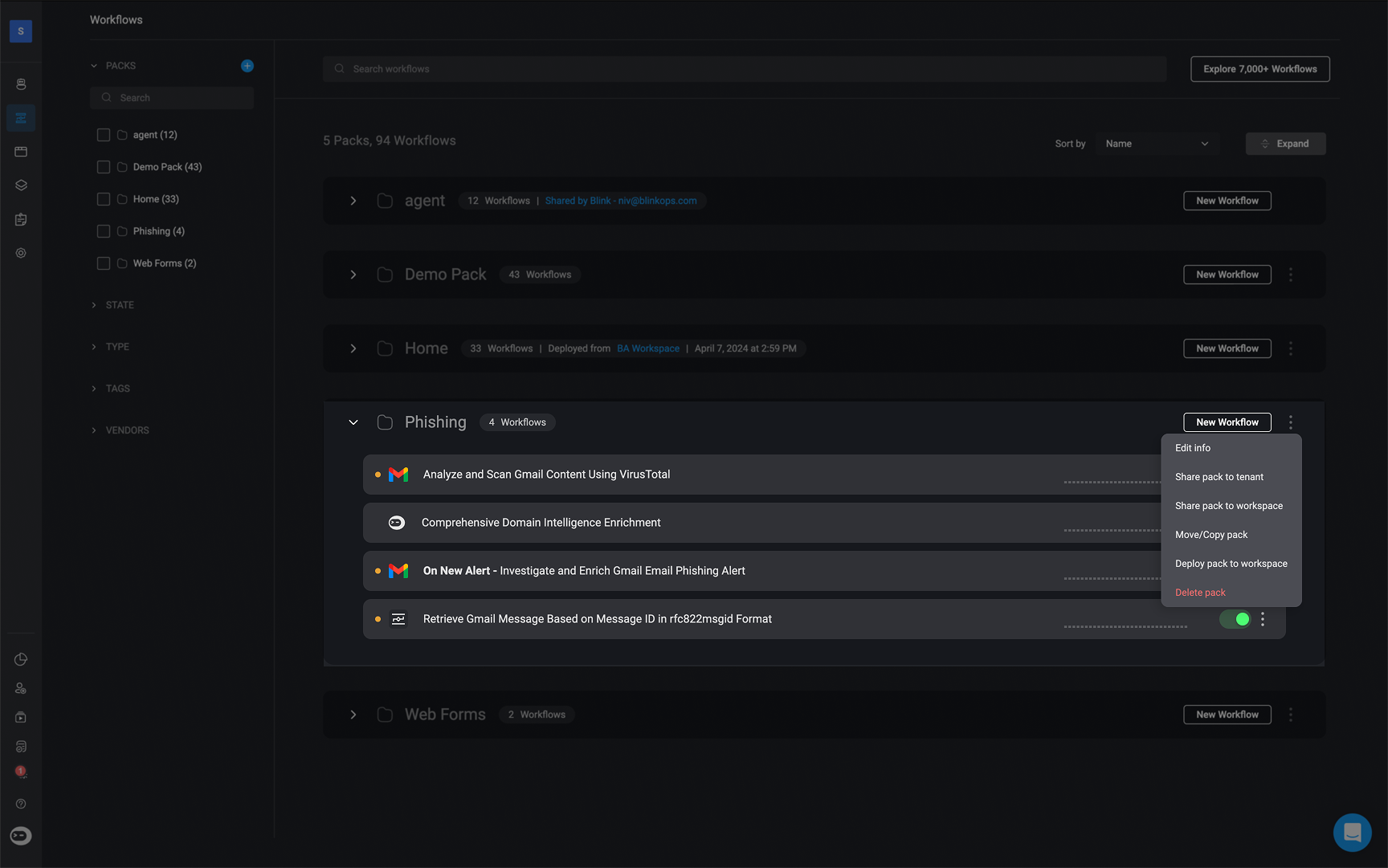
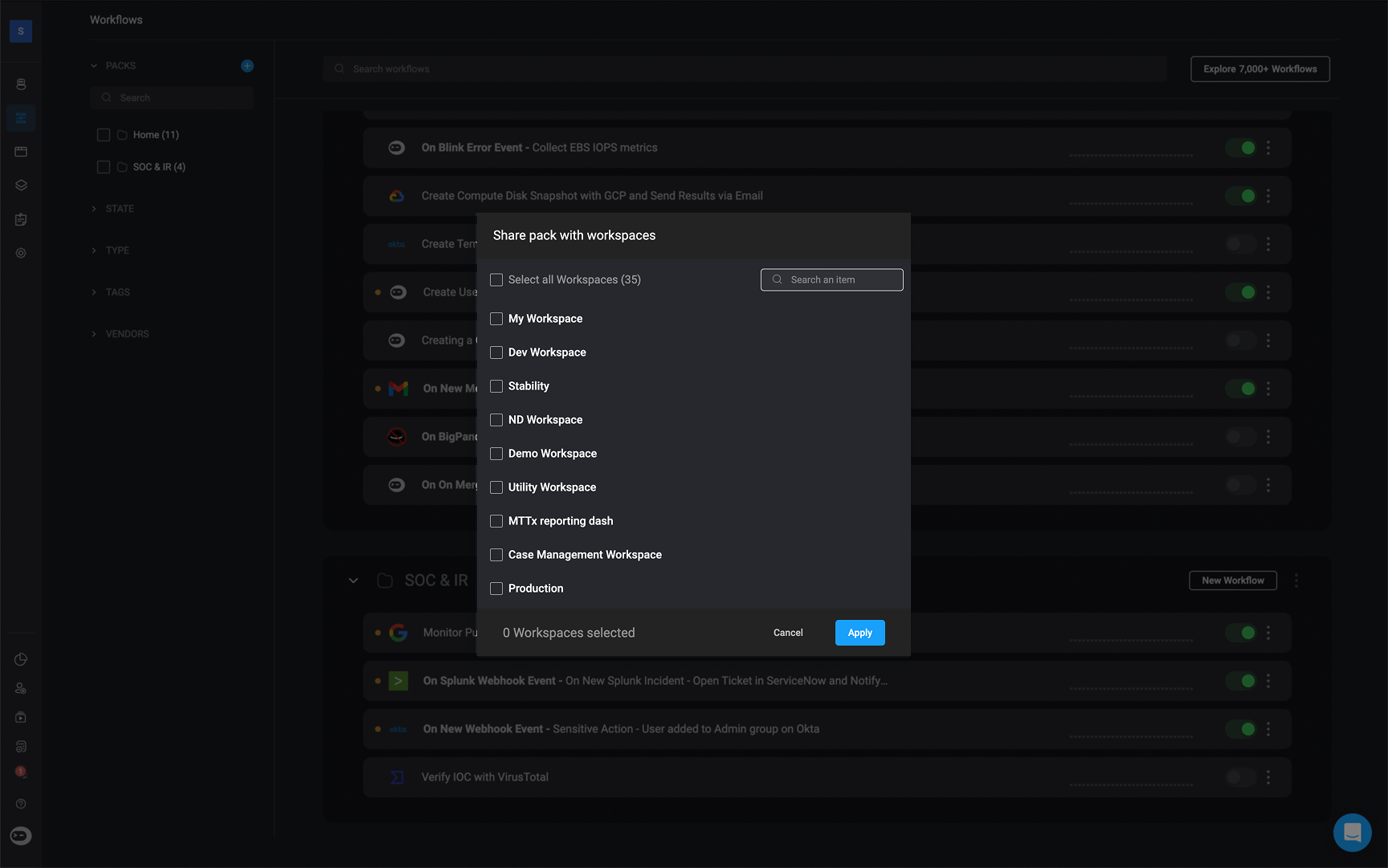
To begin, locate the pack you want to share on the **Workflows** page. Click the button on the top-right corner of the pack. Select 'Share pack to workspace'. A pop-up will appear listing all available workspaces.
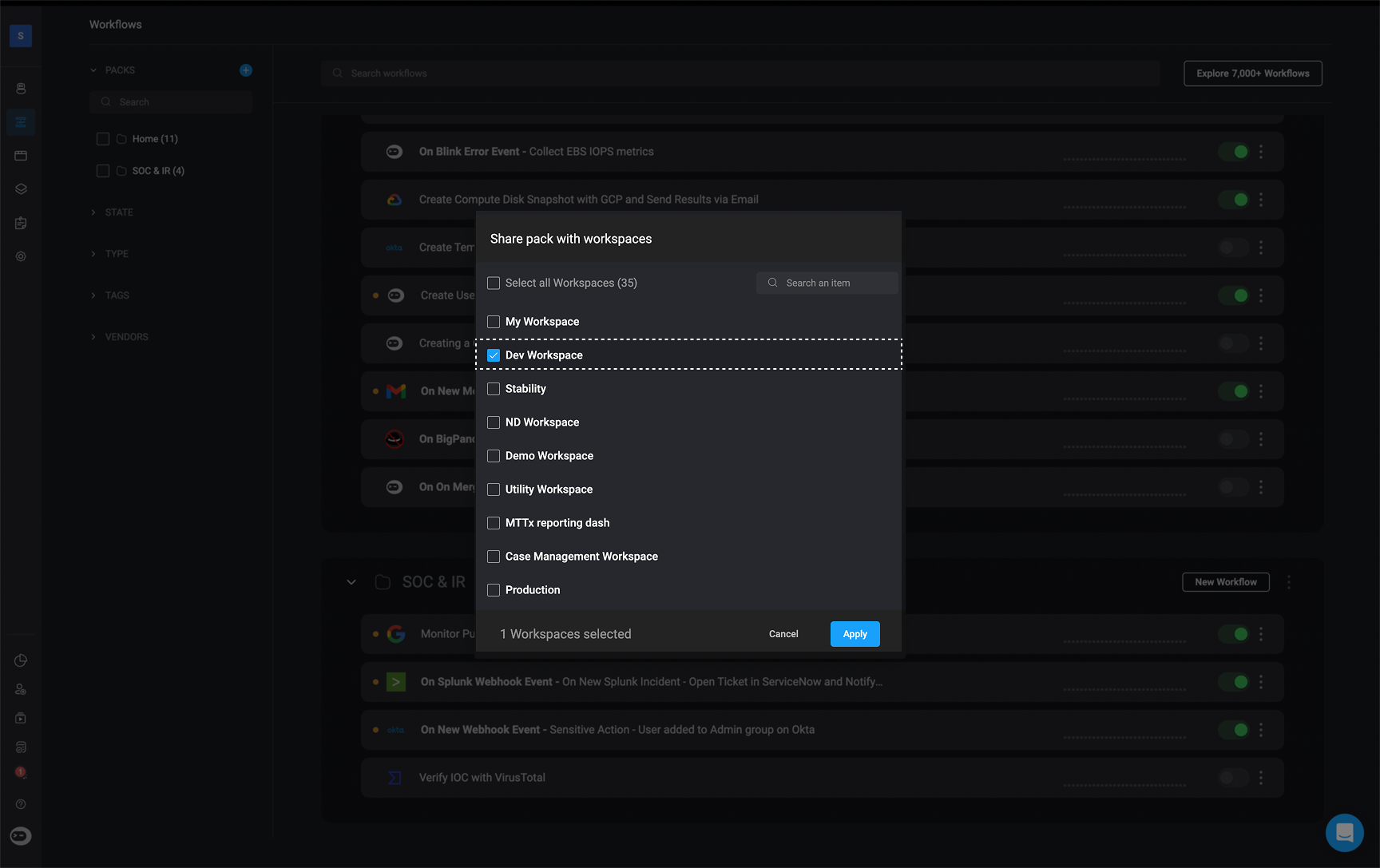
 Check the box next to each **workspace** you want to share the pack with. Then click 'Apply'.
 Once shared, the pack will appear in the selected workspaces. You will also be able to see which user shared the pack.
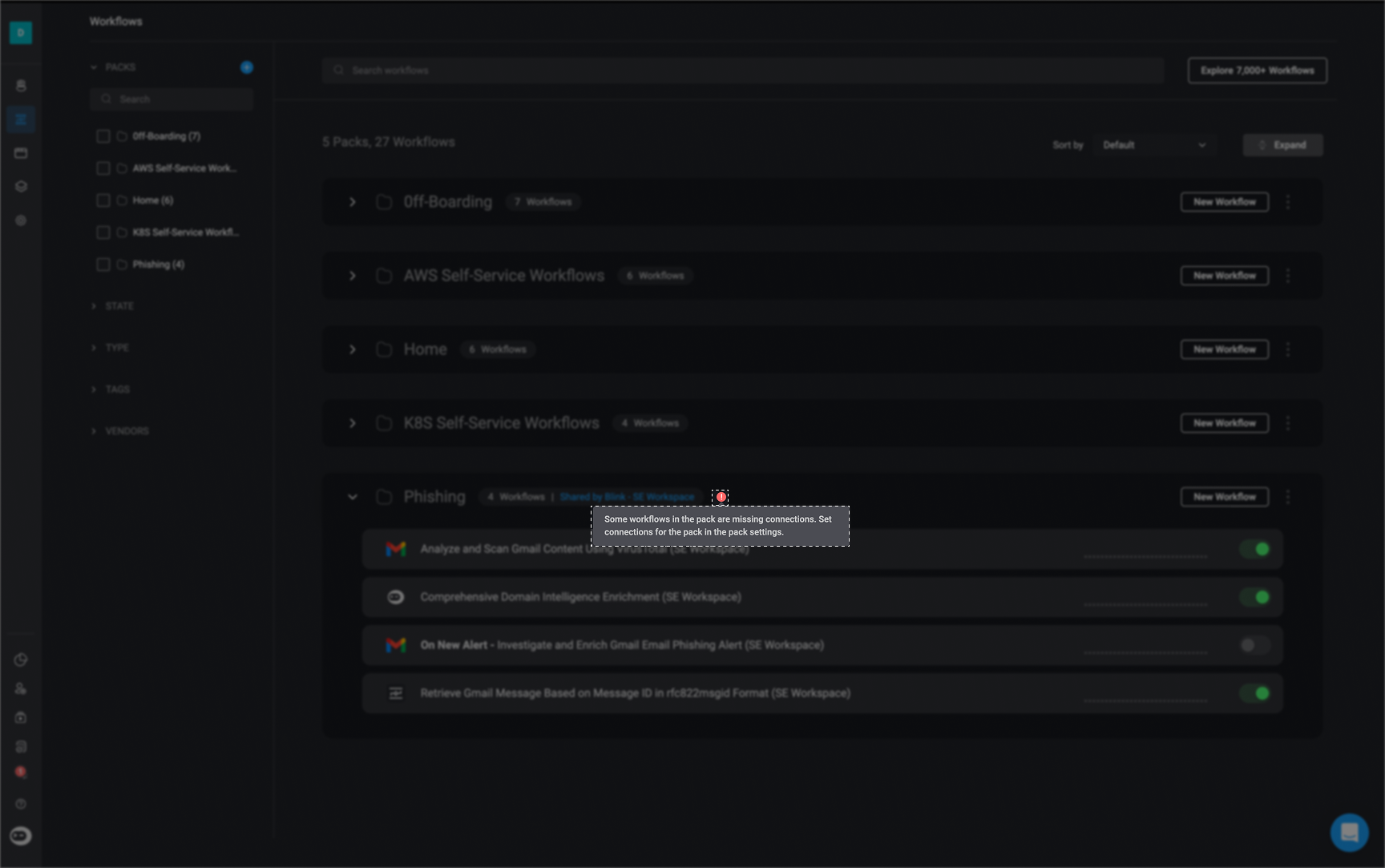
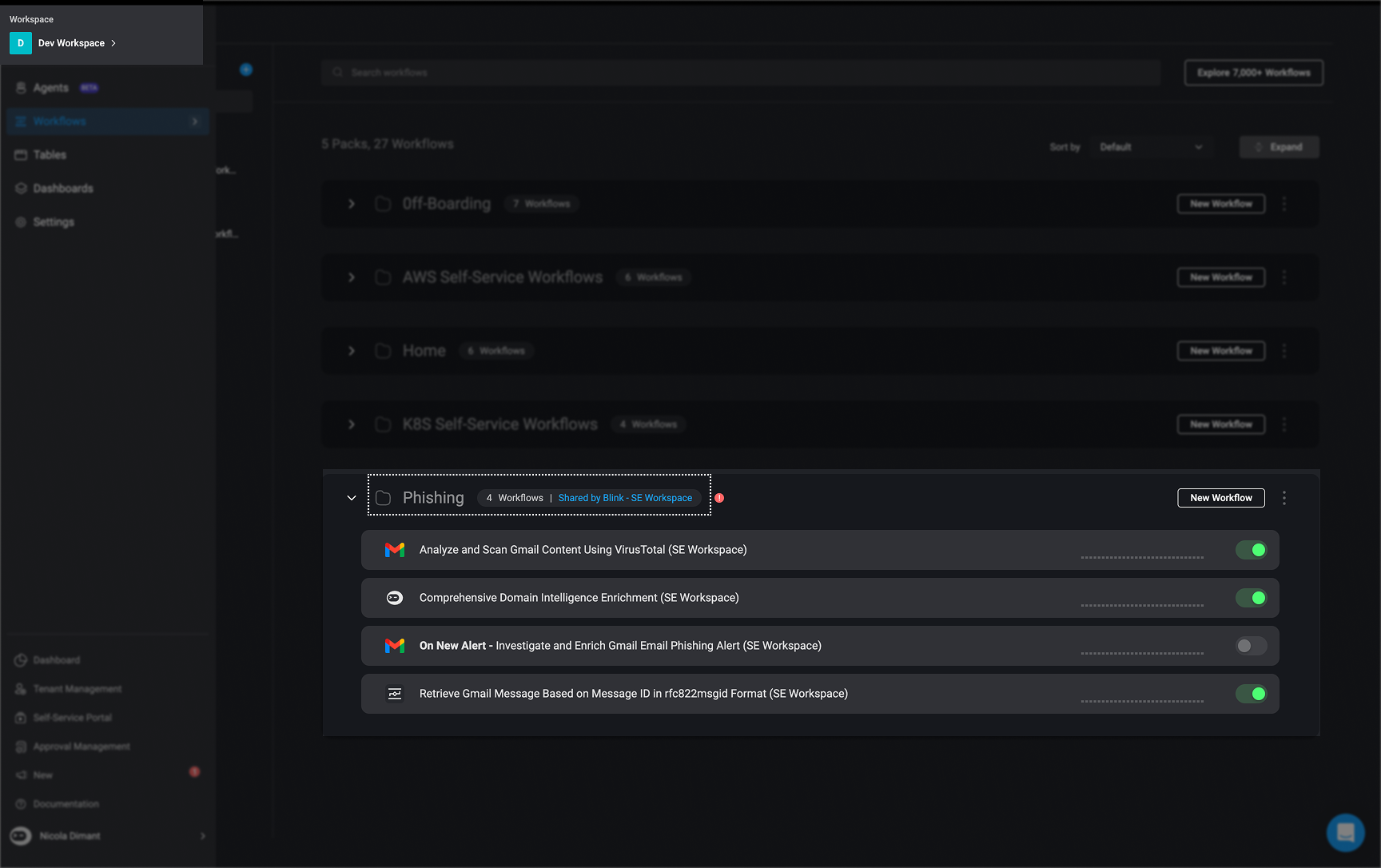 After sharing, go to each target workspace and set up the required connections for the workflows using the **Set Connection** option. If connections aren't configured, the workflow will show a red error icon and cannot run or be saved.
If connection setup is skipped in the target workspace, workflows will fail to execute and cannot be saved. Always complete connection mapping after sharing.
After sharing, go to each target workspace and set up the required connections for the workflows using the **Set Connection** option. If connections aren't configured, the workflow will show a red error icon and cannot run or be saved.
If connection setup is skipped in the target workspace, workflows will fail to execute and cannot be saved. Always complete connection mapping after sharing.
 ***
## Unsharing a Pack with Workspaces
To remove a shared pack from a workspace:
Follow steps 1–2 above to access the pack’s sharing options.
Uncheck the box next to the **workspace** you want to unshare the pack from.
Click the **Apply** button in the bottom-right corner. The pack will be unshared and no longer visible in that workspace.
***
## Unsharing a Pack with Workspaces
To remove a shared pack from a workspace:
Follow steps 1–2 above to access the pack’s sharing options.
Uncheck the box next to the **workspace** you want to unshare the pack from.
Click the **Apply** button in the bottom-right corner. The pack will be unshared and no longer visible in that workspace.
 ***
## Sharing Packs with Sub-Tenants
**Note**: This option is only available to **Admin Tenants** in multi-tenant environments. If you are not currently using a multi-tenant setup and would like access to this feature, please contact the Blink Customer Success team.
Admin Tenants can share workflow packs with one or more sub-tenants using the steps below.
Locate the pack you want to share. Click the button in the top-right corner of the pack. Choose the 'Share pack to tenant' option.
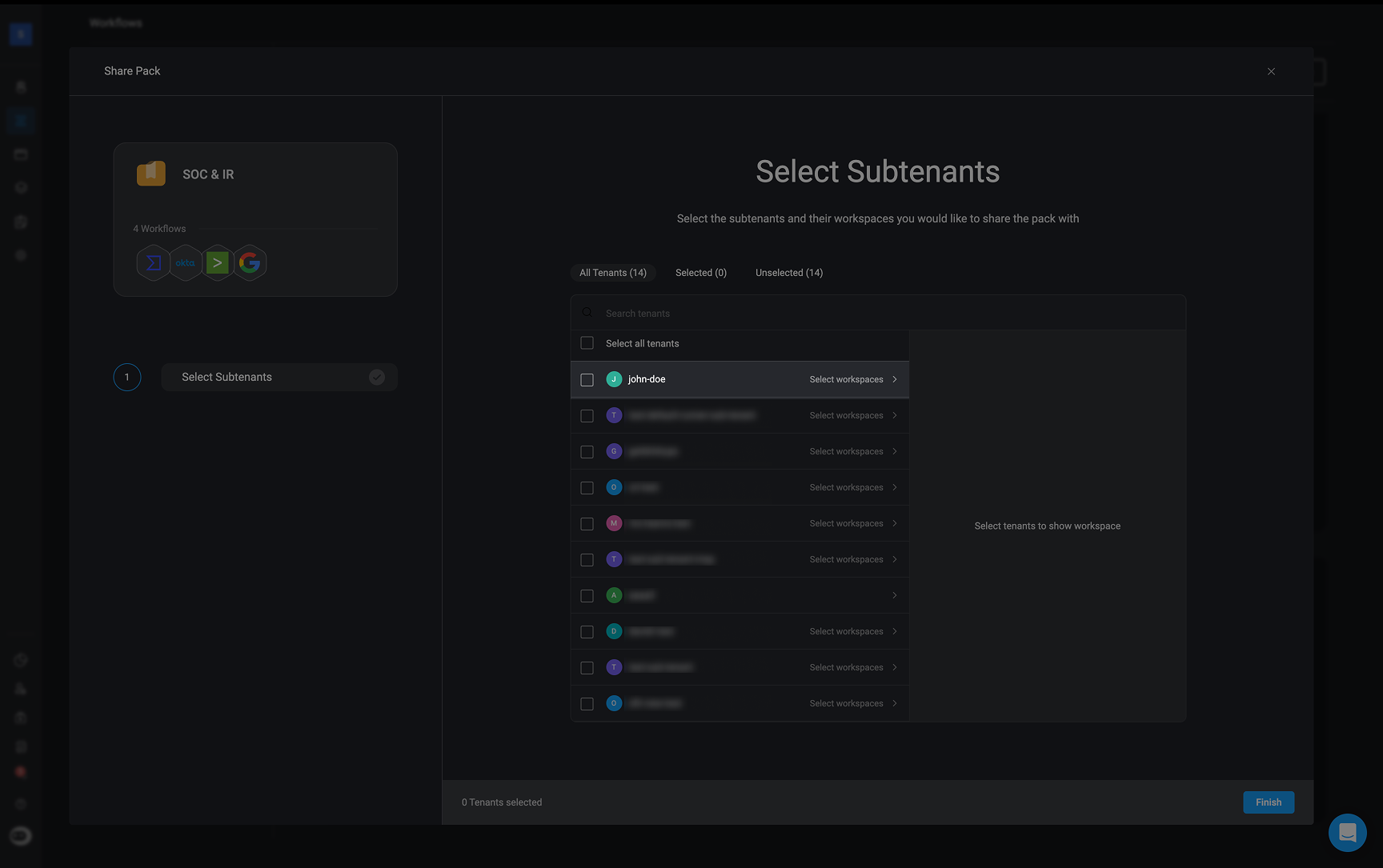
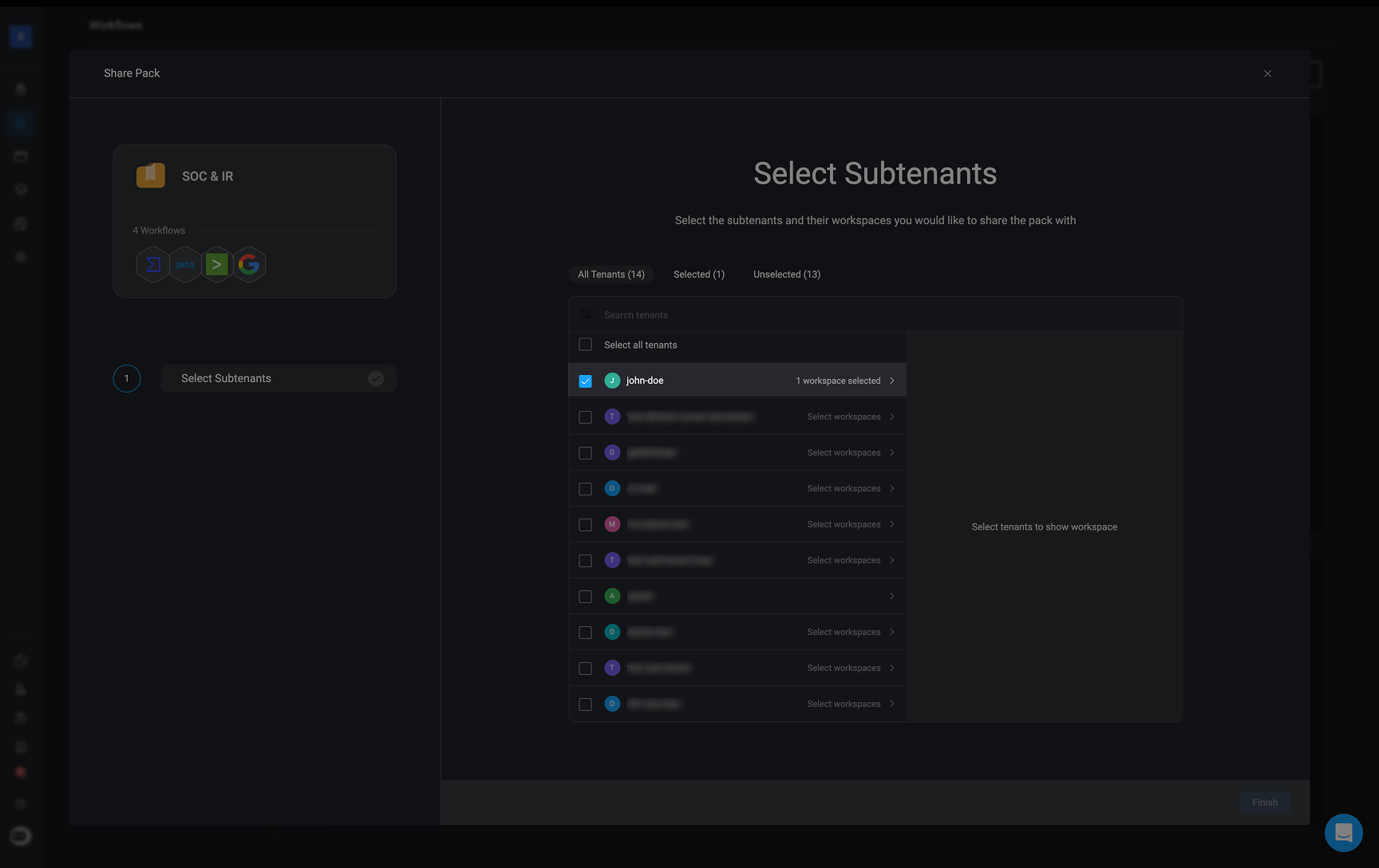
The 'Share Pack with Sub-tenants' wizard will open. Select the checkboxes next to the sub-tenant(s) you want to share the pack with.
***
## Sharing Packs with Sub-Tenants
**Note**: This option is only available to **Admin Tenants** in multi-tenant environments. If you are not currently using a multi-tenant setup and would like access to this feature, please contact the Blink Customer Success team.
Admin Tenants can share workflow packs with one or more sub-tenants using the steps below.
Locate the pack you want to share. Click the button in the top-right corner of the pack. Choose the 'Share pack to tenant' option.
The 'Share Pack with Sub-tenants' wizard will open. Select the checkboxes next to the sub-tenant(s) you want to share the pack with.
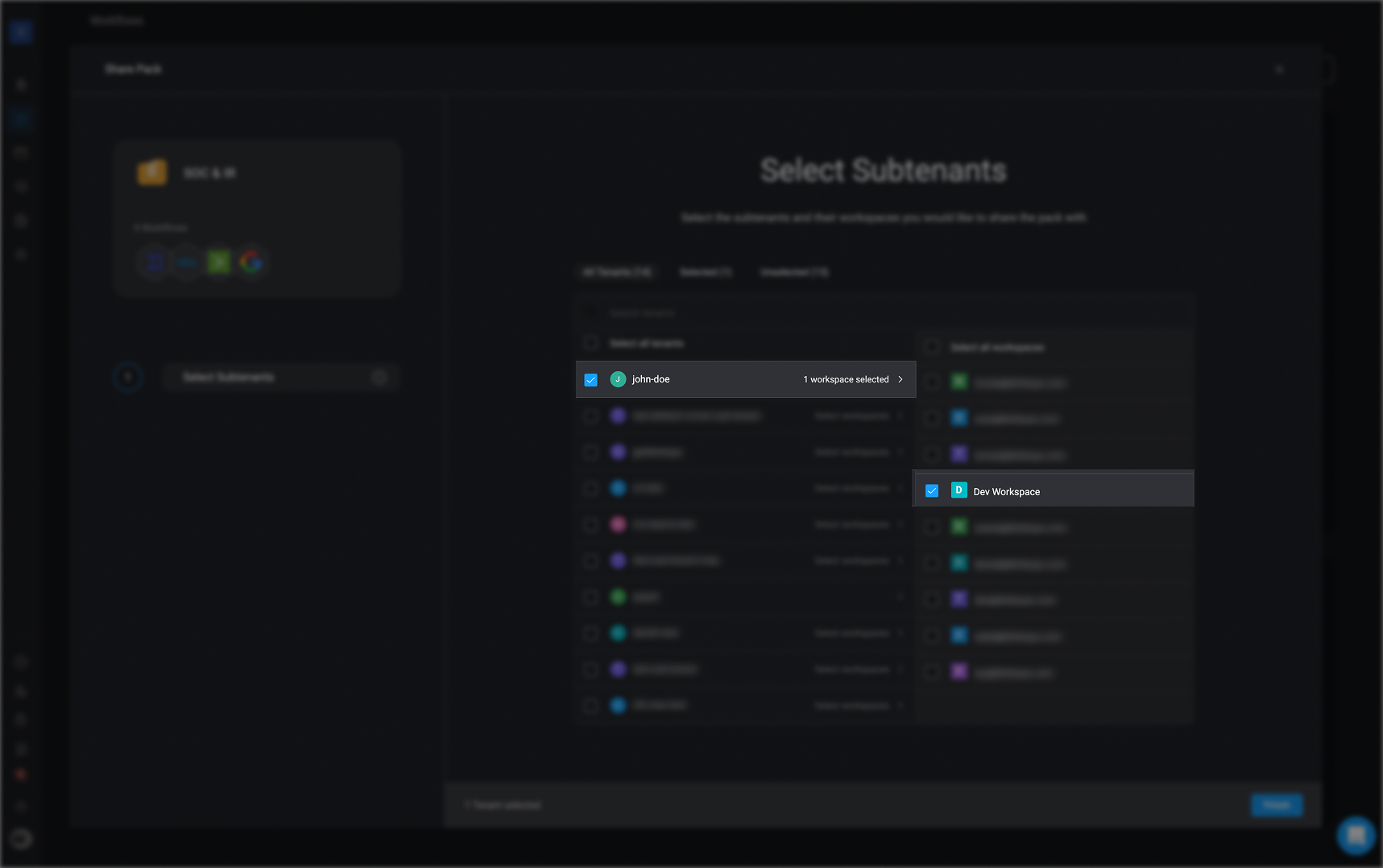
 Select the workspace(s) within the sub-tenant where the pack should be shared, then click 'Apply' in the bottom-right corner.
 **TIP**: Use the search bar at the top of the wizard to quickly find tenants or workspaces.
Once applied, return to your current workspace. You will now see that the pack has been successfully shared with the selected sub-tenant(s).
**TIP**: Use the search bar at the top of the wizard to quickly find tenants or workspaces.
Once applied, return to your current workspace. You will now see that the pack has been successfully shared with the selected sub-tenant(s).
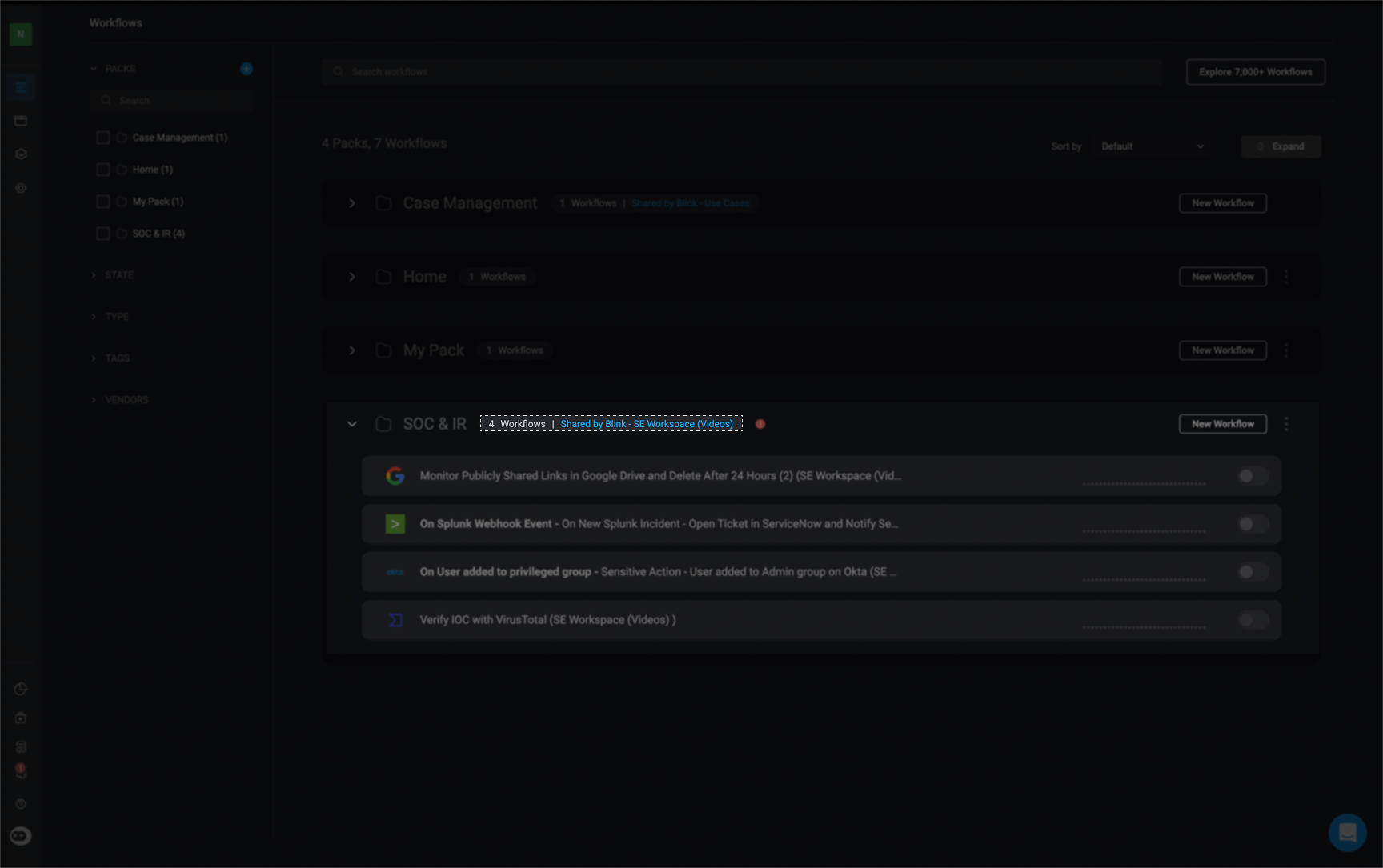
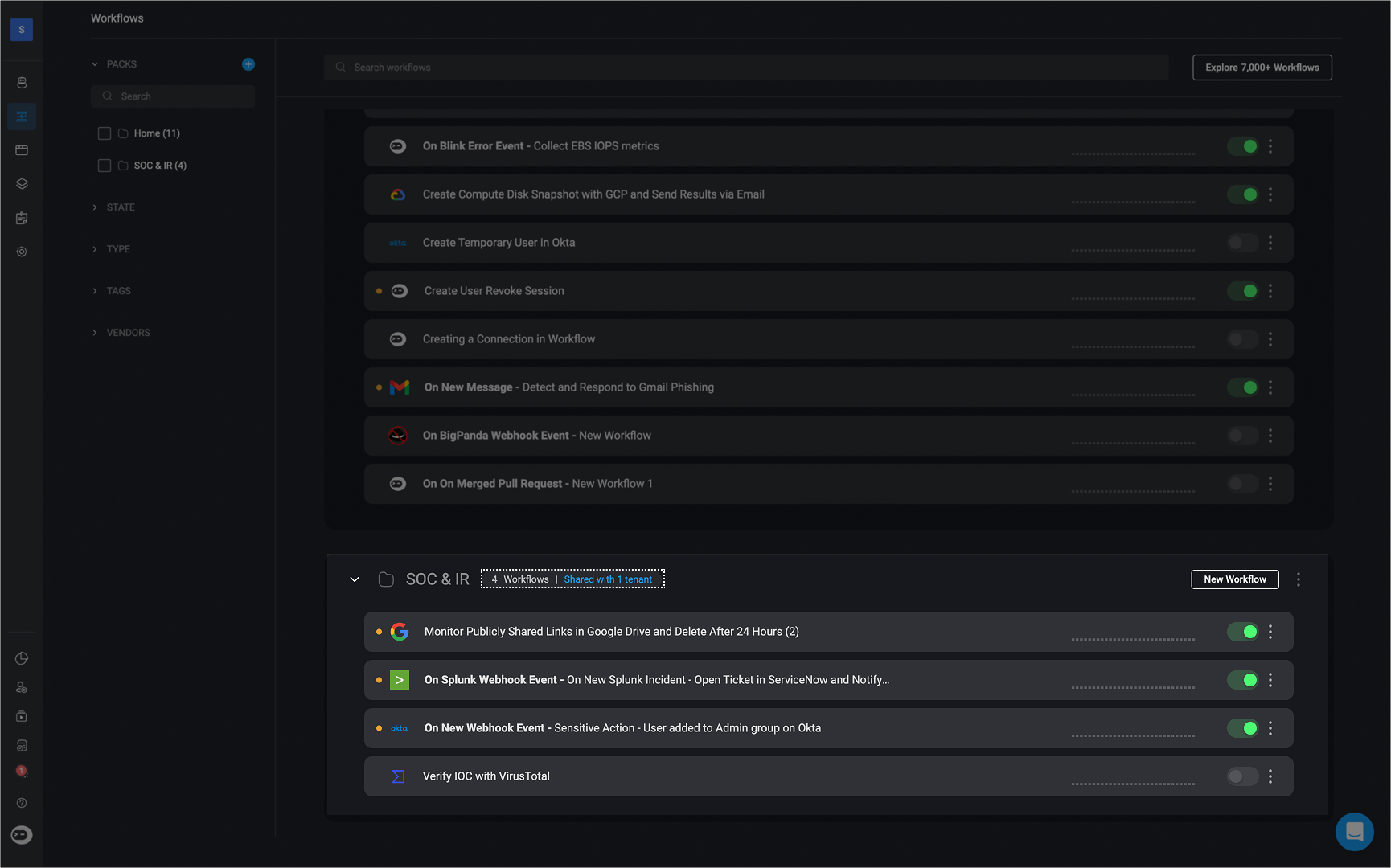 The sub-tenant(s) will also be able to view the pack in their workspace, along with the name of the tenant that shared it.
 ***
## Unsharing a Pack with Sub-Tenants
To remove a pack from a sub-tenant:
Repeat steps 1 and 2 from the sharing process to access the **Share Pack with Sub-tenants** wizard.
Uncheck the box next to the tenant(s) you want to unshare the pack from.
Click the 'Finish' button in the bottom-right corner to apply the changes.
***
## Unsharing a Pack with Sub-Tenants
To remove a pack from a sub-tenant:
Repeat steps 1 and 2 from the sharing process to access the **Share Pack with Sub-tenants** wizard.
Uncheck the box next to the tenant(s) you want to unshare the pack from.
Click the 'Finish' button in the bottom-right corner to apply the changes.