> ## Documentation Index
> Fetch the complete documentation index at: https://docs.blinkops.com/llms.txt
> Use this file to discover all available pages before exploring further.
# Deploy Pack to Workspace(s)
> Deploy a workflow pack to activate its workflows and make them available for execution in Blink.
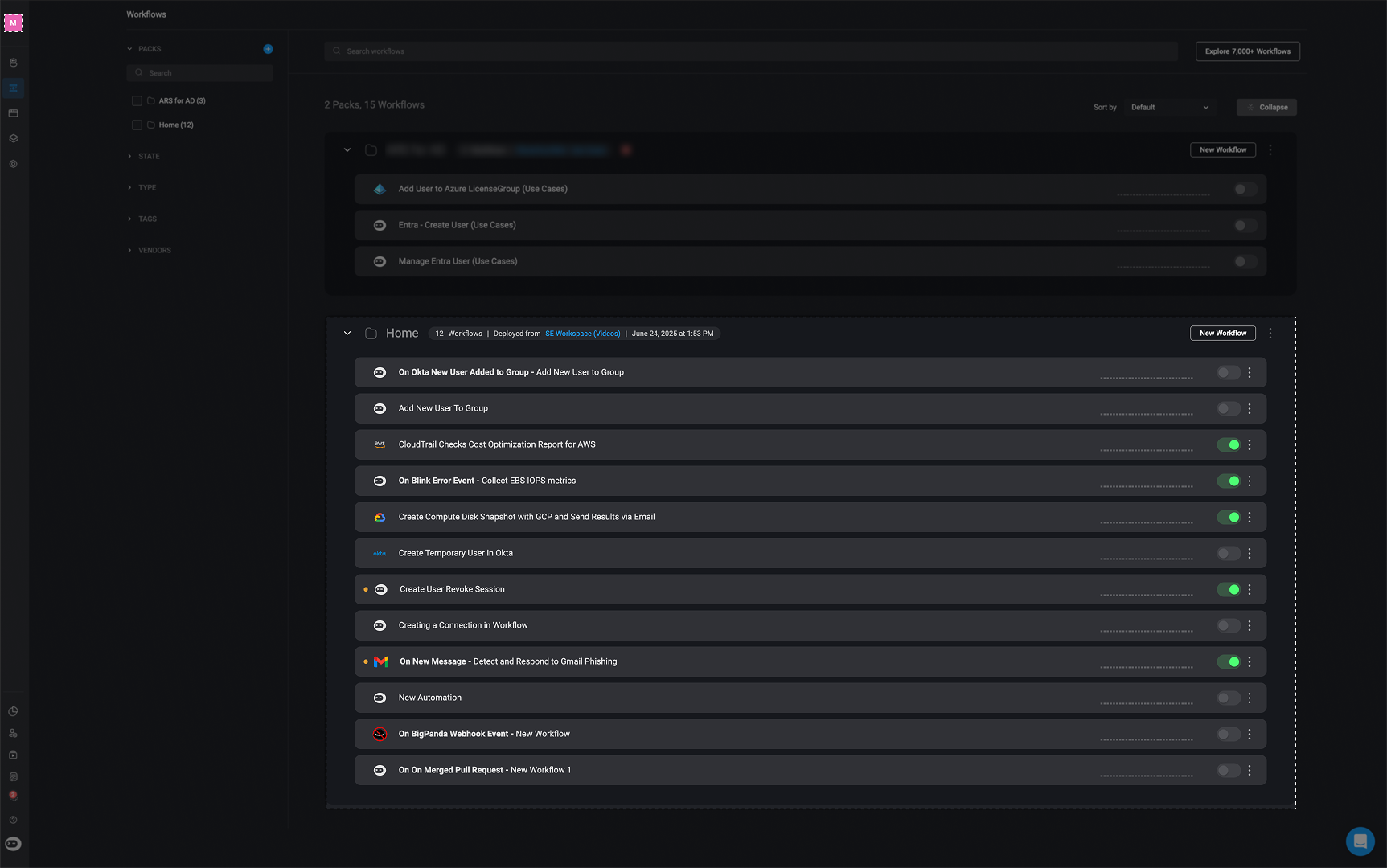
The deploy pack to workspace feature establishes a deployment pipeline for workflows from development to production stages. The deploy pack to workspace feature replaces the contents of the pack in the target workspace with the contents of the pack from the origin workspace, while retaining the metadata of the workflow(s) in the target pack, including their share state, activation state, and connection mapping.
**Note**:
* Workflows with the same name will be overridden by the latest **published** versions from the origin workspace.
* Both the **published** and **draft versions** of workflows in the target workspace will be replaced by the deployed versions.
## Deploying Packs to Workspace(s)
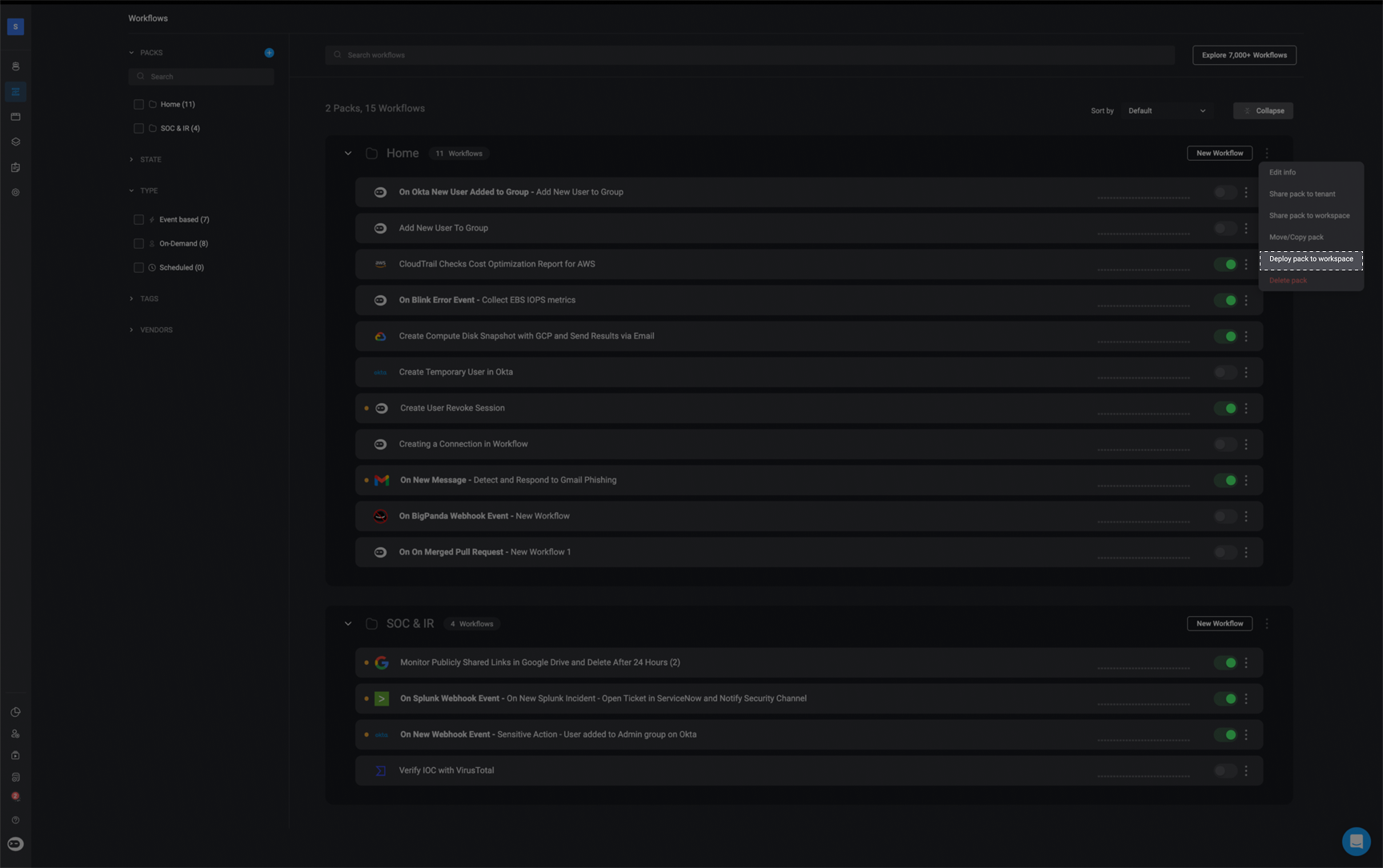
Click the button in the top-right corner of the workflow pack and select **Deploy pack to workspace**.
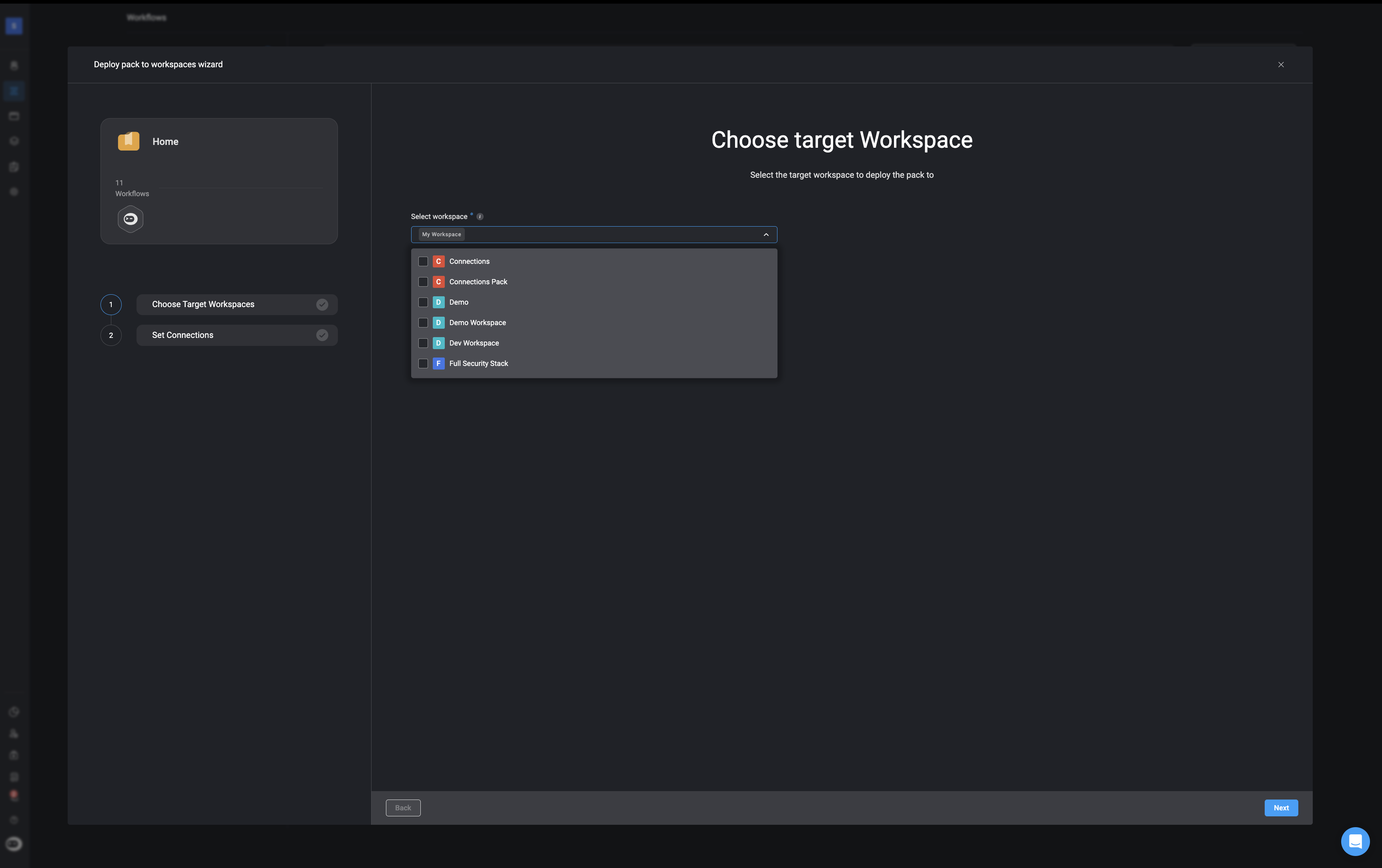
 In the **Deploy Pack to Workspace** pop-up, select the workspace(s) where you want to deploy the pack.
 For each connection used in the workflows, assign the appropriate [connection](/docs/workflows/building-workflows/connections/creating-connection) in the **target workspace**. This ensures the workflows can run successfully once deployed.\
You may also update connections later in the [Workflow Editor](/docs/workflows/building-workflows/workflow-editor) tab.
**Note**: If you have previously deployed this pack and configured connections, those settings will be **preserved** for future deployments.
For each connection used in the workflows, assign the appropriate [connection](/docs/workflows/building-workflows/connections/creating-connection) in the **target workspace**. This ensures the workflows can run successfully once deployed.\
You may also update connections later in the [Workflow Editor](/docs/workflows/building-workflows/workflow-editor) tab.
**Note**: If you have previously deployed this pack and configured connections, those settings will be **preserved** for future deployments.
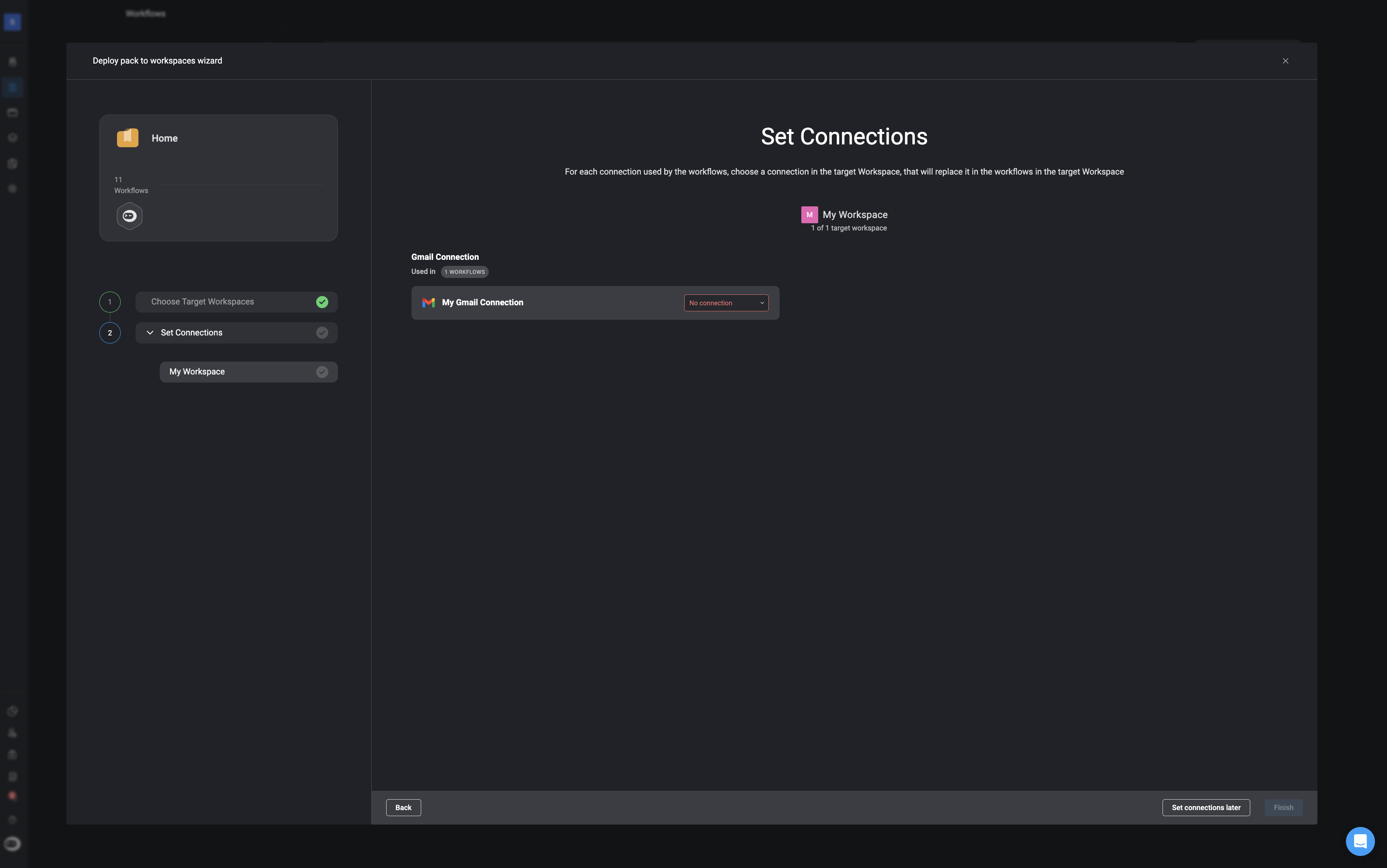 **TIP** Although it is possible to configure connections later, it is strongly recommended to complete this step now to avoid potential errors and delays.
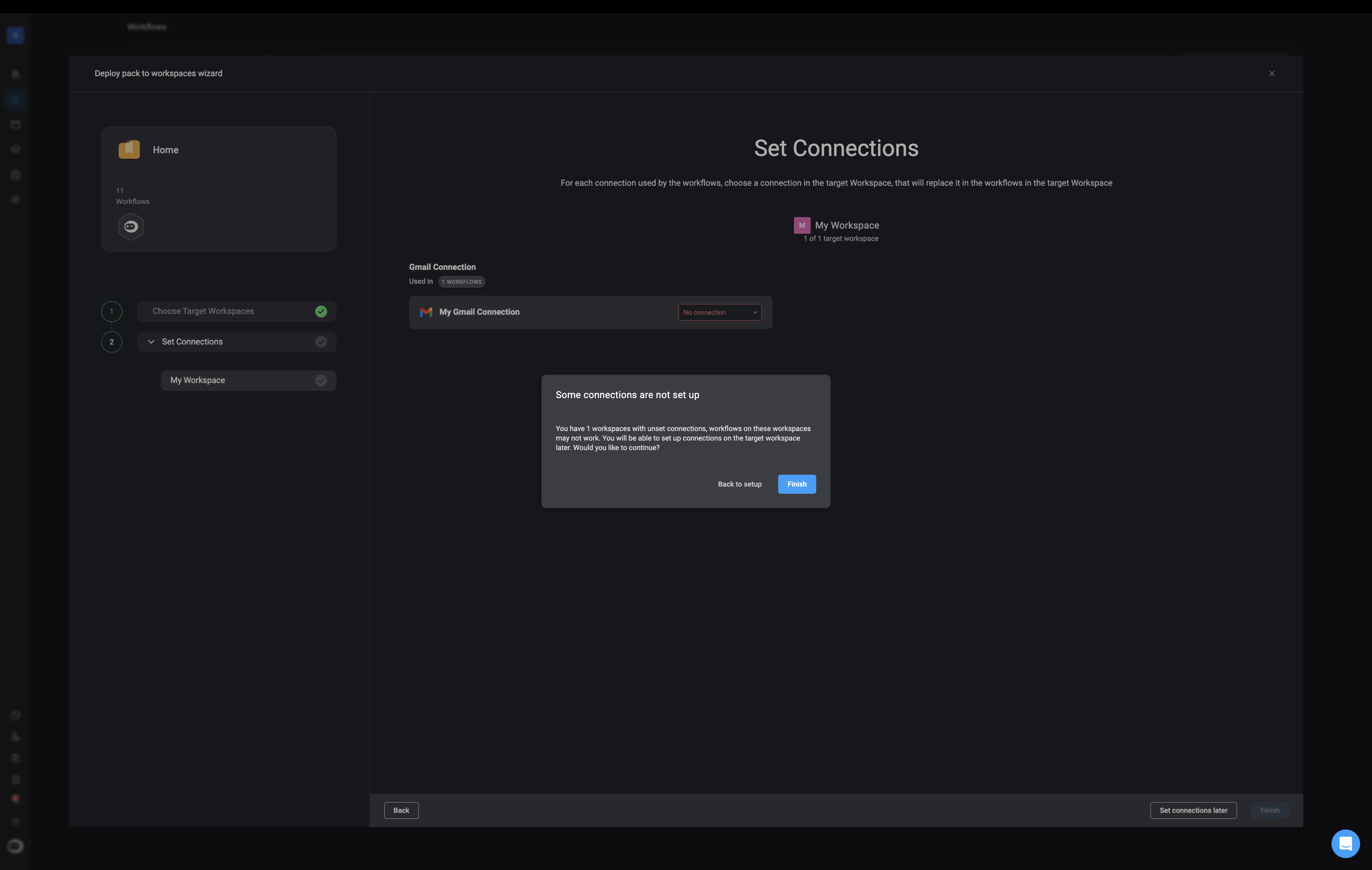 If no connections are required at this stage, you may skip this step and continue to deployment.
Click the **Finish** button in the bottom-right corner. An operation result popup will confirm that the pack was deployed successfully.
If no connections are required at this stage, you may skip this step and continue to deployment.
Click the **Finish** button in the bottom-right corner. An operation result popup will confirm that the pack was deployed successfully.
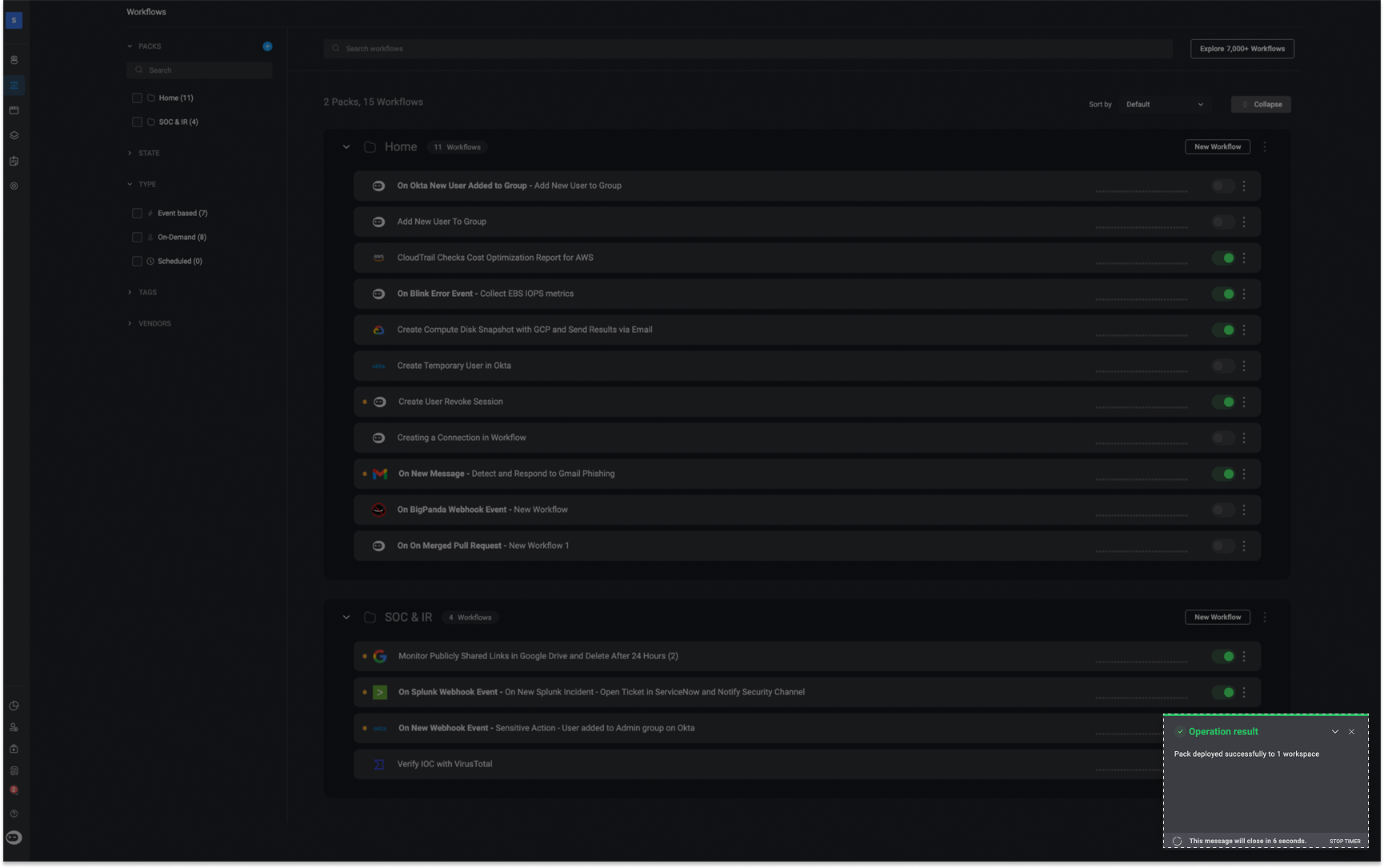 Navigate to the target workspace to view the deployed pack and its workflows.