> ## Documentation Index
> Fetch the complete documentation index at: https://docs.blinkops.com/llms.txt
> Use this file to discover all available pages before exploring further.

# Pack Management

> Manage workflow packs including organizing, renaming, and configuring pack settings in Blink.

Workflow Packs help you organize and manage your workflows more efficiently. A **Pack** is a collection of related workflows based on their purpose, trigger type, or vendor. Whether you're creating workflows for incident response, user provisioning, or scheduled reporting, Packs allow you to keep your workspace structured and easy to navigate.

This page provides step-by-step guidance on how to create, edit, delete, and filter Packs within your workspace.

***

## Create a New Pack

<Steps>
  <Step title="Navigate to the Workflows page in your Workspace">
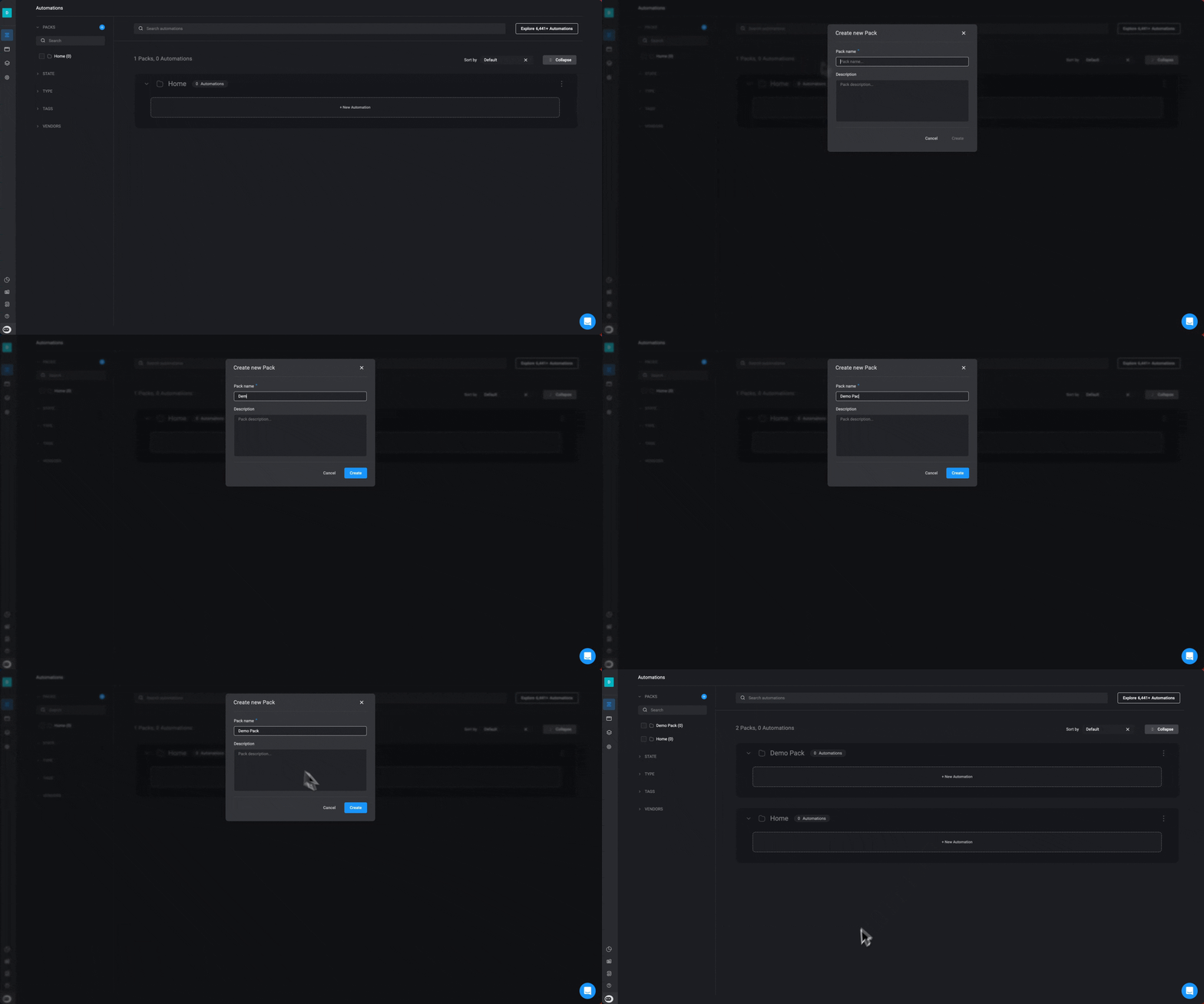
    <p>In the left-hand sidebar, click the <Icon icon="plus" />icon </p>
  </Step>

  <Step title="Fill in the necessary details:">
    * **Pack name**: *My first Pack*
    * **Description**: *This is a Pack*
  </Step>

  <Step>
    Then click the **Create** button. The new Pack will be added to the Workflow page.

    <img src="https://mintcdn.com/blinkops-2/eLYFBpTLBELPX82F/img/AutomationCanvas/CreatePack.gif?s=a5b8f3760e7e7ebe880d70e901890be2" width="1940" height="1080" data-path="img/AutomationCanvas/CreatePack.gif" />
  </Step>
</Steps>

***

## Filtering Your Packs

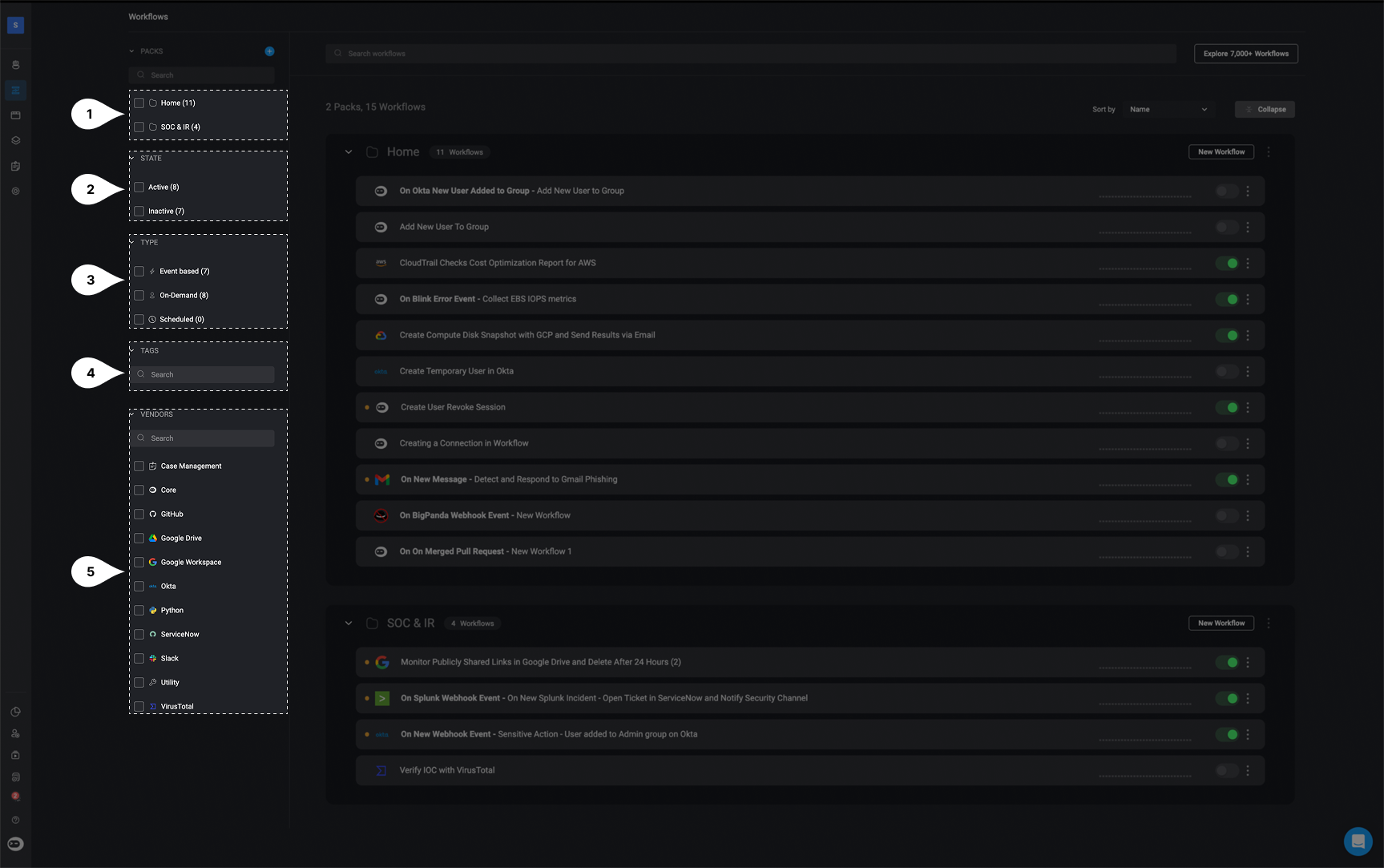
There are various filtering options available to help you locate the exact pack you are searching for:

<Frame>
  <img src="https://mintcdn.com/blinkops-2/eLYFBpTLBELPX82F/img/AutomationCanvas/FilteringPacks.png?fit=max&auto=format&n=eLYFBpTLBELPX82F&q=85&s=e6bdc0e59a509eb38fb6d15b18176399" width="1727" height="1083" data-path="img/AutomationCanvas/FilteringPacks.png" />
</Frame>

|   | Filter By:       | Description                                                                                                                                                                          |
| - | ---------------- | ------------------------------------------------------------------------------------------------------------------------------------------------------------------------------------ |
| 1 | **Pack Name**    | You can use the **search bar** or **checkboxes** underneath the search bar to easily filter through and locate the desired pack by its name.                                         |
| 2 | **State**        | You have the option to filter your packs based on the current **state** of your Workflows. You can select one of two options: **Active** or **Inactive**.                            |
| 3 | **Trigger Type** | You have the ability to filter through your packs based on the specific **trigger type** that was chosen during the workflow creation process: **Event Based, On-Demand, Scheduled** |
| 4 | **Tags**         | You can filter through your packs based on the tags you gave to the Workflows you created.                                                                                           |
| 5 | **Vendors**      | You have the option to filter your packs by either **searching** or **selecting** the **vendors** utilized within the Workflows you have created.                                    |

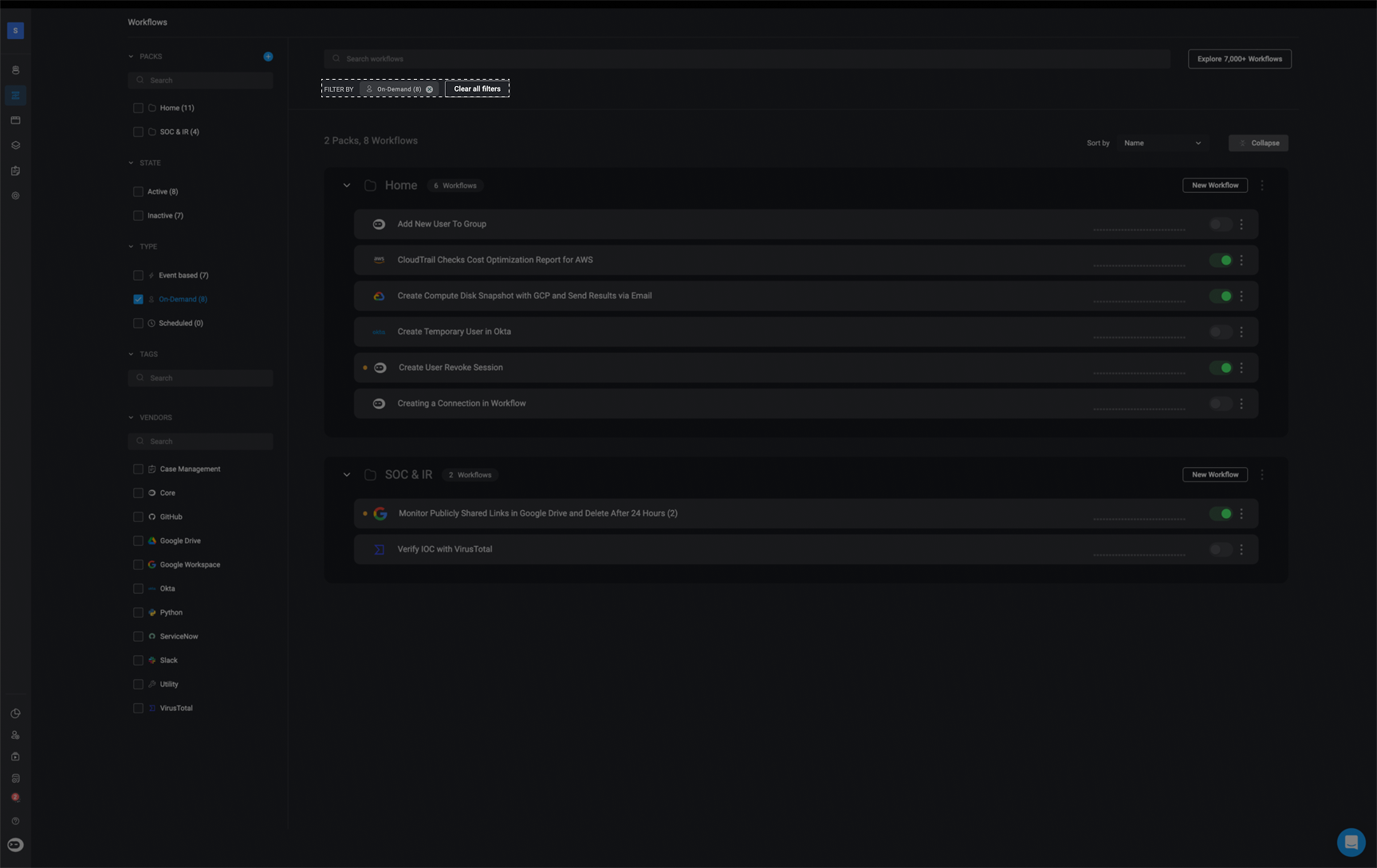
**To reset the filters applied to your packs, you have two options:**

1. <p>Click the <Icon icon="x" /> button adjacent to the pack's name</p>

2. Click the **`Clear all Filters`** button.

<Frame>
  <img src="https://mintcdn.com/blinkops-2/eLYFBpTLBELPX82F/img/AutomationCanvas/ClearFilters.png?fit=max&auto=format&n=eLYFBpTLBELPX82F&q=85&s=162eb57c74365423f682c6d38cdce883" width="1727" height="1089" data-path="img/AutomationCanvas/ClearFilters.png" />
</Frame>

***

## Editing a Pack

<Steps>
  <Step title="Find the Pack to Edit">
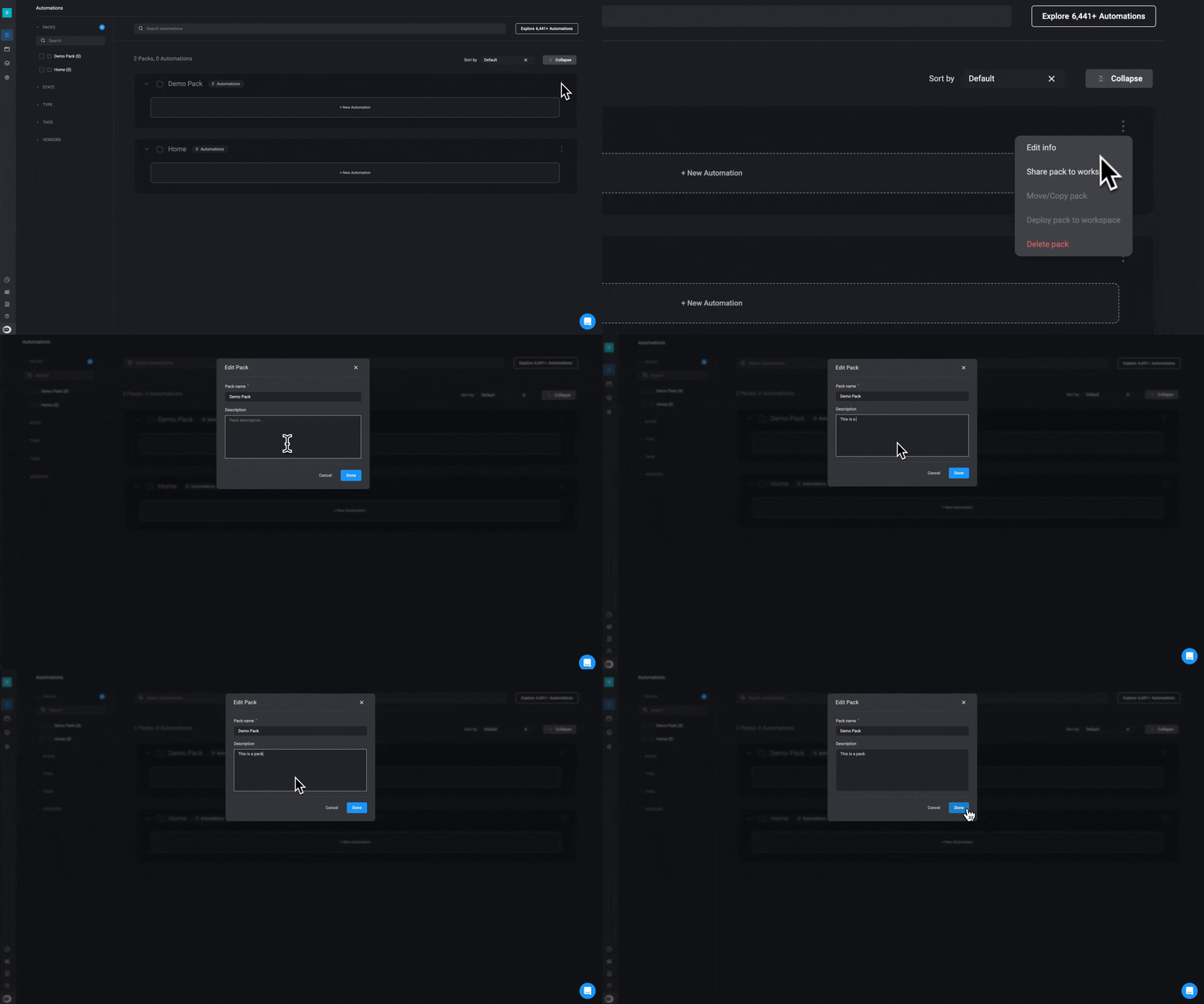
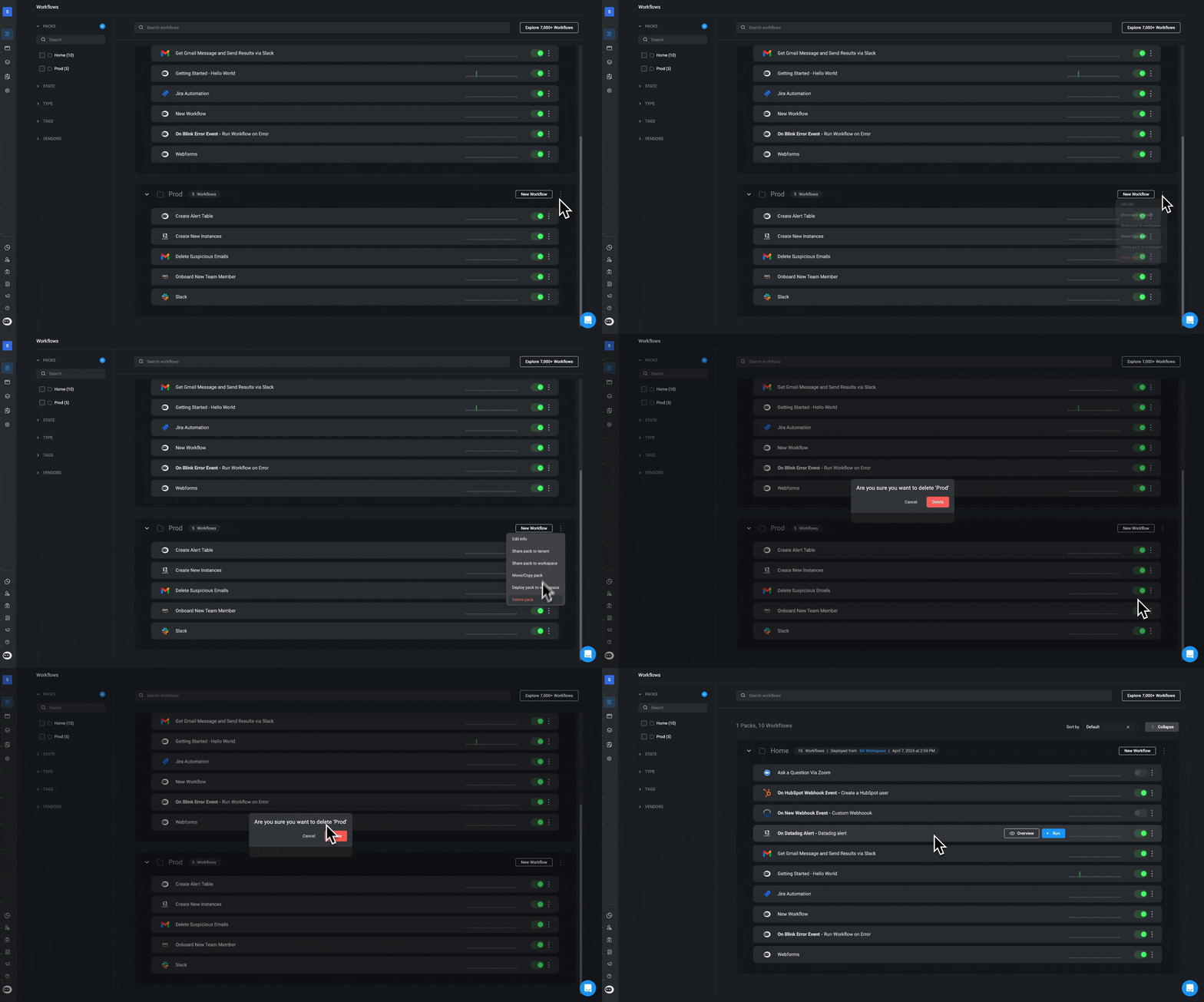
    Locate the pack you wish to edit on the Workflows page and proceed to click on the <Icon icon="square-ellipsis-vertical" iconType="solid" /> icon.
  </Step>

  <Step title="Open the Edit Menu">
    Select the **Edit info** option from the dialogue box that appears.
  </Step>

  <Step title="Update Pack Details">
    You will be directed to an **Edit Pack** pop-up where you can edit any information necessary.
  </Step>

  <Step title="Save Your Changes">
    Click the "Done" button to apply your changes.
  </Step>
</Steps>

<Frame>
  <img src="https://mintcdn.com/blinkops-2/eLYFBpTLBELPX82F/img/AutomationCanvas/EditPack.gif?s=0665d58aea4806ac82b19055835b31bc" width="1940" height="1080" data-path="img/AutomationCanvas/EditPack.gif" />
</Frame>

***

## Deleting a Pack

<Steps>
  <Step title="Find the Pack to Delete">
    <p>Locate the pack you wish to **delete** on the Workflows page and proceed to click on the <Icon icon="square-ellipsis-vertical" iconType="solid" /> button. </p>
  </Step>

  <Step title="Select Delete Option">
    Click on the **Delete pack** option from the dialogue box that appears.
  </Step>

  <Step title="Confirm Deletion">
    Confirm that you would like to delete the Pack by clicking the **Delete** button.
  </Step>

  <Step title="Pack Removed">
    The pack will then be removed from your workspace.
  </Step>
</Steps>

<Frame>
  <img src="https://mintcdn.com/blinkops-2/eLYFBpTLBELPX82F/img/AutomationCanvas/DeletePack.gif?s=9c433e53df2d4b8a65c2864066cbb7f5" width="1944" height="1080" data-path="img/AutomationCanvas/DeletePack.gif" />
</Frame>

***

## Interactive Tutorial Guide- Pack Management

You can also refer to the following tutorial guides for a more in-depth understanding of how to [create](#1-creating-a-pack), [edit](#2-editing-a-pack) or [delete](#3-deleting-a-pack)

### 1. Creating a Pack

<iframe src="https://demo.arcade.software/Qzy6knbENyi9bDvlmAKG?embed&show_copy_link=true" title="Creating a Pack" frameborder="0" loading="lazy" webkitAllowFullScreen mozAllowFullScreen allowFullScreen allow="clipboard-write" className="iframe-webhook" width="100%" height="420" />

### 2. Editing a Pack

<iframe src="https://demo.arcade.software/3m82wm8oawGAuOwmJbrj?embed&show_copy_link=true" title=" Edit a Pack" frameborder="0" loading="lazy" webkitAllowFullScreen mozAllowFullScreen allowFullScreen allow="clipboard-write" className="iframe-webhook" width="100%" height="420" />

### 3. Deleting a Pack

<iframe src="https://demo.arcade.software/UAqXhj9WZta4C2heGnDU?embed&show_copy_link=true" title="Deleting a Pack" frameborder="0" loading="lazy" webkitAllowFullScreen mozAllowFullScreen allowFullScreen allow="clipboard-write" className="iframe-webhook" width="100%" height="420" />