> ## Documentation Index
> Fetch the complete documentation index at: https://docs.blinkops.com/llms.txt
> Use this file to discover all available pages before exploring further.

# Testing a Workflow

> Test and validate your Blink workflows before publishing to ensure they function as expected.

## Overview

Before publishing and activating a Workflow, it is crucial to ensure that it functions as expected under different conditions. Testing helps prevent unexpected failures and ensures that your Workflow behaves correctly before it goes live.

<Note>**Note**: When you test a step or an entire workflow, please note that the test execution makes real API endpoint requests. This means that any actions within the workflow will trigger actual API calls, and the configured connections are used as part of the test run. Ensure that the environment and configurations are suitable for testing to avoid unintended effects or unnecessary usage of resources during the process.</Note>

***

## Testing Complete Workflows

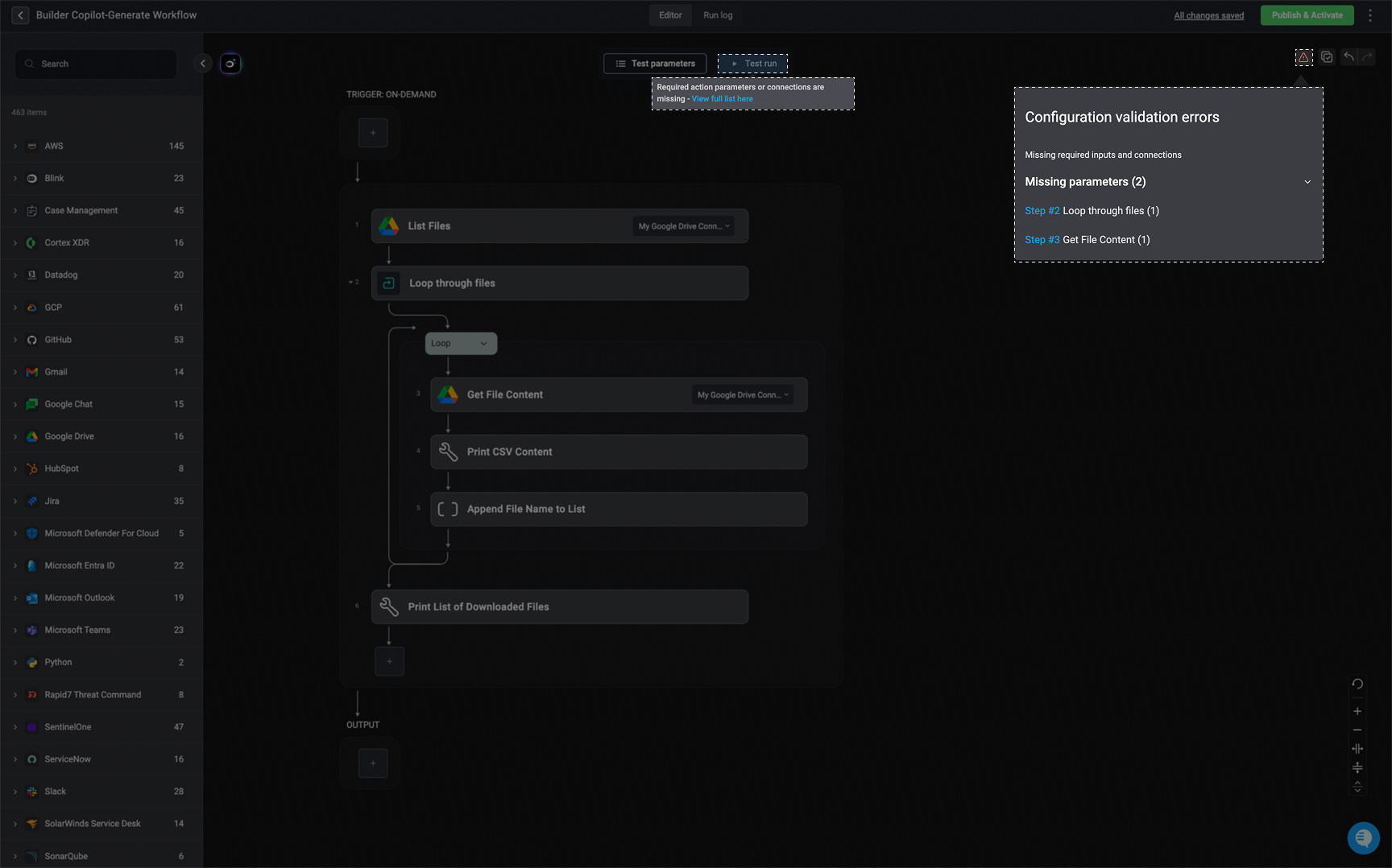
Before testing a workflow, ensure all steps are fully configured. If any step is incomplete, misconfigured, or missing a connection, the **Test Run** button at the top of the editor will be disabled.

An <Icon icon="warning" iconType="solid" color="#FF0000" /> icon will appear in the top-right corner, indicating the specific step and action that requires configuration or connections.

<Tip>Clicking the step link expands the step and takes you directly to the step that needs to be configured or requires a connection to be added.</Tip>

<Frame>
  <img src="https://mintcdn.com/blinkops-2/6q4zCjexTeCYfwol/img/Automations/TestingDisabled.png?fit=max&auto=format&n=6q4zCjexTeCYfwol&q=85&s=cf346532b7719d0053ac4732d1991649" width="1728" height="1078" data-path="img/Automations/TestingDisabled.png" />
</Frame>

***

### Testing Different Workflow Trigger Types

<Accordion title="Testing On-Demand Workflows - Using Test Parameters" icon="user">
  You can test an [On-Demand Workflow](/docs/workflows/building-workflows/triggers/on-demand-triggers/on-demand-triggers) by providing test input parameters. Follow the steps below to configure and execute a test run.

  <Steps>
    <Step title="Open the Test Parameters Configuration Panel">
      Click the 'Test parameters' button to open the configuration panel where you can define input values for the test run
    </Step>

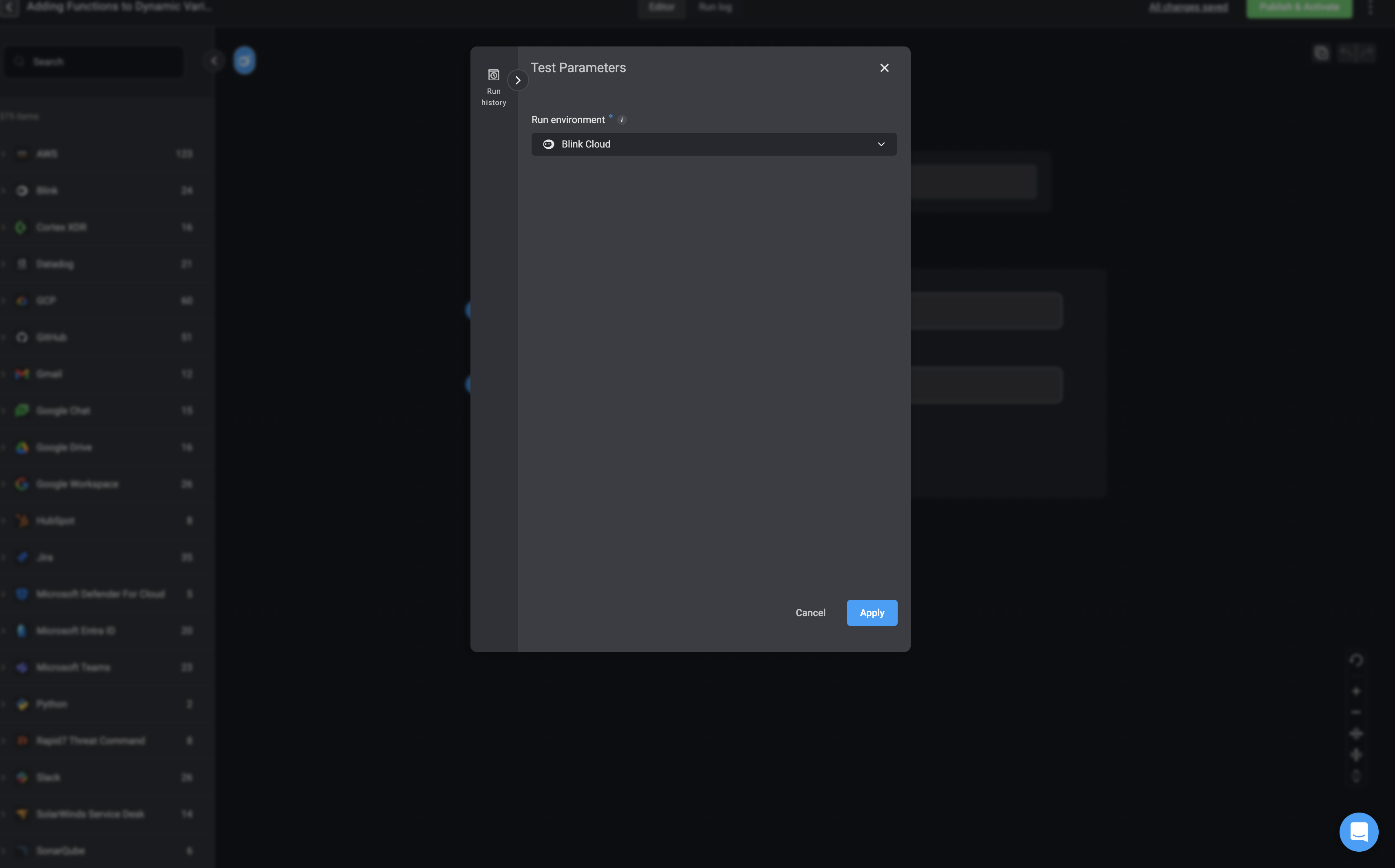
    <Step title="Select a Runner">
      You can change the runner to execute the Workflow with a different environment. By default, the Blink Cloud runner is used.
    </Step>

    <Step title="Click Apply">
      Click **Apply** to confirm your test parameters. Any action requiring input parameters will use the values you’ve set.
    </Step>

    <Step title="Run the Test">
      Click **Run test** to execute the workflow with the configured test parameters. This allows you to simulate the workflow using your specified input values and environment settings.
    </Step>
  </Steps>

  ## Testing On-Demand Workflows- Use Case Example

  ### Overview

  In this use case, we demonstrate how to test an [On-Demand Workflow](/docs/workflows/building-workflows/triggers/on-demand-triggers/on-demand-triggers) by providing test values for its [input parameters](/docs/workflows/building-workflows/triggers/on-demand-triggers/input-parameters). By entering test data, such as an email list and a user name, we can simulate a real execution and ensure the workflow functions as expected. This process allows us to validate how the workflow processes user data, checks for publicly accessible files, and takes appropriate actions based on its logic.

  <Frame>
    <video controls autoPlay muted zoom loop allowFullScreen className="w-full aspect-video" src="https://www.dropbox.com/s/djsqcsqe5f63i17/TestParams.mp4?st=6alzvohp&raw=1" />
  </Frame>

  ### Breakdown

  1. This demonstrates how to test an **on-demand workflow** in Blink.

  2. The user provides sample input parameters:
     * **Email list** - in this example we are using a single email address- `blink@test.blinkops.com`
     * **User name** - in this example we are using- `John Doe`

  3. After applying these test values, the workflow starts executing.

  4. The workflow systematically processes each user from the list.

  5. It checks for publicly accessible files associated with each user.

  6. If an insecure file is found, the workflow takes action:
     * Requests the file owner to **remove public access**.
     * If access is not revoked, **notifies the appropriate personnel**.
</Accordion>

<Accordion title="Testing Event-Based Workflows - Using Test Parameters" icon="bolt">
  ## 1. Webhooks

  An **Event-Based Workflow** can be tested using a JSON sample of a potential incoming payload event triggered by a [Webhooks](/docs/workflows/building-workflows/triggers/event-based-triggers/webhooks). Follow the steps below to configure and execute a test run.

  <Steps>
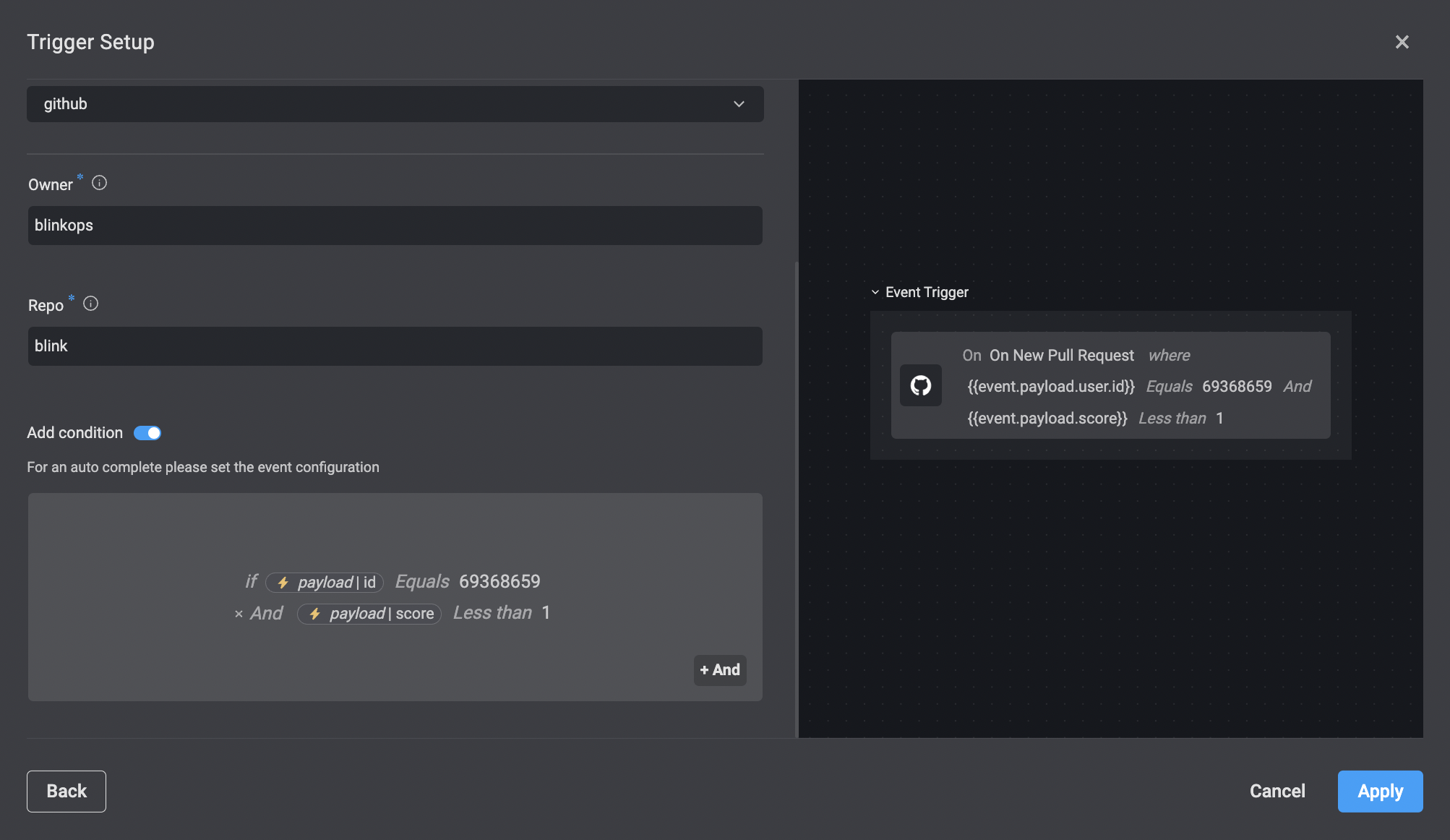
    <Step title="Configure the Webhook Trigger">
      Start by selecting the Webhook of your choice option as the trigger for your workflow. This will generate a unique Webhook URL that the workflow listens to for incoming events.

      <Frame>
        <img src="https://mintcdn.com/blinkops-2/4a8dMD2Jv5wsADYv/img/Automations/ConditionBuilderAnd.png?fit=max&auto=format&n=4a8dMD2Jv5wsADYv&q=85&s=d0fce47ab3bf157f27189413671e22bb" width="2006" height="1162" data-path="img/Automations/ConditionBuilderAnd.png" />
      </Frame>
    </Step>

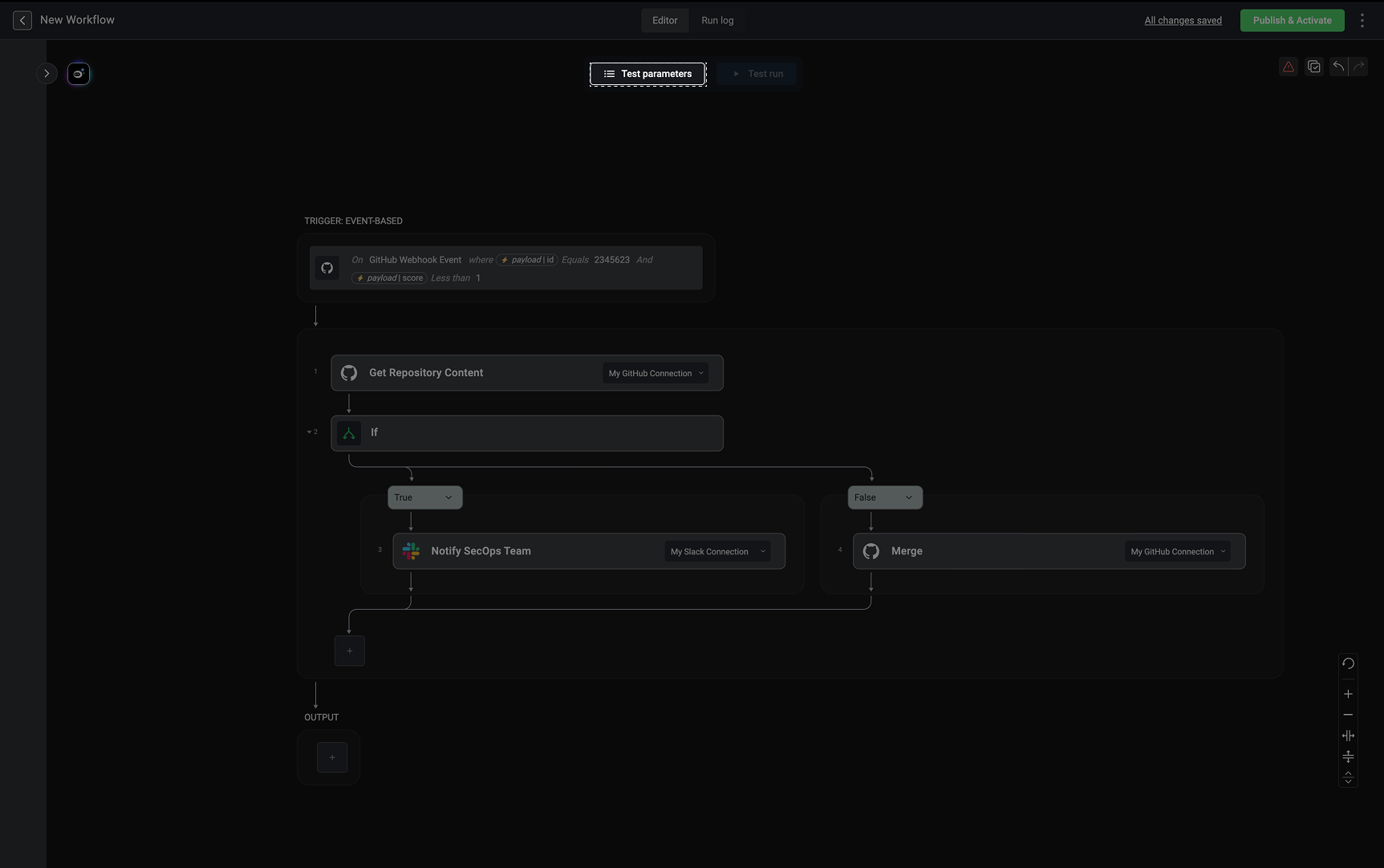
    <Step title="Open the Test Parameters Panel">
      After configuring the trigger, click the 'Test parameters' button to open the configuration panel.

      <Frame>
        <img src="https://mintcdn.com/blinkops-2/bkNvP6UTARc1hLQk/img/Automations/EventBasedTestParams.png?fit=max&auto=format&n=bkNvP6UTARc1hLQk&q=85&s=0e27c269c32699a8be728535c004c119" width="1725" height="1082" data-path="img/Automations/EventBasedTestParams.png" />
      </Frame>
    </Step>

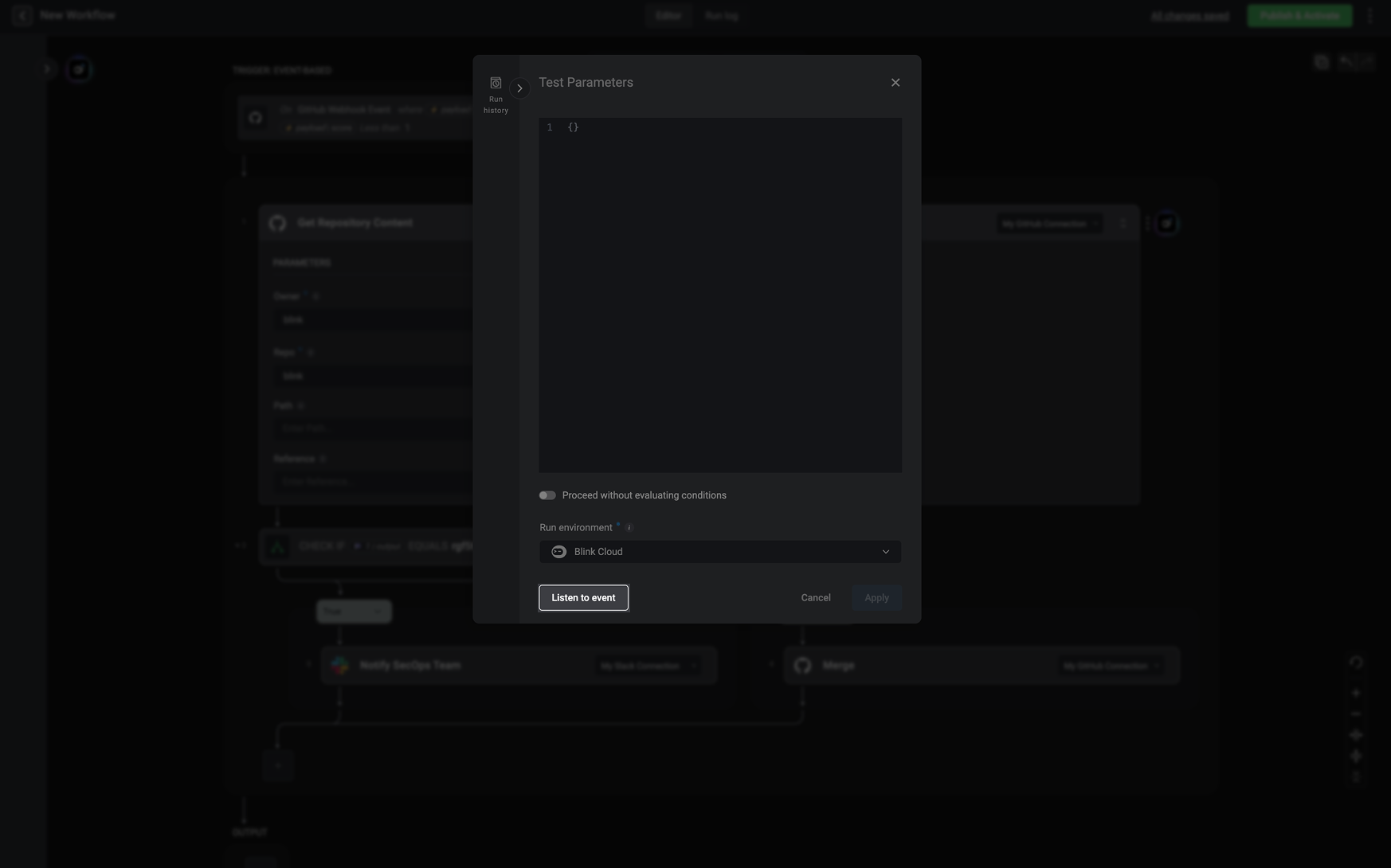
    <Step title="Listen to an event">
      Next, click **“Listen to Event”** to activate the webhook listener. This step ensures that Blink is ready to receive and process an incoming payload request. The platform now displays the Webhook URL that external services (or test tools) can send data to.

      <Frame>
        <img src="https://mintcdn.com/blinkops-2/k2AnPrVK_uNOmnZ4/img/Automations/TestRunEventBased.png?fit=max&auto=format&n=k2AnPrVK_uNOmnZ4&q=85&s=9ff77213e8644881e86eda45cda3688a" width="1746" height="1090" data-path="img/Automations/TestRunEventBased.png" />
      </Frame>
    </Step>

    <Step title="Simulate an Incoming Event">
      To test how the workflow reacts to an event, you send a **test request** to the Webhook URL.
      Using [Postman](https://www.postman.com) (or another API testing tool), you:

      * Copy and paste a sample **JSON object** representing the type of event your workflow will handle.
      * Send an **HTTP POST request** to the Webhook URL.

      Once the request is received, Blink captures the event data and displays it in the interface.
    </Step>

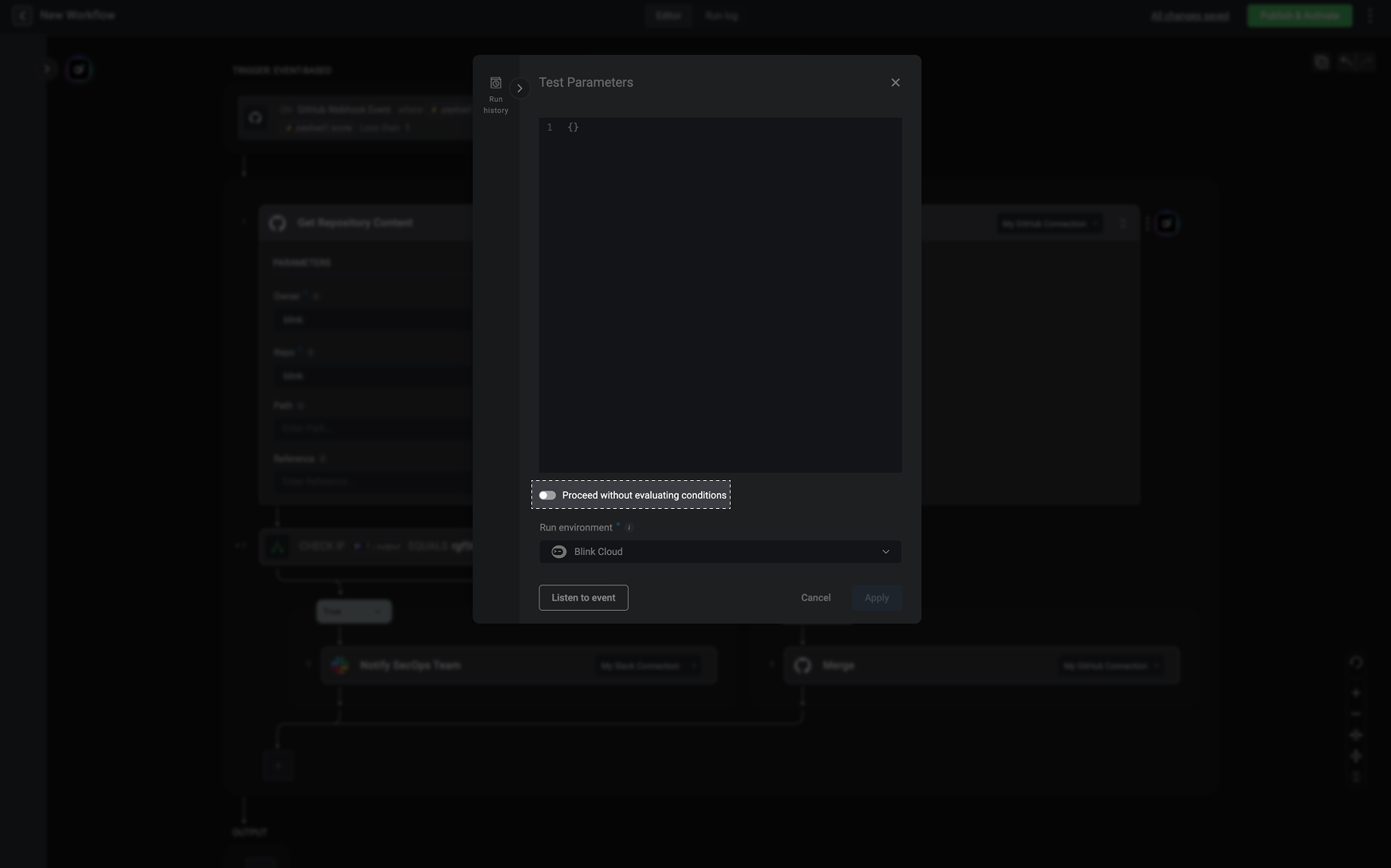
    <Step title="Proceed without evaluating conditions">
      When configuring an event-based (webhook) trigger, you can define conditions that determine whether an incoming event starts the workflow.

      During testing:

      * Enabled: The workflow runs in test mode even if the payload does not meet the trigger conditions.
      * Disabled (default): The workflow runs only if the test payload satisfies the configured conditions.

      <Note>**Note**: This setting does not affect the published workflow behavior.</Note>

      <Frame>
        <img src="https://mintcdn.com/blinkops-2/k2AnPrVK_uNOmnZ4/img/Automations/ProceedWithoutEvaluatingCondition.png?fit=max&auto=format&n=k2AnPrVK_uNOmnZ4&q=85&s=62811f0686cdee8306456128294617b1" width="1746" height="1090" data-path="img/Automations/ProceedWithoutEvaluatingCondition.png" />
      </Frame>
    </Step>

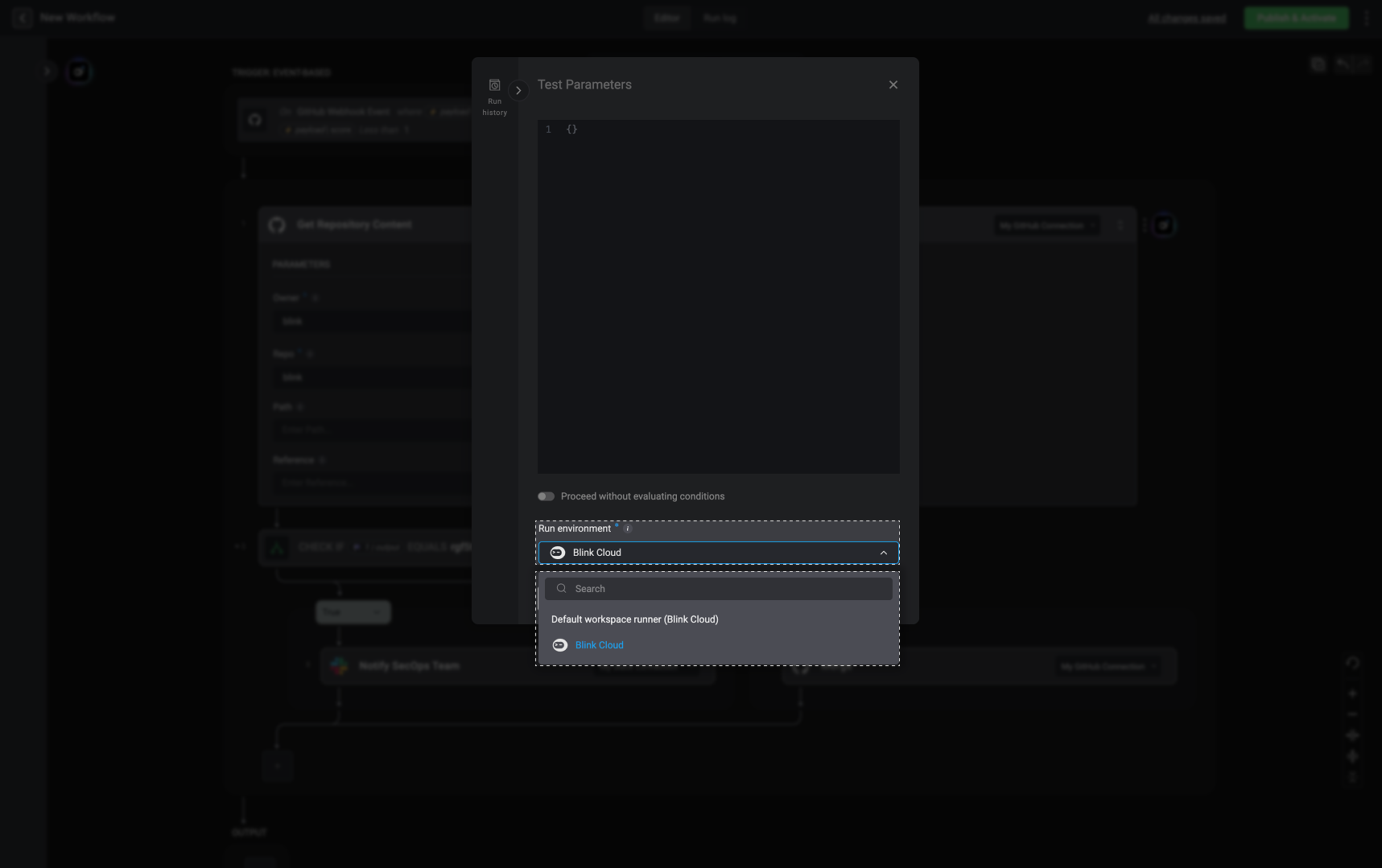
    <Step title="Select a Runner">
      If needed, you can change the runner to execute the workflow in a different environment. By default, Blink uses the **Blink Cloud runner**, but you can select another runner if required.

      <Frame>
        <img src="https://mintcdn.com/blinkops-2/k2AnPrVK_uNOmnZ4/img/Automations/RunEnvironment.png?fit=max&auto=format&n=k2AnPrVK_uNOmnZ4&q=85&s=1afd19b638fb8012c9147785e4ea7580" width="1717" height="1079" data-path="img/Automations/RunEnvironment.png" />
      </Frame>
    </Step>

    <Step title="Run the Test">
      Finally, you click **“Run Test”** to execute the workflow using the test event. This simulates a real event and allows you to verify that the workflow processes the incoming data correctly.
    </Step>
  </Steps>

  ### Using the Custom Webhook - Use Case Example

  <Frame>
    <video controls autoPlay muted zoom loop allowFullScreen className="w-full aspect-video" src="https://www.dropbox.com/s/xdccsrvxt2wagxh/TestEventWebhooks.mp4?st=iv24nyay&raw=1" />
  </Frame>

  ***

  ## 2. Real Events

  An [Event-Based Workflow](/docs/workflows/building-workflows/triggers/event-based-triggers/event-based-triggers) can also be tested using an actual event from the selected external service, ensuring the workflow functions correctly when triggered by real event data.

  <Steps>
    <Step title="Open the Test Parameters Panel">
      Click 'Test parameters' button to open the configuration panel where you can define input values for the test run.
    </Step>

    <Step title="Fetch the Event">
      **Click the Fetch Event Button**: This fetches a real event that was generated in the past 30 days from the selected connection. The event can be used to test your current workflow version before publishing it.
    </Step>

    <Step title="Results">
      Results returned can be:

      <div className="integrations-table">
        | Result                    | Description                                                                          |
        | ------------------------- | ------------------------------------------------------------------------------------ |
        | **Event found**           | An event matching the criteria was found and is displayed in JSON format.            |
        | **No events found**       | No matching events were found within the last 30 days.                               |
        | **Failed to fetch event** | The event could not be retrieved. Verify your input details and connection settings. |
      </div>

      <Note>**Note:** If the trigger was set up using a condition AND a real event was fetched, the condition will be ignored.</Note>
    </Step>
  </Steps>

  ***

  ### Using Real Events- Use Case Example

  In this example, we are testing an [Event-Based Workflow](/docs/workflows/building-workflows/triggers/event-based-triggers/event-based-triggers) that is triggered by the [GitHub - On Merge Pull Request](/docs/integrations/github/triggers/merged-pull-request) event. This event is activated when a pull request is merged, providing the workflow with relevant metadata from GitHub. The captured payload, displayed in the **Test Parameters** panel, simulates the incoming event, allowing us to validate how the workflow processes the data before executing the subsequent steps.

  <Frame>
    <video controls autoPlay muted zoom loop allowFullScreen className="w-full aspect-video" src="https://www.dropbox.com/s/cdjh9ixzgv18vt0/TestEventTriggers.mp4?st=lky2aqun&raw=1" />
  </Frame>
</Accordion>

<Accordion icon="clock" iconType="solid" title="Testing Scheduled Workflows">
  A [Scheduled Workflow](/docs/workflows/building-workflows/triggers/scheduled-triggers) can be tested using the following instructions:

  * No test parameters are needed when testing a scheduled trigger workflow. Ensure that all steps within the workflow are configured correctly.
  * Afterward, simply click the "Test Run" button. This will simulate the execution of the workflow as if it were triggered by the schedule. However, note that the workflow will not run according to its actual scheduled time until that time arrives.

  <Frame>
    <img src="https://mintcdn.com/blinkops-2/rnR3ZbI-RrvCvfuN/img/Automations/TestScheduledWorkflows.png?fit=max&auto=format&n=rnR3ZbI-RrvCvfuN&q=85&s=ceb2c527bc0b5bf3f0492db1c907e14d" width="3422" height="2130" data-path="img/Automations/TestScheduledWorkflows.png" />
  </Frame>
</Accordion>

***

### Complete Workflow Execution Statuses

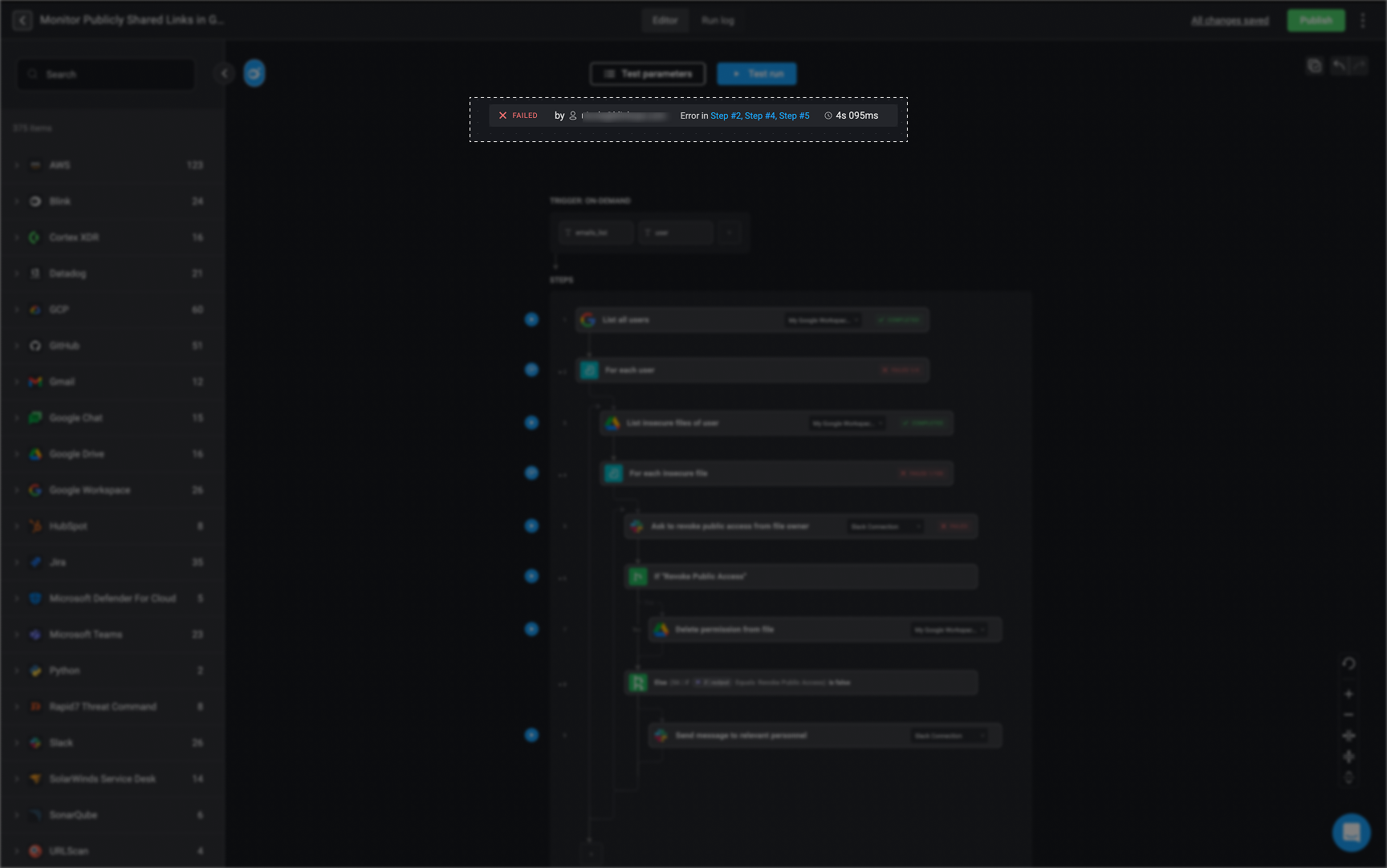
A status indicator at the top of the editor provides real-time feedback on the Workflow’s execution. Including total run time, who ran the workflow, the number of completed steps, and details on any failures.

<Note>
  When you stop a test run of a workflow, any temporary changes or test data used during the execution will be discarded. The workflow will revert to its last saved version, ensuring that no test modifications persist in the live configuration. This allows you to safely test workflows without affecting the original setup.
</Note>

The table below lists the possible execution statuses of a Workflow

<div id="#var-table">
  | Workflow Status | Description                                                 | Icon                                                                                                                                                                                                                                                                                                                                                                                                                                                                                                                                                                                                                                                                                                                                                                                                                                                                                                                                                                                                                                                                                                                                                                                                                                                                                                                                                                                                                                                                             |
  | --------------- | ----------------------------------------------------------- | -------------------------------------------------------------------------------------------------------------------------------------------------------------------------------------------------------------------------------------------------------------------------------------------------------------------------------------------------------------------------------------------------------------------------------------------------------------------------------------------------------------------------------------------------------------------------------------------------------------------------------------------------------------------------------------------------------------------------------------------------------------------------------------------------------------------------------------------------------------------------------------------------------------------------------------------------------------------------------------------------------------------------------------------------------------------------------------------------------------------------------------------------------------------------------------------------------------------------------------------------------------------------------------------------------------------------------------------------------------------------------------------------------------------------------------------------------------------------------- |
  | **Completed**   | The workflow completed successfully without any errors.     | <img src="https://mintcdn.com/blinkops-2/02RSwiH07cq8URMl/img/Automations/StepStatusComplete.svg?fit=max&auto=format&n=02RSwiH07cq8URMl&q=85&s=488a87b5a1dc1b9dc9c426f11467001c" width="92" height="24" data-path="img/Automations/StepStatusComplete.svg" />                 |
  | **In Progress** | The workflow is currently running and has not yet finished. | <img src="https://mintcdn.com/blinkops-2/02RSwiH07cq8URMl/img/Automations/StepStatusProgress.svg?fit=max&auto=format&n=02RSwiH07cq8URMl&q=85&s=87edeff7a2be9358419e5eac66d326af" width="96" height="24" data-path="img/Automations/StepStatusProgress.svg" />                 |
  | **Failed**      | The workflow encountered an error and did not complete.     | <img src="https://mintcdn.com/blinkops-2/WmI_MK_-clUbBqP8/img/Automations/WorkflowStatusFailed.svg?fit=max&auto=format&n=WmI_MK_-clUbBqP8&q=85&s=8a6bb5a842a56257bbcaa186cb3f3357" width="61" height="21" data-path="img/Automations/WorkflowStatusFailed.svg" /> |
</div>

<Frame caption="The Workflow's Execution Status Indicator">
  <img src="https://mintcdn.com/blinkops-2/rnR3ZbI-RrvCvfuN/img/Automations/WorkflowStatus.png?fit=max&auto=format&n=rnR3ZbI-RrvCvfuN&q=85&s=de1ffd06a173e1b02c6f4abe94b89924" width="1728" height="1082" data-path="img/Automations/WorkflowStatus.png" />
</Frame>

***

### Using Test Parameters from Previous Runs

You can use past executions and their parameters to test a workflow. These past executions include both test runs and executions of the published version. Running a test with real inputs from a previous execution helps you identify issues, troubleshoot failures, and refine the workflow for better performance.

<Note> When testing a draft workflow using input parameters from a past execution, only parameters that match both by name and type to the current input parameters will be used in the test. Any other parameters, which do not match, will be ignored and not included in the test run. </Note>

<Steps>
  <Step title="Open the Test Parameters Panel">
    Click 'Test parameters' button to open the configuration panel where you can define input values for the test run.
  </Step>

  <Step title="View Execution History ">
    Click **Run history**, then select the parameters of a past run execution to test with your current workflow draft.
  </Step>
</Steps>

<Frame>
  <video controls autoPlay muted zoom loop allowFullScreen className="w-full aspect-video" src="https://www.dropbox.com/s/un8r6eb9idtmd8t/PreviousTestParams.mp4?st=t1em6rx1&raw=1" />
</Frame>

***

## Testing a Single Step in a Workflow

In the Workflow Editor, users can run steps individually, providing a live debugging experience, to identify and resolve issues without executing the entire workflow. This streamlines troubleshooting, making it faster and more efficient.

* To test a specific Step, click the <Icon icon="circle-play" iconType="solid" /> button next to it. If a Step is pending, you can stop it by clicking the <Icon icon="circle-stop" iconType="solid" color="#FF0000" /> button that appears next to the step.

* Users can edit and rerun Steps—including nested ones—while building the Workflow. However, during testing, you cannot stop a nested Step by itself. If a step is inside an [If](/docs/workflows/building-workflows/actions/basic-actions/flow-control-actions#if) action, an [If-else](/docs/workflows/building-workflows/actions/basic-actions/flow-control-actions#if-else) action, or a [Loop](/docs/workflows/building-workflows/actions/basic-actions/flow-control-actions#loop) action, you must stop the entire conditional or loop to stop that Step. This ensures that the Workflow logic remains consistent while testing.

***

### Single Step Execution Statuses

<Note>
  **Note**
  <div className="flex flex-row items-center">You can hover the step's <img src="https://mintcdn.com/blinkops-2/02RSwiH07cq8URMl/img/Automations/StepStatusComplete.svg?fit=max&auto=format&n=02RSwiH07cq8URMl&q=85&s=488a87b5a1dc1b9dc9c426f11467001c" width="92" height="24" data-path="img/Automations/StepStatusComplete.svg" />  status to see the step's total run duration </div>
</Note>

The table below lists the possible execution statuses of a step:

<div id="#var-table">
  | Status          | Description                                                | Icon                                                                                                                                                                                                                                                                                                                                                                                                                                                                                                                                                                                                                                                                                                                                                                                                                                                                                                                                                                                                                                                                                                                                                                                                                                                                                                                                                                                                                                                             |
  | --------------- | ---------------------------------------------------------- | ---------------------------------------------------------------------------------------------------------------------------------------------------------------------------------------------------------------------------------------------------------------------------------------------------------------------------------------------------------------------------------------------------------------------------------------------------------------------------------------------------------------------------------------------------------------------------------------------------------------------------------------------------------------------------------------------------------------------------------------------------------------------------------------------------------------------------------------------------------------------------------------------------------------------------------------------------------------------------------------------------------------------------------------------------------------------------------------------------------------------------------------------------------------------------------------------------------------------------------------------------------------------------------------------------------------------------------------------------------------------------------------------------------------------------------------------------------------- |
  | **Completed**   | The step executed successfully without errors.             | <img src="https://mintcdn.com/blinkops-2/02RSwiH07cq8URMl/img/Automations/StepStatusComplete.svg?fit=max&auto=format&n=02RSwiH07cq8URMl&q=85&s=488a87b5a1dc1b9dc9c426f11467001c" width="92" height="24" data-path="img/Automations/StepStatusComplete.svg" /> |
  | **Pending**     | The step is waiting for approval or an external response.  | <img src="https://mintcdn.com/blinkops-2/02RSwiH07cq8URMl/img/Automations/StepStatusPendings.svg?fit=max&auto=format&n=02RSwiH07cq8URMl&q=85&s=1c3d7e9f307cc715a99f2e503fc16c00" width="76" height="24" data-path="img/Automations/StepStatusPendings.svg" /> |
  | **In Progress** | The step is currently running and has not yet completed.   | <img src="https://mintcdn.com/blinkops-2/02RSwiH07cq8URMl/img/Automations/StepStatusProgress.svg?fit=max&auto=format&n=02RSwiH07cq8URMl&q=85&s=87edeff7a2be9358419e5eac66d326af" width="96" height="24" data-path="img/Automations/StepStatusProgress.svg" /> |
  | **Stopped**     | The step’s execution was manually or automatically halted. | <img src="https://mintcdn.com/blinkops-2/02RSwiH07cq8URMl/img/Automations/StepStatusStopped.svg?fit=max&auto=format&n=02RSwiH07cq8URMl&q=85&s=caa095d83d50d072e432e3ea1a116d7e" width="77" height="24" data-path="img/Automations/StepStatusStopped.svg" />         |
</div>

***