> ## Documentation Index
> Fetch the complete documentation index at: https://docs.blinkops.com/llms.txt
> Use this file to discover all available pages before exploring further.

# Creating a New Workflow

> How to create a new workflow in Blink using Builder Copilot or the manual workflow editor.

When creating a new automated workflow, you have two options:

<CardGroup col={2}>
  <Card title="Create a Workflow using the Builder Copilot" icon="robot" href="#create-a-workflow-using-the-builder-copilot">
    You can use the Builder Copilot to quickly generate and build a workflow using AI assistance.
  </Card>

  <Card title="Create a Workflow from Scratch" icon="wrench" href="#create-a-workflow-from-scratch">
    You can configure and build a workflow entirely from scratch, allowing you to customize every step and logic to fit your specific needs.
  </Card>
</CardGroup>

***

## Create a Workflow using the Builder Copilot

<Note>
  For more details on how to use the Builder Copilot—including its features and capabilities—refer to the [Builder Copilot documentation](/docs/builder-copilot/builder-copilot).
</Note>

<Steps>
  <Step title="Select or Create a Pack">
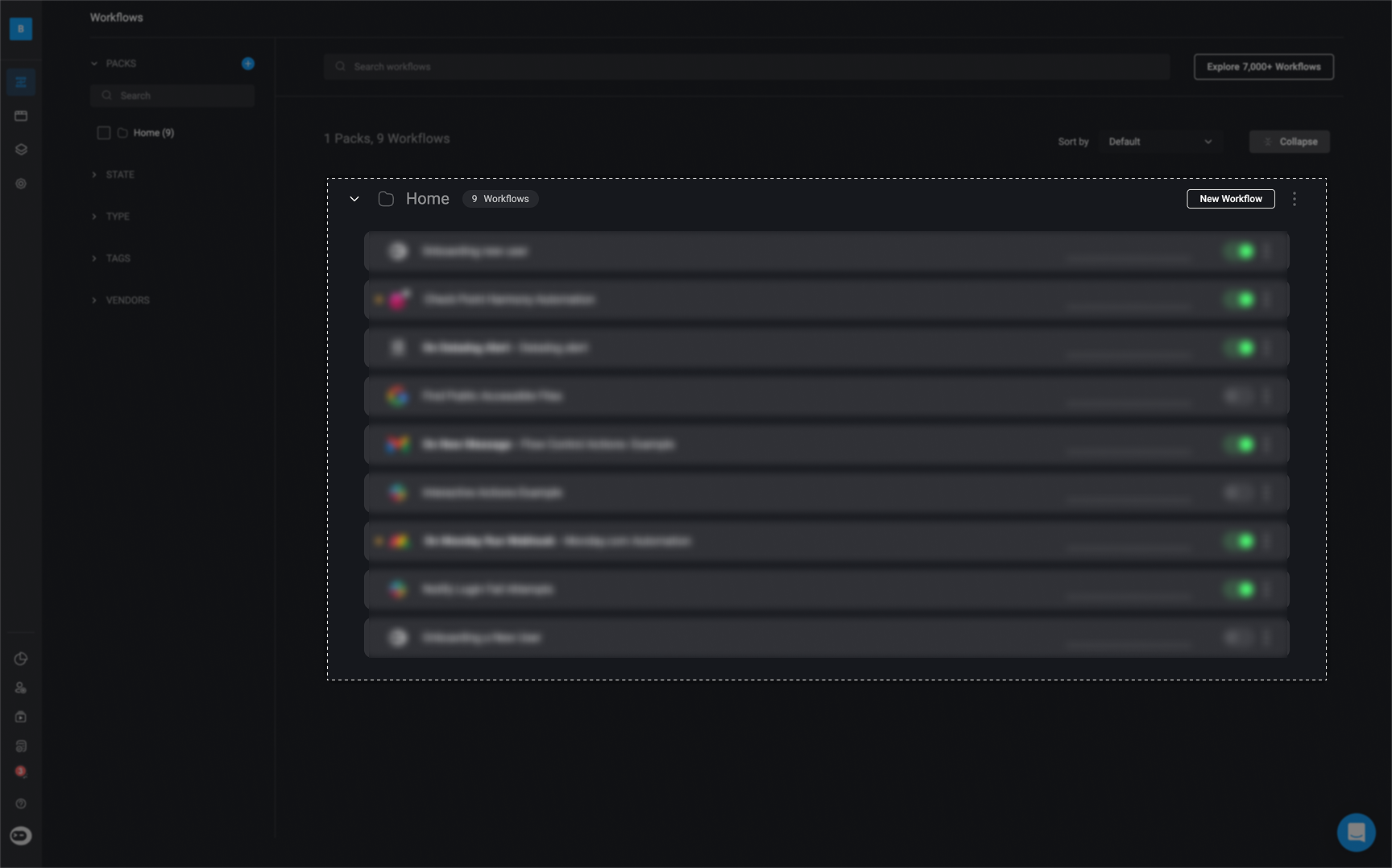
    Start by selecting an existing [Pack](/docs/workflows/workflow-packs/pack-management) or creating a new one. This is where your new workflow will be located.

    <Frame>
      <img src="https://mintcdn.com/blinkops-2/eLYFBpTLBELPX82F/img/AutomationCanvas/ChoosePack.png?fit=max&auto=format&n=eLYFBpTLBELPX82F&q=85&s=b163dadbac58319d4adf8ef764f056ce" width="1728" height="1078" data-path="img/AutomationCanvas/ChoosePack.png" />
    </Frame>
  </Step>

  <Step title="Create a New Workflow">
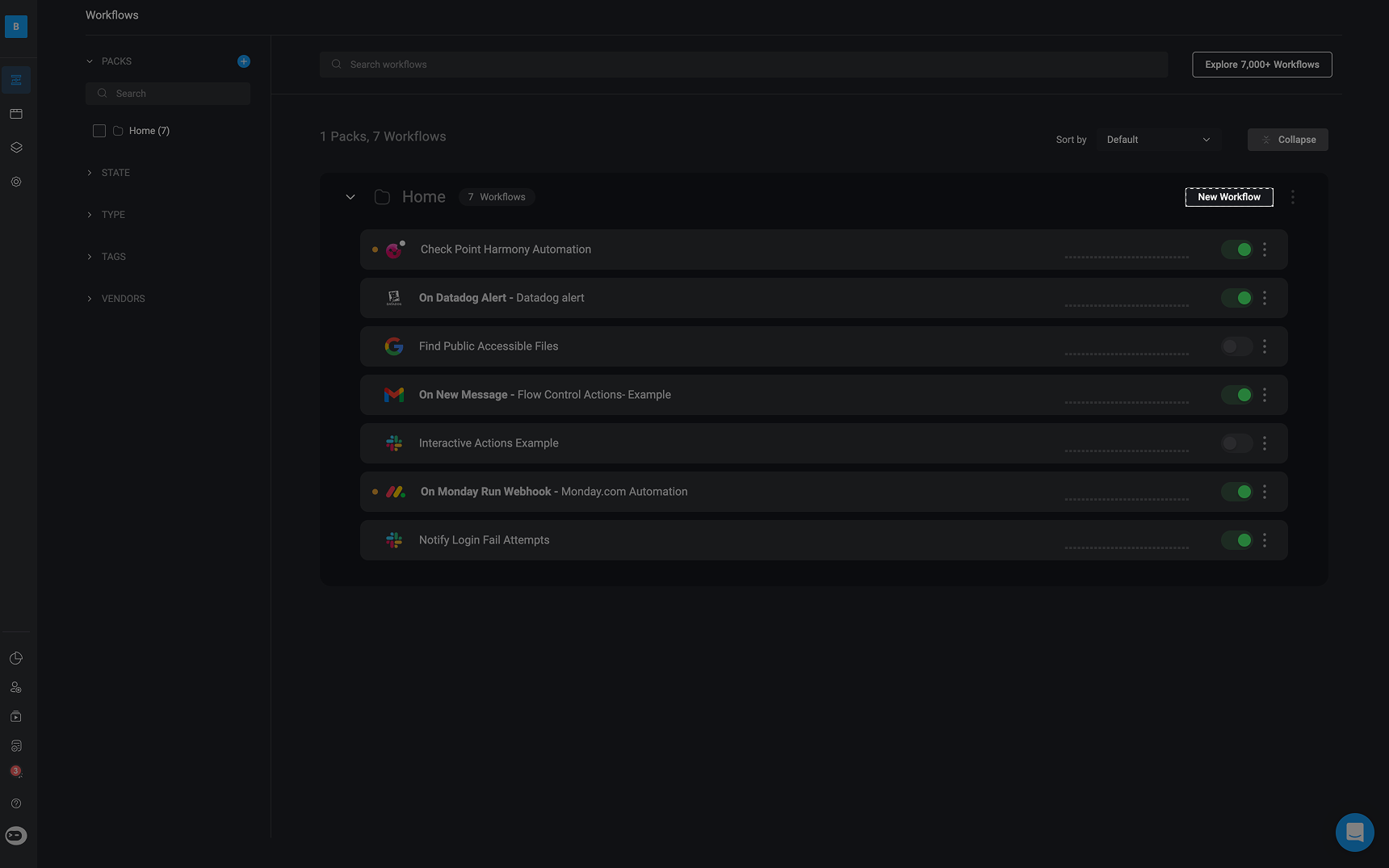
    In the top-right corner of the selected Pack, click 'New Workflow' to begin creating your workflow.

    <Frame>
      <img src="https://mintcdn.com/blinkops-2/eLYFBpTLBELPX82F/img/AutomationCanvas/NewAutomation.png?fit=max&auto=format&n=eLYFBpTLBELPX82F&q=85&s=5835f19396b06524552817ea1b7a6a3c" width="1720" height="1075" data-path="img/AutomationCanvas/NewAutomation.png" />
    </Frame>
  </Step>

  <Step title="Provide a Prompt to Builder Copilot">
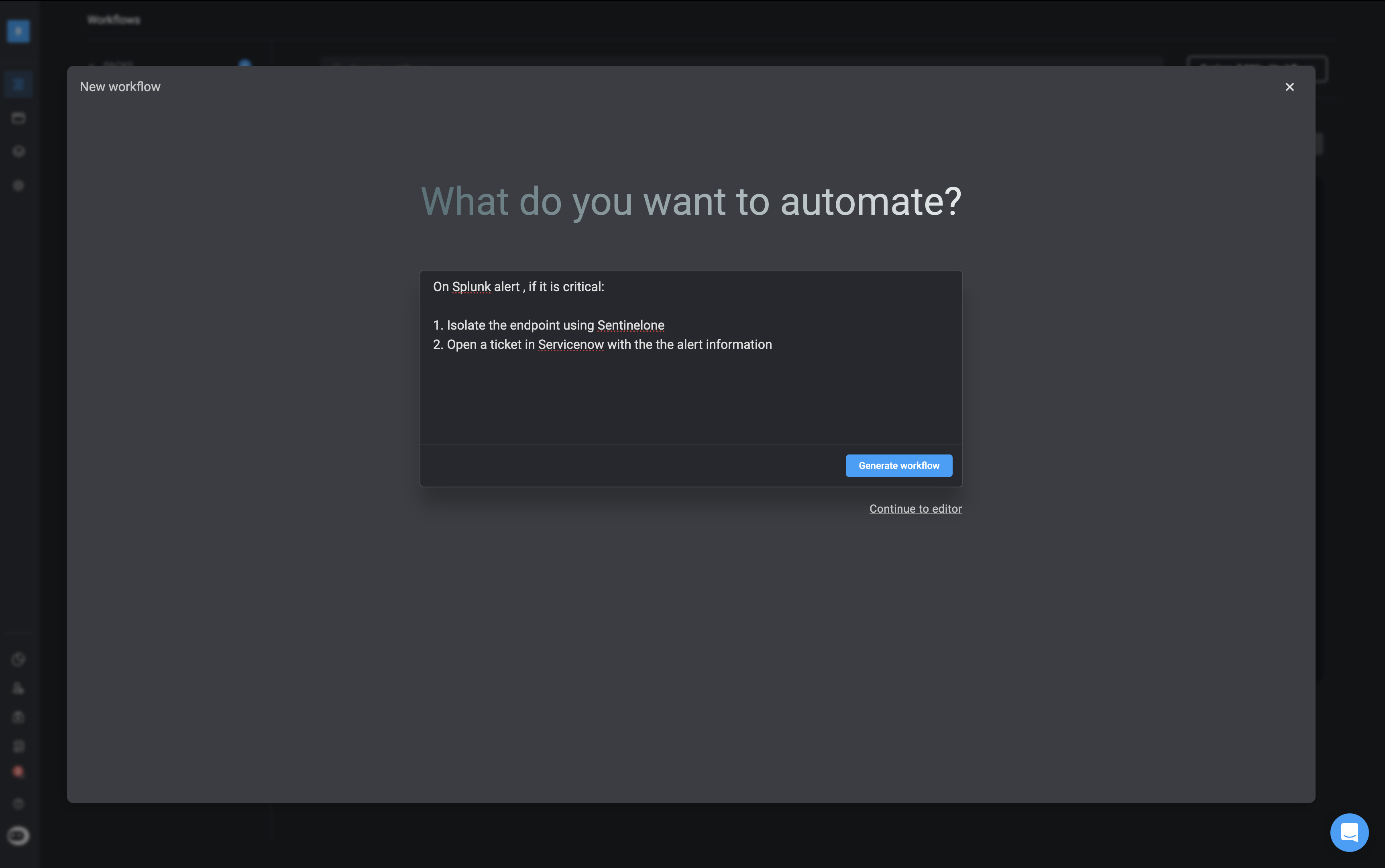
    A dialog box will appear where you can enter a prompt describing the workflow you would like to create.

    <Tip>Provide clear and specific instructions for the Builder Copilot to receive the best results.</Tip>

    <Frame>
      <img src="https://mintcdn.com/blinkops-2/eLYFBpTLBELPX82F/img/AutomationCanvas/Prompt.png?fit=max&auto=format&n=eLYFBpTLBELPX82F&q=85&s=5633d7f0b177f049a5e7b2f8daad12cf" width="3450" height="2162" data-path="img/AutomationCanvas/Prompt.png" />
    </Frame>
  </Step>

  <Step title="Generate the Workflow">
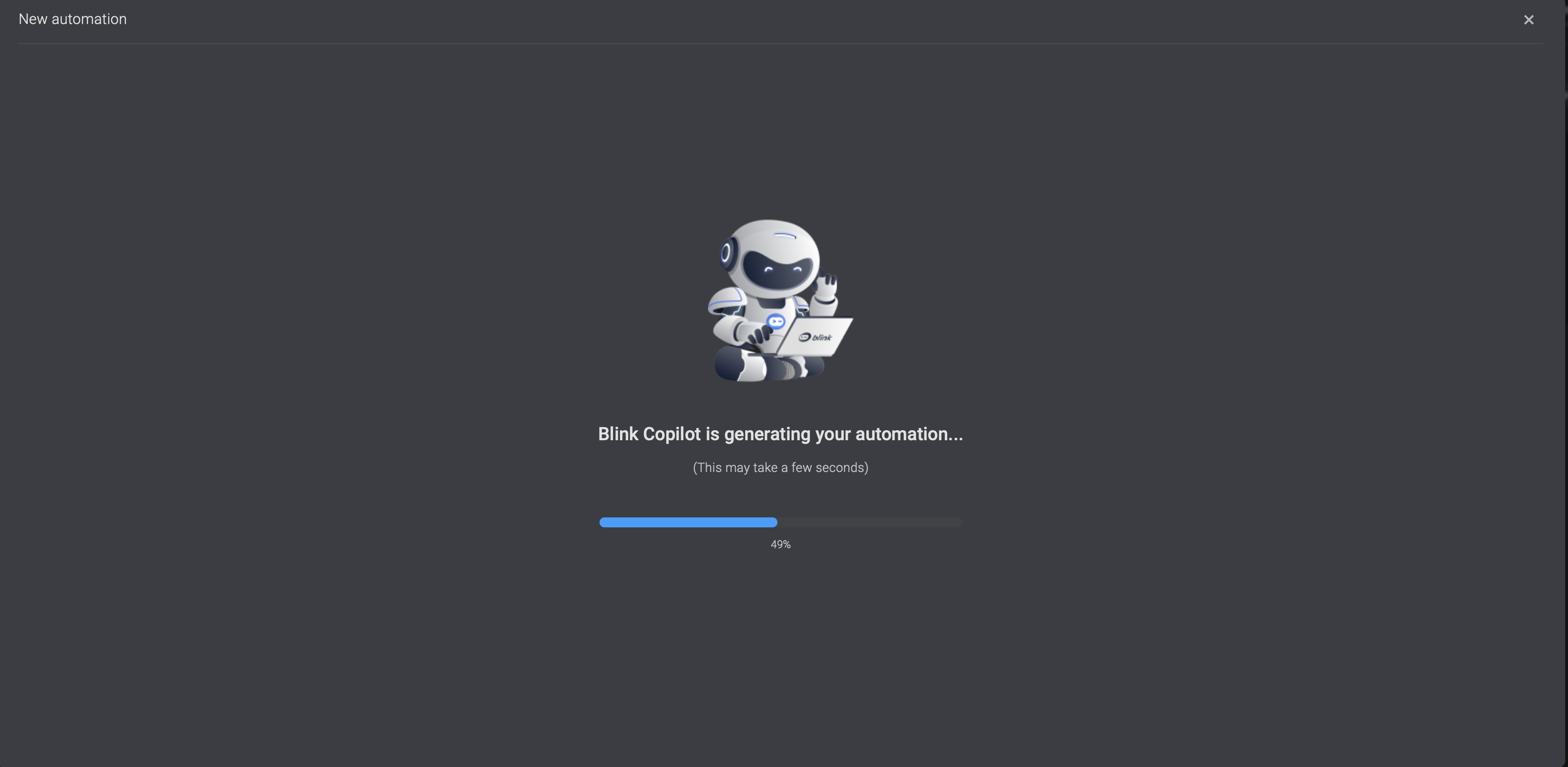
    After you have finished providing instructions for Builder Copilot, click on the 'Generate Workflow' button located in the bottom-right corner. The generation process may take a few seconds.

    <Frame>
      <img src="https://mintcdn.com/blinkops-2/eLYFBpTLBELPX82F/img/AutomationCanvas/LoadingPrompt.png?fit=max&auto=format&n=eLYFBpTLBELPX82F&q=85&s=16e177b1e3cf60b4308cce95f105c679" width="3455" height="1690" data-path="img/AutomationCanvas/LoadingPrompt.png" />
    </Frame>
  </Step>

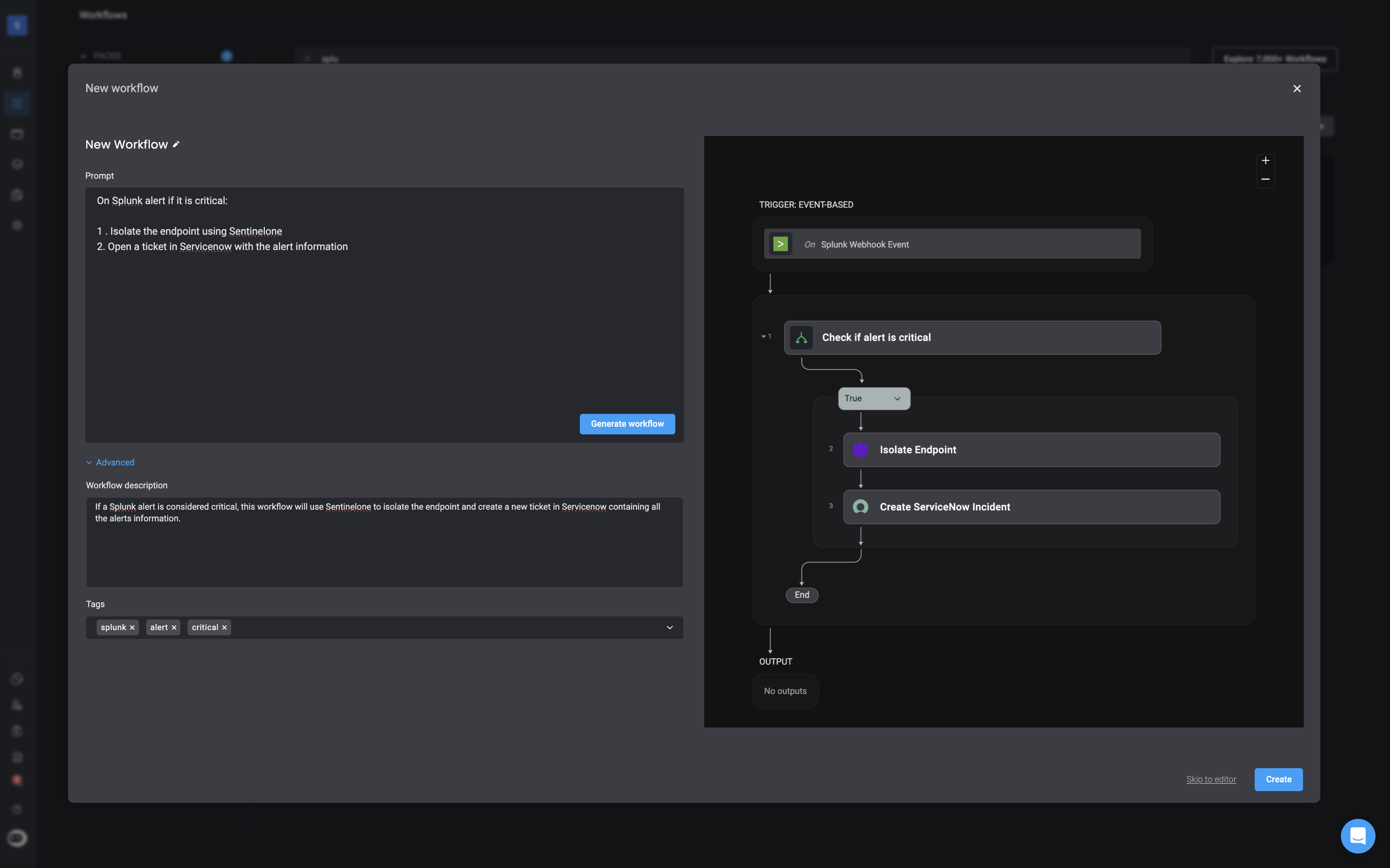
  <Step title="Review and Refine the Workflow">
    Once the generation is complete, you will see a preview screen:

    * **Left panel**: Your original prompt (double-click to edit and regenerate).
    * **Right panel**: The workflow the Builder Copilot has created.
    * **Advanced options**: Add a description and tags for easier management later.

    <Frame>
      <img src="https://mintcdn.com/blinkops-2/zlMo8eiArHkFpK8P/img/AutomationCanvas/PreviewPromptAdvanced.png?fit=max&auto=format&n=zlMo8eiArHkFpK8P&q=85&s=4414f033264523caa8ae606b189fe5af" width="3452" height="2156" data-path="img/AutomationCanvas/PreviewPromptAdvanced.png" />
    </Frame>
  </Step>

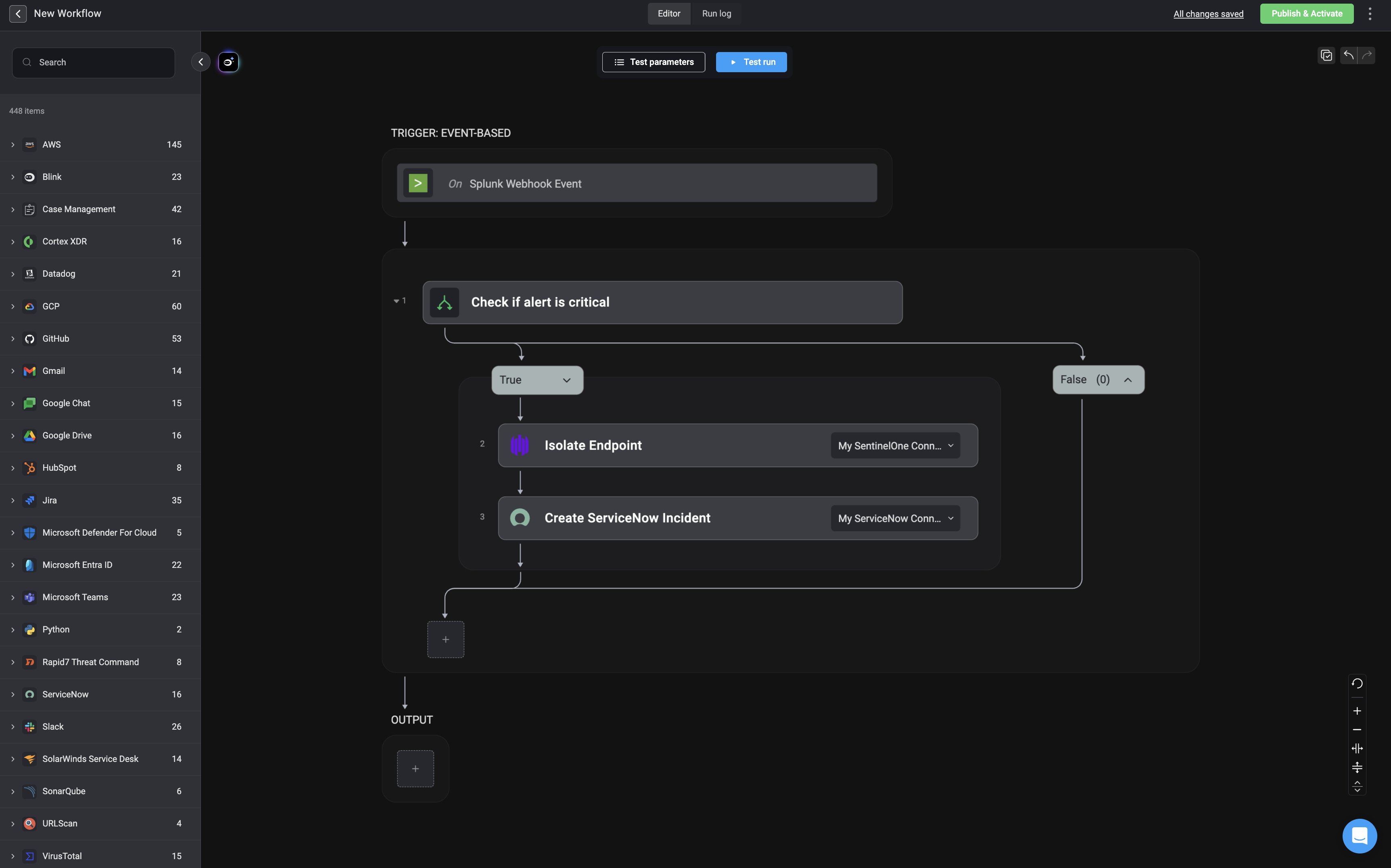
  <Step title="Finalize in the Workflow Editor">
    You will be redirected to the Workflow Editor where you have the option to:

    * Modify or improve the generated logic either by using the [Builder Copilot](/docs/builder-copilot/builder-copilot) or by editing it manually to suit your needs.
    * [Test your workflow](/docs/workflows/testing-workflows/testing-workflows)

    <Frame>
      <img src="https://mintcdn.com/blinkops-2/zlMo8eiArHkFpK8P/img/AutomationCanvas/FinalCanvas.png?fit=max&auto=format&n=zlMo8eiArHkFpK8P&q=85&s=7ab47d0ec7043d02937bedaf2e5e2a90" width="3448" height="2152" data-path="img/AutomationCanvas/FinalCanvas.png" />
    </Frame>
  </Step>

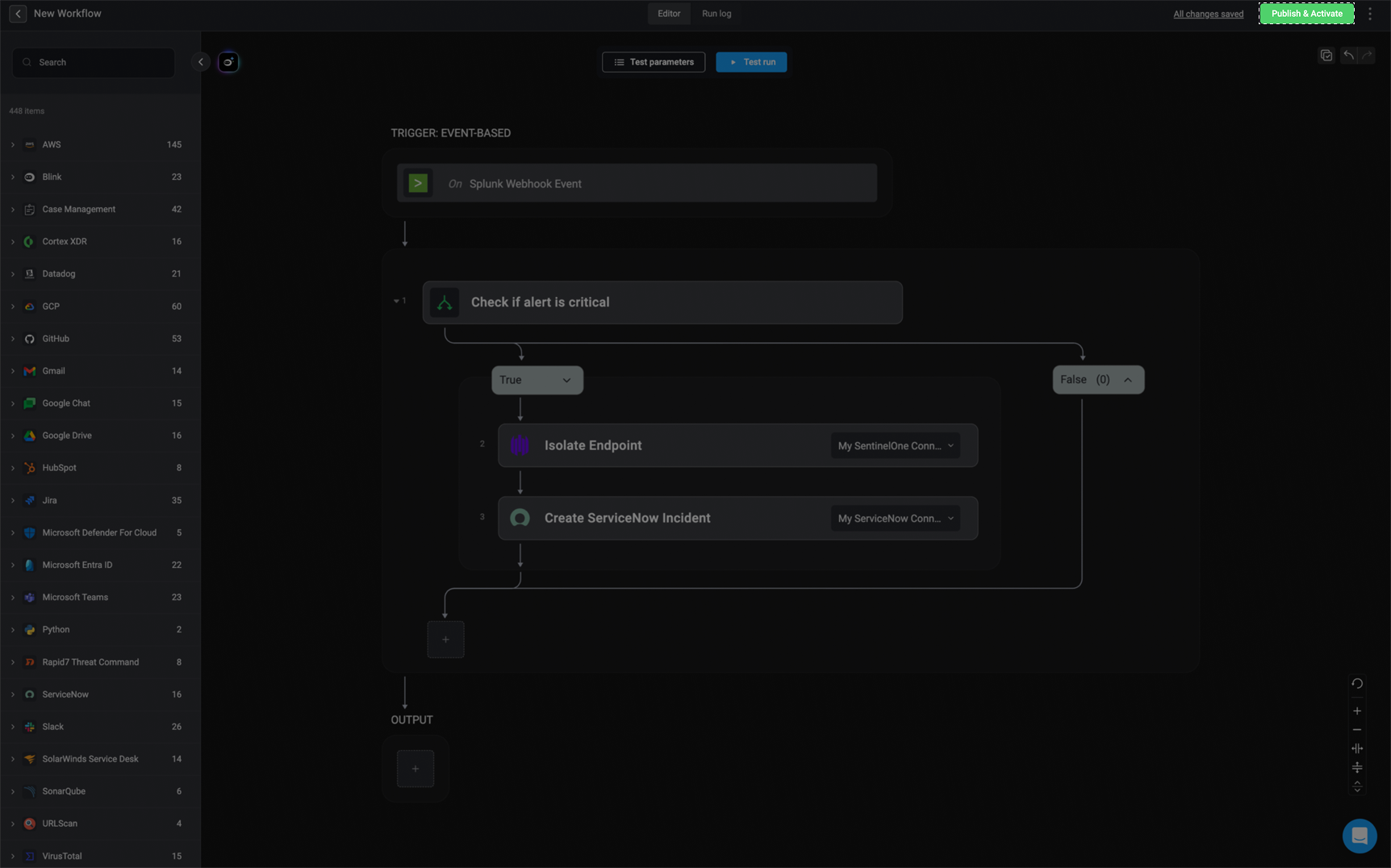
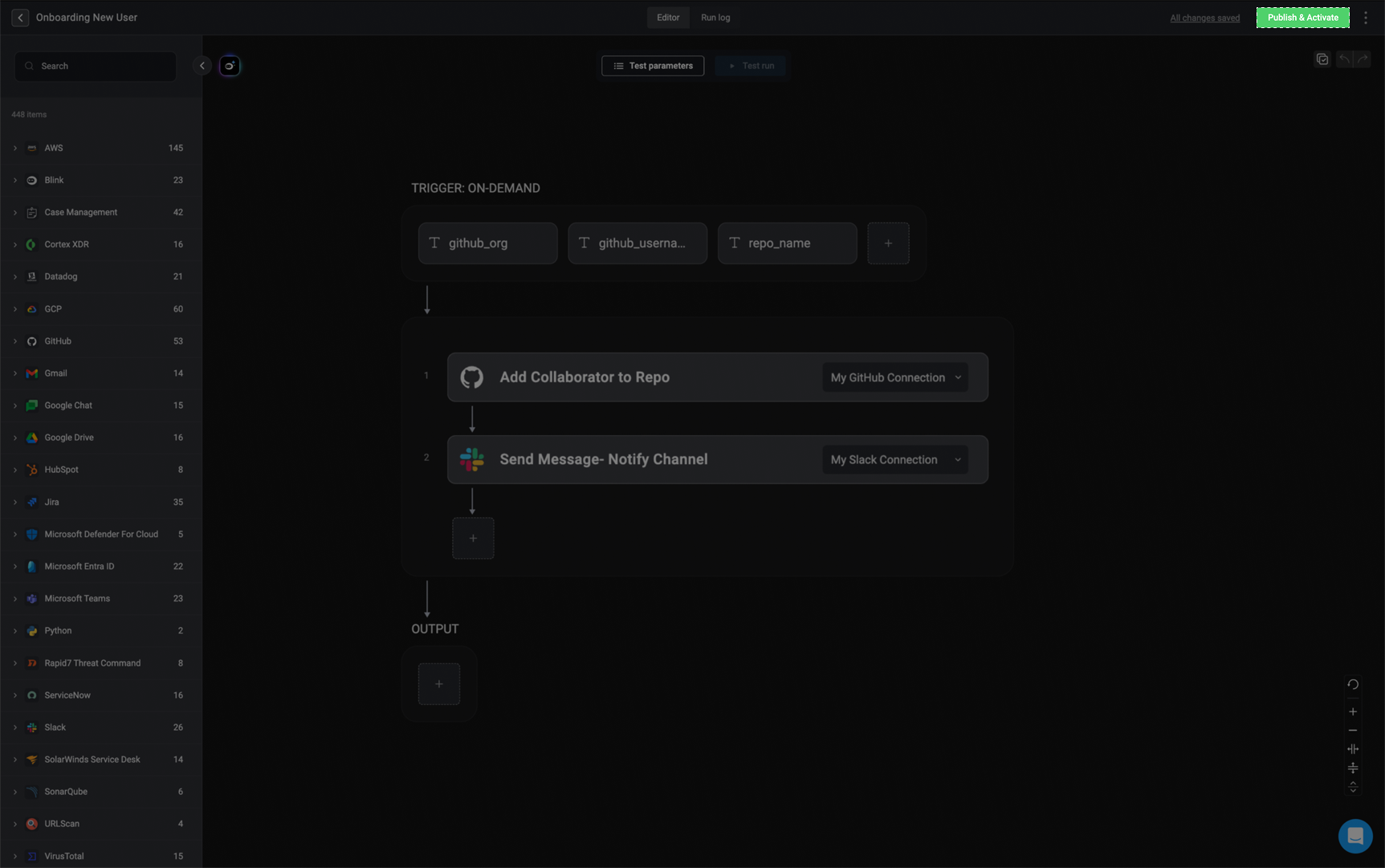
  <Step title="Publish the Workflow">
    Use the 'Publish & Activate' button to publish and activate your workflow for the first time. After the initial activation, any future changes you publish will simply update the most recent workflow version—without reactivating it.

    To learn more about the difference between published workflows and unpublished workflows, check out the documentation [here](/docs/workflows/building-workflows/workflow-editor#published-workflows-vs-unpublished-workflows).

    <Note> Only users with the [Owner user role](/docs/blink-platform/account-management/roles#1-owner), [Contributor user role](/docs/blink-platform/account-management/roles#2-contributor), or a custom role with the `workflow:publish` permission can publish workflows. To learn more about approving and publishing workflows, check out the documentation [here](/docs/workflows/managing-workflows/publish-approval/publish-approval). </Note>

    <Frame>
      <img src="https://mintcdn.com/blinkops-2/zlMo8eiArHkFpK8P/img/AutomationCanvas/PublishButton.png?fit=max&auto=format&n=zlMo8eiArHkFpK8P&q=85&s=5a0c346986ee12dd516d528591d7ef30" width="1724" height="1076" data-path="img/AutomationCanvas/PublishButton.png" />
    </Frame>
  </Step>
</Steps>

***

## Create a Workflow from Scratch

<Steps>
  <Step title="Select or Create a Pack">
    Start by selecting an existing [Pack](/docs/workflows/workflow-packs/pack-management) or creating a new one. This is where your new workflow will be located.

    <Frame>
      <img src="https://mintcdn.com/blinkops-2/eLYFBpTLBELPX82F/img/AutomationCanvas/ChoosePack.png?fit=max&auto=format&n=eLYFBpTLBELPX82F&q=85&s=b163dadbac58319d4adf8ef764f056ce" width="1728" height="1078" data-path="img/AutomationCanvas/ChoosePack.png" />
    </Frame>
  </Step>

  <Step title="Create a New Workflow">
    In the top-right corner of the selected Pack, click 'New Workflow' to begin creating your workflow.

    <Frame>
      <img src="https://mintcdn.com/blinkops-2/eLYFBpTLBELPX82F/img/AutomationCanvas/NewAutomation.png?fit=max&auto=format&n=eLYFBpTLBELPX82F&q=85&s=5835f19396b06524552817ea1b7a6a3c" width="1720" height="1075" data-path="img/AutomationCanvas/NewAutomation.png" />
    </Frame>
  </Step>

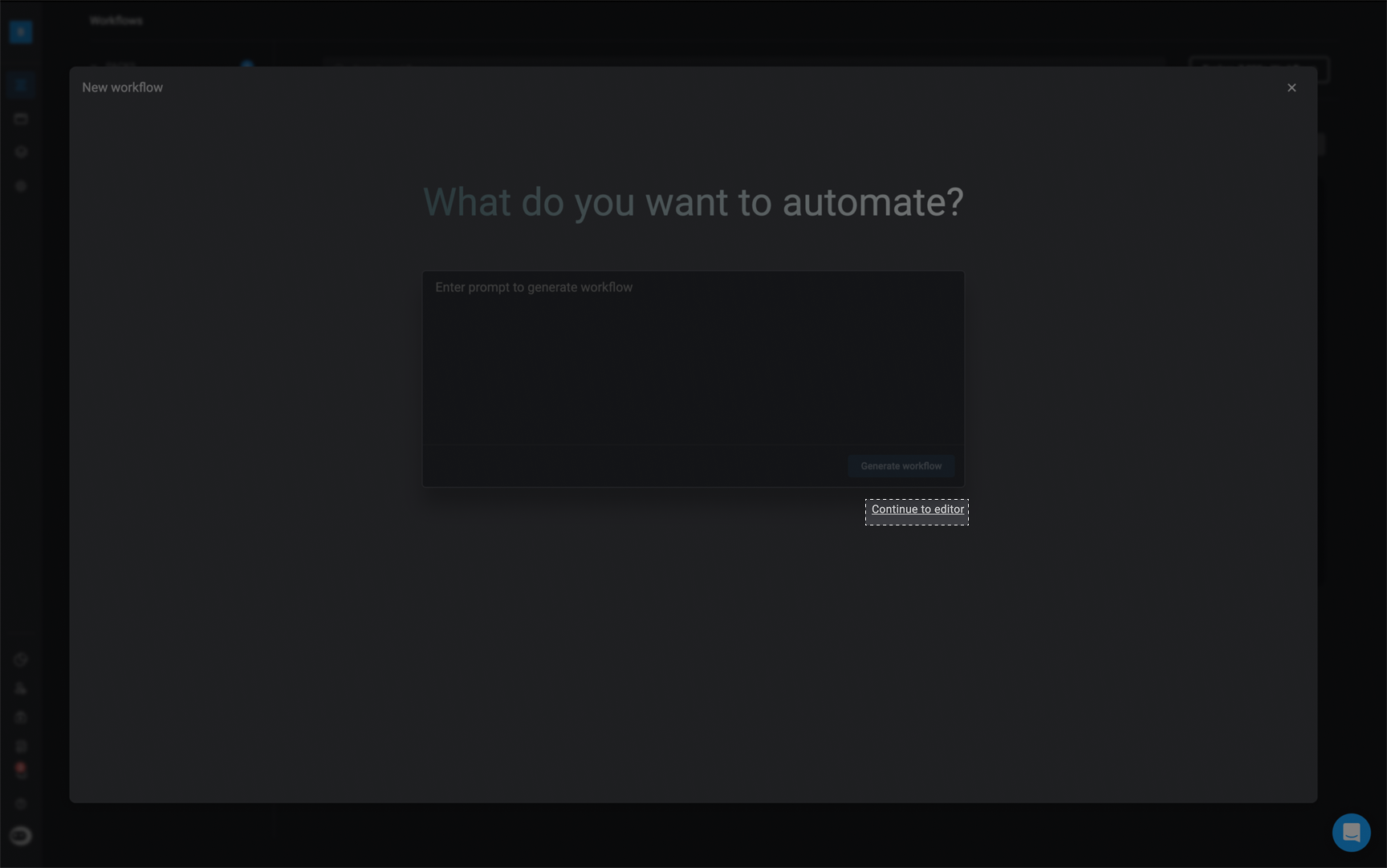
  <Step title="Open the Workflow Editor">
    In the setup screen, click **Continue to Editor** in the bottom-right corner. This will take you to the Workflow Editor, where you can begin building your workflow from scratch.

    <Frame>
      <img src="https://mintcdn.com/blinkops-2/eLYFBpTLBELPX82F/img/AutomationCanvas/ContinueToEditor.png?fit=max&auto=format&n=eLYFBpTLBELPX82F&q=85&s=252b83c44c46a85d7b67823e170d8299" width="1728" height="1082" data-path="img/AutomationCanvas/ContinueToEditor.png" />
    </Frame>
  </Step>

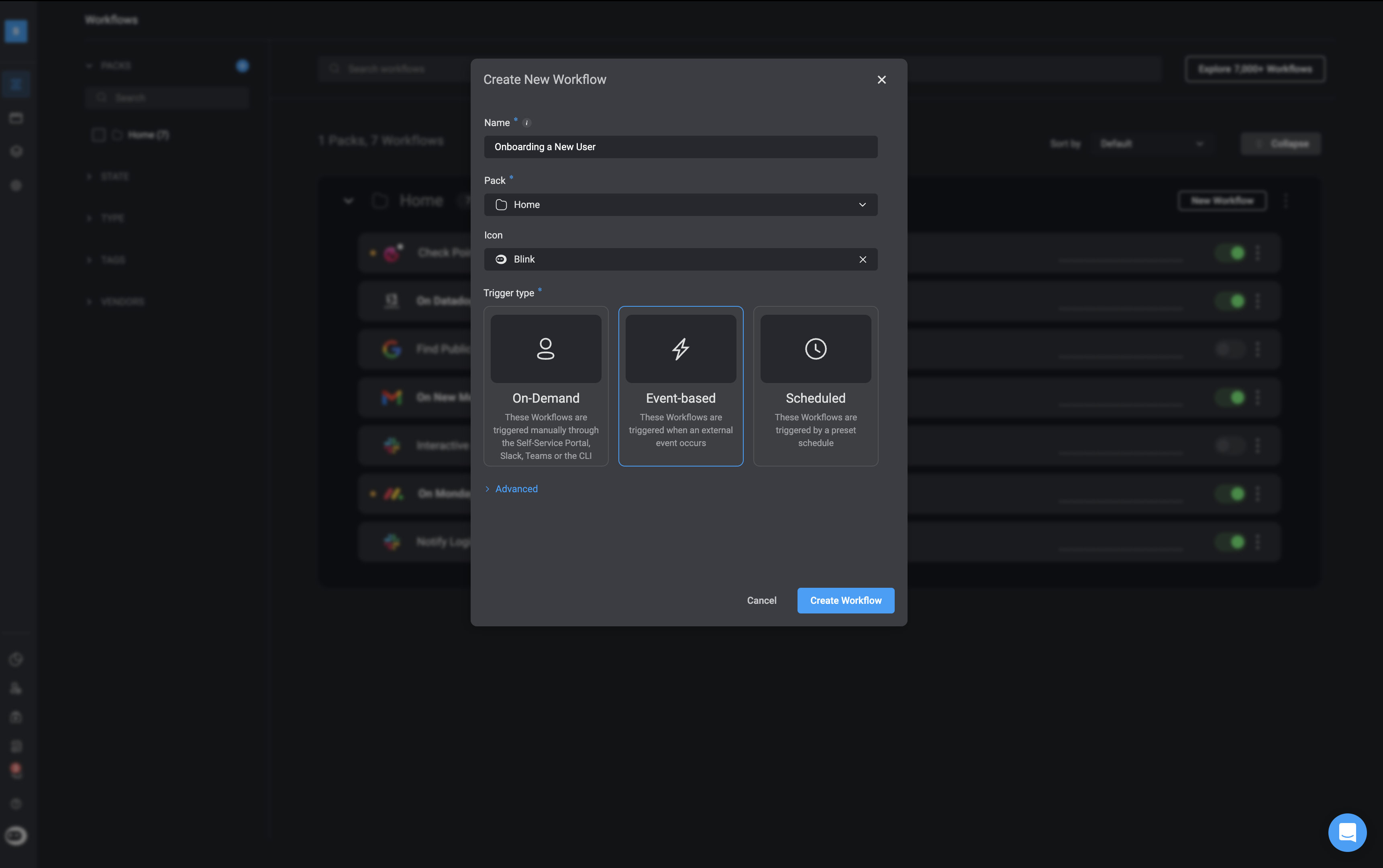
  <Step title="Configure Workflow Settings">
    Before entering the editor, configure the workflow settings:

    <Tip>
      You can proceed with this step using the default values and make changes at a later stage, if needed.
    </Tip>

    <div className="integrations-table">
      | Parameter                                                              | Description                                                                                                                                                                                                                                                                                                                                                     | Default Value                                                                              |
      | ---------------------------------------------------------------------- | --------------------------------------------------------------------------------------------------------------------------------------------------------------------------------------------------------------------------------------------------------------------------------------------------------------------------------------------------------------- | ------------------------------------------------------------------------------------------ |
      | **Name**                                                               | Enter a clear, descriptive name for your workflow.                                                                                                                                                                                                                                                                                                              | New Workflow                                                                               |
      | **[Pack](/docs/workflows/workflow-packs/workflow-packs)**              | Select the Workflow Pack where this workflow will live. Packs help organize related workflows.                                                                                                                                                                                                                                                                  | The Selected Pack                                                                          |
      | **Icon**                                                               | Assign an icon to visually identify your workflow.                                                                                                                                                                                                                                                                                                              | N/A                                                                                        |
      | **Trigger Type**                                                       | Choose how the workflow is triggered: via an [Event-Based Trigger](/docs/workflows/building-workflows/triggers/event-based-triggers/event-based-triggers), an [On-Demand Trigger](/docs/workflows/building-workflows/triggers/on-demand-triggers/on-demand-triggers), or a [Scheduled Trigger](/docs/workflows/building-workflows/triggers/scheduled-triggers). | On-Demand Trigger                                                                          |
      | **Advanced – Description**                                             | Provide a short summary of the workflow’s purpose and behavior.                                                                                                                                                                                                                                                                                                 | N/A                                                                                        |
      | **Advanced – Tags**                                                    | Add tags to help categorize and filter your workflow within the platform.                                                                                                                                                                                                                                                                                       | N/A                                                                                        |
      | **Advanced – [Run Environment](/docs/blink-platform/runners/runners)** | Choose the runner environment that will execute the workflow steps.                                                                                                                                                                                                                                                                                             | [Blink Cloud](/docs/blink-platform/runners/runners#blink-runners-and-self-hosted-runners). |
    </div>

    <Frame>
      <img src="https://mintcdn.com/blinkops-2/eLYFBpTLBELPX82F/img/AutomationCanvas/ConfigureSettings.png?fit=max&auto=format&n=eLYFBpTLBELPX82F&q=85&s=1bdb60060656af33cb2c118b3c7dffb8" width="3444" height="2162" data-path="img/AutomationCanvas/ConfigureSettings.png" />
    </Frame>
  </Step>

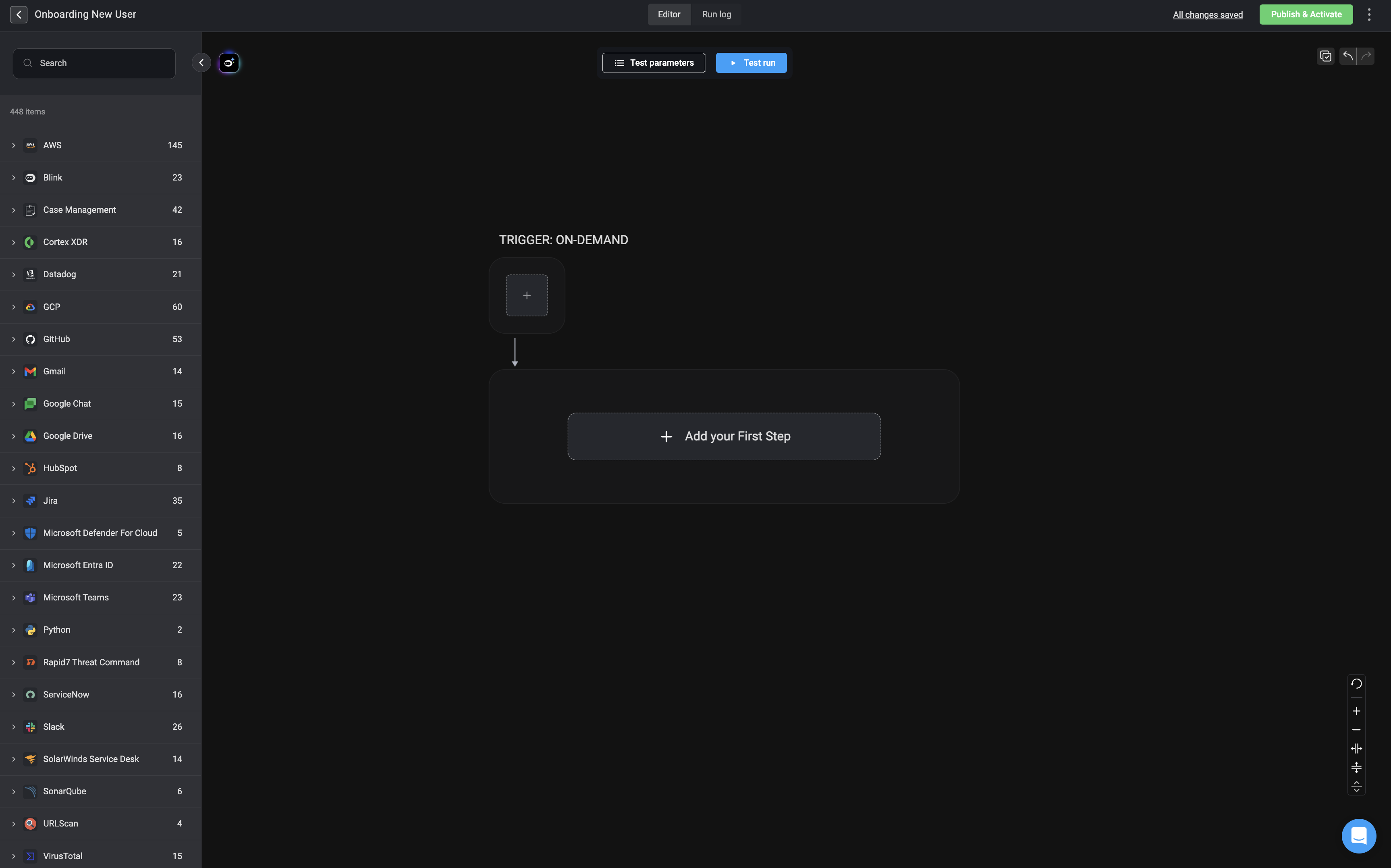
  <Step title="Build Your Workflow">
    Once you have completed the setup, you will be directed to the [Workflow Editor](/docs/workflows/building-workflows/workflow-editor). From here, you can build your workflow accordingly.

    <Frame>
      <img src="https://mintcdn.com/blinkops-2/zlMo8eiArHkFpK8P/img/AutomationCanvas/WorkflowEditor.png?fit=max&auto=format&n=zlMo8eiArHkFpK8P&q=85&s=defe8c9d86c60fc4d15ed775c1cb32b8" width="3452" height="2154" data-path="img/AutomationCanvas/WorkflowEditor.png" />
    </Frame>
  </Step>

  <Step title="Publish the Workflow">
    Use the 'Publish & Activate' button to publish and activate your workflow for the first time. After the initial activation, any future changes you publish will simply update the most recent workflow version—without reactivating it.

    To learn more about the difference between published workflows and unpublished workflows, check out the documentation [here](/docs/workflows/building-workflows/workflow-editor#published-workflows-vs-unpublished-workflows).

    <Note> Only users with the [Owner user role](/docs/blink-platform/account-management/roles#1-owner), [Contributor user role](/docs/blink-platform/account-management/roles#2-contributor), or a custom role with the `workflow:publish` permission can publish workflows. To learn more about approving and publishing workflows, check out the documentation [here](/docs/workflows/managing-workflows/publish-approval/publish-approval). </Note>

    <Frame>
      <img src="https://mintcdn.com/blinkops-2/zlMo8eiArHkFpK8P/img/AutomationCanvas/FinalVersion.png?fit=max&auto=format&n=zlMo8eiArHkFpK8P&q=85&s=852ccf0ac433a501b0b2cf4959313bd0" width="1725" height="1081" data-path="img/AutomationCanvas/FinalVersion.png" />
    </Frame>
  </Step>
</Steps>

***

## Related Articles

<CardGroup cols={2}>
  <Card title="Workflow Editor" icon="plus" href="/docs/workflows/building-workflows/workflow-editor">
    Build a new workflow from scratch in the Workflow Editor.
  </Card>

  <Card title="Triggers" icon="toggle-on" href="/docs/workflows/building-workflows/triggers">
    Configure triggers to start workflows based on events.
  </Card>

  <Card title="Steps" icon="arrow-progress" href="/docs/workflows/building-workflows/steps">
    Define and organize actions within a workflow.
  </Card>

  <Card title="Conditions" icon="code-fork" href="/docs/blink-platform/condition-builder/condition-builder">
    Add logic to control workflow execution paths.
  </Card>
</CardGroup>