> ## Documentation Index
> Fetch the complete documentation index at: https://docs.blinkops.com/llms.txt
> Use this file to discover all available pages before exploring further.
# The Workflow Editor
> Navigate and use the Blink workflow editor to build, configure, and test automated workflows.
The **Workflow Editor** is the core visual interface for building automated security workflows in Blink. It allows you to create custom workflows by combining [Blink actions](/docs/integrations/blink/actions) with actions from [third-party integrations](/docs/integrations/integrations) —enabling you to automate routine tasks, respond to incidents, and standardize security processes across your organization.
The Workflow Editor lets you go from idea to automation in seconds. With a visual, no-code interface and low-code flexibility when needed, you can quickly build and customize workflows to match your exact security needs. Drag and drop actions, configure triggers, and define logic—all without writing code. And when you do want to go deeper, the [Builder Copilot](/docs/builder-copilot/builder-copilot) is there to help generate and build workflows so your team can automate faster, smarter, and with confidence.
The new workflow editor is in its beta phase of testing. You can switch between the classic and new editor at any time by clicking the 'Try New Editor' button in the top-right corner of the workflow editor.
***
## The Workflow Editor's Interface
The following image illustrates the Workflow Editor's Interface and its core components.
**Note:** This image is provided as an example of the Workflow Editor interface. The appearance of your own workflow may vary depending on how you configure your triggers, steps, and actions.
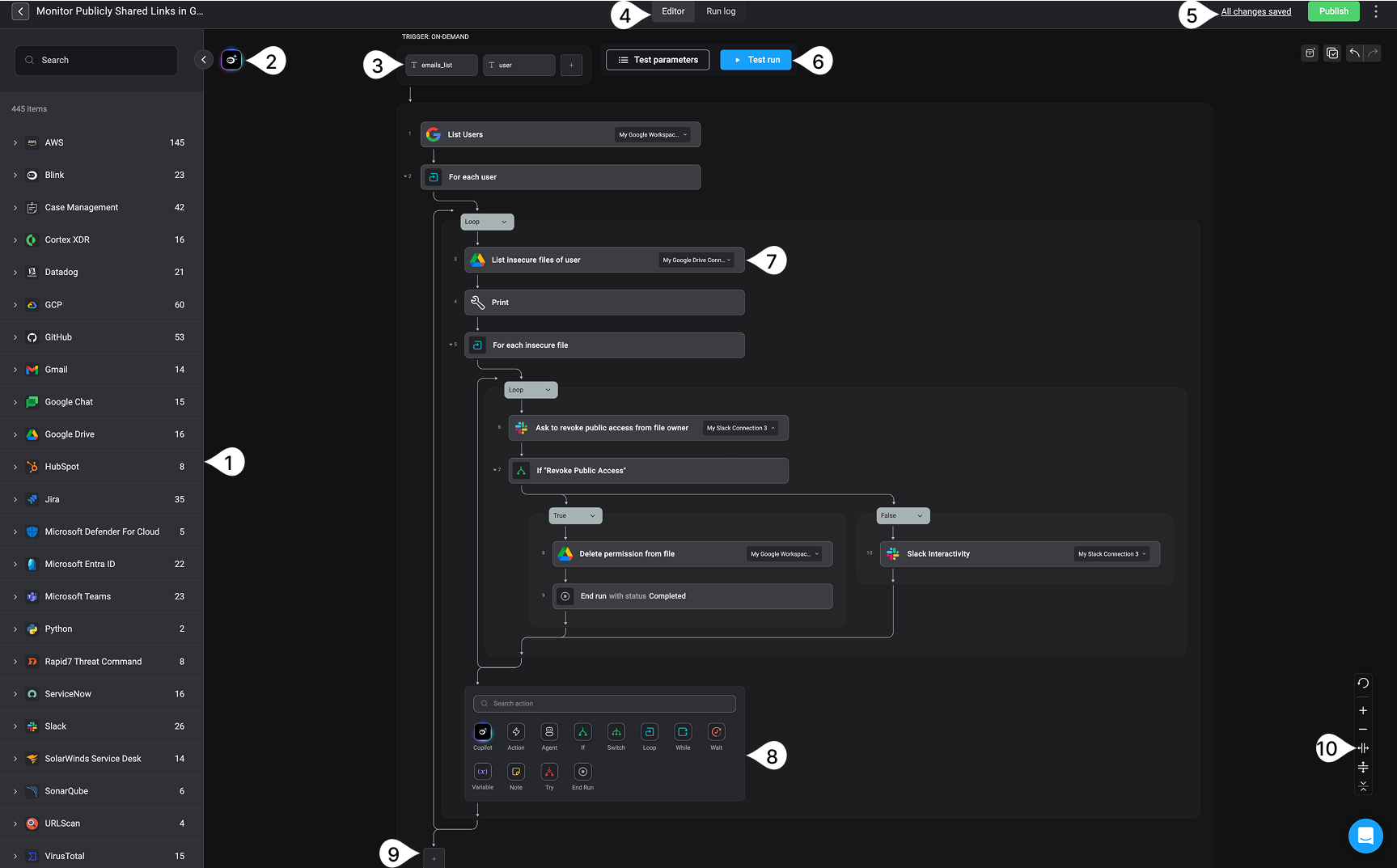 These components are as described in the following table:
| | Component | Description |
| -- | --------------------------------------------------------------------------------------------------------------------------------------------------------- | ------------------------------------------------------------------------------------------------------------------------------------------------------------------------------------------------------------------------------------------------------------------------------------------------------------------------------------------------------------------------------------------------------------------------------------------------------------------------------------------------ |
| 1 | **[The Action Panel](/docs/workflows/building-workflows/actions/actions)** | This panel on the left lists all available integrations and their respective actions. You can search or scroll to explore actions and drag them into your workflow steps. |
| 2 | **[Builder Copilot](/docs/builder-copilot/builder-copilot#using-builder-copilot-on-an-entire-workflow)** | The 'Builder Copilot' icon opens Builder Copilot. By entering a prompt, the Copilot will assist in reconstructing the **entire** workflow to align as closely as possible with the provided instructions. |
| 3 | **[Trigger Configuration](/docs/workflows/building-workflows/triggers/configuring-triggers)** | Triggers define the conditions under which a workflow is initiated. In this section, you can configure the trigger type selected for the workflow. In the example shown, an [Event-Based Trigger](/docs/workflows/building-workflows/triggers/event-based-triggers/event-based-triggers) is used, which activates the workflow in response to a specific event—such as a [Splunk query result](/docs/integrations/splunk/triggers/new-query-search-event). |
| 4 | **[The Editor Tab](/docs/workflows/building-workflows/workflow-editor)** and **[The Run Log Tab](/docs/workflows/debugging-workflows/workflow-run-logs)** | Switch between the 'Editor' for designing your workflow and the 'Run Log' to view past executions, inspect inputs/outputs, and troubleshoot errors. |
| 5 | **['All changes saved' indicator](#autosave-workflow-draft) and the [Publish and Activate Button](#published-workflows-vs-unpublished-workflows)** | The “All changes saved” indicator confirms that your workflow is being autosaved and provides access to the version history. The “Publish & Activate” button is used to publish and activate your workflow the first time. Subsequent publishes will update the version without reactivating the workflow. |
| 6 | **[Test Parameters and Test Run Button](/docs/workflows/testing-workflows/testing-workflows)** | Use the "Test Parameters" button to provide inputs when testing [on-demand workflows](/docs/workflows/building-workflows/triggers/on-demand-triggers/on-demand-triggers) and [event-based workflows](/docs/workflows/building-workflows/triggers/event-based-triggers/event-based-triggers). Click "Test Run" to execute the workflow in test mode, ideal for validating logic before publishing. |
| 7 | **[Steps](/docs/workflows/building-workflows/steps)** and **[Actions](/docs/workflows/building-workflows/actions/actions)** | Steps are the building blocks of a Workflow and are arranged in a logical order to complete a workflow. Actions are added to a step and perform a defined task based on integration capabilities. |
| 8 | **[The Inline Action Panel](/docs/workflows/building-workflows/actions/actions)** | The 'Inline Action Panel' appears when adding a new step. It provides quick access to available actions, categorized by integrations, and allows for fast step configuration. |
| 9 | **[Outputs](/docs/workflows/building-workflows/steps)** | **Outputs** refer to the final results or data generated by a workflow after it runs. These outputs can be used in various ways—for example, passed into [subflows](/docs/workflows/building-workflows/actions/basic-actions/subflow-actions), displayed in the [Self-Service Portal](/docs/blink-platform/blink-portal/blink-portal), or reviewed in the [execution run logs](/docs/workflows/debugging-workflows/workflow-run-logs#viewing-automated-workflow-outputs) for debugging purposes. |
| 10 | **Toolbar** | This toolbar on the right lets you zoom in/out of the canvas and quickly navigate through complex workflows. It includes reset, zoom controls, and undo/redo buttons. |
| 11 | **Blink Support Chat Bot** | Located in the bottom-right corner, the chat bot connects you with Blink's support team. Use it to get help, report bugs, or ask product-related questions. |
## Adding Actions to Steps
In the editor, you can add actions to a step in one of two ways.
To create a step using drag and drop, select an action from the Action Panel on the left and drag it onto the canvas.
Alternatively, click the icon in the center of the canvas to open the [inline action panel](#understanding-the-inline-action-panel), choose an action and add it to a step. You can choose from flow control actions, subflow or use the search bar to find a specific action across all integrations.
To learn more about how [steps](/docs/workflows/building-workflows/steps) work in the Workflow Editor—including their logic, configuration, and behavior—refer to the [steps documentation](/docs/workflows/building-workflows/steps).
***
## Understanding the Inline Action Panel

Click the button, to view all available options in the Action Panel.
When you click the icon in the center of the canvas, the **Action Panel** opens. This panel lets you add new steps to your workflow and is divided into the following sections:
1. **Search Bar** – Quickly locate a specific action by typing its name into the search bar.
2. **[The Builder Copilot](/docs/builder-copilot/builder-copilot)** - Your AI assistant for building step logic. Use Builder Copilot to describe what you want to achieve in the step, and it will suggest the right action for you. You can add a single step or multiple steps.
In the Blink Builder, while you can use the Copilot at the workflow level, we recommend adding dedicated step(s) instead. Using Copilot at the workflow level applies changes globally, which can override downstream behavior and lead to unintended results—especially in complex workflows. For a more modular and iterative approach, use Copilot to add logic at the step level, where changes are more targeted and controlled.
3. **[Actions](/docs/workflows/building-workflows/actions/actions)**\
A categorized list of all available actions you can use in your workflow:
* **All Actions**: Browse the complete library of Blink’s built-in actions.
* **[Utility Actions](/docs/workflows/building-workflows/actions/utility-actions/utility-actions)**: General-purpose actions like formatting text, transforming data, or waiting for a specified duration.
* **[Subflows](/docs/workflows/building-workflows/actions/basic-actions/subflow-actions)**:
* Subflows are reusable [on-demand workflows](/docs/workflows/building-workflows/triggers/on-demand-triggers/on-demand-triggers) that can be called as a step from other workflows. They help modularize your automation logic, reduce duplication, and simplify maintenance.
4. **[Agents](/docs/agent-builder/agent-builder)**- All your custom built [Agents](/docs/agent-builder/building-the-agent)
Agent features are available in the action panel only if they have been enabled for your workspace. This configuration can be performed by users with the [Tenant Admin](/docs/blink-platform/account-management/roles#1-admin) user role.
5. **[Flow Control Actions](/docs/workflows/building-workflows/actions/basic-actions/flow-control-actions)**
* These actions help define the logic and structure of your workflow. Use them to add conditions, loops, parallel branches, or control how and when different parts of your workflow are executed.
***
## Workflow Editor Settings
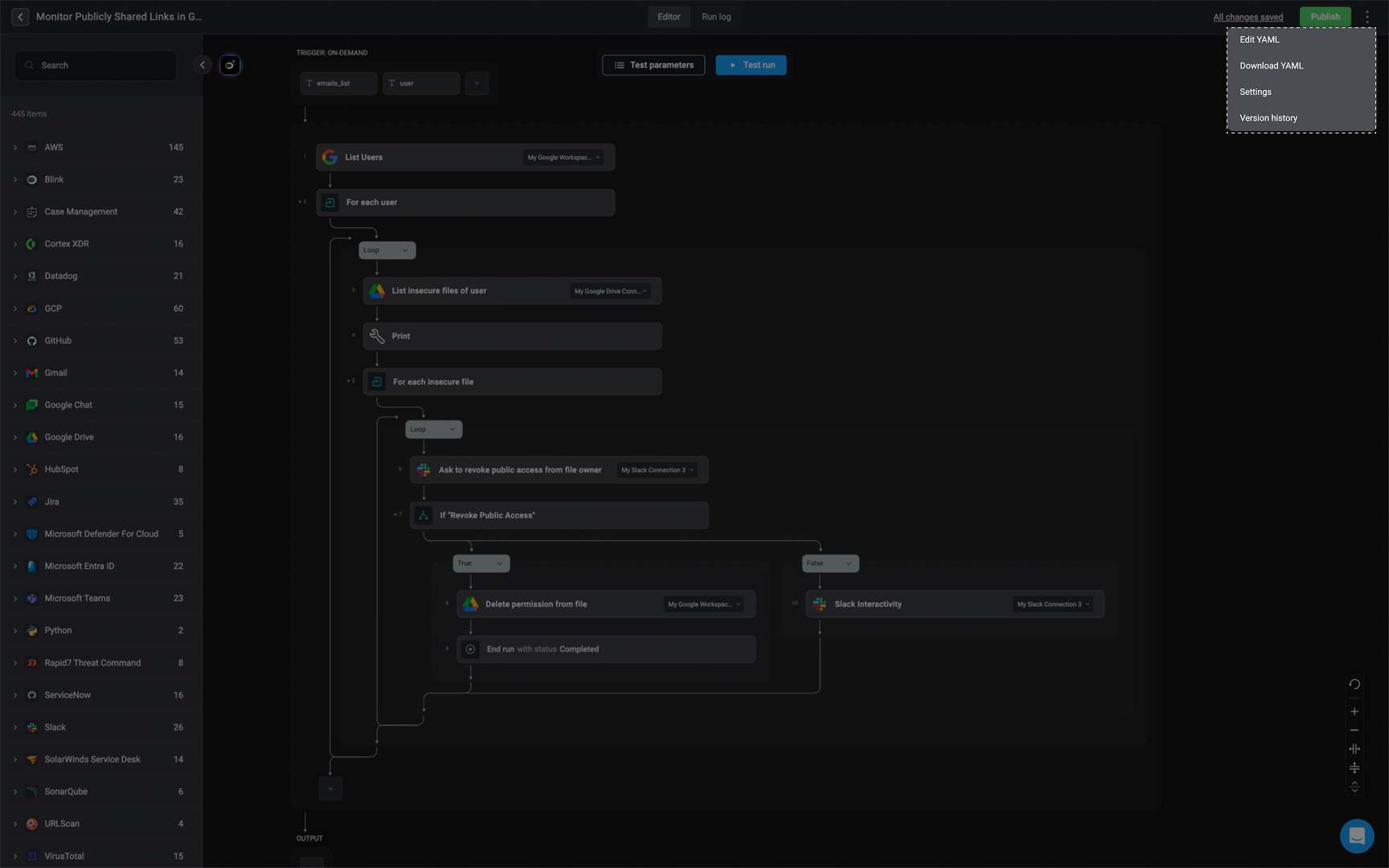
In the top-right corner of the Workflow Editor, you can access the setting by clicking on the menu and choosing from the following
1. [Edit Yaml](/docs/workflows/building-workflows/workflow-yaml)- Open the `YAML` view of your workflow and make any desired changes.
2. [Download YAML](/docs/workflows/building-workflows/workflow-yaml#download-yaml-format-of-a-workflow)- Download your workflow in YAML format.
3. [Settings](/docs/workflows/managing-workflows/workflow-overview-page) - This opens the Workflow Overview page. Manage workflow-level settings such as its name, description, tags, or visibility settings.
4. [Version History](/docs/workflows/managing-workflows/workflow-version-history)- View and manage the workflow’s version history. You can compare changes, see timestamps, and restore previous versions if needed.
 ***
## Autosave and Manually Save Workflow Draft
When you make changes to a workflow in the Workflow Editor:
1. **Your changes are automatically saved by the system**
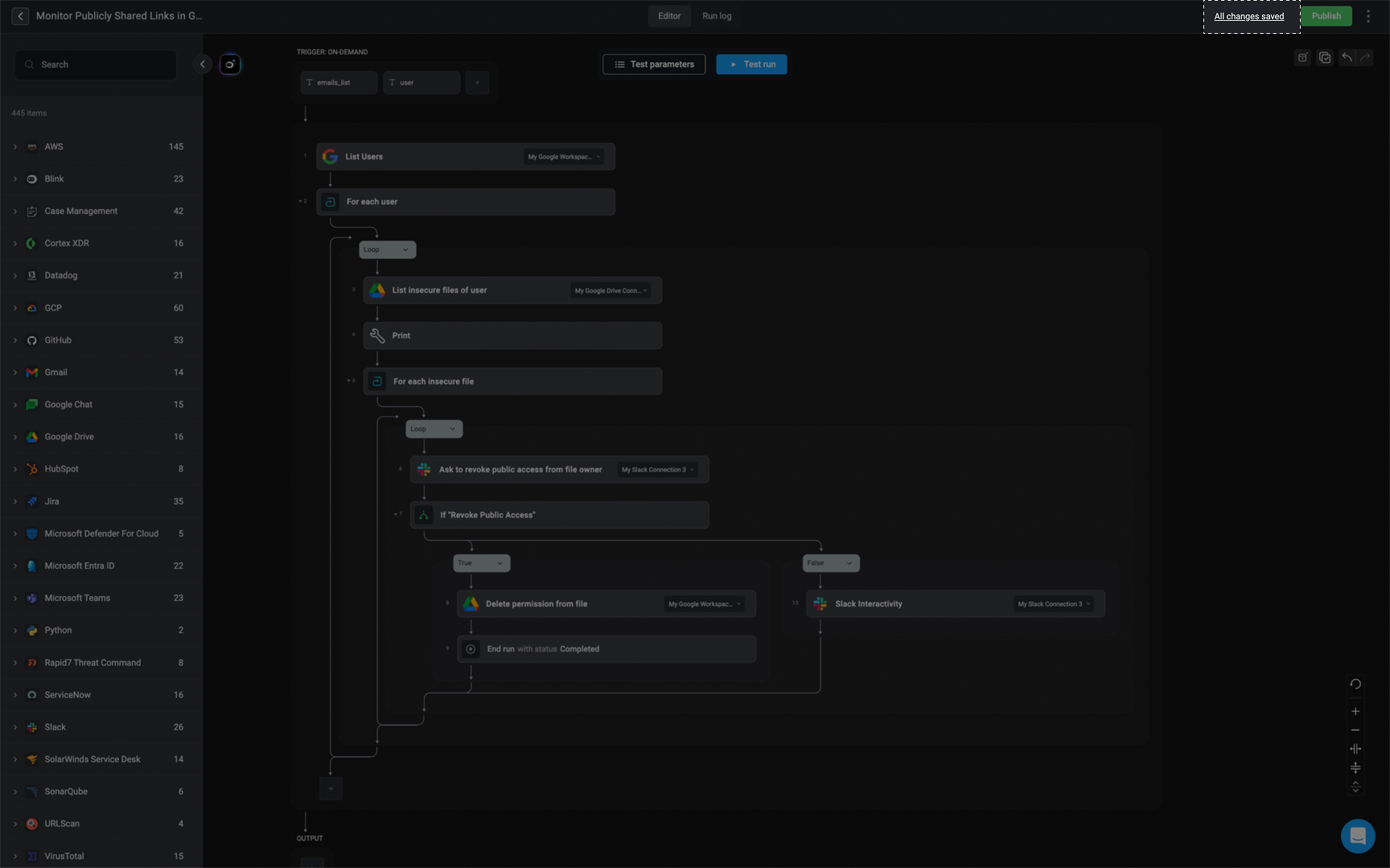
* To view the timestamp of your most recent update, hover over the *All Changes Saved* indicator in the top-right corner. Clicking this indicator opens the [version history](/docs/workflows/managing-workflows/workflow-version-history), where you can review previous versions or restore a prior state if needed.
* If the workflow fails to save (for example, due to a lost internet connection), the autosave indicator will change to *Not Saved*. Hover over it to view additional details, if available.
***
## Autosave and Manually Save Workflow Draft
When you make changes to a workflow in the Workflow Editor:
1. **Your changes are automatically saved by the system**
* To view the timestamp of your most recent update, hover over the *All Changes Saved* indicator in the top-right corner. Clicking this indicator opens the [version history](/docs/workflows/managing-workflows/workflow-version-history), where you can review previous versions or restore a prior state if needed.
* If the workflow fails to save (for example, due to a lost internet connection), the autosave indicator will change to *Not Saved*. Hover over it to view additional details, if available.
 2. **You can also manually save a draft version**
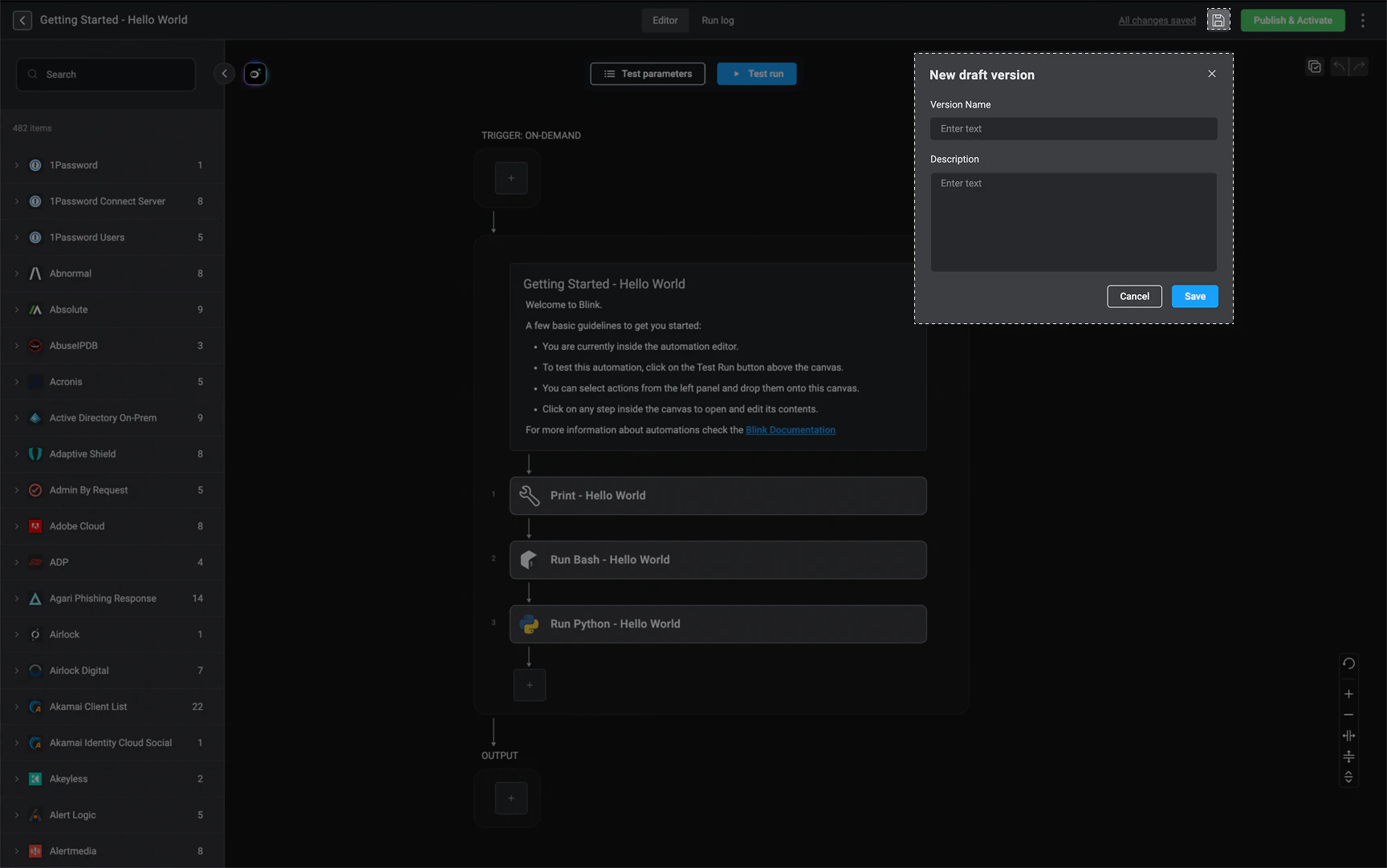
* Click the icon next to the Publish button, then enter a version name and an optional description. This will create a new draft version of the workflow.
**Note**: To avoid conflicts or potential loss of work, please be aware that concurrent editing is restricted. If a user is currently working in the editor, others will be unable to edit the same workflow to ensure a seamless process.
2. **You can also manually save a draft version**
* Click the icon next to the Publish button, then enter a version name and an optional description. This will create a new draft version of the workflow.
**Note**: To avoid conflicts or potential loss of work, please be aware that concurrent editing is restricted. If a user is currently working in the editor, others will be unable to edit the same workflow to ensure a seamless process.
 ***
## Published Workflows Vs Unpublished Workflows
When managing workflows, it is essential to differentiate between published and unpublished workflow versions. Unpublished workflows represent draft versions with changes that have not been published yet, while published workflows are finalized and ready for execution. You can identify the status of a workflow in multiple places: the workflow list, the workflow overview page, or the workflow editor.
To learn more about how to control the availability of a published workflow, check out the documentation [here](/docs/workflows/managing-workflows/draft-published).
You can distinguish between a published and an unpublished workflow by looking at the:
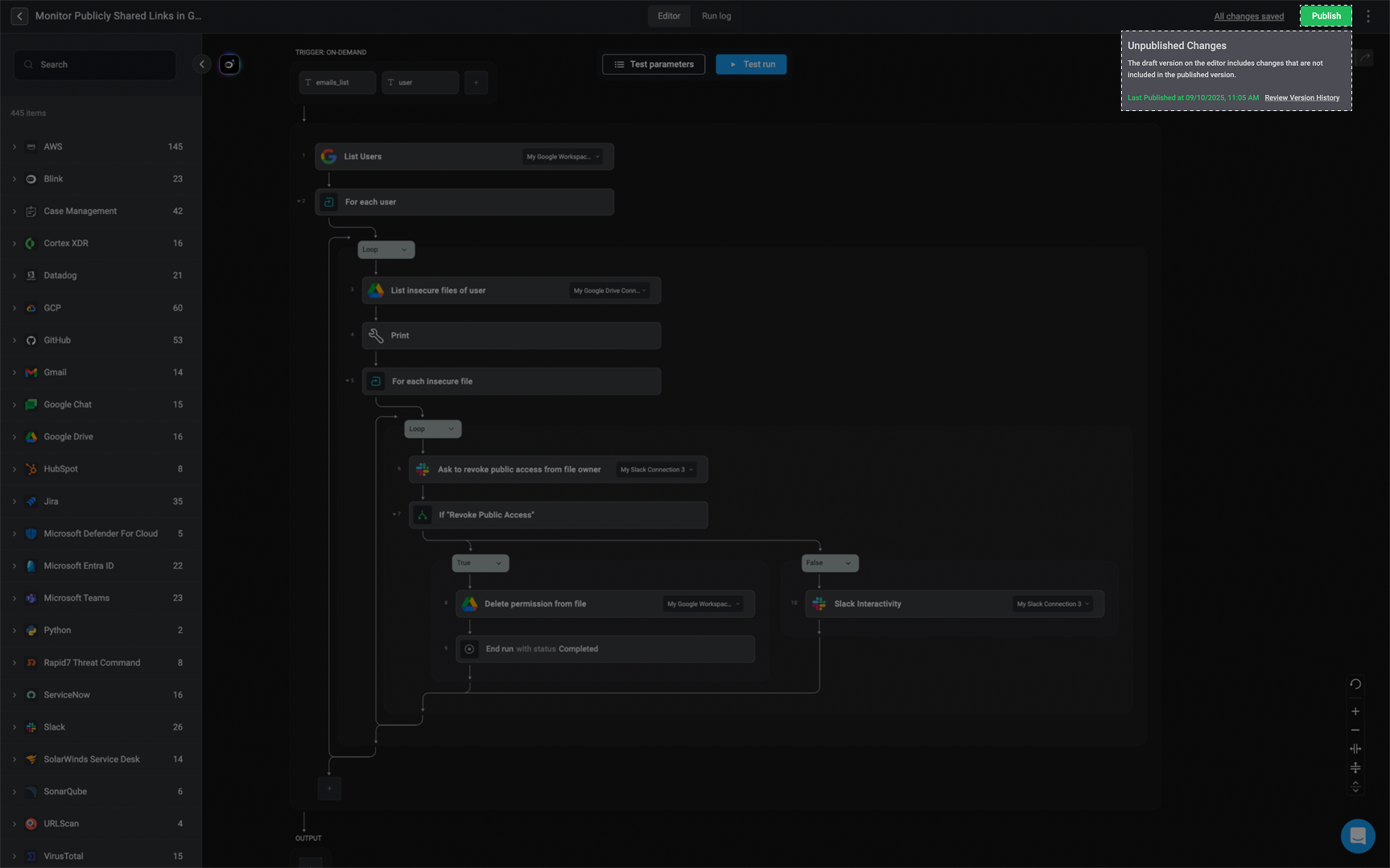
[The Workflow Editor](/docs/workflows/building-workflows/workflow-editor): Within the Workflow Editor, hover over the Published button. If there are unpublished changes, a notification will appear, stating that certain changes are not included in the published version. You can also access the Version History to review all changes made to the workflow.
***
## Published Workflows Vs Unpublished Workflows
When managing workflows, it is essential to differentiate between published and unpublished workflow versions. Unpublished workflows represent draft versions with changes that have not been published yet, while published workflows are finalized and ready for execution. You can identify the status of a workflow in multiple places: the workflow list, the workflow overview page, or the workflow editor.
To learn more about how to control the availability of a published workflow, check out the documentation [here](/docs/workflows/managing-workflows/draft-published).
You can distinguish between a published and an unpublished workflow by looking at the:
[The Workflow Editor](/docs/workflows/building-workflows/workflow-editor): Within the Workflow Editor, hover over the Published button. If there are unpublished changes, a notification will appear, stating that certain changes are not included in the published version. You can also access the Version History to review all changes made to the workflow.
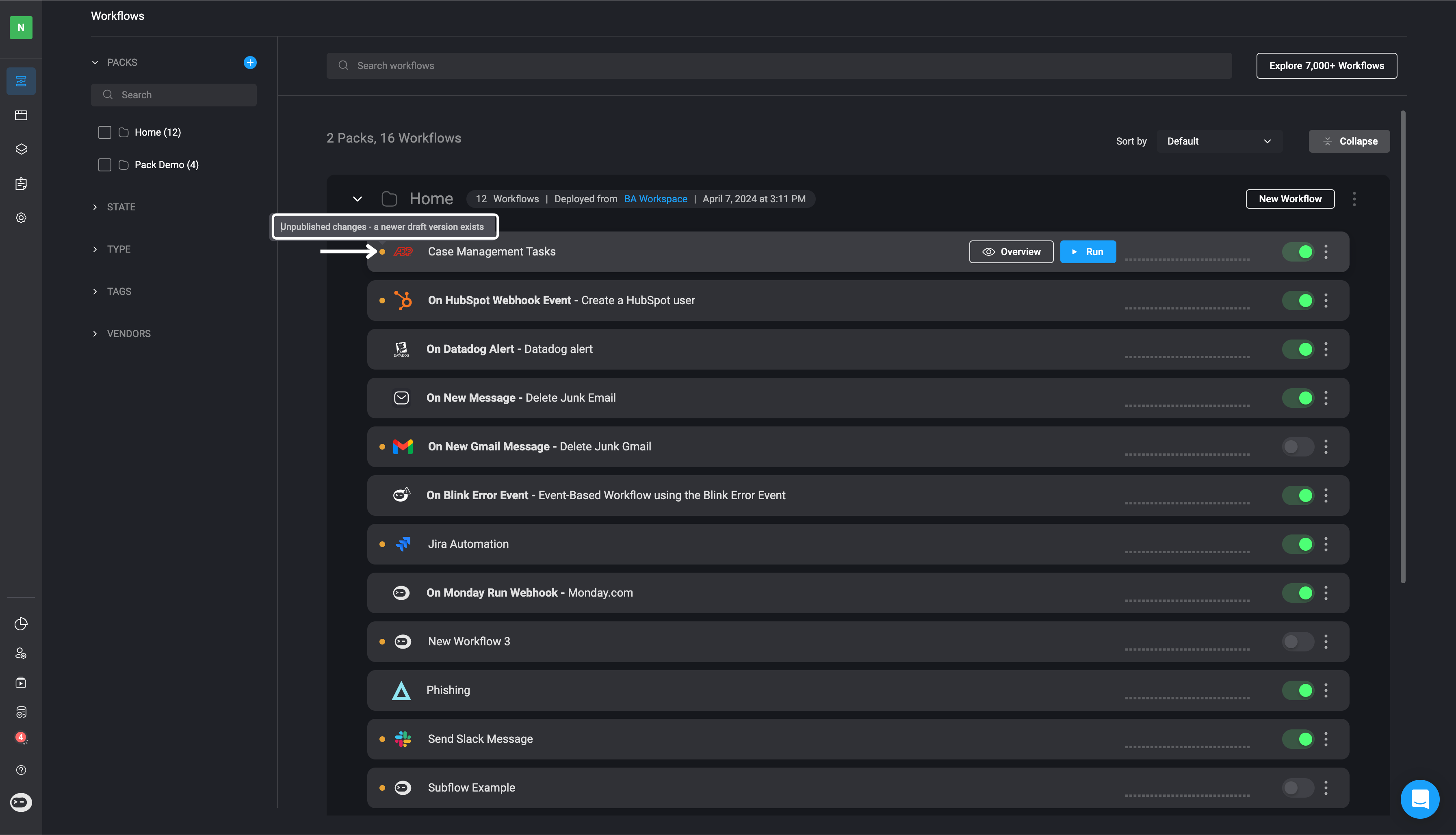
**Workflow Page:** A yellow dot () appears on the left-hand side of any workflow with unpublished changes. This serves as a quick visual indicator that a newer draft version exists.
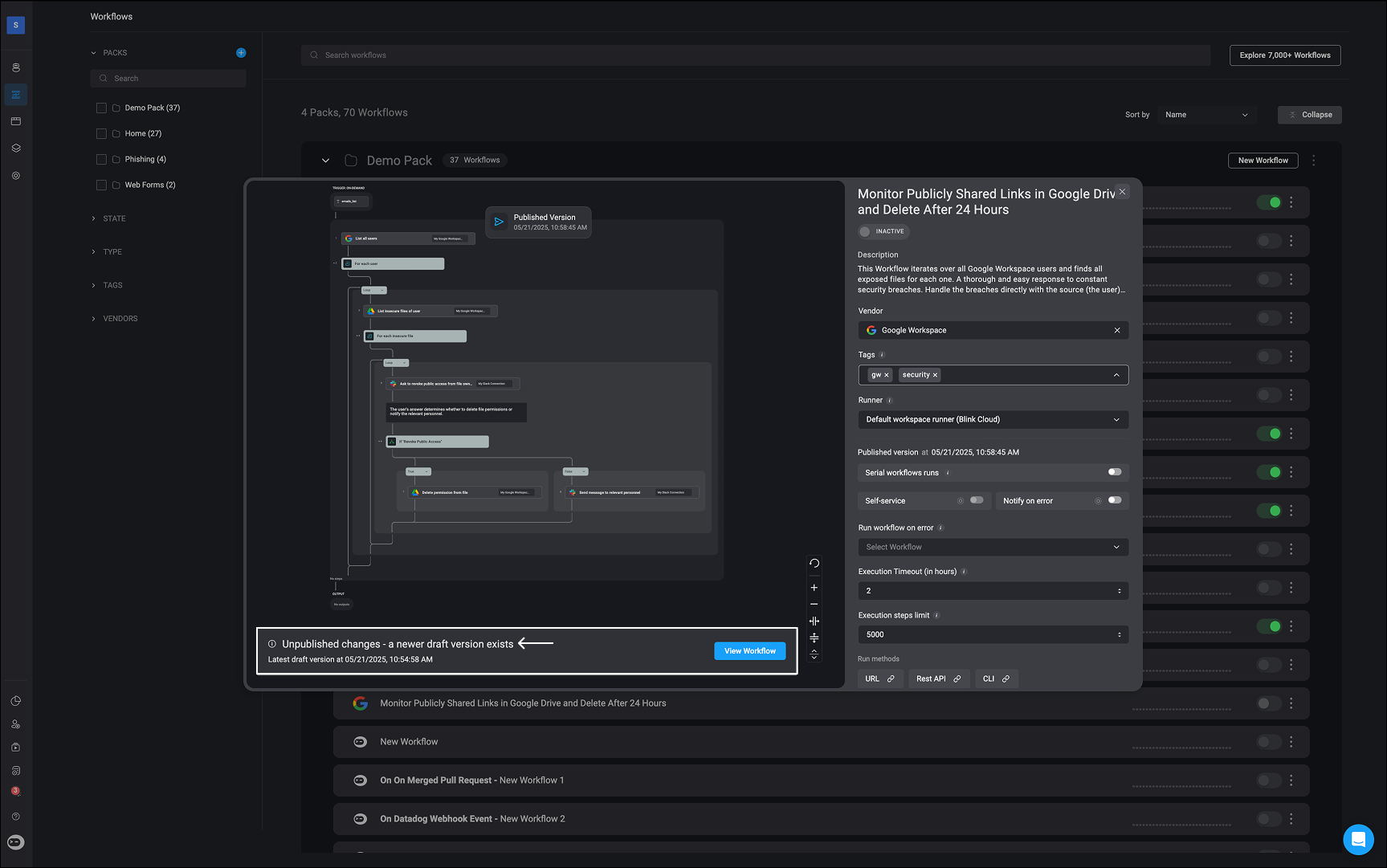
 [The Workflow Overview Page](/docs/workflows/managing-workflows/workflow-overview-page): To view more details, select the workflow and click the Overview button. On the Workflow Overview page, you will see a notification at the bottom highlighting that unpublished changes exist. Additionally, you’ll find an option to view the latest draft of the workflow for further details.
 ***
## Related Articles
Configure triggers to start workflows based on events.
Define and organize actions within a workflow.
Add logic to control workflow execution paths.
Build a new workflow from scratch in Blink.
***
## Related Articles
Configure triggers to start workflows based on events.
Define and organize actions within a workflow.
Add logic to control workflow execution paths.
Build a new workflow from scratch in Blink.