> ## Documentation Index
> Fetch the complete documentation index at: https://docs.blinkops.com/llms.txt
> Use this file to discover all available pages before exploring further.

# Configuring Triggers

> Learn how to select and modify workflow triggers in Blink.

Triggers define how and when a workflow is initiated, and as such, a trigger must be configured in order to be able to publish the related workflow.

[Choosing the right trigger](/docs/workflows/building-workflows/triggers/triggers) ensures that the workflow aligns with operational requirements, while changing a trigger allows workflows to be adapted as needs evolve.

<Note>To learn more details about trigger types, see [Workflow Triggers](/docs/workflows/building-workflows/triggers/triggers). For help configuring your triggers, see the trigger-type documentation: [on-demand](#on-demand-triggers), [event-based](#event-based-triggers), or [scheduled](#scheduled-triggers).</Note>

## Choose or Change the Trigger Type

<Warning>When you change the trigger type, all previous trigger-specific settings are permanently removed and cannot be restored automatically.</Warning>

A workflow needs a configured trigger to be published. When creating a new workflow, either with **Builder Copilot** or manually via the **Workflow Editor**, the trigger type is set during the process.

Once you've chosen the type, it's time to configure the trigger [based on the type](#related-articles) that you selected.

<Note>For more information, see [Creating a New Workflow](/docs/workflows/creating-a-workflow).</Note>

**To modify the trigger of an existing workflow:**

<Steps>
  <Step>
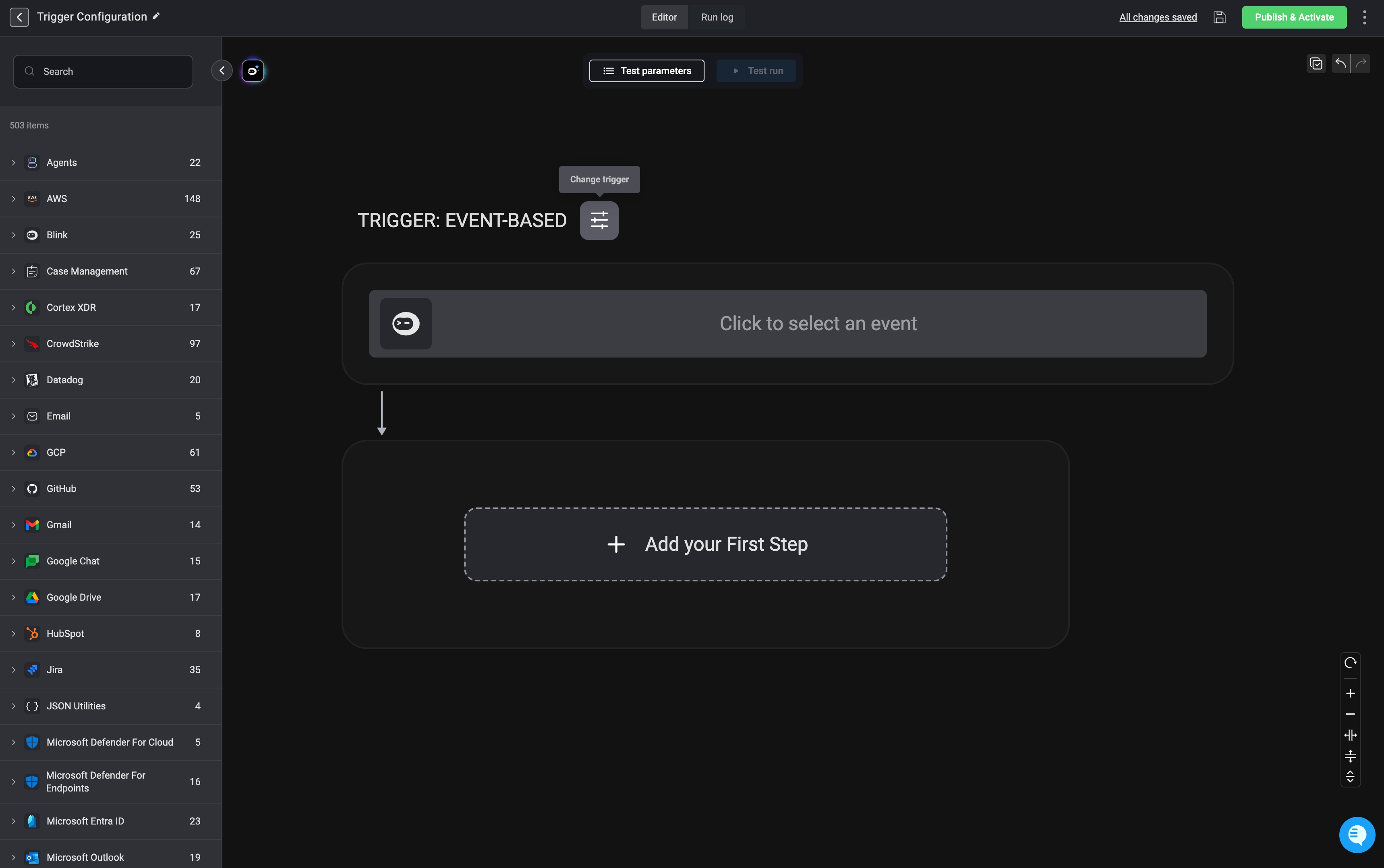
    Hover over the current trigger and click the <Icon icon="slider" /> icon.

    <Frame>
      <img src="https://mintcdn.com/blinkops-2/i_0ZM1vxC3AJlfVk/img/triggers/trigger-config.png?fit=max&auto=format&n=i_0ZM1vxC3AJlfVk&q=85&s=baa5c470ba934b86347573794ab5fd96" width="3436" height="2156" data-path="img/triggers/trigger-config.png" />
    </Frame>
  </Step>

  <Step>
    The select the desired trigger type and click apply

    <div className="integrations-table">
      |                                               | Trigger Type                                                                                                  | Description                                                                                   |
      | --------------------------------------------- | ------------------------------------------------------------------------------------------------------------- | --------------------------------------------------------------------------------------------- |
      | <Icon icon="user-large" iconType="regular" /> | [On-demand triggers](/docs/workflows/building-workflows/triggers/on-demand-triggers/on-demand-triggers)       | Manually executed by a user from the Self-Service Portal, Slack, Teams, or CLI.               |
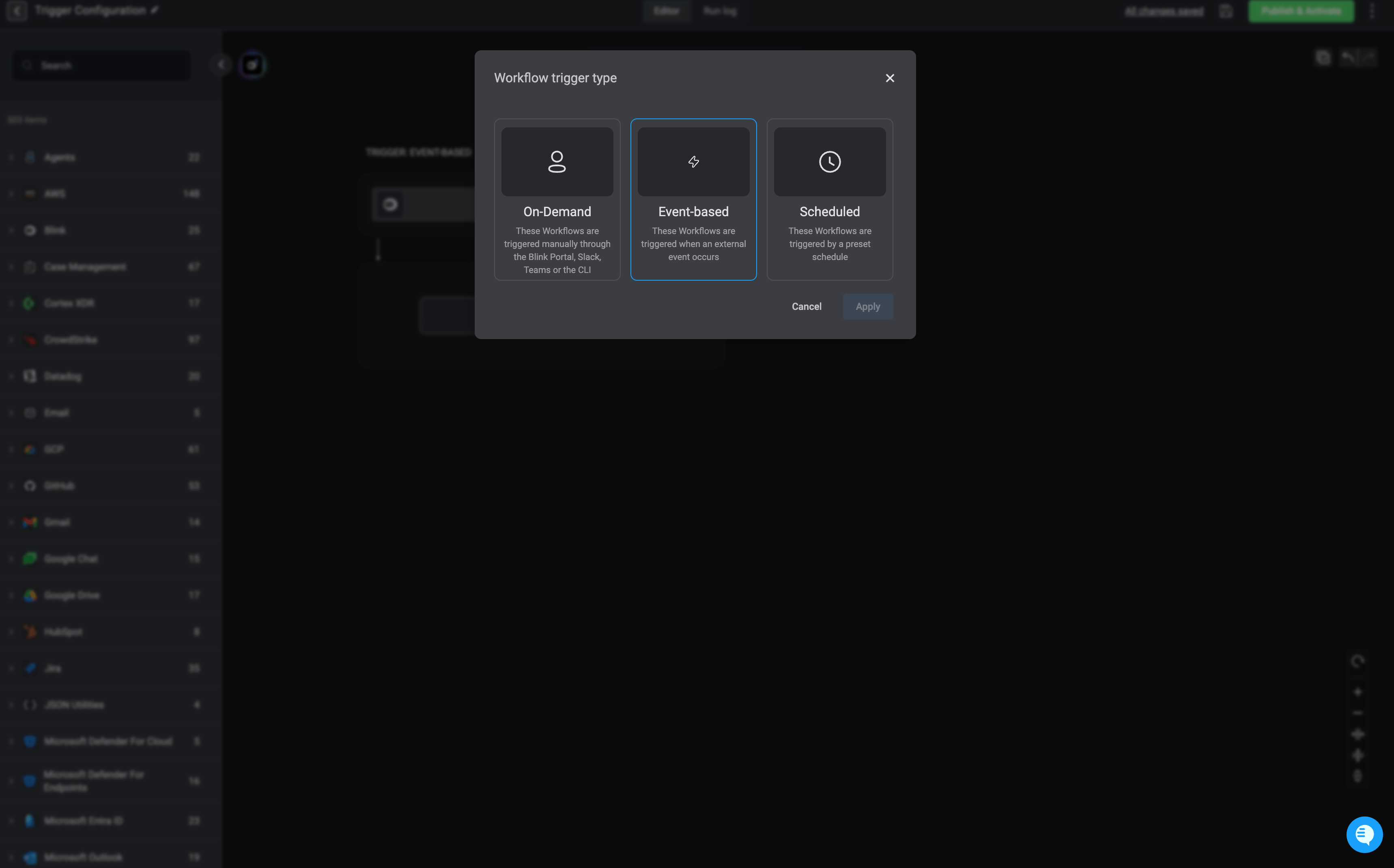
      | <Icon icon="bolt" iconType="regular" />       | [Event-based triggers](/docs/workflows/building-workflows/triggers/event-based-triggers/event-based-triggers) | Automatically initiated in response to an external event, such as a webhook or system update. |
      | <Icon icon="clock" iconType="regular" />      | [Scheduled triggers](/docs/workflows/building-workflows/triggers/scheduled-triggers)                          | Runs at time intervals based on configurations, such as hourly, daily, or custom schedules.   |
    </div>

    <Frame>
      <img src="https://mintcdn.com/blinkops-2/i_0ZM1vxC3AJlfVk/img/triggers/trigger-config-options.png?fit=max&auto=format&n=i_0ZM1vxC3AJlfVk&q=85&s=635b577edf7d35324fa65ab1550de090" width="3436" height="2140" data-path="img/triggers/trigger-config-options.png" />
    </Frame>
  </Step>
</Steps>

***

## Related Articles

<CardGroup cols={3}>
  <Card title="On-demand Triggers" icon="user" href="/docs/workflows/building-workflows/triggers/on-demand-triggers">
    Manually start workflows whenever needed.
  </Card>

  <Card title="Event-based Triggers" icon="bolt" href="/docs/workflows/building-workflows/triggers/event-based-triggers">
    Activate workflows in response to specific events.
  </Card>

  <Card title="Scheduled Workflow Trigger" icon="calendar" href="/docs/workflows/building-workflows/triggers/scheduled-triggers">
    Run workflows at routine times automatically.
  </Card>
</CardGroup>
