> ## Documentation Index
> Fetch the complete documentation index at: https://docs.blinkops.com/llms.txt
> Use this file to discover all available pages before exploring further.
# Using Files in Workflows
> Work with files in Blink workflows, including uploading, downloading, and passing files between steps.
The files mechanism allows Workflows builders to create, edit and use files which are persisted between executions of steps in a Workflow. The lifespan of files is aligned with the lifespan of the execution of the Workflow - when the execution is finished, the files are deleted.
## File object
Each file object contains 3 fields:
1. `identifier`, which is the unique identifier of the file.
* This field is used in various actions including [upload file](/docs/workflows/building-workflows/actions/basic-actions/http-actions/http-actions#send-http-upload-file-request) or [send file via Slack](/docs/integrations/slack/actions/send-file).
2. `size`, which is the size of the file in bytes.
3. `path`, which is the absolute path to the file:
* This field can be used in [Bash](/docs/workflows/building-workflows/actions/basic-actions/code-actions)/[Python](/docs/workflows/building-workflows/actions/basic-actions/code-actions) steps when you want to perform some action on the file (e.g. if you want to print the file in [Bash](/docs/workflows/building-workflows/actions/basic-actions/code-actions), you can run the `cat` command and use the file path as the argument).
## Expression Language and Variable Picker Support
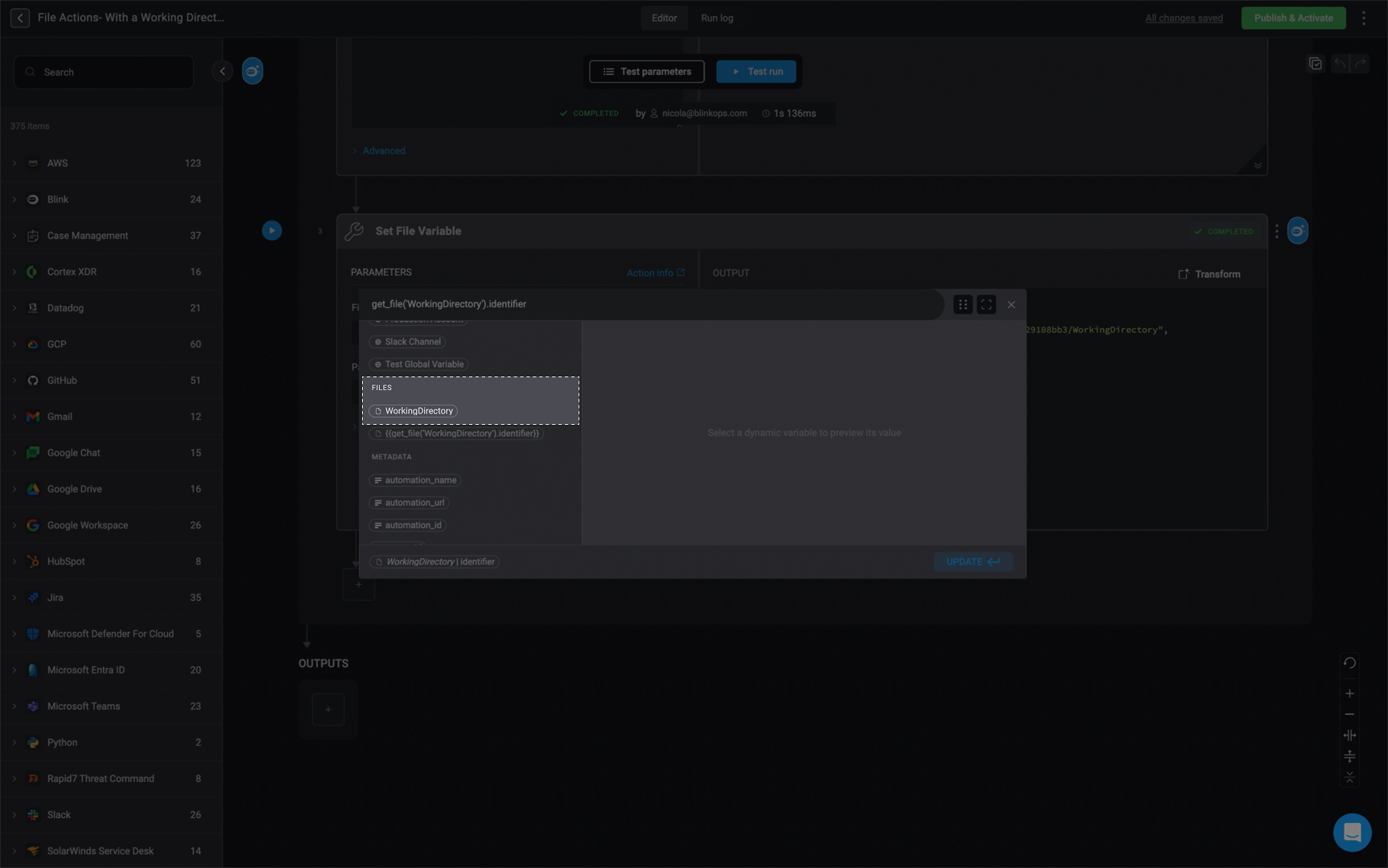
When creating the Workflow, the file objects are available in the variable picker under the files section.
1. To access the `File Identifier`, `File Path` and the `File Size`, use the [variable picker](/docs/workflows/building-workflows/dynamic-variables/variable-picker#using-the-variable-picker) under the [files](/docs/workflows/building-workflows/dynamic-variables/variable-picker#files)
2. Select `WorkingDirectory` under the [file](/docs/workflows/building-workflows/dynamic-variables/variable-picker#files) section of the Variable Picker.
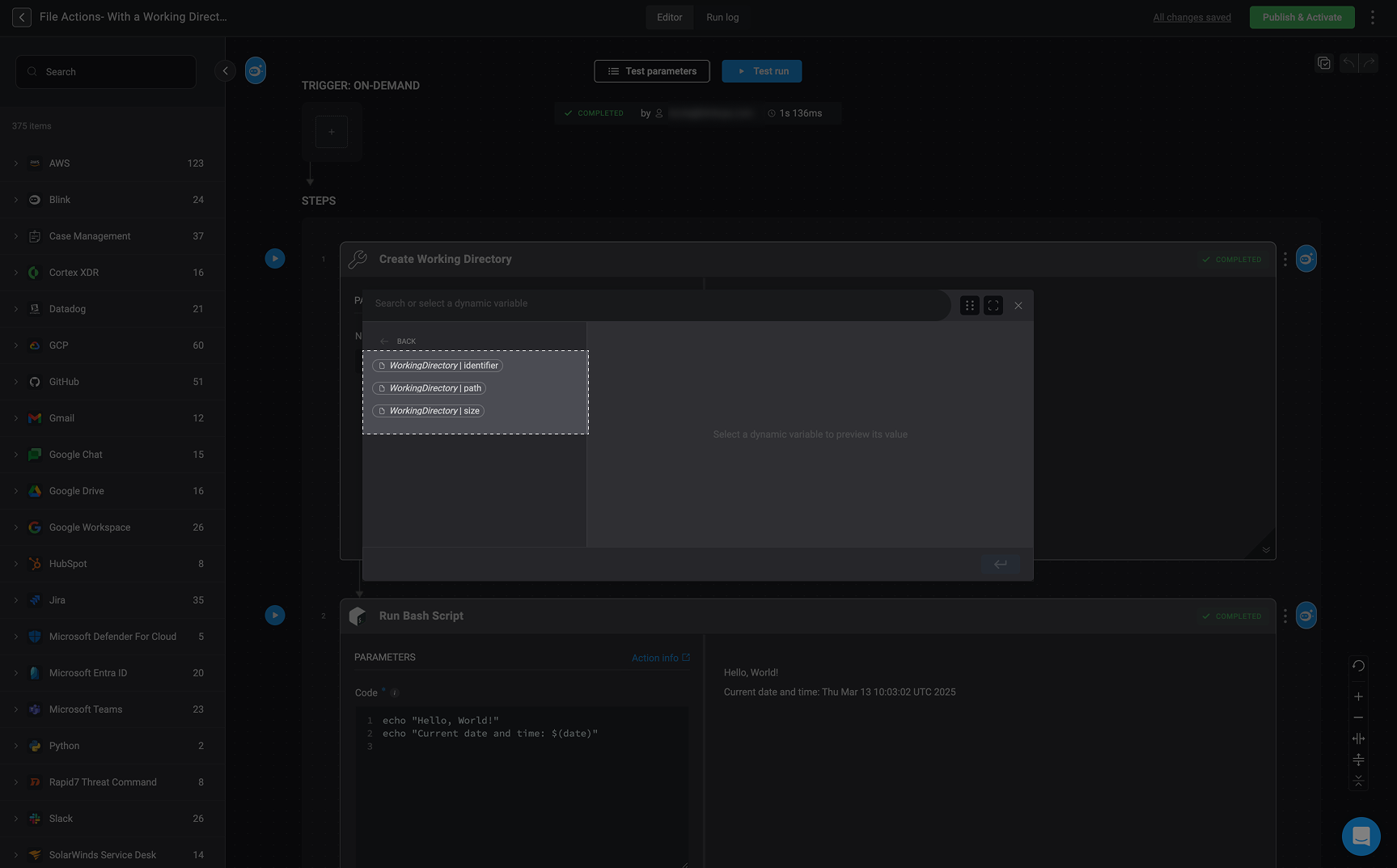
 3. Then choose `WorkingDirectory|identifier`, `WorkingDirectory|path` or `WorkingDirectory|size` according to the respective inputs.
 4. [Blink's Expression Language](/docs/workflows/building-workflows/dynamic-variables/expression-language/workflow-engine-functions) supports accessing the file objects using the `get_file` function.
```js theme={"dark"}
{{get_file("WorkingDirectory").identifier}}
```
4. [Blink's Expression Language](/docs/workflows/building-workflows/dynamic-variables/expression-language/workflow-engine-functions) supports accessing the file objects using the `get_file` function.
```js theme={"dark"}
{{get_file("WorkingDirectory").identifier}}
```
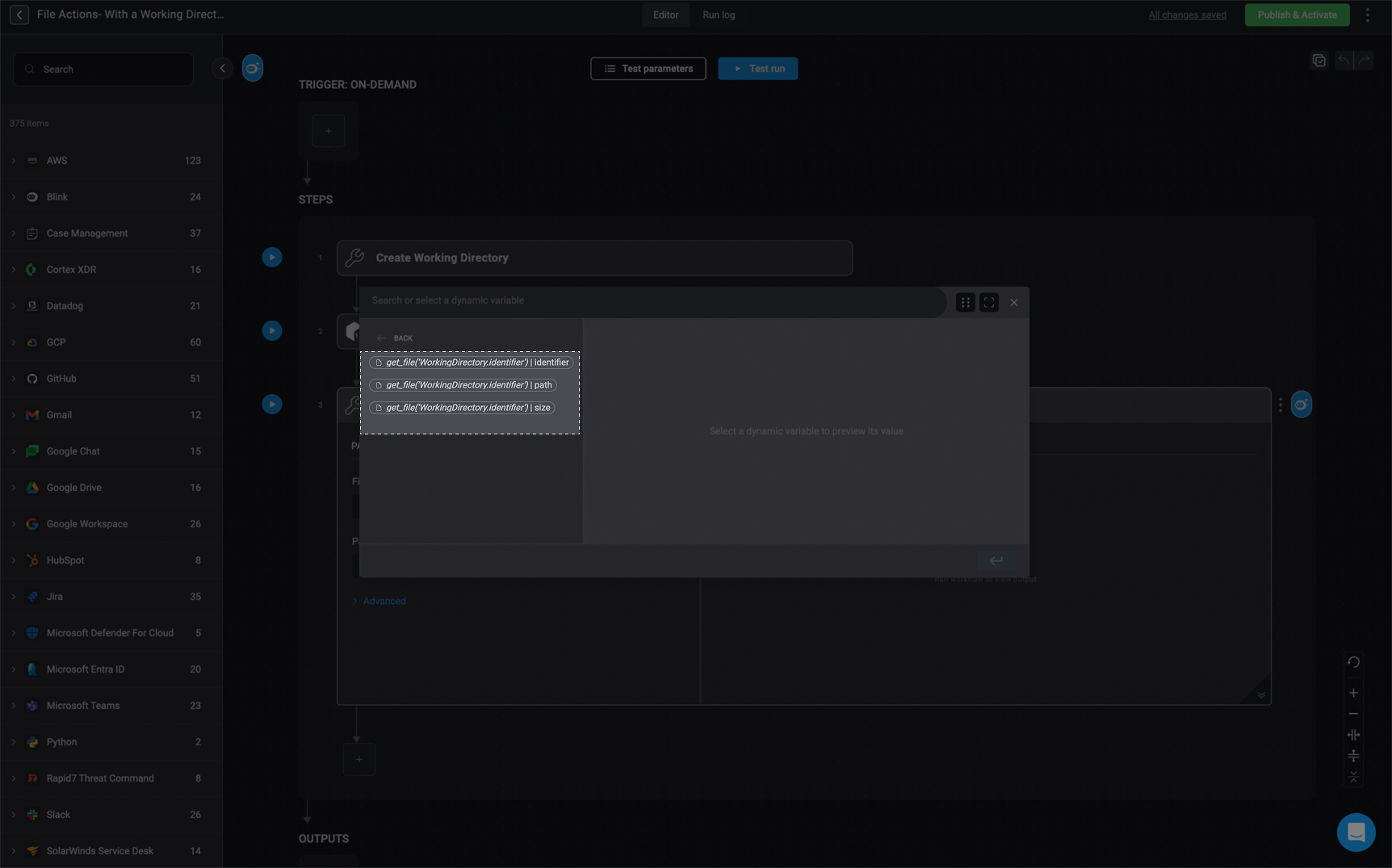
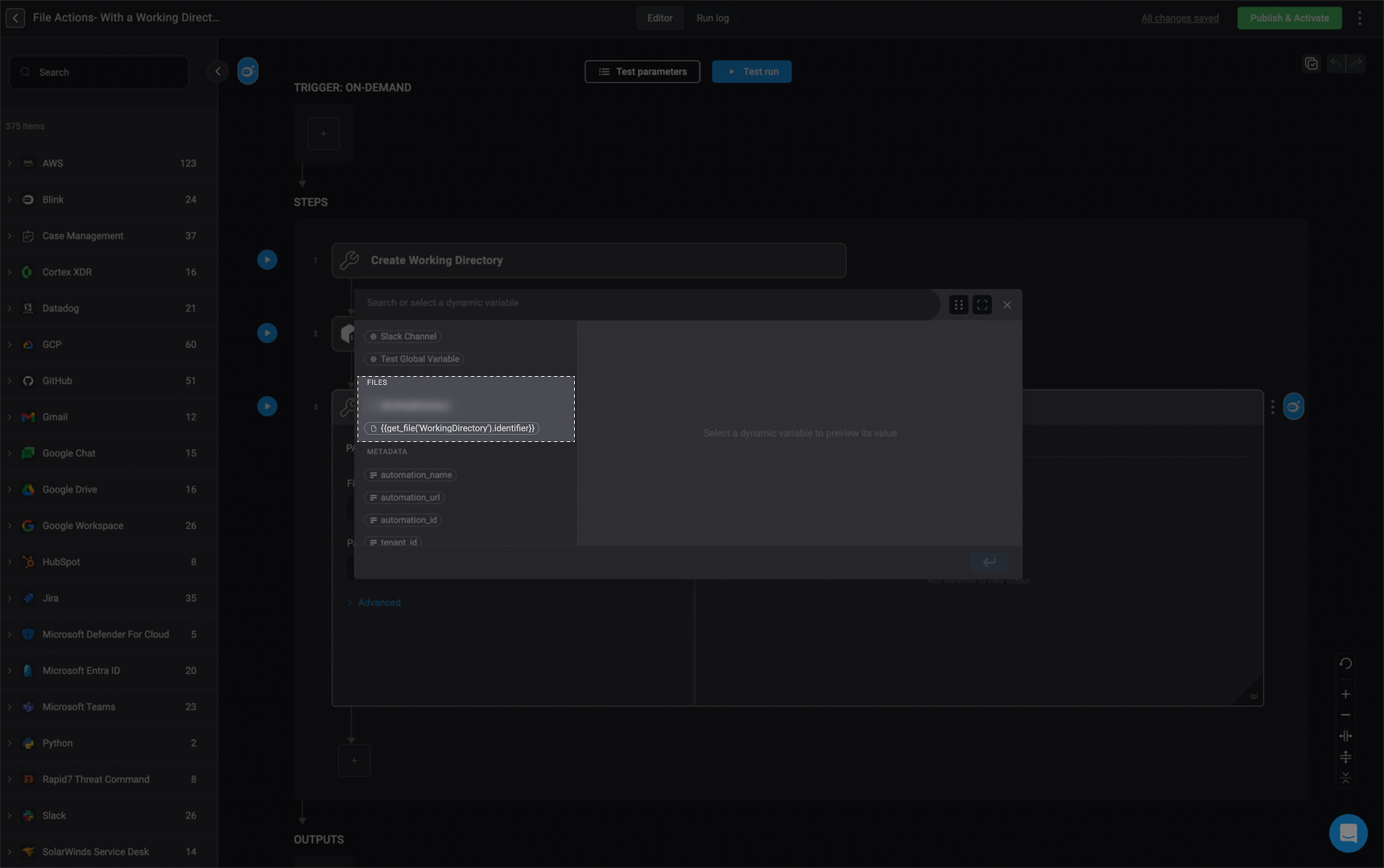 * It returns an object containing the 3 fields: the files `identifier`, `path` and `size`
 ## Limitations
Each execution may create up to `100` files with a total size of `30 GiB` (gibibytes).
The maximum size for each file is `10GiB` (gibibytes).
## Example Use Cases
* [Download a file](/docs/workflows/building-workflows/actions/utility-actions/file_system-utilities#download-file-from-url) and [send it via Slack](/docs/integrations/slack/actions/send-file).
* Create a file using [Bash](/docs/workflows/building-workflows/actions/basic-actions/code-actions)/[Python](/docs/workflows/building-workflows/actions/basic-actions/code-actions) and [upload it to a remote server](/docs/workflows/building-workflows/actions/basic-actions/http-actions/http-actions).
* Generate a [Steampipe Report](/docs/workflows/building-workflows/actions/advanced-actions/database-actions/steampipe-report-actions) as a file and [send it as an attachment in an email](/docs/workflows/building-workflows/actions/advanced-actions/email-actions).
## Limitations
Each execution may create up to `100` files with a total size of `30 GiB` (gibibytes).
The maximum size for each file is `10GiB` (gibibytes).
## Example Use Cases
* [Download a file](/docs/workflows/building-workflows/actions/utility-actions/file_system-utilities#download-file-from-url) and [send it via Slack](/docs/integrations/slack/actions/send-file).
* Create a file using [Bash](/docs/workflows/building-workflows/actions/basic-actions/code-actions)/[Python](/docs/workflows/building-workflows/actions/basic-actions/code-actions) and [upload it to a remote server](/docs/workflows/building-workflows/actions/basic-actions/http-actions/http-actions).
* Generate a [Steampipe Report](/docs/workflows/building-workflows/actions/advanced-actions/database-actions/steampipe-report-actions) as a file and [send it as an attachment in an email](/docs/workflows/building-workflows/actions/advanced-actions/email-actions).