> ## Documentation Index
> Fetch the complete documentation index at: https://docs.blinkops.com/llms.txt
> Use this file to discover all available pages before exploring further.
# Global Variables
> Define global variables once and reuse them across multiple workflows in your Blink workspace.
**Note**: Global variables can be added with the [Variable Picker](/docs/workflows/building-workflows/dynamic-variables/variable-picker#using-the-variable-picker).
## Global Variable Types
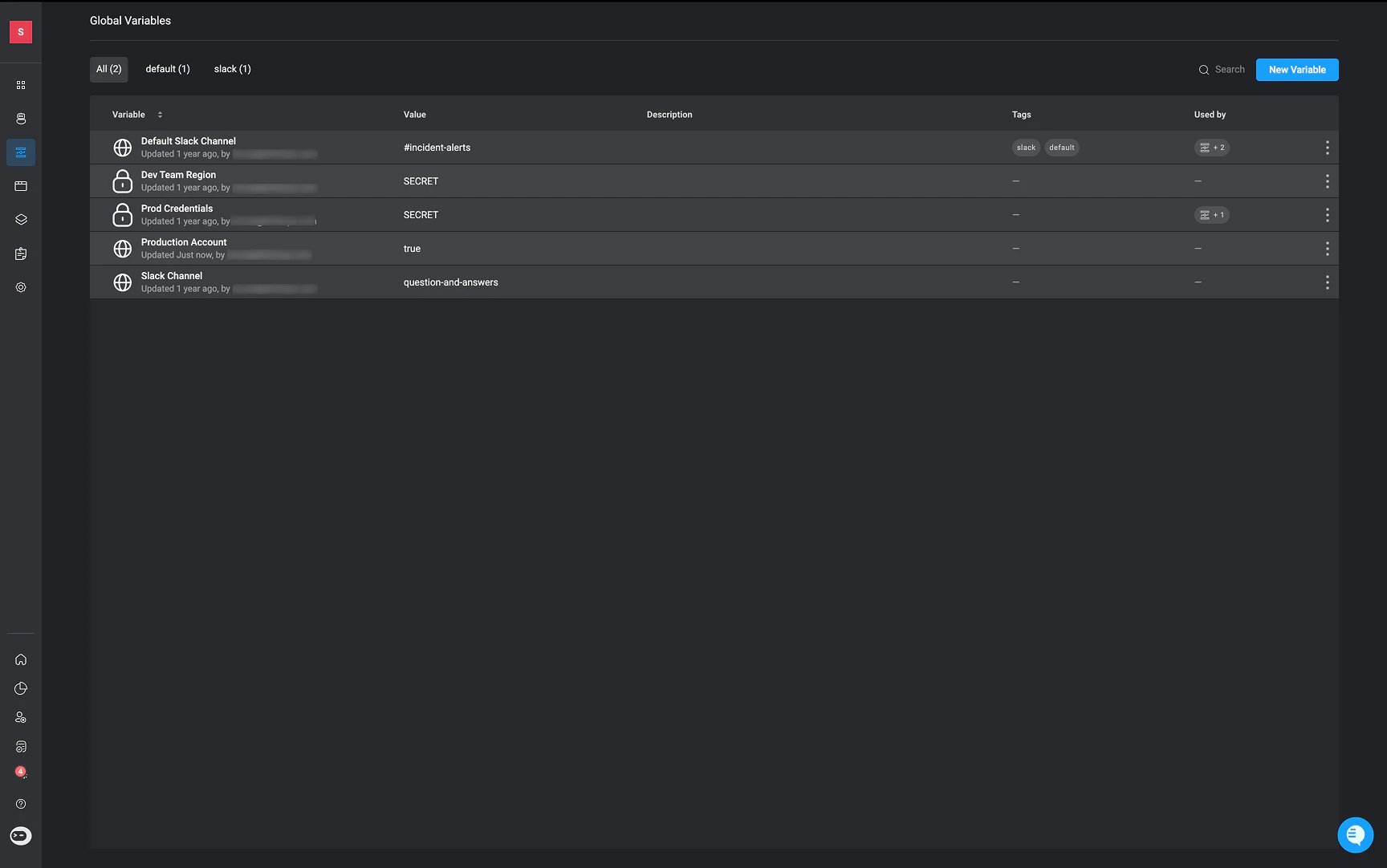
There are two distinct types of Global Variables:
1. **Raw value variable:**
* Stores plain text values that are visible to anyone with access to the workflow.
* Typically used for non-sensitive information like configuration settings or default values.
2. **Secret variables**
* Store sensitive information like API keys, passwords, or tokens in an encrypted format.
* Their values are hidden in the workflow editor and logs for security reasons.
Use **Secret Global Variables** whenever handling sensitive or confidential data to ensure it remains secure throughout the workflow execution.
 ***
## Creating a New Global Variable
***
## Creating a New Global Variable
On the left-hand side navigation menu, click the icon > **New Variable**. The **New Global Variable** dialog box opens.
| Parameter | Description |
| ------------------------- | ----------------------------------------------------------------------------------------------------------------------------------- |
| Name | Name of global variable. |
| Value | Value of the variable. |
| Secret | Select the checkbox if you wish to define the variable as secret. Uses the default secret manager of the workspace. |
| **Optional**- Description | A description about the Global Variable |
| **Optional**- Tags | Create and assign tags to categorize and group global variables for easier discovery, filtering, and organization across workflows. |
Your newly created variable will be added to the table.
***
## Using Global Variables in Workflows
Use global variables anywhere that the variable picker is available. All existing global variables can be found in the **GLOBAL VARIABLES** section in the variable picker.
Click **+** to open the [Variable Picker](/docs/workflows/building-workflows/dynamic-variables/variable-picker#using-the-variable-picker).
Select a global variable. In this example we are selecting the "Default Slack Variable" option.
* If it is a *secret global variable*, the variable value is not displayed.
* If it is a *raw value variable*, its value is displayed on the right-hand side of the variable picker.
Click **Add**. The global variable is defined in your Workflow Step.
***
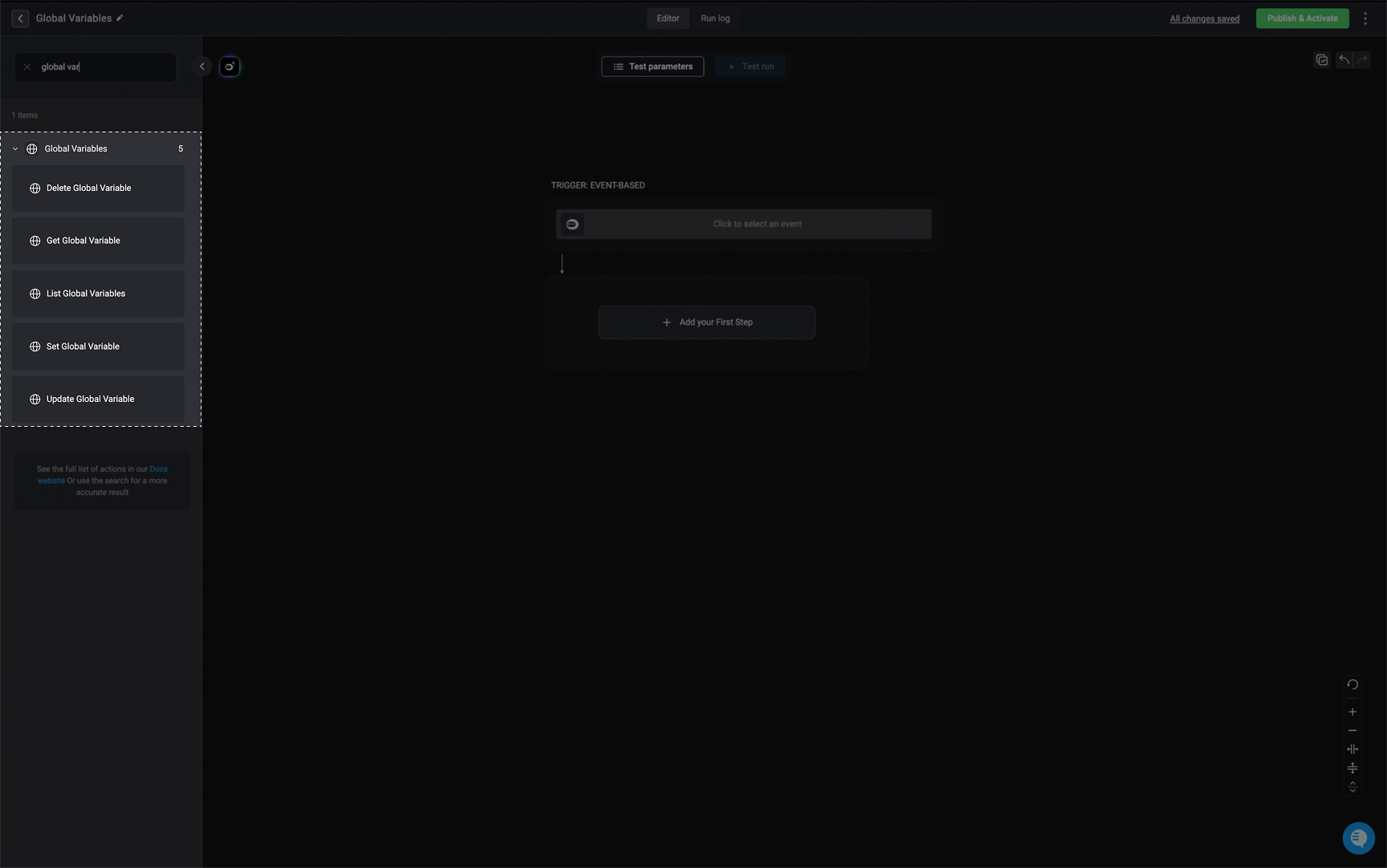
## Global Variables Actions
 ***
### Set Global Variable
Creates a raw global variable or updates an existing raw or secret global variable.
**IMPORTANT**: You cannot create a secret global variable using this action. However, you can update an existing secret global variable.
***
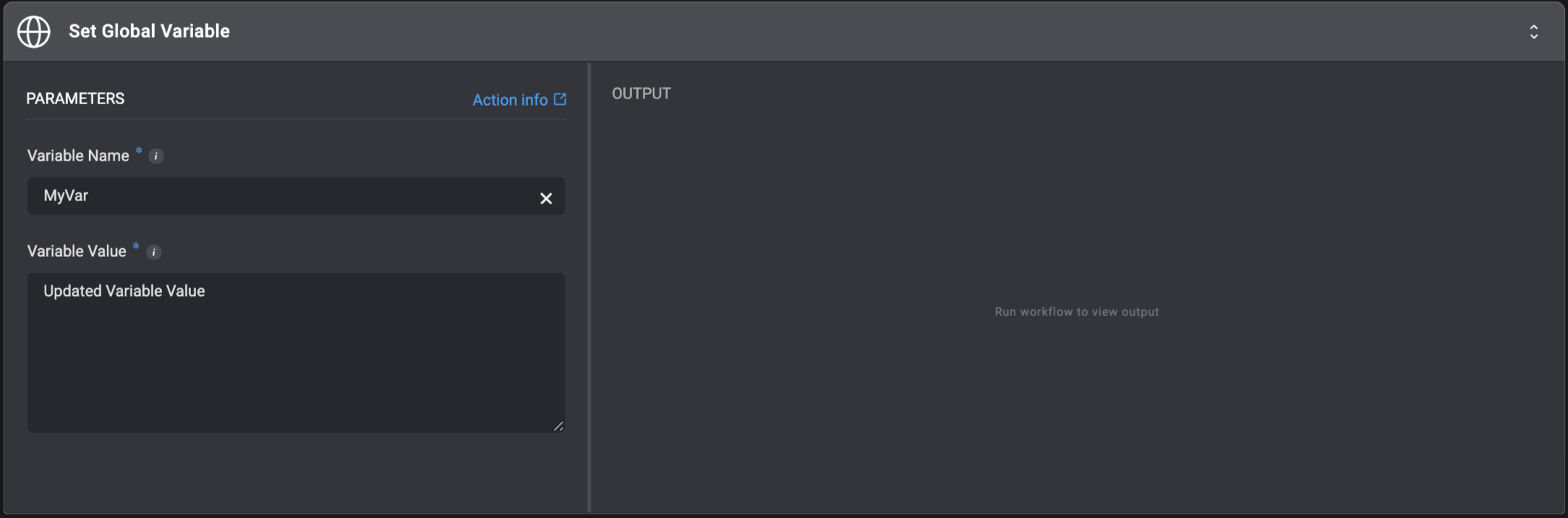
### Set Global Variable
Creates a raw global variable or updates an existing raw or secret global variable.
**IMPORTANT**: You cannot create a secret global variable using this action. However, you can update an existing secret global variable.
| Parameter | Description |
| -------------- | --------------------------------------------------------------------------------------------------------------------- |
| Variable Name | The name of the new/existing global variable. Once created/updated, it is available for all Workflows in a workspace. |
| Variable Value | Assign a value to the global variable. Value is string only, limited to 1 MB size. |
 ***
***
### Delete Global Variable
Deletes a Global Variable.
***
***
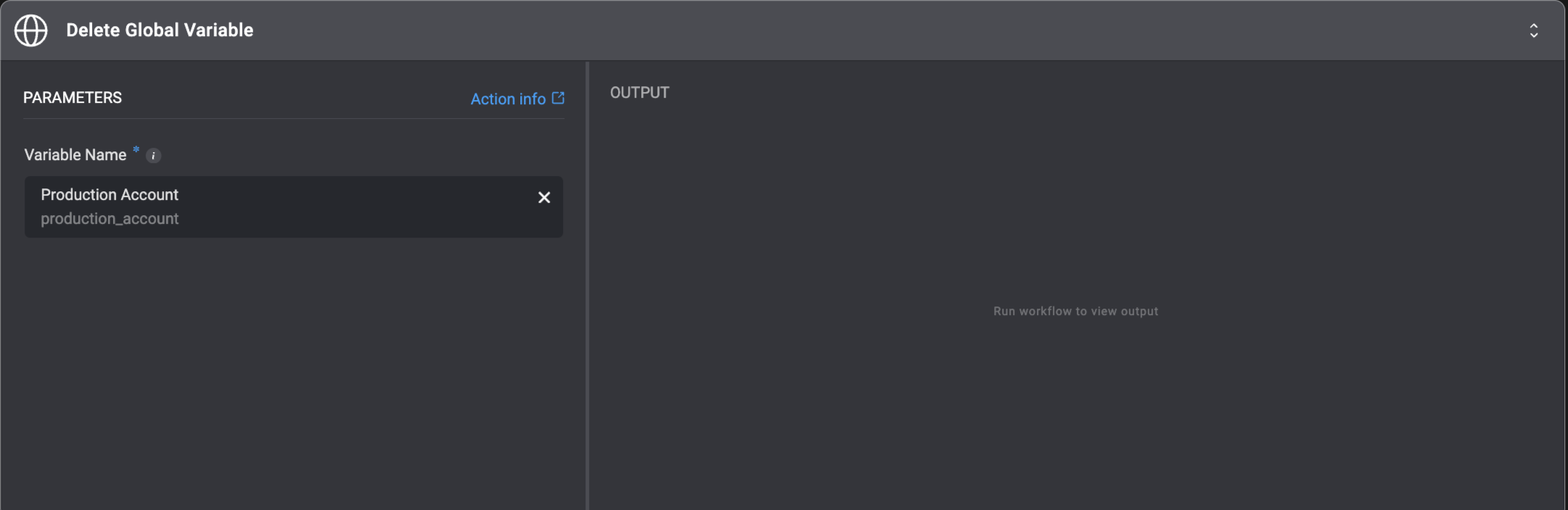
### Delete Global Variable
Deletes a Global Variable.
| Parameter | Description |
| ------------- | ---------------------------------------------------------------------------------------------------------------------------- |
| Variable Name | The name of the global variable to delete. Once deleted, it is no longer available for any other Workflows in the workspace. |
 ***
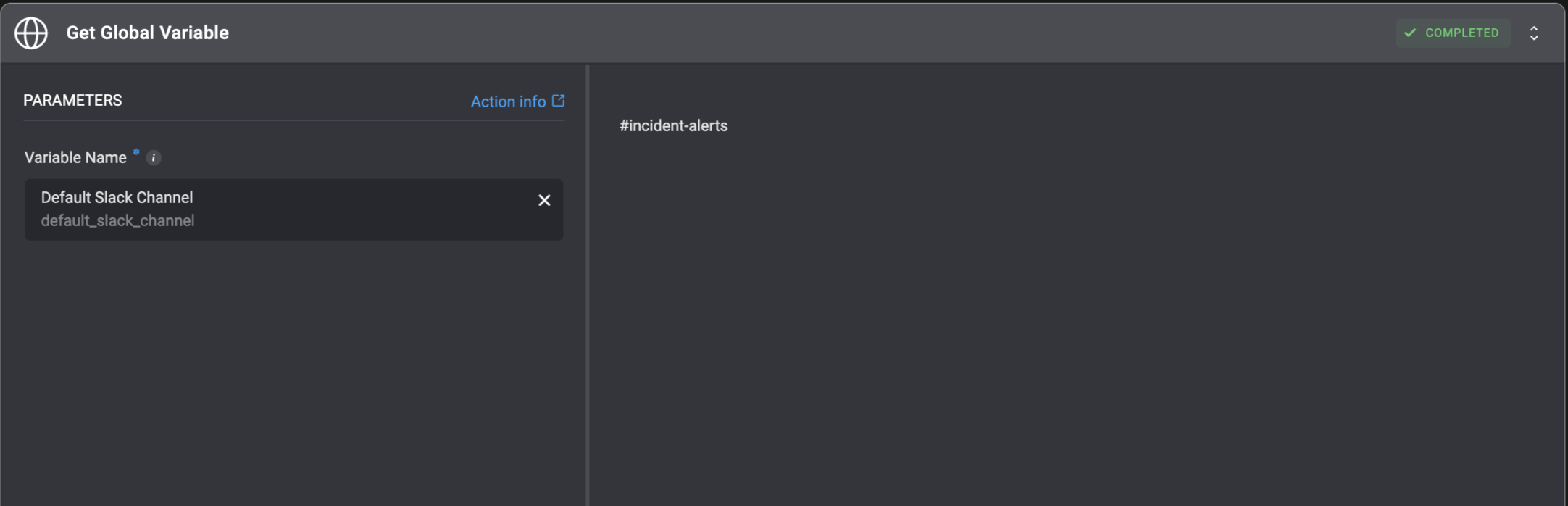
### Get Global Variable
Gets the value of a Global Variable.
***
### Get Global Variable
Gets the value of a Global Variable.
| Parameter | Description |
| ------------- | --------------------------------------- |
| Variable Name | The name of the global variable to get. |
 ***
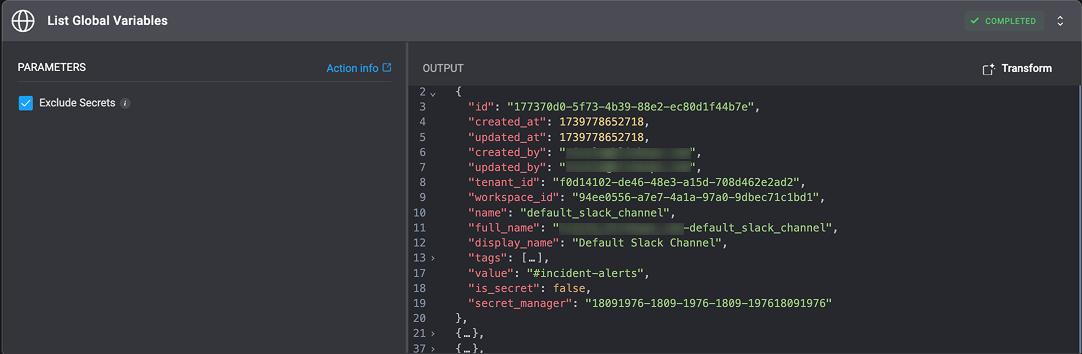
### List Global Variables
Get a list of **all** the Global Variables.
* No parameters required.
* The results are returned in the output as `JSON` format.
* You can tick the "Exclude Secrets" checkbox to exclude global secrets from the `JSON` output.
***
### List Global Variables
Get a list of **all** the Global Variables.
* No parameters required.
* The results are returned in the output as `JSON` format.
* You can tick the "Exclude Secrets" checkbox to exclude global secrets from the `JSON` output.
 ***
***