> ## Documentation Index
> Fetch the complete documentation index at: https://docs.blinkops.com/llms.txt
> Use this file to discover all available pages before exploring further.
# Dynamic Connections
> Use dynamic connections to assign service credentials at runtime based on workflow variables in Blink.
## Using Dynamic Connections
A dynamic connection allows you to assign a connection at runtime using a [dynamic variable](/docs/workflows/building-workflows/dynamic-variables/variable-picker#dynamic-variables). Instead of selecting a fixed connection, you can configure steps to reference a dynamic variable using the [variable picker](/docs/workflows/building-workflows/dynamic-variables/variable-picker), typically an [input parameter](/docs/workflows/building-workflows/triggers/on-demand-triggers/input-parameters), that resolves to a valid connection during execution.
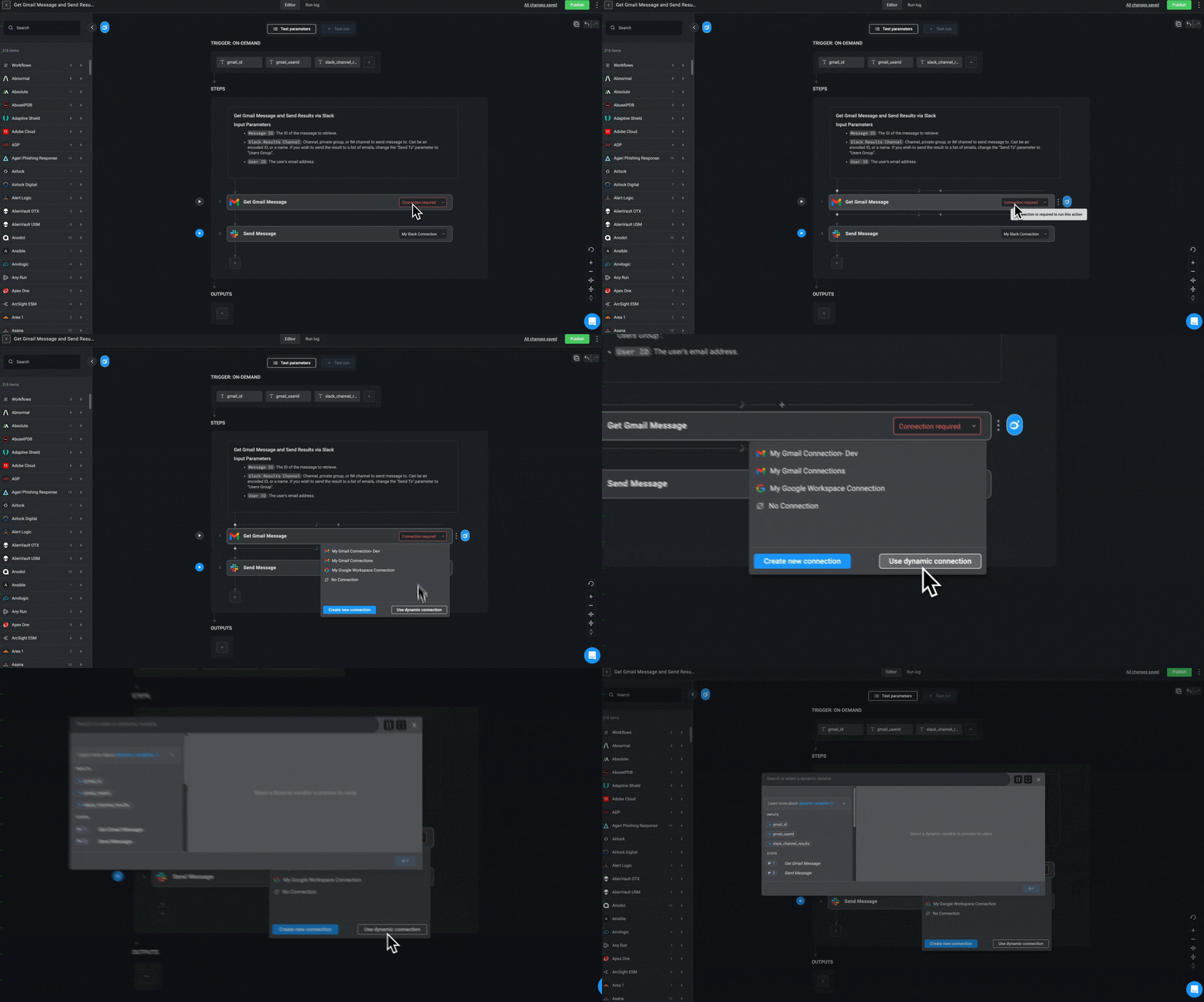
In the workflow step that requires a connection, click on the **Connections Required** dropdown menu. This opens the [Variable Picker](/docs/workflows/building-workflows/dynamic-variables/variable-picker).
Choose a dynamic variable (typically an input parameter) to assign the connection.
Ensure the connection type matches the expected type for the action. If the types don’t match, the step will fail to execute.
***
### Example: Adding a Dynamic Connection via Input Parameters
You can configure actions in your workflow to use dynamic connections by passing the connection as an **input parameter**. This allows the connection to be selected at runtime, giving you greater flexibility and reusability across different workflows.
You can also obtain **Connection ID** in the 'Connections' page. Navigate to the 'Connections' page, click the icon next to the connection and select **Copy ID**. Use the `ID` in your steps, not the connection name.
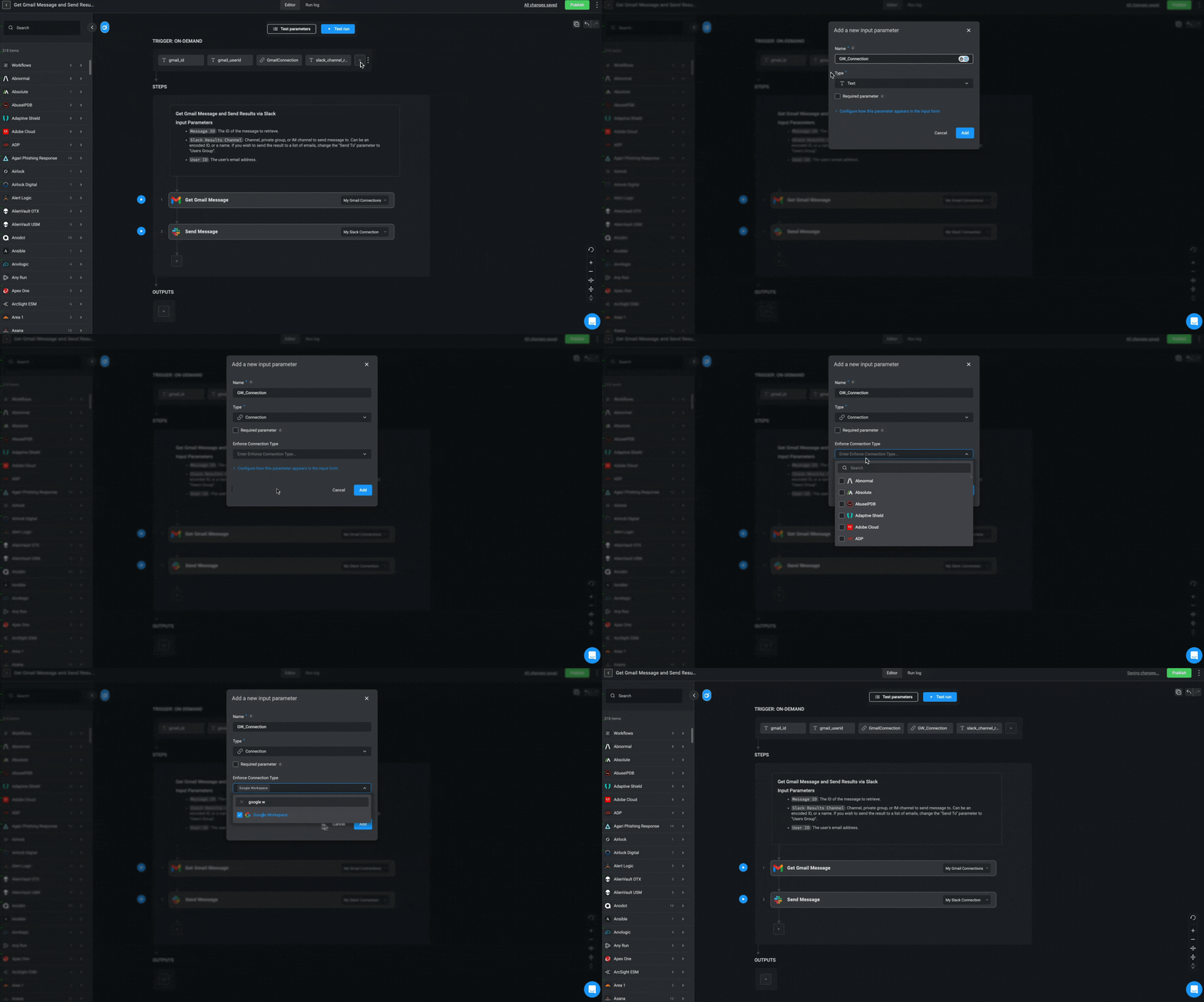
Create an [input parameter](/docs/workflows/building-workflows/triggers/on-demand-triggers/input-parameters) and set its type to 'Connection' to allow the workflow to receive a connection ID at runtime.
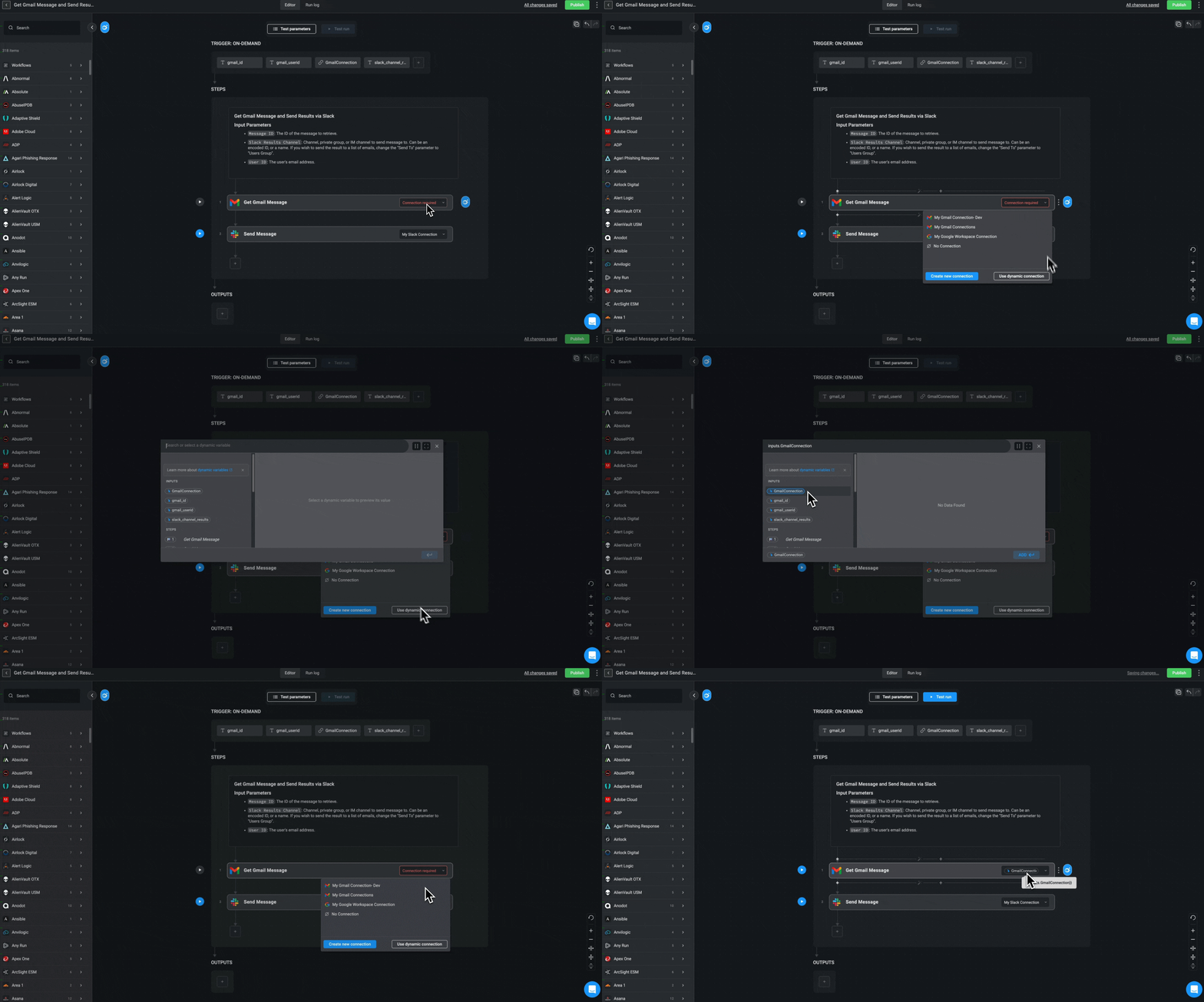
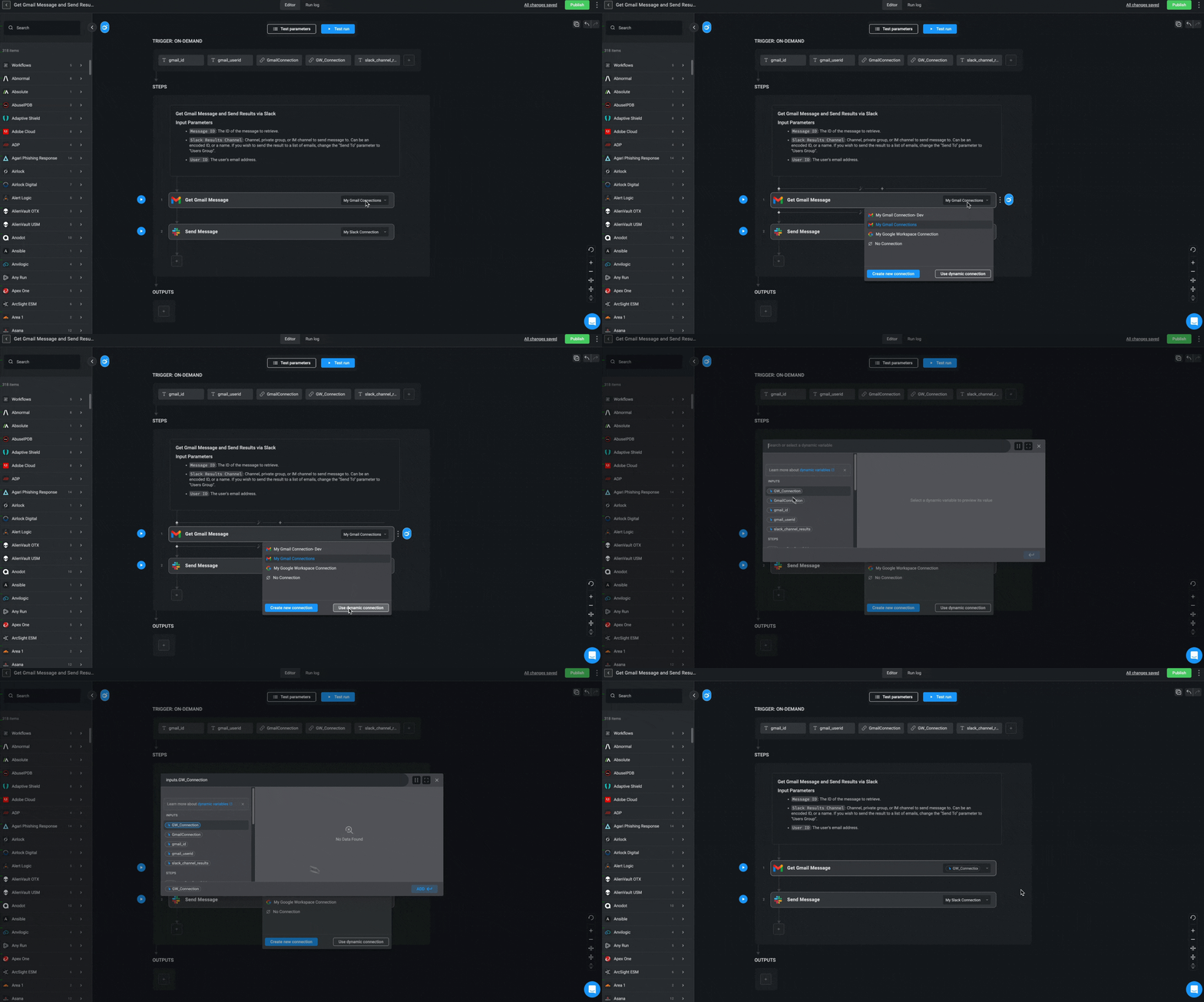
In the workflow step that requires a connection, click on the 'Connections Required' dropdown menu to open the [Variable Picker](/docs/workflows/building-workflows/dynamic-variables/variable-picker).
Select the input parameter you created in `Step 1` as the [dynamic variable](/docs/workflows/building-workflows/dynamic-variables/variable-picker#dynamic-variables) for the connection.
Start the workflow and provide a valid connection ID through the input parameter. The step will use this connection during execution.
***