> ## Documentation Index
> Fetch the complete documentation index at: https://docs.blinkops.com/llms.txt
> Use this file to discover all available pages before exploring further.
# Miscellaneous Utilities
> Utility actions for screenshots, file conversions, and other miscellaneous operations in Blink workflows.
## Capture Website Screenshot
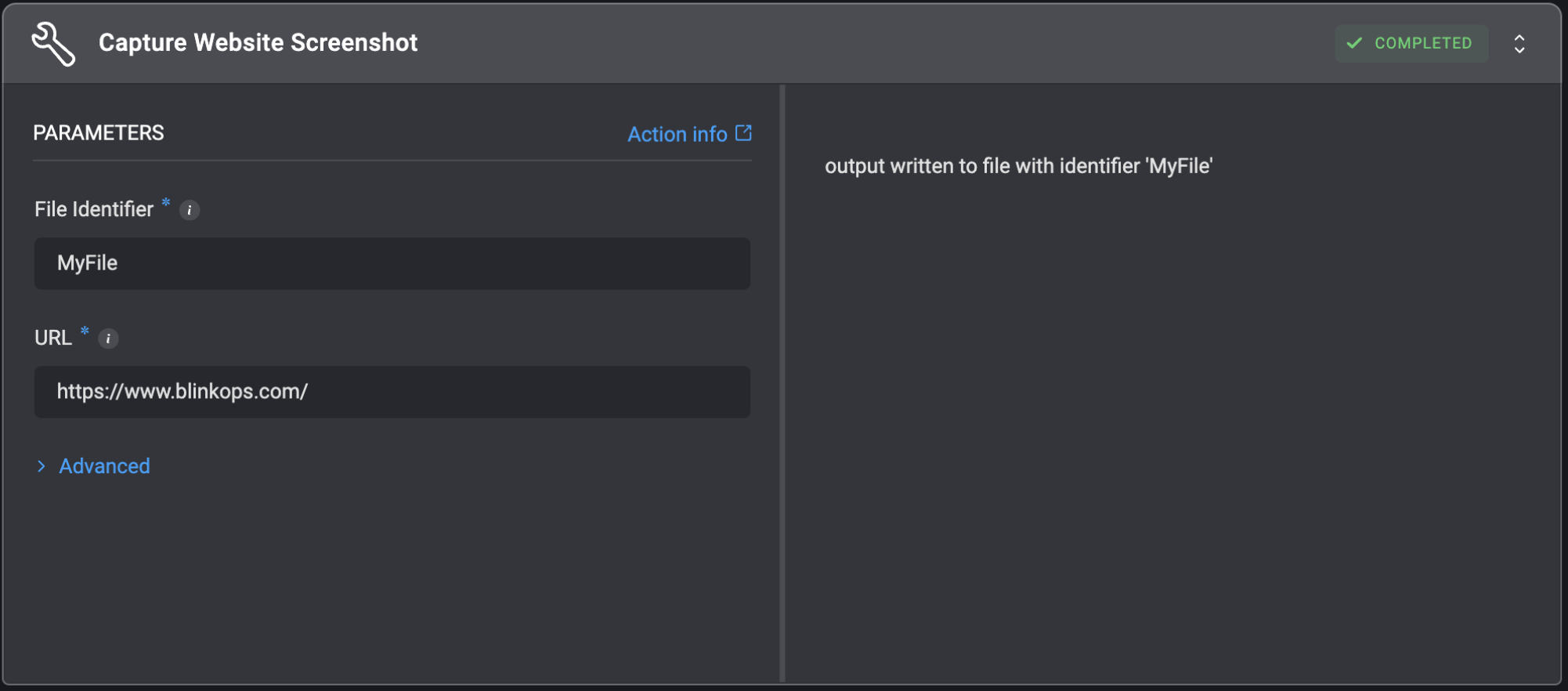
Get a webpage screenshot as a `.png` file using a provided URL.
| Parameter | Description |
| -------------------------- | ----------------------------------------------------------------------------------------------------------------------------------------------------------------------------- |
| File Identifier | The identifier of the file. This will be used as an input for subsequent steps. |
| URL | The URL to take the screenshot from (e.g. `https://google.com`). |
| Wait For Selector | Optional CSS selector to wait for before taking the screenshot (e.g., `.main-content` or `#login`). |
| Delay After Load (Seconds) | Optional number of seconds to wait after the page or selector is ready, before capturing the screenshot.
Maximum: `60` seconds.
Must be less than the step timeout. |
 ## Generate Random Number
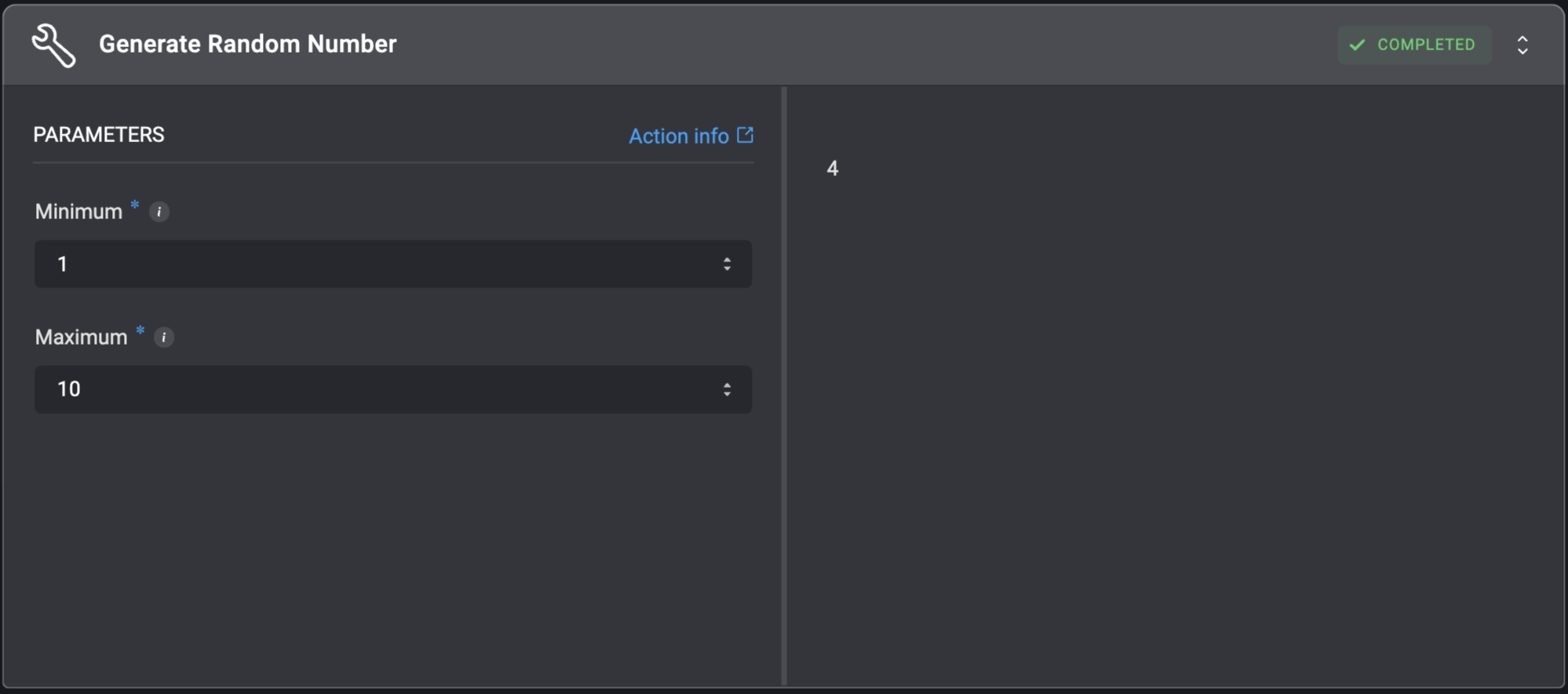
Generates a random integer within a specific inclusive range.
## Generate Random Number
Generates a random integer within a specific inclusive range.
| Parameter | Description |
| --------- | ------------------------------------------- |
| Minimum | The minimum value of the range (inclusive). |
| Maximum | The maximum value of the range (inclusive). |
 ## Increment Variable
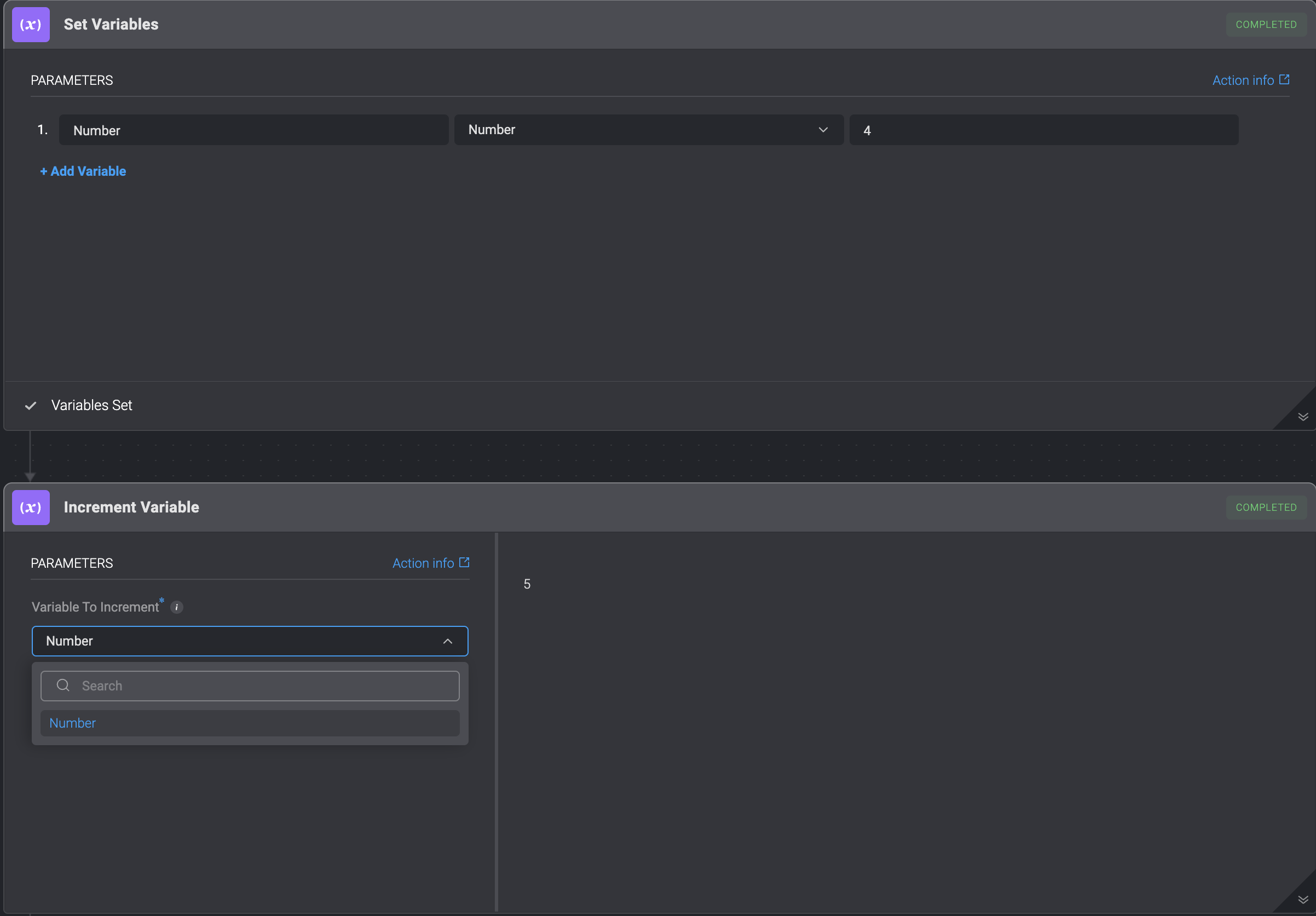
The **Increment Variable** utility action enables you to **increment** your **variable** by a value of one. You can choose the **variable** you would like to **increment** by selecting it from the dynamic dropdown menu.
## Increment Variable
The **Increment Variable** utility action enables you to **increment** your **variable** by a value of one. You can choose the **variable** you would like to **increment** by selecting it from the dynamic dropdown menu.
 ## Print
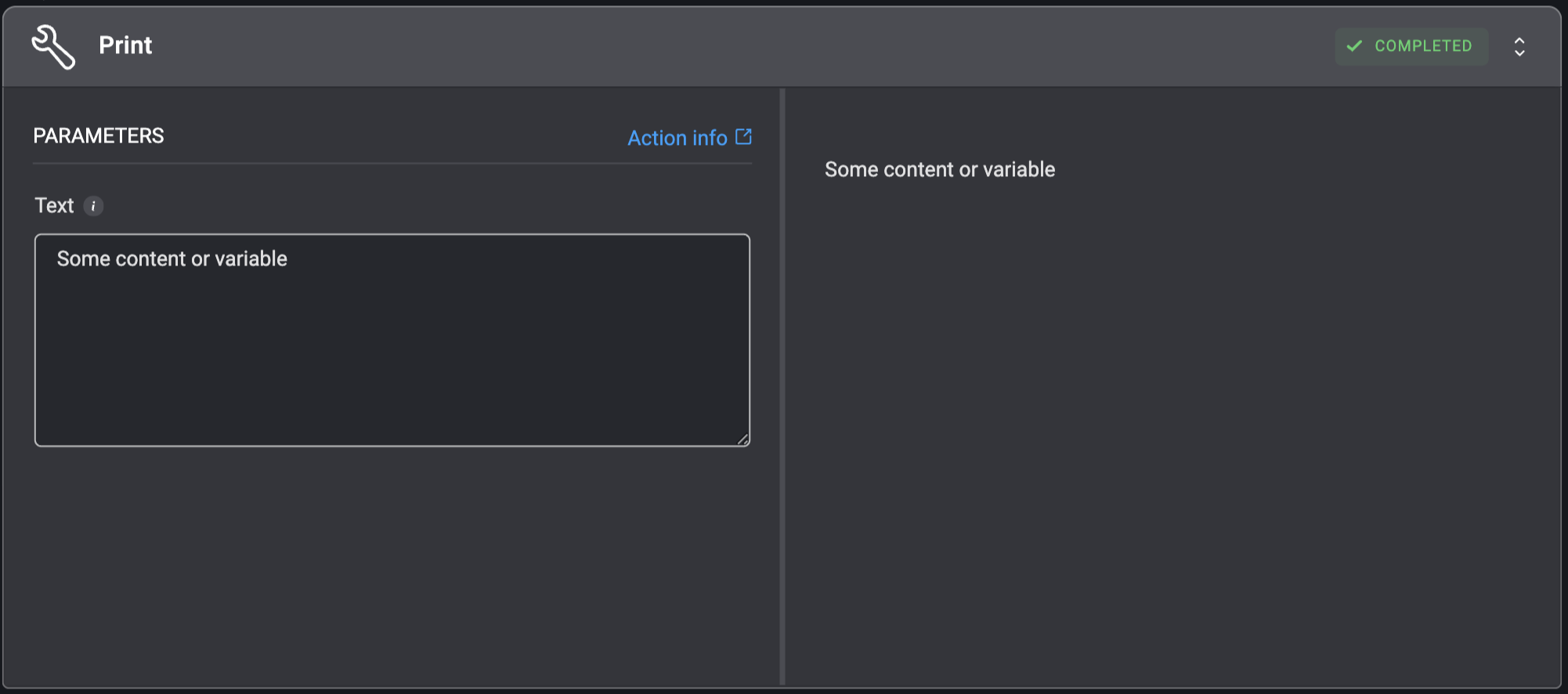
Print text to the step output screen.
To print the content of a file, use the `Get File Content` action instead.
## Print
Print text to the step output screen.
To print the content of a file, use the `Get File Content` action instead.
| Parameter | Description |
| --------- | --------------------------------------------------- |
| Text | The text or variable to print to the output screen. |
 ## Validate Structure
Validate if the input conforms to a specified data structure format.
## Validate Structure
Validate if the input conforms to a specified data structure format.
| Parameter | Description |
| -------------- | ------------------------------------------------------------------ |
| Input | The input data to validate against the specified structure format. |
| Structure Type | The expected structure format to validate the input against. |
 ### Validation Behavior
The action performs strict format validation based on the selected structure type:
**JSON Validation:**
* Checks for valid JSON syntax, including proper bracket/brace matching.
* Verifies correct key-value pair formatting.
**XML Validation:**
* Verifies well-formed XML structure with proper tag opening/closing.
* Checks for valid element nesting.
**YAML Validation:**
* Validates YAML syntax, including proper indentation.
* Checks for correct key-value pair formatting.
**CSV Validation:**
* Checks for valid CSV structure and formatting.
**EML Validation:**
* Validates email message format structure.
* Requires presence of essential headers (`From` and `Date`).
### Validation Behavior
The action performs strict format validation based on the selected structure type:
**JSON Validation:**
* Checks for valid JSON syntax, including proper bracket/brace matching.
* Verifies correct key-value pair formatting.
**XML Validation:**
* Verifies well-formed XML structure with proper tag opening/closing.
* Checks for valid element nesting.
**YAML Validation:**
* Validates YAML syntax, including proper indentation.
* Checks for correct key-value pair formatting.
**CSV Validation:**
* Checks for valid CSV structure and formatting.
**EML Validation:**
* Validates email message format structure.
* Requires presence of essential headers (`From` and `Date`).