> ## Documentation Index
> Fetch the complete documentation index at: https://docs.blinkops.com/llms.txt
> Use this file to discover all available pages before exploring further.
# File Actions
> Essential filesystem management capabilities for workflows,
## Create Archive
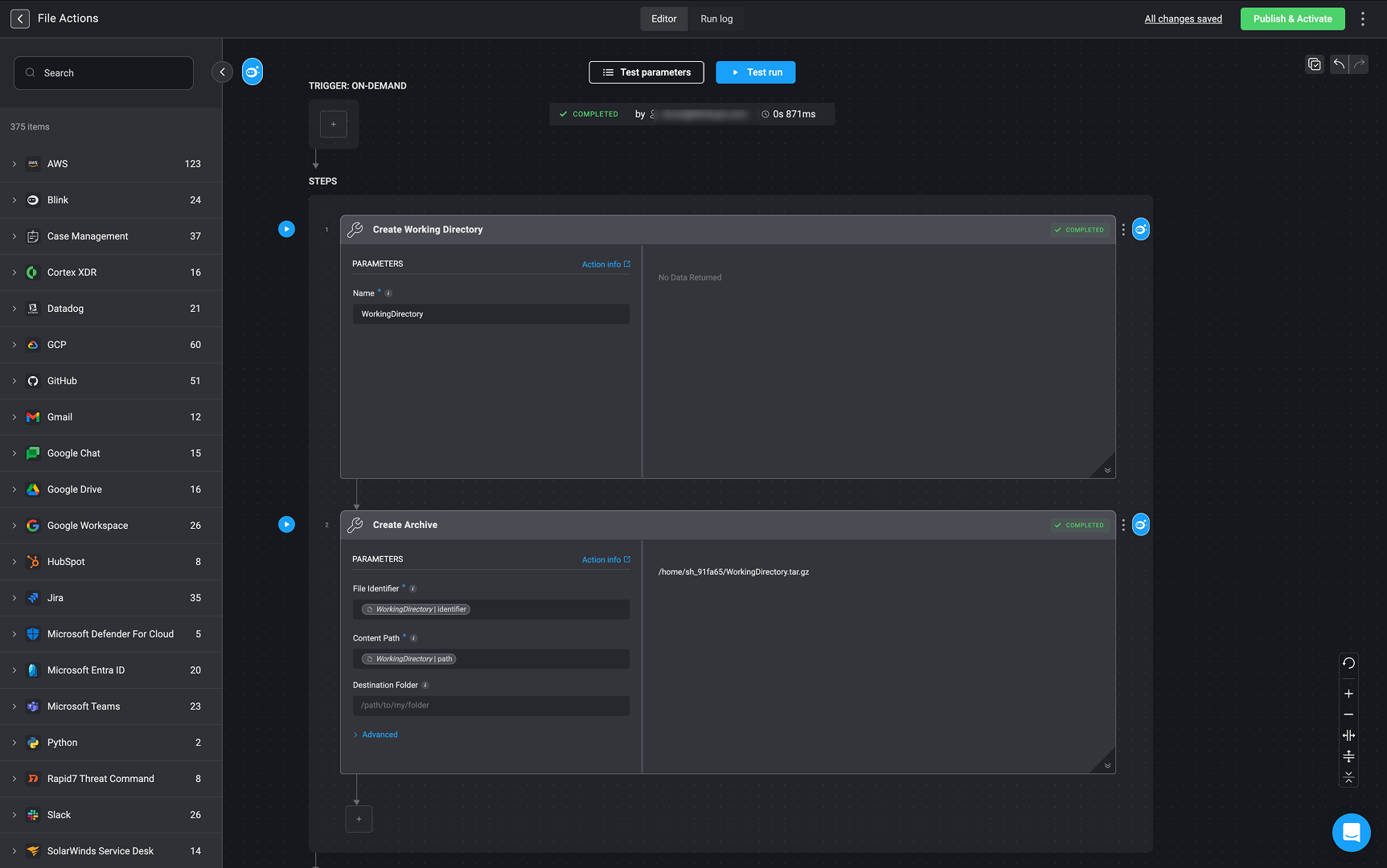
Create an archive from a file or folder path and set an identifier for it so it can be used as input in subsequent steps.
| Parameter | Description |
| ------------------------------- | -------------------------------------------------------------------------------------------------------------------------------------------------------------------------------------------------------------------------------------------------------------------------------------------------------------------------------------------------------------------------------------------------------------------------------------------------------------- |
| File identifier | The identifier of the file. This can be used as input for subsequent Steps. |
| Content Path | The file or folder path to create the archive from. |
| Destination | The path in which the archive will be created. If no destination is provided, the archive will be created in the user’s home path. |
| **Advanced**- Working Directory | When a working directory is selected, the filesystem state is preserved across steps that use this directory. Files and changes in the chosen directory persist across steps, ensuring continuity. For more information, refer to the [Create Working Directory](/docs/workflows/building-workflows/actions/utility-actions/file_system-utilities#create-working-directory) action documentation for guidance on setting up and selecting working directories. |
 ## Create Working Directory
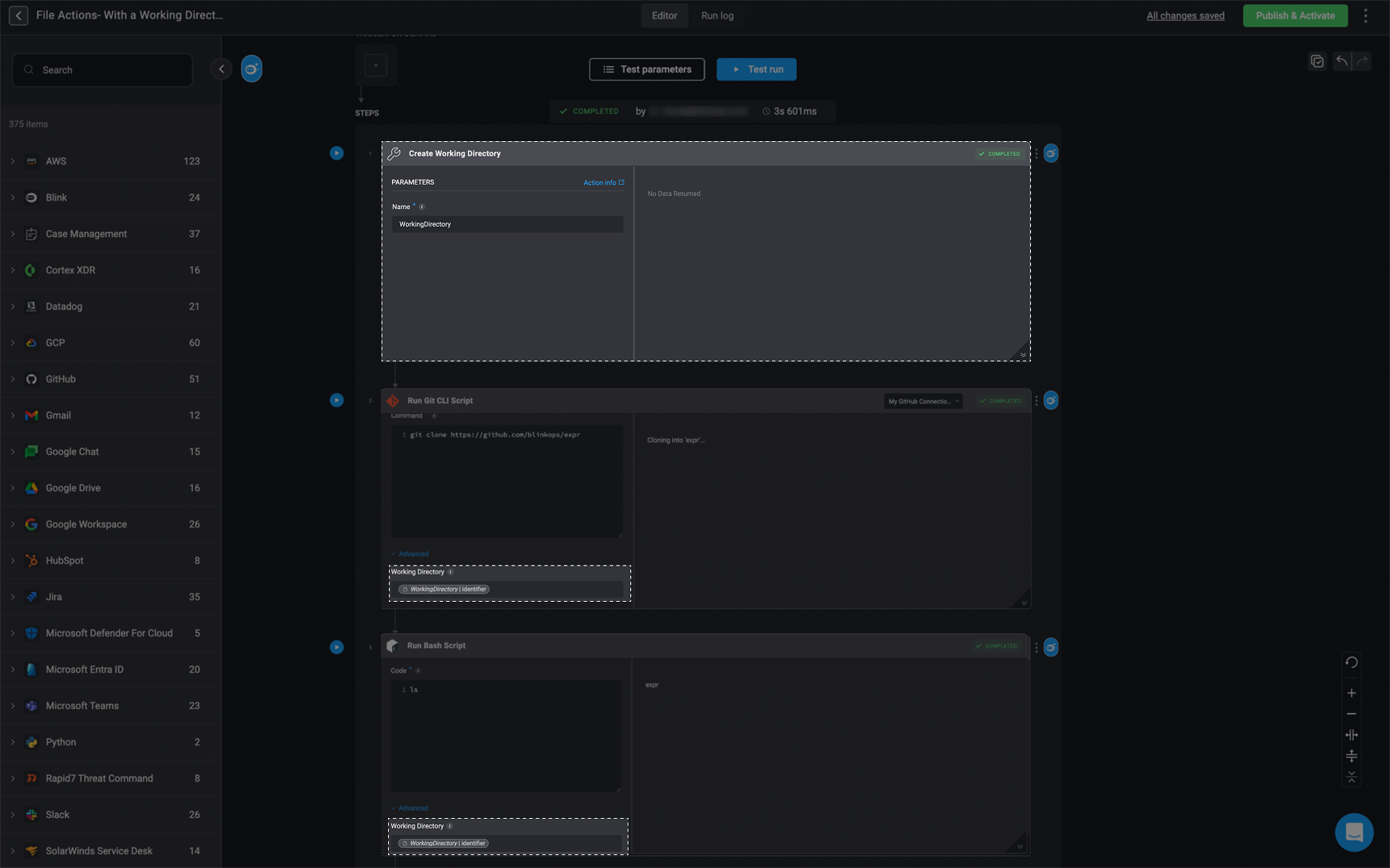
The "Create Working Directory" action establishes a dedicated filesystem state that preserves files and changes across different steps in the workflow, allowing them to persist and ensuring continuity between steps.
## Create Working Directory
The "Create Working Directory" action establishes a dedicated filesystem state that preserves files and changes across different steps in the workflow, allowing them to persist and ensuring continuity between steps.
| Parameter | Description |
| --------- | --------------------------------------- |
| Name | The name given to the working directory |
 ## Download File From URL
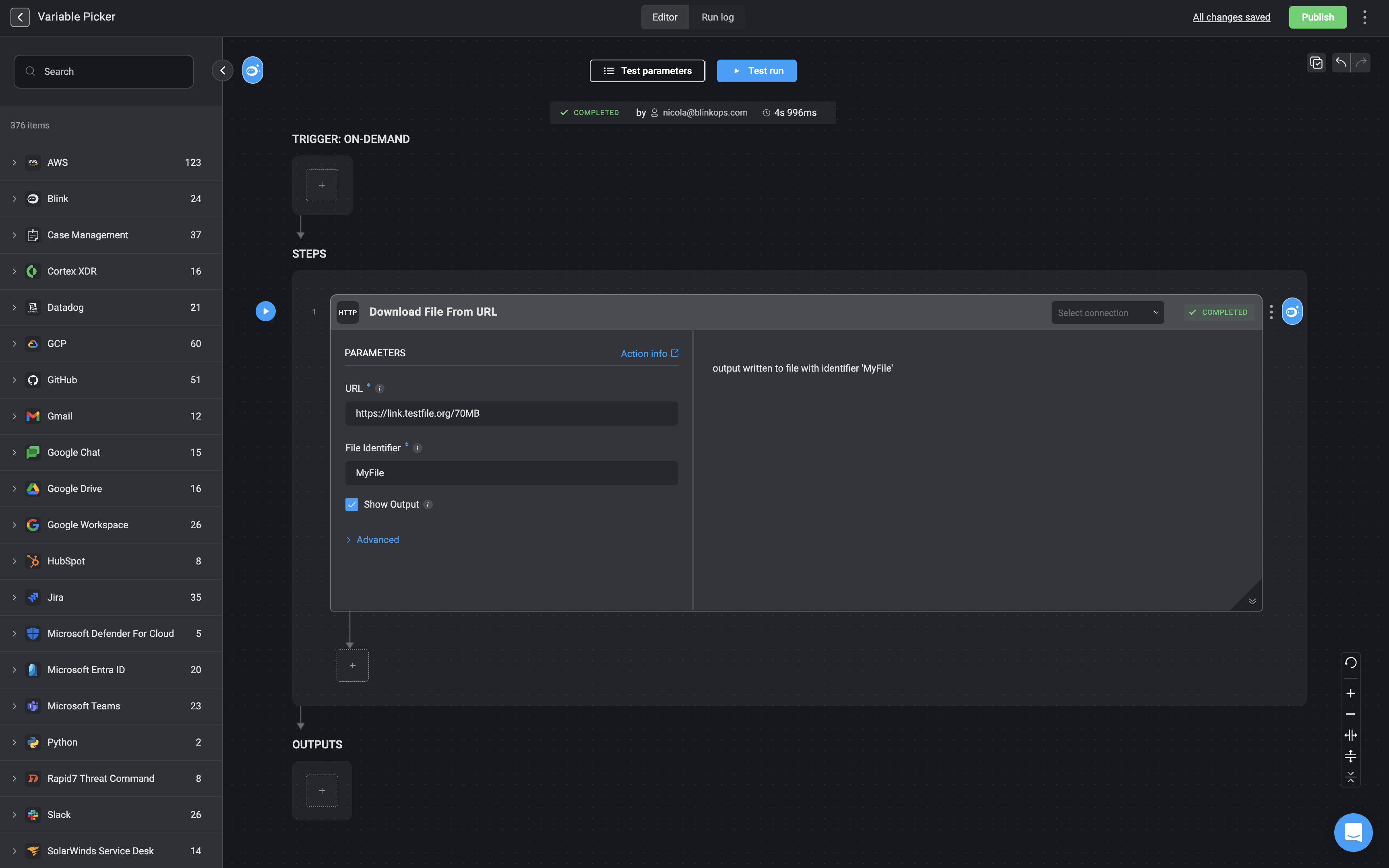
Download a file from a URL and set an identifier for it, so it can be used as input in subsequent steps.
## Download File From URL
Download a file from a URL and set an identifier for it, so it can be used as input in subsequent steps.
| Parameter | Description |
| ----------------------- | ---------------------------------------------------------------------------------------------------------------------------------------------------------------------------------------------------------------------------------------- |
| URL | Address of the resource. |
| File identifier | The identifier of the file. This can be used as input for subsequent Steps. |
| Show output | Display the content downloaded from the given URL. |
| Headers | Request Headers to be added to the request, as a string in the format of `Name: Value`, separated by new lines.
For example:
Content-Type: application/json
Accept: application/json
|
| Cookies | Web cookies to include in the request in the format `Name: Value`, separated by new lines.
For example:
Session: gr32tsd266yfg3u3t132kyl
Authentication: token123
|
| Disable SSL Enforcement | When checked, the SSL verification of the server's certificate chain and host name will be skipped.
This option may increase security vulnerabilities, but can be useful for testing or when custom verification is employed. |
 ## Get File Content
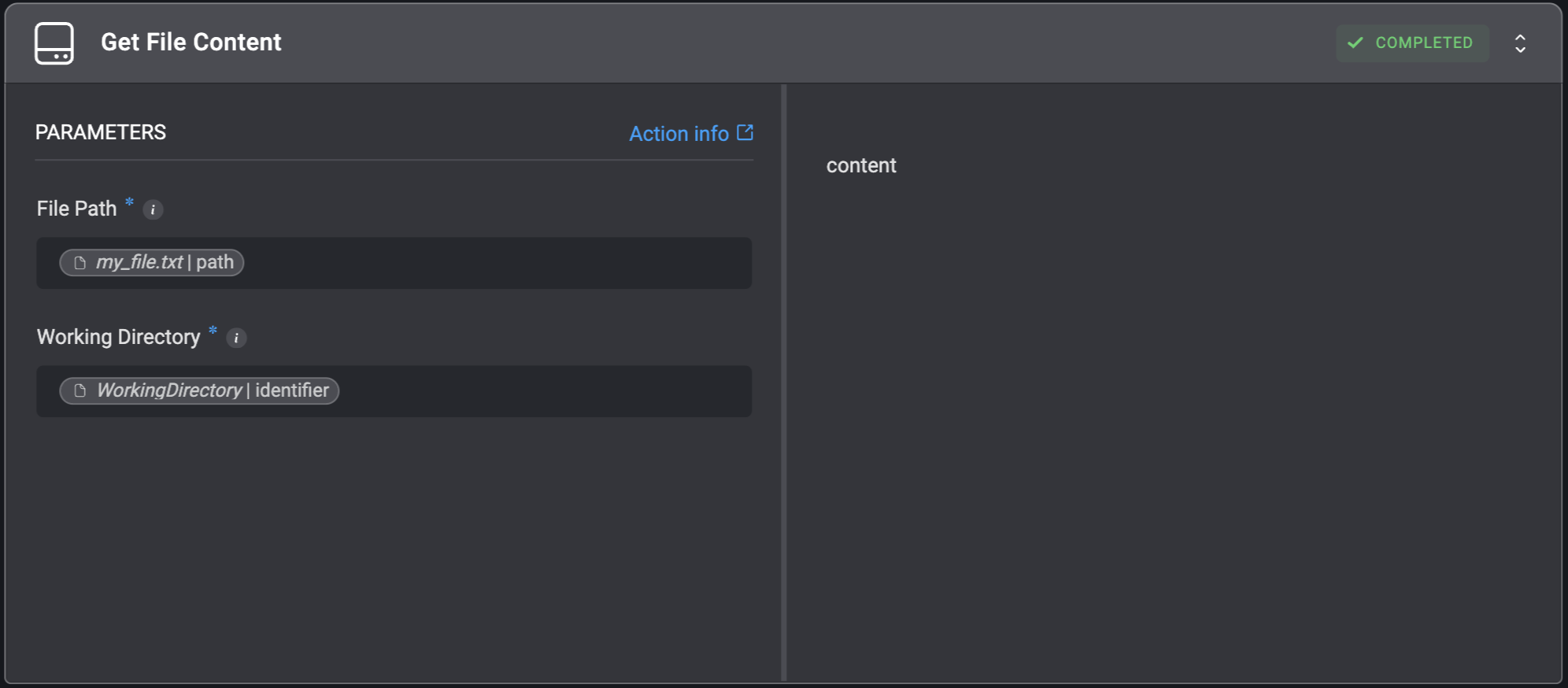
The **Get File Content** utility action allows you to print the content of a file that exists in a working directory.
## Get File Content
The **Get File Content** utility action allows you to print the content of a file that exists in a working directory.
| Parameter | Description |
| ----------------- | ---------------------------------------------------------------------------------------------------------------------------------------------------------------------------------------------------------------------------------------------------------------------------------------------------------------------------------------------------------------------------------------------------------------------------------------------------------- |
| File Path | The file from which to print the content |
| Working Directory | The directory where the file is located. The filesystem state is preserved across steps using this directory, ensuring that files and changes persist for continuity. For more information, refer to the [Create Working Directory](https://docs.blinkops.com/docs/workflows/building-workflows/actions/utility-actions/file_system-utilities#create-working-directory) action documentation for guidance on setting up and selecting working directories. |
 ## Set File Variable
Set an identifier for a file on the file system so it can be used as input in subsequent Steps.
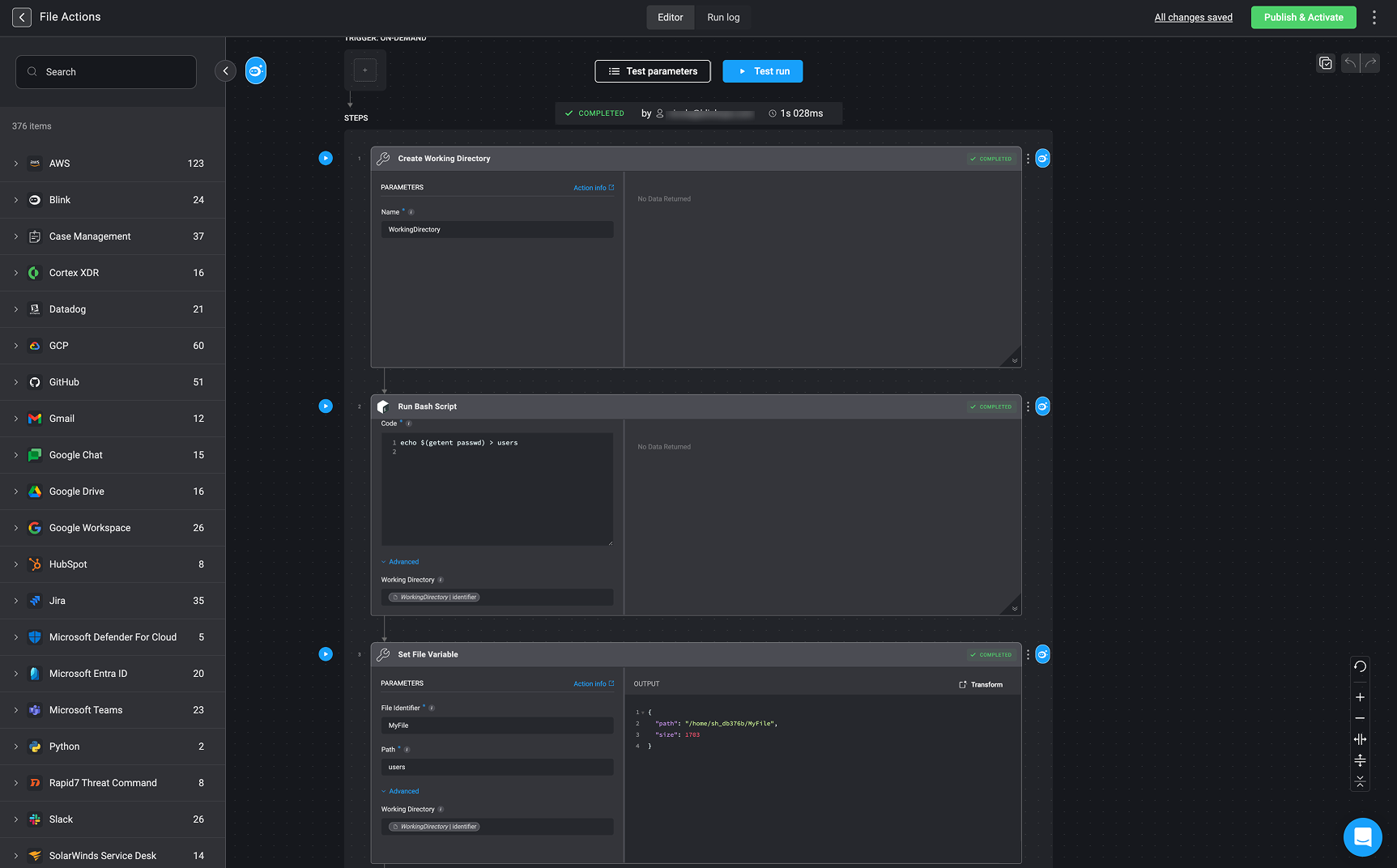
The `Working Directory` created in step 1 needs to be entered into the input fields for both the 'Run Bash' action in step 2 and the 'Set File Variable' action in step 3. This ensures that both actions operate within the same directory, maintaining consistency across the workflow.
**Step 1: Create Working Directory**
1. Add a **"Create Working Directory"** action to the workflow.
2. Set the **Name** parameter to `"WorkingDirectory"`.
**Step 2: Run Bash Script**
1. Add a **"Run Bash Script"** action.
2. Create a bash script For example:
`echo $(getent passwd) > users`
* This command retrieves a list of system users and writes it to a file named users.
3. Under the **Advanced** section, set **Working Directory** to `{{ WorkingDirectory.Identifier }}` using the [variable picker](/docs/workflows/building-workflows/dynamic-variables/variable-picker) to ensure the script executes within the created directory.
**Step 3: Set File Variable**
1. Add a **"Set File Variable"** action.
2. Configure the following parameters:
* **File Identifier:** `"MyFile"`
* **Path:** `"users"`
3. Under the **Advanced** section, set **Working Directory** to `{{ WorkingDirectory.Identifier }}` using the [variable picker](/docs/workflows/building-workflows/dynamic-variables/variable-picker).
4. Execute the step. The output confirms the file's location and size:
```json theme={"dark"}
{
"path": "/home/blink_15699/MyFile",
"size": 1703
}
```
## Set File Variable
Set an identifier for a file on the file system so it can be used as input in subsequent Steps.
The `Working Directory` created in step 1 needs to be entered into the input fields for both the 'Run Bash' action in step 2 and the 'Set File Variable' action in step 3. This ensures that both actions operate within the same directory, maintaining consistency across the workflow.
**Step 1: Create Working Directory**
1. Add a **"Create Working Directory"** action to the workflow.
2. Set the **Name** parameter to `"WorkingDirectory"`.
**Step 2: Run Bash Script**
1. Add a **"Run Bash Script"** action.
2. Create a bash script For example:
`echo $(getent passwd) > users`
* This command retrieves a list of system users and writes it to a file named users.
3. Under the **Advanced** section, set **Working Directory** to `{{ WorkingDirectory.Identifier }}` using the [variable picker](/docs/workflows/building-workflows/dynamic-variables/variable-picker) to ensure the script executes within the created directory.
**Step 3: Set File Variable**
1. Add a **"Set File Variable"** action.
2. Configure the following parameters:
* **File Identifier:** `"MyFile"`
* **Path:** `"users"`
3. Under the **Advanced** section, set **Working Directory** to `{{ WorkingDirectory.Identifier }}` using the [variable picker](/docs/workflows/building-workflows/dynamic-variables/variable-picker).
4. Execute the step. The output confirms the file's location and size:
```json theme={"dark"}
{
"path": "/home/blink_15699/MyFile",
"size": 1703
}
```