> ## Documentation Index
> Fetch the complete documentation index at: https://docs.blinkops.com/llms.txt
> Use this file to discover all available pages before exploring further.

# Ask a Question via Zoom

## Ask a Question via Zoom

The *"Ask a Question via Zoom"* action integrates the Blink Bot (part of the Blink app) into your workspace, allowing you to perform common Zoom Chat actions within your workflows and triggers.
Questions from Blink to Zoom are sent through this bot.

<Tip>The **Blink Bot** is named **Blink** by default and displays the Blink logo.</Tip>

This action allows you to send a question to specific users or channels in Zoom with responses that you configure.
It then receives the selected response and lets you reference it in later steps of your workflow.

***

## Creating a Workflow Using the 'Ask a Question via Zoom' Action

### Set Up the Blink Bot in Zoom

<Steps>
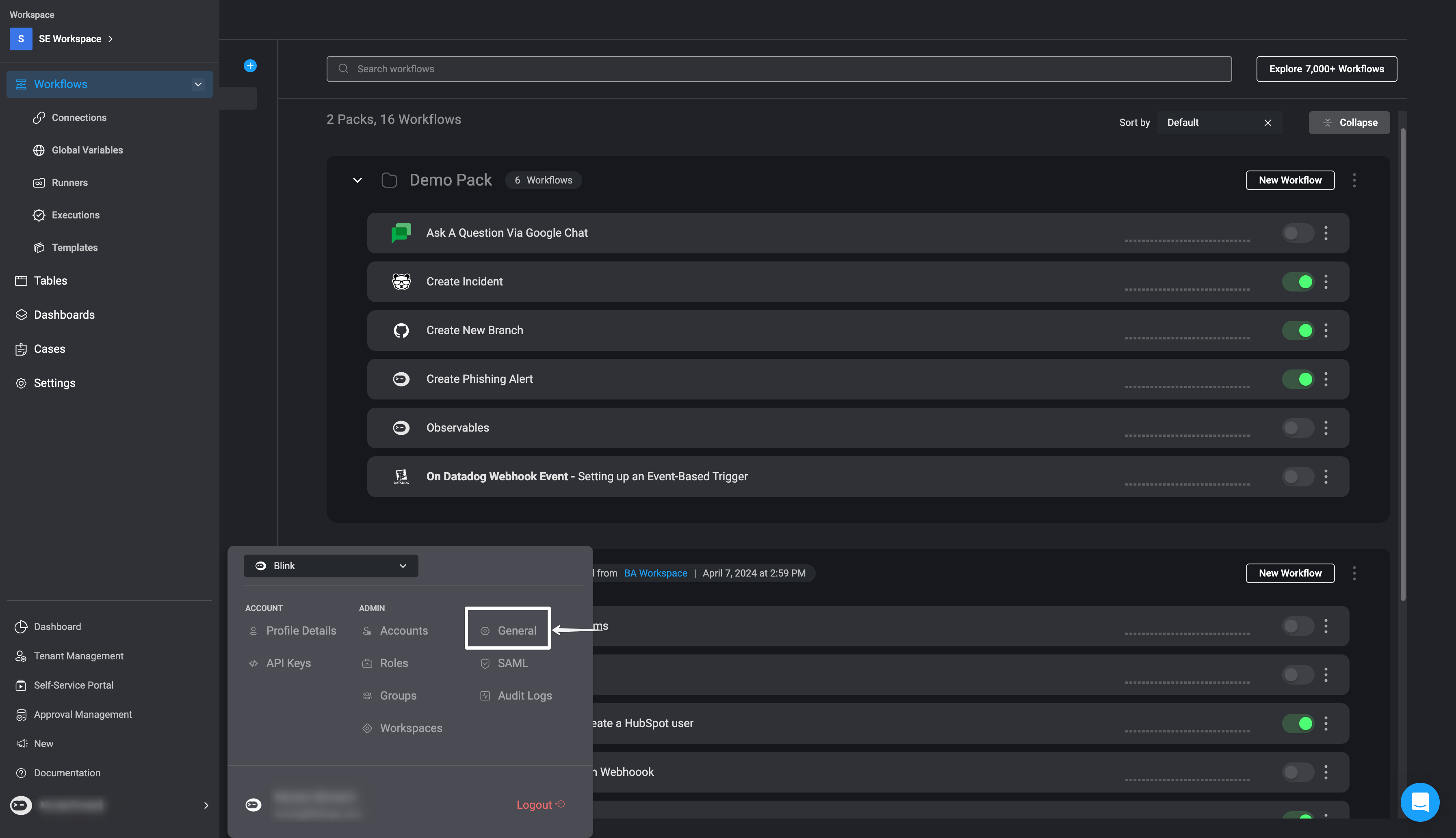
  <Step title="Open General Settings in the Blink Platform">
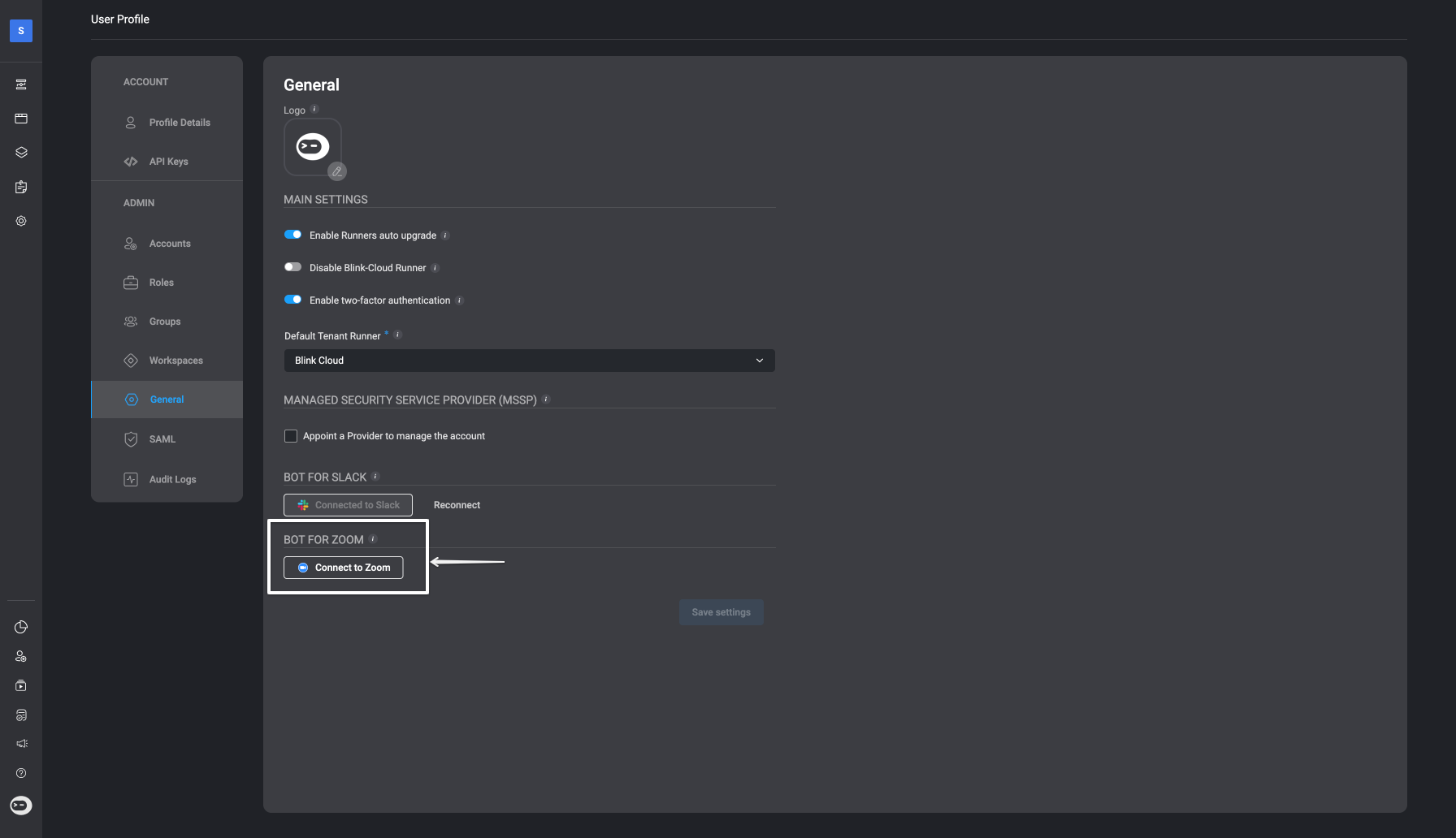
    Set up the [Zoom Chat Bot](/docs/blink-platform/blink-portal/zoom-slackbot) by clicking your username in the bottom left corner and going to the **General** settings page.

    <Frame>
      <img src="https://mintcdn.com/blinkops-2/LiDiL34PEmIGHJGK/img/Actions/ZoomConnectionSetup.png?fit=max&auto=format&n=LiDiL34PEmIGHJGK&q=85&s=a1edd6e41eb0cd32e29d7dbe89b2b956" width="3584" height="2064" data-path="img/Actions/ZoomConnectionSetup.png" />
    </Frame>
  </Step>

  <Step title="Click 'Connect to Zoom'">
    In the General Settings, click the **Connect to Zoom** button.

    <Frame>
      <img src="https://mintcdn.com/blinkops-2/LiDiL34PEmIGHJGK/img/Actions/ZoomSetup.png?fit=max&auto=format&n=LiDiL34PEmIGHJGK&q=85&s=ba70e7b82622c34eeca09f4c259b83f5" width="1792" height="1032" data-path="img/Actions/ZoomSetup.png" />
    </Frame>
  </Step>

  <Step title="Grant Zoom Permissions">
    A dialog window will appear, requesting access permissions for Blink to access your Zoom workspace. Click **Allow** to authorize the connection.
  </Step>

  <Step title="Confirm Zoom is Connected">
    Once authorized, the interface will confirm your account is connected to Zoom.
  </Step>
</Steps>

***

### Navigate the Blink Platform

<Steps>
  <Step title="Add the 'Ask a Question via Zoom' Action">
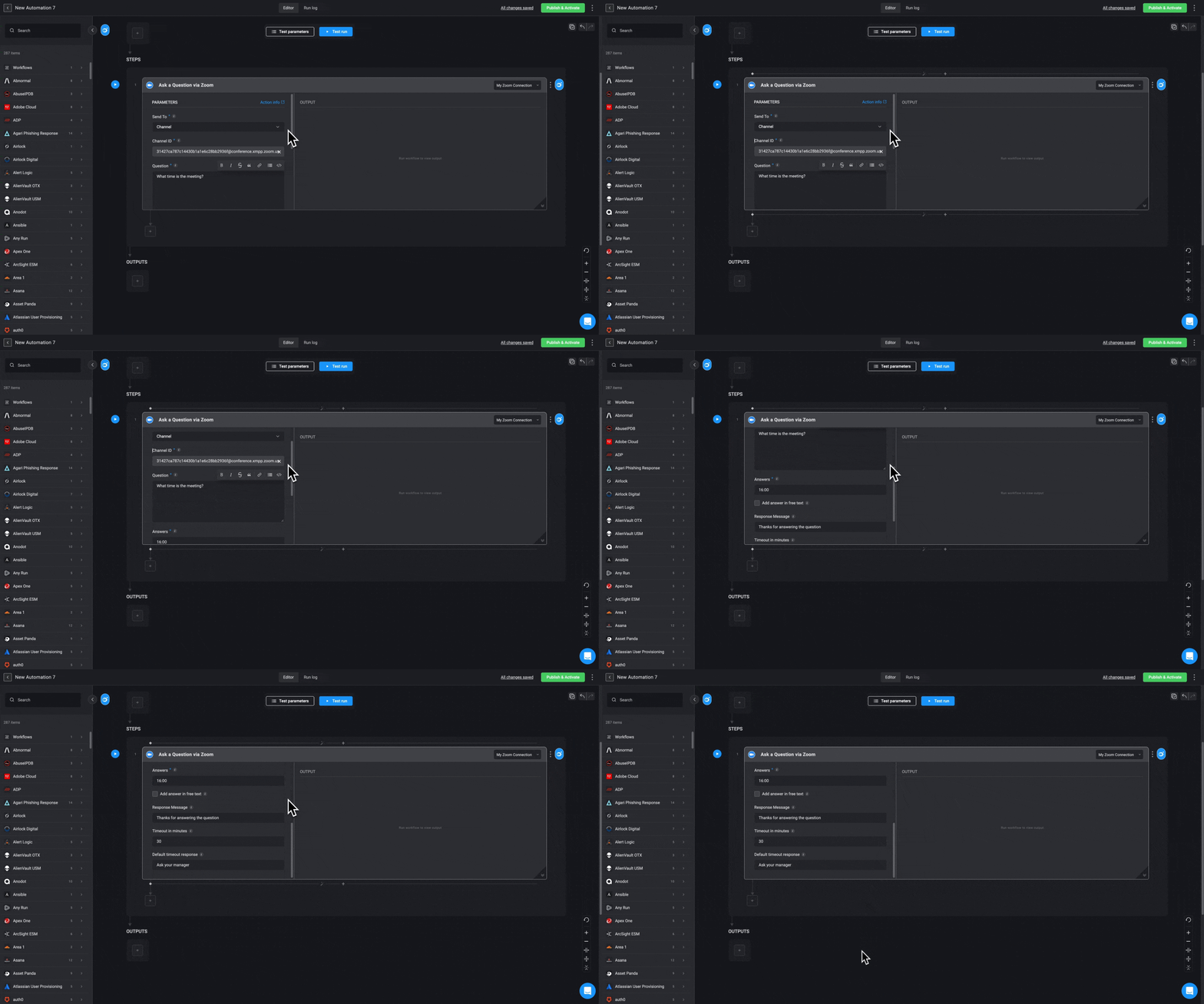
    In the Workflow Editor, open the inline action pane; and search for the 'Ask a Question via Zoom' action. Alternatively, you can drag the action directly into your step.

    <Frame>
      <img src="https://mintcdn.com/blinkops-2/XMlZfP6f_keDWota/img/Actions/ZoomAction.gif?s=f1d5ee94a63210eef1a3963d9ef2a9e7" width="1940" height="1080" data-path="img/Actions/ZoomAction.gif" />
    </Frame>
  </Step>

  <Step title="Configure Action Parameters">
    Enter the following parameters in your step:

    <div className="integrations-block">
      | Parameter                           | Description                                                  |
      | ----------------------------------- | ------------------------------------------------------------ |
      | Send To                             | The Zoom destination (e.g., a channel).                      |
      | Channel ID                          | The ID of the Zoom channel.                                  |
      | Question                            | The question you want to ask.                                |
      | Answers                             | Possible answers, separated by commas.                       |
      | Add Answer in free text             | Enables users to respond with a free-text answer.            |
      | Response message                    | Message shown to the user after responding.                  |
      | Timeout in minutes (optional)       | The time allowed for a user to respond.                      |
      | Default timeout response (optional) | Default value if no response is received before the timeout. |
    </div>
  </Step>

  <Step title="Create or Select a Zoom Connection">
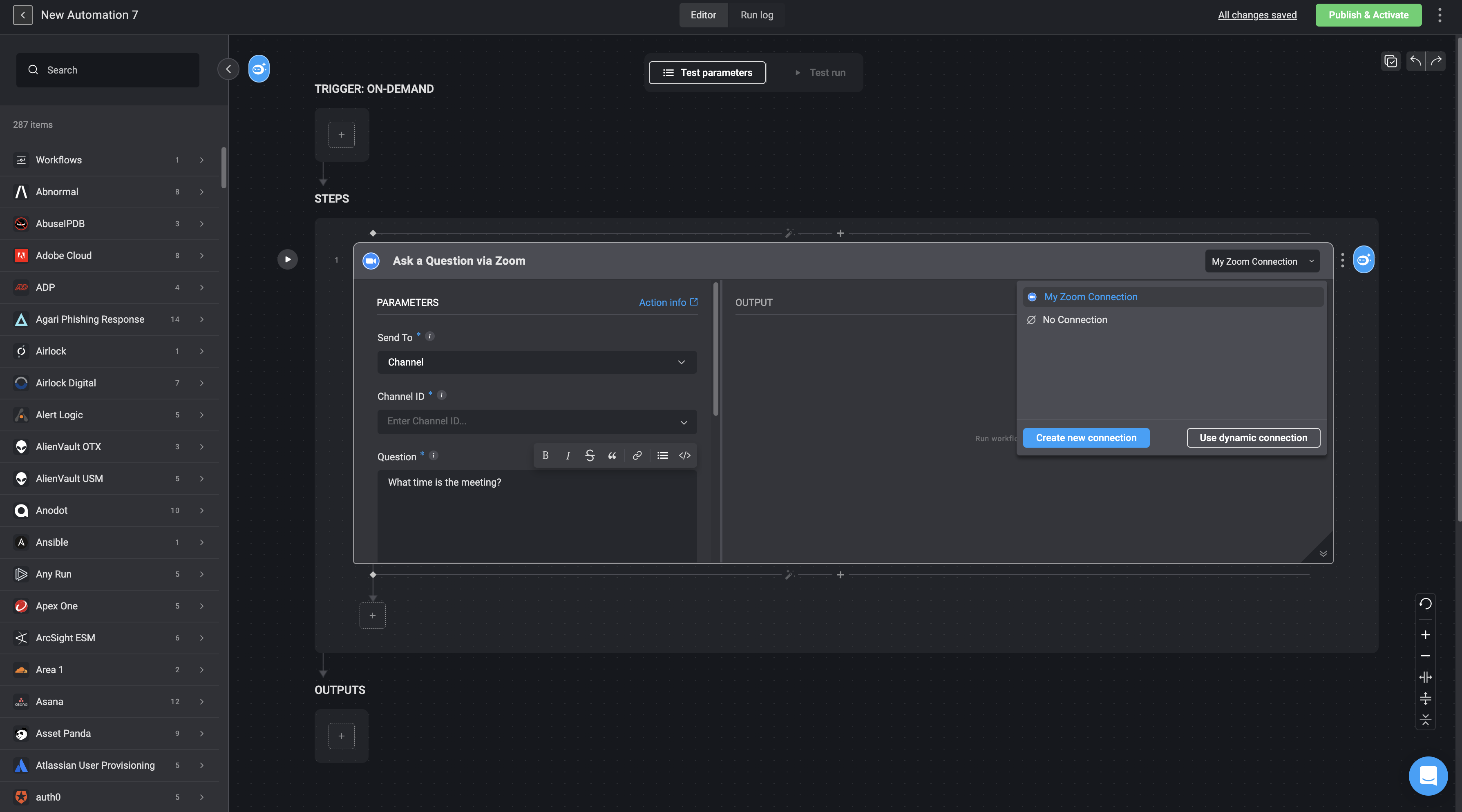
    Click ***Connection required*** in the top-right corner of your step. Click 'Create connection' to proceed.

    <Note>If you have already set up a Zoom connection, select one from the list. Otherwise, create a new connection by selecting **Zoom connection** and following the steps in the [Zoom connection guide](/docs/integrations/zoom/zoom#creating-a-zoom-connection). </Note>

    <Frame>
      <img src="https://mintcdn.com/blinkops-2/LiDiL34PEmIGHJGK/img/Actions/ZoomConnection.png?fit=max&auto=format&n=LiDiL34PEmIGHJGK&q=85&s=ea14c90e118c8ed52ced4df8ed9d8ba7" width="3578" height="1988" data-path="img/Actions/ZoomConnection.png" />
    </Frame>
  </Step>

  <Step title="Run the Step or Workflow">
    Once the step is configured, click the <img src="https://mintcdn.com/blinkops-2/IaQrJ85qNJiQILze/img/Icons/Run.png?fit=max&auto=format&n=IaQrJ85qNJiQILze&q=85&s=793d0da5e2c03002bf881506104b6c24" width="23" height="23" data-path="img/Icons/Run.png" /> button or use the **Test Run** button to execute a trial run of your workflow.
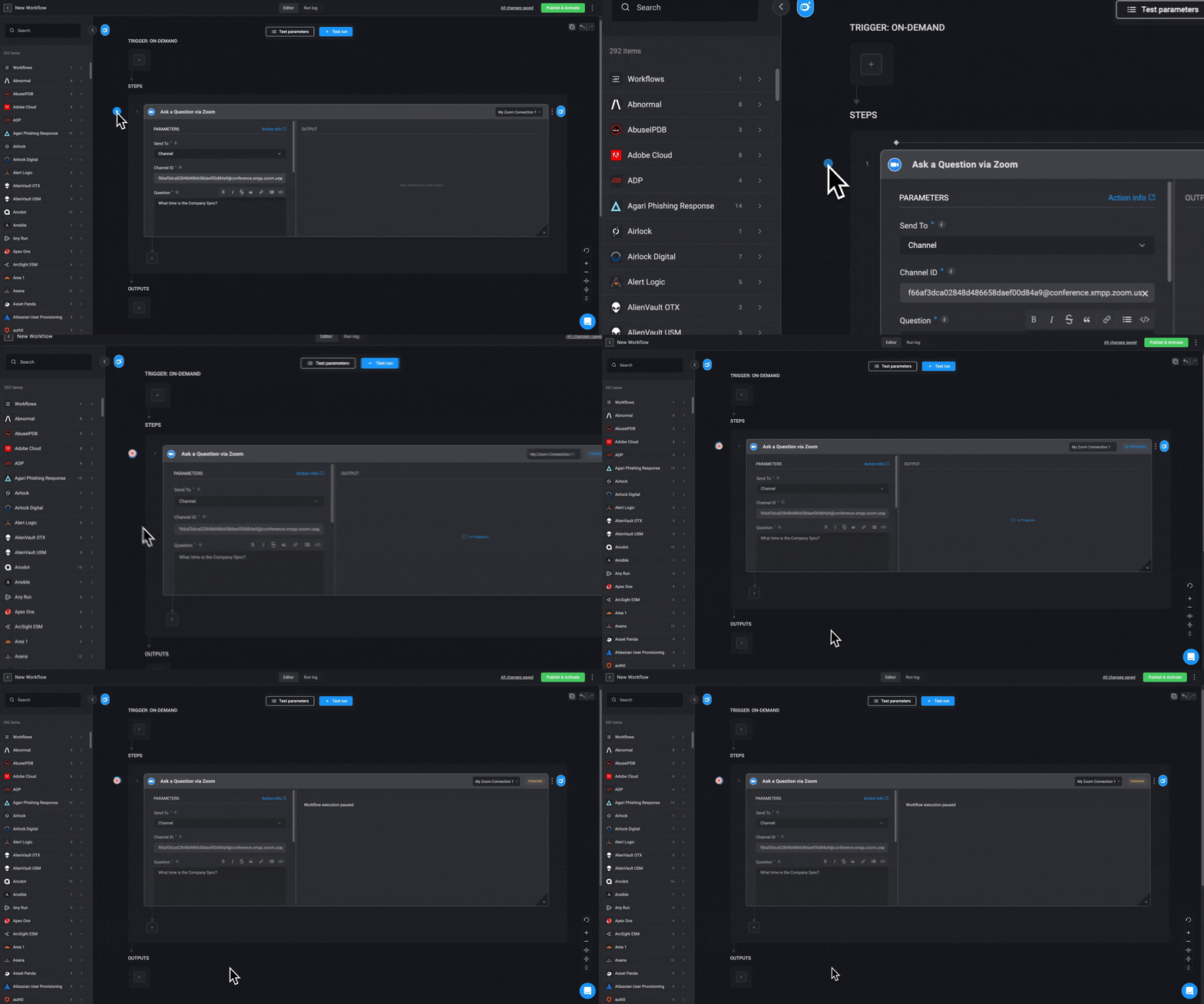
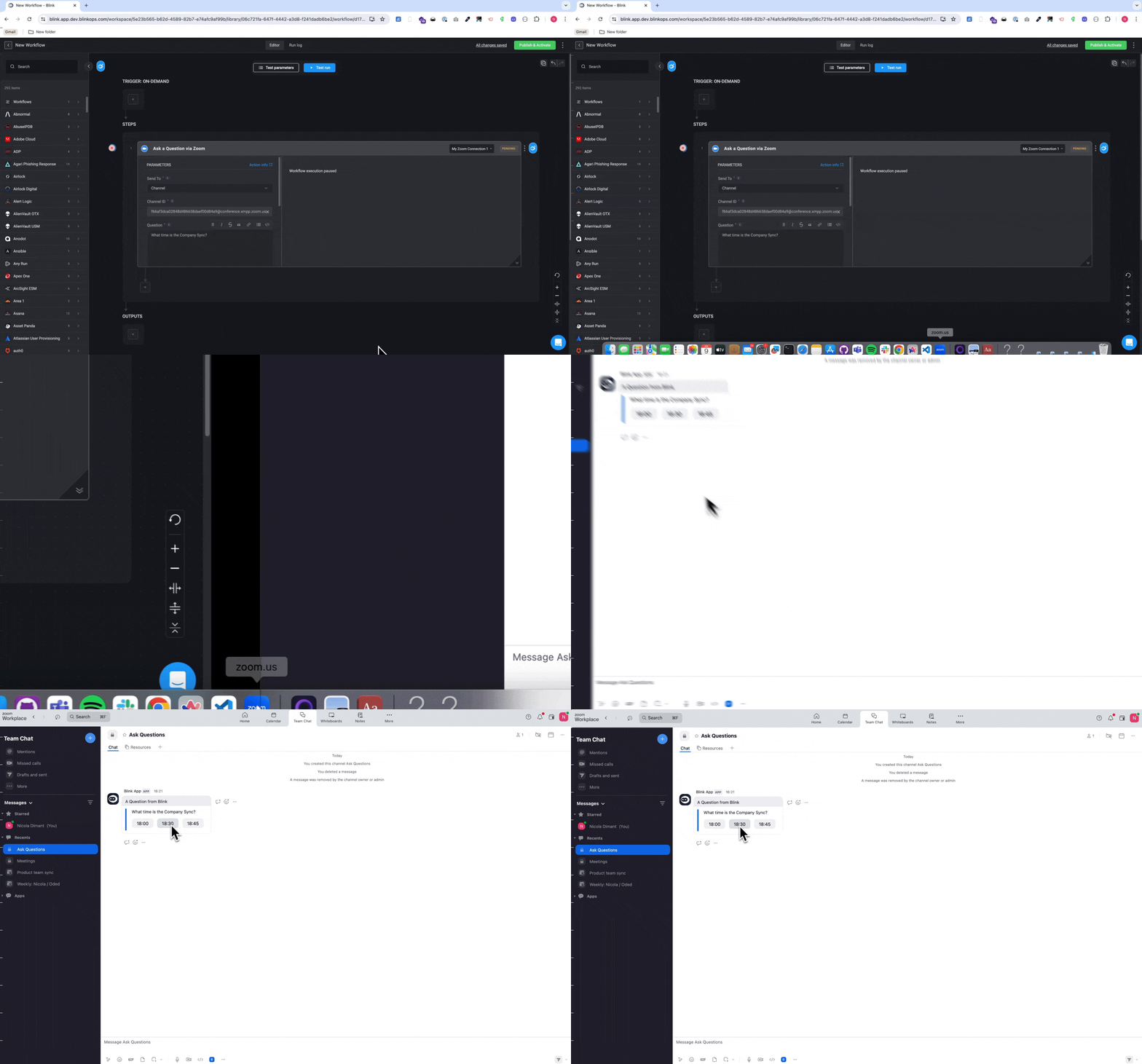
    <Note>While waiting for a response, the step output will show: *Workflow execution paused*.</Note>

    <Frame>
      <img src="https://mintcdn.com/blinkops-2/3_6WnkGGmnkZFzEe/img/Actions/RunZoomQuestionAction.gif?s=056729187f9c60f64a5538c05dc07318" width="1940" height="1080" data-path="img/Actions/RunZoomQuestionAction.gif" />
    </Frame>
  </Step>

  <Step title="Respond to Question in Zoom">
    Navigate to the configured Zoom channel in your Zoom account. The question will appear, and users can submit a response directly in the channel.

    <Frame>
      <img src="https://mintcdn.com/blinkops-2/3_6WnkGGmnkZFzEe/img/Actions/ResponseInZoom.gif?s=1a23ce415b1069978a204446f70a6af9" width="1736" height="1080" data-path="img/Actions/ResponseInZoom.gif" />
    </Frame>
  </Step>

  <Step title="Review Response in Workflow Output">
    Return to your workflow to view the response captured from Zoom in the step output.

    <Note> If the recipient does not respond before the timeout, the Workflow uses the default timeout response. </Note>
  </Step>
</Steps>