> ## Documentation Index
> Fetch the complete documentation index at: https://docs.blinkops.com/llms.txt
> Use this file to discover all available pages before exploring further.
# Workspace ONE UEM
> Workspace ONE is a digital platform that delivers and manages any app on any device by integrating access control, application management and multi-platform endpoint management. This enables IT to deliver a flexible digital workspace without sacrificing security and control.
## Creating a Workspace ONE UEM connection[](#creating-a-workspace-one-uem-connection "Direct link to Creating a Workspace ONE UEM connection")
To create the connection you need:
* A client ID
* A client secret
* An API address
### Obtaining the credentials[](#obtaining-the-credentials "Direct link to Obtaining the credentials")
#### Create a custom role for the API client[](#create-a-custom-role-for-the-api-client "Direct link to Create a custom role for the API client")
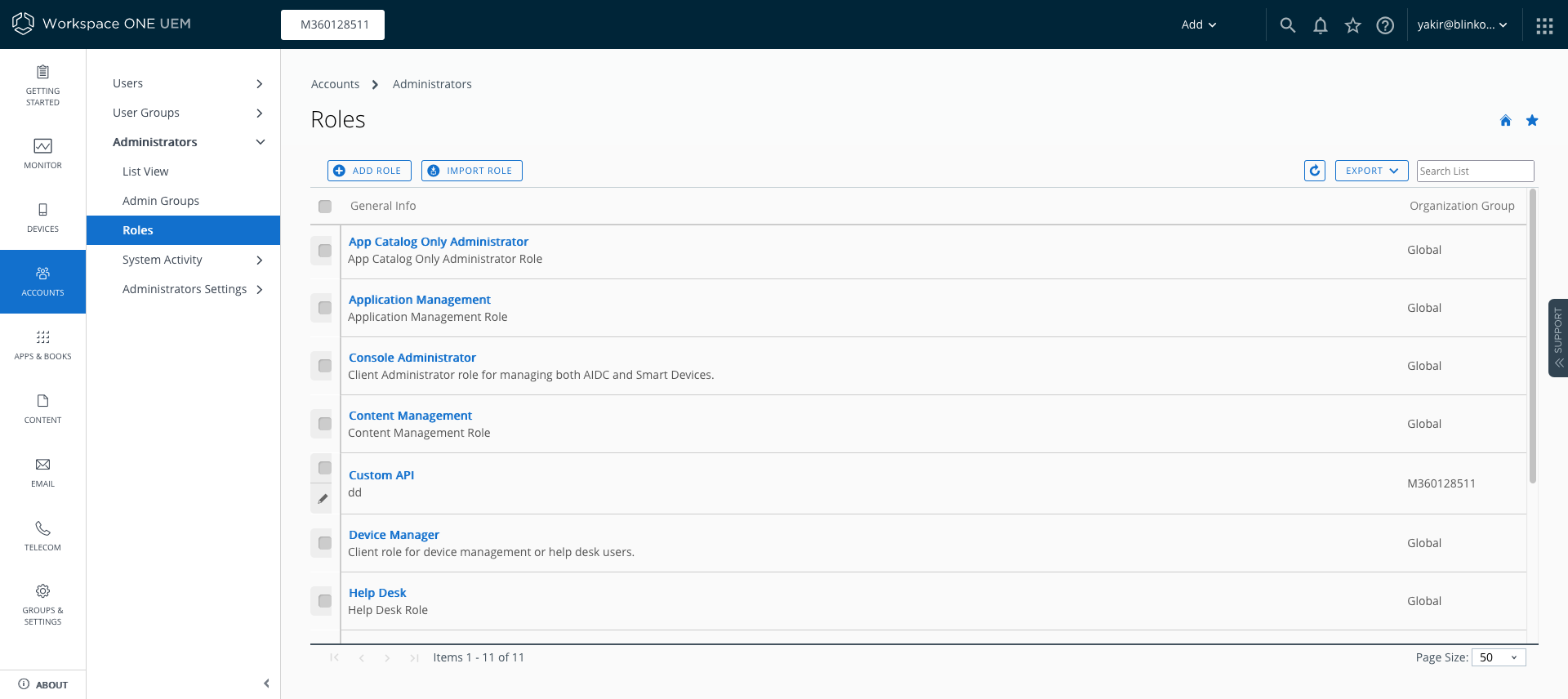 1. Go to **Accounts** > **Administrators** > **Roles**.
2. Click **Add role**.
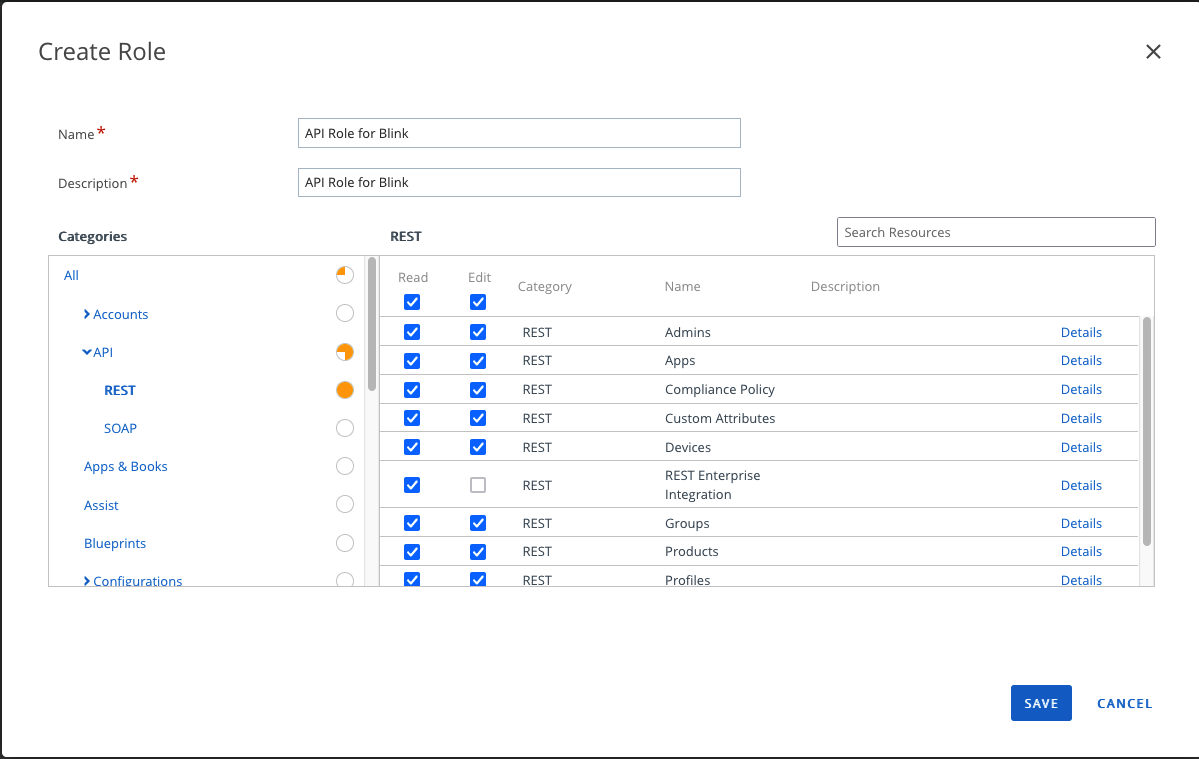
3. Select permissions for the role > **Save**.
1. Go to **Accounts** > **Administrators** > **Roles**.
2. Click **Add role**.
3. Select permissions for the role > **Save**.
 #### Create OAuth client credentials[](#create-oauth-client-credentials "Direct link to Create OAuth client credentials")
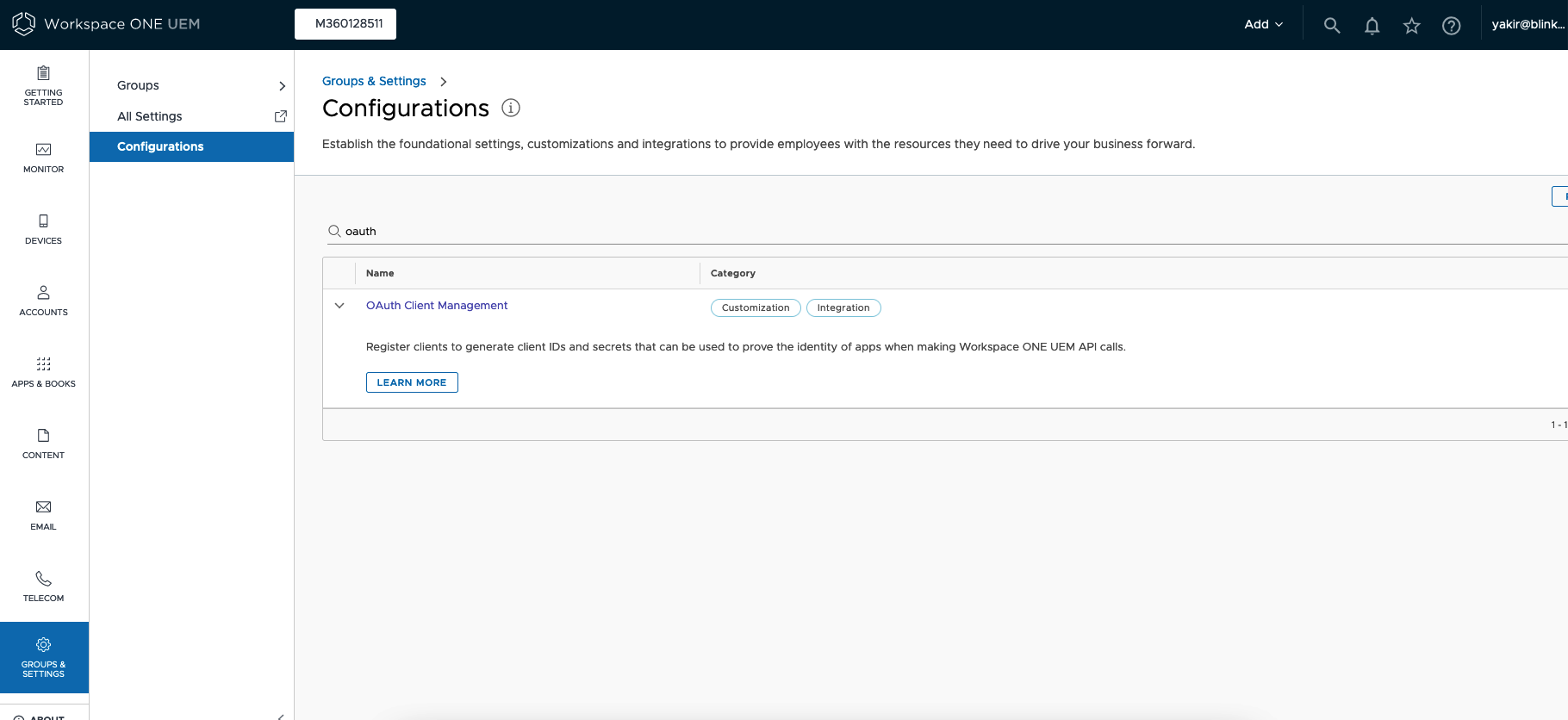
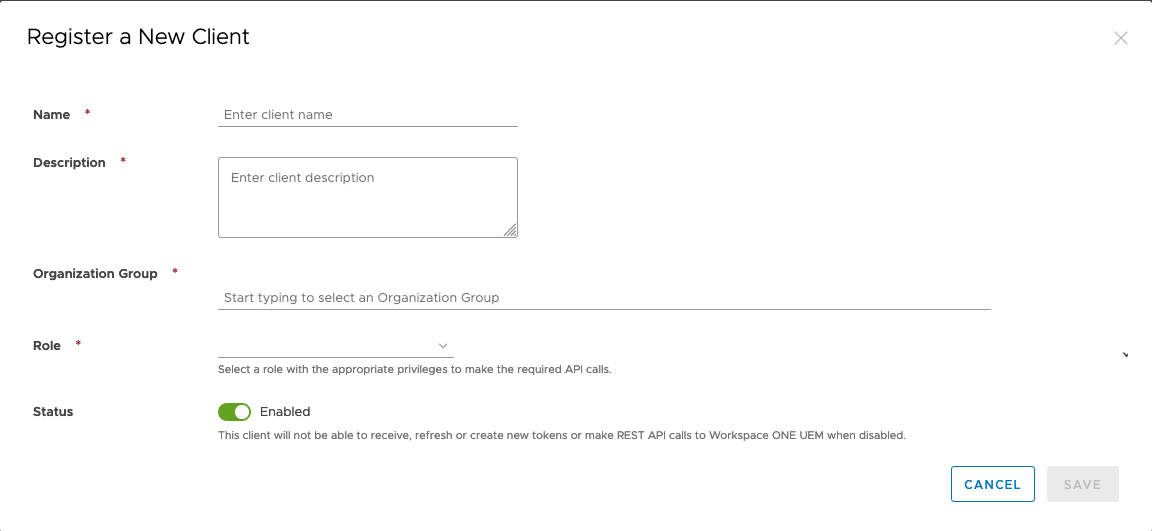 1. In your Workspace ONE UEM console, go to **Groups & settings** > **Configurations** > Search for *0Auth*.
2. Select **OAuth client management**.
3. Click **Add**.
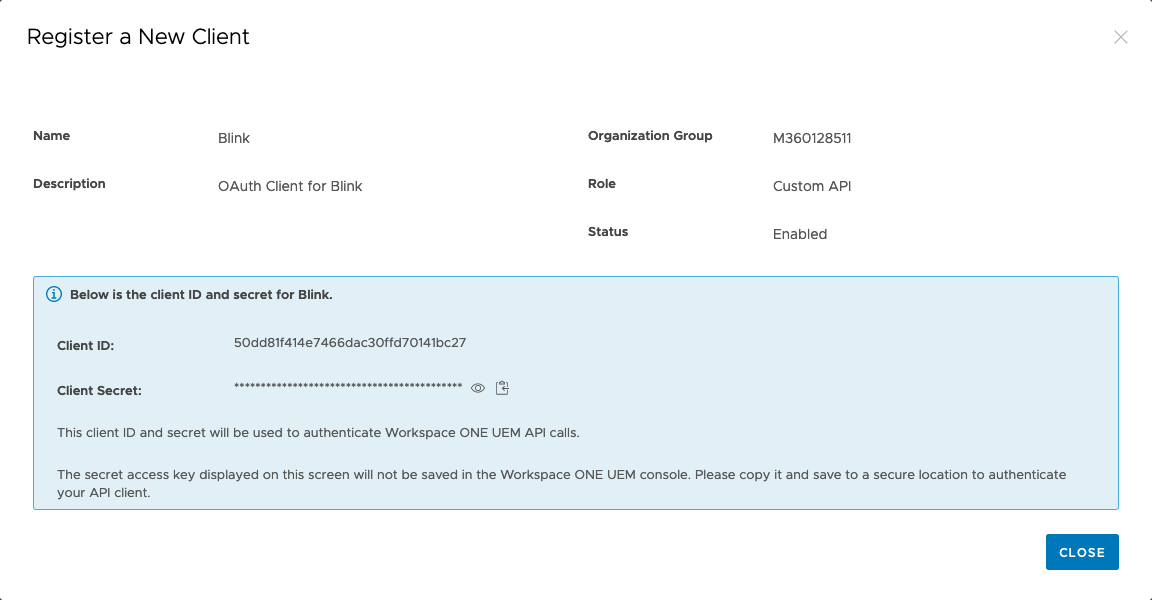
4. Copy the Client ID and the client Secret.
1. In your Workspace ONE UEM console, go to **Groups & settings** > **Configurations** > Search for *0Auth*.
2. Select **OAuth client management**.
3. Click **Add**.
4. Copy the Client ID and the client Secret.
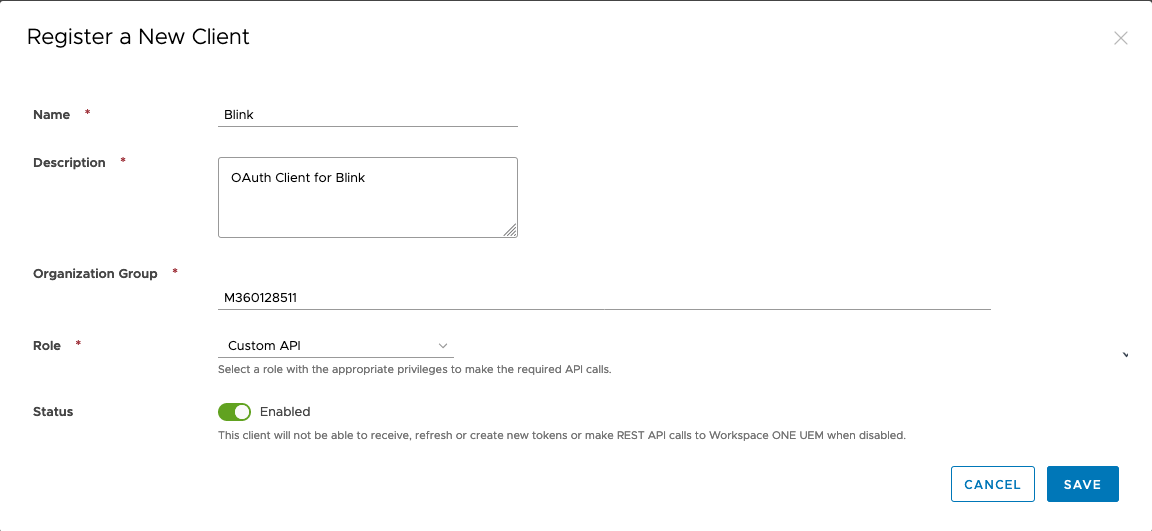 5. Complete the form and click **Save**.
 #### Enable API access on Workspace ONE UEM[](#enable-api-access-on-workspace-one-uem "Direct link to Enable API access on Workspace ONE UEM")
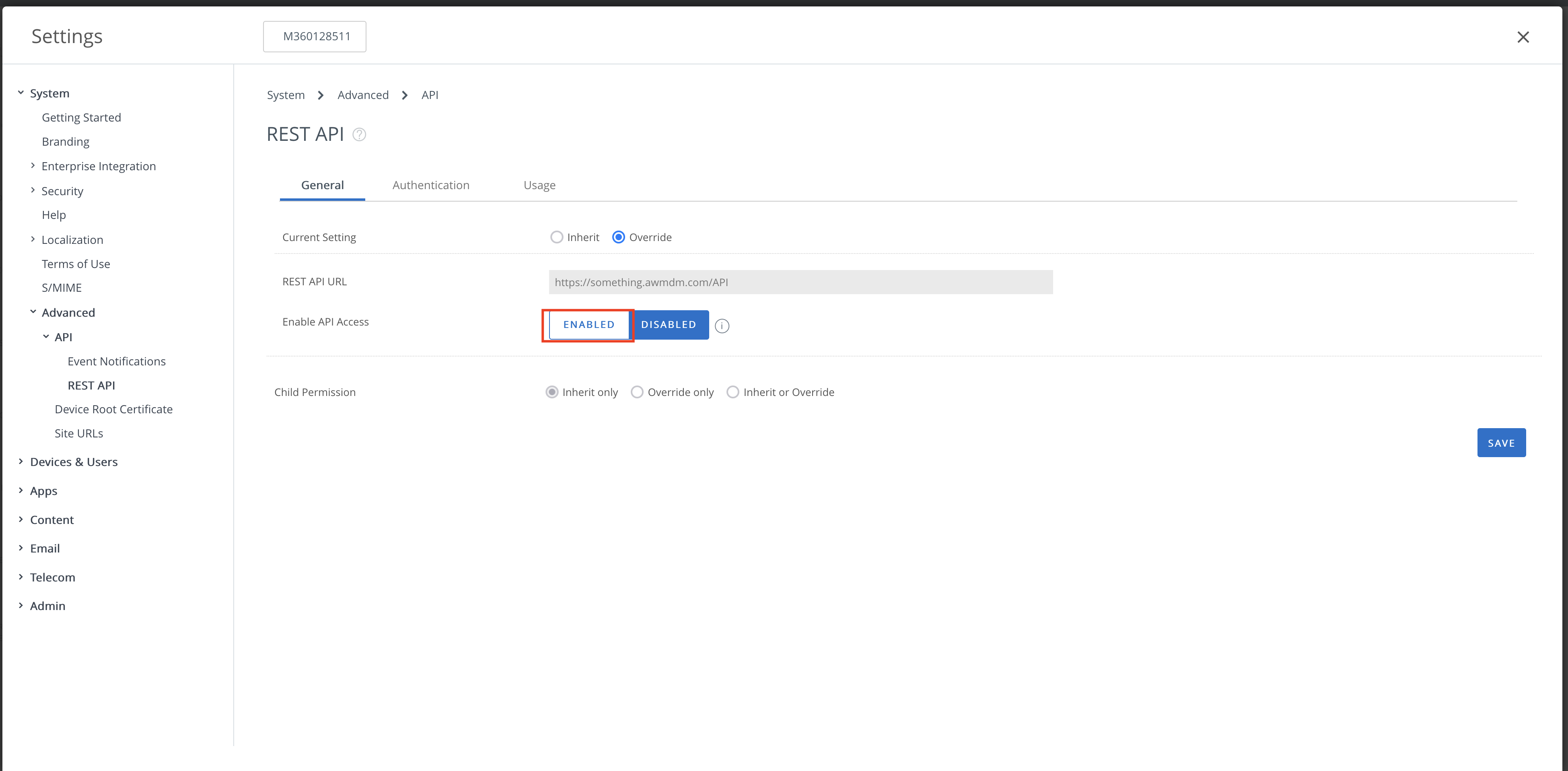
1. Go to **Settings** > **Advanced** > **API** > **REST API**.
2. Click **Enable**.
3. Copy the REST API URL and click **Save**.
#### Enable API access on Workspace ONE UEM[](#enable-api-access-on-workspace-one-uem "Direct link to Enable API access on Workspace ONE UEM")
1. Go to **Settings** > **Advanced** > **API** > **REST API**.
2. Click **Enable**.
3. Copy the REST API URL and click **Save**.
 ### Creating your connection[](#creating-your-connection "Direct link to Creating your connection")
1. In the Blink platform, navigate to the **Connections** page > **Add connection**. A New Connection dialog box opens displaying icons of external service providers available.
2. Select the **Workspace ONE UEM** icon. A dialog box with name of the connection and connection methods appears.
3. (Optional) Edit the name of the connection. At a later stage you cannot edit the name.
4. Select **Client Secret** as the method to create the connection.
5. Fill in the parameters:
* The client ID
* The client secret
* The API address
* The region
6. (Optional) Click **Test Connection** to test it.
7. Click **Create connection**. The new connection appears on the **Connections** page.
### Creating your connection[](#creating-your-connection "Direct link to Creating your connection")
1. In the Blink platform, navigate to the **Connections** page > **Add connection**. A New Connection dialog box opens displaying icons of external service providers available.
2. Select the **Workspace ONE UEM** icon. A dialog box with name of the connection and connection methods appears.
3. (Optional) Edit the name of the connection. At a later stage you cannot edit the name.
4. Select **Client Secret** as the method to create the connection.
5. Fill in the parameters:
* The client ID
* The client secret
* The API address
* The region
6. (Optional) Click **Test Connection** to test it.
7. Click **Create connection**. The new connection appears on the **Connections** page.