> ## Documentation Index
> Fetch the complete documentation index at: https://docs.blinkops.com/llms.txt
> Use this file to discover all available pages before exploring further.
# WeChat
> WeChat is a versatile app that combines messaging, social media, and mobile payments.
Please note that this is a beta version of the WeChat integration using the
`Sandbox Official Account`. This integration is still under development and
may have limitations or unexpected behaviors.
## Creating a WeChat connection
## Using Access Token
To create the connection you need:
* An Application ID
* An Application Secret
### Obtaining the credentials
1. Go to [WeChat Public Platform Sandbox](https://mp.weixin.qq.com/debug/cgi-bin/sandbox?t=sandbox/login).
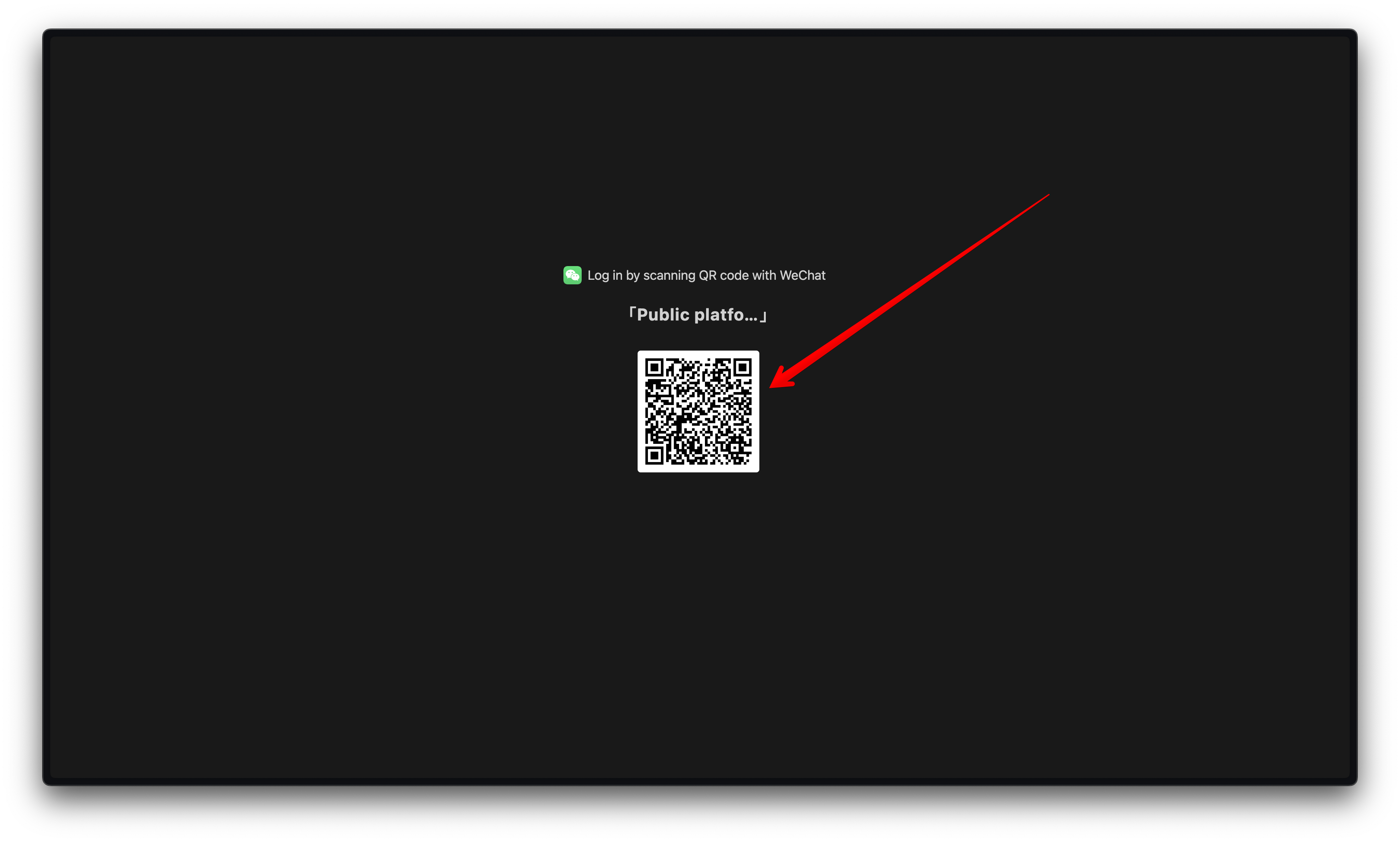
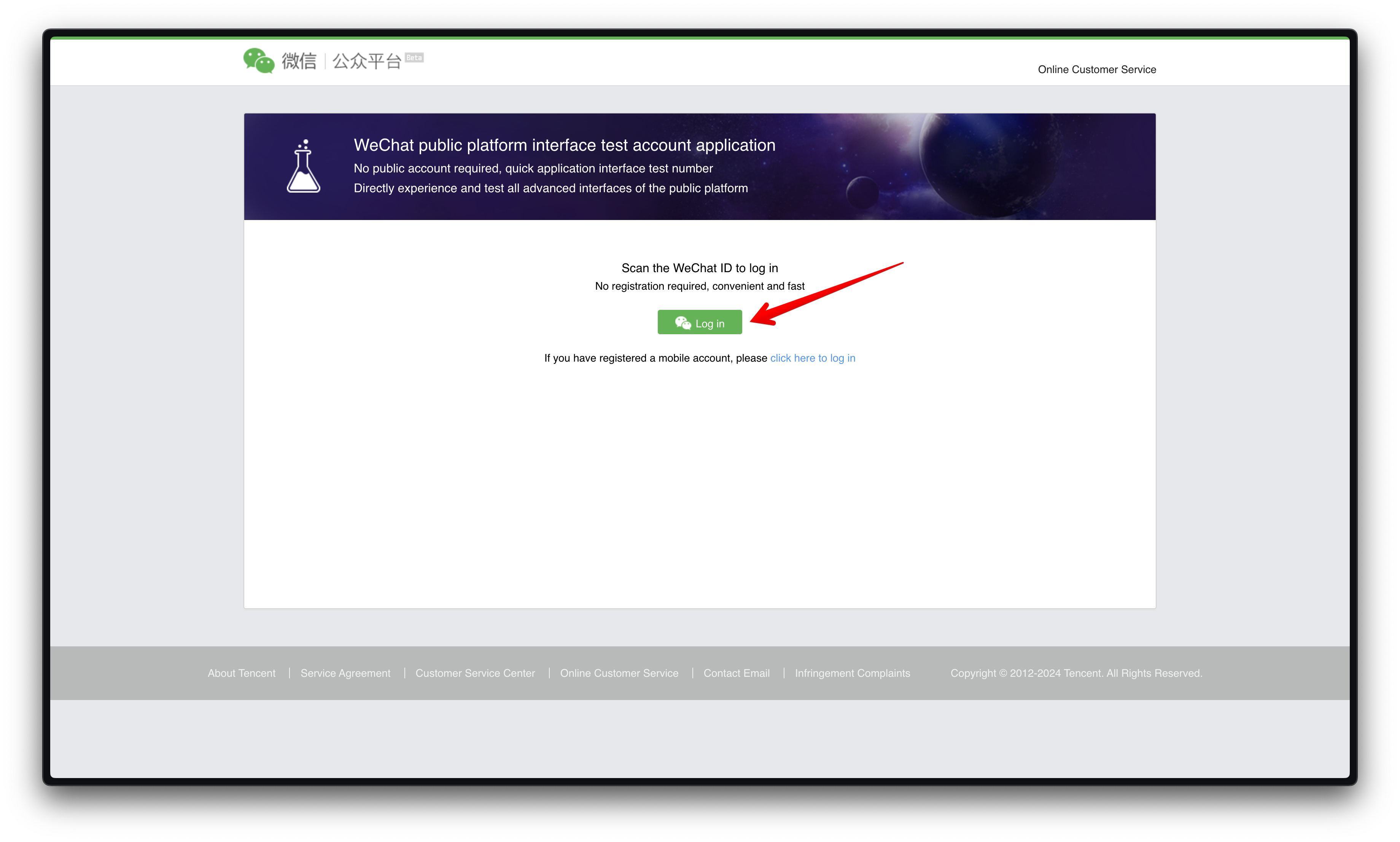 2. Login with your WeChat ID.
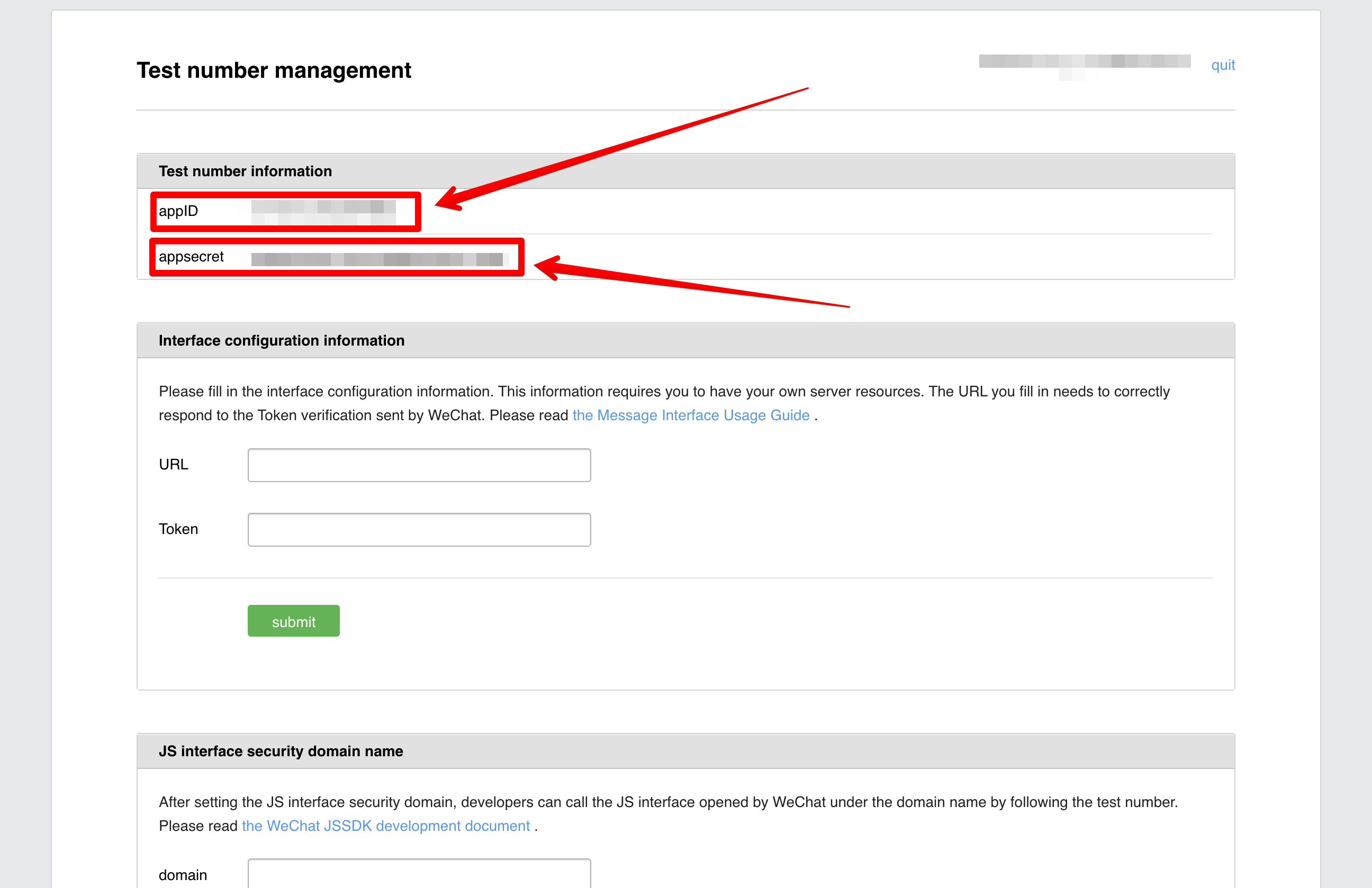
 3. Copy your `App ID` and `App Secret`. You will need them for [creating your connection in Blink](#creating-your-connection).
 ### Creating your WeChat Sandbox Official Account
Due to **WeChat Sandbox Account** limitations, WeChat will be able to send events only to a single webhook. It means you will have one webhook per **WeChat Sandbox Account**.
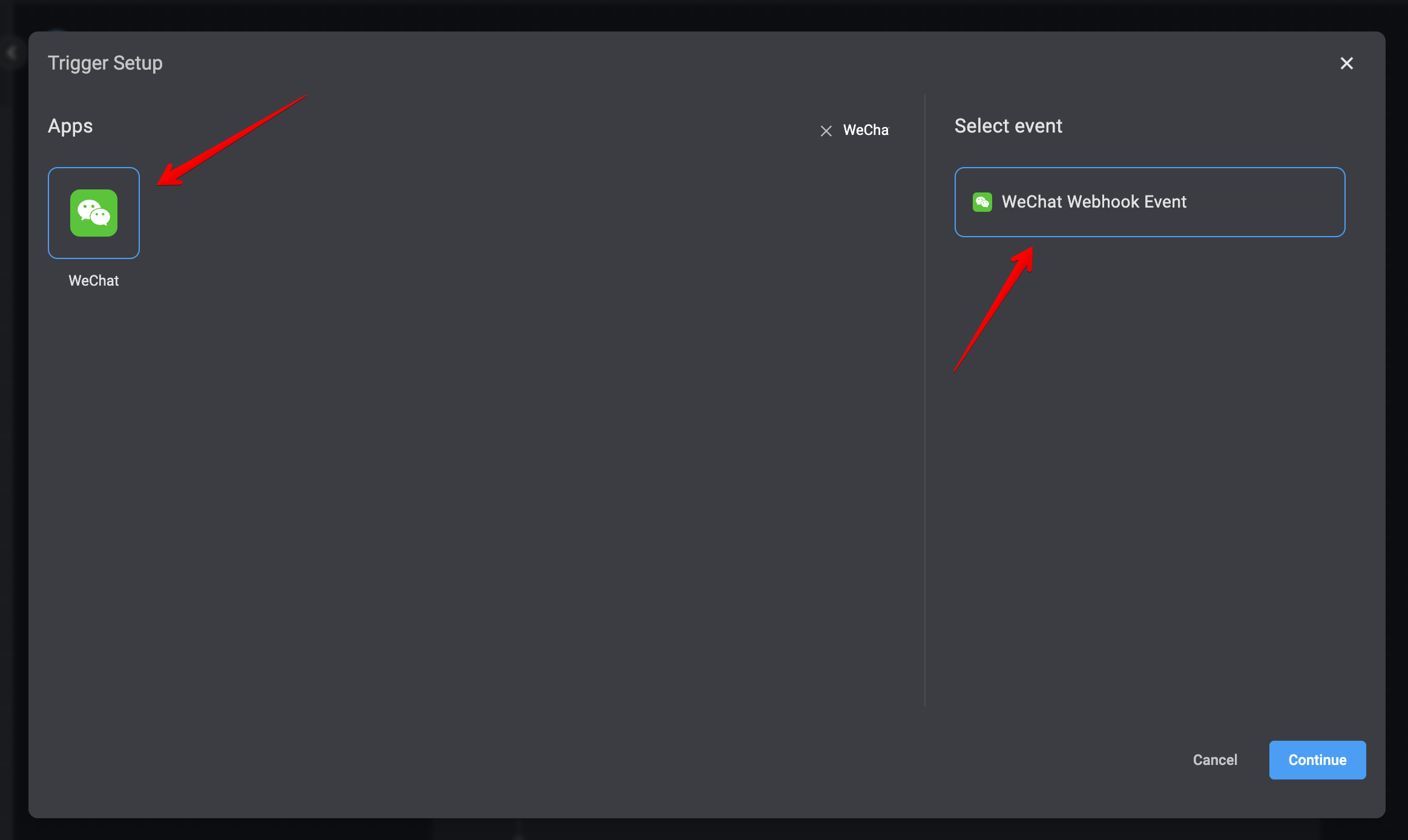
1. Create a new workflow in **Blink**. This will be the only workflow that will receive message from users.
2. Change the trigger type to **WeChat Webhook Events**.
### Creating your WeChat Sandbox Official Account
Due to **WeChat Sandbox Account** limitations, WeChat will be able to send events only to a single webhook. It means you will have one webhook per **WeChat Sandbox Account**.
1. Create a new workflow in **Blink**. This will be the only workflow that will receive message from users.
2. Change the trigger type to **WeChat Webhook Events**.
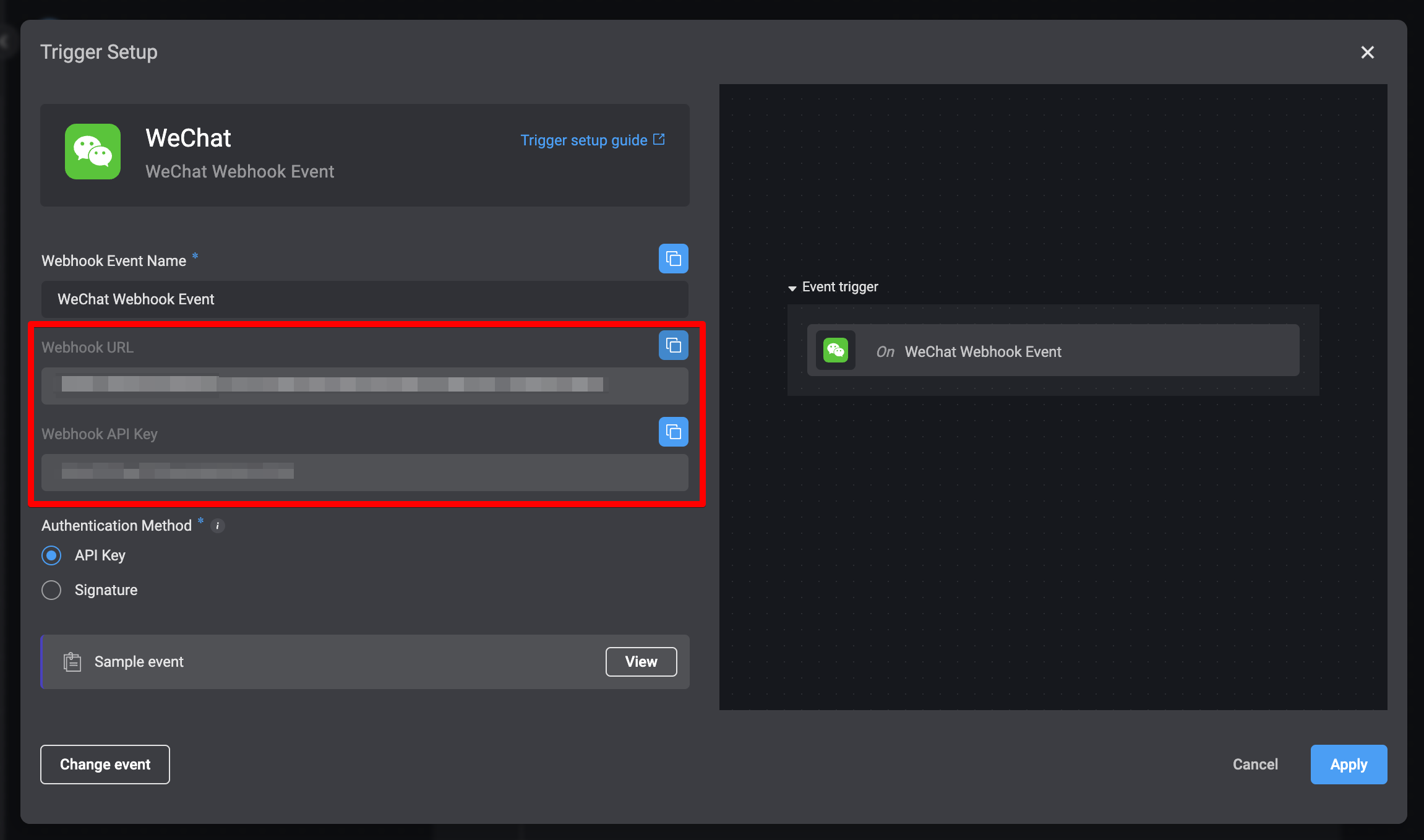
 3. Insert your `Webhook URL` and the `API Key` as a query parameter to your **WeChat Sandbox** like the following:
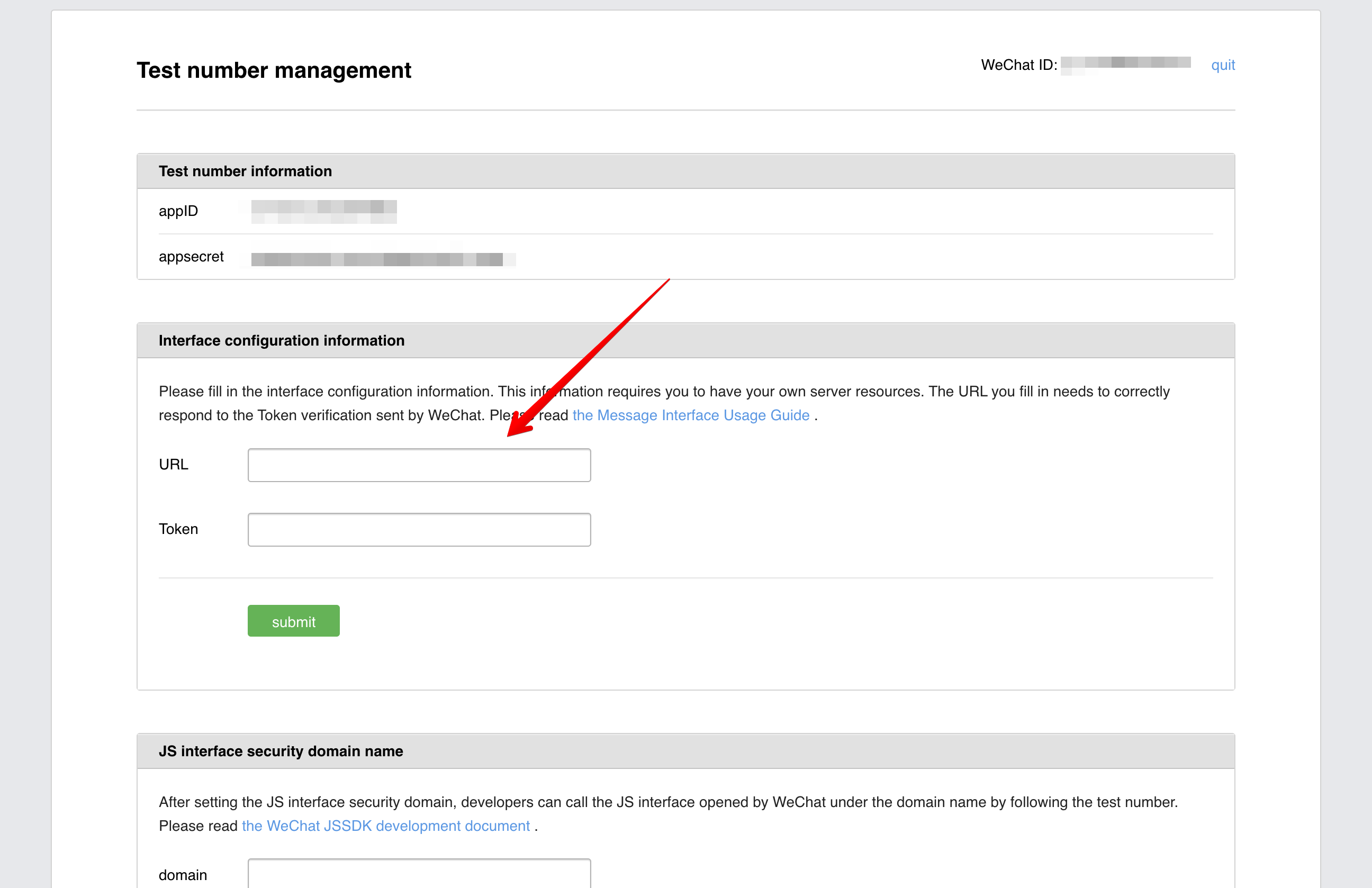 4. Fill the `Token` field a random string.
5. Click on **Submit**.
If you got a green `Successfully Saved` notification, that means the setup is completed.
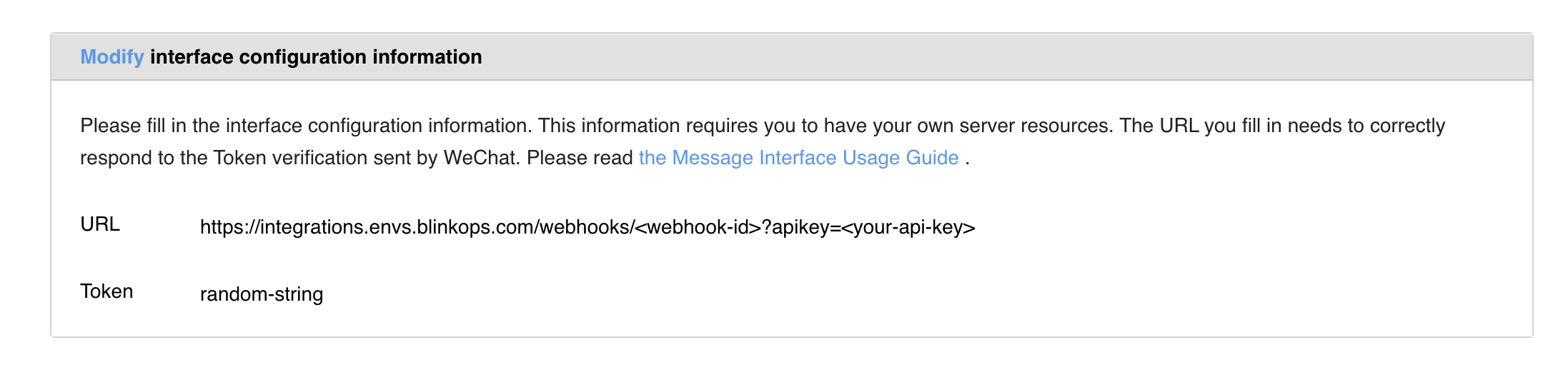
Your configuration should look like the following:
4. Fill the `Token` field a random string.
5. Click on **Submit**.
If you got a green `Successfully Saved` notification, that means the setup is completed.
Your configuration should look like the following:
 From this moment, WeChat will send events to your webhook on every user interaction with this account. User interactions that will trigger the webhook are:
* Send a message
* Tap a custom menu
* Follow an account
* Scan a QR code
### Subscribing to your WeChat Sandbox Official Account
After the initial setup is complete, in order to interact with the Sandbox, each user will have to subscribe to the created account.
1. Navigate to your [WeChat Public Platform Sandbox](https://mp.weixin.qq.com/debug/cgi-bin/sandboxinfo?action=showinfo\&t=sandbox/index).
2. Scroll down to the **Test Account QR Code** section.
3. Scan the QR code with WeChat.
From this moment, WeChat will send events to your webhook on every user interaction with this account. User interactions that will trigger the webhook are:
* Send a message
* Tap a custom menu
* Follow an account
* Scan a QR code
### Subscribing to your WeChat Sandbox Official Account
After the initial setup is complete, in order to interact with the Sandbox, each user will have to subscribe to the created account.
1. Navigate to your [WeChat Public Platform Sandbox](https://mp.weixin.qq.com/debug/cgi-bin/sandboxinfo?action=showinfo\&t=sandbox/index).
2. Scroll down to the **Test Account QR Code** section.
3. Scan the QR code with WeChat.
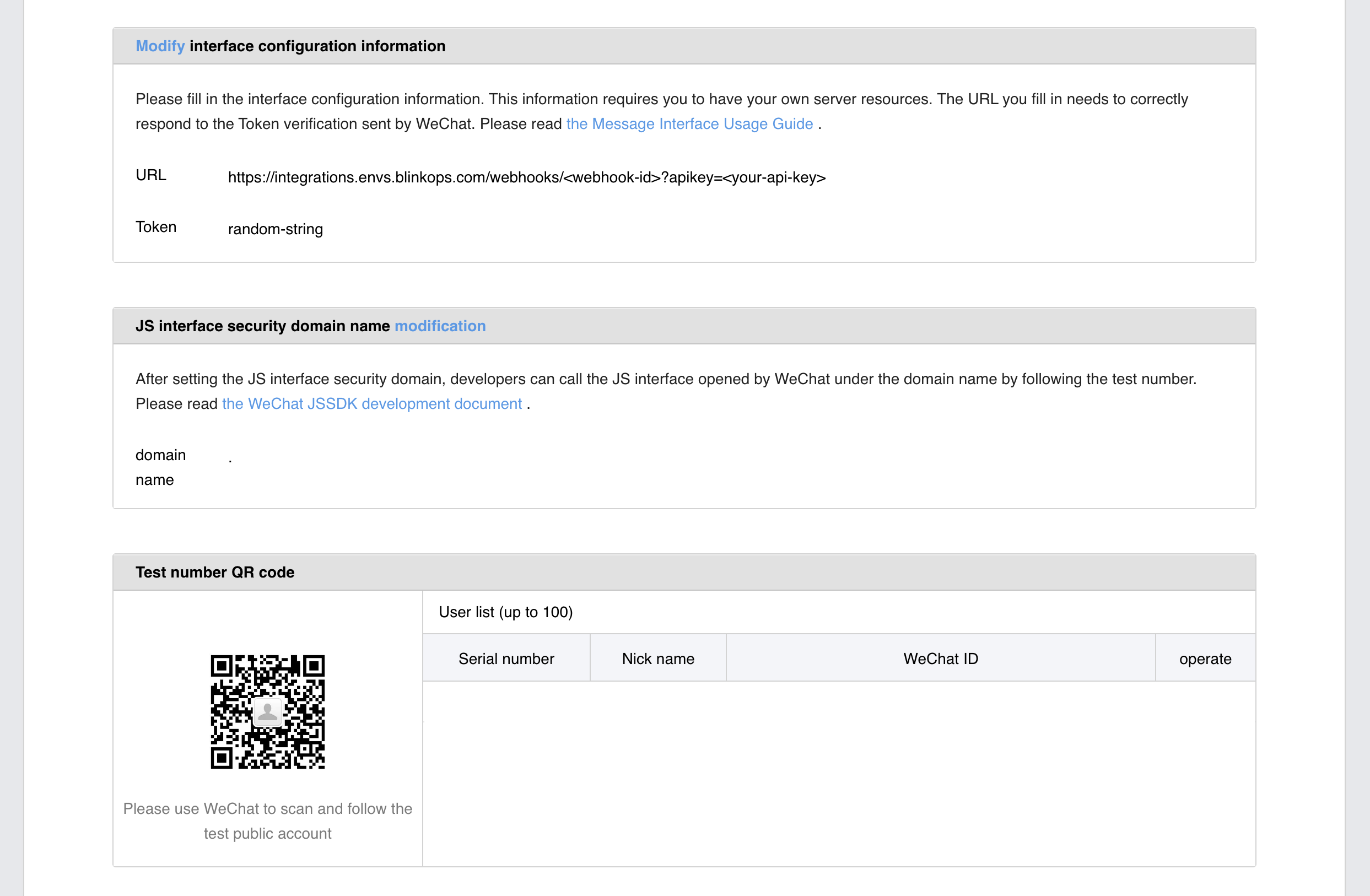 4. Click on **Subscribe**.
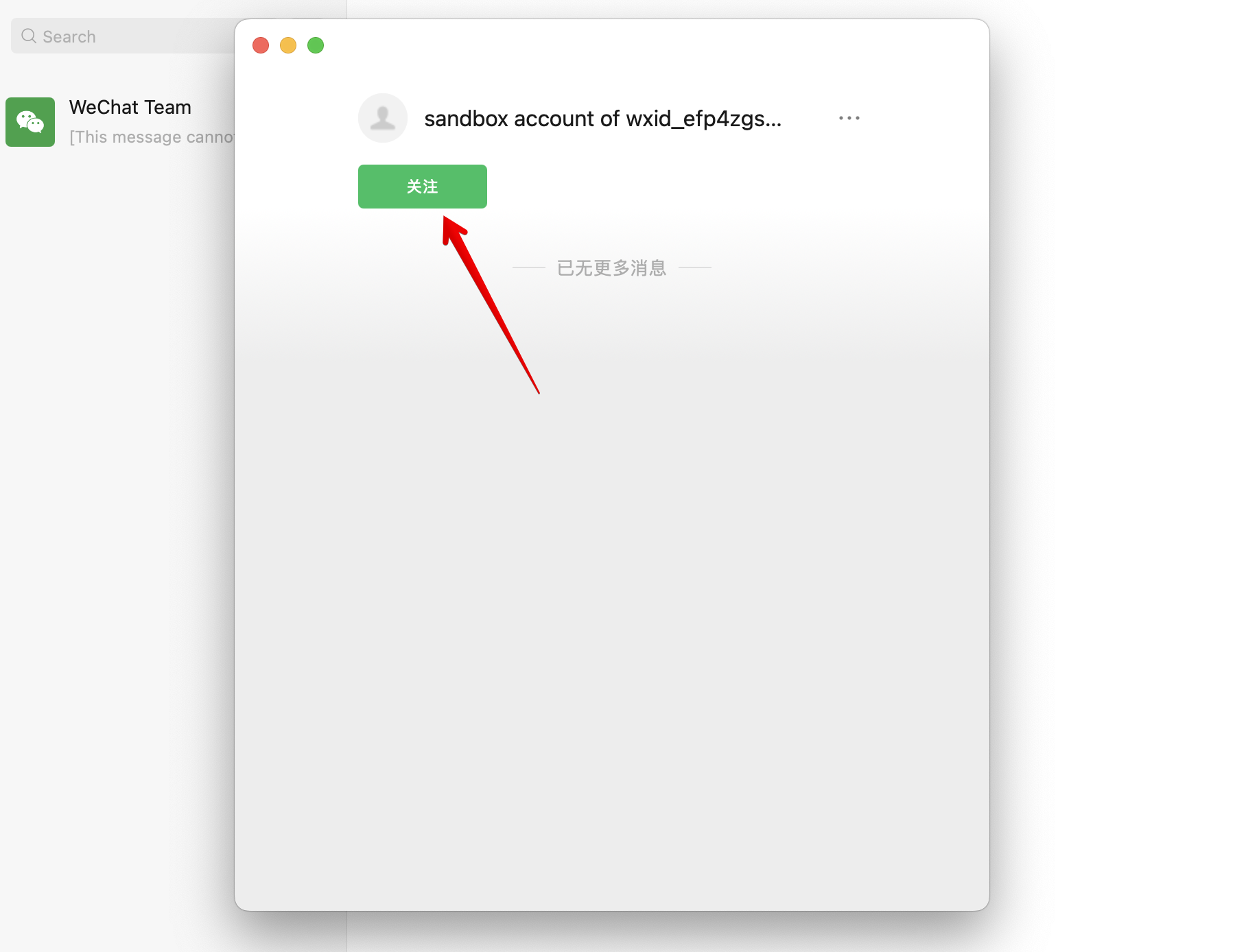
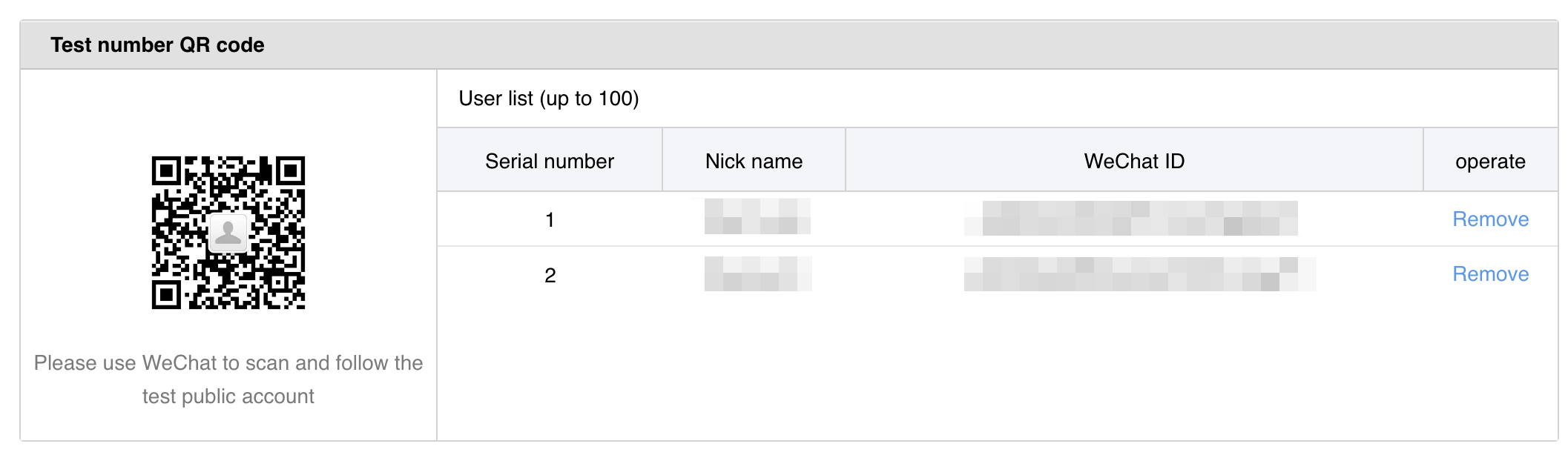
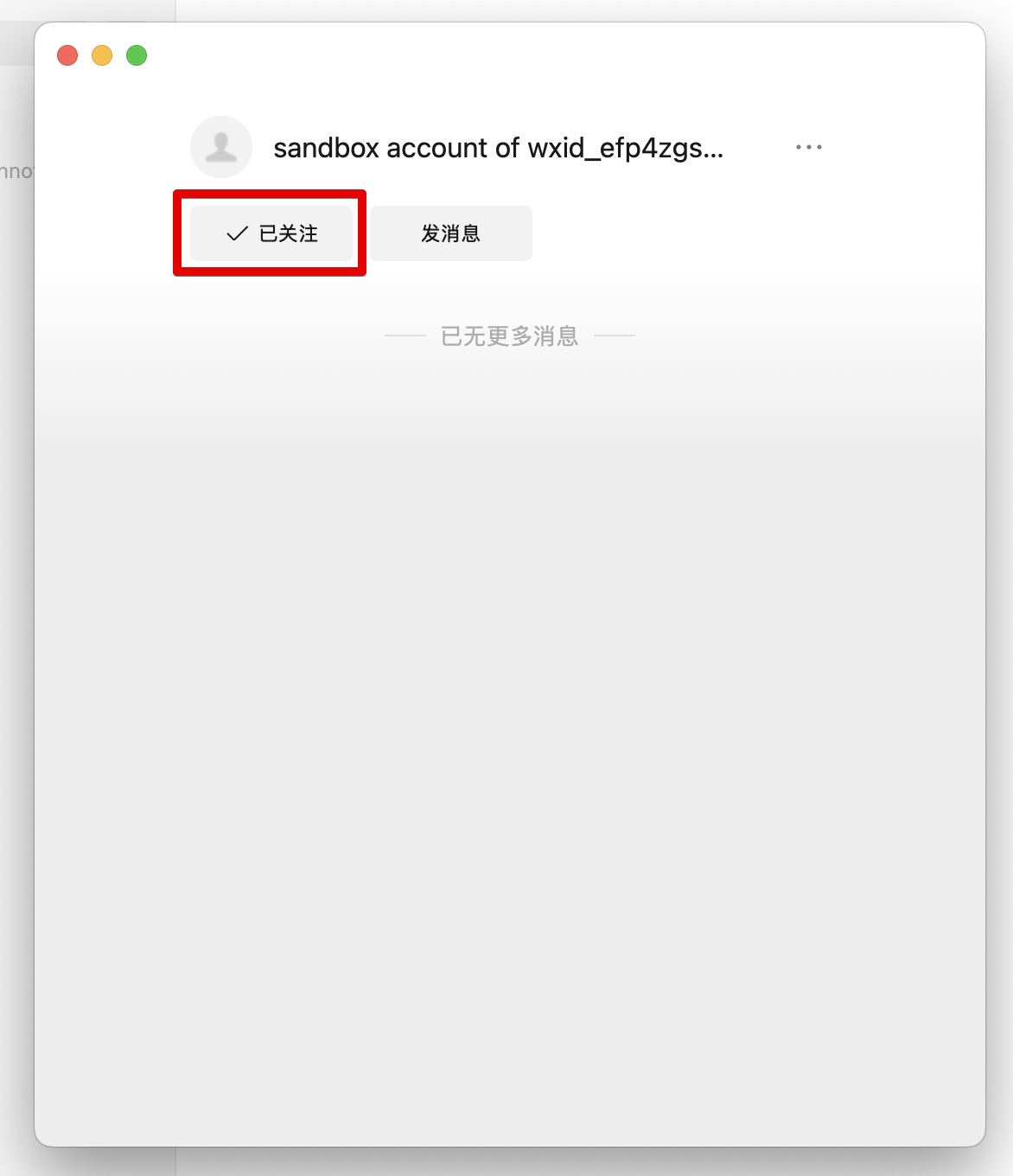 Now, you should see the subscribed users show up in the **Test Account QR Code** section.
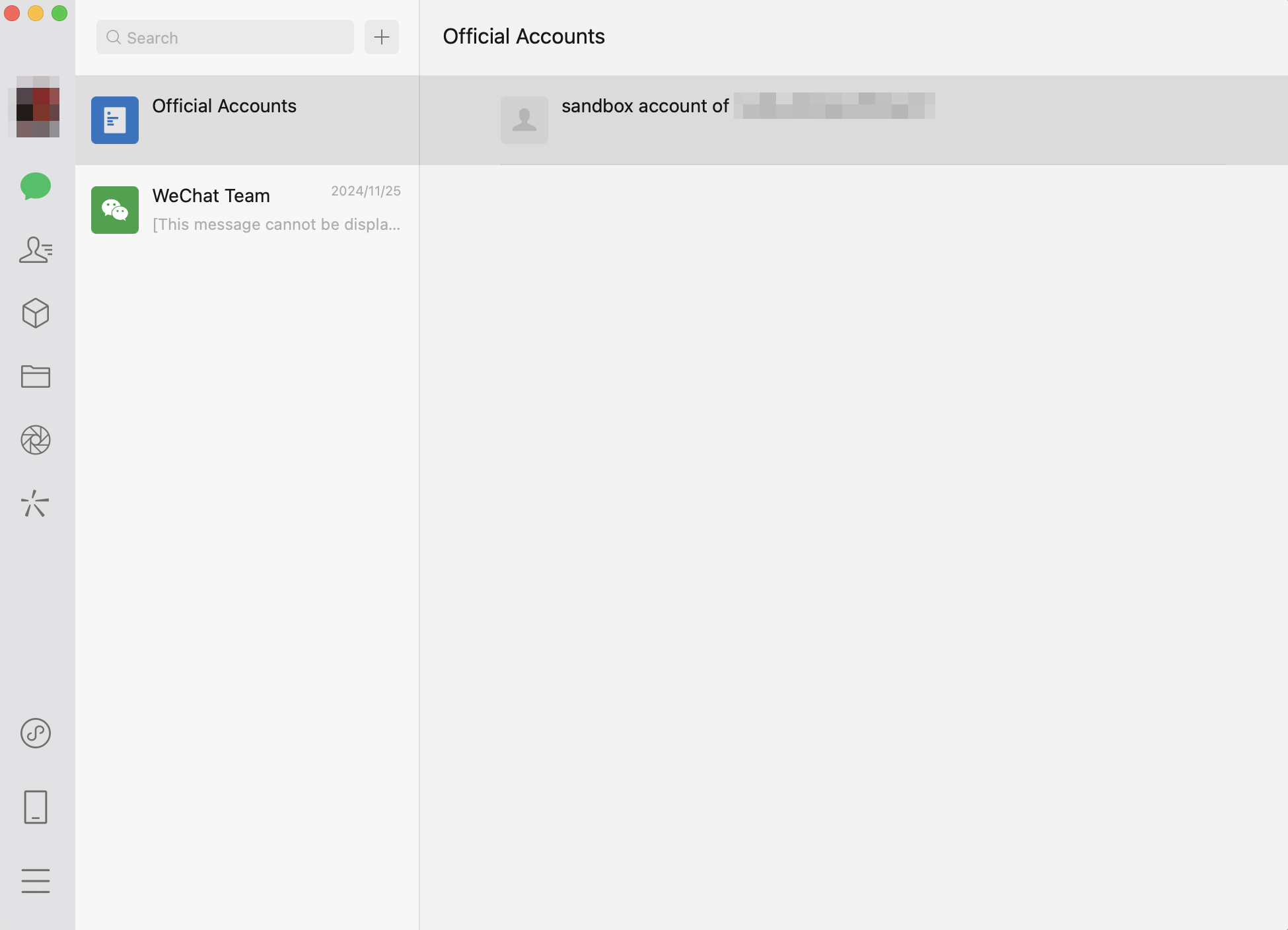
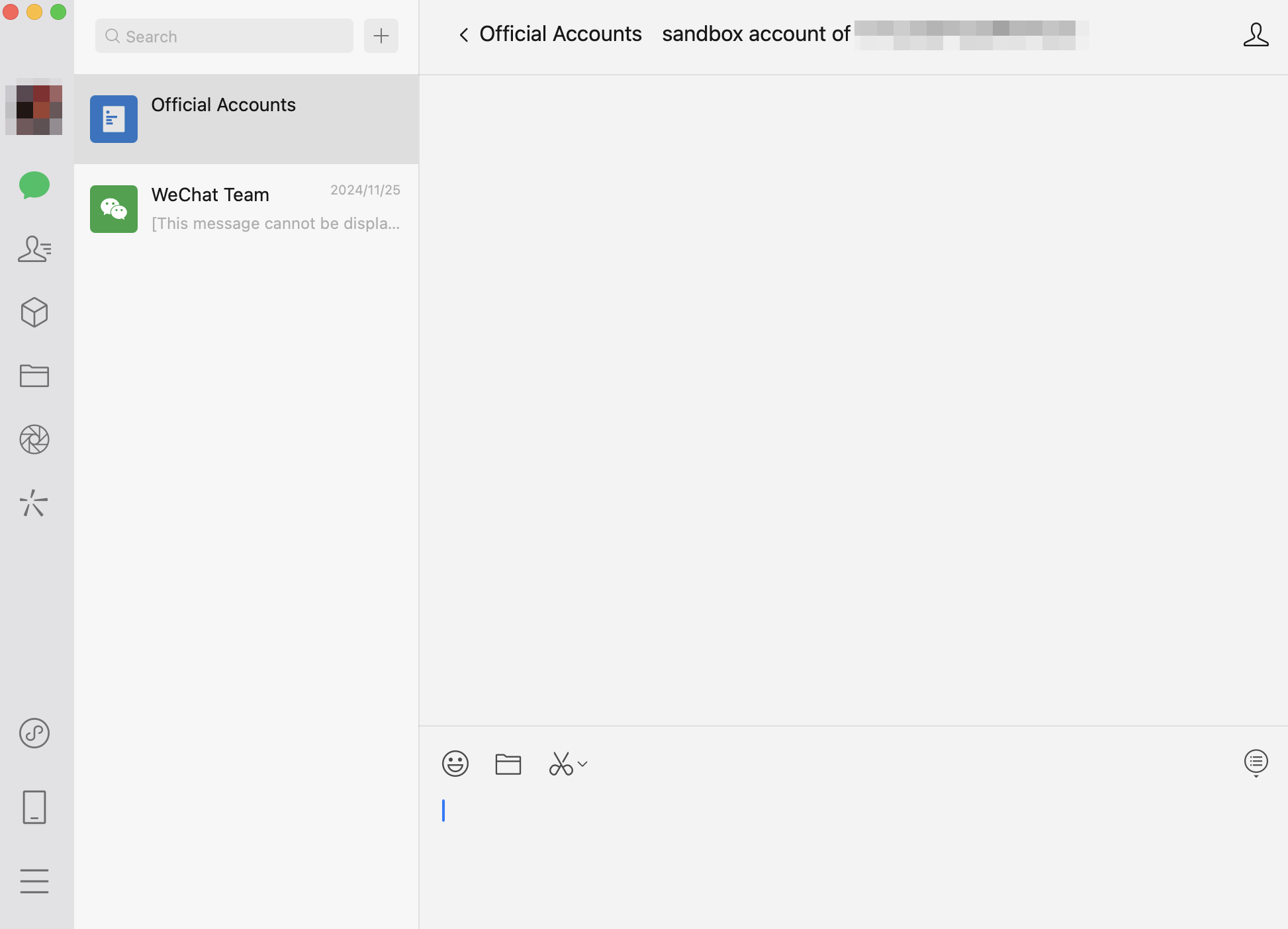
 Your **WeChat Sandbox Official Account** should be available in WeChat in the `Official Accounts` tab.
 ### Creating your connection
1. In the Blink platform, navigate to the **Connections** page > **Add connection**. A New Connection dialog box opens displaying icons of external service providers available.
2. Select the **WeChat** icon. A dialog box with name of the connection and connection methods appear.
3. (Optional) Edit the name of the connection. At a later stage you cannot edit the name.
4. Select **Access Token** as the method to create the connection.
5. Fill in the parameters:
* The Application ID
* The Application Secret
6. (Optional) Click **Test Connection** to test it.
7. Click **Create connection**. The new connection appears on the **Connections** page.
### Creating your connection
1. In the Blink platform, navigate to the **Connections** page > **Add connection**. A New Connection dialog box opens displaying icons of external service providers available.
2. Select the **WeChat** icon. A dialog box with name of the connection and connection methods appear.
3. (Optional) Edit the name of the connection. At a later stage you cannot edit the name.
4. Select **Access Token** as the method to create the connection.
5. Fill in the parameters:
* The Application ID
* The Application Secret
6. (Optional) Click **Test Connection** to test it.
7. Click **Create connection**. The new connection appears on the **Connections** page.