> ## Documentation Index
> Fetch the complete documentation index at: https://docs.blinkops.com/llms.txt
> Use this file to discover all available pages before exploring further.
# Wazuh Server
> The Wazuh server is the core component of the Wazuh security platform, responsible for analyzing, processing, and correlating the data received from the deployed agents. It acts as the central intelligence hub, running the Wazuh manager which handles functions such as rule-based analysis for threat detection, configuration management for agents, and communication with the Elastic Stack (or other SIEM platforms) for indexing and visualization. The Wazuh server is essential for performing advanced security operations like intrusion detection, security assessment, and compliance enforcement across the monitored infrastructure.
## Creating a Wazuh Server connection
### Using Username & Password
To create the connection you need:
* An API Address
* A Username
* A Password
#### Obtaining the credentials
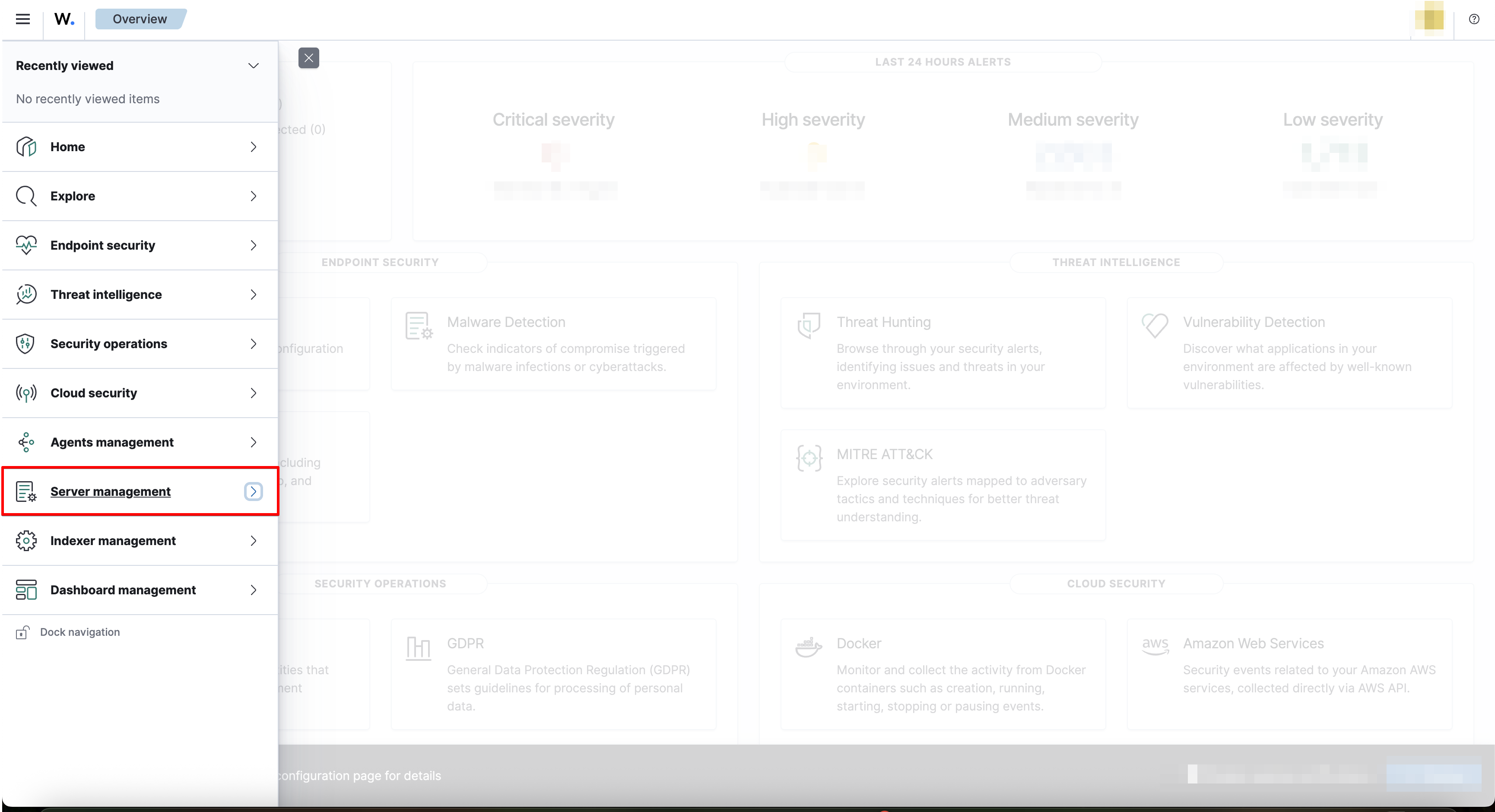
1. Click on `Server management`.
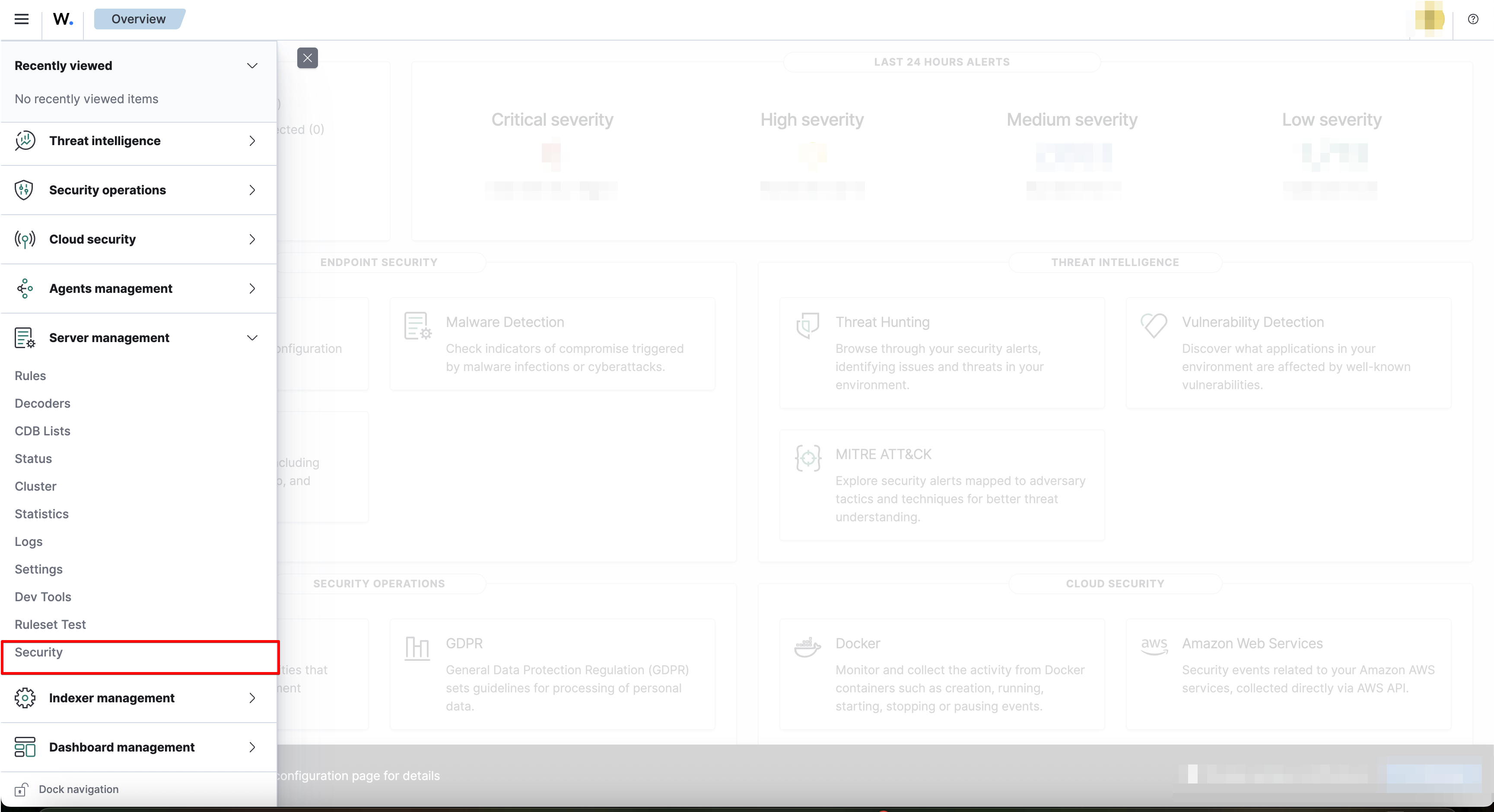
 2. Click on `Security`.
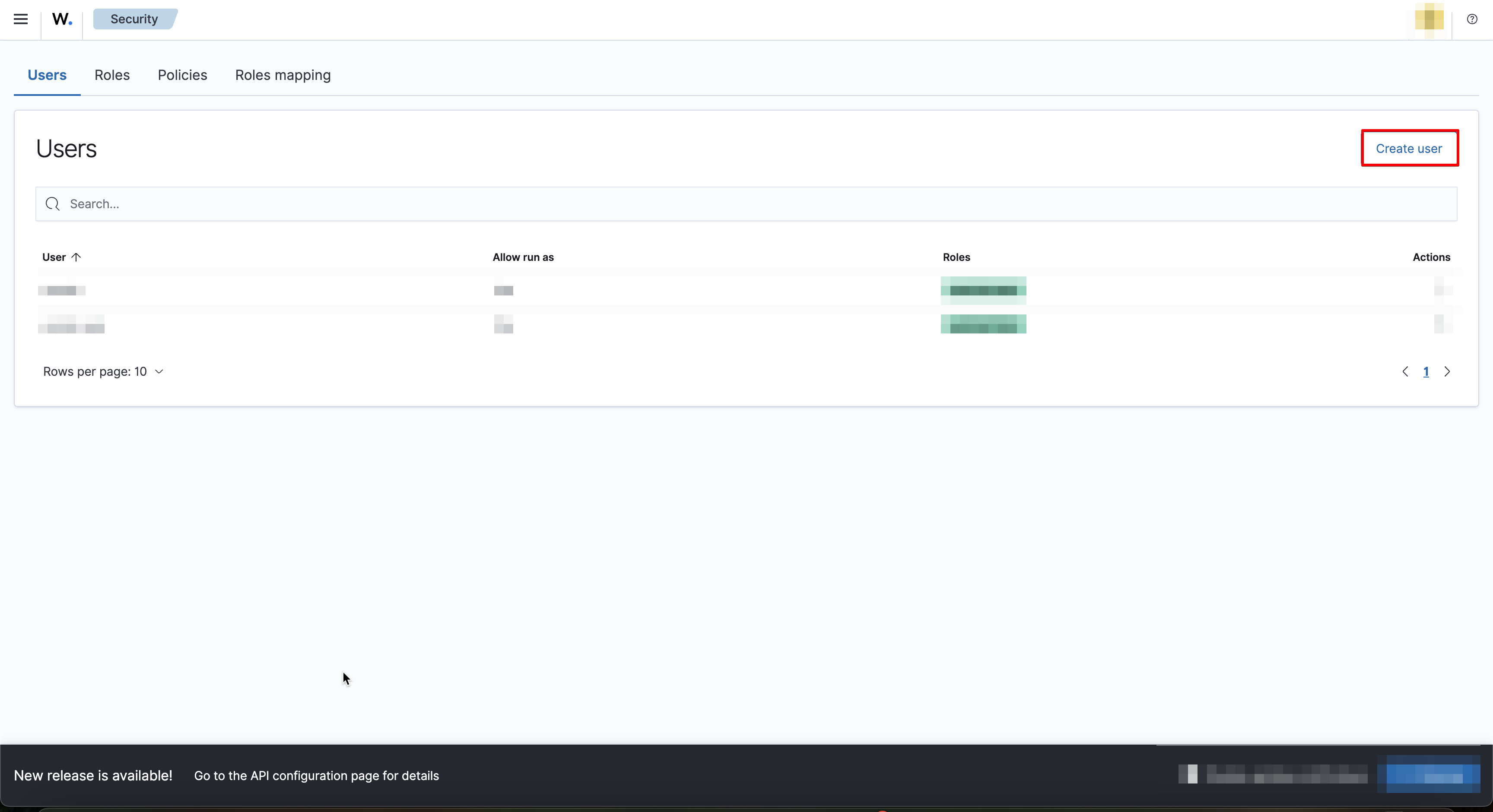
 3. Click on `Create user`.
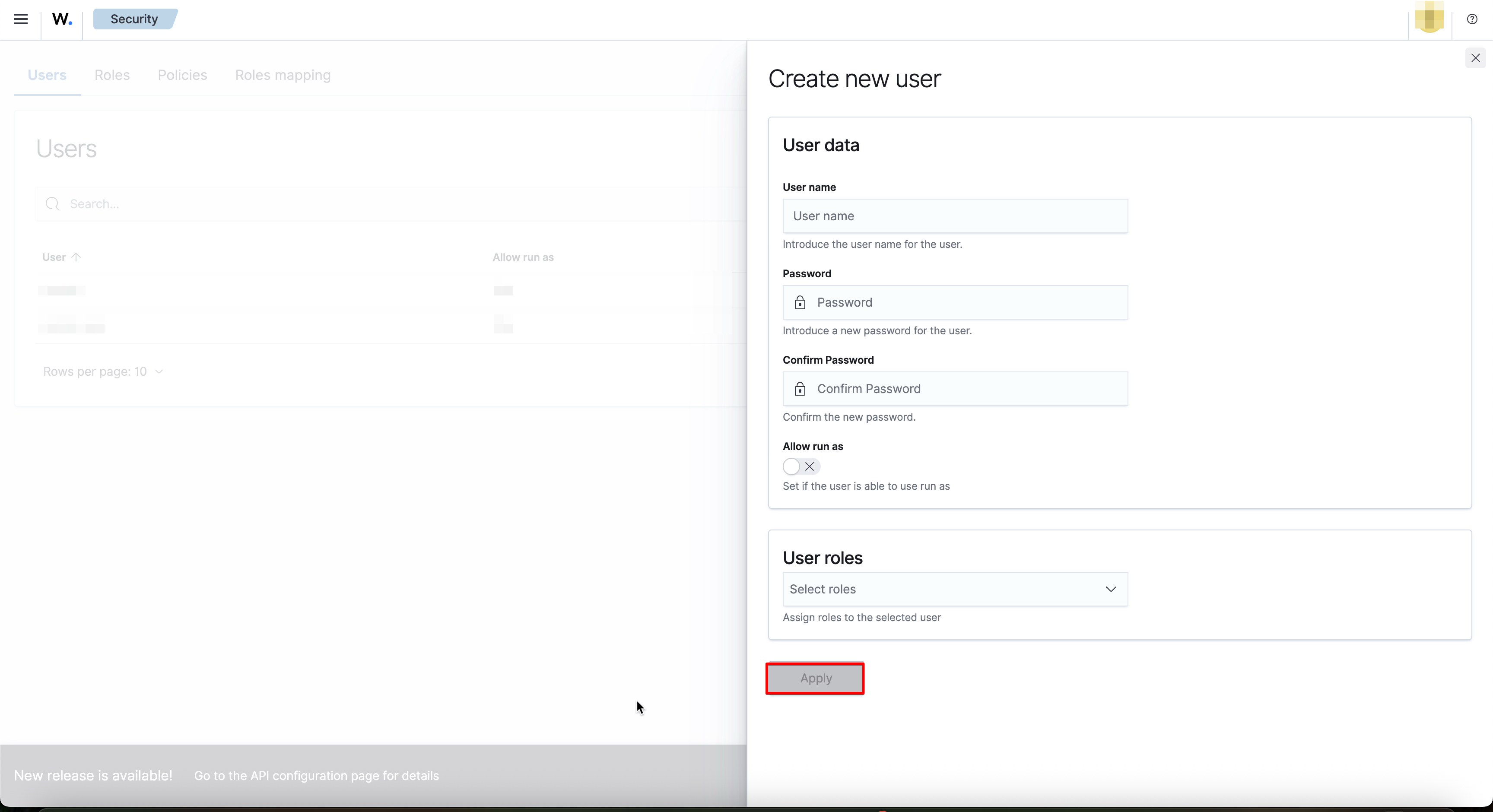
 4. Fill the data of the new user and click on `Apply`.
 #### Creating your connection
1. In the Blink platform, navigate to the **Connections** page > **Add connection**. A New Connection dialog box opens displaying icons of external service providers available.
2. Select the **Wazuh Server** icon. A dialog box with name of the connection and connection methods appear.
3. (Optional) Edit the name of the connection. At a later stage you cannot edit the name.
4. Select **Username & Password** as the method to create the connection.
5. Fill in the parameters:
* The API Address
* The Username
* The Password
6. (Optional) Click **Test Connection** to test it.
7. Click **Create connection**. The new connection appears on the **Connections** page.
#### Creating your connection
1. In the Blink platform, navigate to the **Connections** page > **Add connection**. A New Connection dialog box opens displaying icons of external service providers available.
2. Select the **Wazuh Server** icon. A dialog box with name of the connection and connection methods appear.
3. (Optional) Edit the name of the connection. At a later stage you cannot edit the name.
4. Select **Username & Password** as the method to create the connection.
5. Fill in the parameters:
* The API Address
* The Username
* The Password
6. (Optional) Click **Test Connection** to test it.
7. Click **Create connection**. The new connection appears on the **Connections** page.