> ## Documentation Index
> Fetch the complete documentation index at: https://docs.blinkops.com/llms.txt
> Use this file to discover all available pages before exploring further.
# Sumo Logic
> The Sumo Logic platform helps you make data-driven decisions and reduce the time to investigate security and operational issues so you can free up resources for more important activities.
## Creating a Sumo Logic connection[](#creating-a-sumo-logic-connection "Direct link to Creating a Sumo Logic connection")
To create the connection you need:
* An access ID
* An access key
* An API endpoint
### Obtaining the credentials[](#obtaining-the-credentials "Direct link to Obtaining the credentials")
#### Create an access key[](#create-an-access-key "Direct link to Create an access key")
If you have the **Create Access Keys** role capability, use the **Preferences** page to create access keys.
To create your own access keys:
1. In the Sumo Logic web app, click your name in the left sidebar and open the **Preferences** page.
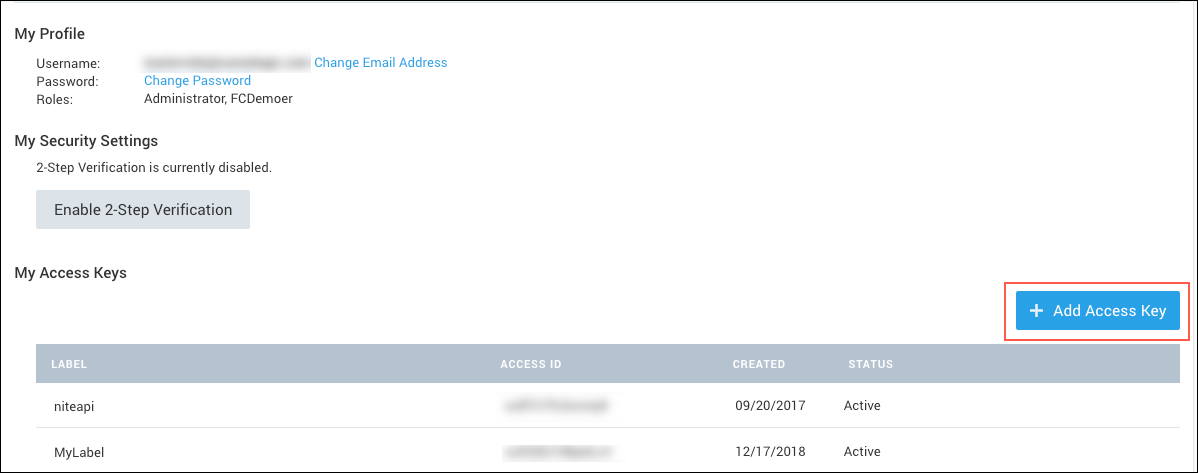
2. In **My Access Keys**, click **+ Add Access Key**.
 The **Create an Access Key** window opens.
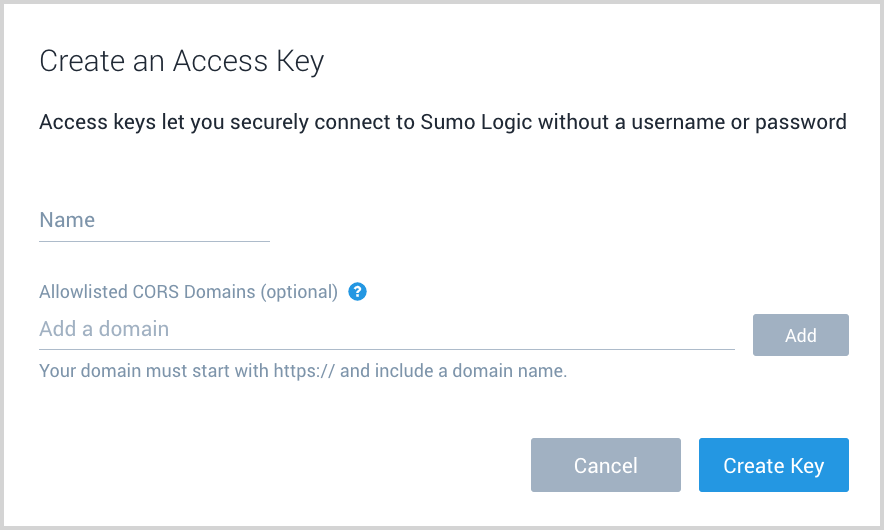 3. Enter a name for the access key in the **Name** field. If you do not wish to create an *allow list* of domains from which the access key can be used to access Sumo APIs, go to step 6.
4. Define one or more domains that may use the access key to access Sumo APIs. Enter `https://app.blinkops.com` in the **Allow-listed CORS Domains** field and click **Add**.
5. Click **Create Key** to generate the key.
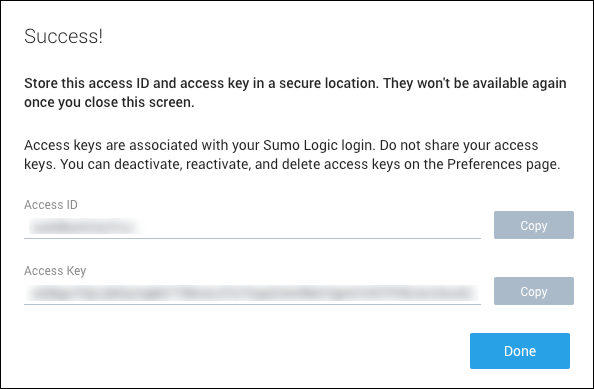
6. The window displays the generated access ID and access key. Copy both before clicking **Close**. After you press **Close**, you will not be able to recover the Access ID and Access Key.
3. Enter a name for the access key in the **Name** field. If you do not wish to create an *allow list* of domains from which the access key can be used to access Sumo APIs, go to step 6.
4. Define one or more domains that may use the access key to access Sumo APIs. Enter `https://app.blinkops.com` in the **Allow-listed CORS Domains** field and click **Add**.
5. Click **Create Key** to generate the key.
6. The window displays the generated access ID and access key. Copy both before clicking **Close**. After you press **Close**, you will not be able to recover the Access ID and Access Key.
 #### Getting your API endpoint[](#getting-your-api-endpoint "Direct link to Getting your API endpoint")
Sumo Logic has several deployments in different geographic locations. You will need to use the Sumo Logic API endpoint corresponding to your geographic location. See the table below for the different [API endpoints](https://help.sumologic.com/?cid=3011) by deployment location.
### Creating your connection[](#creating-your-connection "Direct link to Creating your connection")
1. In the Blink platform, navigate to the **Connections** page > **Add connection**. A New Connection dialog box opens displaying icons of external service providers available.
2. Select the **Sumo Logic** icon. A dialog box with name of the connection and connection methods appears.
3. (Optional) Edit the name of the connection. At a later stage you cannot edit the name.
4. Select **Access Key** as the method to create the connection.
5. Fill in the parameters:
* The access ID
* The access key
* The API endpoint
6. (Optional) Click **Test Connection** to test it.
7. Click **Create connection**. The new connection appears on the **Connections** page.
#### Getting your API endpoint[](#getting-your-api-endpoint "Direct link to Getting your API endpoint")
Sumo Logic has several deployments in different geographic locations. You will need to use the Sumo Logic API endpoint corresponding to your geographic location. See the table below for the different [API endpoints](https://help.sumologic.com/?cid=3011) by deployment location.
### Creating your connection[](#creating-your-connection "Direct link to Creating your connection")
1. In the Blink platform, navigate to the **Connections** page > **Add connection**. A New Connection dialog box opens displaying icons of external service providers available.
2. Select the **Sumo Logic** icon. A dialog box with name of the connection and connection methods appears.
3. (Optional) Edit the name of the connection. At a later stage you cannot edit the name.
4. Select **Access Key** as the method to create the connection.
5. Fill in the parameters:
* The access ID
* The access key
* The API endpoint
6. (Optional) Click **Test Connection** to test it.
7. Click **Create connection**. The new connection appears on the **Connections** page.