> ## Documentation Index
> Fetch the complete documentation index at: https://docs.blinkops.com/llms.txt
> Use this file to discover all available pages before exploring further.

# Slack Interactivity

## Overview

The 'Slack Interactivity' action integrates the [Blink Bot for Slack](/docs/blink-platform/blink-portal/blink-bot-for-slack) into your workspace, allowing you to perform common [Slack actions](/docs/integrations/slack/actions) within your workflows. Messages from Blink to Slack are sent through the Blink bot

<Tip>The 'Blink Bot' is named **Blink** by default and displays the Blink logo.</Tip>

This action allows you to send a personalized message to a user or channel. The message can include a variety of interactive components, such as date pickers, checkboxes, text inputs, multiple choice selections, and more. Use this action to gather all the necessary information in a single interaction, formatted to best suit the type of data you are collecting.

The Slack Interactivity action is made up of three distinct actions:

1. The [Send a Message](/docs/integrations/slack/actions/search-messages) action.
2. The [Update an Existing Message](/docs/integrations/slack/actions/update-message) action.
3. The [Send an Ephemeral Message](/docs/integrations/slack/actions/send-ephemeral-message) action.

***

## Slack Interactivity Action

To use the Slack Interactivity action, it is essential to use the [Slack Block Kit Builder](https://api.slack.com/tools/block-kit-builder) for building and previewing your messages before executing the step.

<Tip>
  The blocks passed to Slack Interactivity steps must include at least one actions block with a button element. Such button elements should have their value field set to a non-empty, unique value.

  Input blocks must have their block ids set to a non-empty, unique value.

  The only interactive element that is supported is a button element, and it should reside inside an actions block as described above. Including interactive button elements inside other blocks (e.g. accessory of a section block) will not block/fail the execution of the step, but will cause an error when the recipient presses the button.
</Tip>

### The [Slack Block](https://api.slack.com/tools/block-kit-builder) Syntax

<Warning>
  When using the [Slack Block Kit Builder](https://api.slack.com/tools/block-kit-builder) to create `Blocks` for the *Slack Interactivity* actions, it’s essential to remember that the [Slack Block](https://api.slack.com/tools/block-kit-builder) syntax differs from the syntax required in the *Slack Interactivity* blocks section.
</Warning>

<Accordion title="Slack Block Syntax- Examples" icon="slack">
  ```json theme={"dark"}
  [
    {
      "type": "section",
      "text": {
        "type": "mrkdwn",
        "text": "You have a new request:\n*<fakeLink.toEmployeeProfile.com|John Doe - New file request>*"
      }
    },
    {
      "type": "section",
      "fields": [
        {
          "type": "mrkdwn",
          "text": "*Type:*\nAccess to File containing sensitive data."
        },
        {
          "type": "mrkdwn",
          "text": "*When:*\nSubmitted Aug 10"
        },
        {
          "type": "mrkdwn",
          "text": "*Last Update:*\nMar 10, 2024 (1 years, 7 months)"
        },
        {
          "type": "mrkdwn",
          "text": "*Reason:*\nAccess Permissions to Dev File."
        }
      ]
    },
    {
      "type": "actions",
      "elements": [
        {
          "type": "button",
          "text": {
            "type": "plain_text",
            "emoji": true,
            "text": "Approve"
          },
          "style": "primary",
          "value": "click_me_123"
        },
        {
          "type": "button",
          "text": {
            "type": "plain_text",
            "emoji": true,
            "text": "Deny"
          },
          "style": "danger",
          "value": "click_me_123"
        }
      ]
    }
  ]
  ```
</Accordion>

***

## Creating a *Send a Message* Step

### Add Blink Bot For Slack

<Steps>
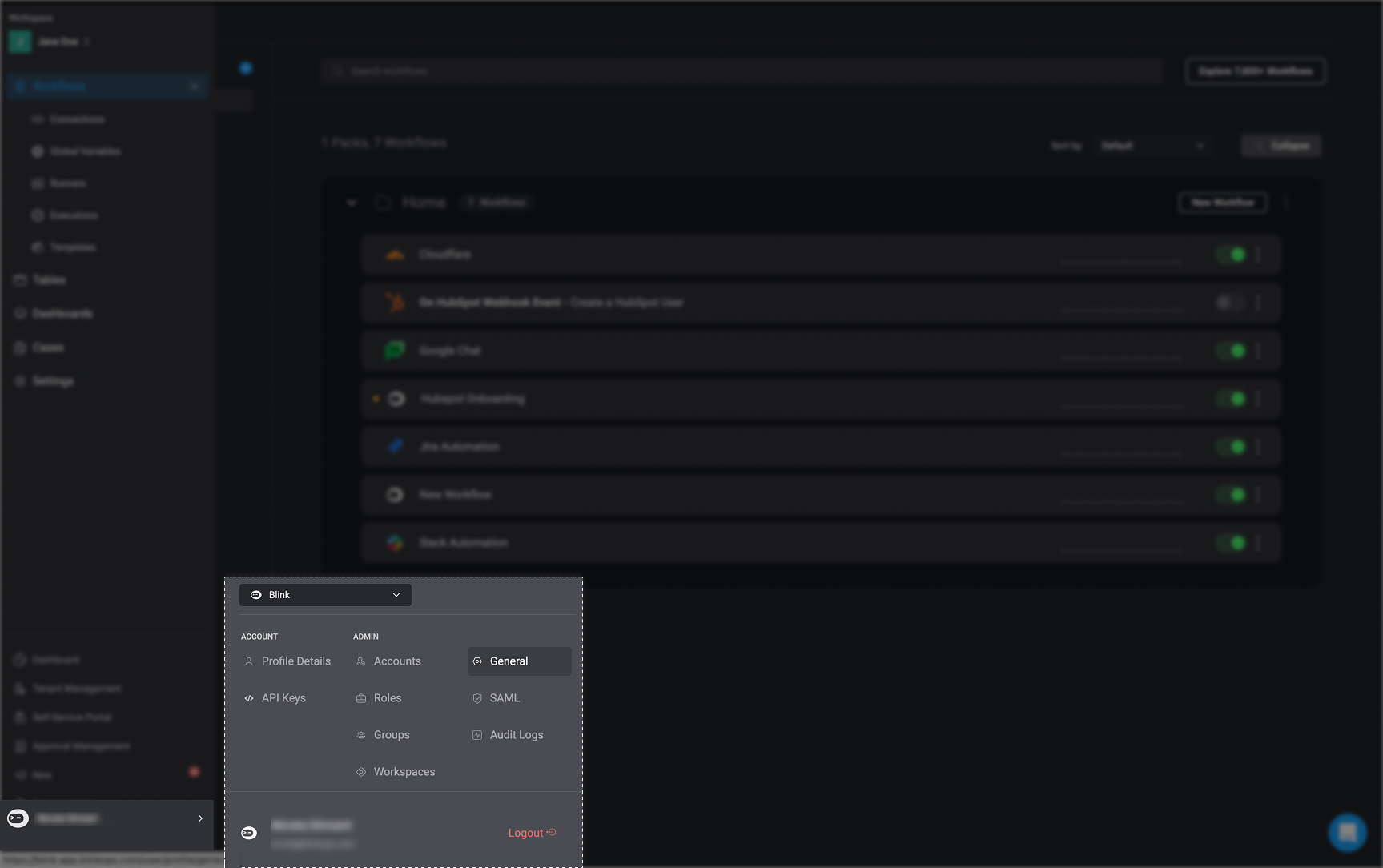
  <Step title="Open General Settings in Blink">
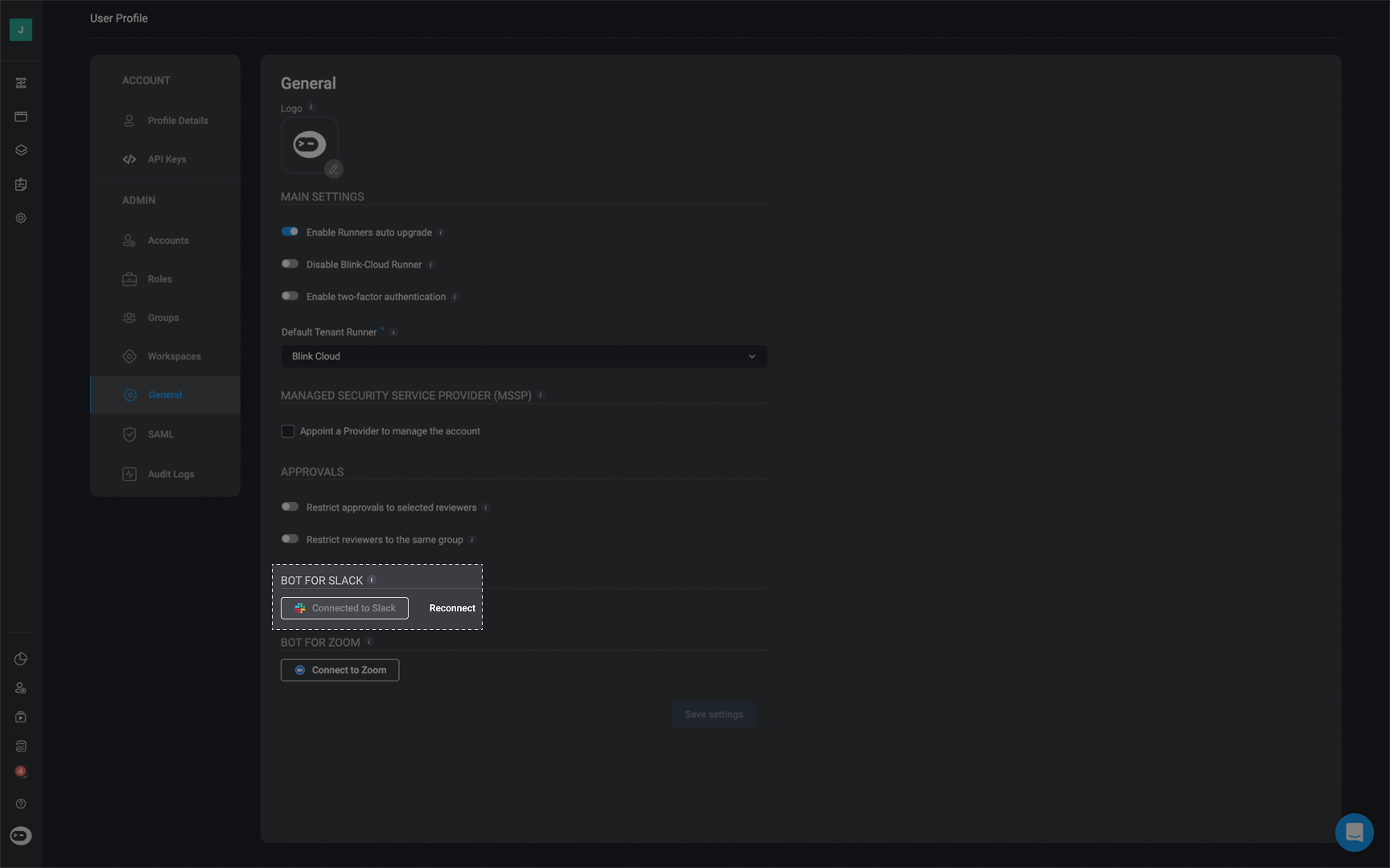
    Set up the [Blink Slack Bot](/docs/blink-platform/blink-portal/slack-app) by clicking your username in the bottom left corner and go to "General" settings.

    <Frame>
      <img src="https://mintcdn.com/blinkops-2/deay2AiePWJDKGEh/img/Actions/SlackConnectionSetup.png?fit=max&auto=format&n=deay2AiePWJDKGEh&q=85&s=cb30df767cb4f5edf92f9c1b1f846250" width="1727" height="1084" data-path="img/Actions/SlackConnectionSetup.png" />
    </Frame>
  </Step>

  <Step title="Connect Blink to Slack">
    In the General Settings, click the "Connect to Slack" button.

    <Frame>
      <img src="https://mintcdn.com/blinkops-2/yRkQ-wRlnQIXwr-A/img/Actions/ConnectToSlack.png?fit=max&auto=format&n=yRkQ-wRlnQIXwr-A&q=85&s=8f8e1e793f2342a15653516d9e1700c4" width="1728" height="1079" data-path="img/Actions/ConnectToSlack.png" />
    </Frame>
  </Step>

  <Step title="Grant Slack Permissions to Blink">
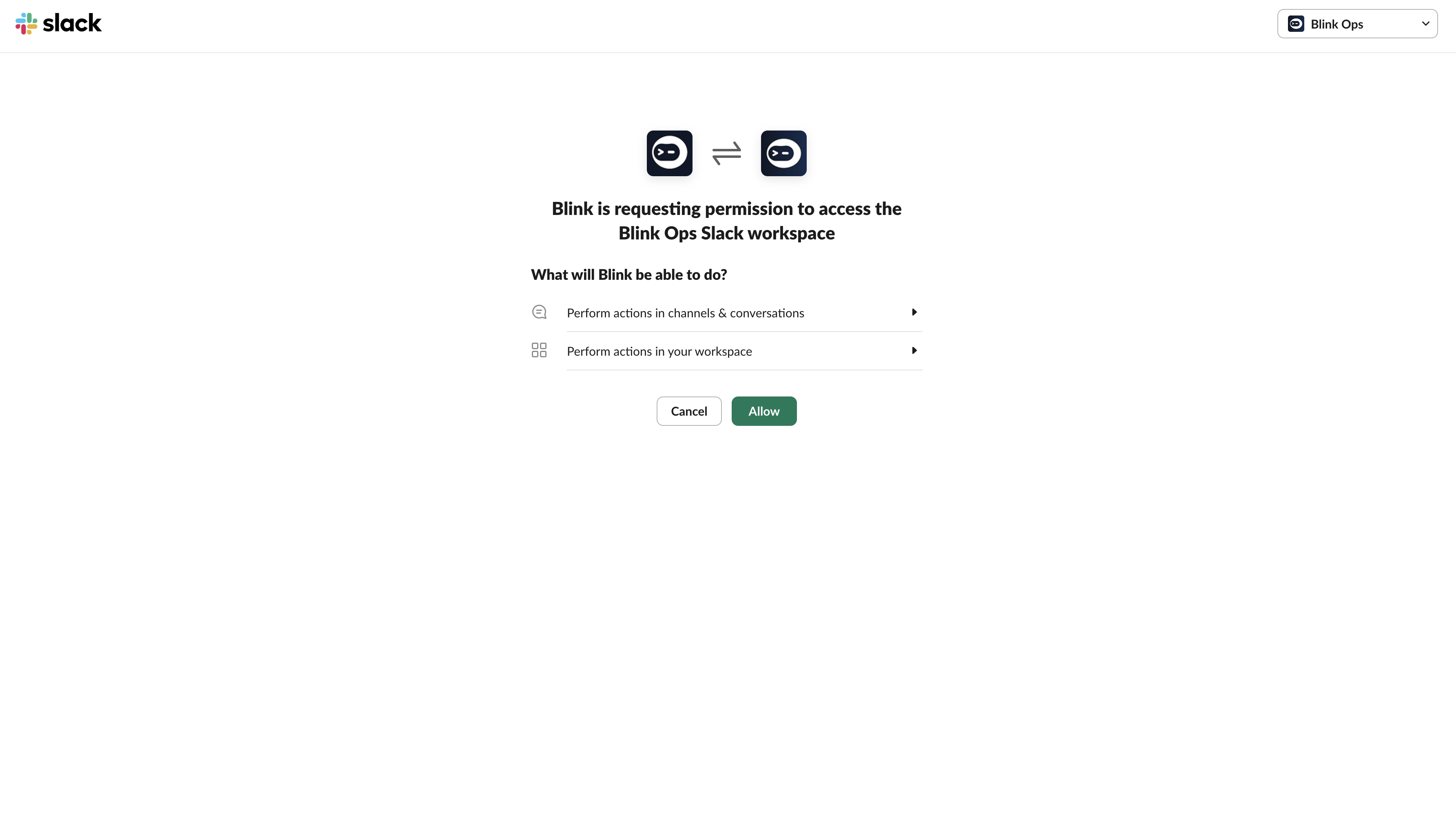
    A dialog window will open, asking for access permissions: "**Blink is requesting permission to access the Blink Ops Slack workspace**".

    <Frame>
      <img src="https://mintcdn.com/blinkops-2/deay2AiePWJDKGEh/img/Actions/SlackAccessPermissions.png?fit=max&auto=format&n=deay2AiePWJDKGEh&q=85&s=a0ddaf29609018280a18756eb8ccfeb6" width="3570" height="2052" data-path="img/Actions/SlackAccessPermissions.png" />
    </Frame>
  </Step>

  <Step title="Confirm Connection to Slack">
    Click 'Allow'. It will then display that your account is "Connected to Slack".
  </Step>
</Steps>

***

### Build Your Workflow

<Steps>
  <Step title="Add Slack Interactivity Action to Workflow">
    In the [Workflow Editor](/docs/workflows/building-workflows/workflow-editor), click to open the Action panel and search for *"Slack Interactivity"* action. Alternatively, you can drag the action to the step.
  </Step>

  <Step title="Choose 'Send Message' as Action Type">
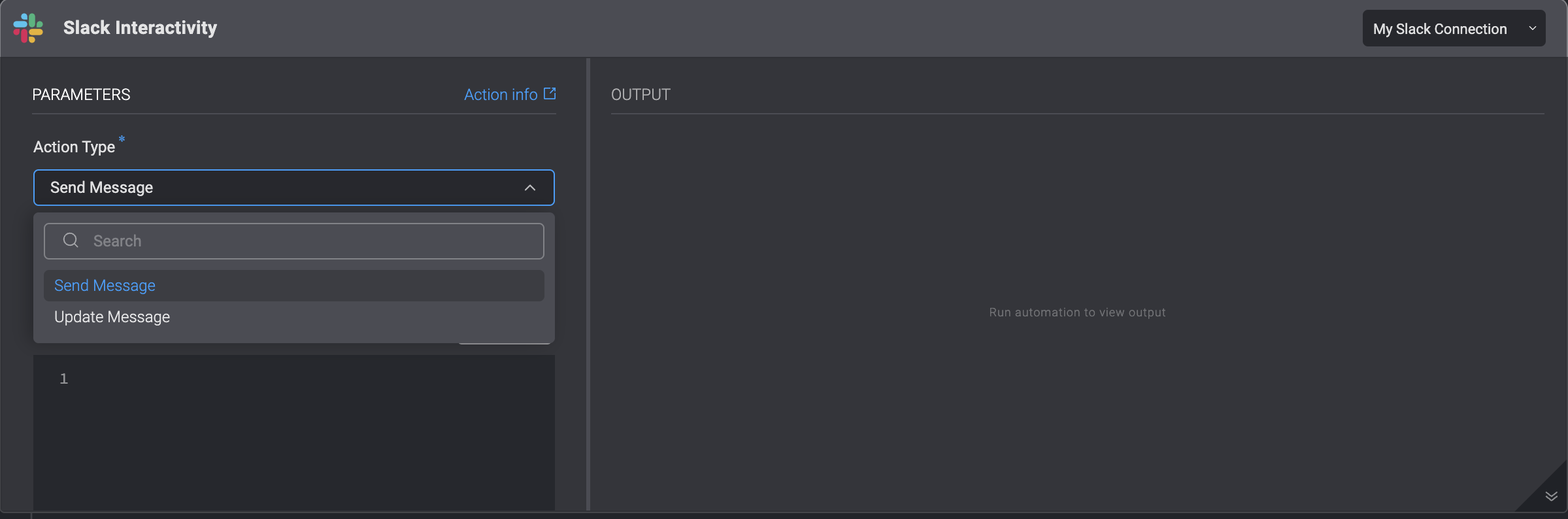
    In the dropdown menu under "Action Type", select the *"Send Message"* option.

    <Frame>
      <img src="https://mintcdn.com/blinkops-2/deay2AiePWJDKGEh/img/Actions/Slack-advanced.png?fit=max&auto=format&n=deay2AiePWJDKGEh&q=85&s=a2050f74c0a9ce2518171c60e126bba4" width="2399" height="794" data-path="img/Actions/Slack-advanced.png" />
    </Frame>
  </Step>

  <Step title="Fill in the Parameters">
    Enter the following parameters:

    <div>
      | Parameter                                     | Description                                                                                              |
      | --------------------------------------------- | -------------------------------------------------------------------------------------------------------- |
      | Action Type                                   | Choose the **Send Message** or **Update Message** Action Type.                                           |
      | To                                            | The recipients email address or Slack channel.                                                           |
      | [Blocks](#example-of-a-slack-block)           | Array of blocks that compose the message. Must include at least one action block.                        |
      | Thread Timestamp (ts)                         | The thread timestamp(only if sent to (Slack channel).                                                    |
      | Timeout in minutes (optional)                 | Timeout in minutes for the recipient to respond.                                                         |
      | **Advanced**- Include user info               | Includes the user's information together with their response.                                            |
      | **Advanced**- Keep blocks after user response | Keep the interactivity blocks after the user responds to the message, together with the user's response. |
    </div>
  </Step>

  <Step title="Create or Select Slack Connection">
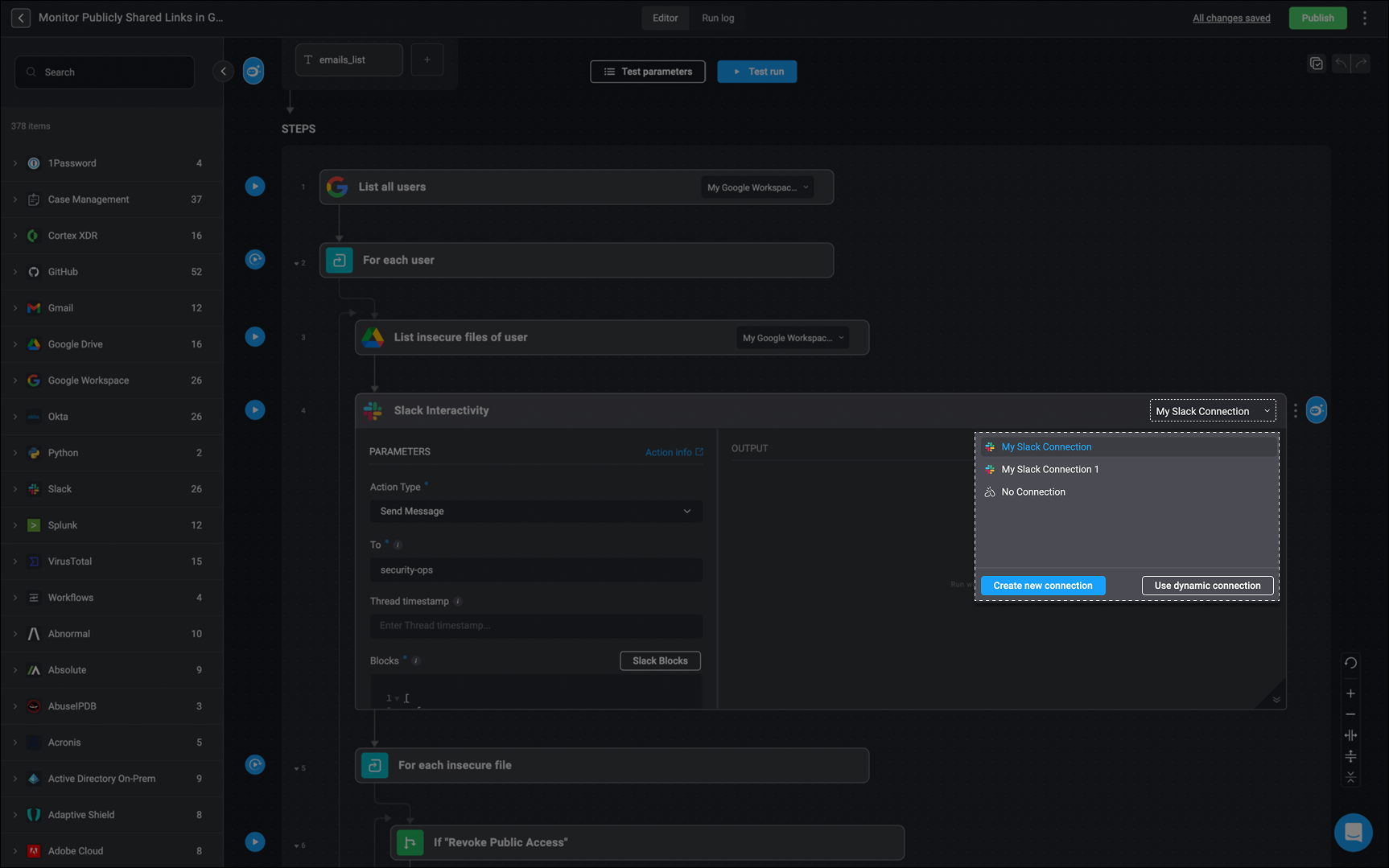
    Next, create a Slack connection by navigating to the top-right hand corner of your Step, select **Connection required** and then select an existing connection or create a new connection by selecting **Create new connection**.

    <Frame>
      <img src="https://mintcdn.com/blinkops-2/deay2AiePWJDKGEh/img/Actions/Slack-Recieve-1.png?fit=max&auto=format&n=deay2AiePWJDKGEh&q=85&s=97019c02035431479ec70da5ea2c4795" width="1726" height="1079" data-path="img/Actions/Slack-Recieve-1.png" />
    </Frame>
  </Step>

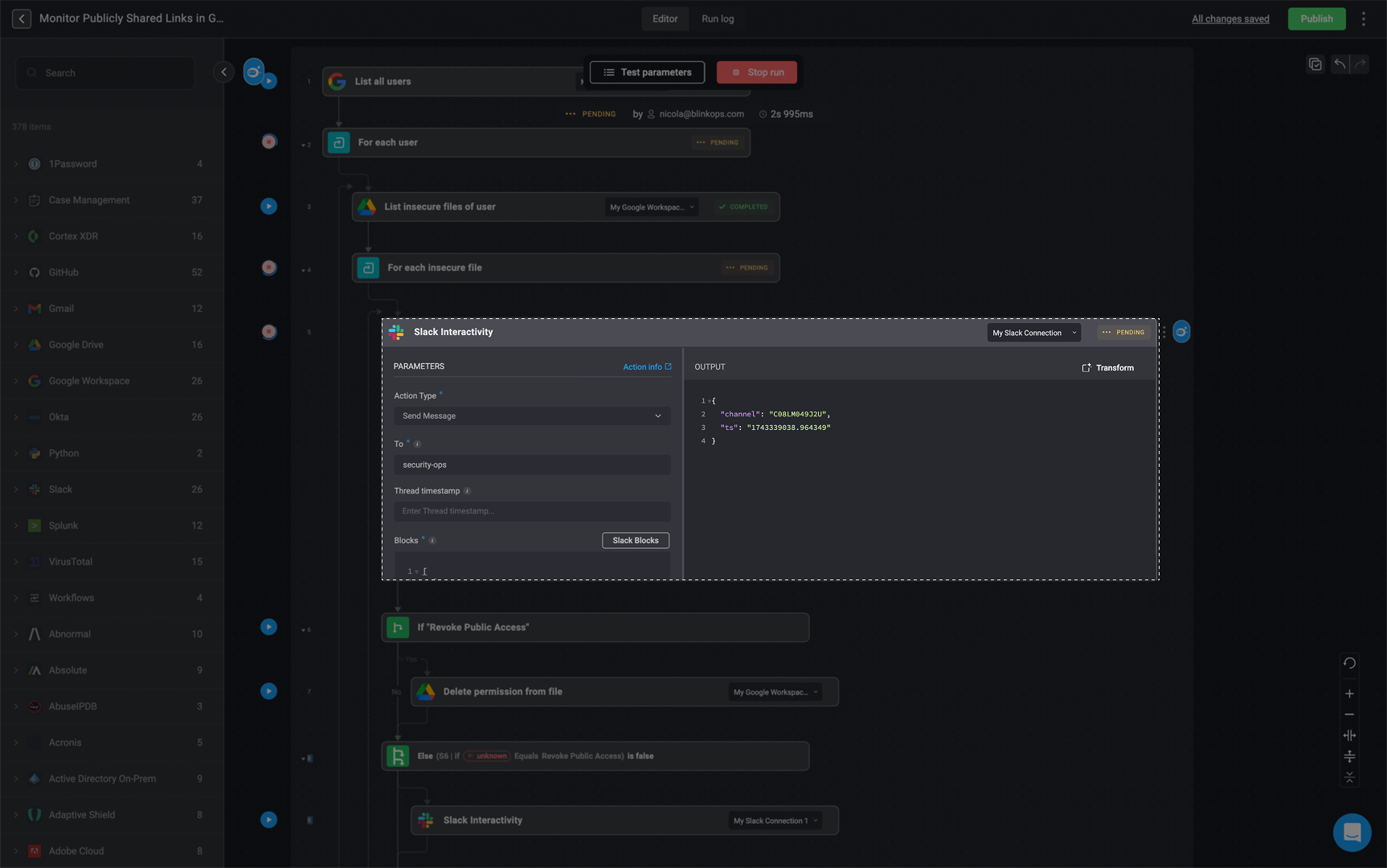
  <Step title="Run a Test Execution of the Step">
    <p> Once these steps are completed, you can select the <Icon icon="play" /> button to execute a trial run of the step or the **test run** button to execute a test run of your Workflow. </p>

    <Frame>
      <img src="https://mintcdn.com/blinkops-2/3_6WnkGGmnkZFzEe/img/Actions/RunSlackStep.png?fit=max&auto=format&n=3_6WnkGGmnkZFzEe&q=85&s=3d8b9f9d85f8292b427fe3adfbbfbe64" width="1726" height="1080" data-path="img/Actions/RunSlackStep.png" />
    </Frame>
  </Step>

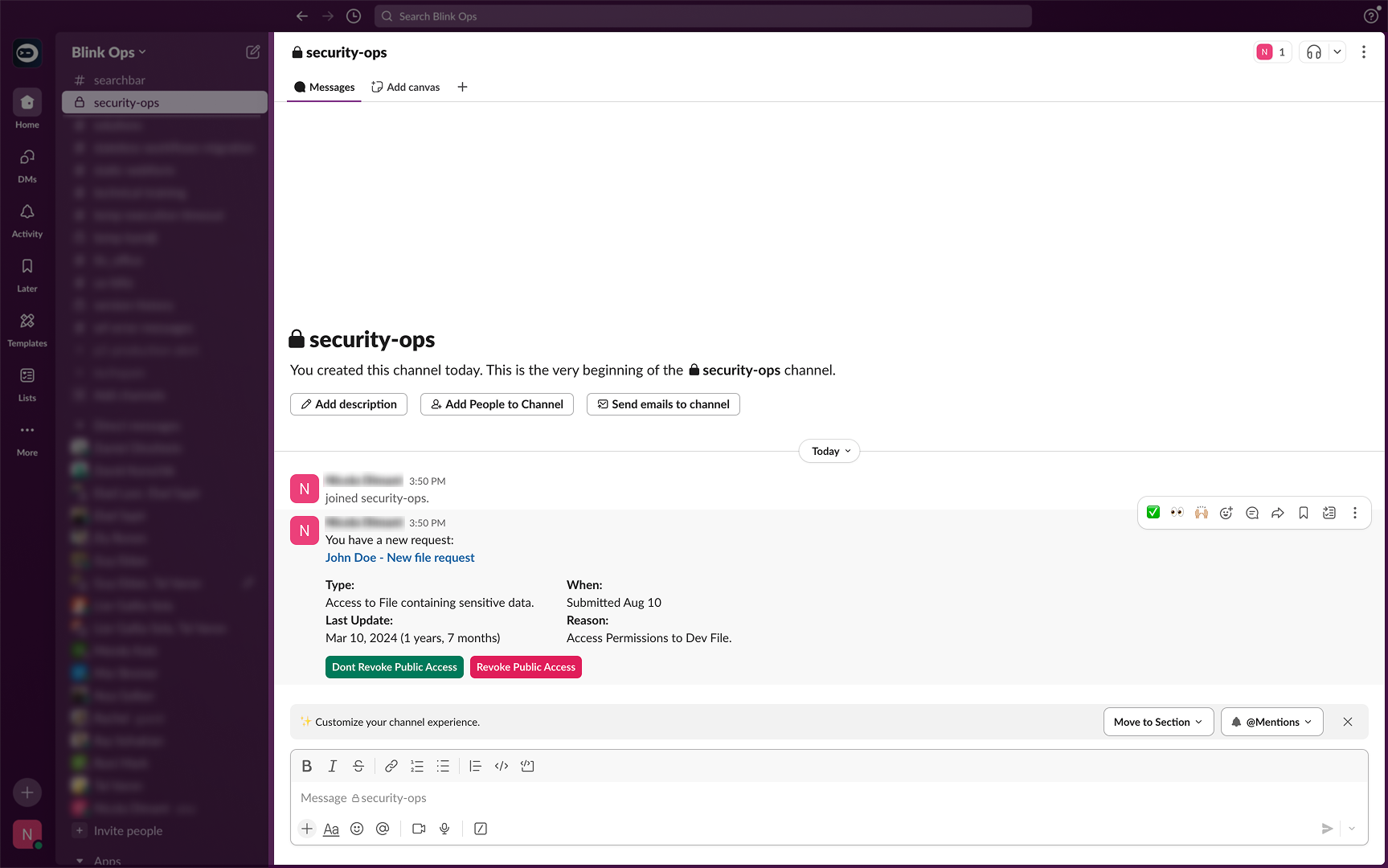
  <Step title="Respond to Slack Message in Channel">
    When this Workflow is executed, the designated Slack channel you have entered in the text field, will receive the message. Subsequently, you will have the option to engage with the message by writing a response and then pressing the submit button.

    <Frame>
      <img src="https://mintcdn.com/blinkops-2/deay2AiePWJDKGEh/img/Actions/SlackResponse1.png?fit=max&auto=format&n=deay2AiePWJDKGEh&q=85&s=c1fa782a41306a5515fc391a88311a30" width="1727" height="1080" data-path="img/Actions/SlackResponse1.png" />
    </Frame>

    <Note>
      Upon recipient interaction (triggered by action button clicks), the system collects values from all input blocks, allowing the Workflow to resume from the paused step.
    </Note>

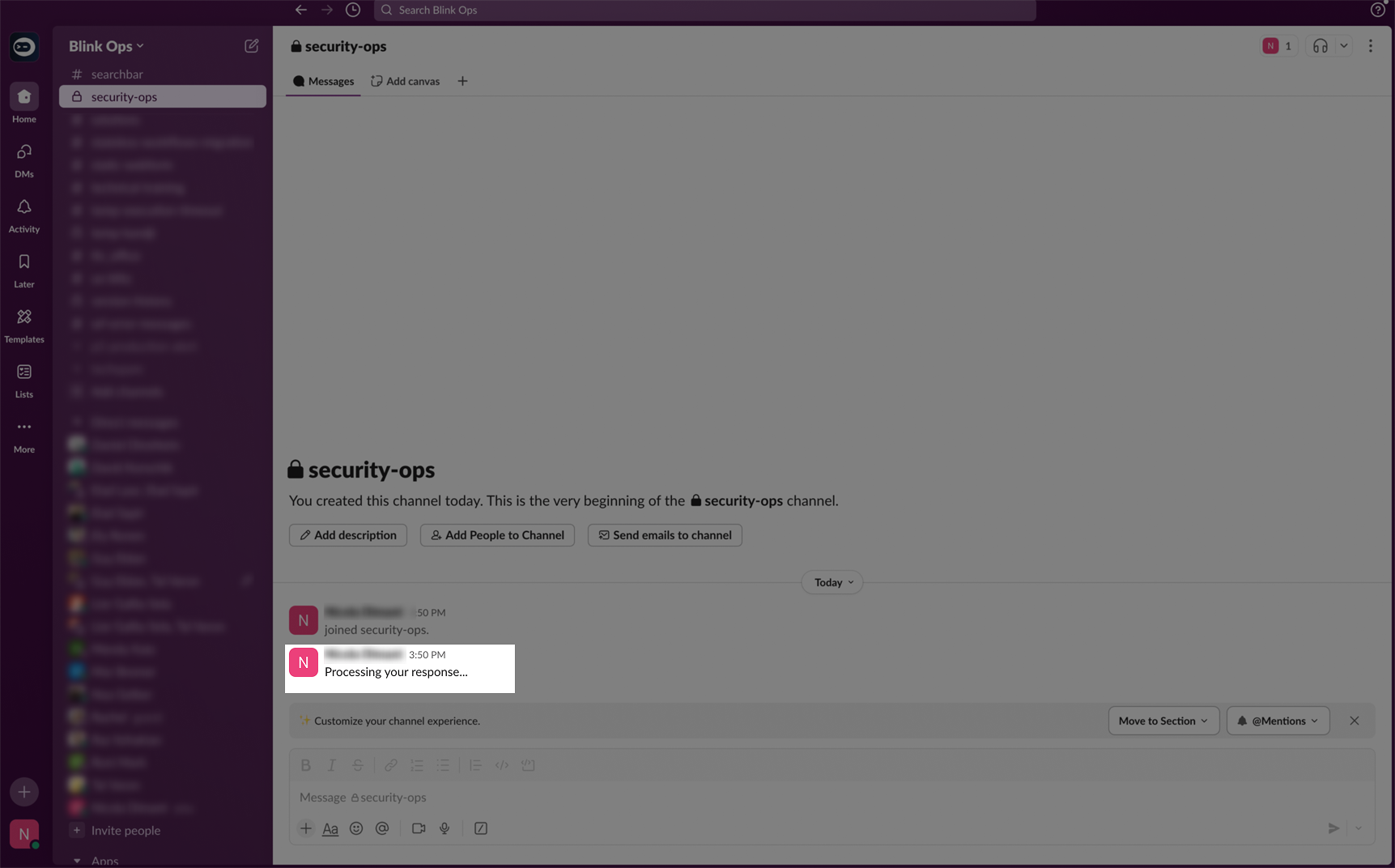
    <Note>
      Once the recipient clicks the submit button, the message will be updated to `Processing your response...`. It is up to the creator of the Workflow to decide what to do with the interaction.

      <Frame>
        <img src="https://mintcdn.com/blinkops-2/3_6WnkGGmnkZFzEe/img/Actions/Processing-Slack-Response.png?fit=max&auto=format&n=3_6WnkGGmnkZFzEe&q=85&s=739225915c9d3958849016a483db1e9f" width="1723" height="1072" data-path="img/Actions/Processing-Slack-Response.png" />
      </Frame>
    </Note>
  </Step>

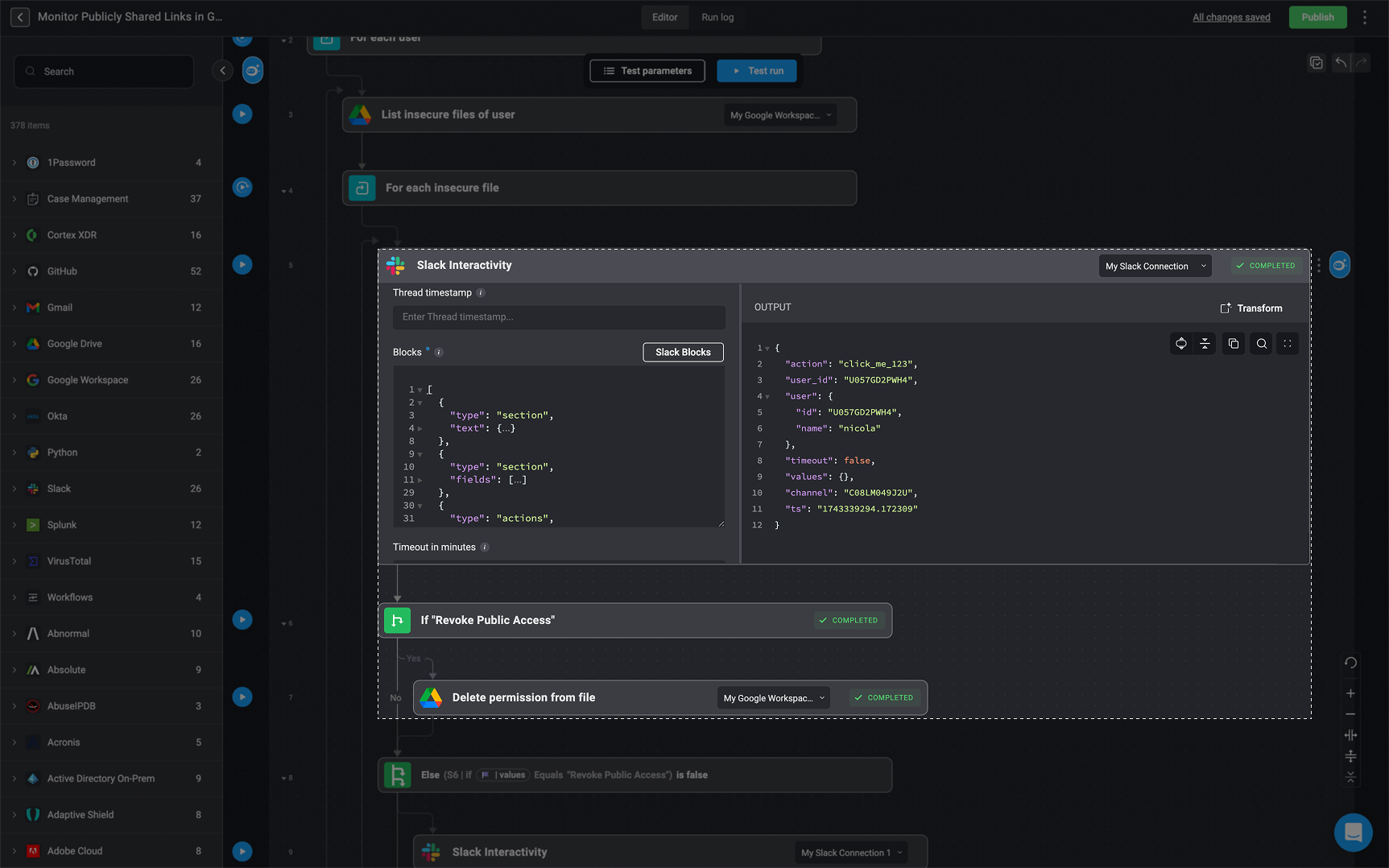
  <Step title="View Slack Response in Workflow Output">
    You can then navigate back to your Workflow where you can find your Slack-written response in the output of your Workflow.

    <Frame>
      <img src="https://mintcdn.com/blinkops-2/deay2AiePWJDKGEh/img/Actions/Slack-Message.png?fit=max&auto=format&n=deay2AiePWJDKGEh&q=85&s=f1c5994e4a4d7c7c6329833b9db20ef8" width="1725" height="1078" data-path="img/Actions/Slack-Message.png" />
    </Frame>
  </Step>
</Steps>

## Creating an *Update a Message* Step

<Steps>
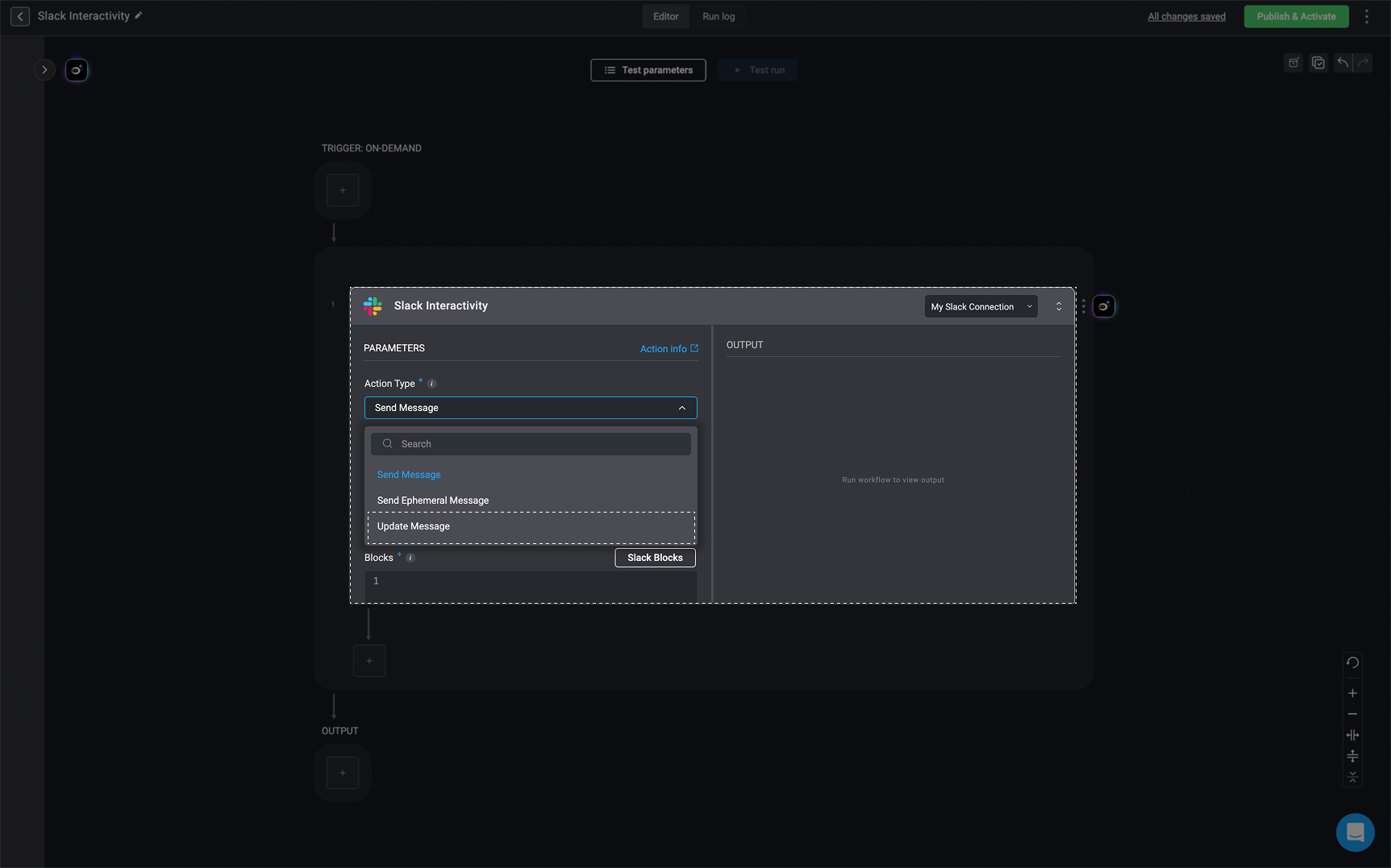
  <Step title="Select the 'Update Message' Action Type">
    To modify a previously sent message, select the **Update Message** option from the **Action Type** dropdown.

    <Frame>
      <img src="https://mintcdn.com/blinkops-2/deay2AiePWJDKGEh/img/Actions/Slack-Update.png?fit=max&auto=format&n=deay2AiePWJDKGEh&q=85&s=901cf0cb6e8e7fe1575ea5df87aec97f" width="1725" height="1077" data-path="img/Actions/Slack-Update.png" />
    </Frame>
  </Step>

  <Step title="Fill in The Required Parameters">
    <div className="integrations-table">
      | Parameter                     | Description                                                                       |
      | ----------------------------- | --------------------------------------------------------------------------------- |
      | Action Type                   | Choose the **Send Message** or **Update Message** Action Type.                    |
      | Channel ID                    | The ID of the channel.                                                            |
      | To                            | The recipients email address.                                                     |
      | Blocks                        | Array of blocks that compose the message. Must include at least one action block. |
      | Timestamp (ts)                | Timestamp of the message to be updated.                                           |
      | Timeout in minutes (optional) | Timeout in minutes for the recipient to respond.                                  |
      | Response message              | A message the recipient of the question will receive after responding.            |
    </div>

    <Note>
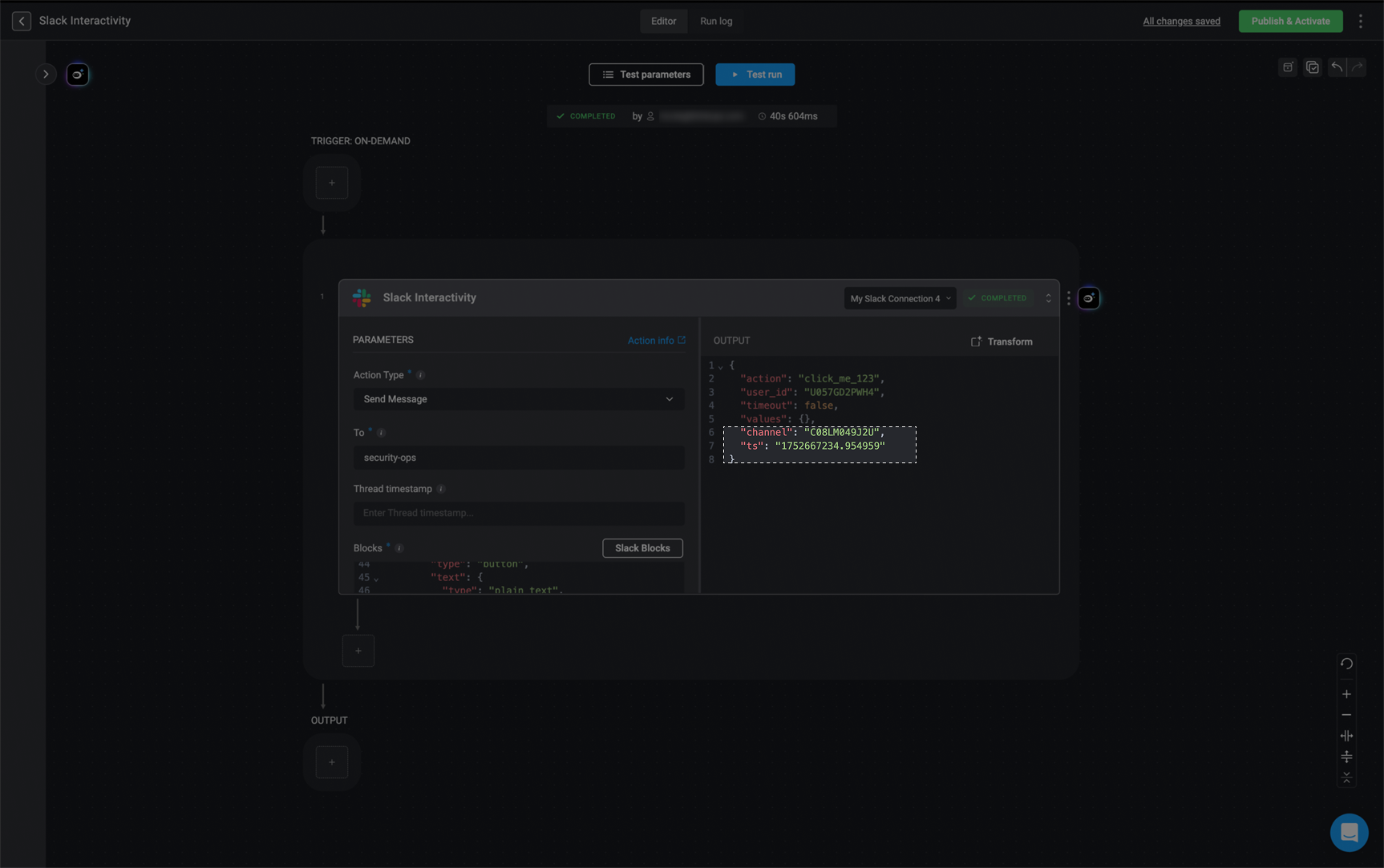
      Please note, when using the **Update Message** action, you must use the `channel` and `ts`(TimeStamp) values above from the output of the response message created in your Slack channel.

      <Frame>
        <img src="https://mintcdn.com/blinkops-2/XMlZfP6f_keDWota/img/Actions/Update-Note.png?fit=max&auto=format&n=XMlZfP6f_keDWota&q=85&s=4575be153e05d9895223c5ed7cf1b2db" width="1726" height="1083" data-path="img/Actions/Update-Note.png" />
      </Frame>
    </Note>
  </Step>

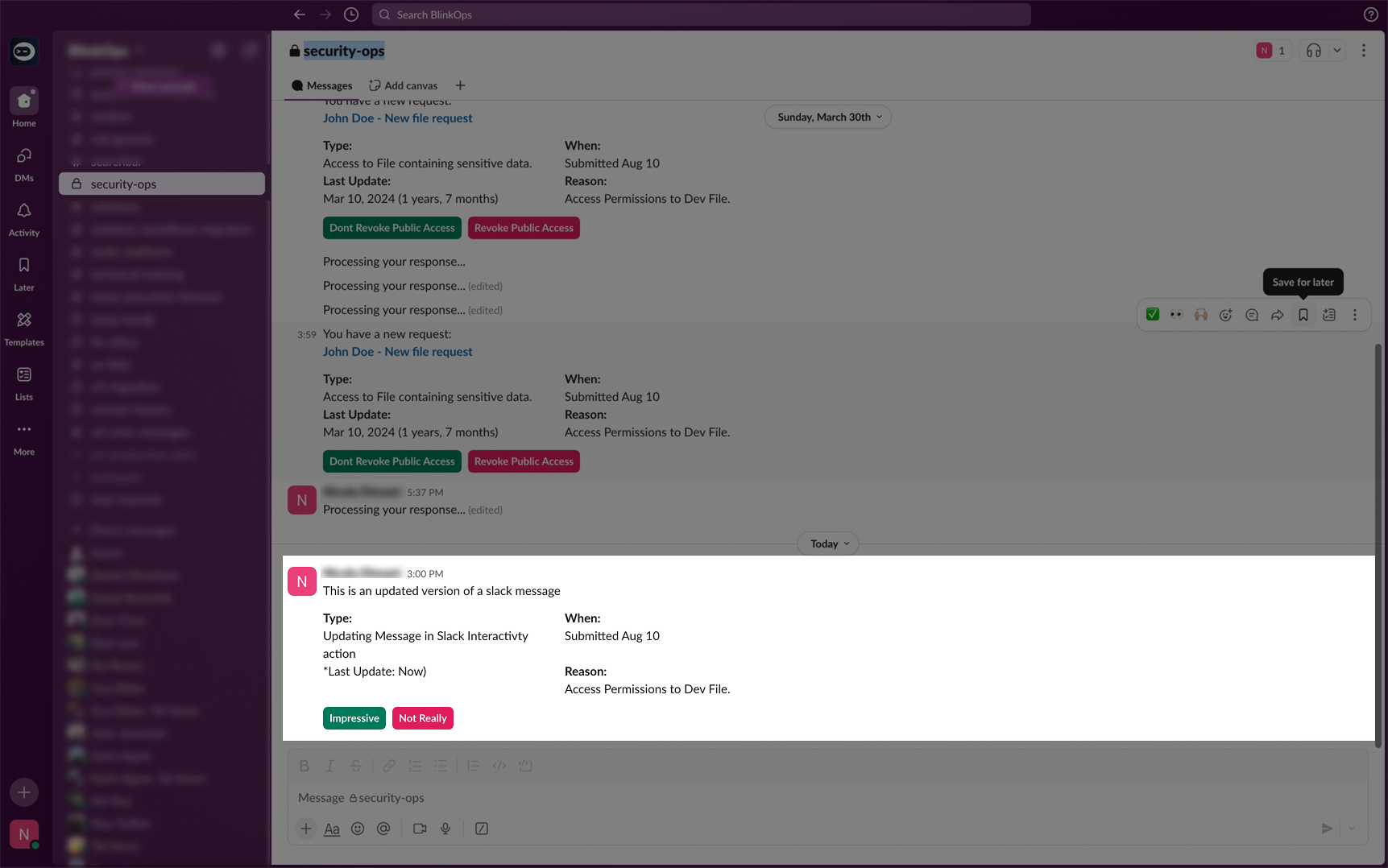
  <Step title="View Updated Message in Slack">
    Upon revisiting your Slack channel, you will notice that the message reflects the most recent adjustments you made to the message within the `blocks` section of your Workflow:

    <Frame>
      <img src="https://mintcdn.com/blinkops-2/deay2AiePWJDKGEh/img/Actions/Slack-Update-Recieved.png?fit=max&auto=format&n=deay2AiePWJDKGEh&q=85&s=632e454a994542674032a525af4d9f0e" width="1723" height="1078" data-path="img/Actions/Slack-Update-Recieved.png" />
    </Frame>
  </Step>
</Steps>

***