> ## Documentation Index
> Fetch the complete documentation index at: https://docs.blinkops.com/llms.txt
> Use this file to discover all available pages before exploring further.
# Shopify
> The Shopify platform offers online retailers a suite of services including payments, marketing, shipping and customer engagement tools.
## Creating a Shopify connection
### Using API Token
To create the connection you need:
* An API Address
* An API Token
#### Obtaining the credentials
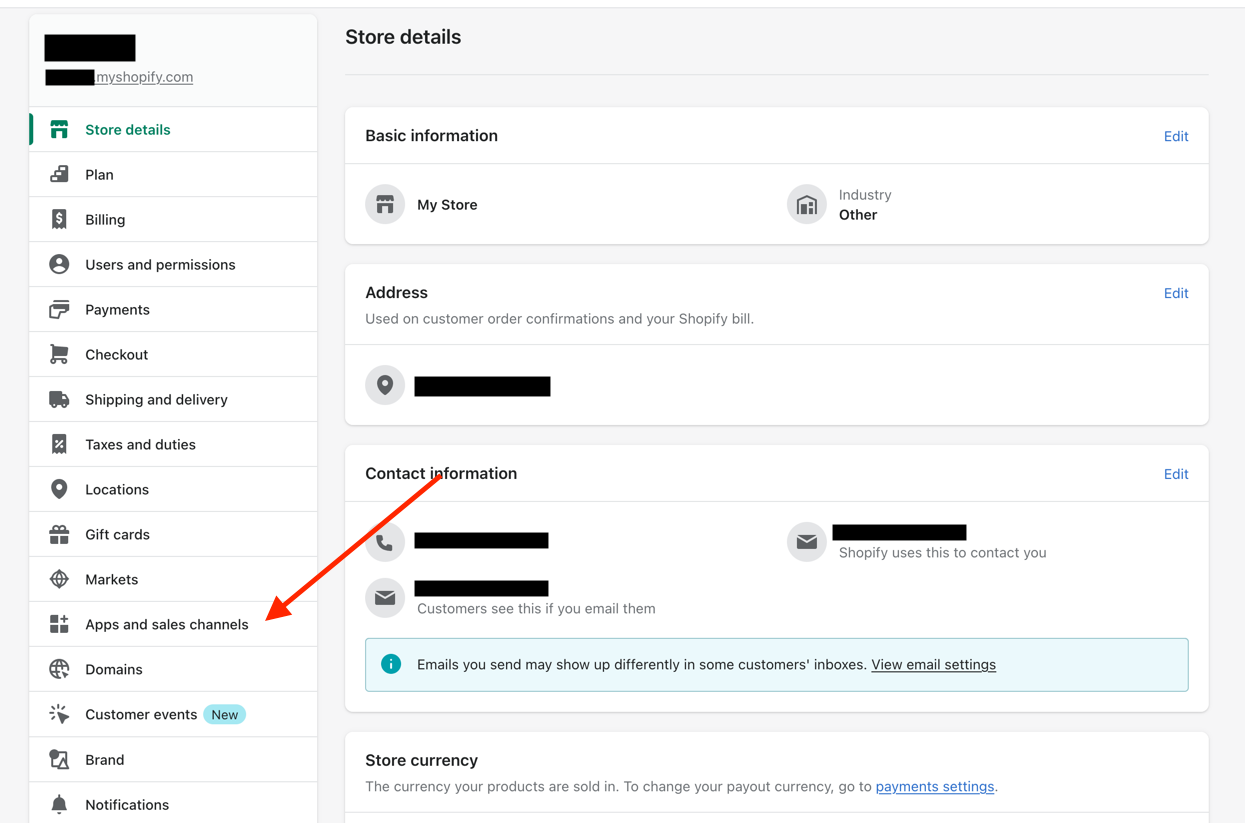
1. From your store admin page, click **Apps and sales channels**.
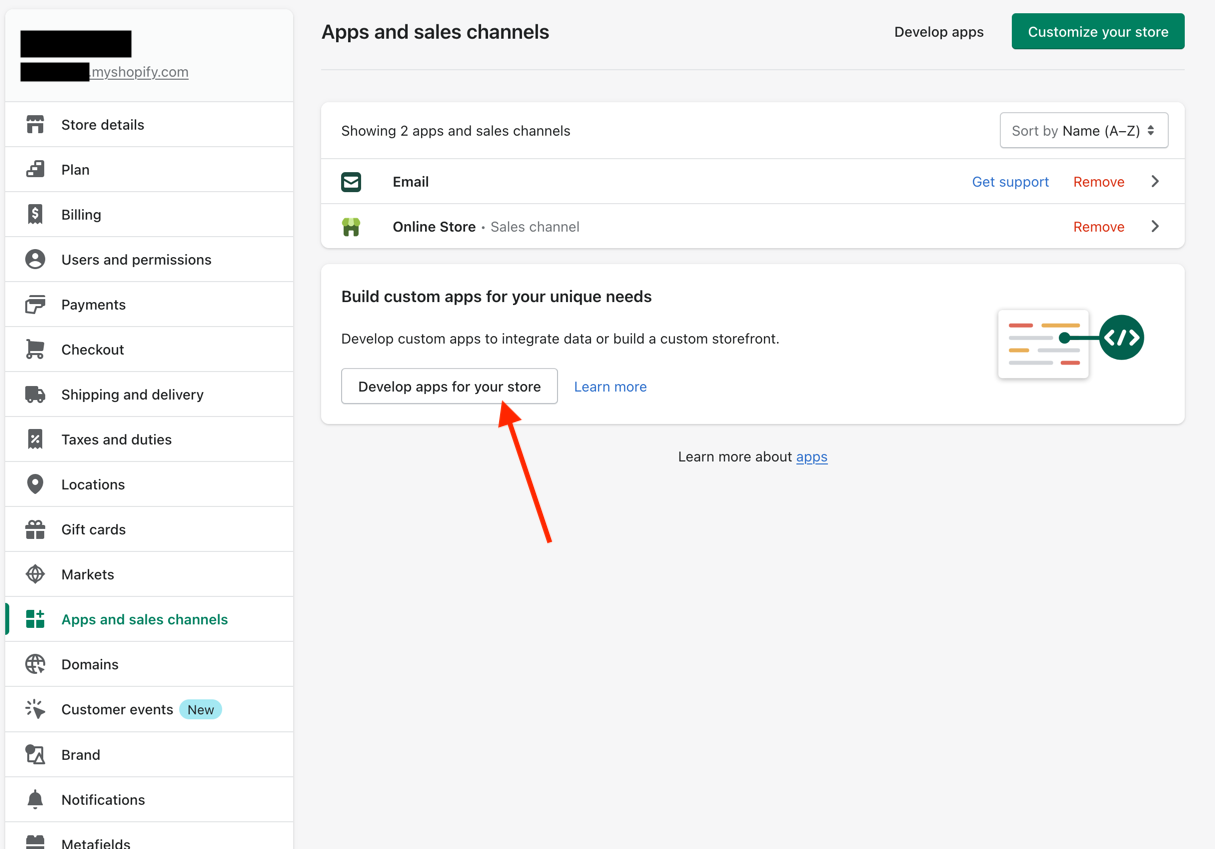
 2. Click **Develop apps for your store**.
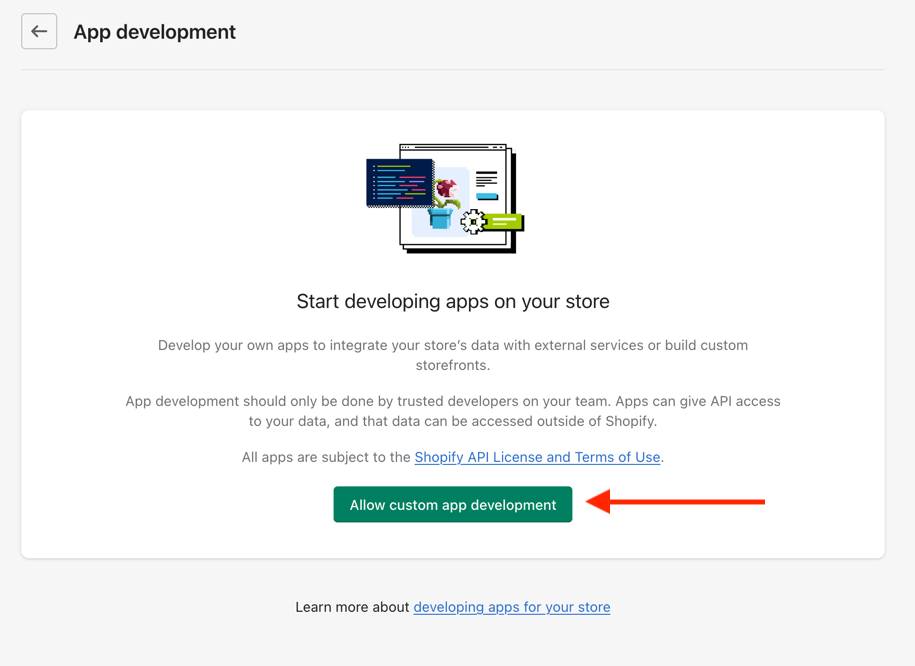
 3. Select **Allow custom app development**.
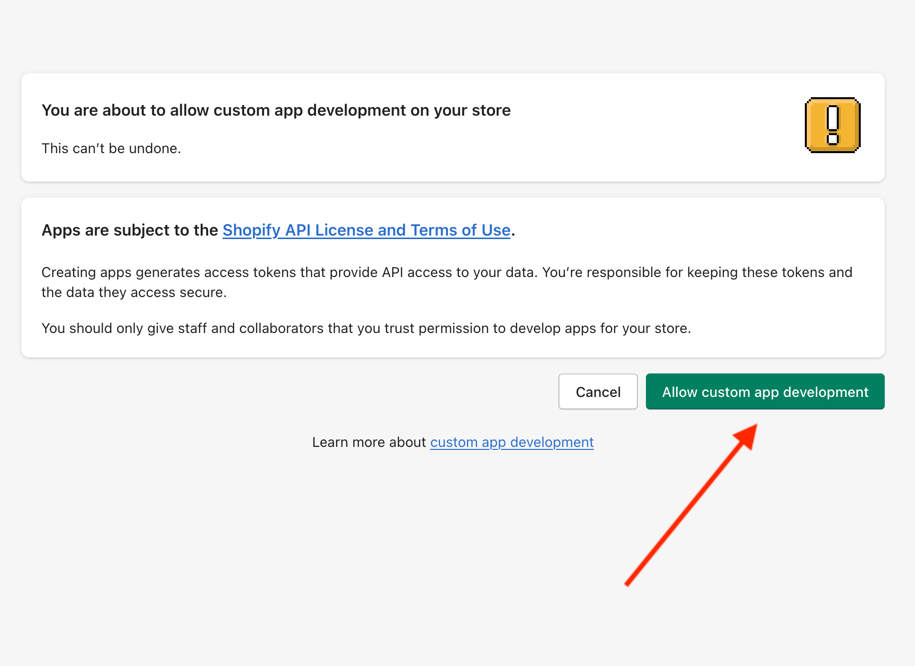
 4. Confirm that you wish to **Allow custom app development**.
 5. Click **Create an app**.
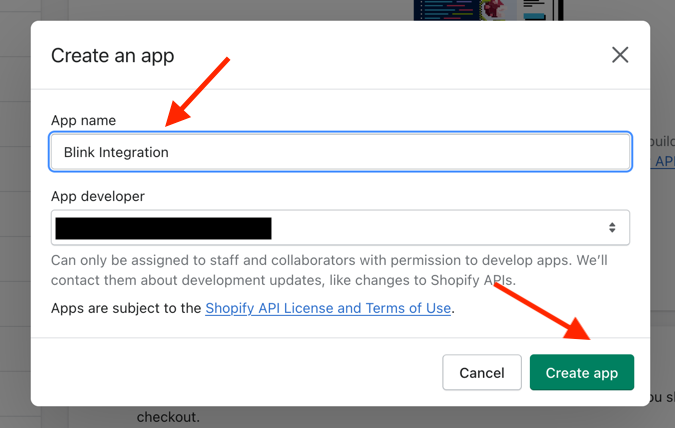
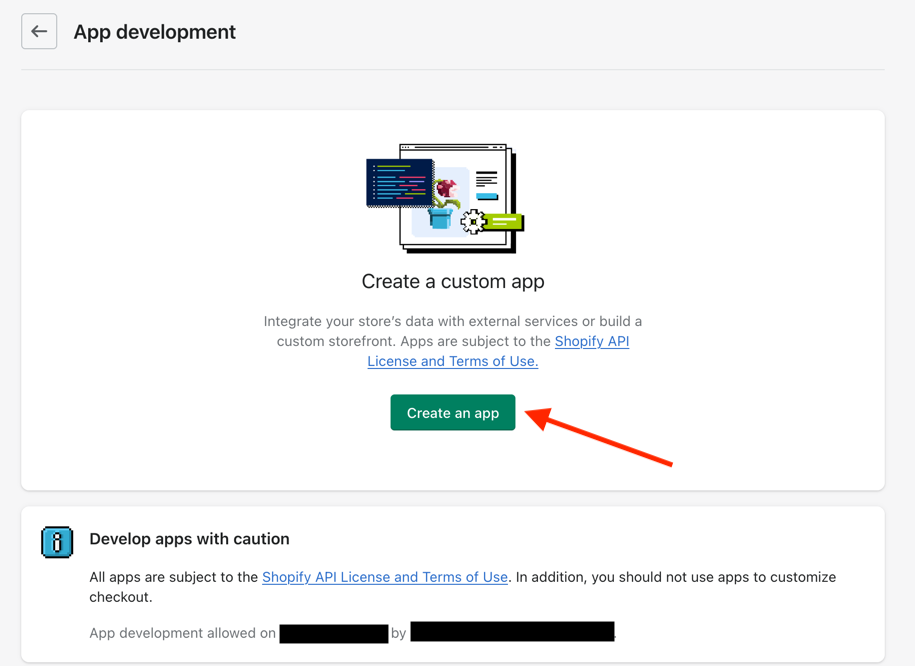 6. Name your app. (i.e., **Blink Integration**) > **Create App**.
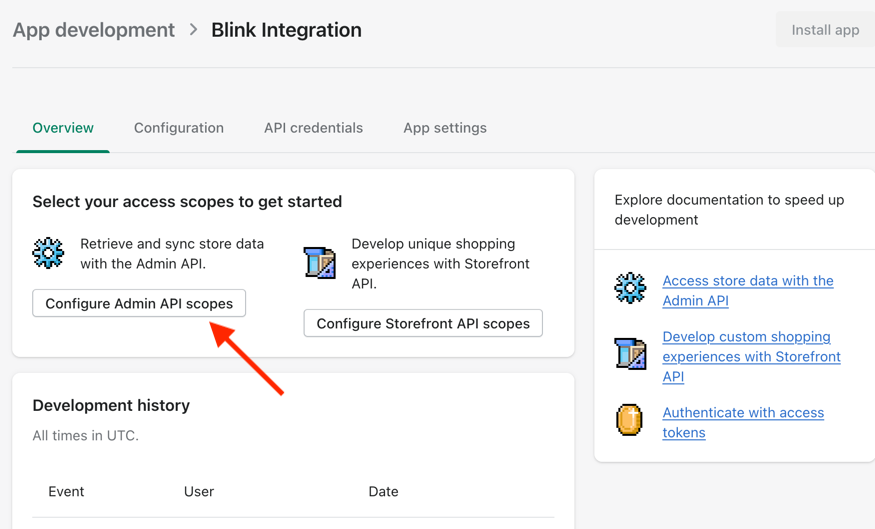
 7. On the app's dashboard, select **Configure Admin API scopes**.
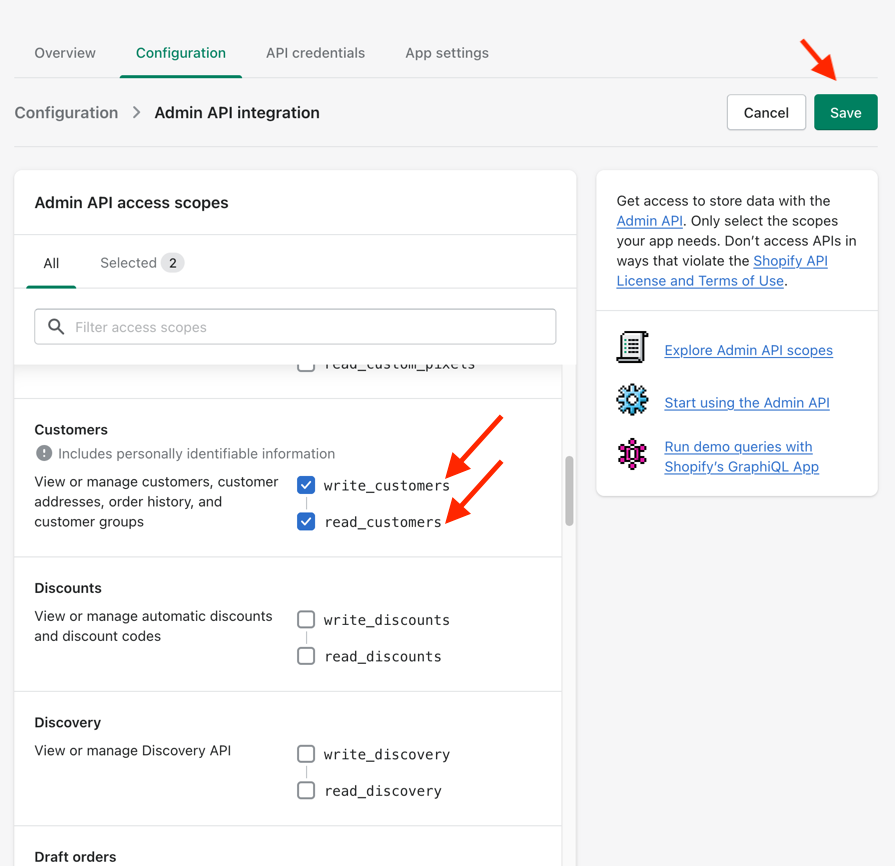
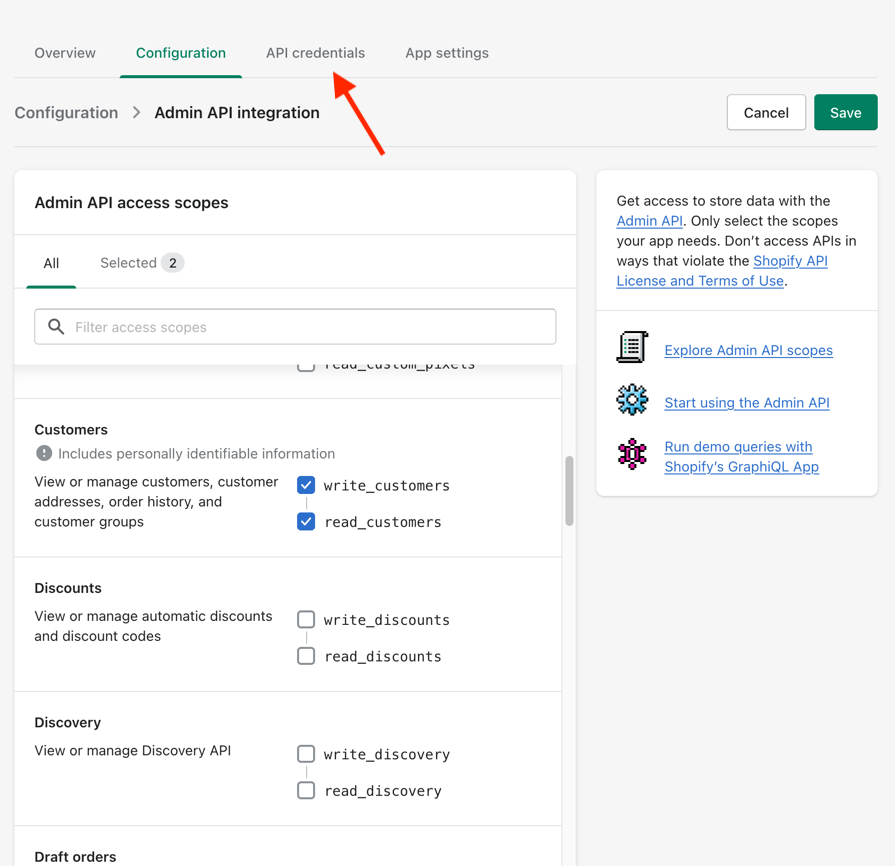
 8. When prompted to configure *Admin API access scopes*, make sure to select the scopes `read_customers` and `write_customers`. **Save** your selections. If you only wish to search for customers, you only need the `read_customers` scope.
 9. Click the **API credentials** tab near the top.
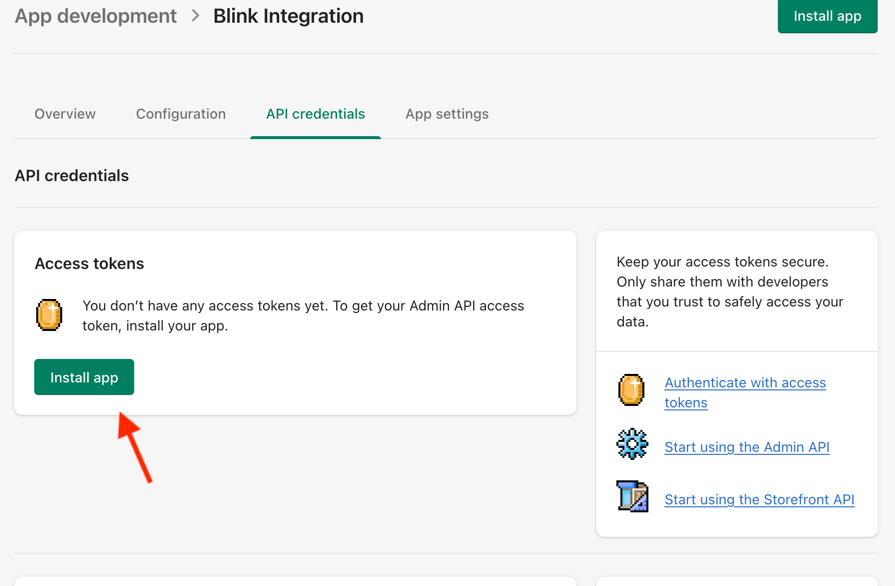
 10. Click **Install app**.
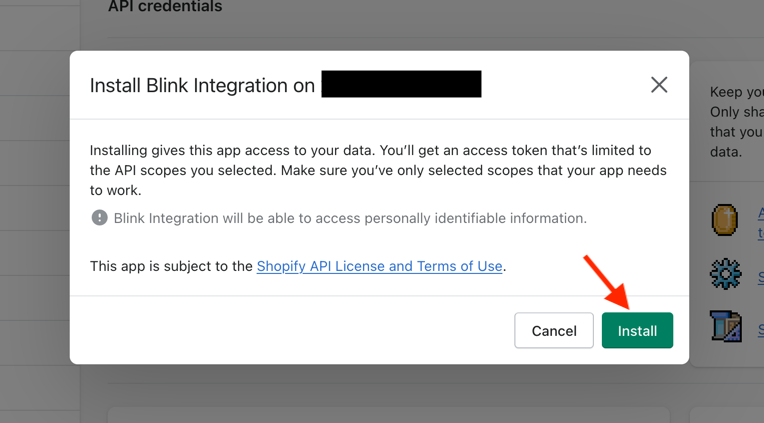
 11. Confirm the installation by pressing **Install**.
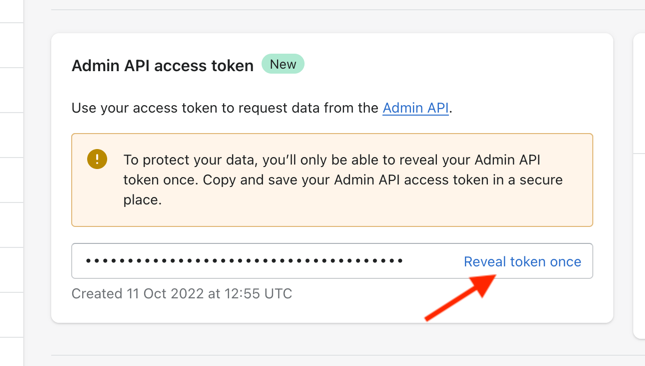
 12. It should now display a new section called *Admin API access token*. Press **Reveal token once** and save the access token in a secure location.
 #### Creating your connection
1. In the Blink platform, navigate to the **Connections** page > **Add connection**. A New Connection dialog box opens displaying icons of external service providers available.
2. Select the **Shopify** icon. A dialog box with name of the connection and connection methods appears.
3. (Optional) Edit the name of the connection. At a later stage you cannot edit the name.
4. Select **API Token** as the method to create the connection.
5. Fill in the parameters:
* The full URL to your store in the format `https://.myshopify.com`.
* The Admin API access token.
6. (Optional) Click **Test Connection** to test it.
7. Click **Create connection**. The new connection appears on the **Connections** page.
#### Creating your connection
1. In the Blink platform, navigate to the **Connections** page > **Add connection**. A New Connection dialog box opens displaying icons of external service providers available.
2. Select the **Shopify** icon. A dialog box with name of the connection and connection methods appears.
3. (Optional) Edit the name of the connection. At a later stage you cannot edit the name.
4. Select **API Token** as the method to create the connection.
5. Fill in the parameters:
* The full URL to your store in the format `https://.myshopify.com`.
* The Admin API access token.
6. (Optional) Click **Test Connection** to test it.
7. Click **Create connection**. The new connection appears on the **Connections** page.