> ## Documentation Index
> Fetch the complete documentation index at: https://docs.blinkops.com/llms.txt
> Use this file to discover all available pages before exploring further.
# ServiceNow Webhook Event
ServiceNow Business Rules allow you to respond to insert, query, update, and delete operations on ServiceNow tables. You can configure a Business Rule with a JavaScript script to send webhook events to Blink whenever the rule is triggered.
## Configuring a ServiceNow Webhook
This guide explains how **Admins** can create a business rule. Non-admin users must be assigned the `business_rule_admin` role to create business rules.
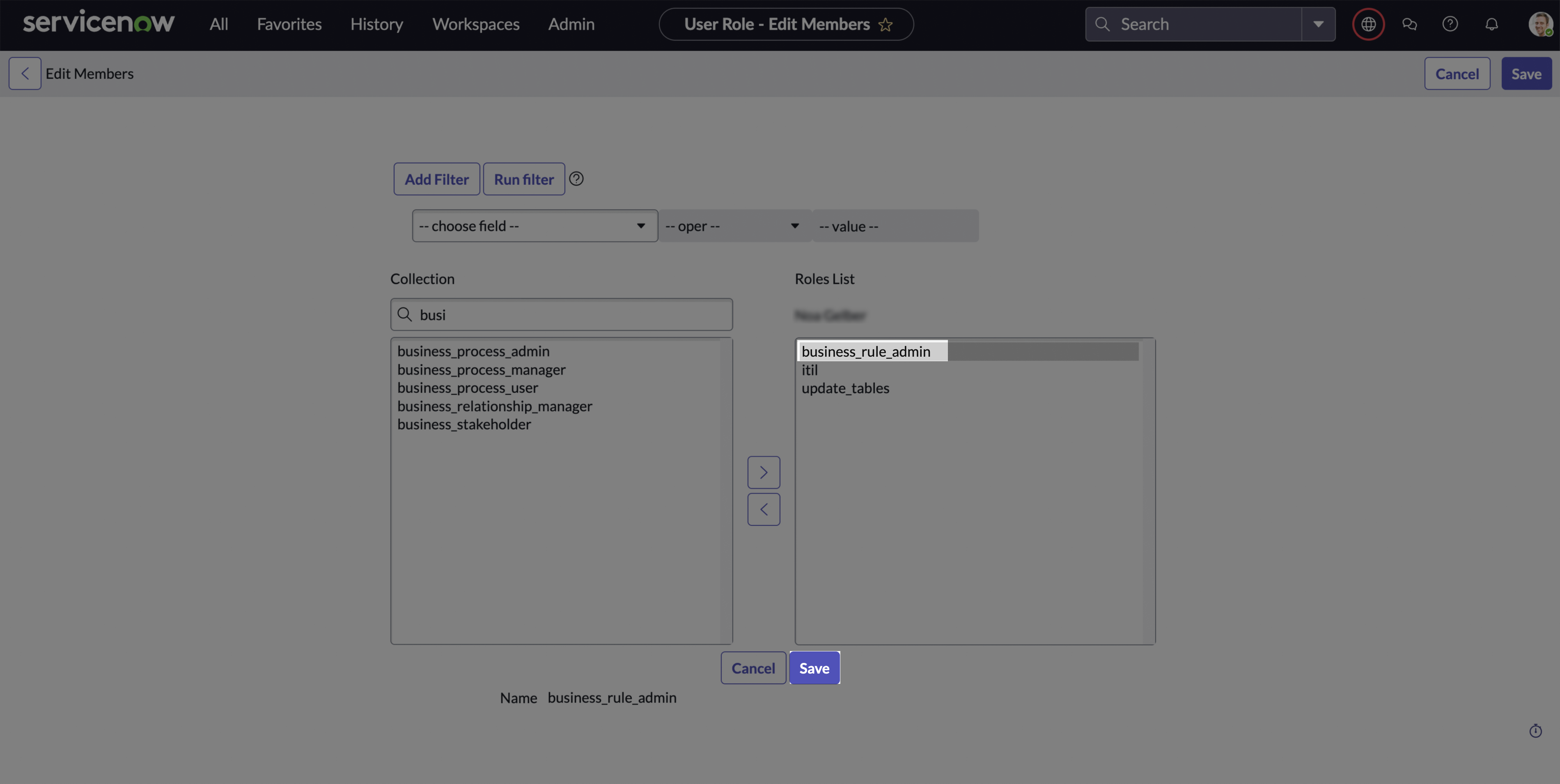 For more information on assigning roles to users, please visit our [documentation](https://docs.blinkops.com/docs/integrations/servicenow#assign-roles-to-user).
### Creating the Business Rule
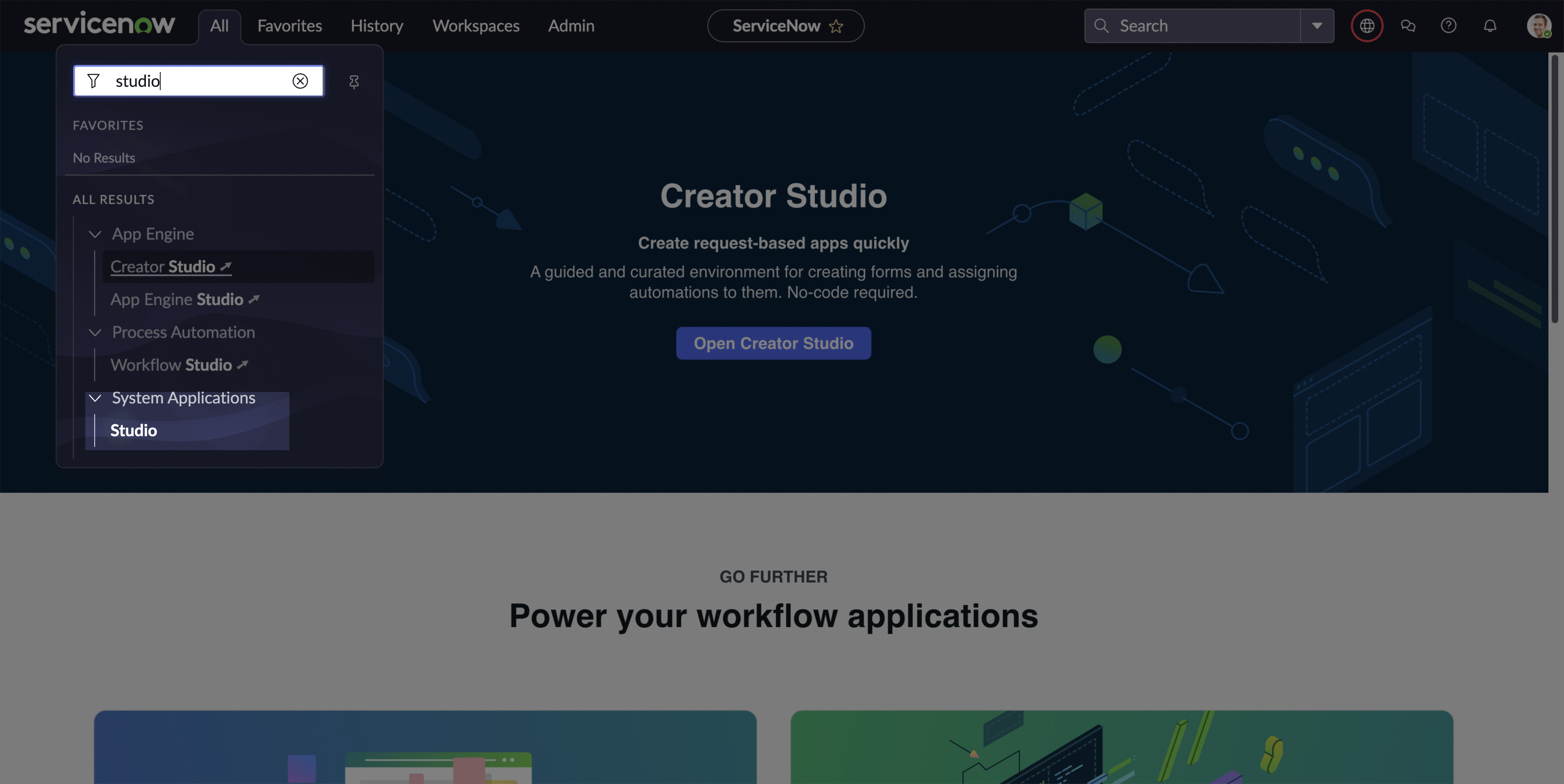
1. In the navigation filter (under the `All` tab), search for **studio** and click **Studio** under **System Applications**.
For more information on assigning roles to users, please visit our [documentation](https://docs.blinkops.com/docs/integrations/servicenow#assign-roles-to-user).
### Creating the Business Rule
1. In the navigation filter (under the `All` tab), search for **studio** and click **Studio** under **System Applications**.
 2. Select an **application** (or create a new one) to associate the Business Rule with. For more information on creating new applications, please visit [ServiceNow's Documentation](https://developer.servicenow.com/dev.do#!/learn/courses/xanadu/app_store_learnv2_buildneedit_xanadu_build_the_needit_application/app_store_learnv2_buildneedit_xanadu_create_the_needit_application_and_application_files/app_store_learnv2_buildneedit_xanadu_creating_an_application).
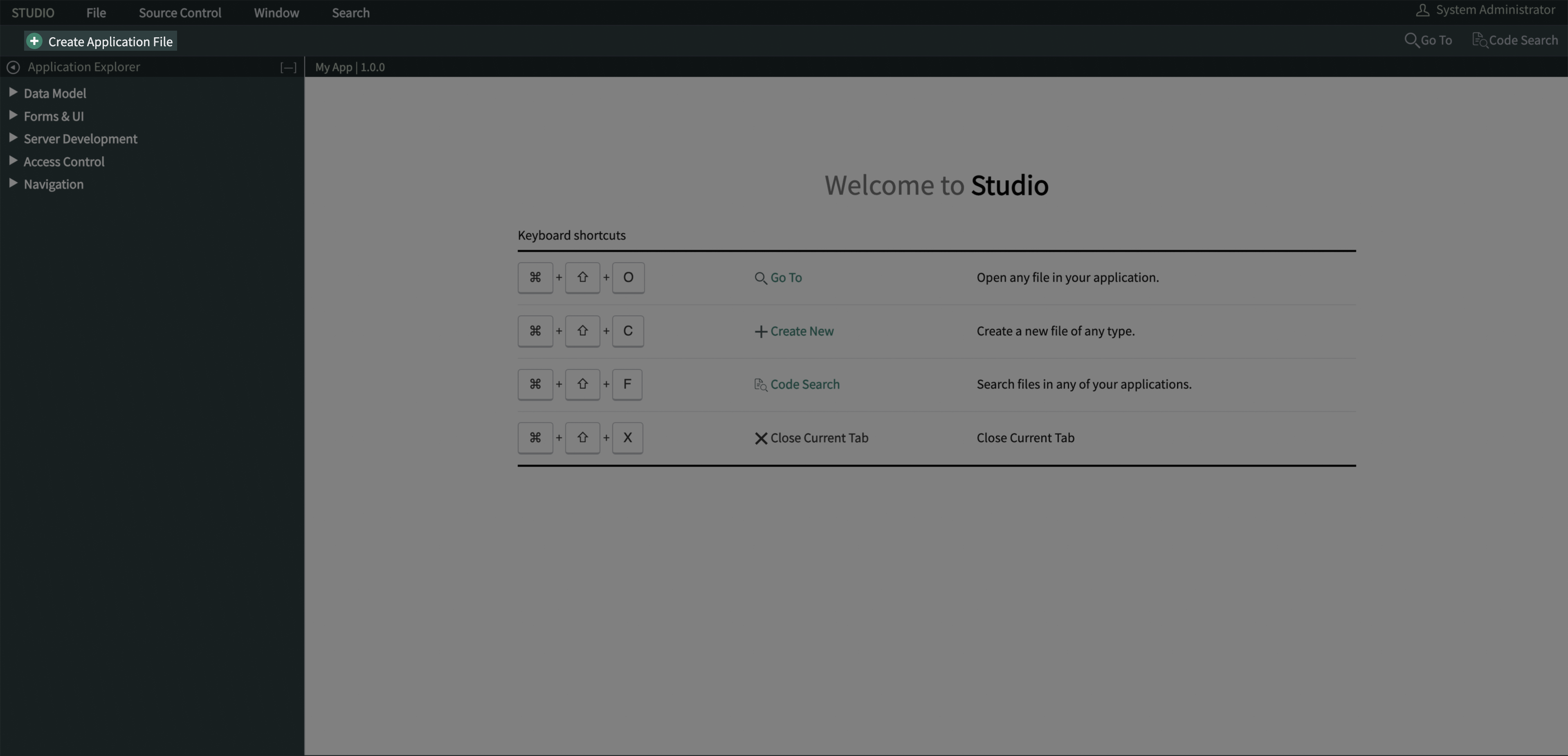
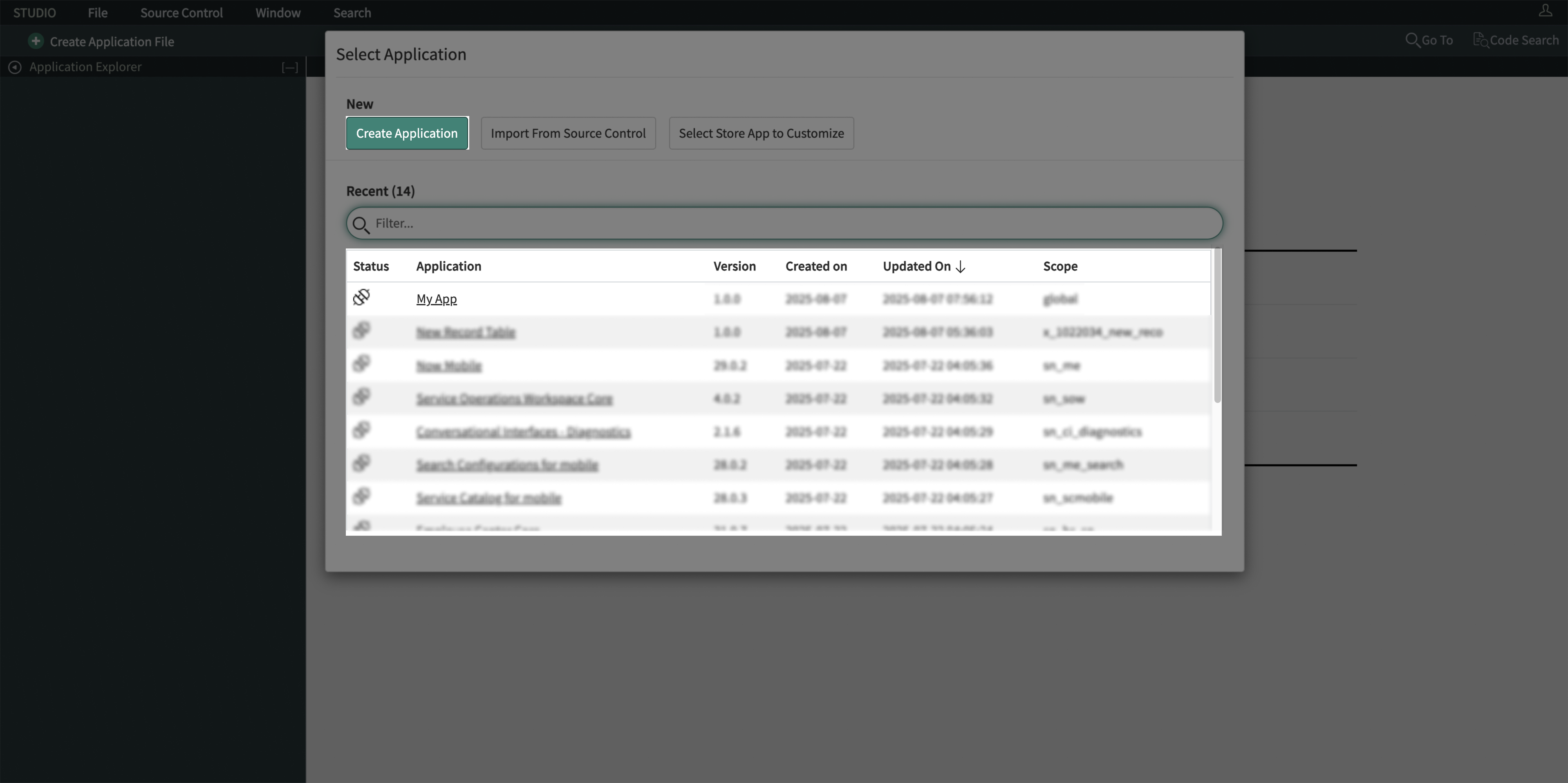 3. On the next page, click **Create Application File**.
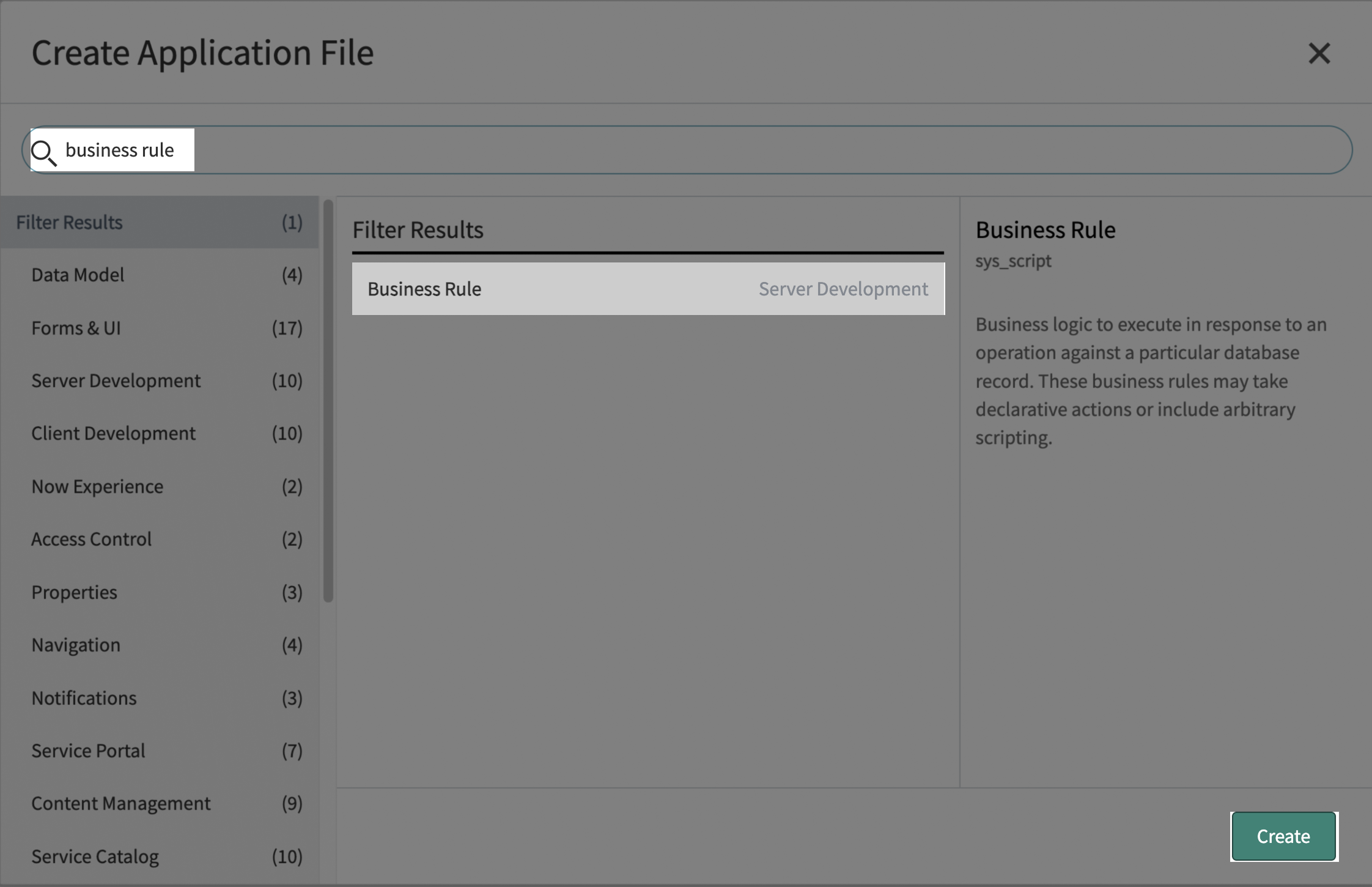
 4. In the new file form, search for **Business Rule** and click **Create**.
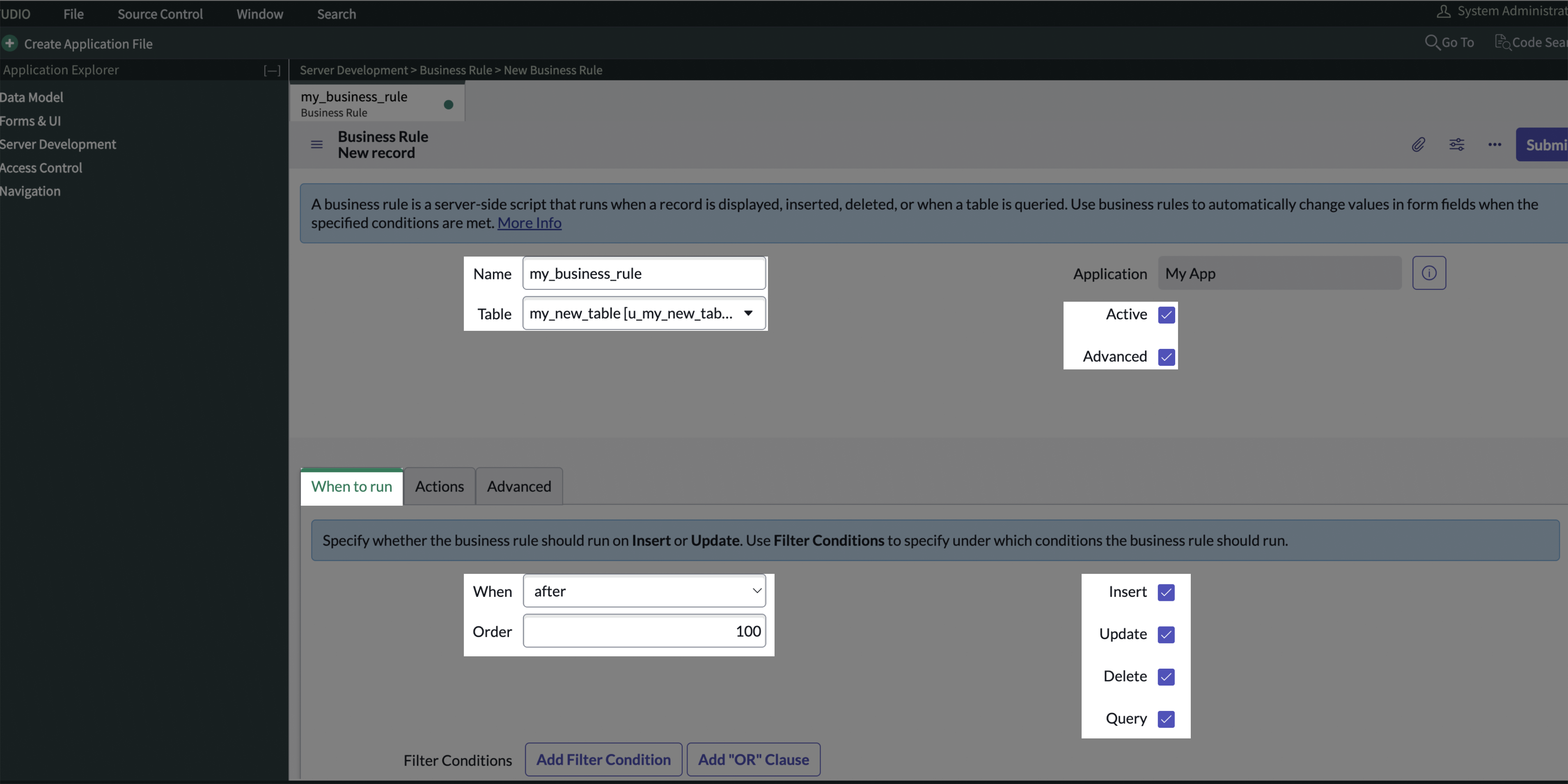
 5. Configure the new rule's references settings:
1. **Name the Rule**: Enter a descriptive name that reflects the rule’s purpose.
2. **Select the Target Table**: Choose the table the rule will apply to.
3. **Enable the Rule**: Check both **Active** and **Advanced**.
4. **Set When to Run**:
* Choose **After** to run the rule once the record changes are saved.
* Enter the **Order** value (leave at `100` unless you need a custom sequence).
* Select the operations (Insert, Update, Delete, Query) that should trigger the rule.
5. Configure the new rule's references settings:
1. **Name the Rule**: Enter a descriptive name that reflects the rule’s purpose.
2. **Select the Target Table**: Choose the table the rule will apply to.
3. **Enable the Rule**: Check both **Active** and **Advanced**.
4. **Set When to Run**:
* Choose **After** to run the rule once the record changes are saved.
* Enter the **Order** value (leave at `100` unless you need a custom sequence).
* Select the operations (Insert, Update, Delete, Query) that should trigger the rule.
 6. Under the **Advanced** section, insert a JavaScript script that will trigger Blink's workflow. Click on the **Save** icon and then **Submit**.
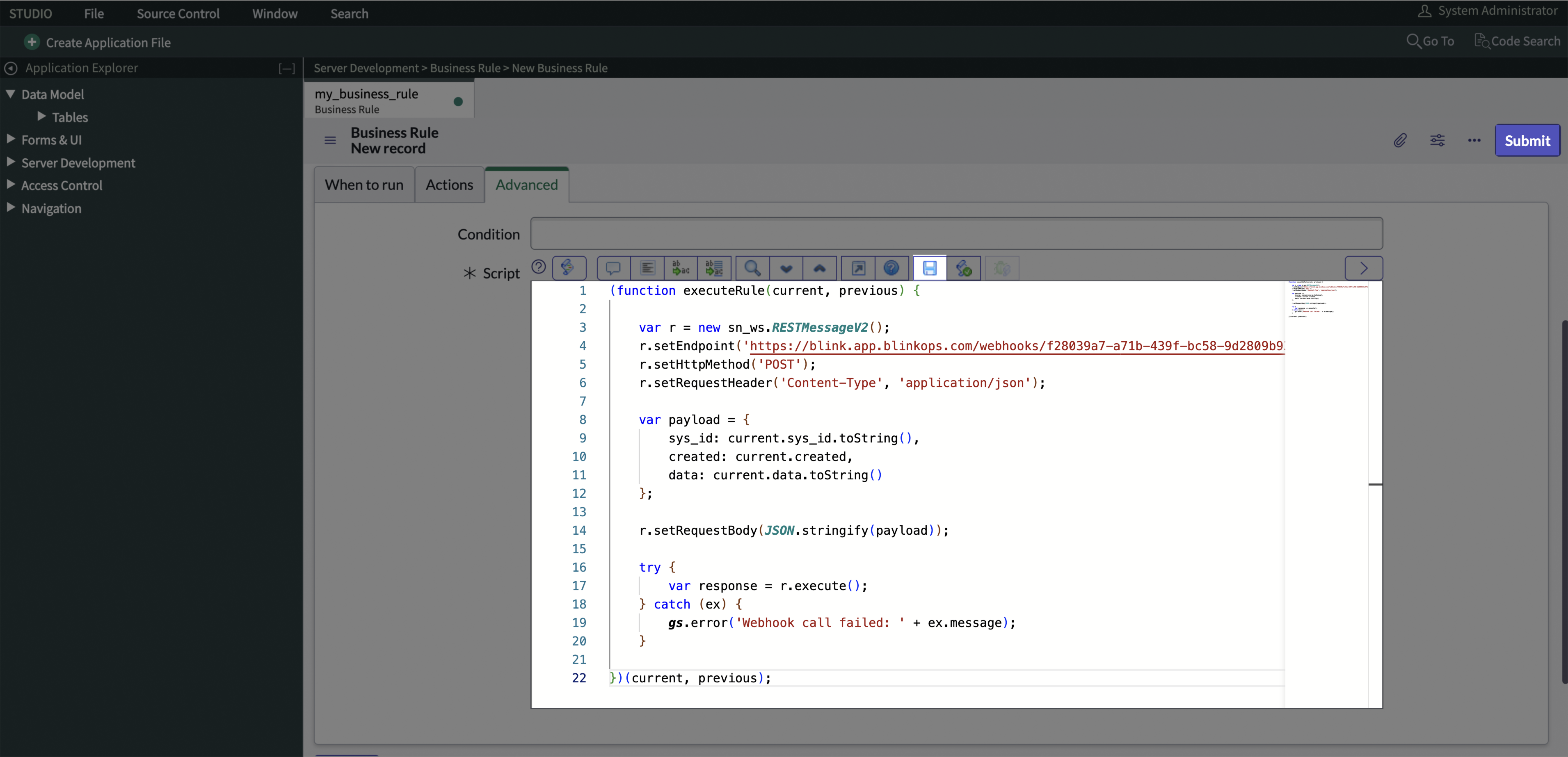
**Here's an example of a rule script that triggers a workflow in Blink:**
**Important to Note**:
1. Make sure to copy the full Webhook URL of the workflow you want to trigger in Blink.
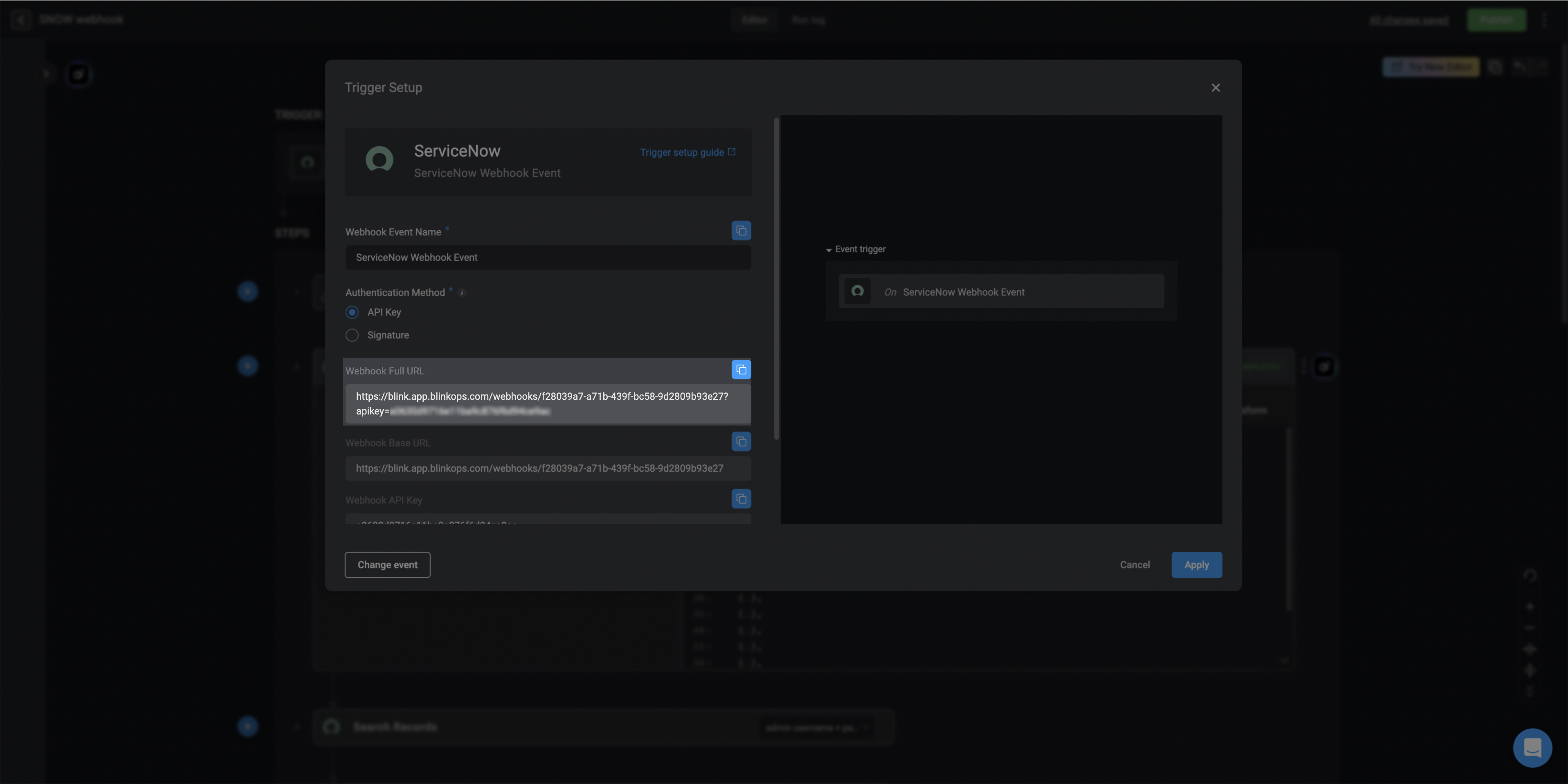 2. Replace the `https://your-real-webhook-url` placeholder in the script with the copied URL.
3. In the `payload` variable, add the table columns you want to send when the webhook is triggered, in the following format:
`col_name: current.getValue('col_name')`.
```javascript theme={"dark"}
(function executeRule(current, previous) {
var r = new sn_ws.RESTMessageV2();
r.setEndpoint('https://your-real-webhook-url');
r.setHttpMethod('POST');
r.setRequestHeader('Content-Type', 'application/json');
var payload = {
sys_id: current.getValue('sys_id'),
sys_created_on: current.getValue('sys_created_on')
};
r.setRequestBody(JSON.stringify(payload));
try {
var response = r.execute();
} catch (ex) {
gs.error('Webhook call failed: ' + ex.message);
}
})(current, previous);
```
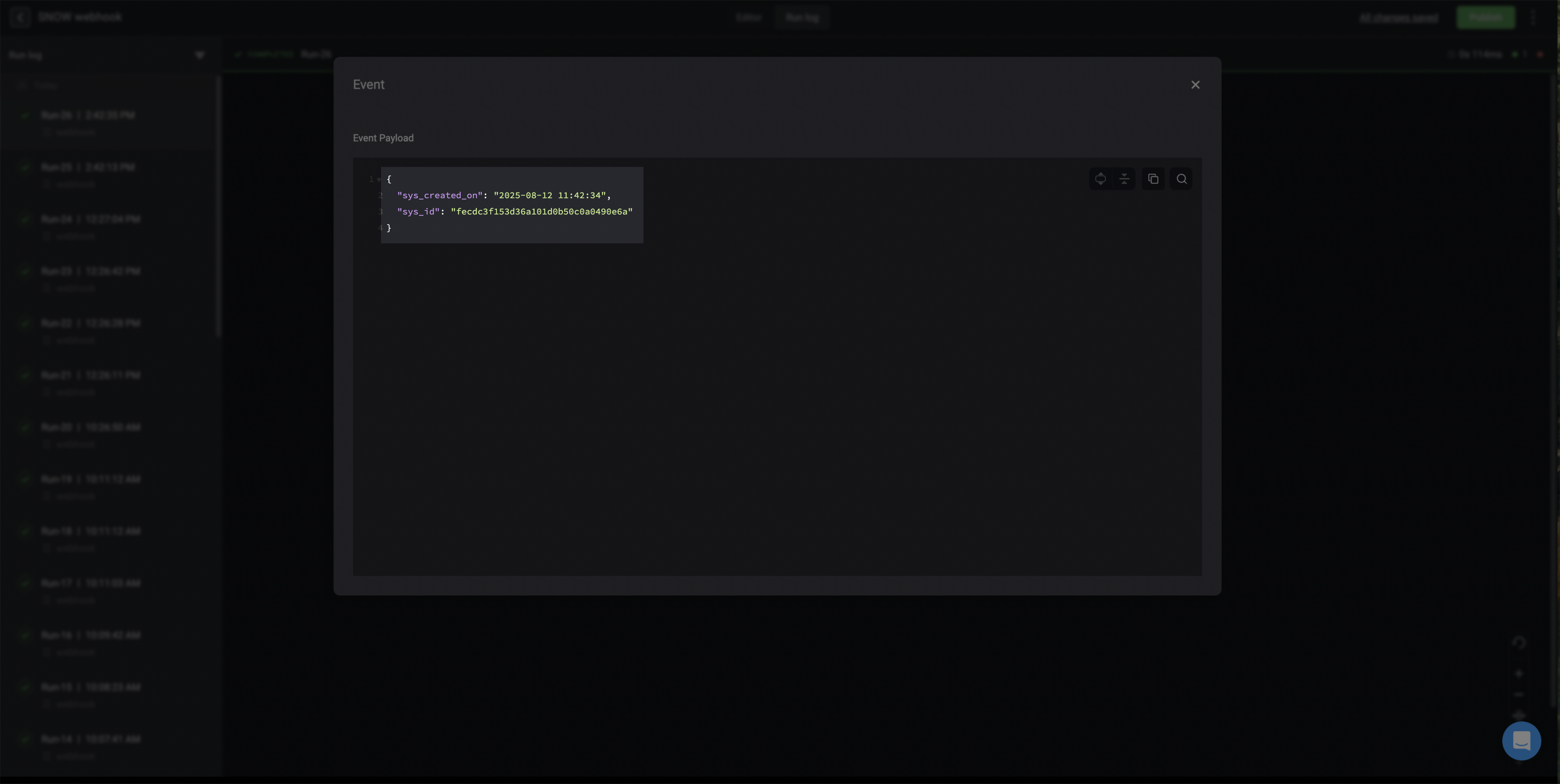
**The following is an example of an event payload received in Blink:**
2. Replace the `https://your-real-webhook-url` placeholder in the script with the copied URL.
3. In the `payload` variable, add the table columns you want to send when the webhook is triggered, in the following format:
`col_name: current.getValue('col_name')`.
```javascript theme={"dark"}
(function executeRule(current, previous) {
var r = new sn_ws.RESTMessageV2();
r.setEndpoint('https://your-real-webhook-url');
r.setHttpMethod('POST');
r.setRequestHeader('Content-Type', 'application/json');
var payload = {
sys_id: current.getValue('sys_id'),
sys_created_on: current.getValue('sys_created_on')
};
r.setRequestBody(JSON.stringify(payload));
try {
var response = r.execute();
} catch (ex) {
gs.error('Webhook call failed: ' + ex.message);
}
})(current, previous);
```
**The following is an example of an event payload received in Blink:**