> ## Documentation Index
> Fetch the complete documentation index at: https://docs.blinkops.com/llms.txt
> Use this file to discover all available pages before exploring further.
# Prisma Cloud CSPM
> Prisma Cloud is a cloud native security platform that provides comprehensive visibility, threat prevention, compliance assurance and data protection consistently across the entire lifecycle of software and infrastructure delivery for an organization in hybrid, multi-cloud environments.
## Creating a Prisma Cloud CSPM connection[](#creating-a-prisma-cloud-cspm-connection "Direct link to Creating a Prisma Cloud CSPM connection")
To create the connection you need:
* A Prisma Cloud API Address
* An access Key ID
* A secret access key
### Obtaining the credentials[](#obtaining-the-credentials "Direct link to Obtaining the credentials")
#### Creating the access key[](#creating-the-access-key "Direct link to Creating the access key")
1. Go to **Settings** > **Access Control**.
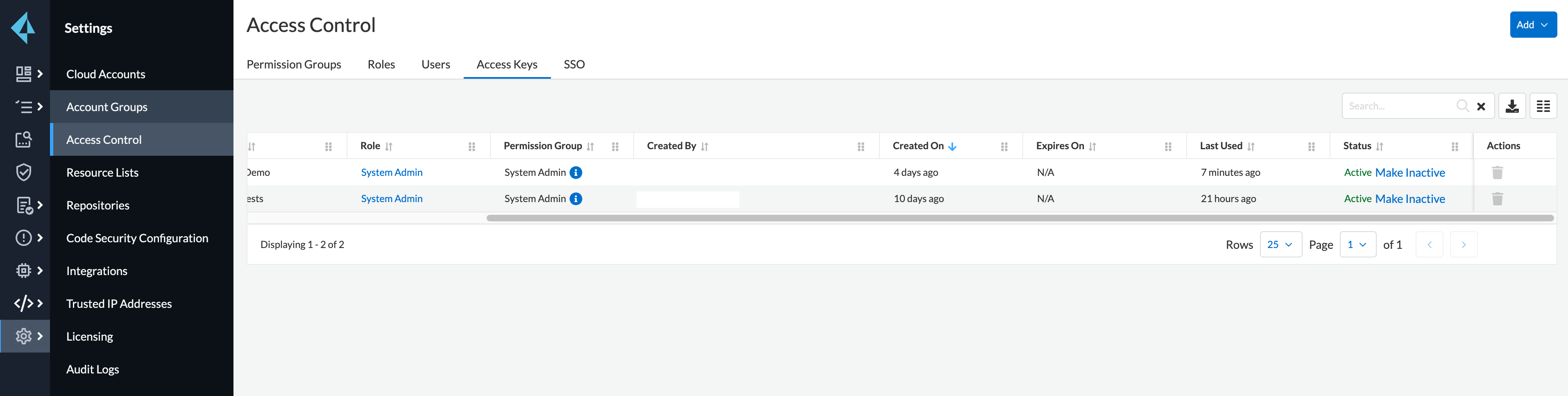 2. Click **Add** > **Access Key**.
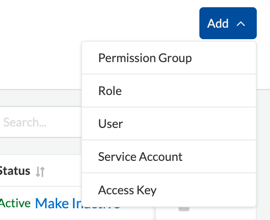 Note: You can have a maximum of two access keys at any time per user on a Prisma Cloud account.
3. Name your access key.
Note: You can have a maximum of two access keys at any time per user on a Prisma Cloud account.
3. Name your access key.
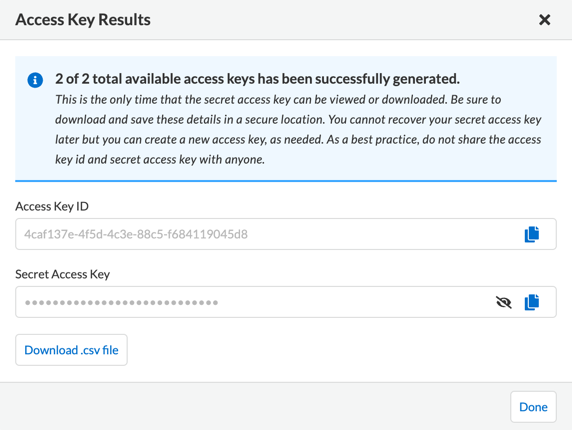
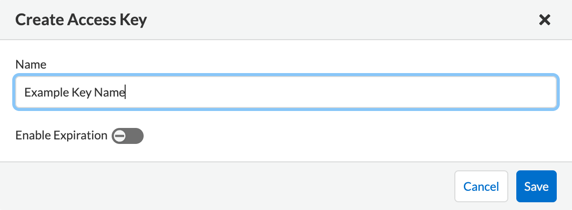 4. Click **Save & Copy** your Access Key ID and Secret Access Key.
 ### Creating your connection[](#creating-your-connection "Direct link to Creating your connection")
1. In the Blink platform, navigate to the **Connections** page > **Add connection**. A New Connection dialog box opens displaying icons of external service providers available.
2. Select the **Prisma Cloud CSPM** icon. A dialog box with name of the connection and connection methods appears.
3. (Optional) Edit the name of the connection. At a later stage you cannot edit the name.
4. Select **Access Key** as the method to create the connection.
5. Fill in the parameters:
* The Prisma Cloud API address
* The access key ID
* The secret access key
6. (Optional) Click **Test Connection** to test it.
7. Click **Create connection**. The new connection appears on the **Connections** page.
### Creating your connection[](#creating-your-connection "Direct link to Creating your connection")
1. In the Blink platform, navigate to the **Connections** page > **Add connection**. A New Connection dialog box opens displaying icons of external service providers available.
2. Select the **Prisma Cloud CSPM** icon. A dialog box with name of the connection and connection methods appears.
3. (Optional) Edit the name of the connection. At a later stage you cannot edit the name.
4. Select **Access Key** as the method to create the connection.
5. Fill in the parameters:
* The Prisma Cloud API address
* The access key ID
* The secret access key
6. (Optional) Click **Test Connection** to test it.
7. Click **Create connection**. The new connection appears on the **Connections** page.