> ## Documentation Index
> Fetch the complete documentation index at: https://docs.blinkops.com/llms.txt
> Use this file to discover all available pages before exploring further.
# PingID
> PingID is a cloud-based identity and access management platform that provides organizations with a secure and efficient way to manage user identities, authenticate access to applications and resources, and enforce access policies. It is a part of the PingIdentity's suite of IAM products.
## Creating a PingID connection
## Using API Client
To create the connection you need:
* An API Address
* An API Token
* An Organization Alias
* A Base64 Encryption Key
### Obtaining the credentials
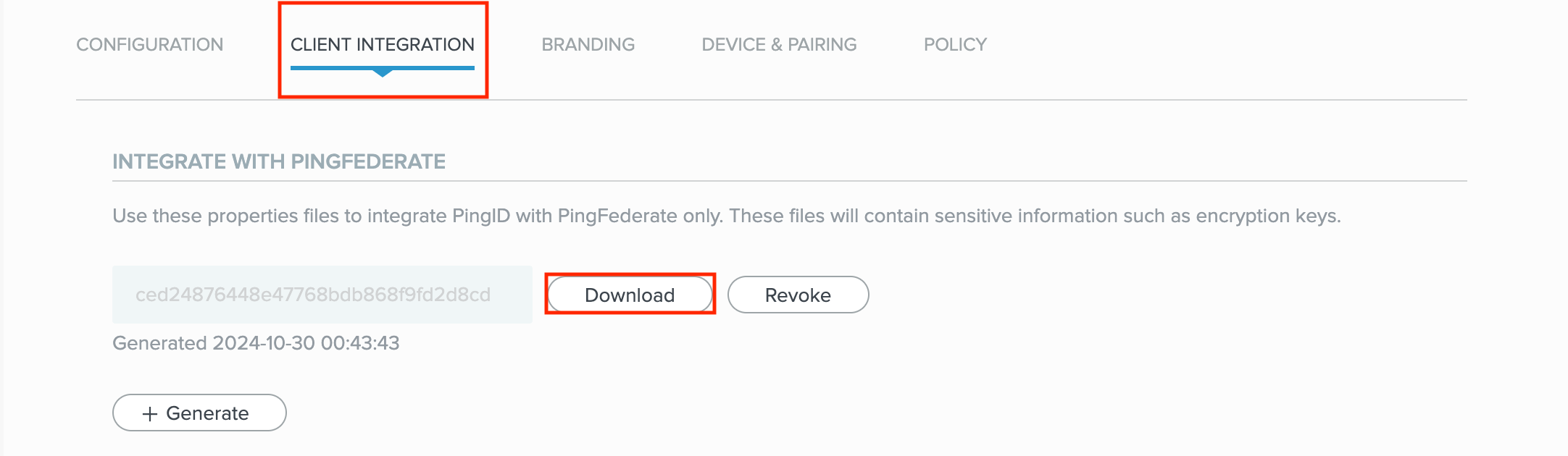
1. Enter your PingID dashboard. In the top menu, select **Setup**.
 2. Select the **Client Configuration** tab in the newly opened menu.
3. Scroll to **Integrate with PingFederate** and click **Download** on the token you would like to use.
2. Select the **Client Configuration** tab in the newly opened menu.
3. Scroll to **Integrate with PingFederate** and click **Download** on the token you would like to use.
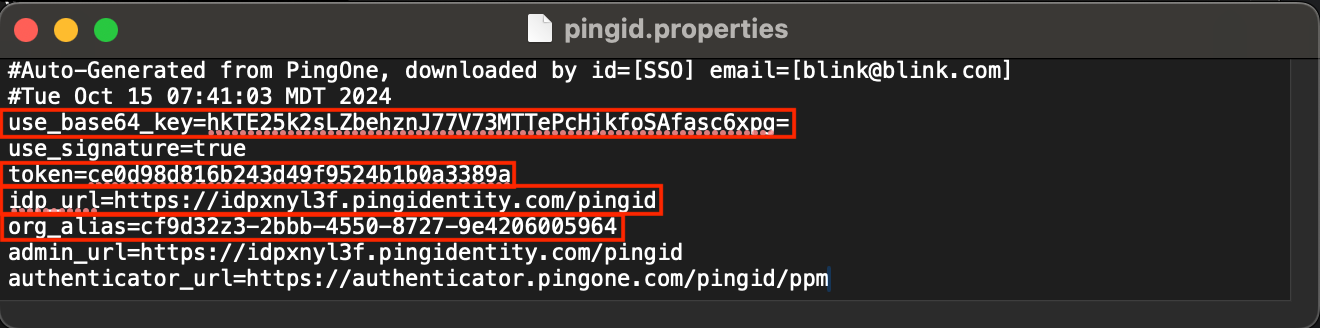
 4. Open the downloaded file in your text editor of choice.
5. Copy the following values into blink:
* **idp\_url** -> **API Address** (Please note that Ping provides this attribute with the `/pingid` suffix. Please remove it before entering the value into blink.)
* **token** -> **API Token**
* **org\_alias** -> **Organization Alias**
* **use\_base64\_key** -> **Base64 Encryption Key**
4. Open the downloaded file in your text editor of choice.
5. Copy the following values into blink:
* **idp\_url** -> **API Address** (Please note that Ping provides this attribute with the `/pingid` suffix. Please remove it before entering the value into blink.)
* **token** -> **API Token**
* **org\_alias** -> **Organization Alias**
* **use\_base64\_key** -> **Base64 Encryption Key**
 ### Creating your connection
1. In the Blink platform, navigate to the **Connections** page > **Add connection**. A New Connection dialog box opens displaying icons of external service providers available.
2. Select the **PingID** icon. A dialog box with name of the connection and connection methods appear.
3. (Optional) Edit the name of the connection. At a later stage you cannot edit the name.
4. Select **API Client** as the method to create the connection.
5. Fill in the parameters:
* The API Address (Reminder - Do not add the `/pingid` suffix)
* The API Token
* The Organization Alias
* The Base64 Encryption Key
6. Click **Create connection**. The new connection appears on the **Connections** page.
### Creating your connection
1. In the Blink platform, navigate to the **Connections** page > **Add connection**. A New Connection dialog box opens displaying icons of external service providers available.
2. Select the **PingID** icon. A dialog box with name of the connection and connection methods appear.
3. (Optional) Edit the name of the connection. At a later stage you cannot edit the name.
4. Select **API Client** as the method to create the connection.
5. Fill in the parameters:
* The API Address (Reminder - Do not add the `/pingid` suffix)
* The API Token
* The Organization Alias
* The Base64 Encryption Key
6. Click **Create connection**. The new connection appears on the **Connections** page.