> ## Documentation Index
> Fetch the complete documentation index at: https://docs.blinkops.com/llms.txt
> Use this file to discover all available pages before exploring further.
# Opsgenie
> Opsgenie is a modern incident management platform that ensures critical incidents are never missed, and actions are taken by the right people in the shortest possible time. Opsgenie receives alerts from your monitoring systems and custom applications and categorizes each alert based on importance and timing.
## Creating an Opsgenie connection
To create the connection you need:
* An API key. Opsgenie has two types of API keys:
* [Team Key](#team-key)
* [User API Key](#user-api-key)
* An API address.
### Obtaining the credentials
#### Team Key
1. Go to [Opsgenie](http://app.eu.opsgenie.com/teams/list).
2. Click **Add team**.
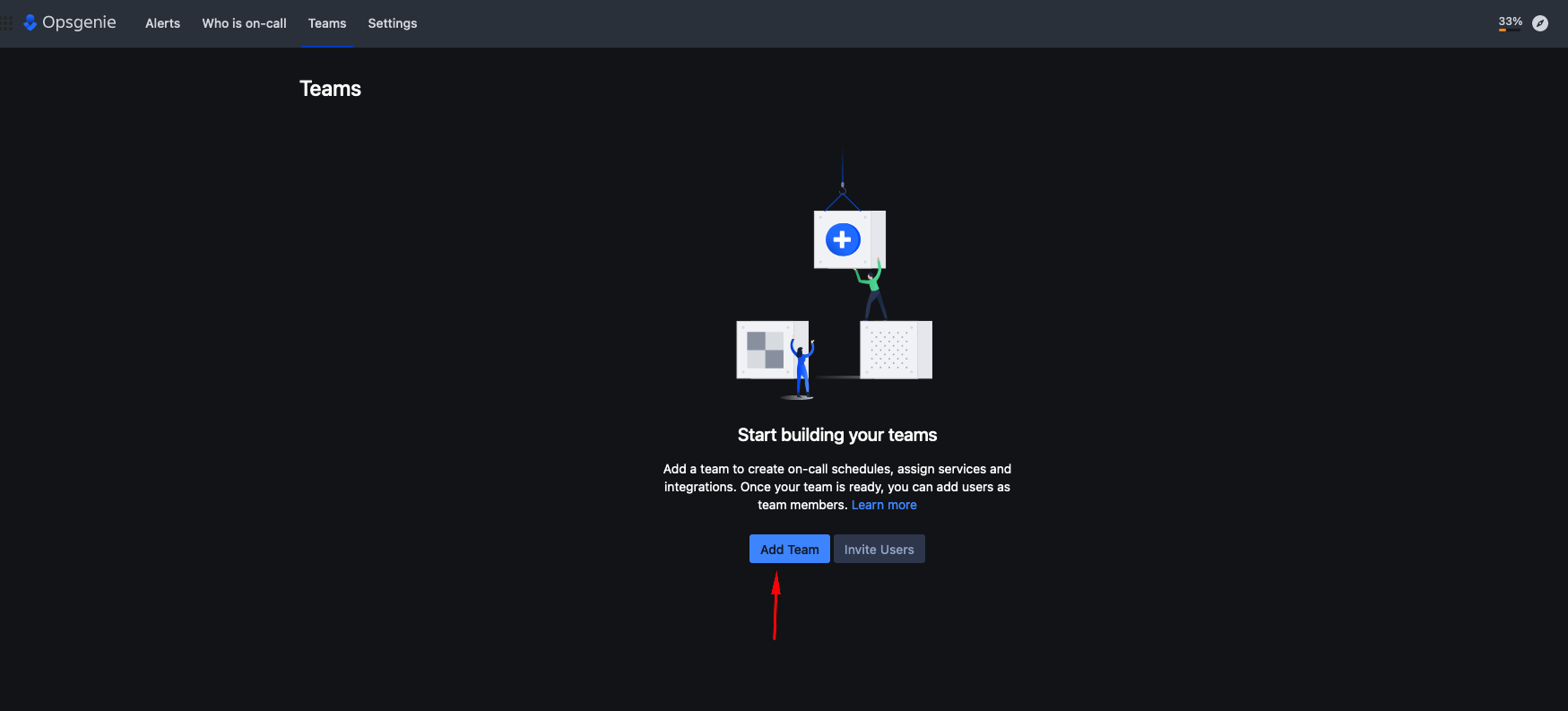
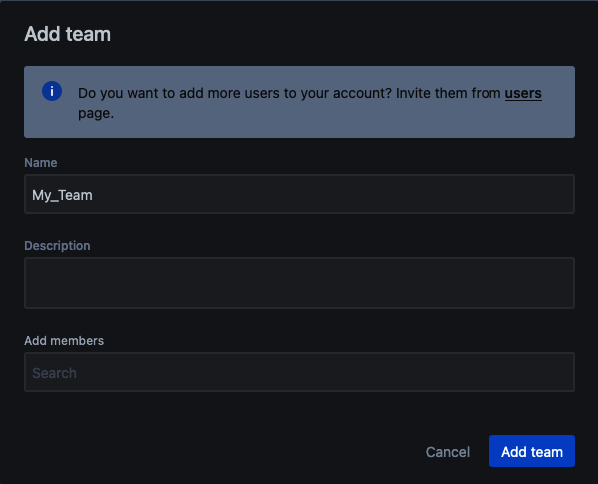 3. Click **Integrations** > **Add integrations**.
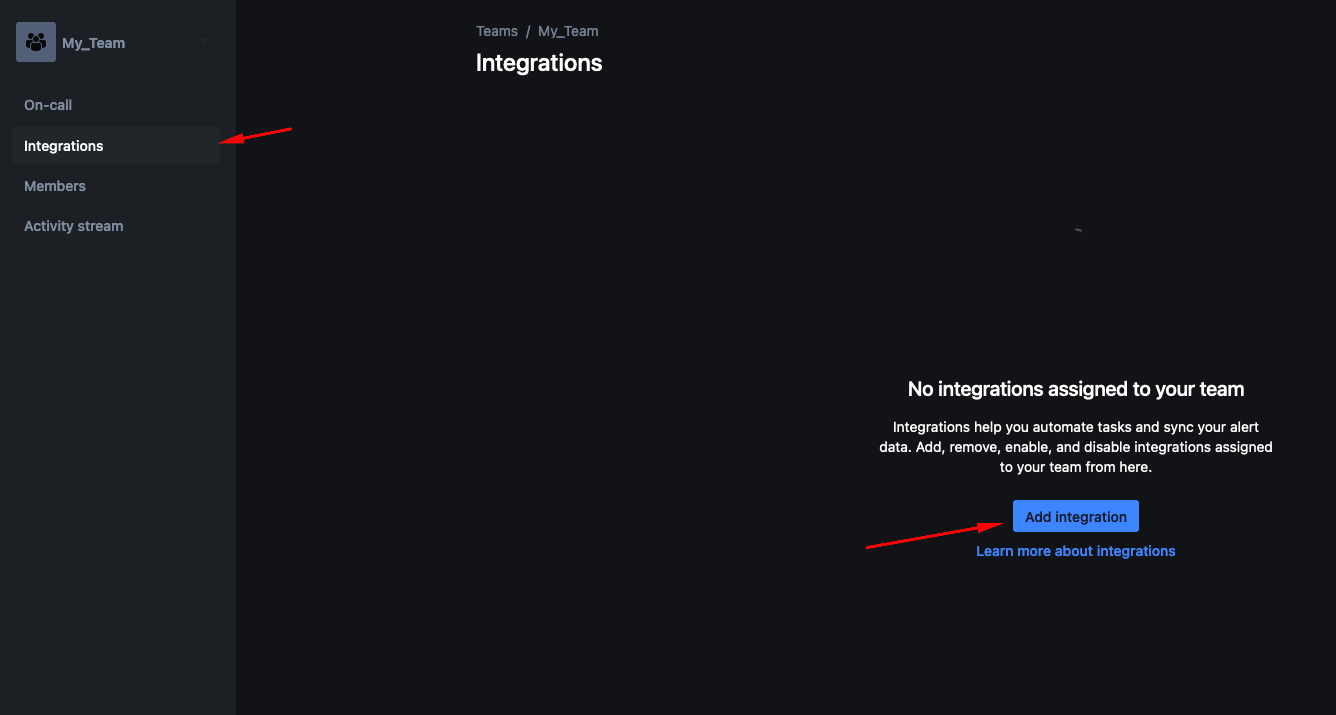
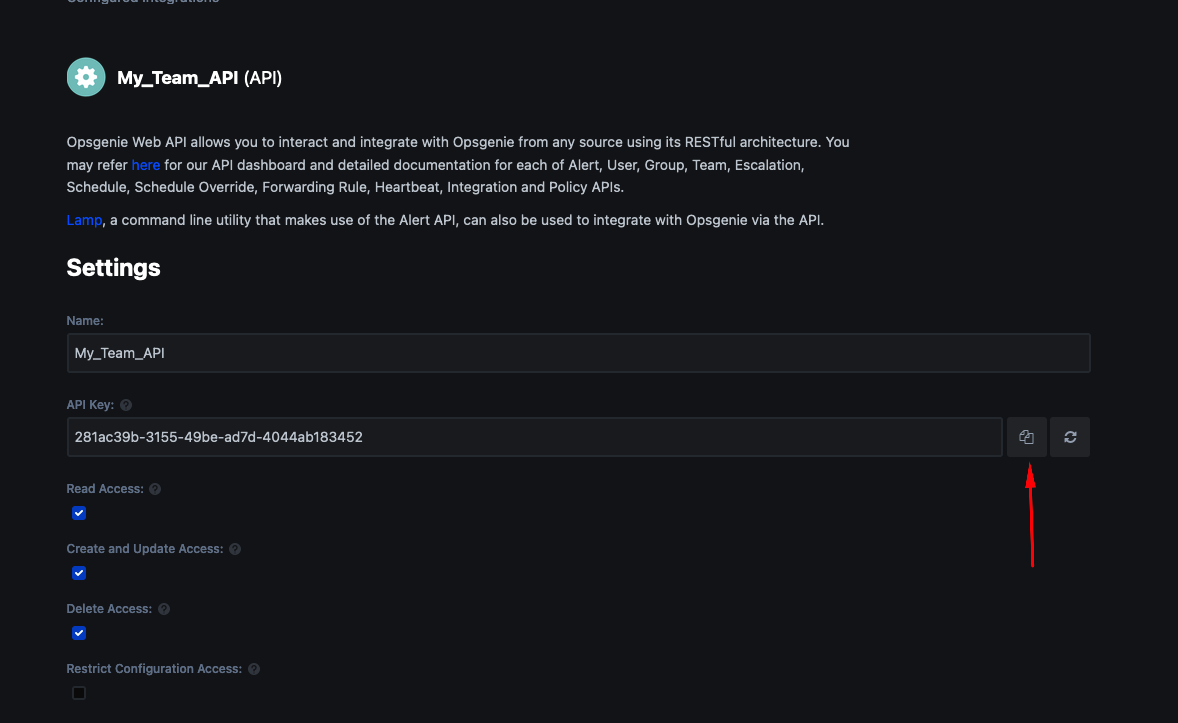
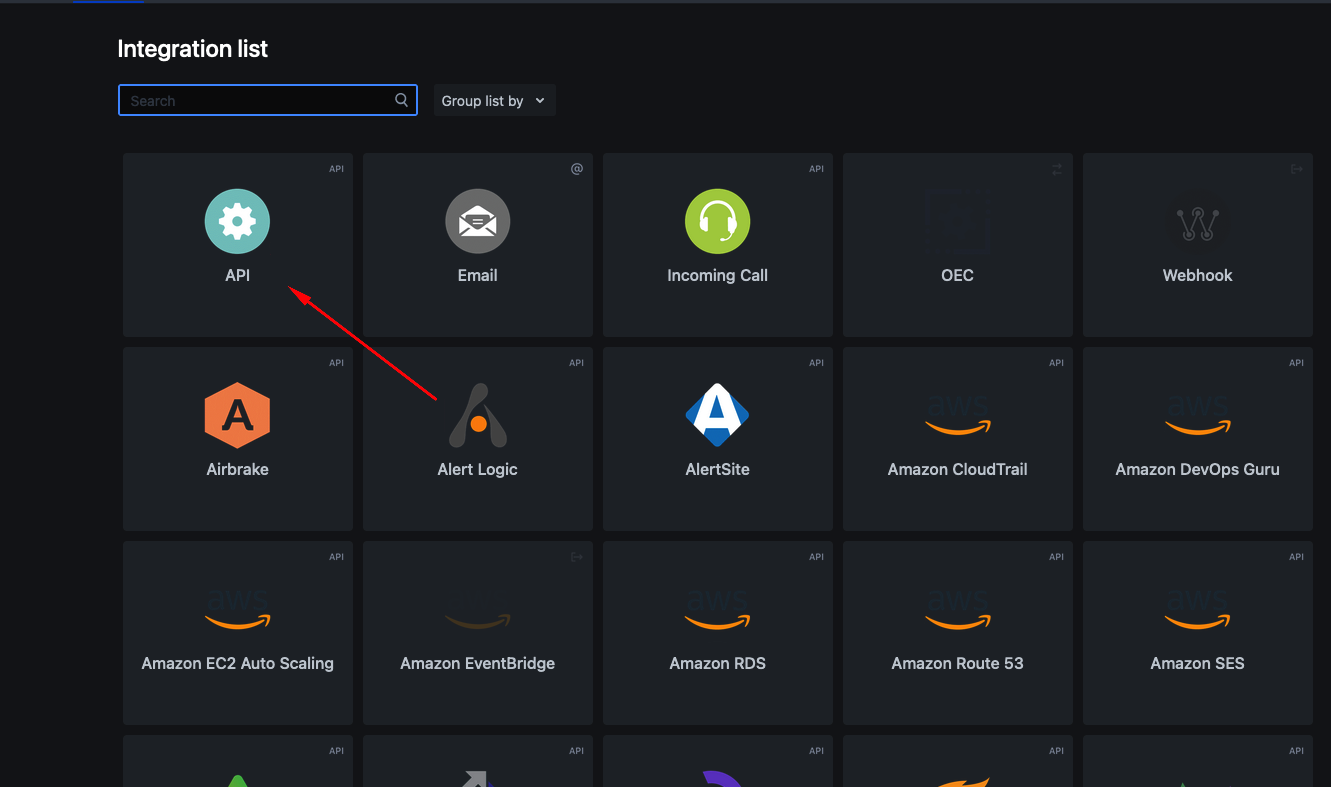 4. Copy the token.
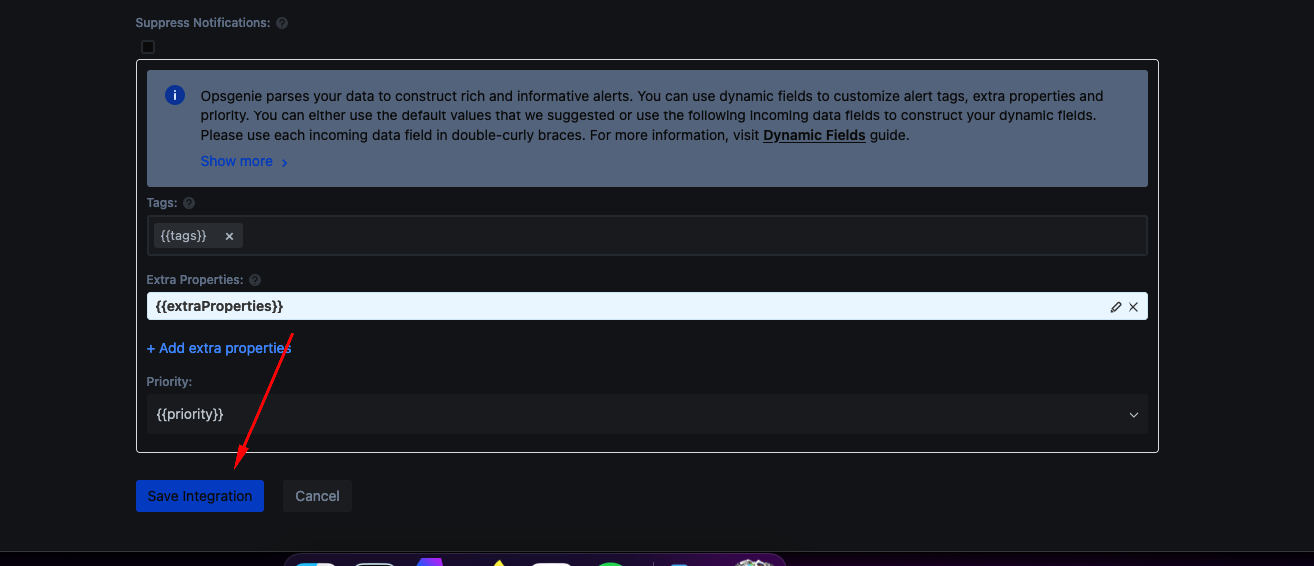
 5. Click **Save integration**.
 #### User API key
This type of API key is needed for the ListUsers, CreateUser and DeleteUser actions.
1. Go to [Opsgenie](https://app.eu.opsgenie.com/settings/user/profile).
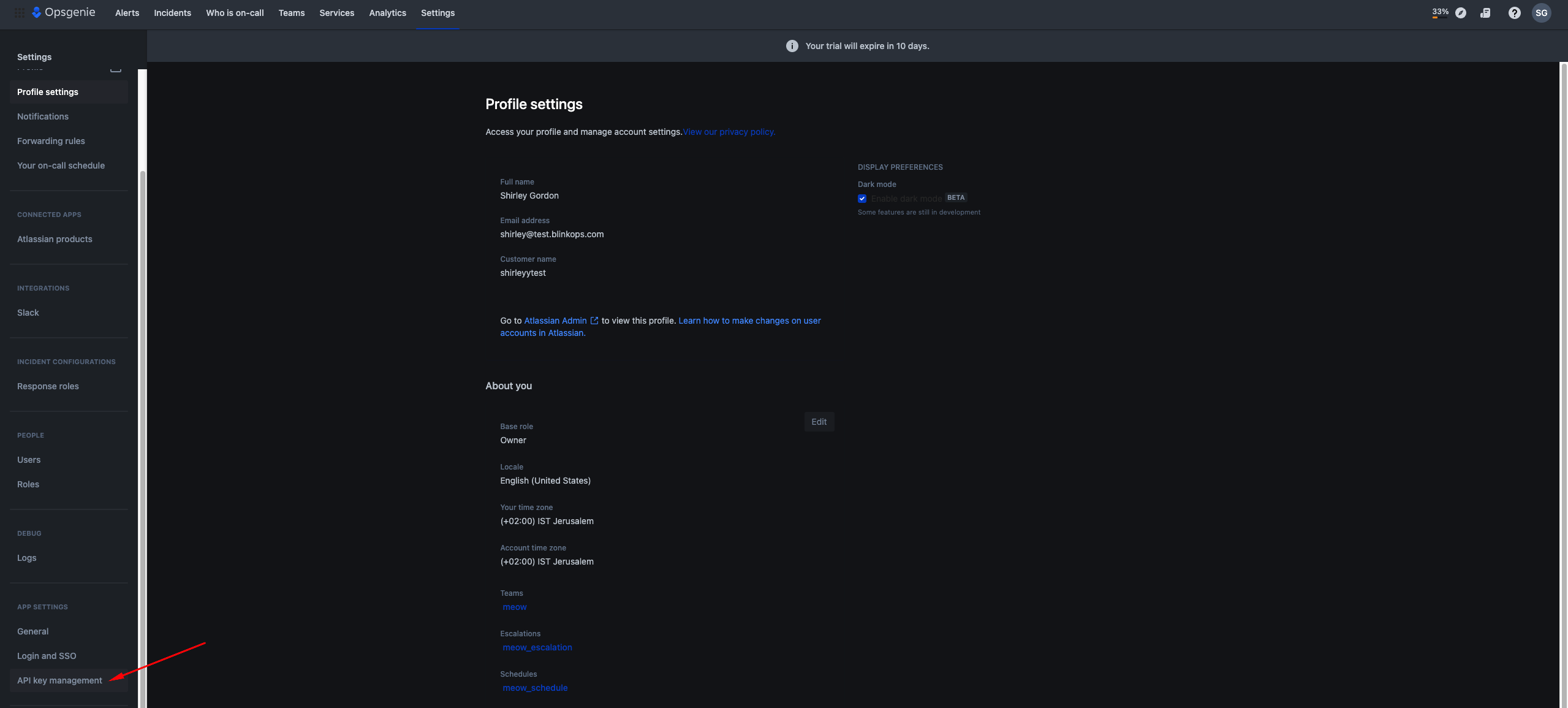
2. Click **API key management**.
#### User API key
This type of API key is needed for the ListUsers, CreateUser and DeleteUser actions.
1. Go to [Opsgenie](https://app.eu.opsgenie.com/settings/user/profile).
2. Click **API key management**.
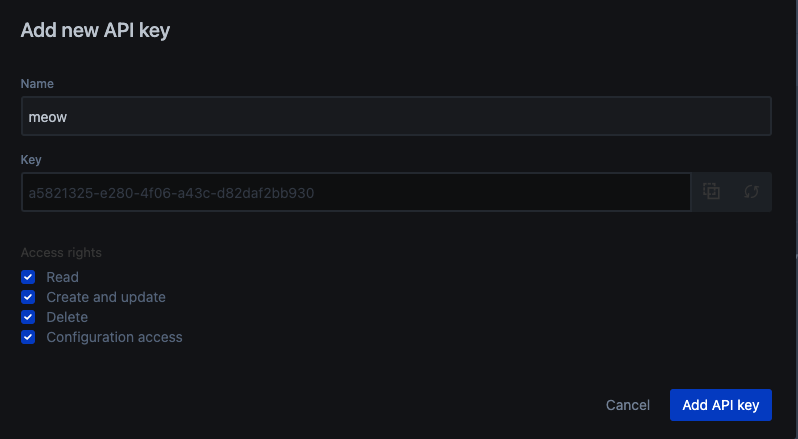
 3. Click **Add new API key**.
 4. Name your new API key and select its permissions. Click **Add API key**.
 #### API address
The API domains for Opsgenie:
* `https://api.opsgenie.com`
* `https://api.eu.opsgenie.com` (If using an EU instance of Opsgenie)
### Creating your connection
1. In the Blink platform, navigate to the **Connections** page > **Add connection**. A New Connection dialog box opens displaying icons of external service providers available.
2. Select the **Opsgenie** icon. A dialog box with name of the connection and connection methods appears.
3. (Optional) Edit the name of the connection. At a later stage you cannot edit the name.
4. Select **Token** as the method to make the connection.
5. Fill in the parameters:
* The API token
* The API address
6. (Optional) Click **Test Connection** to test it.
7. Click **Create connection**. The new connection appears on the **Connections** page.
#### API address
The API domains for Opsgenie:
* `https://api.opsgenie.com`
* `https://api.eu.opsgenie.com` (If using an EU instance of Opsgenie)
### Creating your connection
1. In the Blink platform, navigate to the **Connections** page > **Add connection**. A New Connection dialog box opens displaying icons of external service providers available.
2. Select the **Opsgenie** icon. A dialog box with name of the connection and connection methods appears.
3. (Optional) Edit the name of the connection. At a later stage you cannot edit the name.
4. Select **Token** as the method to make the connection.
5. Fill in the parameters:
* The API token
* The API address
6. (Optional) Click **Test Connection** to test it.
7. Click **Create connection**. The new connection appears on the **Connections** page.