> ## Documentation Index
> Fetch the complete documentation index at: https://docs.blinkops.com/llms.txt
> Use this file to discover all available pages before exploring further.
# Okta
> Okta provides cloud software that helps companies manage and secure user authentication into applications, and for developers to build identity controls into applications, website web services and devices.
## Creating an Okta connection
To create the connection you need:
* An API token
* An API address
### Obtaining the credentials
1. Sign in to your Okta organization as a user with [administrator privileges](https://help.okta.com/okta_help.htm?id=ext_Security_Administrators).
API tokens have the same permissions as the user who creates them, and if the user permissions change, the API token permissions also change.
2. Click **Admin** in the top right corner to go to the Admin Console.
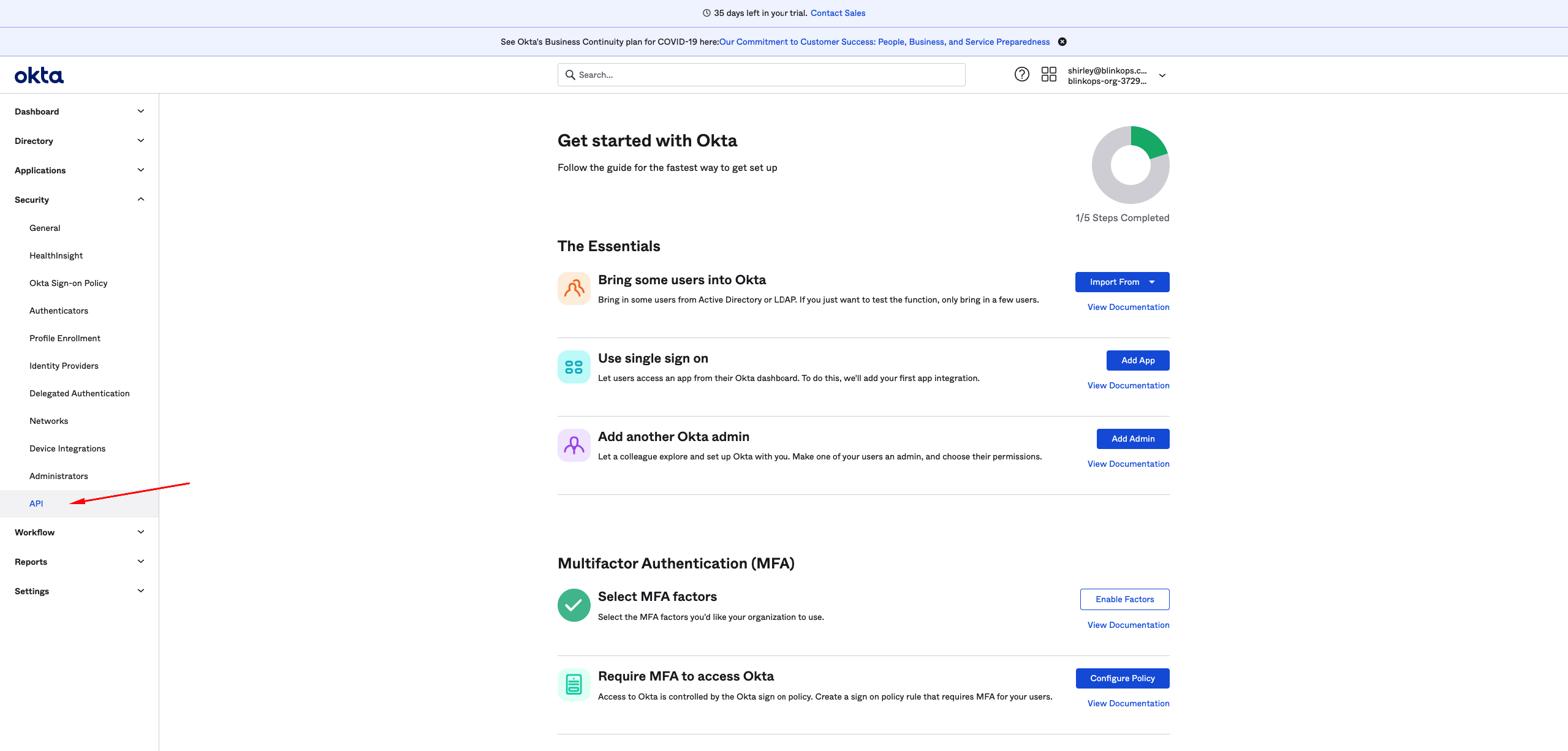
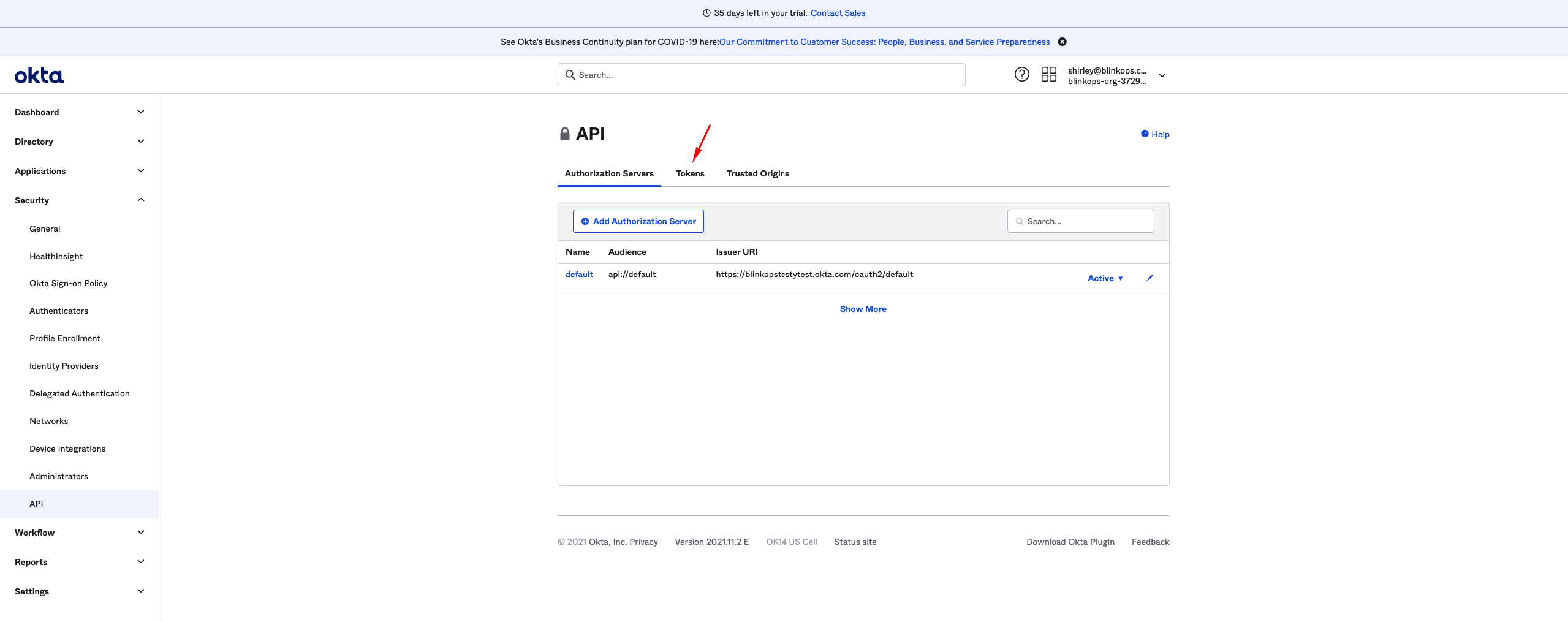
 3. In the Admin Console, select **Security** > **API** > **Tokens**.
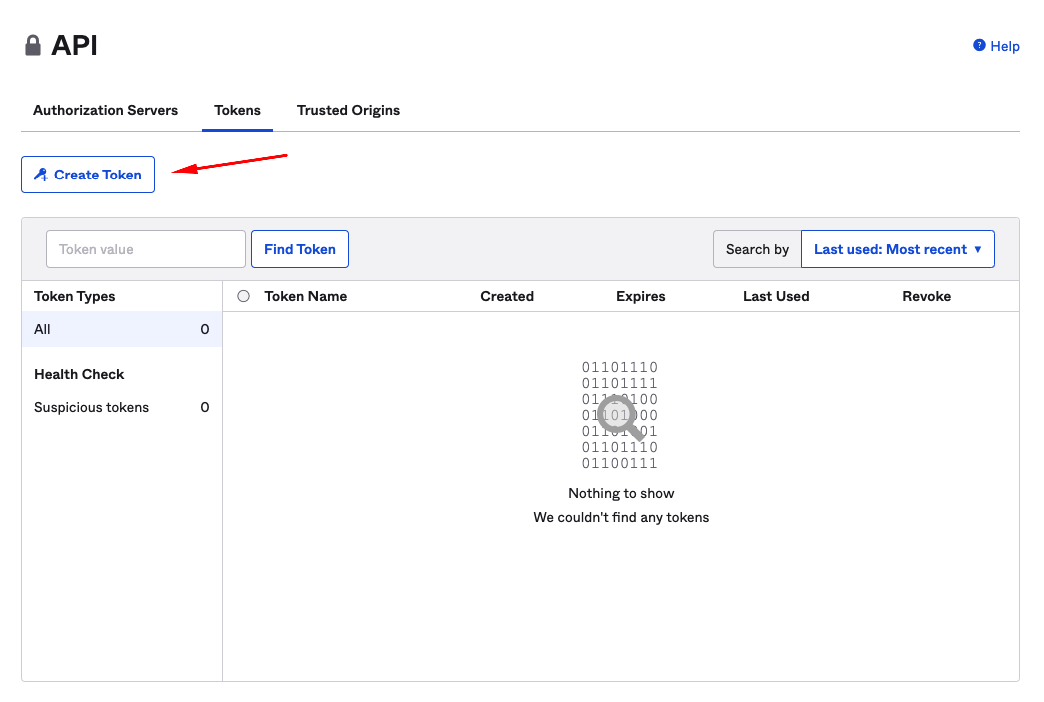
 4. Click **Create Token**.
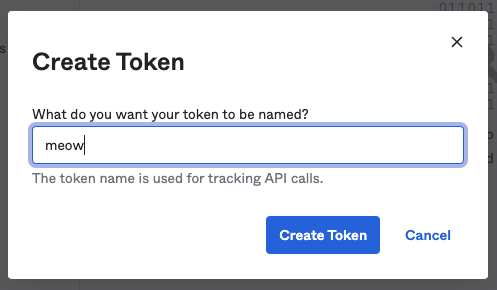
 5. Name your token and click **Create Token**.
 6. Copy and save the token. This is the only opportunity to see it and save it.
## Creating your connection
1. In the Blink platform, navigate to the **Connections** page > **Add connection**. A New Connection dialog box opens displaying icons of external service providers available.
2. Select the **Okta** icon. A dialog box with name of the connection and connection methods appears.
3. (Optional) Edit the name of the connection. At a later stage you cannot edit the name.
4. Select **API Token** as the method to make the connection.
5. Fill in the parameters:
* The API token
* The API address
6. (Optional) Click **Test Connection** to test it.
7. Click **Create connection**. The new connection appears on the **Connections** page.
Token expiration and deactivation:
Tokens expire automatically after a certain period and can also be deactivated at any time.
* Token expiration: Tokens are valid for 30 days from creation or last use, so that the 30-day expiration automatically refreshes with each API call. Tokens that are not used for 30 days expire. The 30-day period is currently fixed and cannot be changed for your organization.
* Token deactivation: If a user account is deactivated in Okta, any API token created by that user account is deprovisioned at the same time.
6. Copy and save the token. This is the only opportunity to see it and save it.
## Creating your connection
1. In the Blink platform, navigate to the **Connections** page > **Add connection**. A New Connection dialog box opens displaying icons of external service providers available.
2. Select the **Okta** icon. A dialog box with name of the connection and connection methods appears.
3. (Optional) Edit the name of the connection. At a later stage you cannot edit the name.
4. Select **API Token** as the method to make the connection.
5. Fill in the parameters:
* The API token
* The API address
6. (Optional) Click **Test Connection** to test it.
7. Click **Create connection**. The new connection appears on the **Connections** page.
Token expiration and deactivation:
Tokens expire automatically after a certain period and can also be deactivated at any time.
* Token expiration: Tokens are valid for 30 days from creation or last use, so that the 30-day expiration automatically refreshes with each API call. Tokens that are not used for 30 days expire. The 30-day period is currently fixed and cannot be changed for your organization.
* Token deactivation: If a user account is deactivated in Okta, any API token created by that user account is deprovisioned at the same time.