> ## Documentation Index
> Fetch the complete documentation index at: https://docs.blinkops.com/llms.txt
> Use this file to discover all available pages before exploring further.
# MxToolbox
> MXtoolbox is an online tool that provides diagnostic tests for email servers, including DNS lookup, blacklist checks, and SMTP diagnostics. It helps users troubleshoot and optimize their email infrastructure by identifying issues and ensuring reliable email delivery.
## Creating a MxToolbox connection[](#creating-a-mxtoolbox-connection "Direct link to Creating a MxToolbox connection")
## Using API key[](#using-api-key "Direct link to Using API key")
To create the connection you need:
* An API Key
### Obtaining the credentials[](#obtaining-the-credentials "Direct link to Obtaining the credentials")
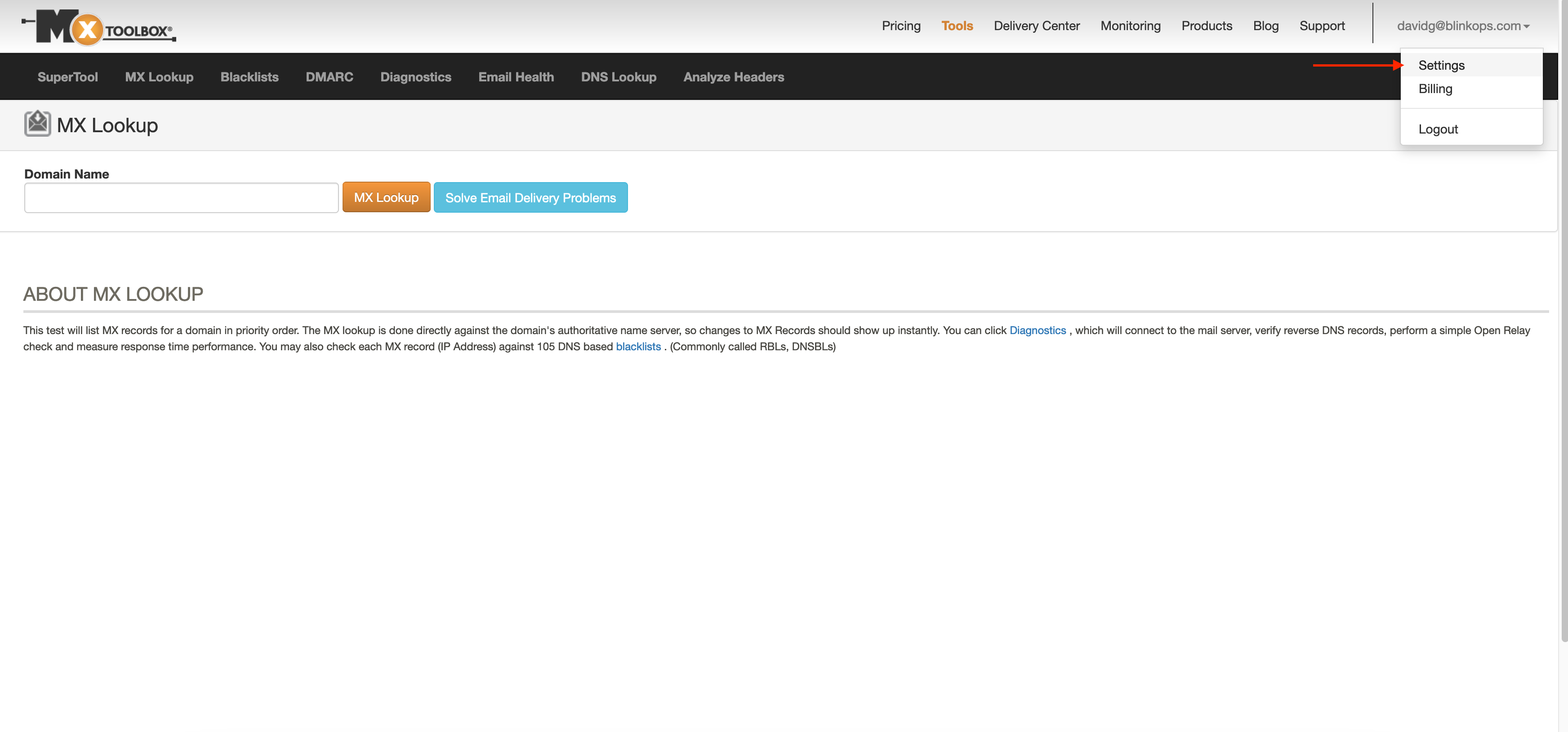
1. In your [Mxtoolbox homepage](https://mxtoolbox.com/), under your user's mail, click **Settings**.
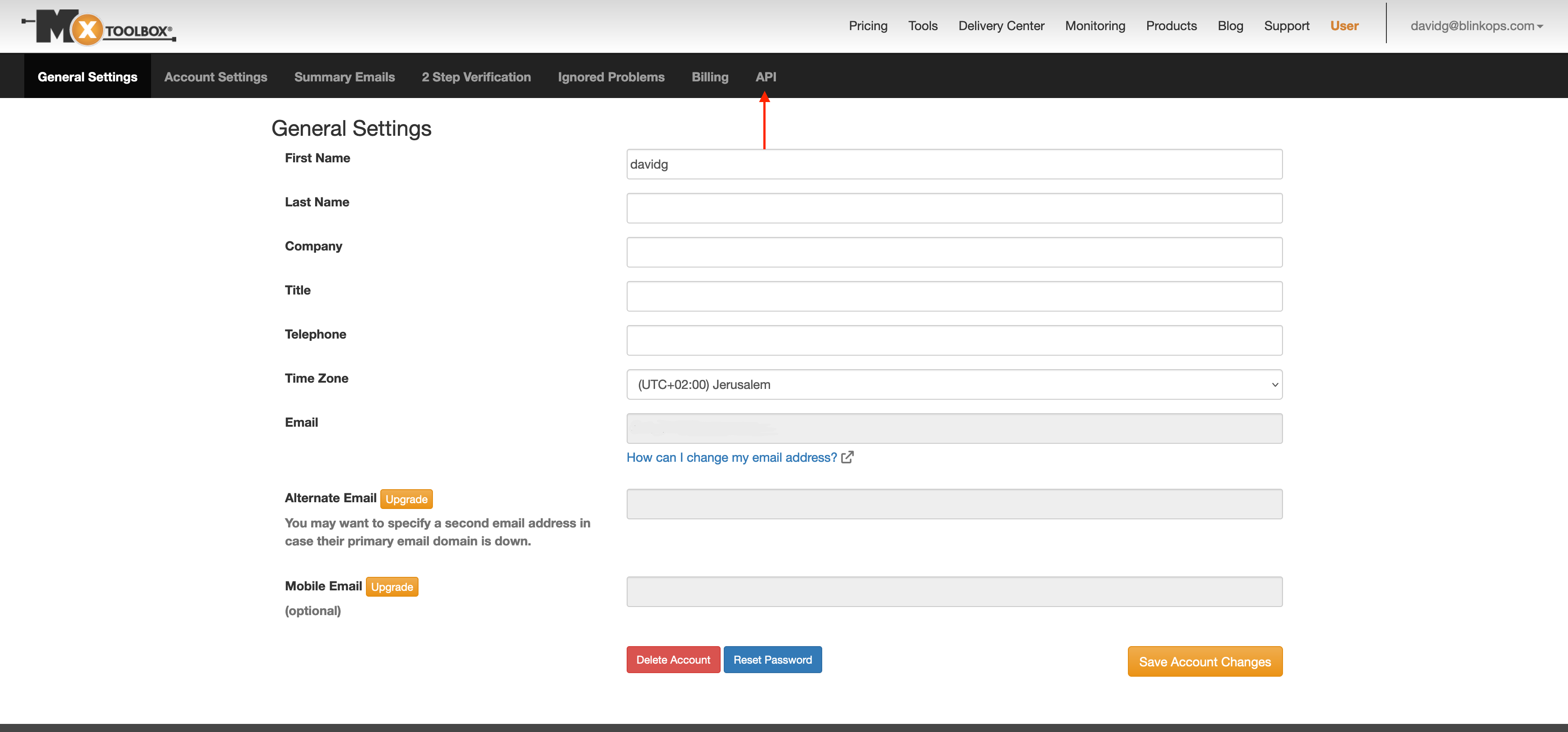
 2. In your settings toolbar, select **API**.
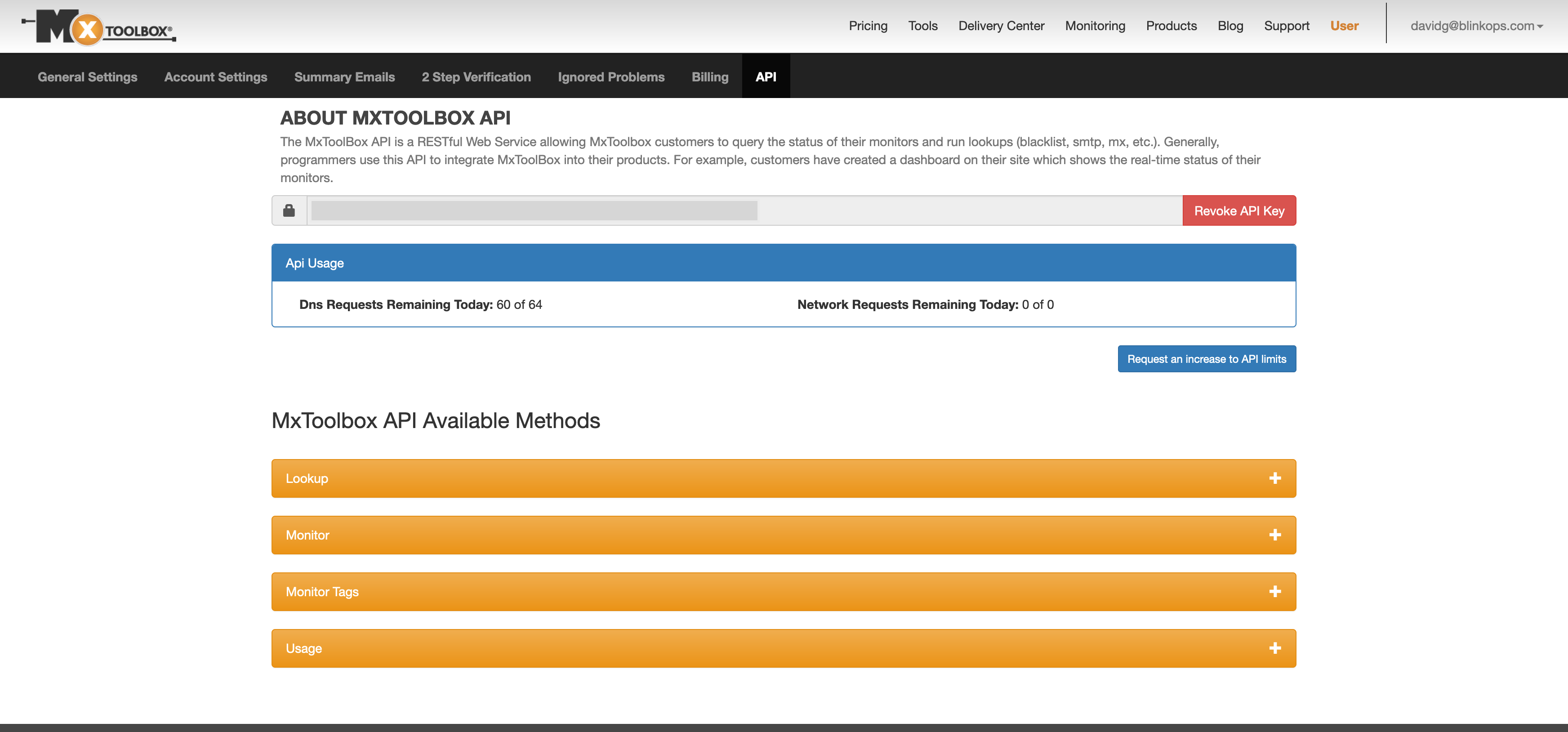
 3. Copy your **API Key**.
 ### Creating your connection[](#creating-your-connection "Direct link to Creating your connection")
1. In the Blink platform, navigate to the **Connections** page > **Add connection**. A New Connection dialog box opens displaying icons of external service providers available.
2. Select the **MxToolbox** icon. A dialog box with name of the connection and connection methods appear.
3. (Optional) Edit the name of the connection. At a later stage you cannot edit the name.
4. Select **API key** as the method to create the connection.
5. Fill in the parameters:
* The API Key
6. (Optional) Click **Test Connection** to test it.
7. Click **Create connection**. The new connection appears on the **Connections** page.
### Creating your connection[](#creating-your-connection "Direct link to Creating your connection")
1. In the Blink platform, navigate to the **Connections** page > **Add connection**. A New Connection dialog box opens displaying icons of external service providers available.
2. Select the **MxToolbox** icon. A dialog box with name of the connection and connection methods appear.
3. (Optional) Edit the name of the connection. At a later stage you cannot edit the name.
4. Select **API key** as the method to create the connection.
5. Fill in the parameters:
* The API Key
6. (Optional) Click **Test Connection** to test it.
7. Click **Create connection**. The new connection appears on the **Connections** page.