> ## Documentation Index
> Fetch the complete documentation index at: https://docs.blinkops.com/llms.txt
> Use this file to discover all available pages before exploring further.

# Ask a Question via Microsoft Teams

## Ask a Question via Microsoft Teams

The *'Ask a Question via Microsoft Teams'* action integrates the Blink Bot (part of the Blink app) into your workspace, allowing you to perform common Microsoft Teams actions within your workflows and triggers.
Questions from Blink to Microsoft Teams are sent through this bot.

This action allows you to send a question to specific users or channels in Microsoft Teams with responses that you configure.
It then receives the selected response and lets you reference it in later steps of your workflow.

<Tip>The **Blink Bot** is named **Blink** by default and displays the Blink logo.</Tip>

***

## Creating a Workflow Using the *Ask a Question via Microsoft Teams* Action

### Add Blink Teams Bot to Your Microsoft Teams Account

<Steps>
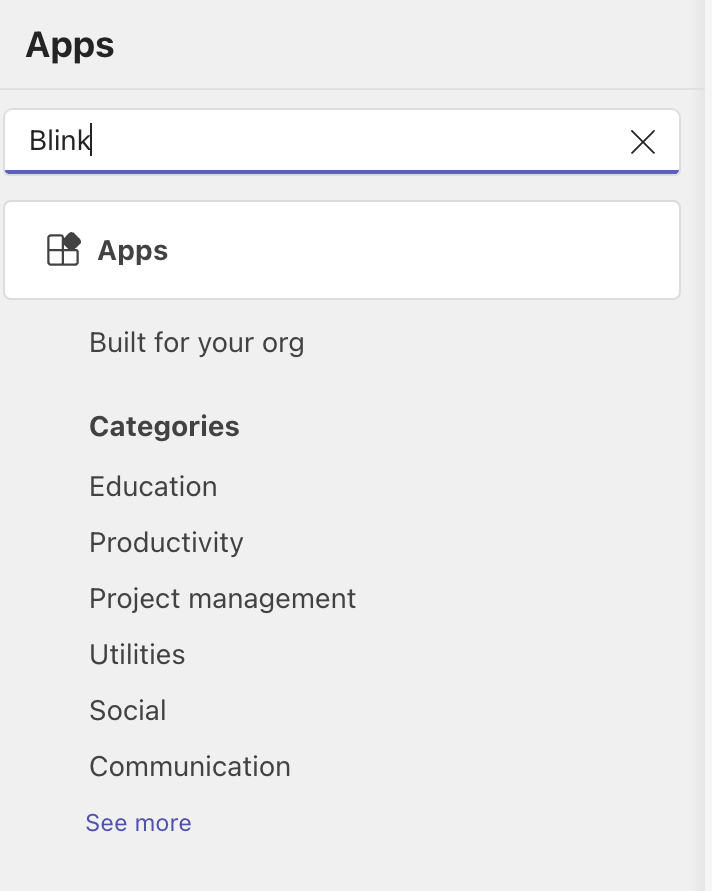
  <Step title="Search for Blink in Microsoft Teams">
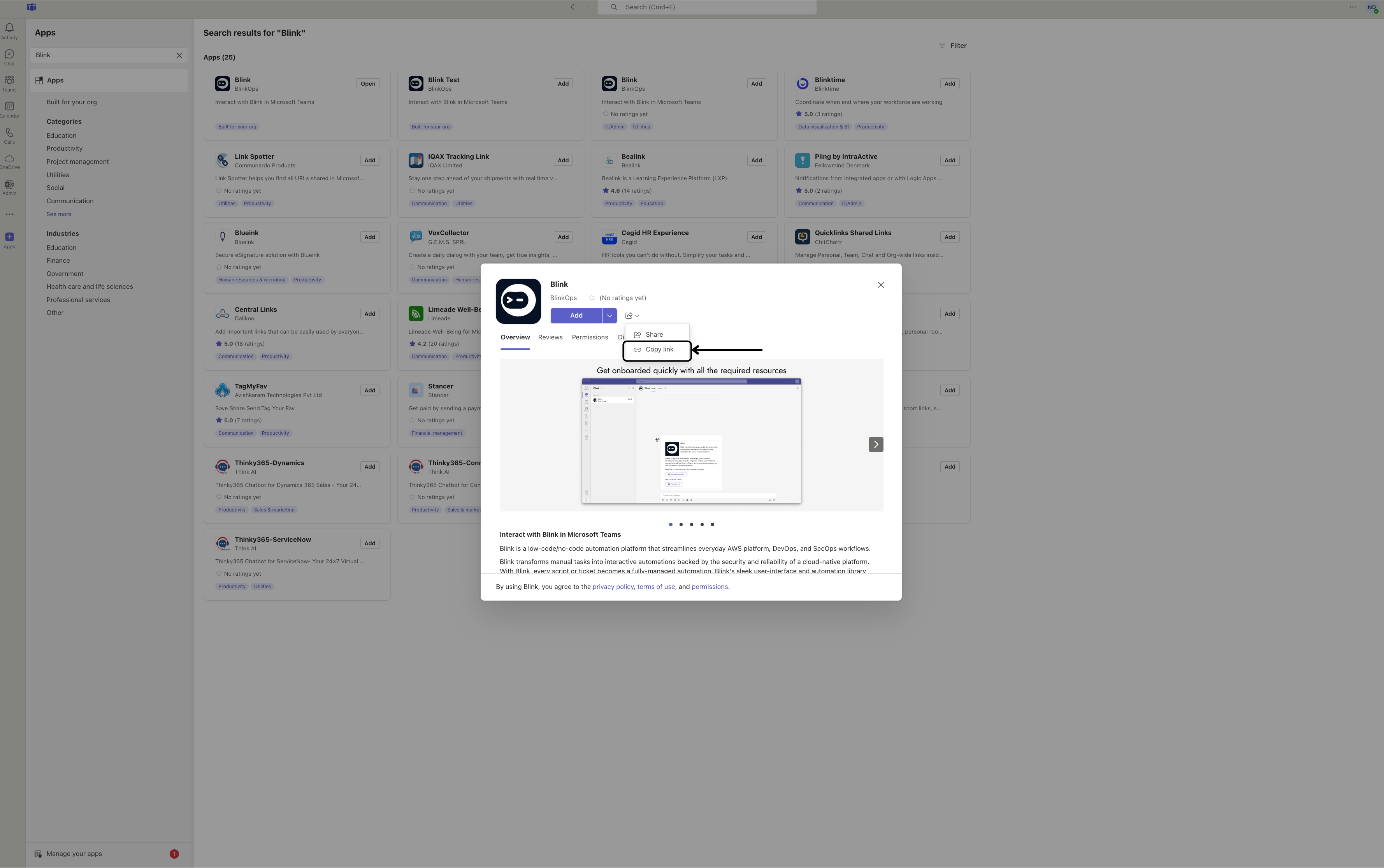
    Navigate to your Microsoft Teams application and click on the 'App' icon in the left-hand sidebar. Then type **Blink** into the search bar and select the Blink option.

    <Frame>
      <img src="https://mintcdn.com/blinkops-2/deay2AiePWJDKGEh/img/Actions/TeamsSearchBlink.png?fit=max&auto=format&n=deay2AiePWJDKGEh&q=85&s=eb26926c42eaea1924194fd4b168a64a" width="712" height="891" data-path="img/Actions/TeamsSearchBlink.png" />
    </Frame>
  </Step>

  <Step title="Copy the Blink App Link">
    Select and copy the app link as shown in the image below.

    <Frame>
      <img src="https://mintcdn.com/blinkops-2/ZUtie3exEe7_7B_M/img/Actions/CopyTeamsLink.png?fit=max&auto=format&n=ZUtie3exEe7_7B_M&q=85&s=286204219fbf4a261c6fcda6c935e0b1" width="3556" height="2230" data-path="img/Actions/CopyTeamsLink.png" />
    </Frame>
  </Step>

  <Step title="Install and Open the Blink App">
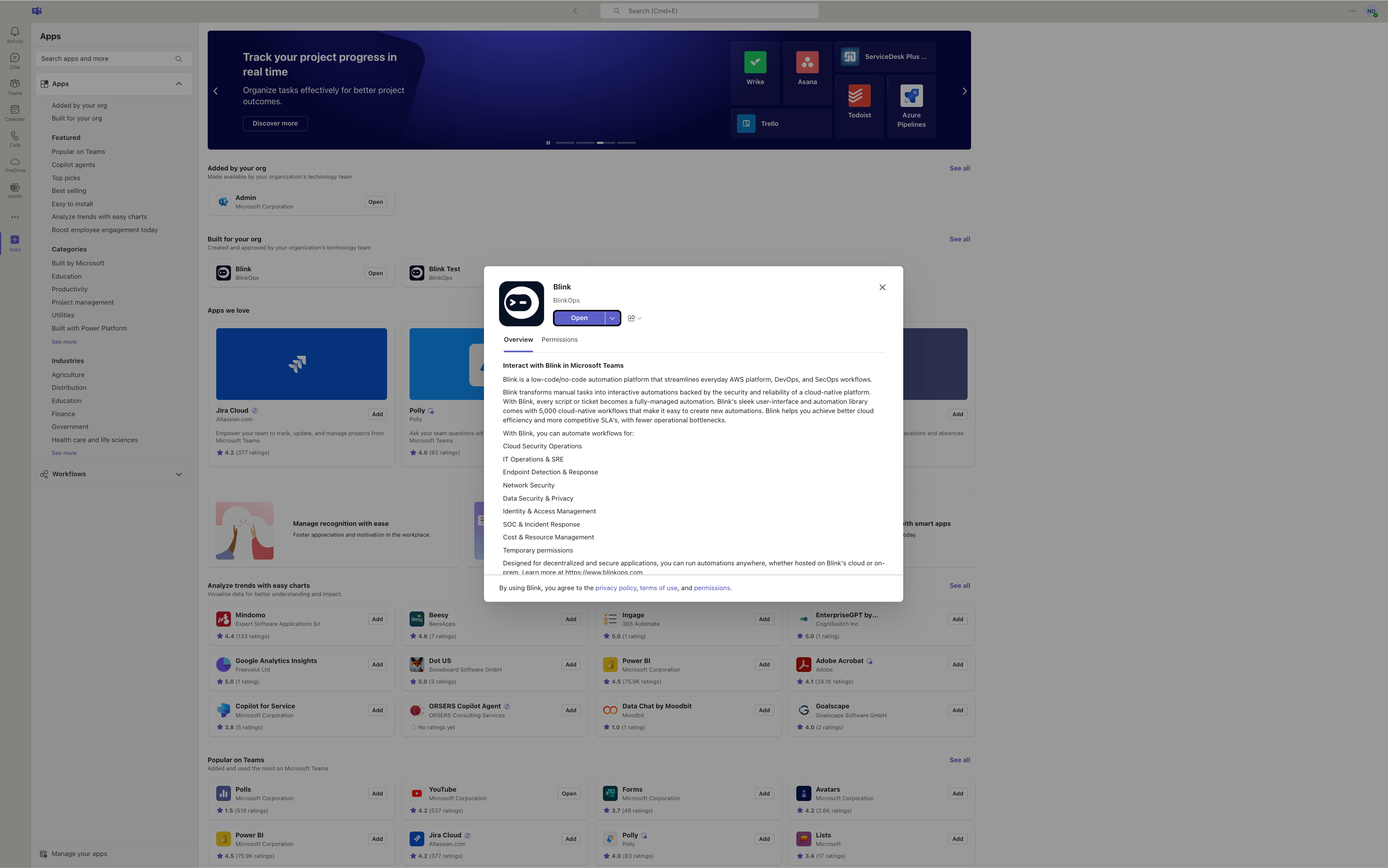
    Paste the copied link into your web browser and follow the instructions to complete the installation. Once finished, return to the Blink app in Microsoft Teams and click **Open**.

    <Frame>
      <img src="https://mintcdn.com/blinkops-2/3_6WnkGGmnkZFzEe/img/Actions/OpenTeamsBot.png?fit=max&auto=format&n=3_6WnkGGmnkZFzEe&q=85&s=b173906de9855ce47090f2934276cbab" width="3582" height="2240" data-path="img/Actions/OpenTeamsBot.png" />
    </Frame>
  </Step>

  <Step title="Confirm Successful Integration">
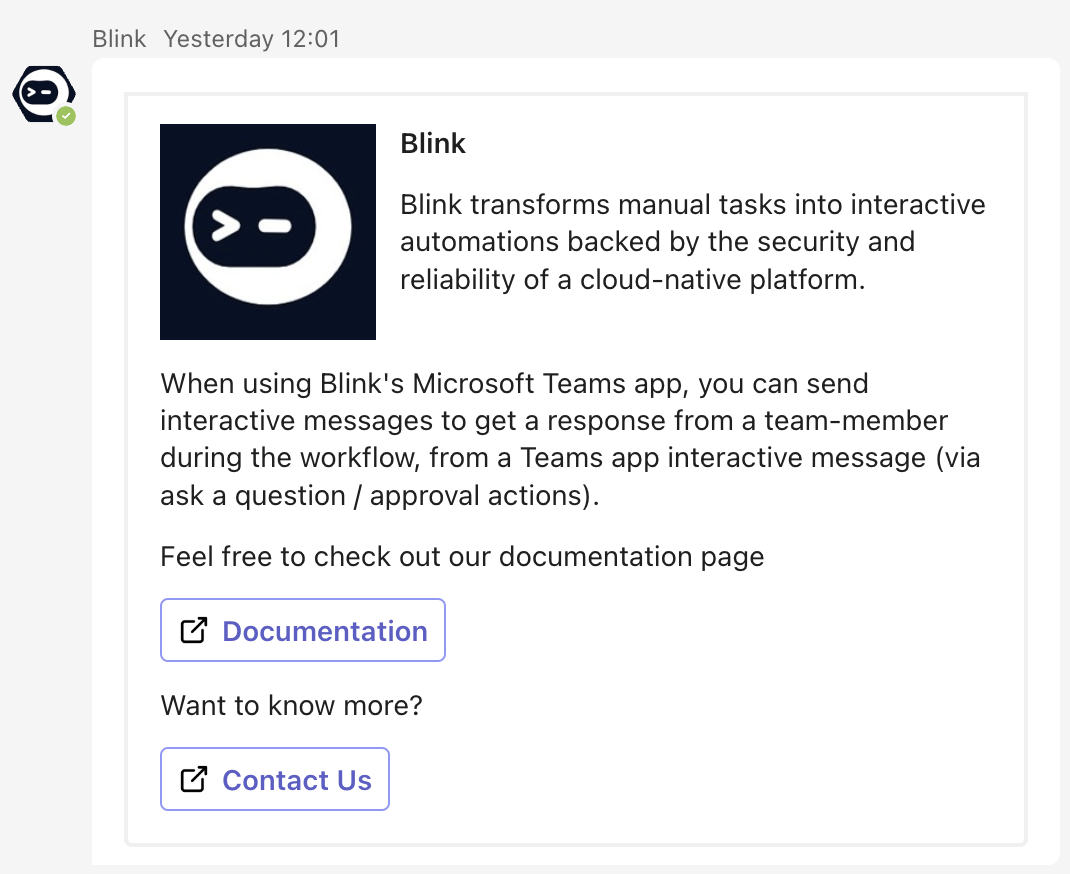
    You will receive a confirmation message from the Blink app, indicating the bot has been successfully integrated with your Microsoft Teams account.

    <Frame>
      <img src="https://mintcdn.com/blinkops-2/deay2AiePWJDKGEh/img/Actions/TeamsMessageBlink.png?fit=max&auto=format&n=deay2AiePWJDKGEh&q=85&s=e301fa7e2d657701a952ab7a74b8cd73" width="1070" height="874" data-path="img/Actions/TeamsMessageBlink.png" />
    </Frame>
  </Step>
</Steps>

***

### Navigate the Blink Ops Platform

<Steps>
  <Step title="Add the 'Ask a Question via Teams' Action">
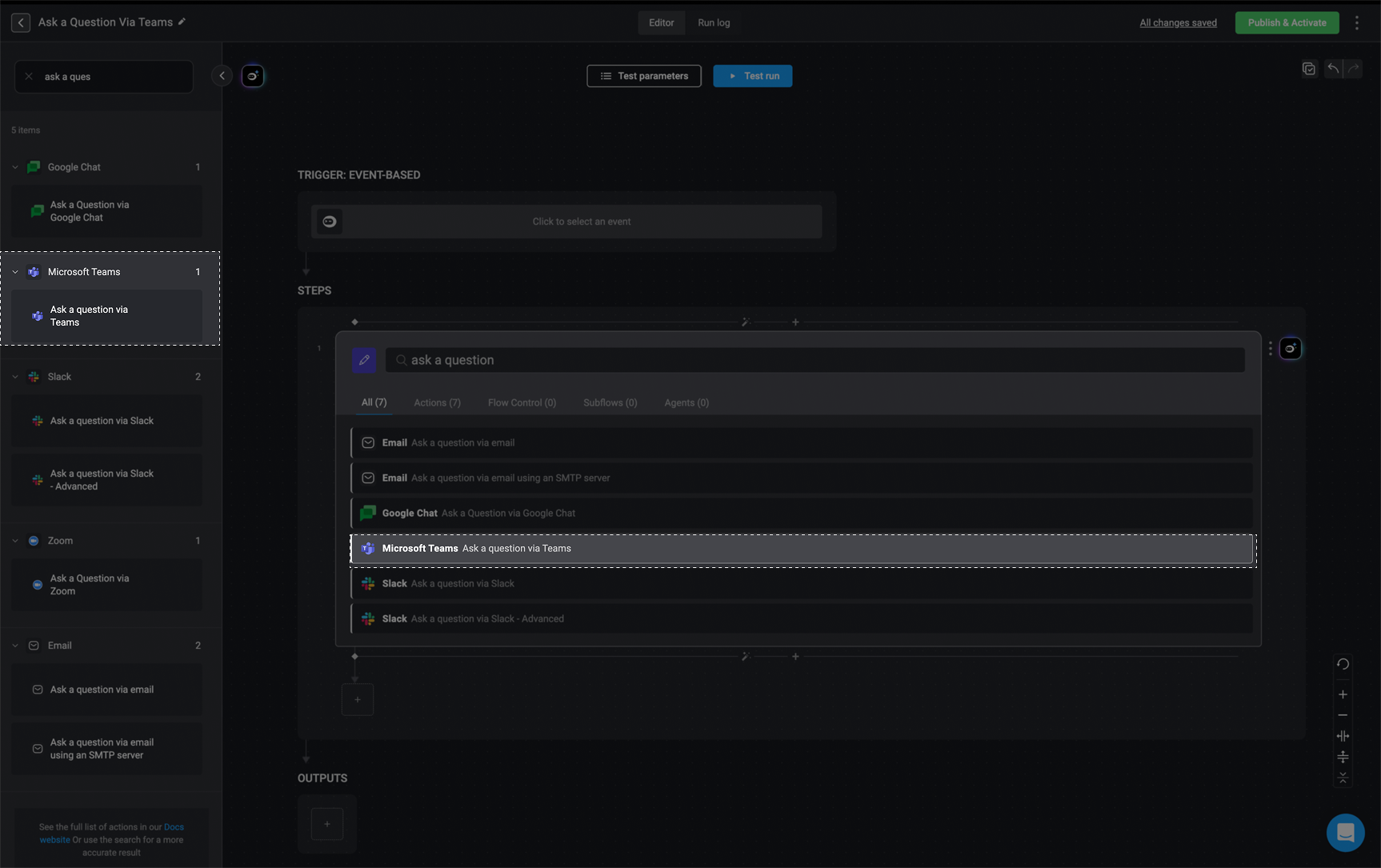
    In the Workflow Editor, click to open the inline action panel and search for the 'Ask a question via Teams' action. Alternatively, drag the action into your step.

    <Frame>
      <img src="https://mintcdn.com/blinkops-2/yRkQ-wRlnQIXwr-A/img/Actions/AskQuestionTeams.png?fit=max&auto=format&n=yRkQ-wRlnQIXwr-A&q=85&s=2f2e82a772abf558d943c6fceecb4627" width="1726" height="1085" data-path="img/Actions/AskQuestionTeams.png" />
    </Frame>
  </Step>

  <Step title="Configure Action Parameters">
    Enter the following parameters into your step:

    <div className="integrations-block">
      | Parameter                                     | Description                                                                                                          |
      | --------------------------------------------- | -------------------------------------------------------------------------------------------------------------------- |
      | Send To                                       | The message destination: **email address**, **Teams Chat**, or **Channel**.                                          |
      | User Email, Chat ID, Team ID or Teams Channel | The recipient’s **Email**, **Chat ID**, **Team ID**, or **Channel**.                                                 |
      | Thread Message ID (optional)                  | The ID of the root message in the channel thread to reply to. Only available when **Send To** is set to **Channel**. |
      | Question                                      | The question you want to ask.                                                                                        |
      | Answers                                       | Possible answers, separated by commas.                                                                               |
      | Add Answer in free text                       | Allows recipients to submit answers in free text.                                                                    |
      | Include user info                             | Includes the user’s information with their response.                                                                 |
      | Include message info                          | Includes the message's information in the response                                                                   |
      | Response message                              | Message shown to the user after they respond.                                                                        |
      | Timeout in minutes (optional)                 | Timeout period for the recipient to respond.                                                                         |
      | Default timeout response (optional)           | Default response if the user does not reply in time.                                                                 |
    </div>
  </Step>

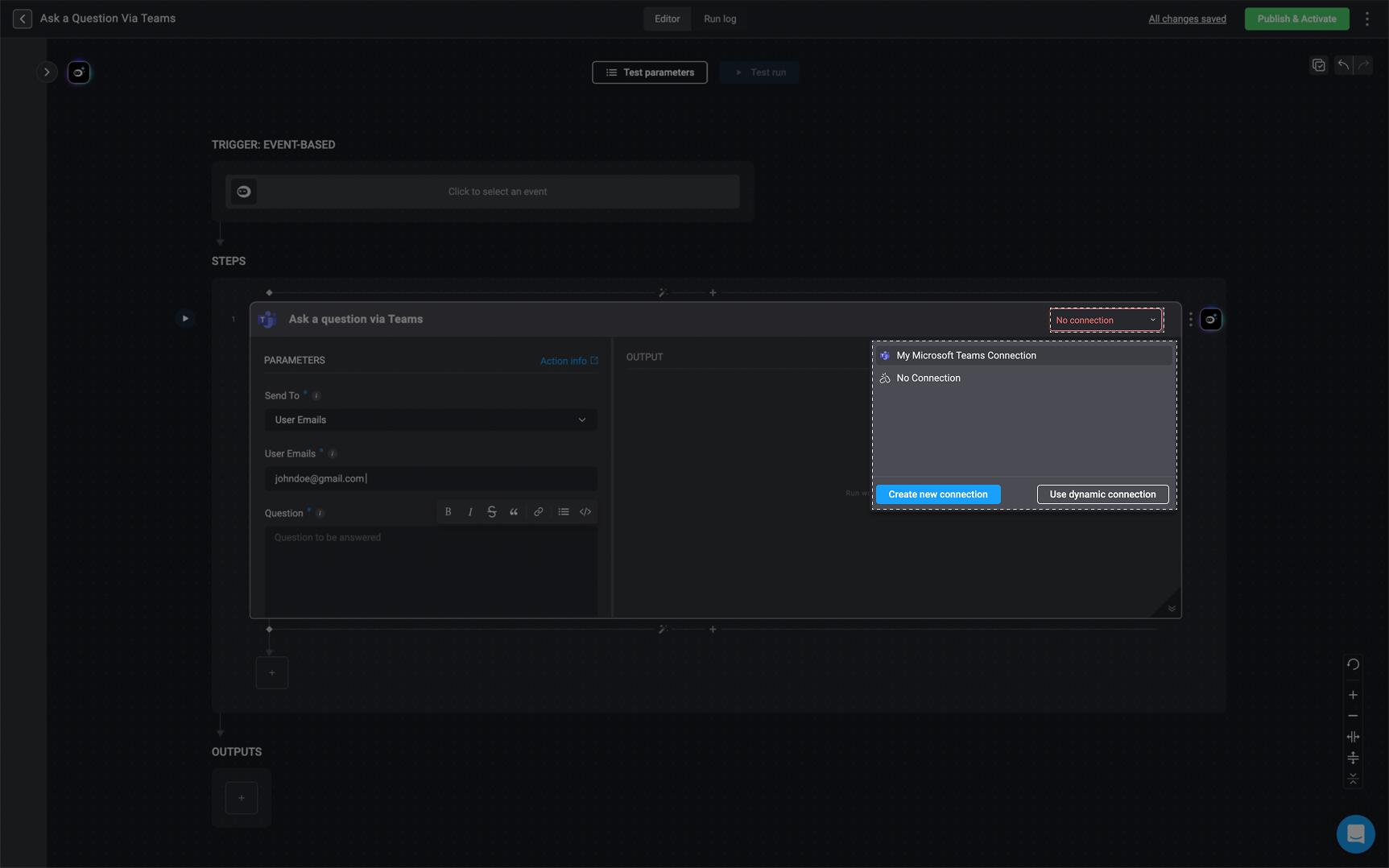
  <Step title="Create or Select a Microsoft Teams Connection">
    Click 'Connection required' in the top-right corner of your step. Click 'Create connection' to proceed.

    <Note>If you have already set up a Microsoft Teams connection, select it. Otherwise, create a new one by selecting 'Microsoft Teams connection' and follow the steps outlined in the [Microsoft Teams connection guideline](/docs/integrations/microsoft-teams/microsoft-teams.md#creating-a-microsoft-teams-connection). </Note>

    <Frame>
      <img src="https://mintcdn.com/blinkops-2/3_6WnkGGmnkZFzEe/img/Actions/MTQuestionConnection.png?fit=max&auto=format&n=3_6WnkGGmnkZFzEe&q=85&s=5e729334067d4755878725d58044529e" width="1725" height="1078" data-path="img/Actions/MTQuestionConnection.png" />
    </Frame>
  </Step>

  <Step title="Run the Workflow Step">
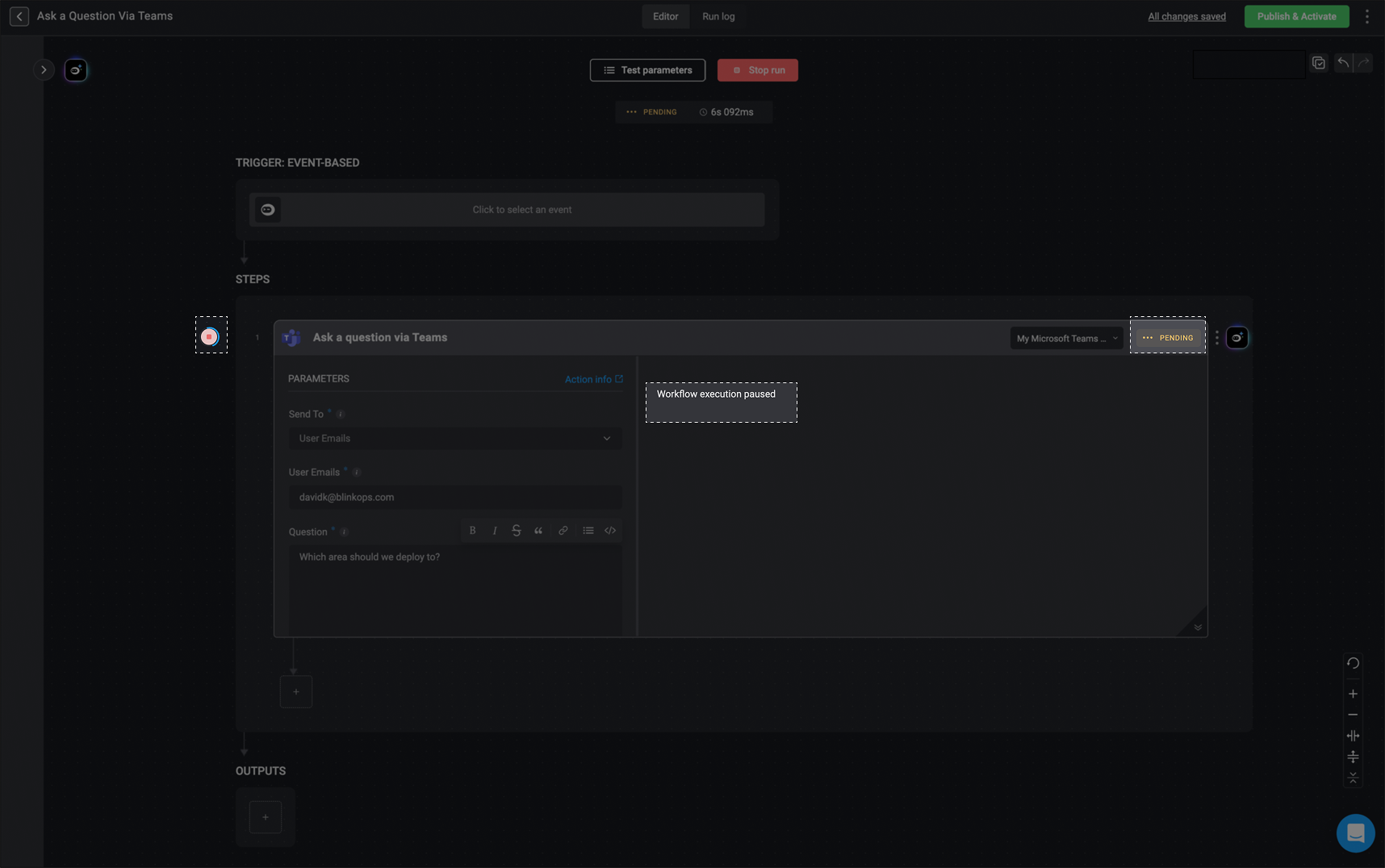
    Once setup is complete, click the <Icon icon="play" /> button or use the **Test Run** button to test the step.

    <Note> While the user is waiting for a response, the step output shows: *Workflow execution paused*. </Note>

    <Frame>
      <img src="https://mintcdn.com/blinkops-2/-eoT09amno25RB5l/img/Actions/MTPendingAnswer.png?fit=max&auto=format&n=-eoT09amno25RB5l&q=85&s=39b35dffb587828b0922cedf9f0e6d7d" width="1716" height="1076" data-path="img/Actions/MTPendingAnswer.png" />
    </Frame>
  </Step>

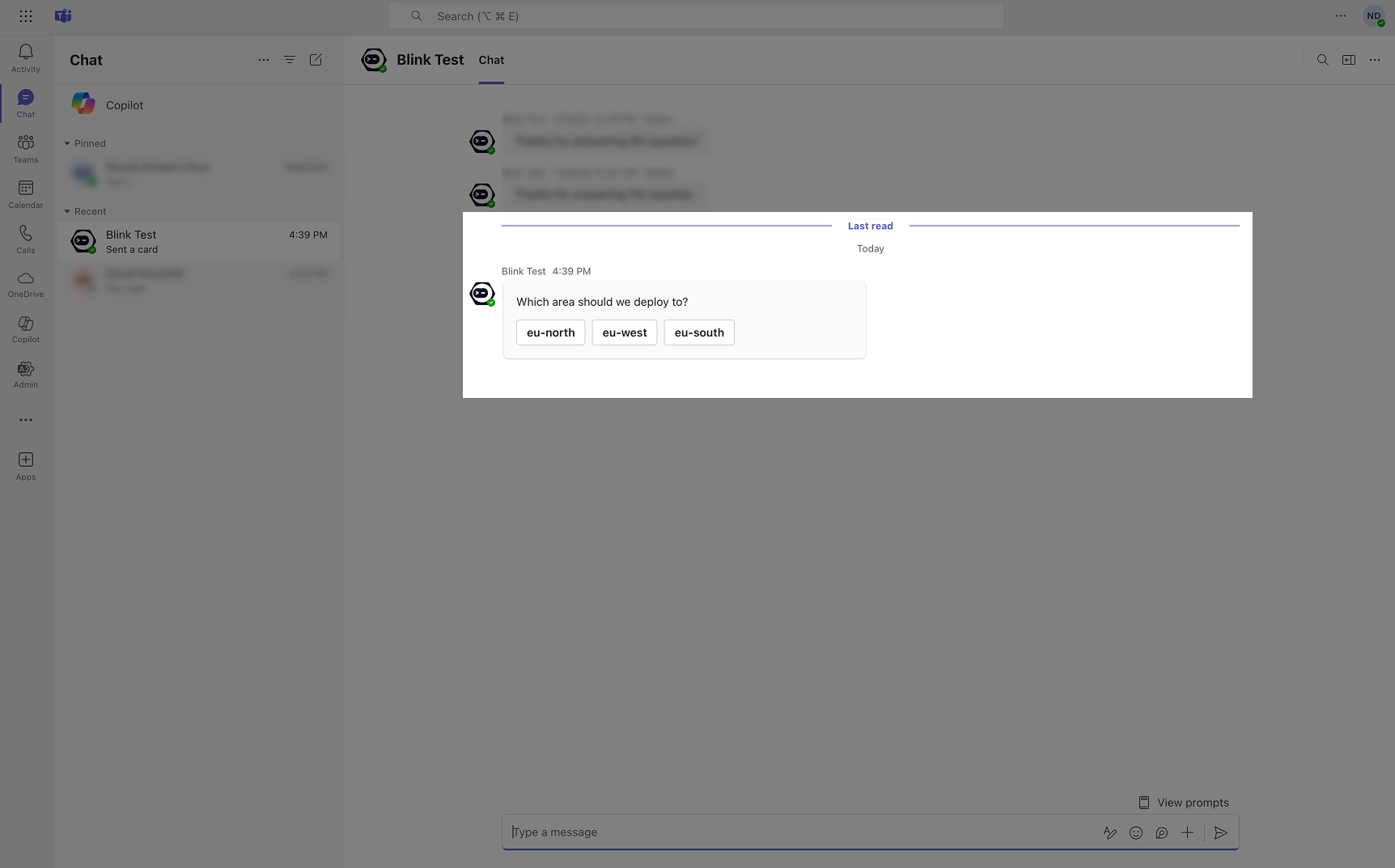
  <Step title="Recipient Views and Responds in Microsoft Teams">
    When the workflow runs, the configured destination (Teams Chat or Channel) will receive the question. Users can engage with the card and submit their responses.

    <Frame>
      <img src="https://mintcdn.com/blinkops-2/LiDiL34PEmIGHJGK/img/Actions/questionsteamsview.png?fit=max&auto=format&n=LiDiL34PEmIGHJGK&q=85&s=cccec0997cfd14a7f7f0d5b35842fedc" width="1724" height="1073" data-path="img/Actions/questionsteamsview.png" />
    </Frame>
  </Step>

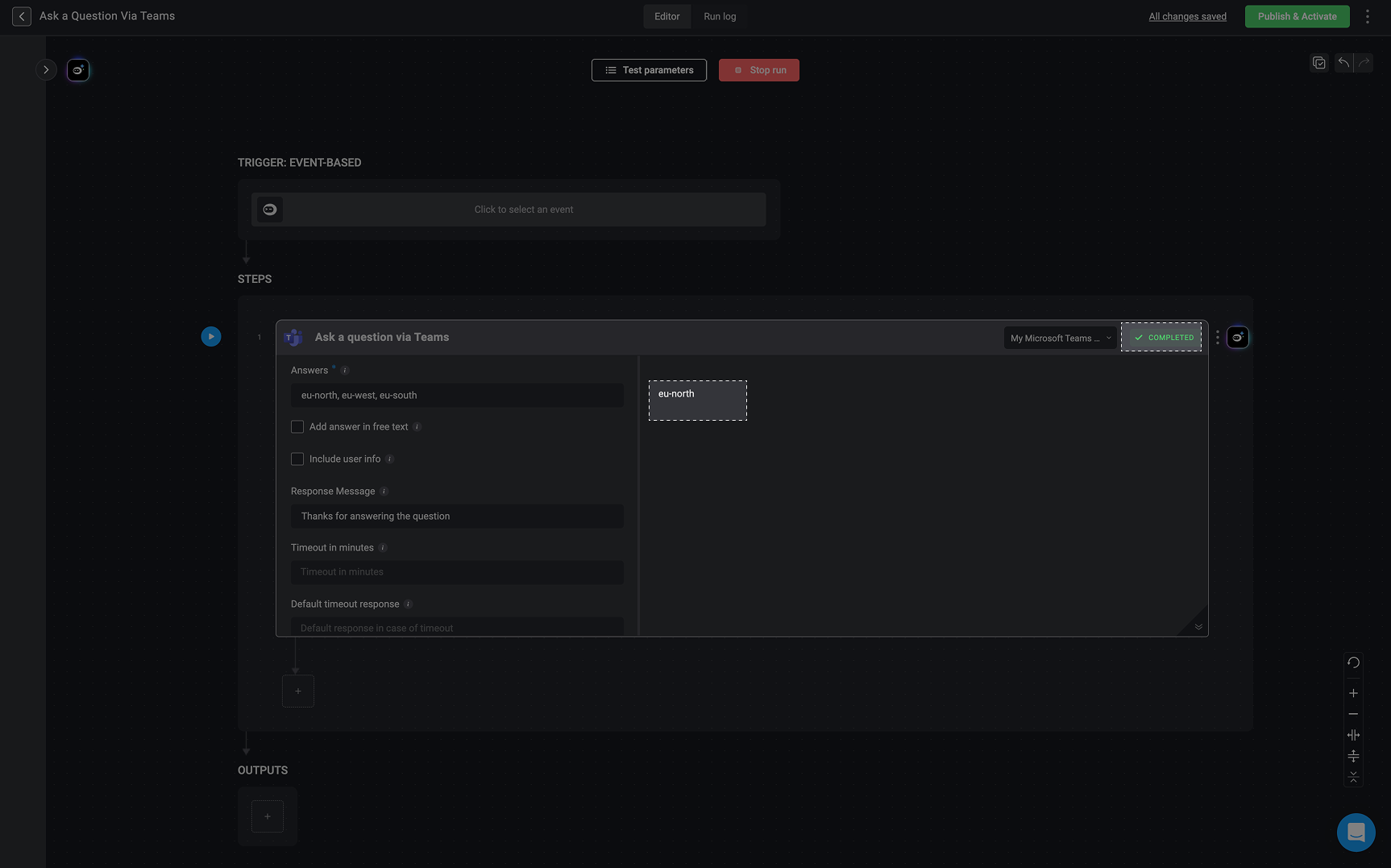
  <Step title="View Response in Workflow Output">
    Return to your workflow to view the captured response from Microsoft Teams in the step output.

    <Note>If the recipient does not respond before the timeout, the workflow uses the default timeout response.</Note>

    <Frame>
      <img src="https://mintcdn.com/blinkops-2/3_6WnkGGmnkZFzEe/img/Actions/MTQuestionOutput.png?fit=max&auto=format&n=3_6WnkGGmnkZFzEe&q=85&s=cf72f196247dd25d6de93211ddaaf241" width="1726" height="1077" data-path="img/Actions/MTQuestionOutput.png" />
    </Frame>
  </Step>
</Steps>