> ## Documentation Index
> Fetch the complete documentation index at: https://docs.blinkops.com/llms.txt
> Use this file to discover all available pages before exploring further.
# Microsoft Teams
> Microsoft Teams is a proprietary business communication platform.
## Creating a Microsoft Teams connection
Create the connection by using one of the following methods:
* [OAuth](#using-oauth)
* [Client Secret](#using-client-secret)
## Using OAuth
### Creating your connection
1. In the Blink platform, navigate to the **Connections** page > **Add connection**. A New Connection dialog box opens displaying icons of external service providers available.
2. Select the **Microsoft Teams** icon. A dialog box with name of the connection and connection methods appears.
3. (Optional) Edit the name of the connection. At a later stage you cannot edit the name.
4. Click **Microsoft Teams** to authenticate using OAuth.
5. Sign in using your credentials.
Need admin approval? please refer to the [Need Admin
Approval](/docs/integrations/microsoft-teams/admin-approval) guide.
## Using client secret
To create the connection you need:
* A client ID
* A client secret
* A tenant ID
### Obtaining the credentials
1. Log into the [Azure Portal](https://portal.azure.com/#home).
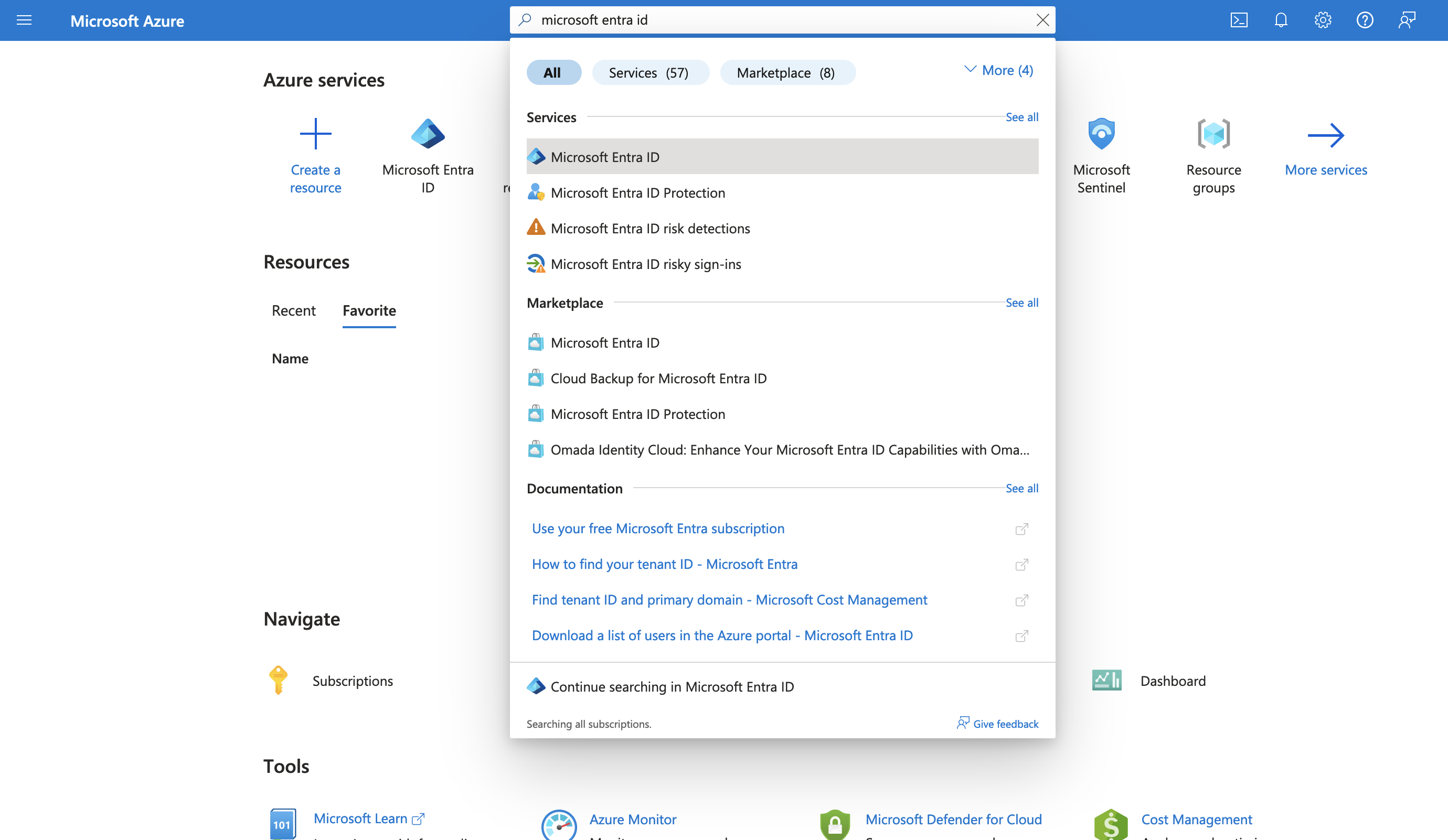
2. Go to the *Microsoft Entra ID* resource.
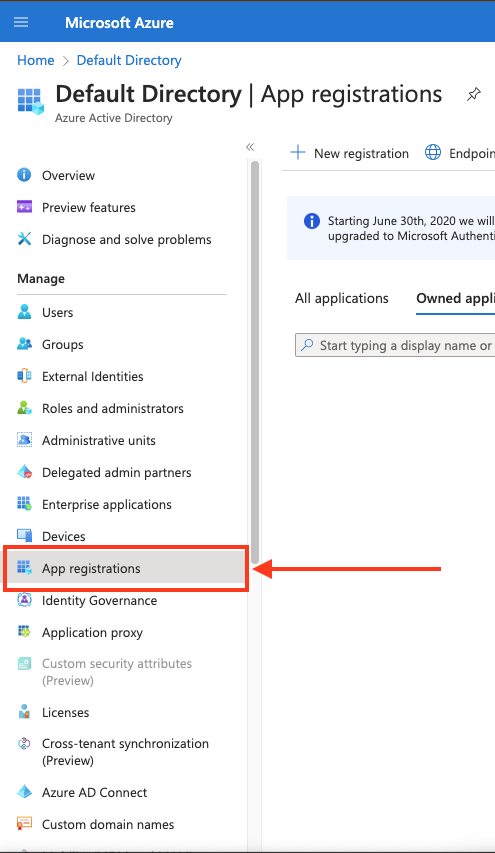
 3. In the left-hand menu, click **App registrations**.
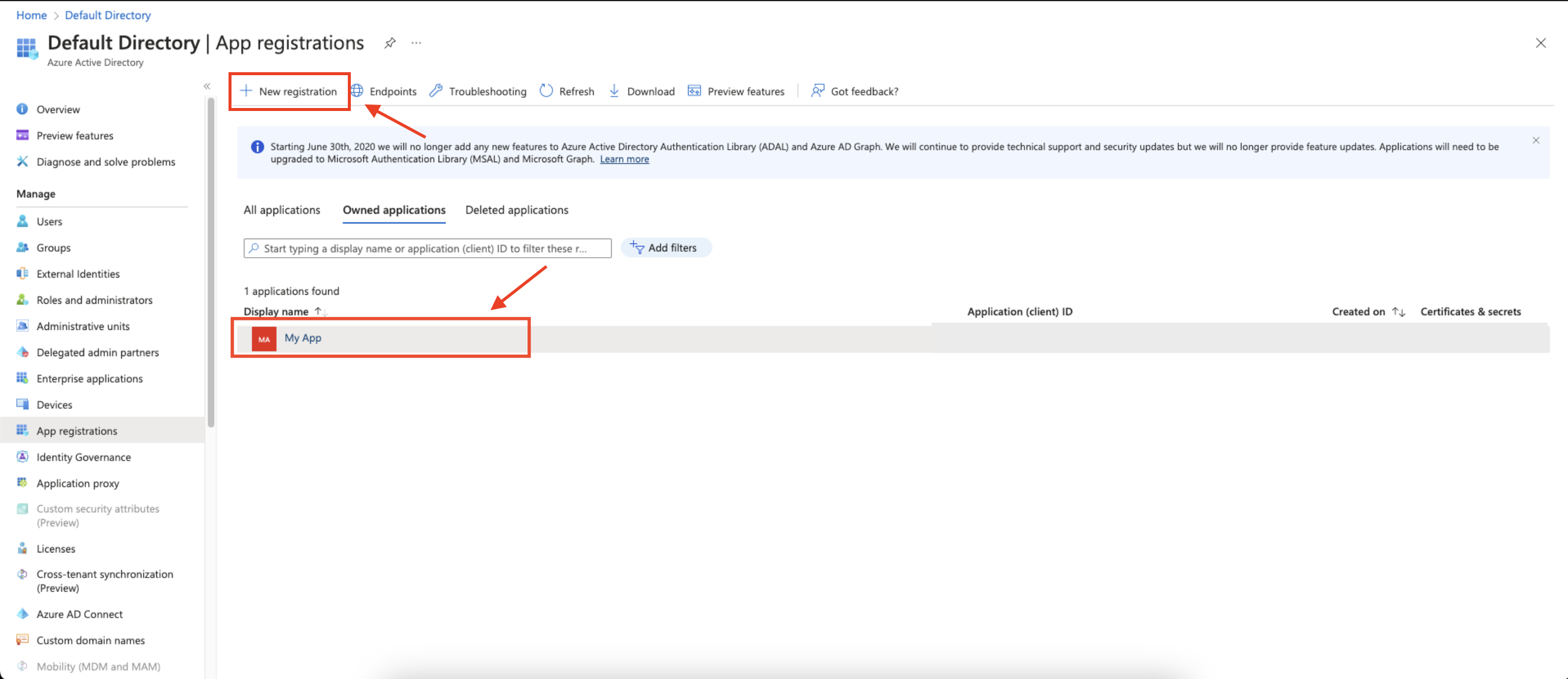
 4. Create a new application registration or click on one of your existing applications.
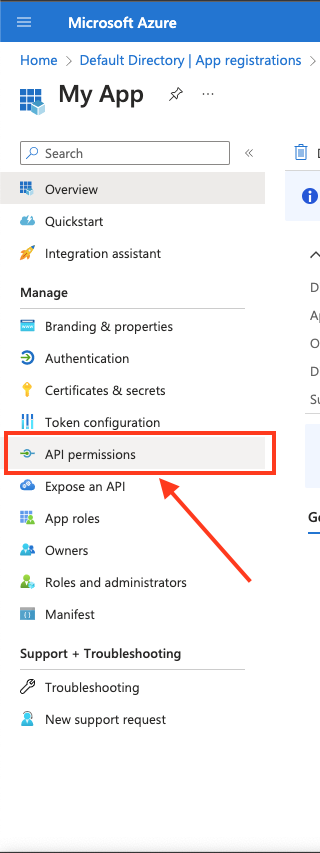
 5. In the left-hand menu, click **API permissions**.
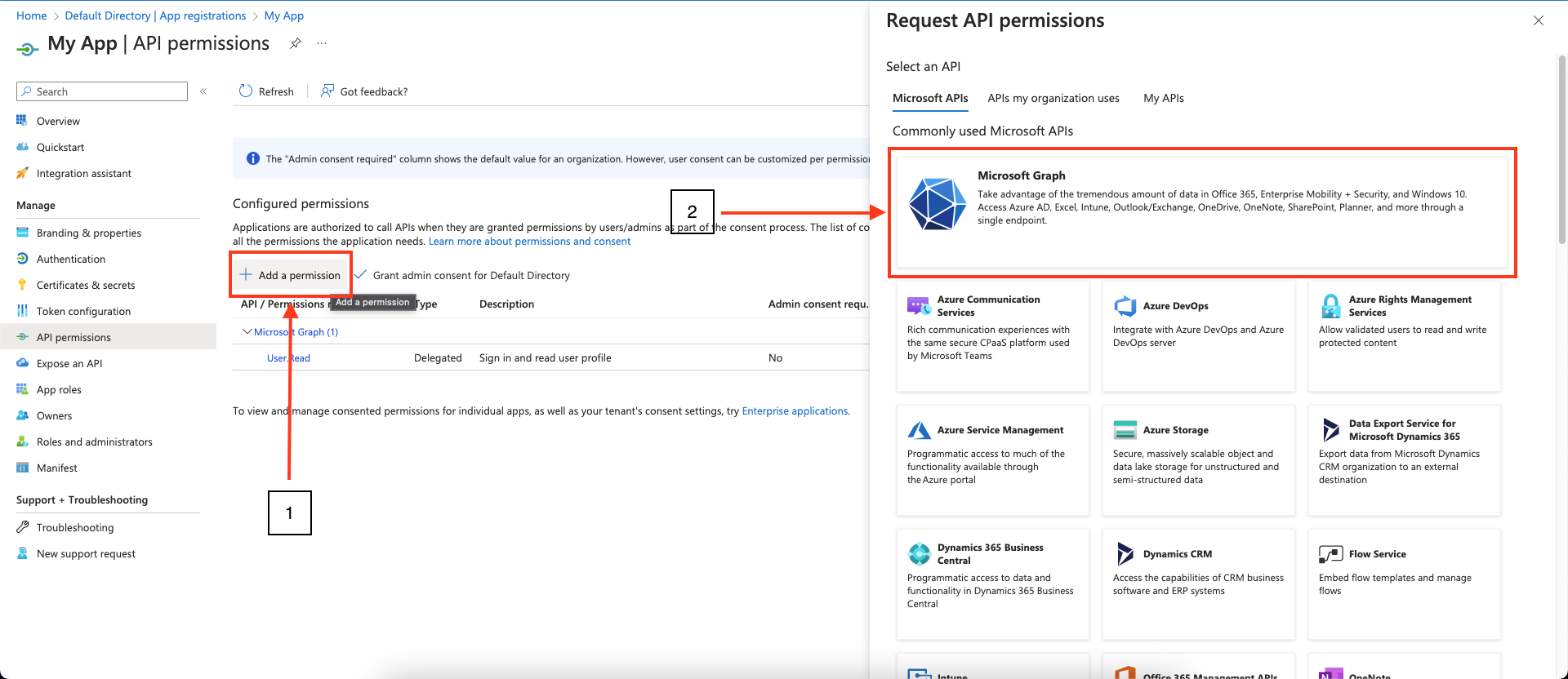
 6. Click **Add a permission** and select **Microsoft Graph**.
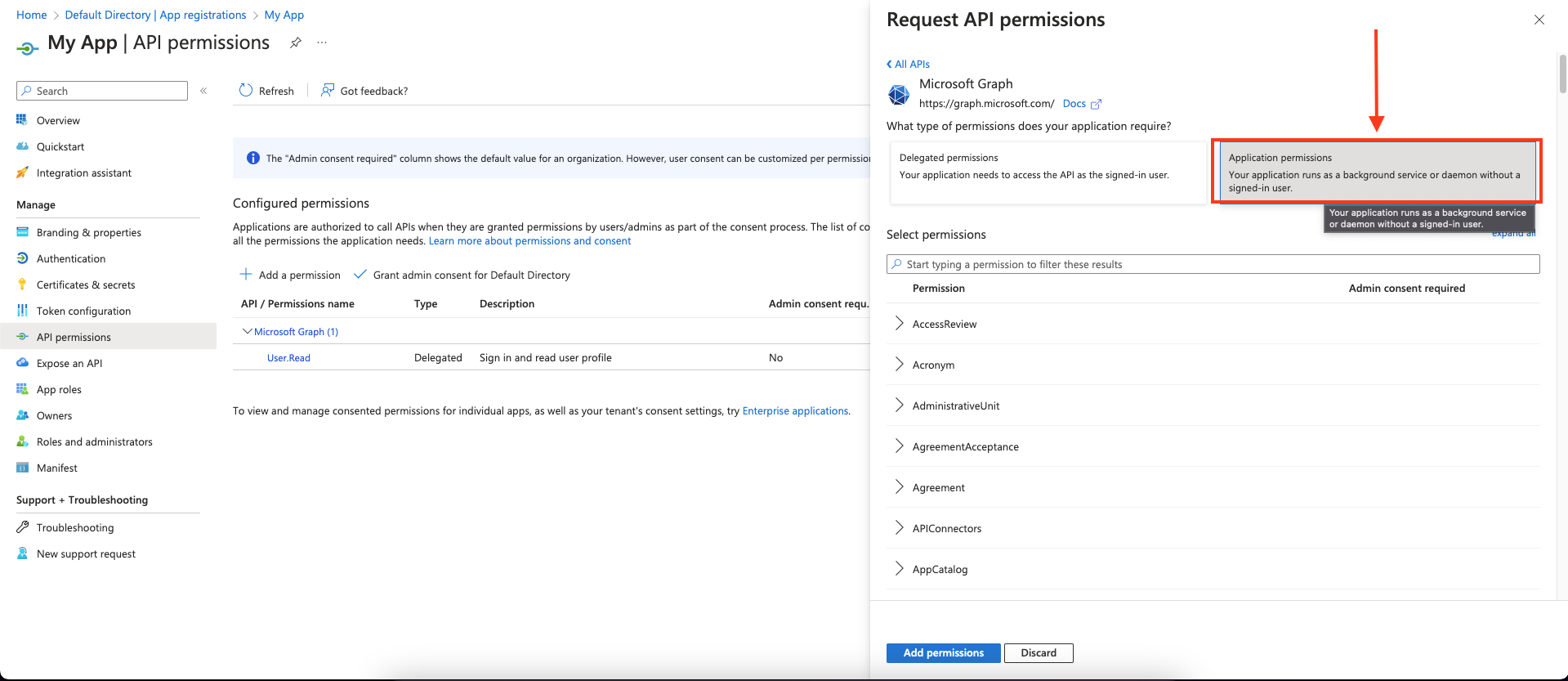
 7. Choose **Application permissions** and mark the permissions you wish to add.
 To support all Blink actions, these are the required **application** permissions:
As a best practice, request the **least privileged permissions** that your app
needs in order to access data and function correctly. Requesting permissions
with more than the necessary privileges is poor security practice, which may
cause users to refrain from consenting and affect your app's usage. For
additional information, refer to [Microsoft Graph
permissions](https://learn.microsoft.com/en-us/graph/permissions-reference).
| Least privileged permissions | Higher privileged permissions |
| ---------------------------- | ----------------------------- |
| ChannelMember.ReadWrite.All | ChatMember.ReadWrite.All |
| TeamMember.ReadWrite.All | Channel.Create |
| Chat.Create | Directory.ReadWrite.All |
| GroupMember.Read.All | Group.ReadWrite.All |
| User.Read.All | Teamwork.Migrate.All |
| User.ReadWrite.All | User.ReadWrite.All |
| | Directory.Read.All |
| | Group.Read.All |
| | ChannelSettings.Read.All |
| | ChannelSettings.ReadWrite.All |
| | Chat.Read.All |
| | TeamMember.ReadWrite.All |
| | TeamMember.Read.All |
8. Click **Add permissions** to save the changes.
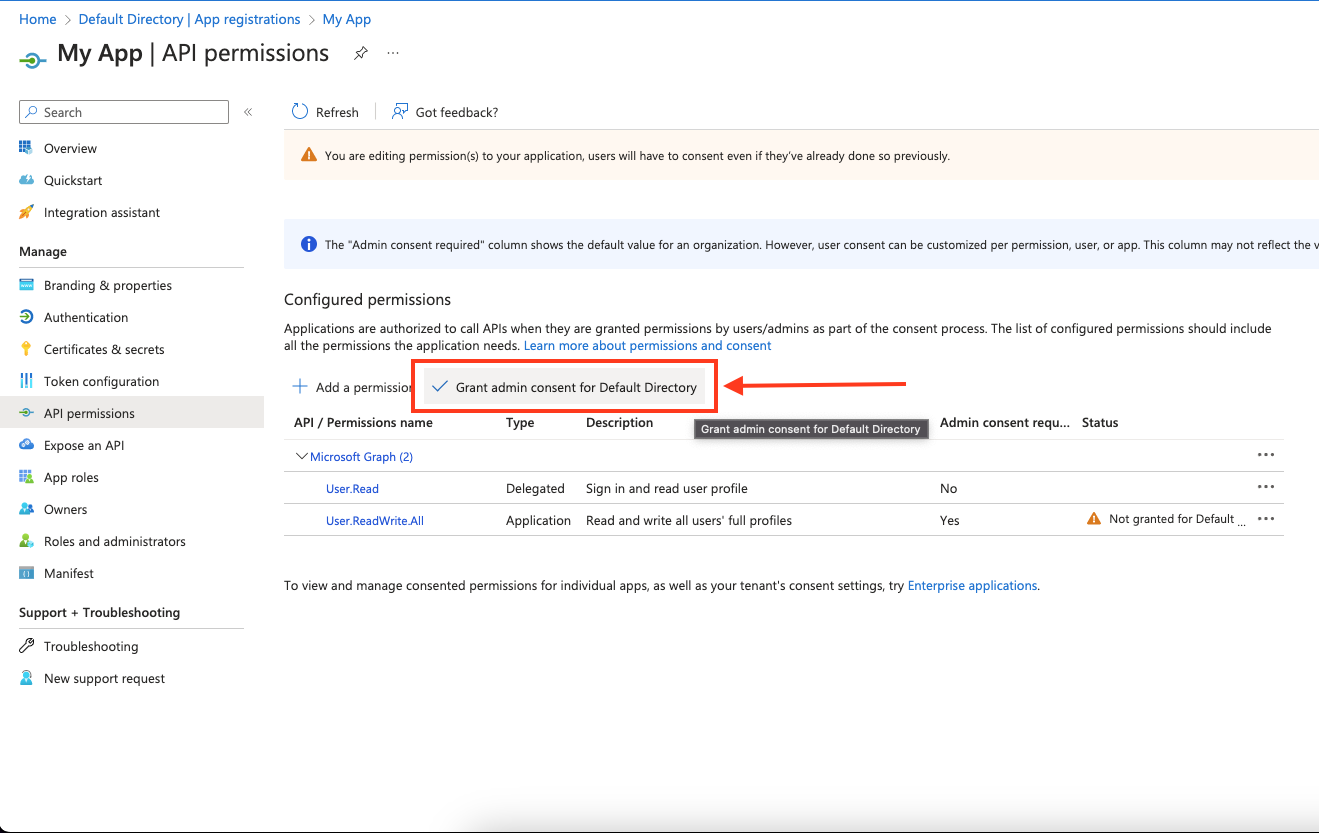
9. Click **Grant admin consent for ``** on the API permissions page. **Only admins can grant consent**.
To support all Blink actions, these are the required **application** permissions:
As a best practice, request the **least privileged permissions** that your app
needs in order to access data and function correctly. Requesting permissions
with more than the necessary privileges is poor security practice, which may
cause users to refrain from consenting and affect your app's usage. For
additional information, refer to [Microsoft Graph
permissions](https://learn.microsoft.com/en-us/graph/permissions-reference).
| Least privileged permissions | Higher privileged permissions |
| ---------------------------- | ----------------------------- |
| ChannelMember.ReadWrite.All | ChatMember.ReadWrite.All |
| TeamMember.ReadWrite.All | Channel.Create |
| Chat.Create | Directory.ReadWrite.All |
| GroupMember.Read.All | Group.ReadWrite.All |
| User.Read.All | Teamwork.Migrate.All |
| User.ReadWrite.All | User.ReadWrite.All |
| | Directory.Read.All |
| | Group.Read.All |
| | ChannelSettings.Read.All |
| | ChannelSettings.ReadWrite.All |
| | Chat.Read.All |
| | TeamMember.ReadWrite.All |
| | TeamMember.Read.All |
8. Click **Add permissions** to save the changes.
9. Click **Grant admin consent for ``** on the API permissions page. **Only admins can grant consent**.
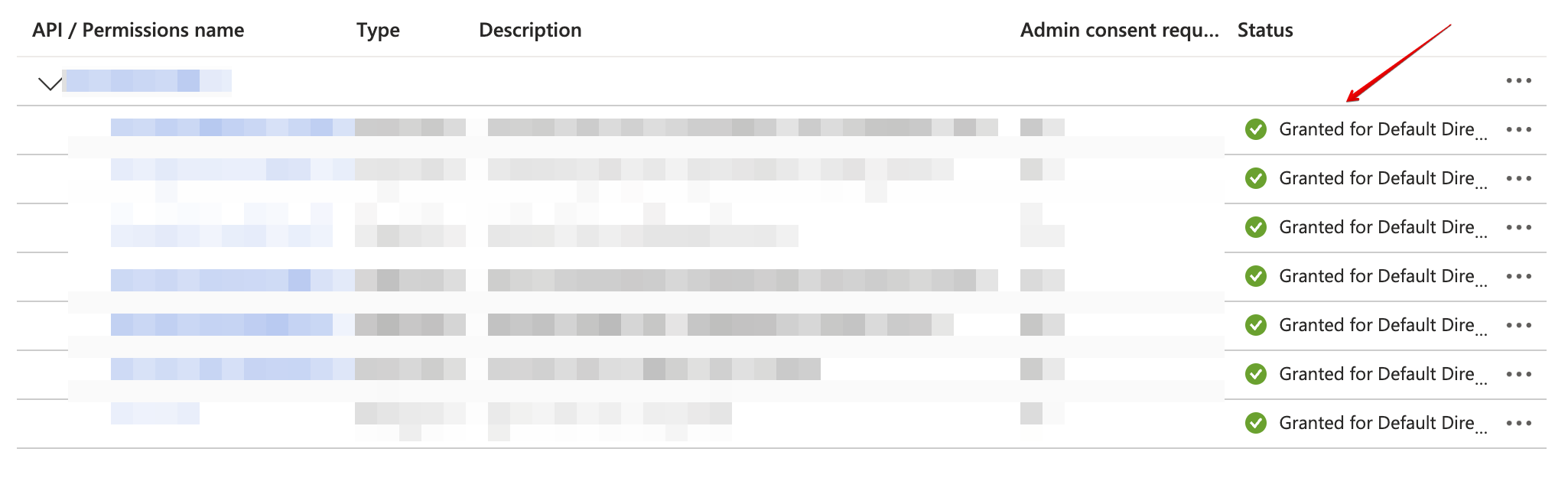
 10. Confirm that the added permissions are now verified.
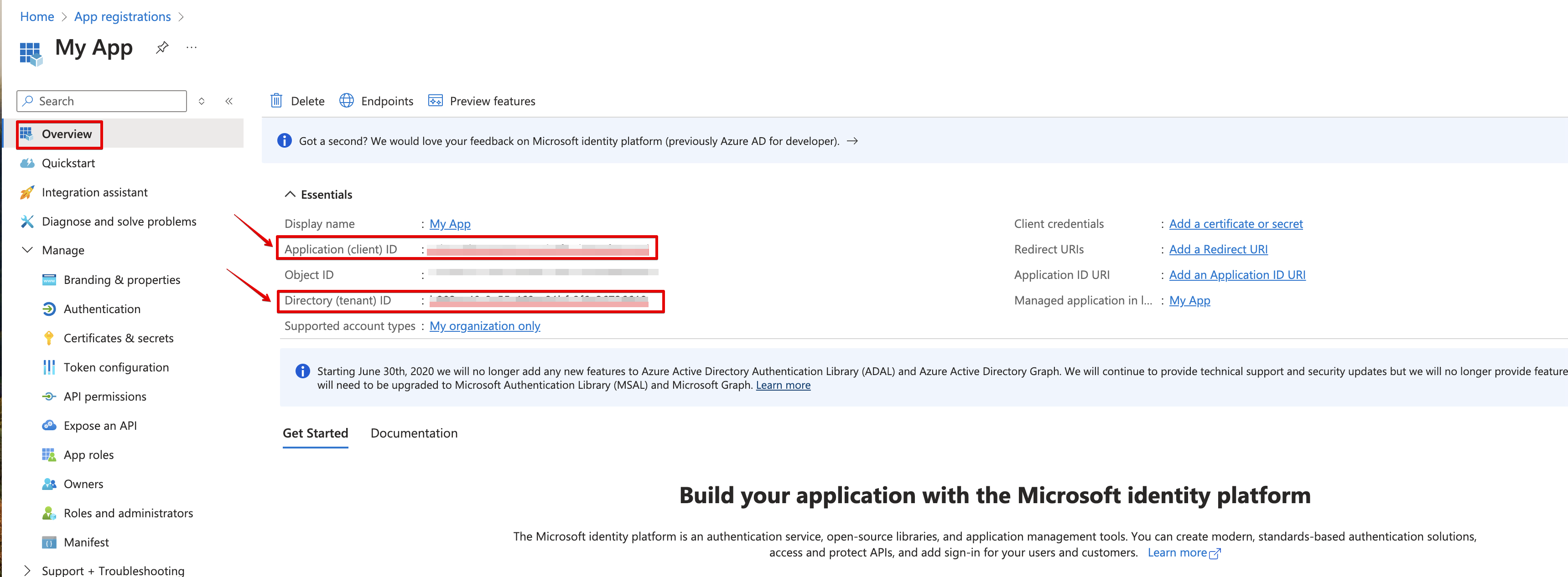
 11. Navigate to **Overview** and Copy your **client ID** and **tenant ID**.
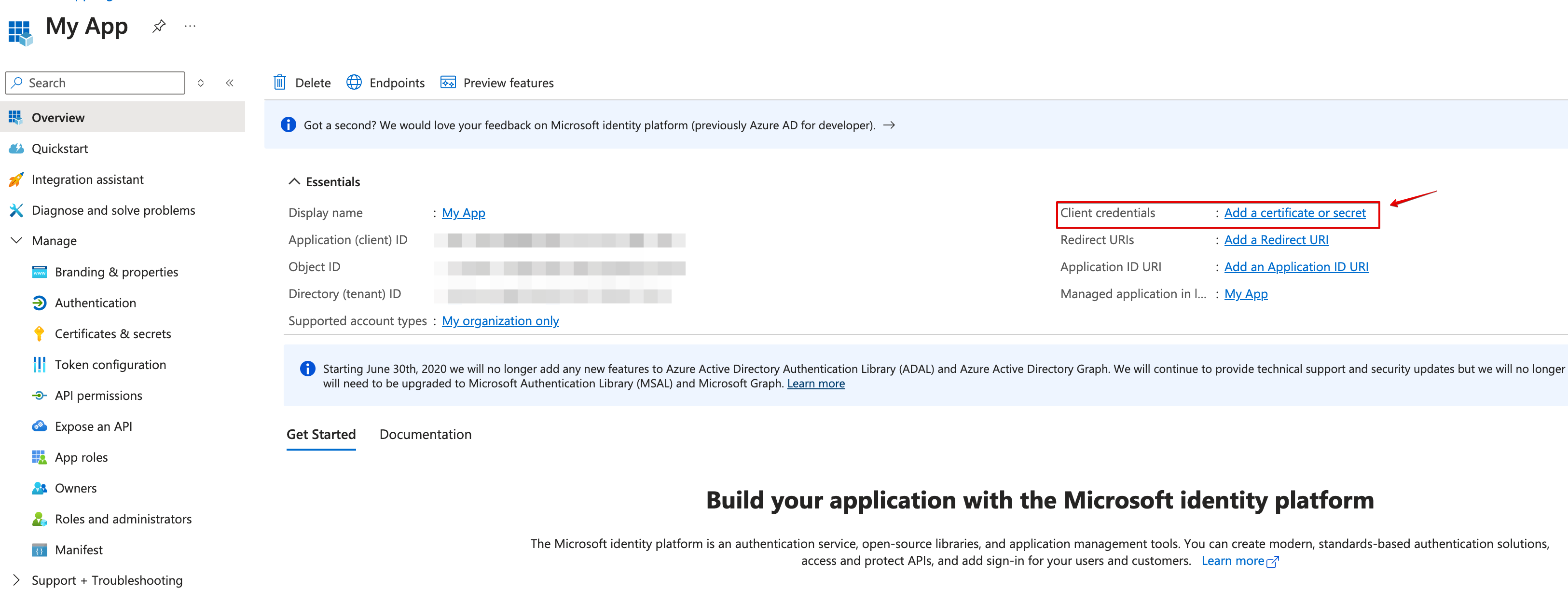
 12. Create a new **client secret**.
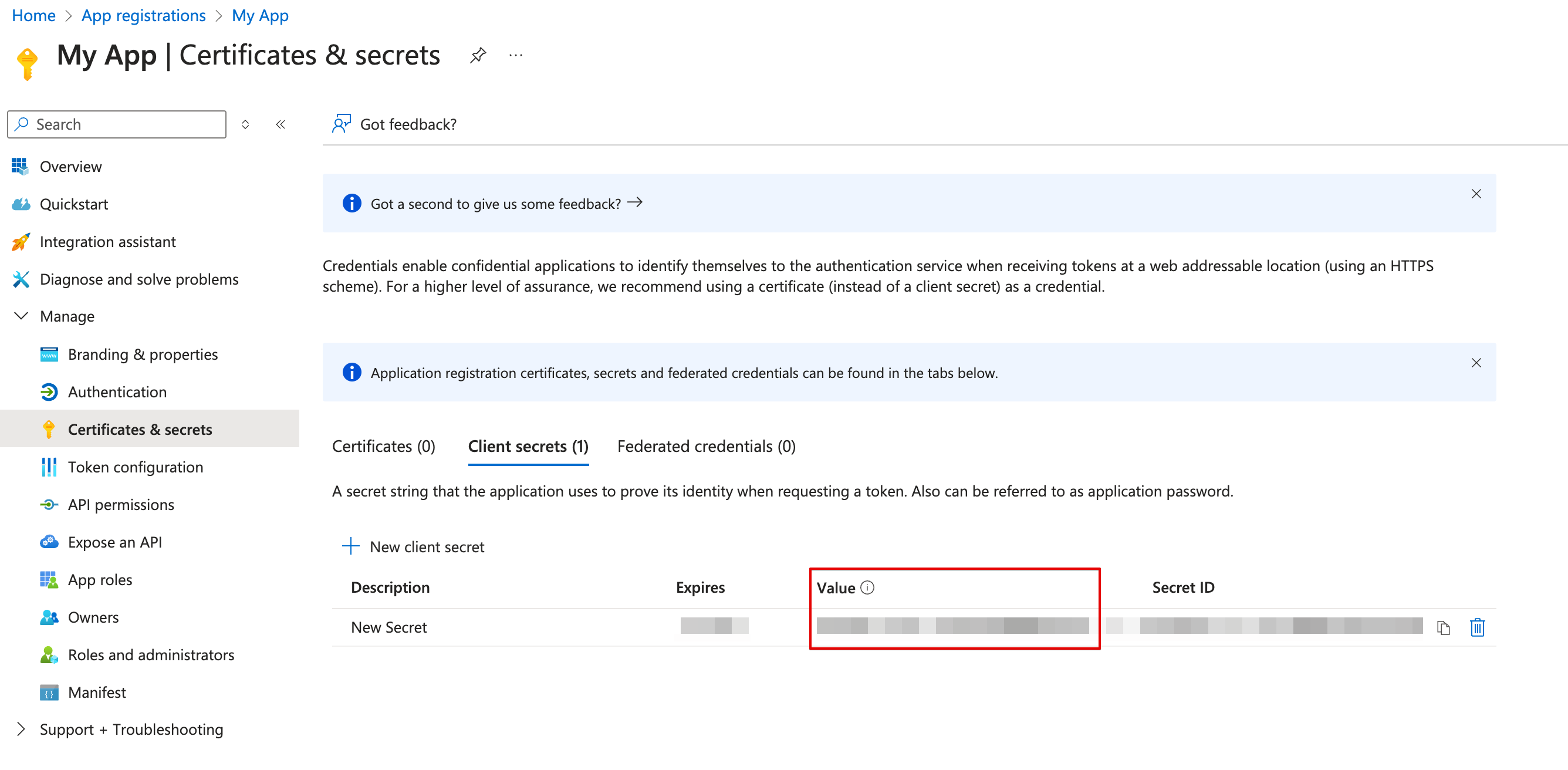
 13. Copy the **secret value**.
 ### Creating your connection
1. In the Blink platform, navigate to the **Connections** page > **Add connection**. A New Connection dialog box opens displaying icons of external service providers available.
2. Select the **Microsoft Teams** icon. A dialog box with name of the connection and connection methods appears.
3. (Optional) Edit the name of the connection. At a later stage you cannot edit the name.
4. Select **Client Secret** as the method to make the connection.
5. Fill in the parameters:
* The client ID
* The client secret
* The tenant ID
6. (Optional) Click **Test Connection** to test it.
7. Click **Create connection**. The new connection appears on the **Connections** page.
### Microsoft Teams Interactivity[](#microsoft-teams-interactivity "Direct link to Microsoft Teams Interactivity")
In addition to the standard Microsoft Teams actions, we also offer an `Interactivity action`. The Microsoft Teams Interactivity action enables users to actively influence the flow of a workflow. [Check it out here](https://docs.blinkops.com/docs/workflows/building-workflows/actions/advanced-actions/interactive-actions/mst-interactivity).
### Interactive Tutorial Guides
You can also refer to the following tutorial guides for a more in-depth understanding of how to create a Microsoft Teams connection.
[Creating a Microsoft Teams Connection](https://demo.arcade.software/O5iz8wqFmLqRrNjI8nz9?embed\&show_copy_link=true)
[Creating a Microsoft Teams Connection in Blink Ops](https://demo.arcade.software/OaKFVhN4ENRD28sJt8I9?embed\&show_copy_link=true)
### Creating your connection
1. In the Blink platform, navigate to the **Connections** page > **Add connection**. A New Connection dialog box opens displaying icons of external service providers available.
2. Select the **Microsoft Teams** icon. A dialog box with name of the connection and connection methods appears.
3. (Optional) Edit the name of the connection. At a later stage you cannot edit the name.
4. Select **Client Secret** as the method to make the connection.
5. Fill in the parameters:
* The client ID
* The client secret
* The tenant ID
6. (Optional) Click **Test Connection** to test it.
7. Click **Create connection**. The new connection appears on the **Connections** page.
### Microsoft Teams Interactivity[](#microsoft-teams-interactivity "Direct link to Microsoft Teams Interactivity")
In addition to the standard Microsoft Teams actions, we also offer an `Interactivity action`. The Microsoft Teams Interactivity action enables users to actively influence the flow of a workflow. [Check it out here](https://docs.blinkops.com/docs/workflows/building-workflows/actions/advanced-actions/interactive-actions/mst-interactivity).
### Interactive Tutorial Guides
You can also refer to the following tutorial guides for a more in-depth understanding of how to create a Microsoft Teams connection.
[Creating a Microsoft Teams Connection](https://demo.arcade.software/O5iz8wqFmLqRrNjI8nz9?embed\&show_copy_link=true)
[Creating a Microsoft Teams Connection in Blink Ops](https://demo.arcade.software/OaKFVhN4ENRD28sJt8I9?embed\&show_copy_link=true)