> ## Documentation Index
> Fetch the complete documentation index at: https://docs.blinkops.com/llms.txt
> Use this file to discover all available pages before exploring further.
# Blink Solutions In Microsoft Sentinel Content HUB
Blink’s integration with Microsoft Sentinel, available through the Sentinel Content Hub, enables triggering workflows directly from Sentinel incidents / alerts. This allows organizations to respond to threats faster, reduce manual effort, and streamline their security operations with Blink’s no-code automation platform.
## Use Microsoft Sentinel to Trigger Workflows in Blink
### Prerequisites
#### Create an Event-Based Workflow in Blink that is configured to trigger via webhook
1. In your Blink workspace, use the left-hand menu to navigate to **Workflows**, then click **New Workflow**.
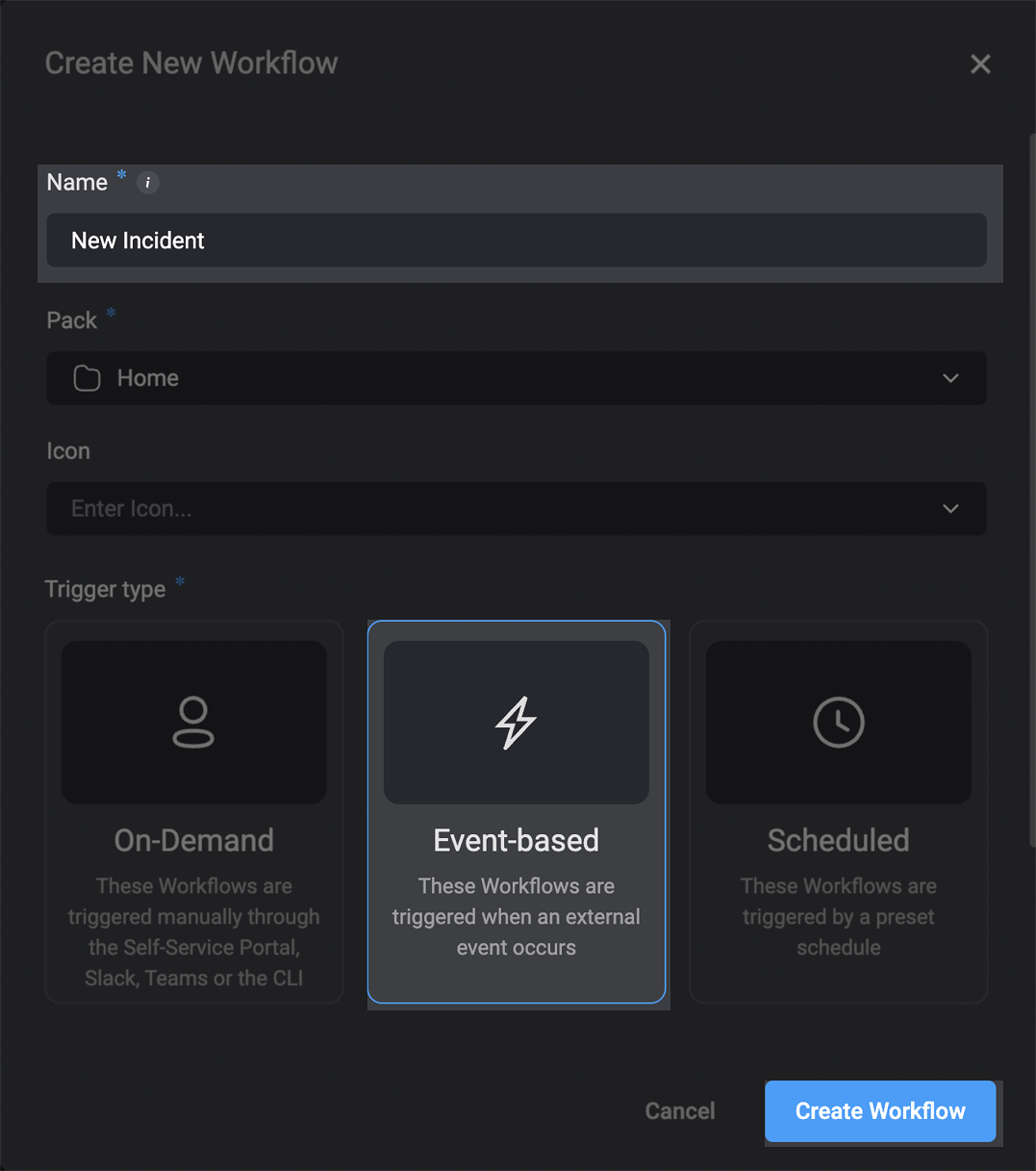
2. In the dialog box that opens, enter a name for your new workflow and set the Trigger Type to **Event-based**. Click **Create Workflow**.
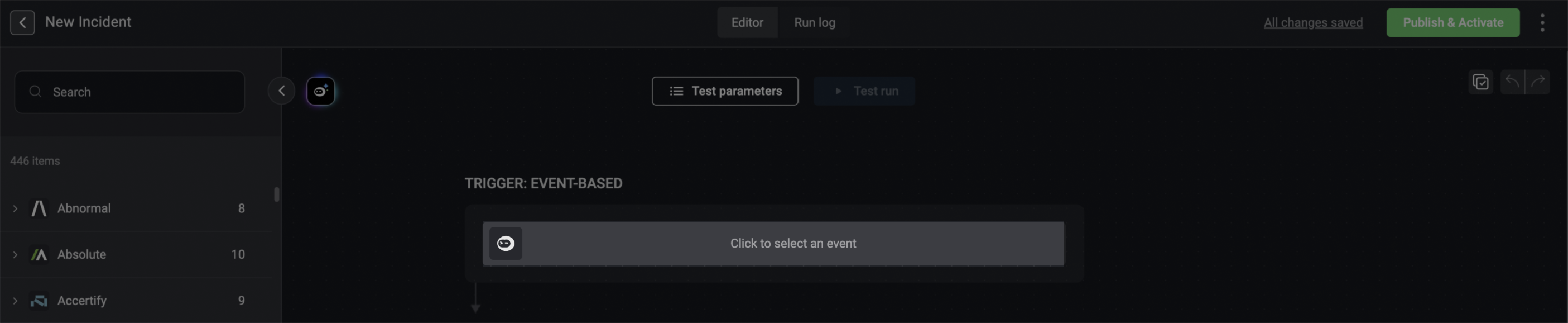
 3. Click the **event-based** component in the new workflow.
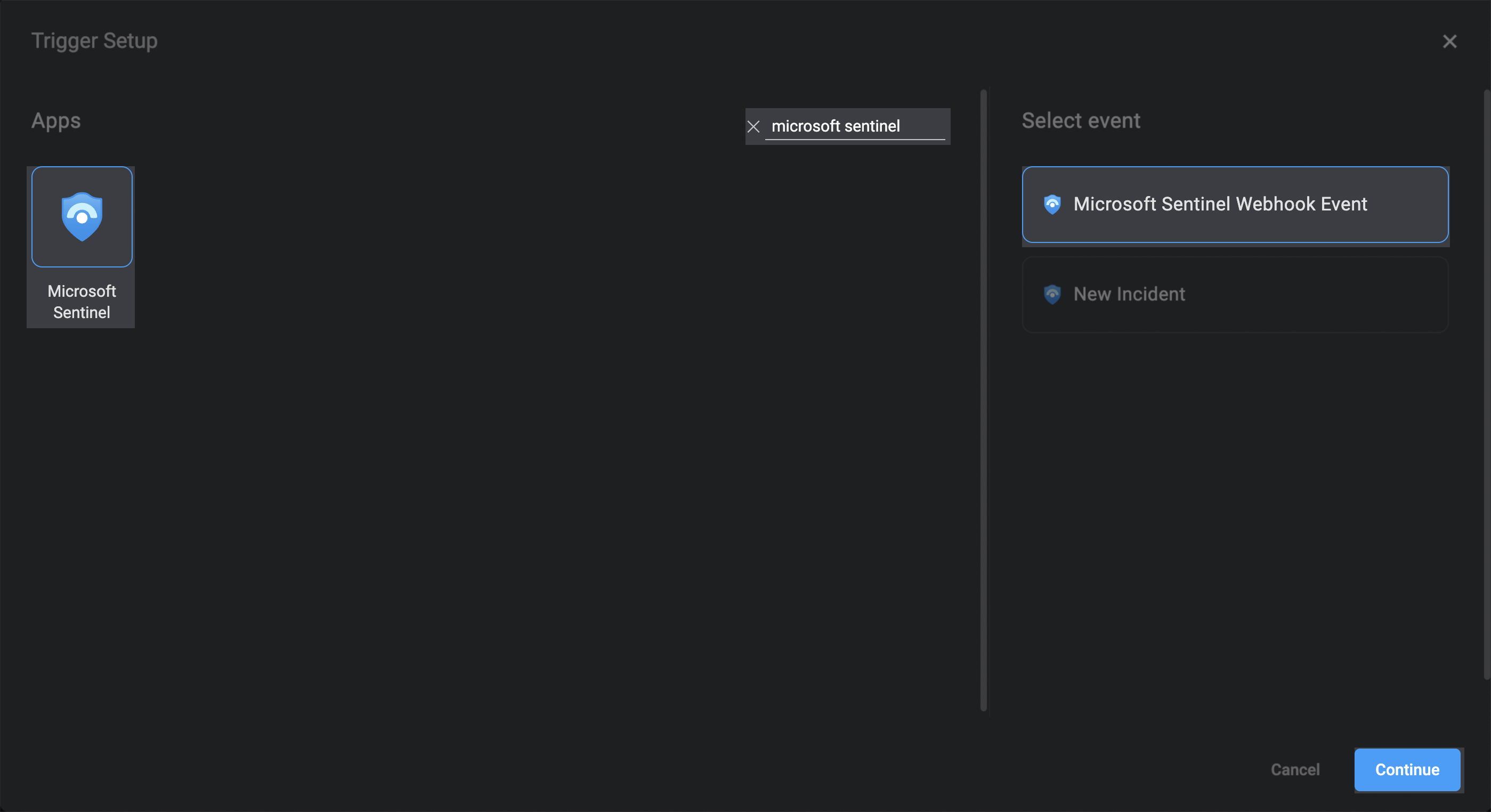
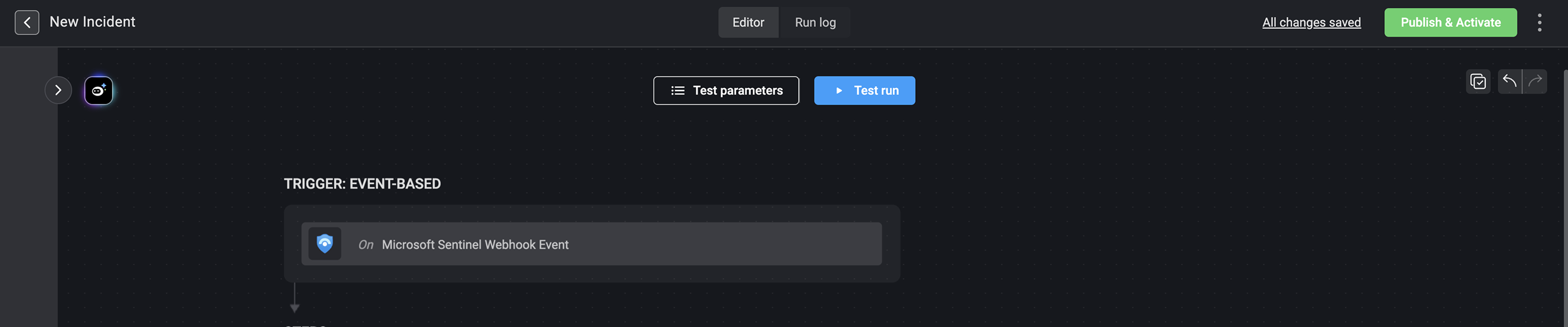
 4. Search for Microsoft Sentinel trigger types and select **Microsoft Sentinel Webhook Event**.
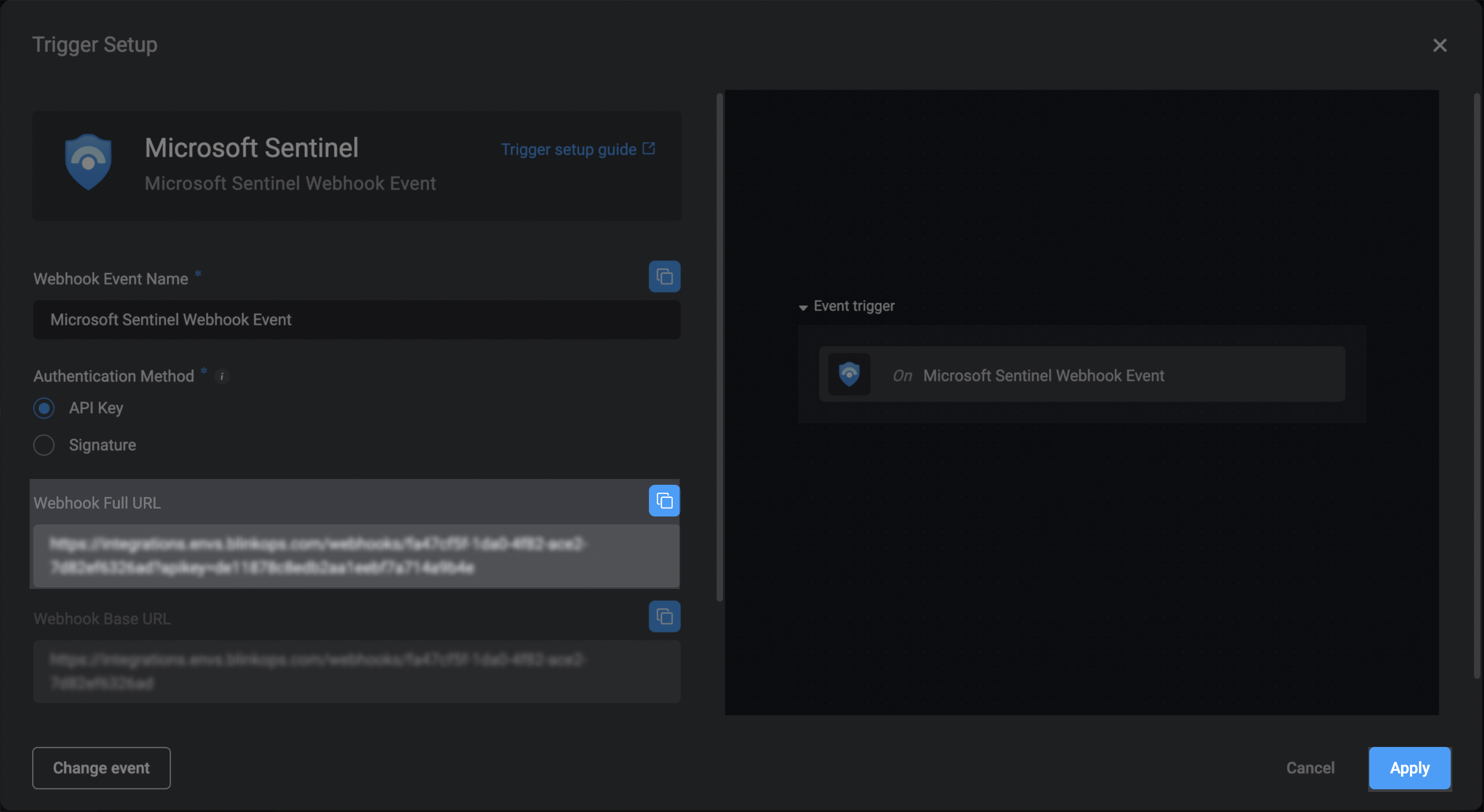
 5. In the trigger setup dialog box, copy the **Webhook Full URL** address, and click **Apply**.
 6. Add steps to the new workflow to define the logic and actions that will run when the workflow is triggered.
7. Click **Publish & Activate** to start listening on events.
6. Add steps to the new workflow to define the logic and actions that will run when the workflow is triggered.
7. Click **Publish & Activate** to start listening on events.
 ### Add the Playbook from Sentinel's Content Hub
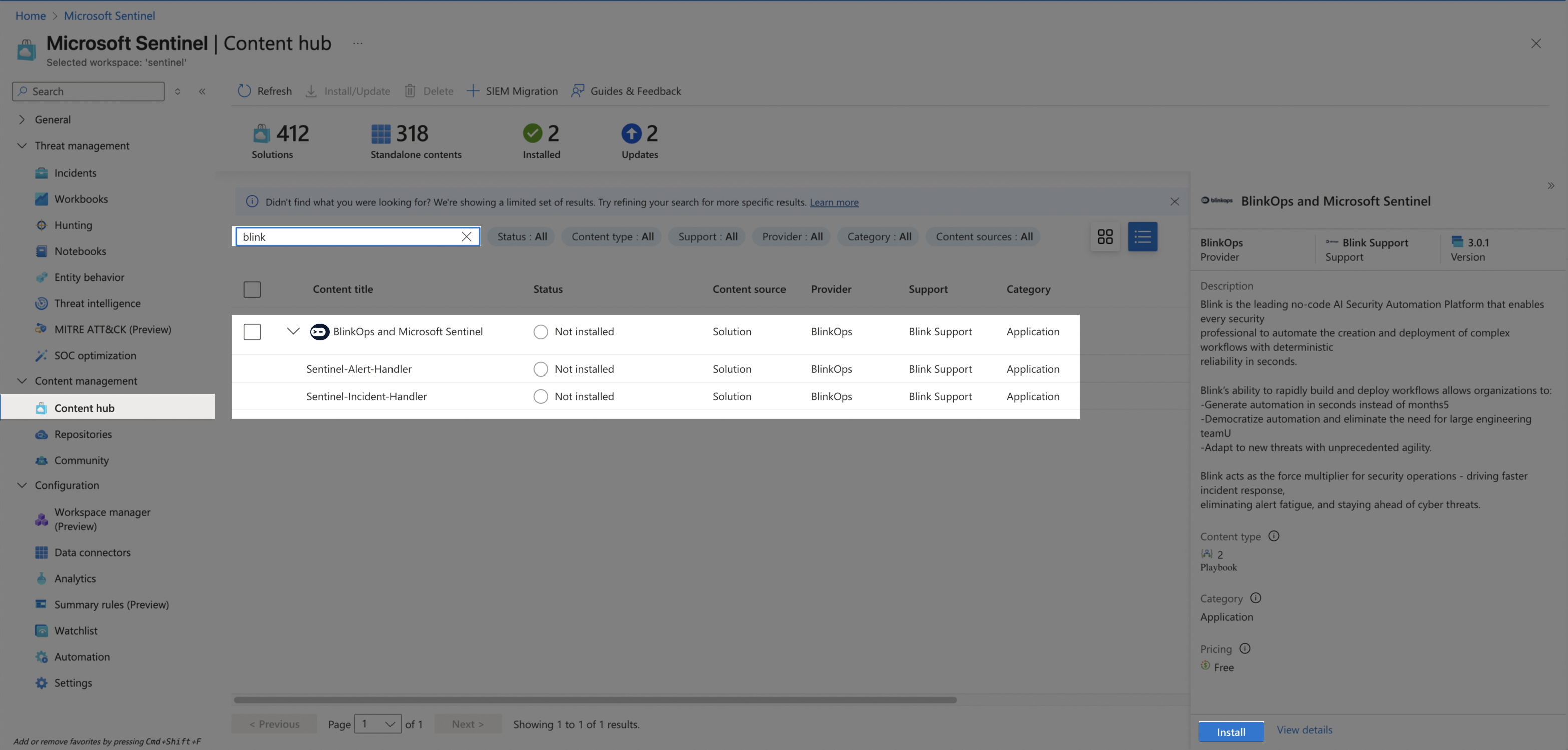
1. In Microsoft Sentinel, use the left-hand menu to go to **Content management** > **Content hub**. Search for `Blink` in the search bar, select the displayed solution, and click **Install**.
### Add the Playbook from Sentinel's Content Hub
1. In Microsoft Sentinel, use the left-hand menu to go to **Content management** > **Content hub**. Search for `Blink` in the search bar, select the displayed solution, and click **Install**.
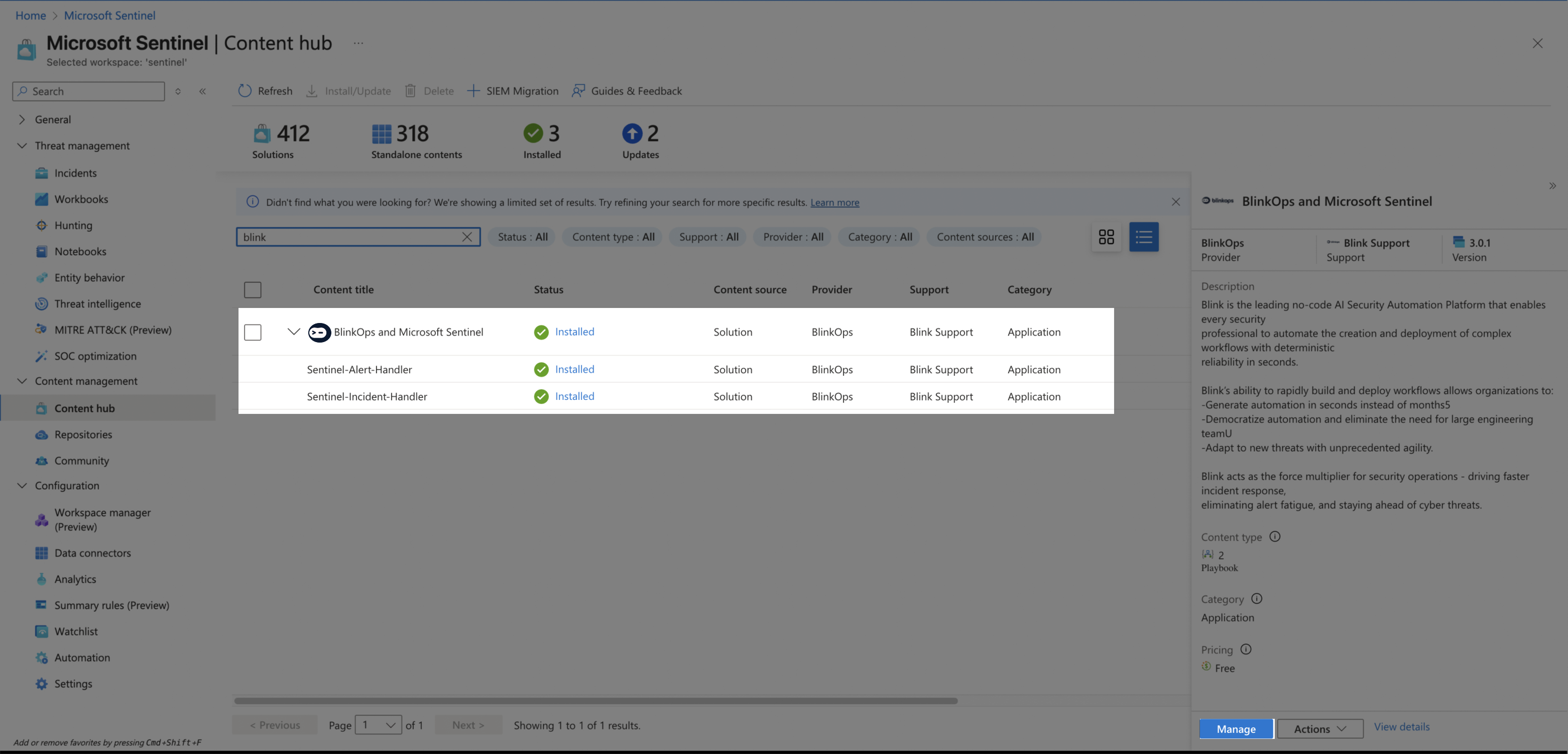
 2. After the solution has been installed, click **Manage**.
 3. Select the Playbook you want to add and click **Configuration**.
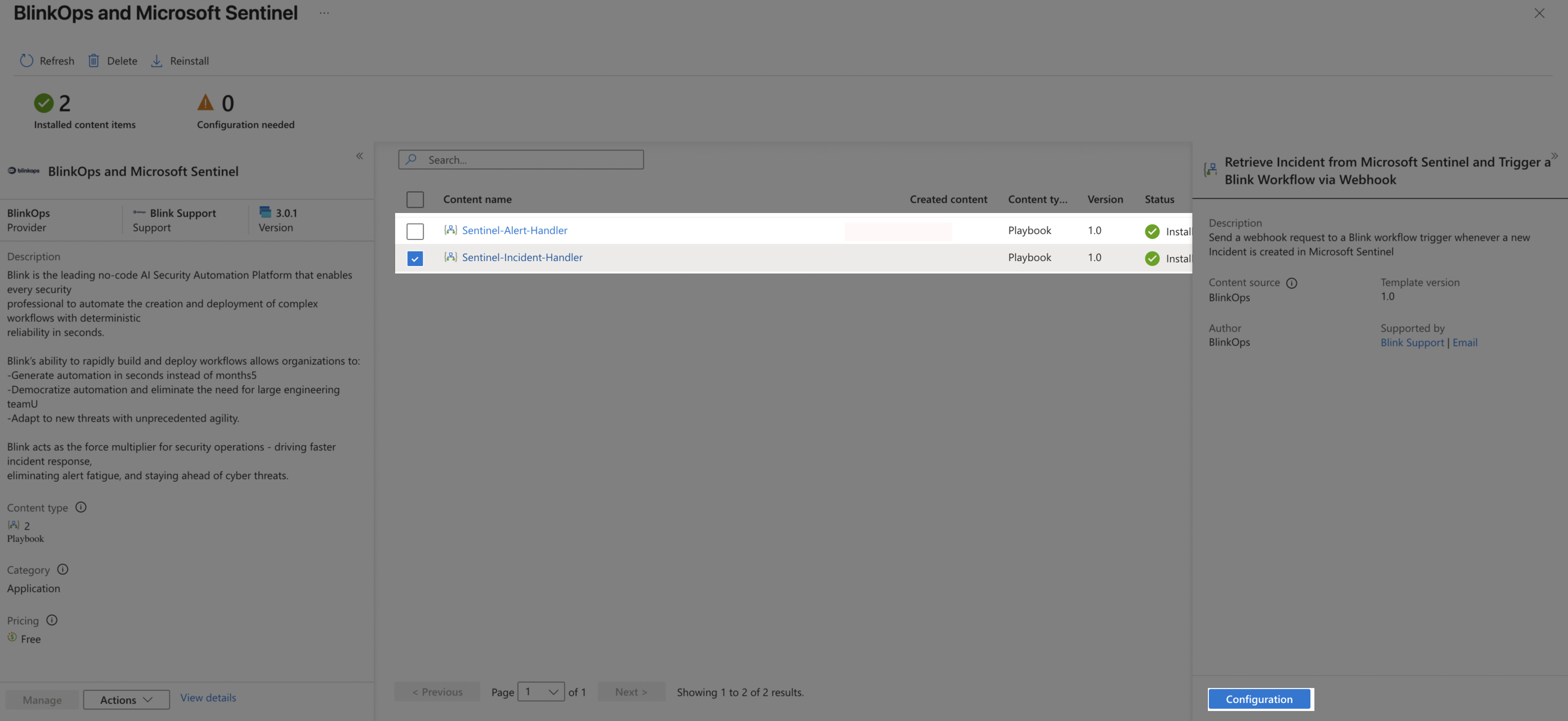 The following steps show how to create the Sentinel Incident Handler playbook. The same process applies to the Sentinel Alert Handler as well.
4. Click **Create Playbook**.
The following steps show how to create the Sentinel Incident Handler playbook. The same process applies to the Sentinel Alert Handler as well.
4. Click **Create Playbook**.
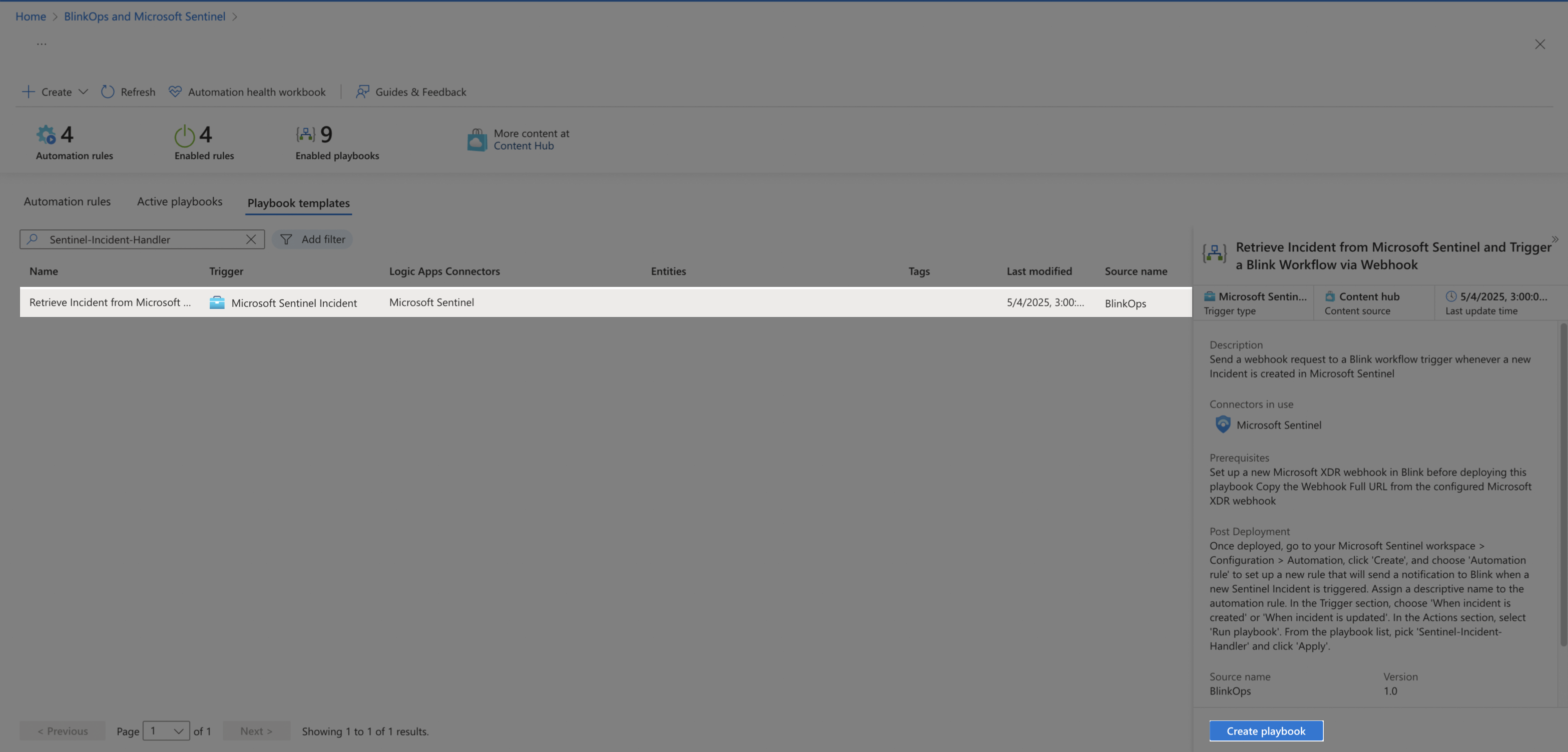 5. Insert **Subscription** and **Resource group**. Choose a **name** and click **Next: Connections**.
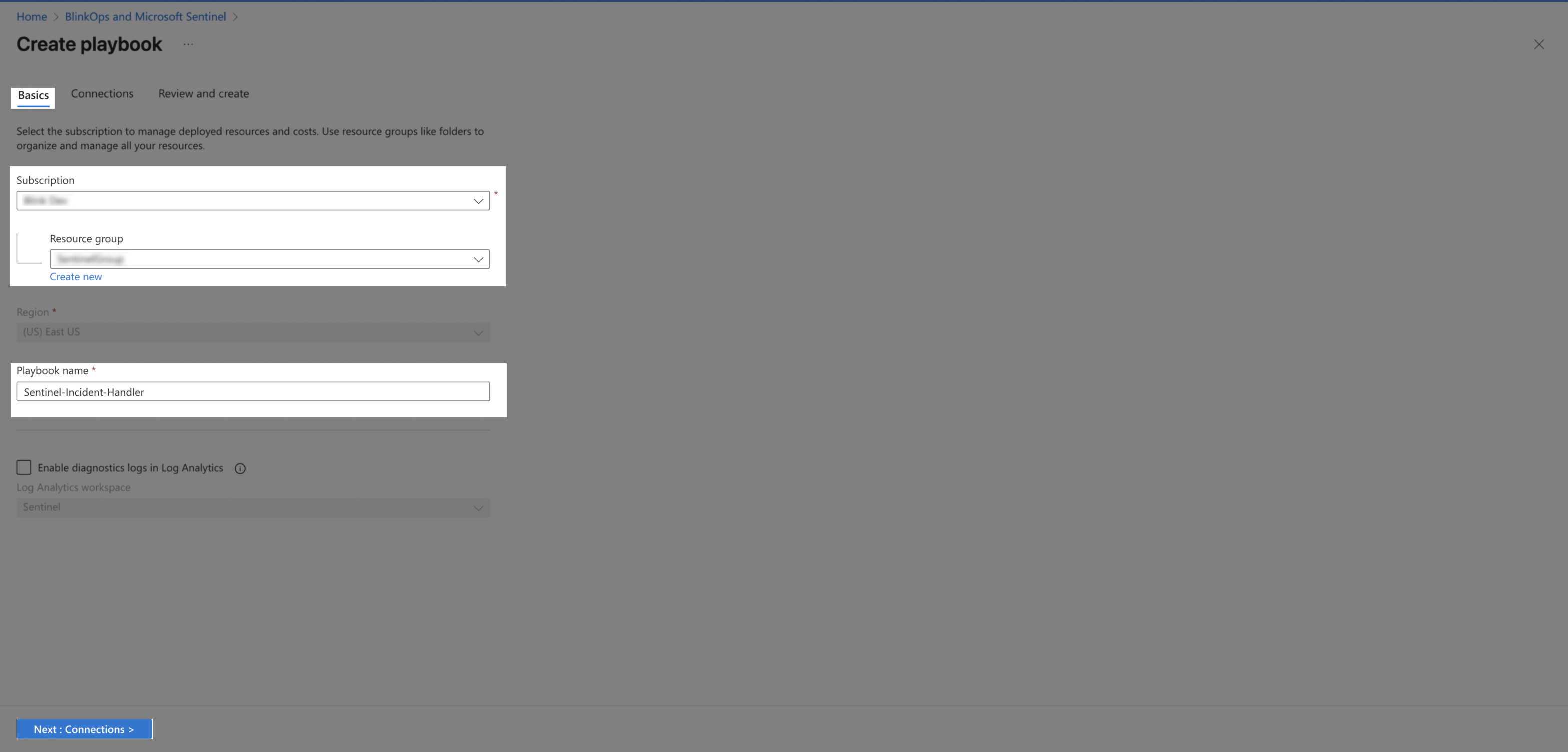 6. Choose a Microsoft Sentinel connection. Click **Next: Review and create**.
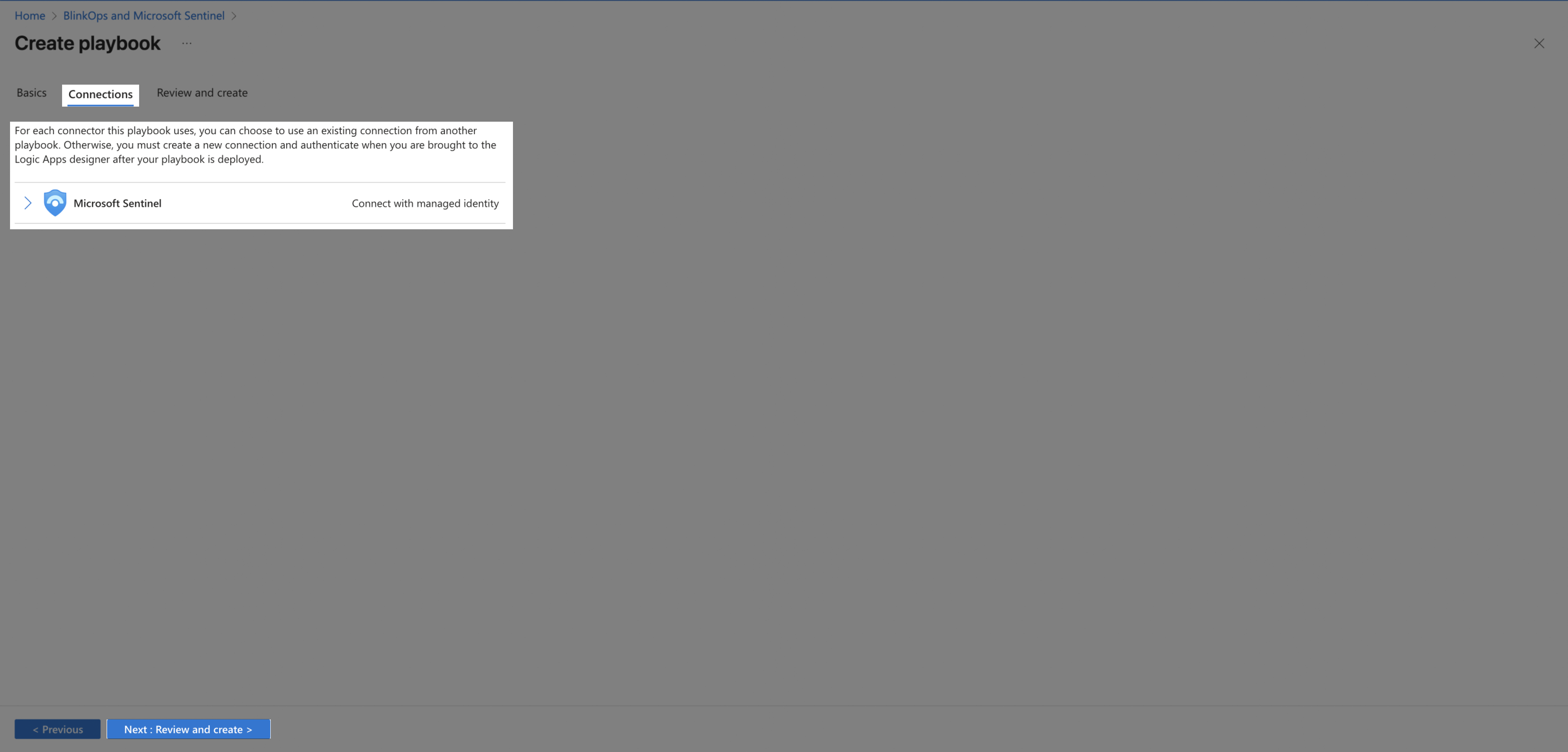 7. Click **Create playbook**.
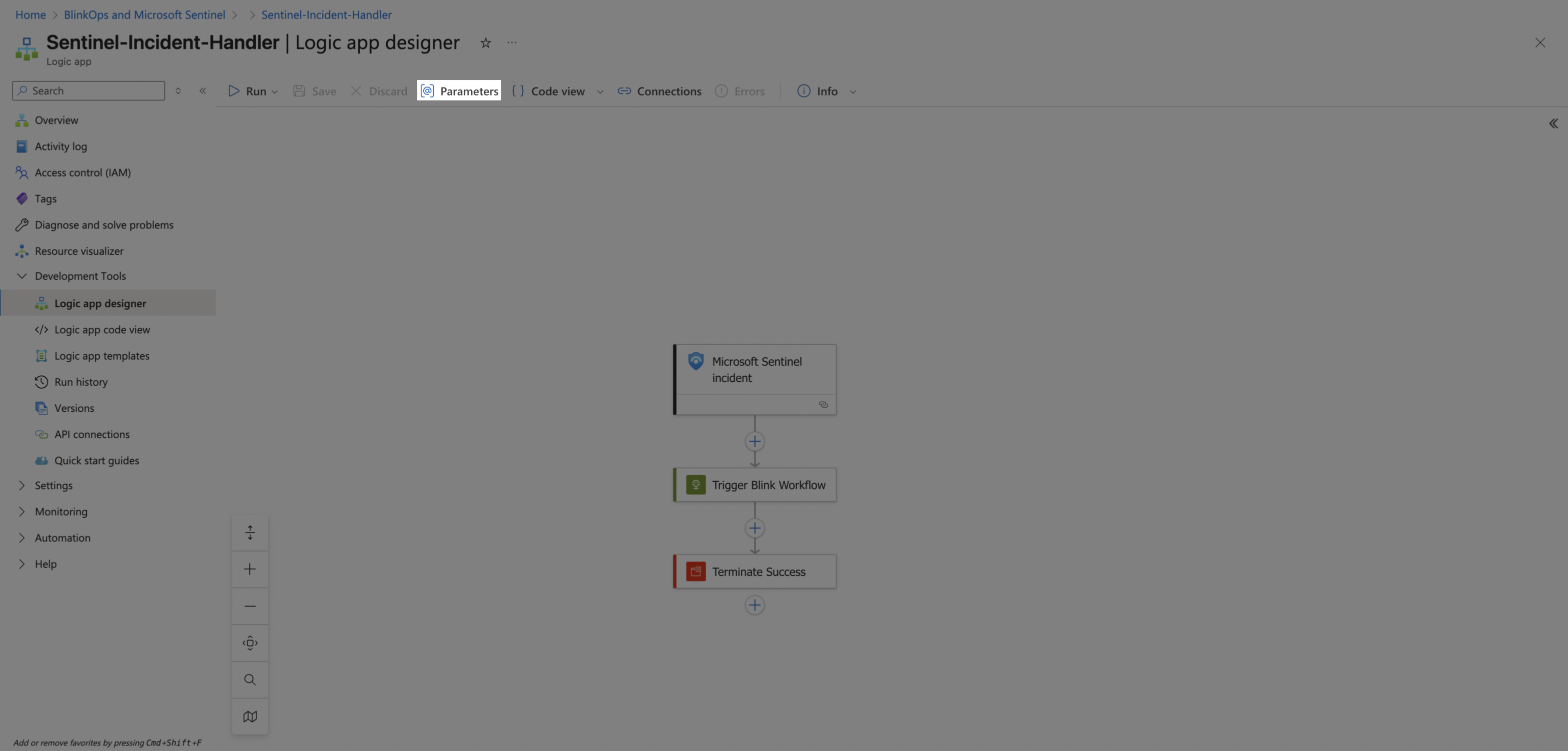
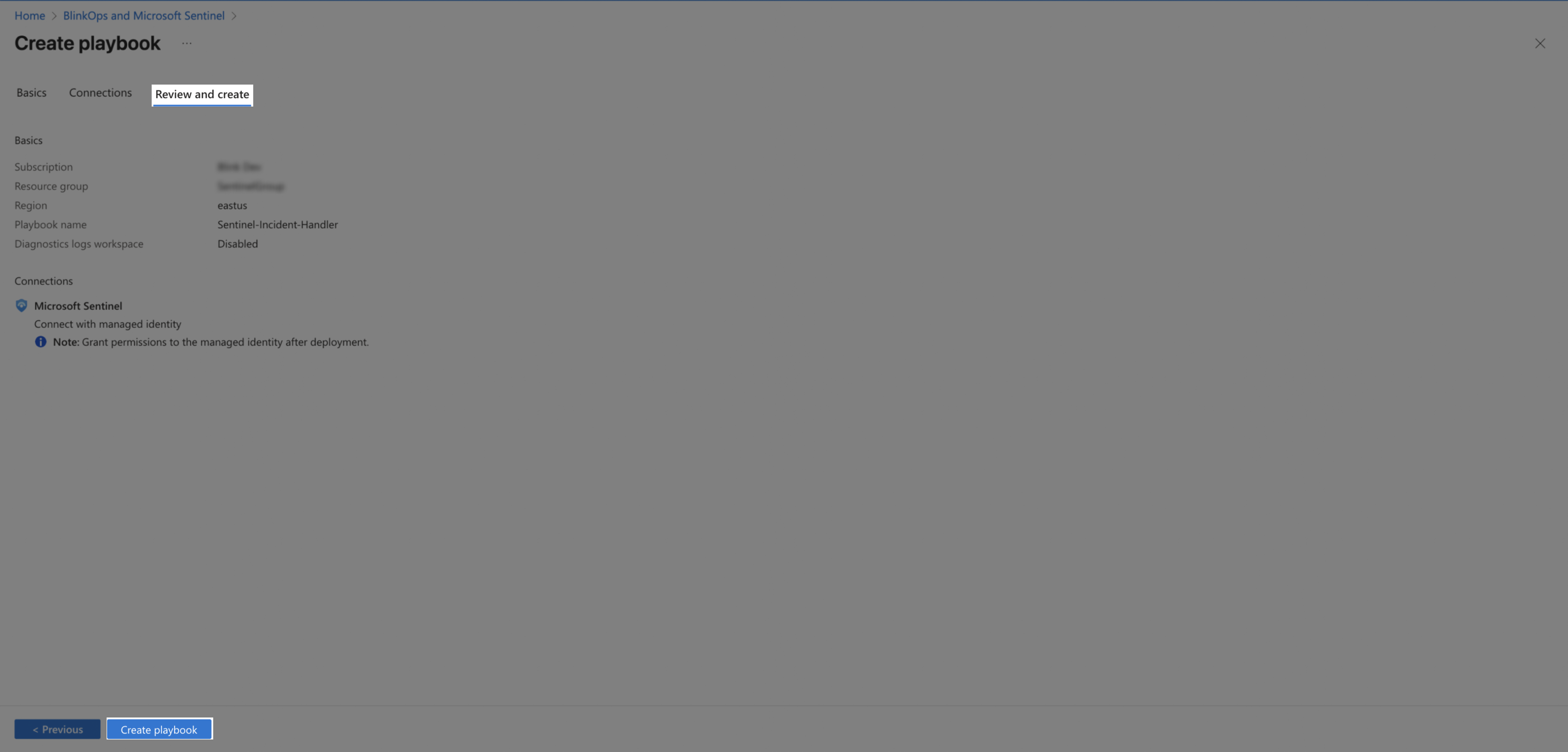 8. In the playbook designer, click **Parameters**.
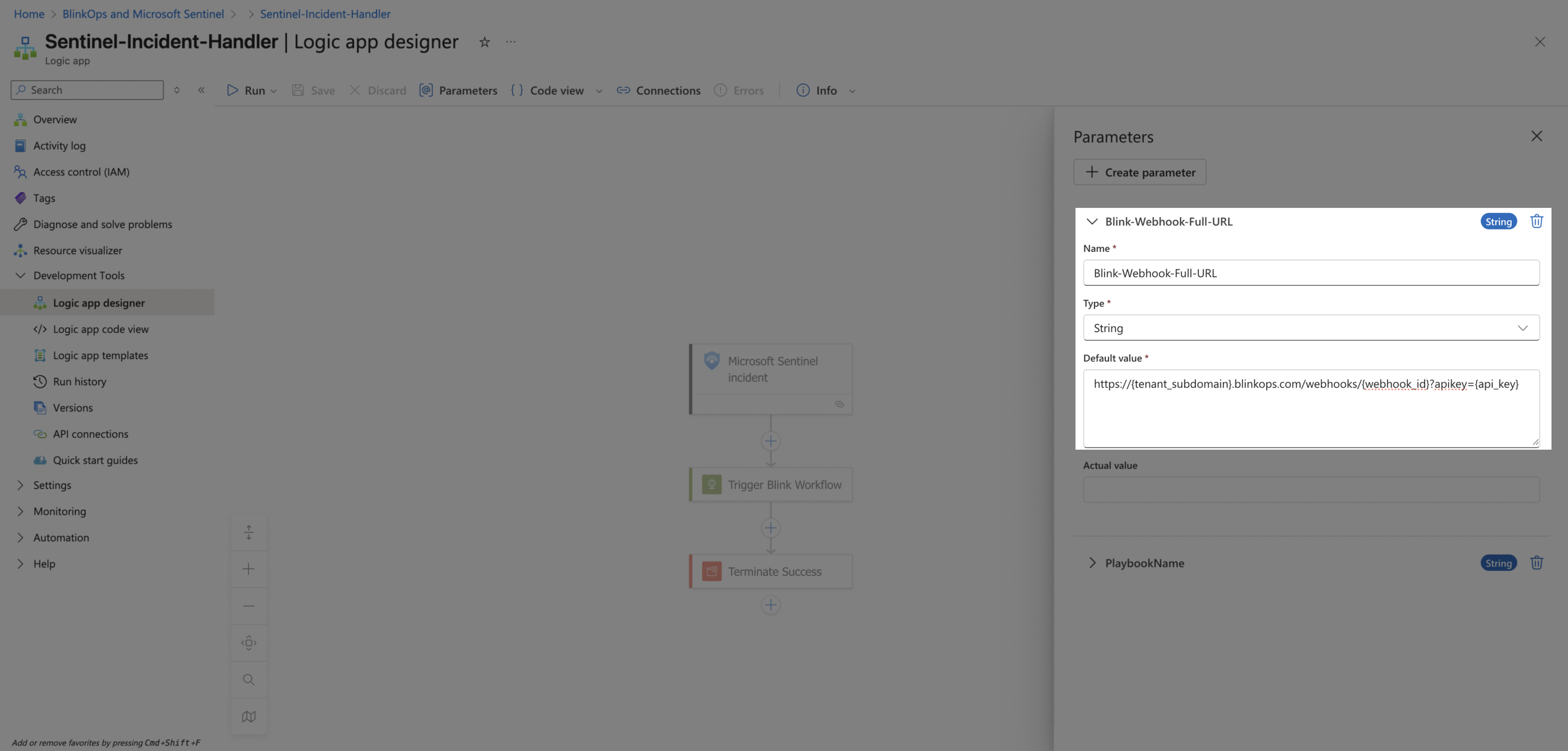
 9. Configure the **Blink-Webhook-Full-URL** parameter. Change the **Default value** to the **Webhook Full URL** you copied earlier from Blink.
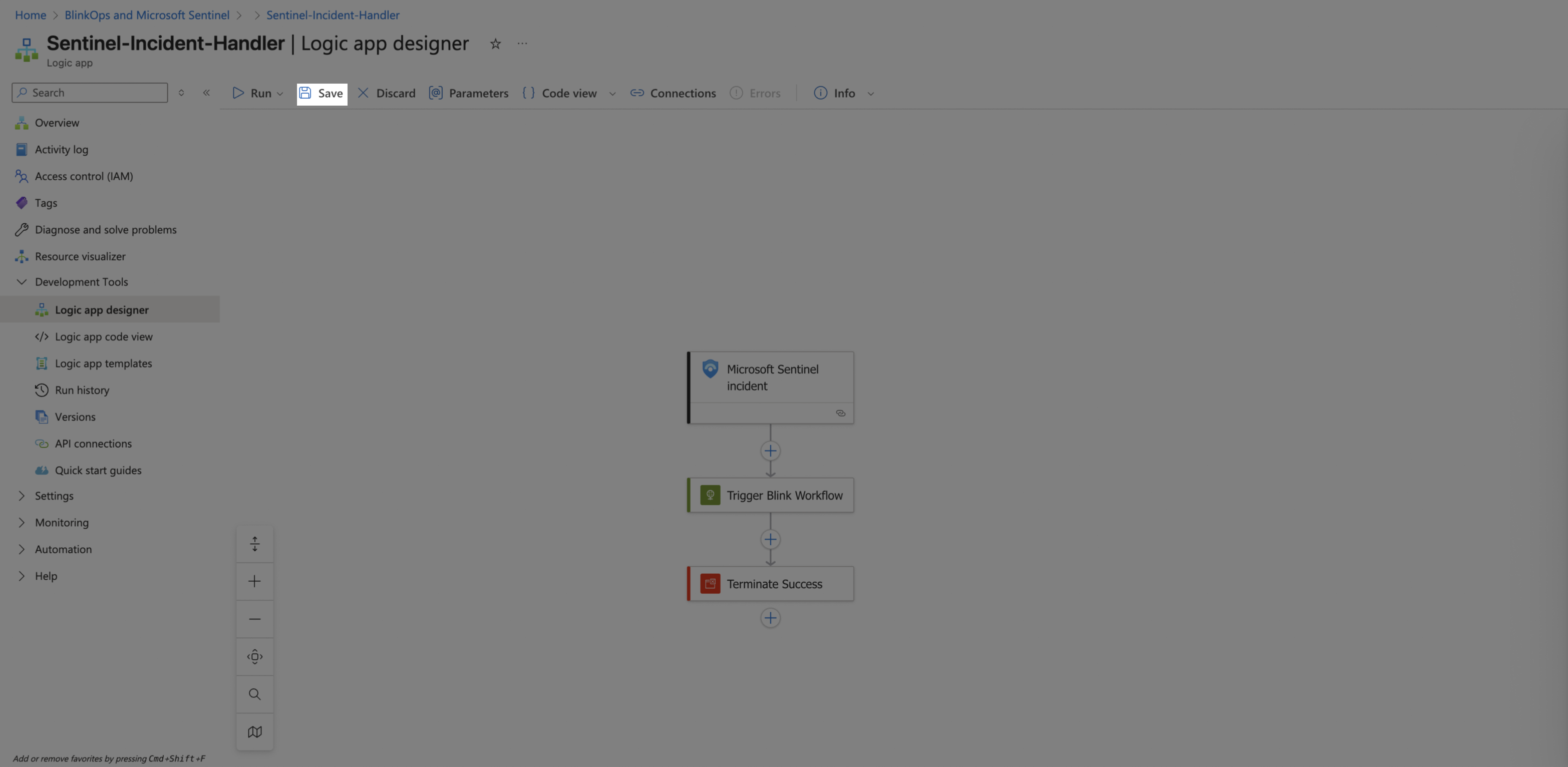
 10. Close the parameters configuration window and Click **Save**.
 ### Create an Automation Rule
Next, we will create an automation rule that will trigger the workflow whenever an incident is created. Keep in mind that you can also create rules for **new alerts**.
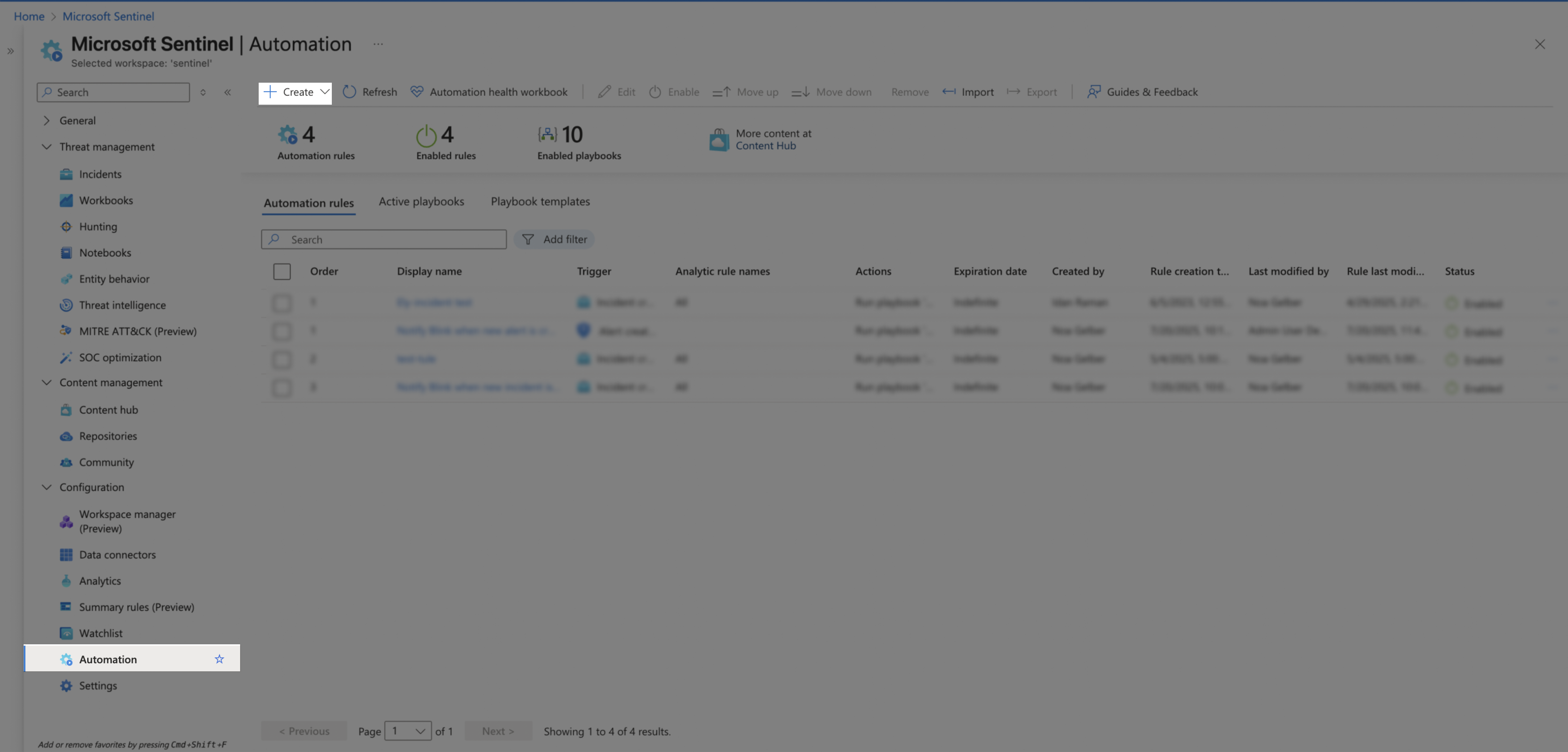
1. In Microsoft Sentinel, use the left-hand menu to go to **Configuration** > **Automation**. Click **Create** > **Automation Rule**.
### Create an Automation Rule
Next, we will create an automation rule that will trigger the workflow whenever an incident is created. Keep in mind that you can also create rules for **new alerts**.
1. In Microsoft Sentinel, use the left-hand menu to go to **Configuration** > **Automation**. Click **Create** > **Automation Rule**.
 2. Configure the new rule:
* Choose an informative rule name.
* Choose the trigger type **When incident is created** (Other available options: `When incident is updated` / `When alert is created`).
If you're configuring an `Alert Rule`, make sure to check the specific `Analytics rule name` that will trigger the playbook under the `Conditions` section (or select all of them).
2. Configure the new rule:
* Choose an informative rule name.
* Choose the trigger type **When incident is created** (Other available options: `When incident is updated` / `When alert is created`).
If you're configuring an `Alert Rule`, make sure to check the specific `Analytics rule name` that will trigger the playbook under the `Conditions` section (or select all of them).
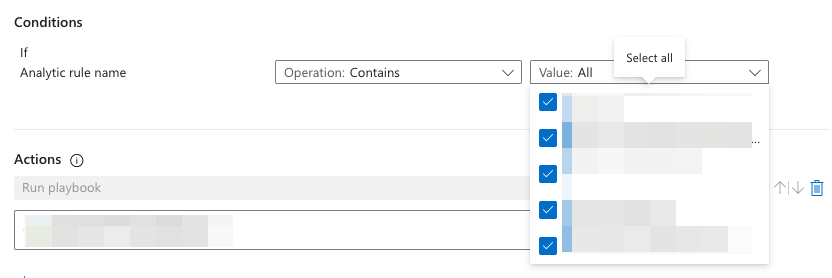 * Set **Actions** to `Run playbook`, and select the sentinel incident handler playbook.
* **Optional**: set rule expiration date.
* Click **Apply**.
* Set **Actions** to `Run playbook`, and select the sentinel incident handler playbook.
* **Optional**: set rule expiration date.
* Click **Apply**.
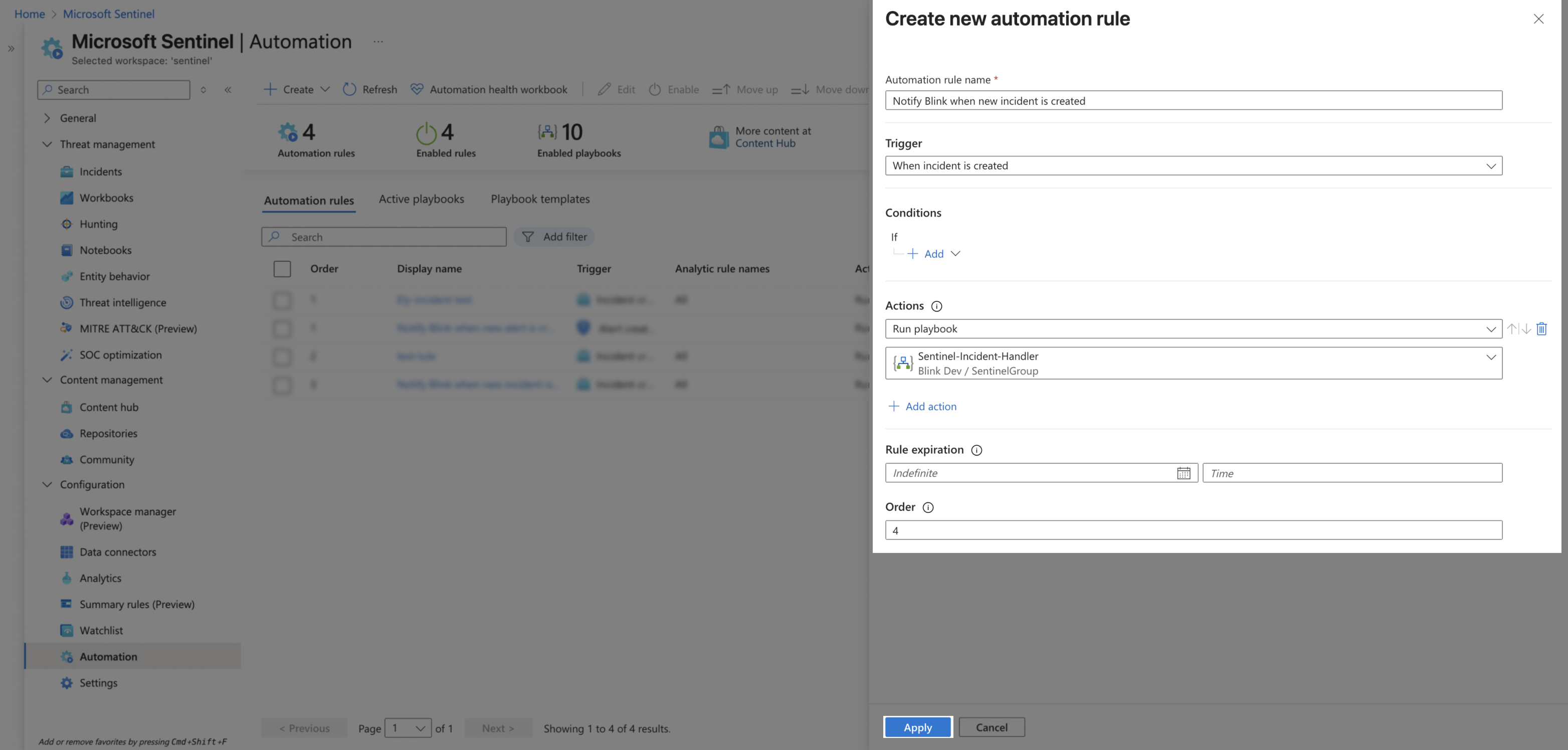 After completing all the steps, Microsoft Sentinel incidents will automatically trigger your workflow in Blink.