> ## Documentation Index
> Fetch the complete documentation index at: https://docs.blinkops.com/llms.txt
> Use this file to discover all available pages before exploring further.
# Microsoft Purview
> Microsoft Purview is a comprehensive set of solutions that can help your organization govern, protect, and manage data, wherever it lives.
## Creating a Microsoft Purview connection
## Using OAuth
You need to provide your Microsoft Purview API Address.
## Find your Microsoft Purview account name
1. Log into the [Azure Portal](https://portal.azure.com/#home).
2. Navigate to **Microsoft Purview accounts**.
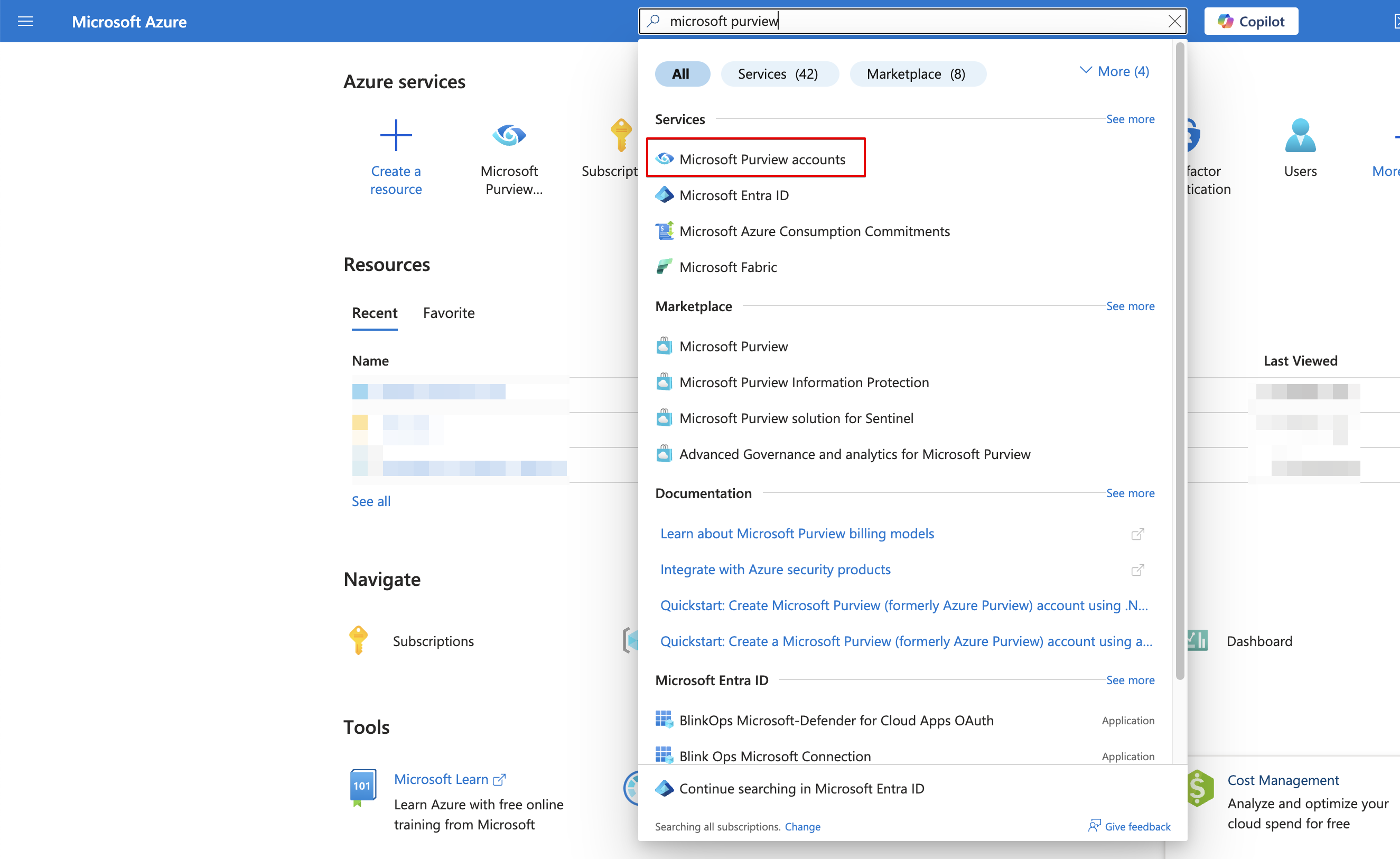 3. Copy your **account's name**.
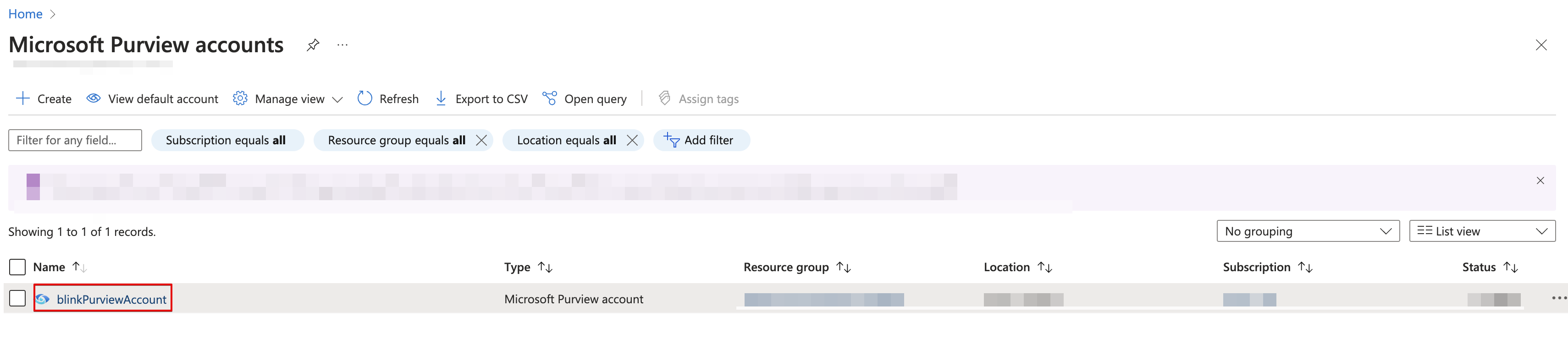 4. The API address would be `https://{YourPurviewAccountName}.purview.azure.com`.
### Creating your connection
1. In the Blink platform, navigate to the **Connections** page > **Add connection**. A New Connection dialog box opens displaying icons of external service providers available.
2. Select the **Microsoft Purview** icon. A dialog box with name of the connection and connection methods appear.
3. (Optional) Edit the name of the connection. At a later stage you cannot edit the name.
4. Click **Microsoft Purview** to authenticate using OAuth.
5. Sign in using your credentials.
Need admin approval? please refer to the [Need Admin
Approval](/docs/integrations/microsoft-purview/admin-approval) guide.
4. The API address would be `https://{YourPurviewAccountName}.purview.azure.com`.
### Creating your connection
1. In the Blink platform, navigate to the **Connections** page > **Add connection**. A New Connection dialog box opens displaying icons of external service providers available.
2. Select the **Microsoft Purview** icon. A dialog box with name of the connection and connection methods appear.
3. (Optional) Edit the name of the connection. At a later stage you cannot edit the name.
4. Click **Microsoft Purview** to authenticate using OAuth.
5. Sign in using your credentials.
Need admin approval? please refer to the [Need Admin
Approval](/docs/integrations/microsoft-purview/admin-approval) guide.