> ## Documentation Index
> Fetch the complete documentation index at: https://docs.blinkops.com/llms.txt
> Use this file to discover all available pages before exploring further.
> Microsoft Excel is a spreadsheet program developed by Microsoft. It allows users to organize, format, and calculate data within a grid-like structure of rows and columns.
# Microsoft excel
## Creating a Microsoft Excel connection
Create the connection by using one of the following methods:
* [OAuth](#using-oauth)
* [App Registration](#using-app-registration)
### Using OAuth
#### Creating your connection
1. In the Blink platform, navigate to the **Connections** page > **Add connection**. A New Connection dialog box opens displaying icons of external service providers available.
2. Select the **Microsoft Excel** icon. A dialog box with name of the connection and connection methods appear.
3. (Optional) Edit the name of the connection. At a later stage you cannot edit the name.
4. Click **Excel** to authenticate using OAuth.
5. Sign in using your credentials.
### Using App Registration
To create the connection you need:
* A Client ID
* A Client Secret
* A Tenant ID
#### Obtaining the credentials
1. Log into the [Azure Portal](https://portal.azure.com/#home).
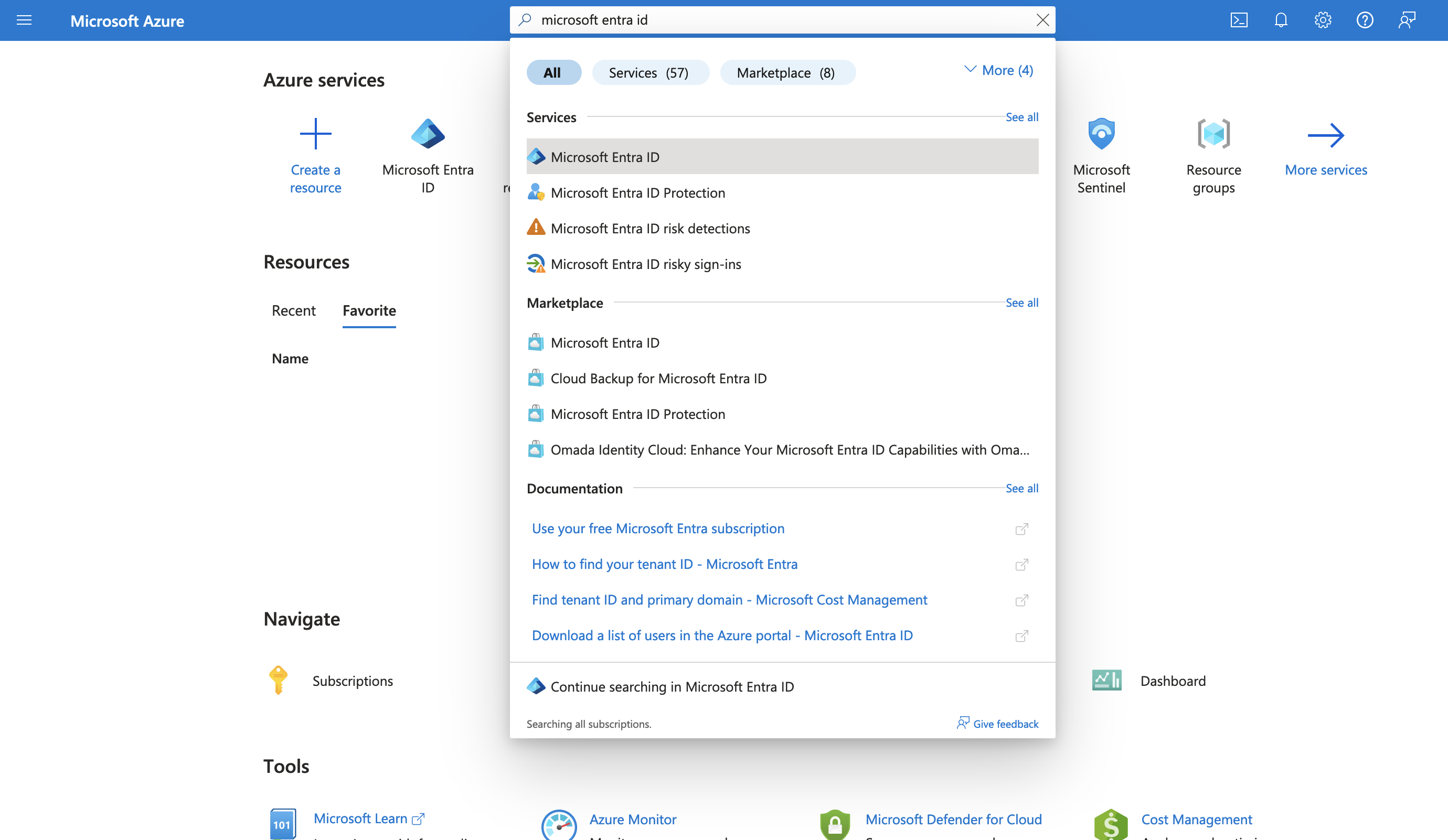
2. Go to the *Microsoft Entra ID* resource.
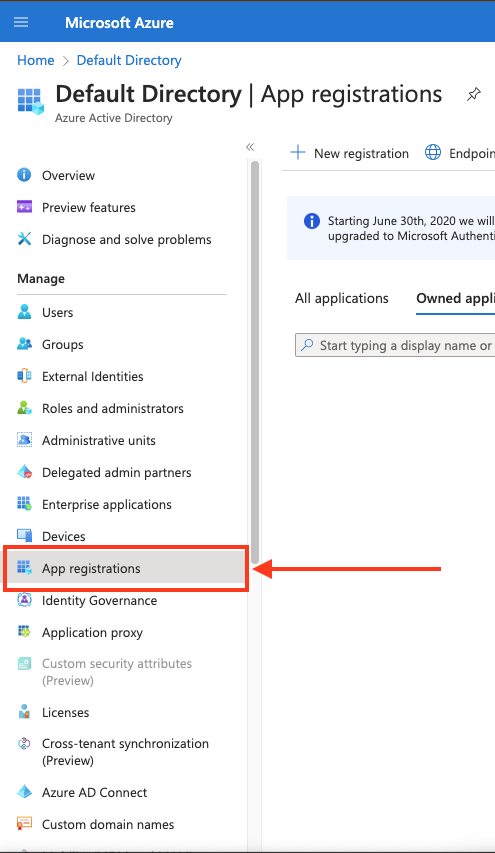
 3. In the left-hand menu, click **App registrations**.
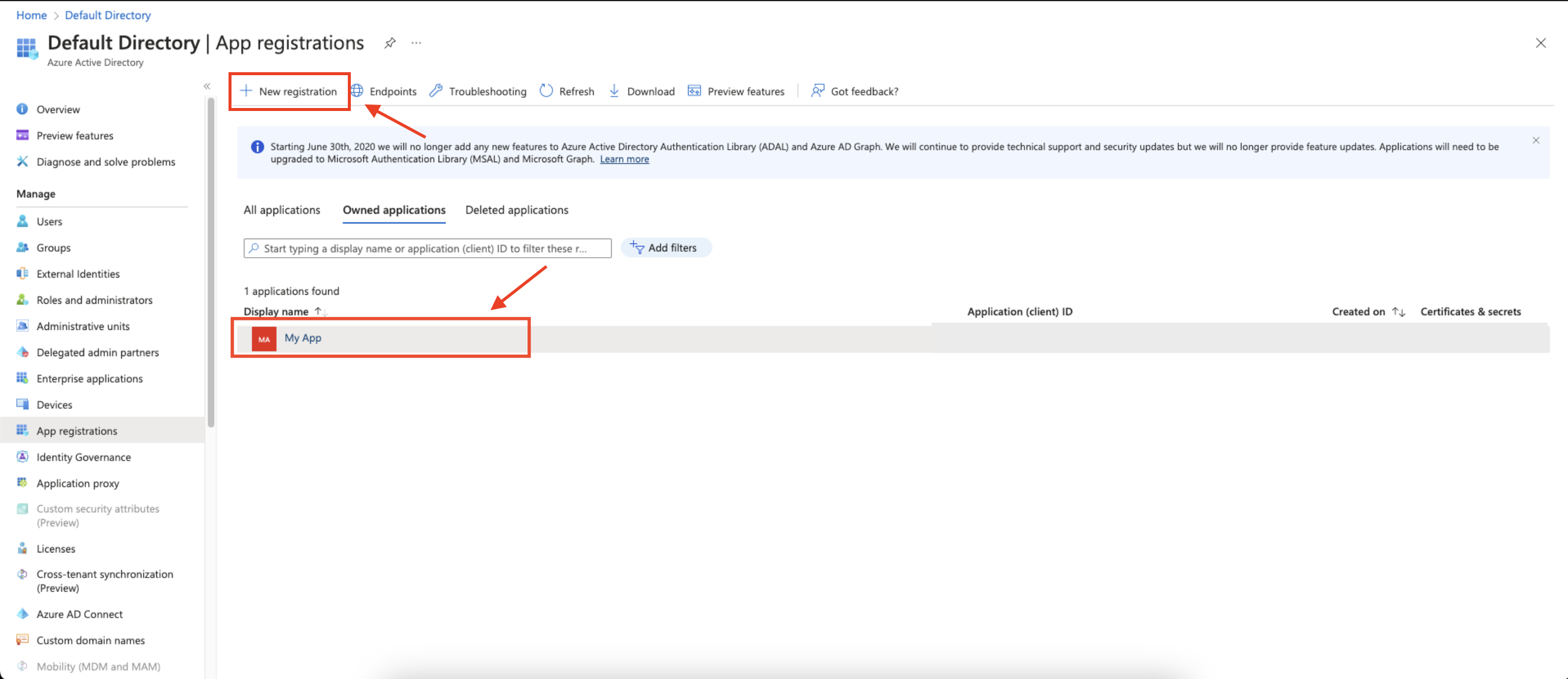
 4. Create a new application registration or click on one of your existing applications.
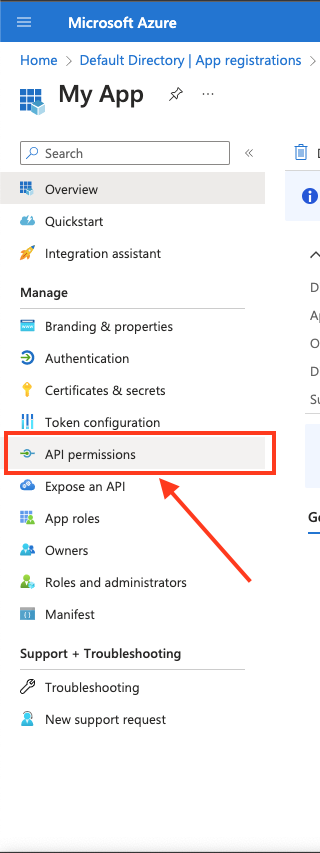
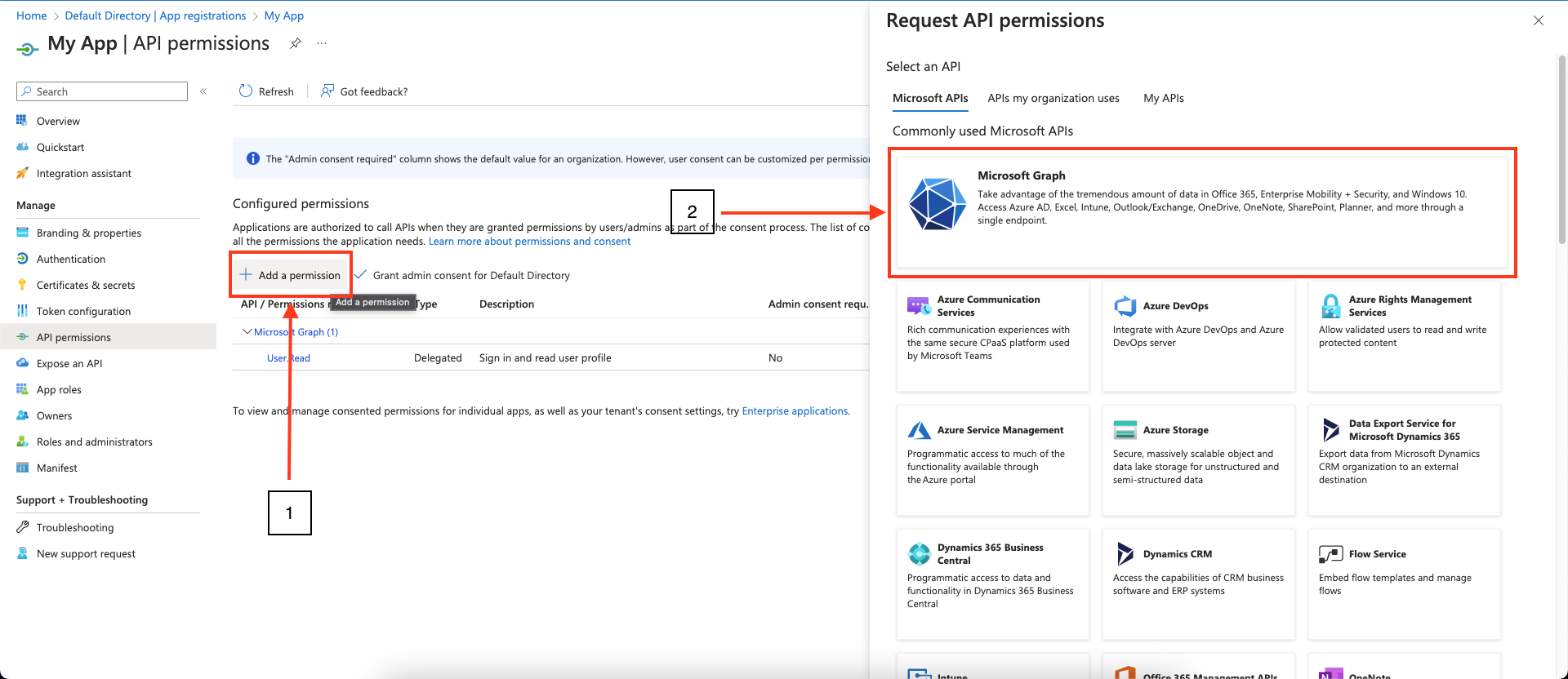
 5. In the left-hand menu, click **API permissions**.
 6. Click **Add a permission** and select **Microsoft Graph**.
 7. Choose **Application permissions** and mark the permissions you wish to add.
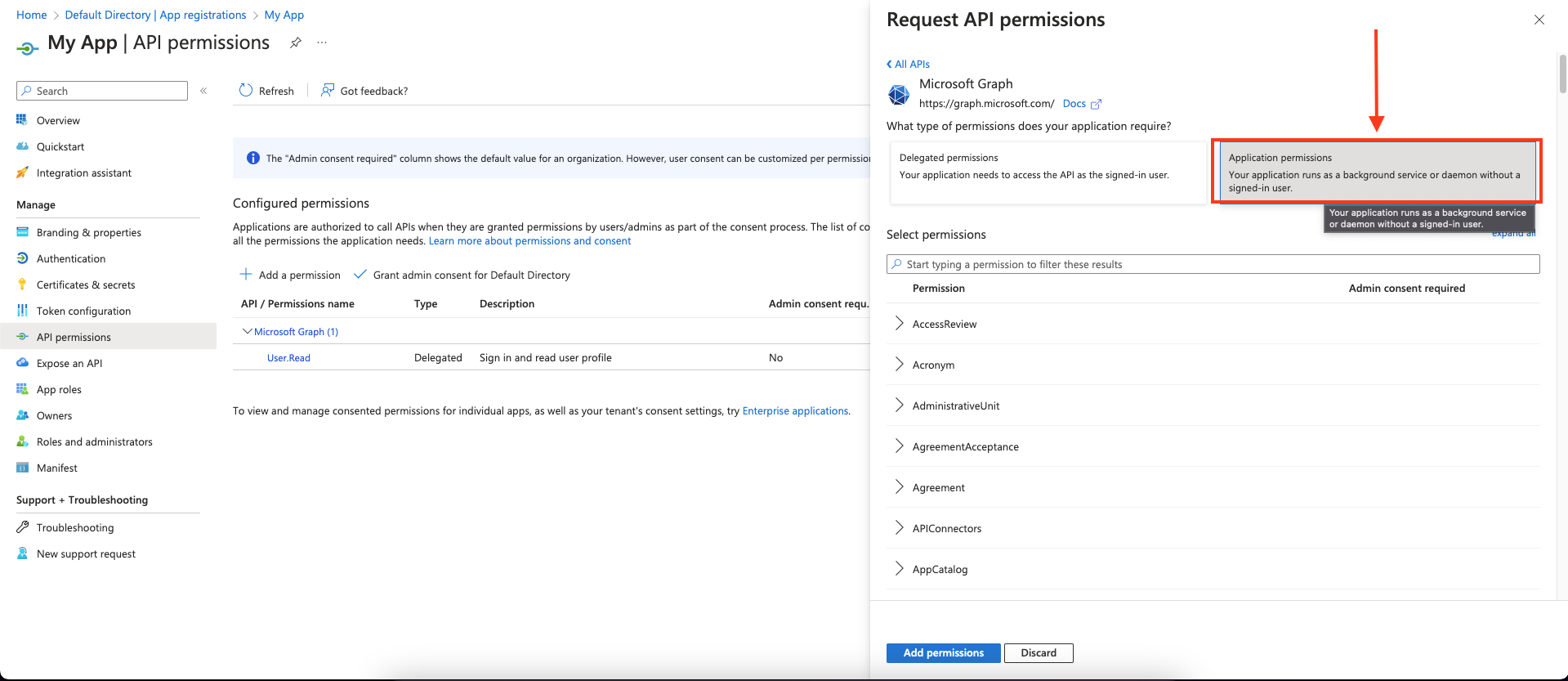 To support all Blink actions, add the following **application** permissions:
| Least privileged permissions | Higher privileged permissions |
| ---------------------------- | ----------------------------- |
| Files.ReadWrite | - |
8. Click **Add permissions** to save the changes.
9. Click **Grant admin consent for ``** on the API permissions page. **Only admins can grant consent**.
To support all Blink actions, add the following **application** permissions:
| Least privileged permissions | Higher privileged permissions |
| ---------------------------- | ----------------------------- |
| Files.ReadWrite | - |
8. Click **Add permissions** to save the changes.
9. Click **Grant admin consent for ``** on the API permissions page. **Only admins can grant consent**.
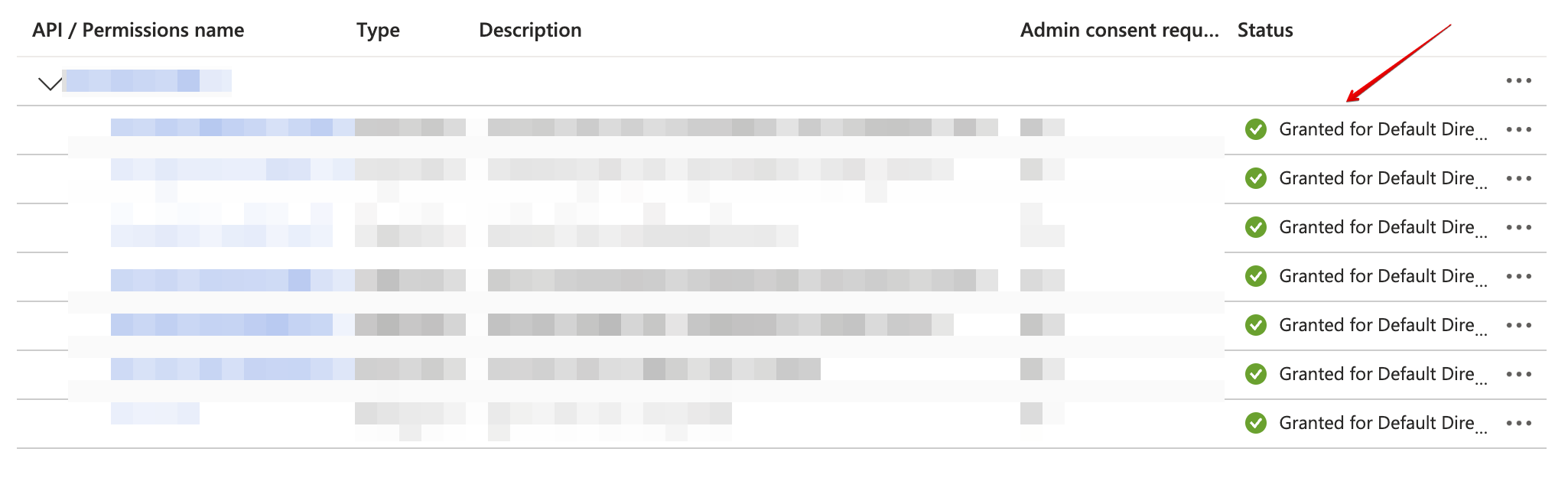
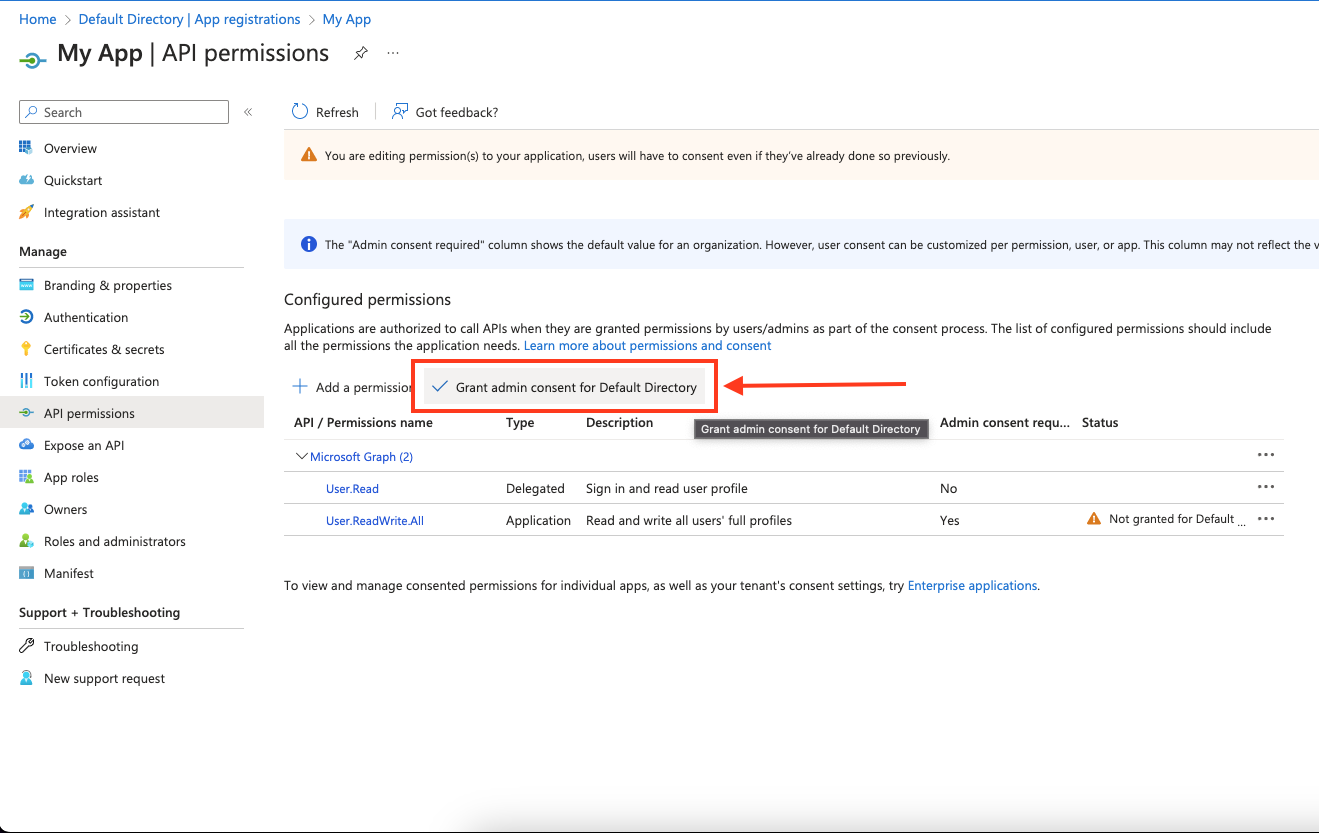 10. Confirm that the added permissions are now verified.
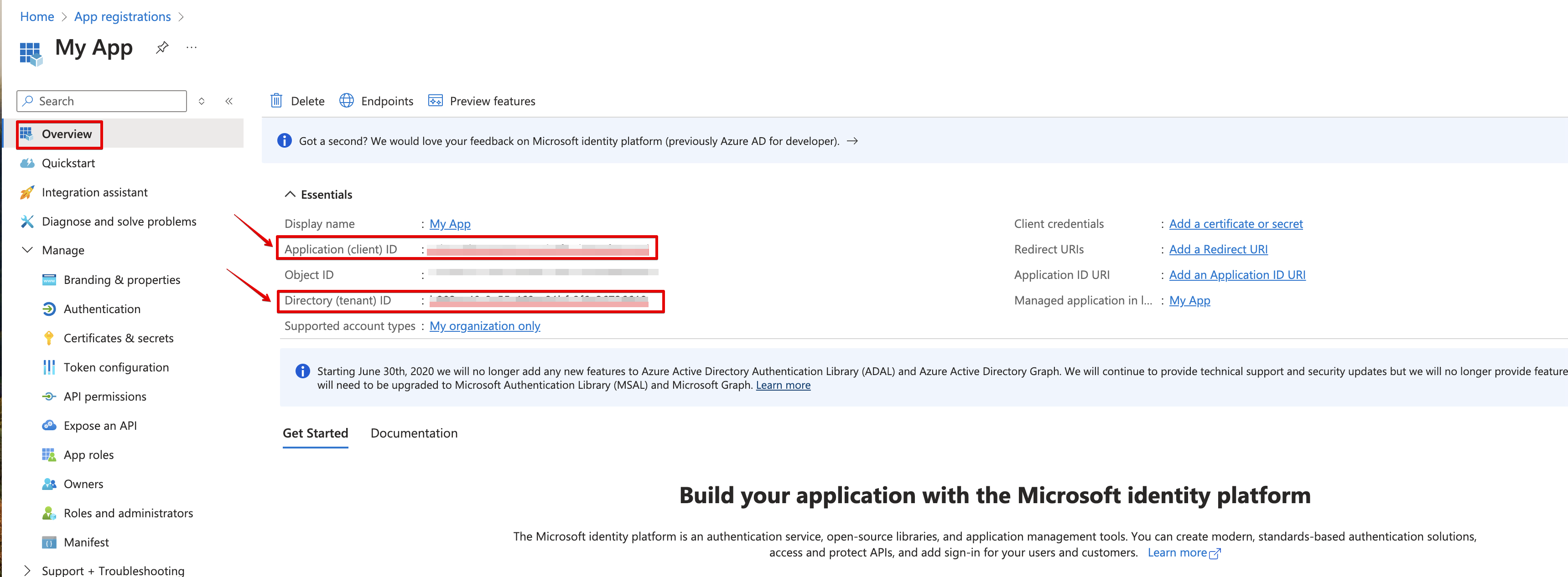
 11. Navigate to **Overview** and Copy your **client ID** and **tenant ID**.
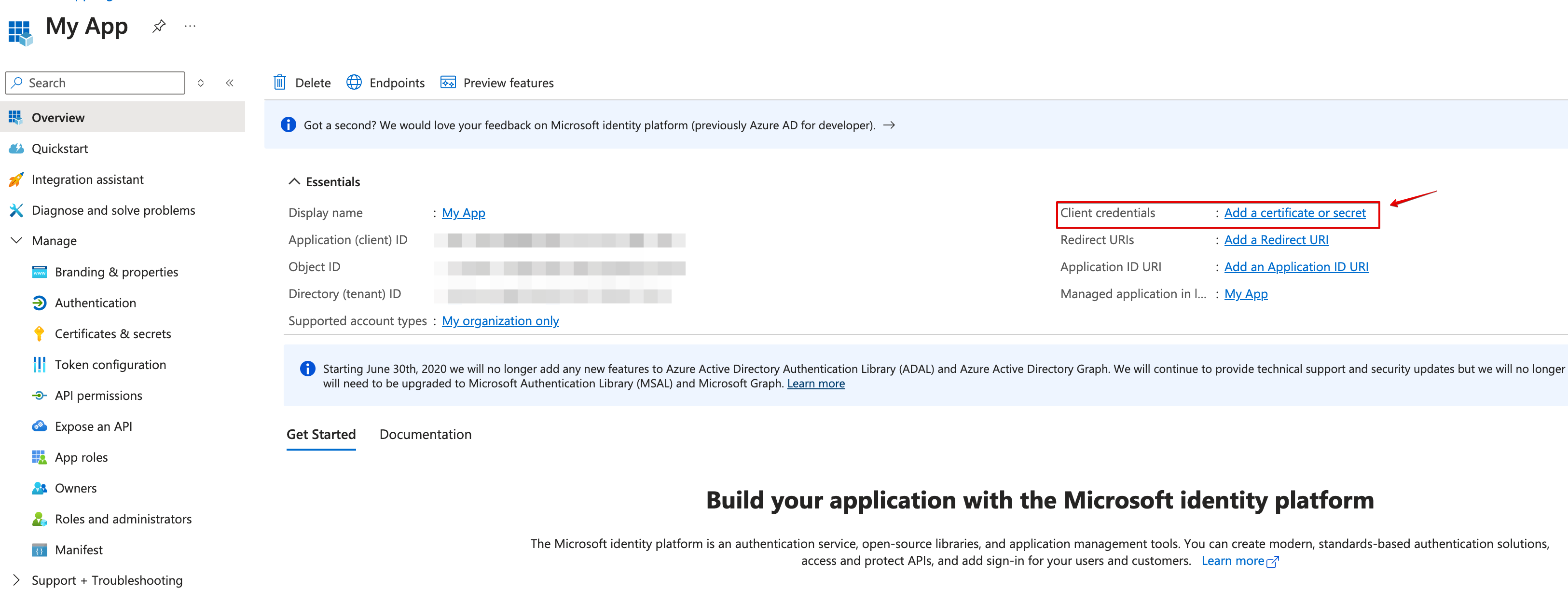
 12. Create a new **client secret**.
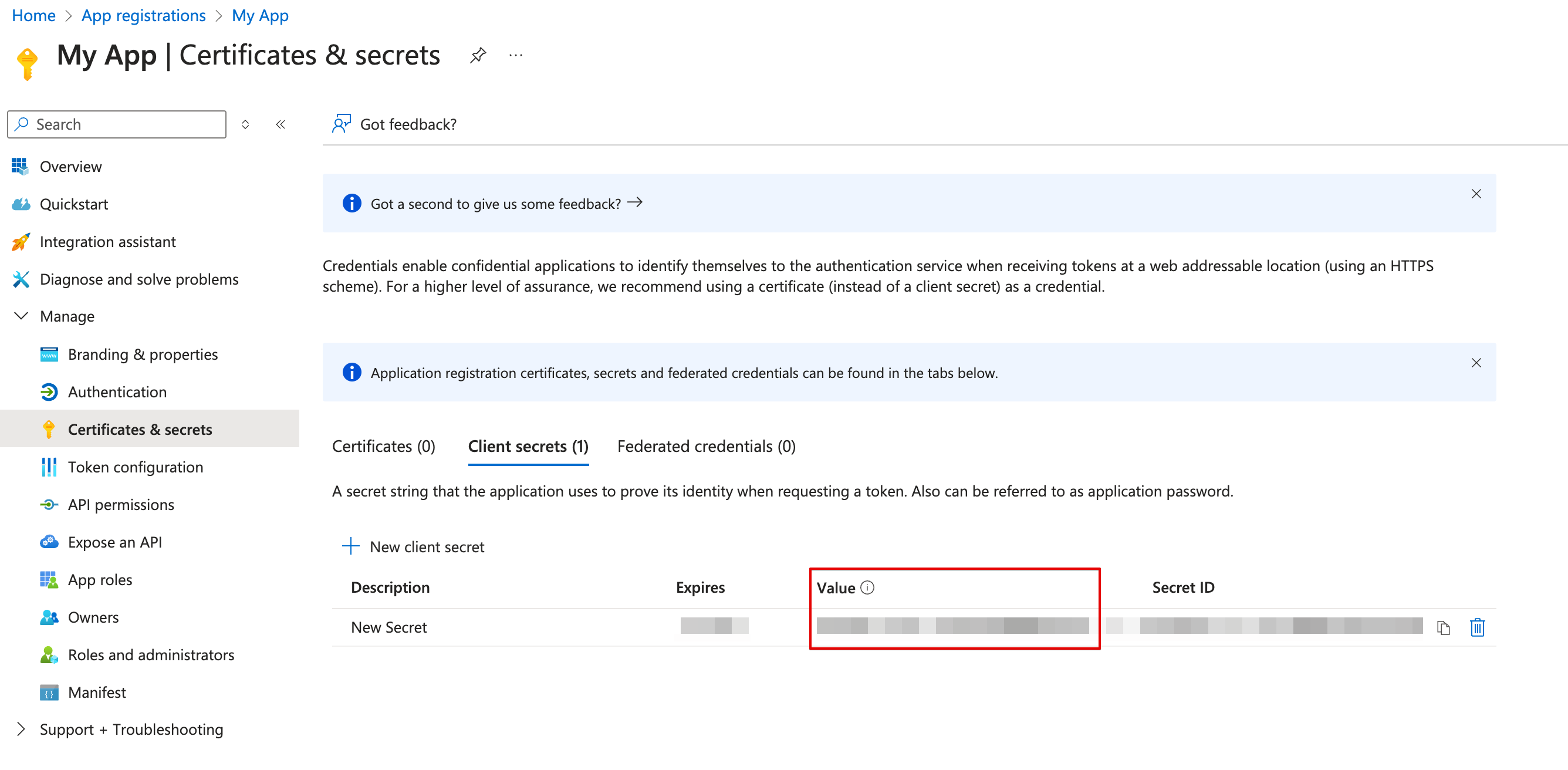
 13. Copy the **secret value**.
 #### Creating your connection
1. In the Blink platform, navigate to the **Connections** page > **Add connection**. A New Connection dialog box opens displaying icons of external service providers available.
2. Select the **Microsoft Excel** icon. A dialog box with name of the connection and connection methods appear.
3. (Optional) Edit the name of the connection. At a later stage you cannot edit the name.
4. Select **App Registration** as the method to create the connection.
5. Fill in the parameters:
* The Client ID
* The Client Secret
* The Tenant ID
6. (Optional) Click **Test Connection** to test it.
7. Click **Create connection**. The new connection appears on the **Connections** page.
#### Creating your connection
1. In the Blink platform, navigate to the **Connections** page > **Add connection**. A New Connection dialog box opens displaying icons of external service providers available.
2. Select the **Microsoft Excel** icon. A dialog box with name of the connection and connection methods appear.
3. (Optional) Edit the name of the connection. At a later stage you cannot edit the name.
4. Select **App Registration** as the method to create the connection.
5. Fill in the parameters:
* The Client ID
* The Client Secret
* The Tenant ID
6. (Optional) Click **Test Connection** to test it.
7. Click **Create connection**. The new connection appears on the **Connections** page.