> ## Documentation Index
> Fetch the complete documentation index at: https://docs.blinkops.com/llms.txt
> Use this file to discover all available pages before exploring further.
# Microsoft Entra ID
> Microsoft Entra ID (formerly Azure Active Directory) stores information about objects on the network and makes this information easy for administrators and users to find and use. Microsoft Entra ID uses a structured data store as the basis for a logical, hierarchical organization of directory information.
## Creating an Microsoft Entra ID connection
Use one of the following methods to make a connection:
* [OAuth](#using-oauth)
* [App Registration](#using-app-registration)
* [Using LDAP](#using-ldap)
### Using OAuth
This method will not work if your Azure User Type is ***Guest***.
#### Creating your connection
1. In the Blink platform, navigate to the **Connections** page > **Add connection**. A New Connection dialog box opens displaying icons of external service providers available.
2. Select the **Azure Active Directory** icon. A dialog box with name of the connection and connection methods appear.
3. (Optional) Edit the name of the connection. At a later stage you cannot edit the name.
4. Click **Microsoft Entra ID** to authenticate using OAuth.
5. Sign in using your credentials.
Need admin approval? please refer to the [Need Admin
Approval](/docs/integrations/microsoft-entra-id/admin-approval) guide.
### Using App Registration
To create the connection you need:
* A client ID
* A client secret
* A tenant ID
#### Obtaining the credentials
1. Log into the [Azure Portal](https://portal.azure.com/#home).
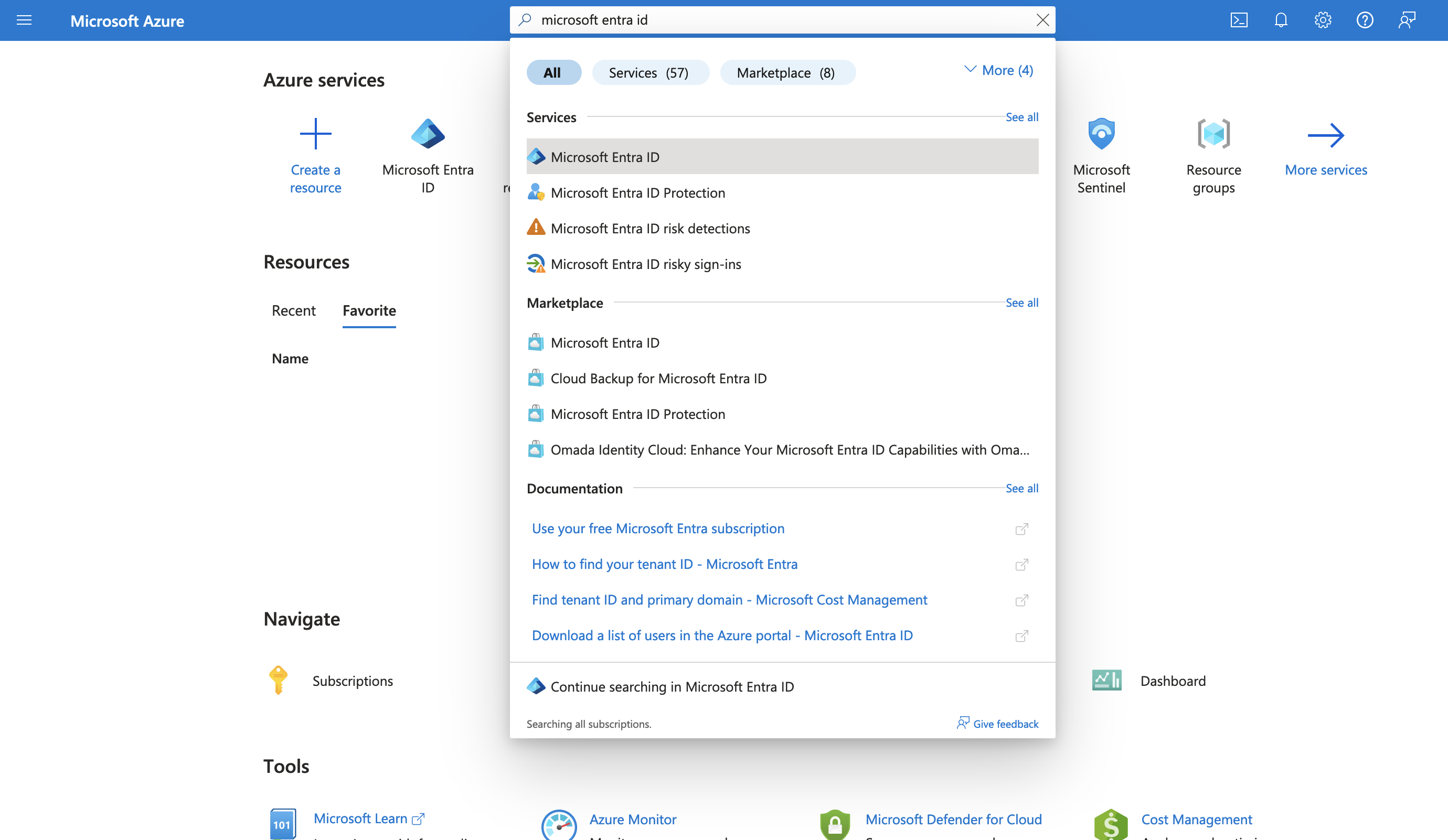
2. Go to the *Microsoft Entra ID* resource.
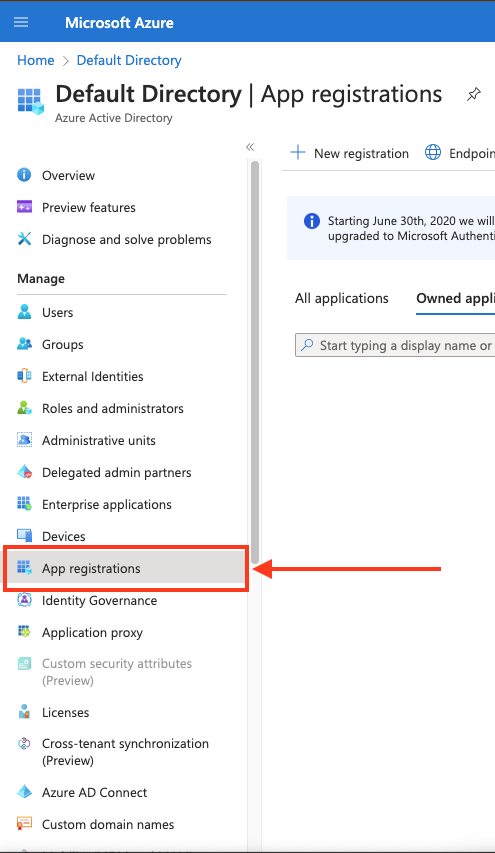
 3. In the left-hand menu, click **App registrations**.
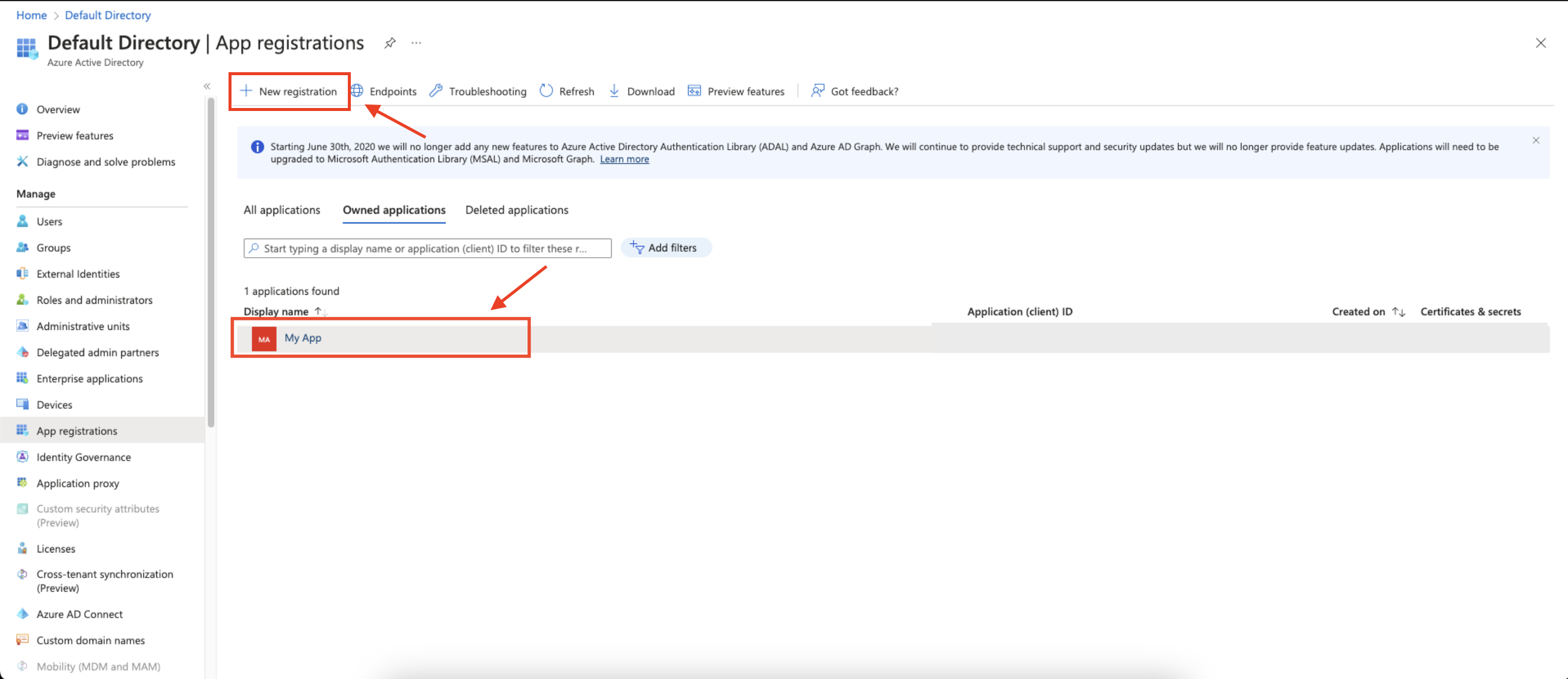
 4. Create a new application registration or click on one of your existing applications.
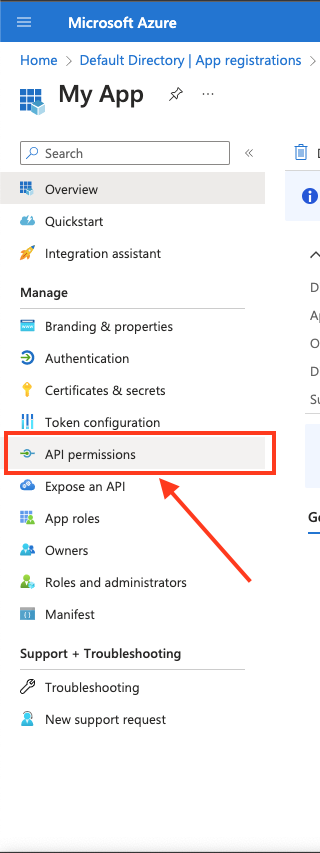
 5. In the left-hand menu, click **API permissions**.
 6. Click **Add a permission** and select **Microsoft Graph**.
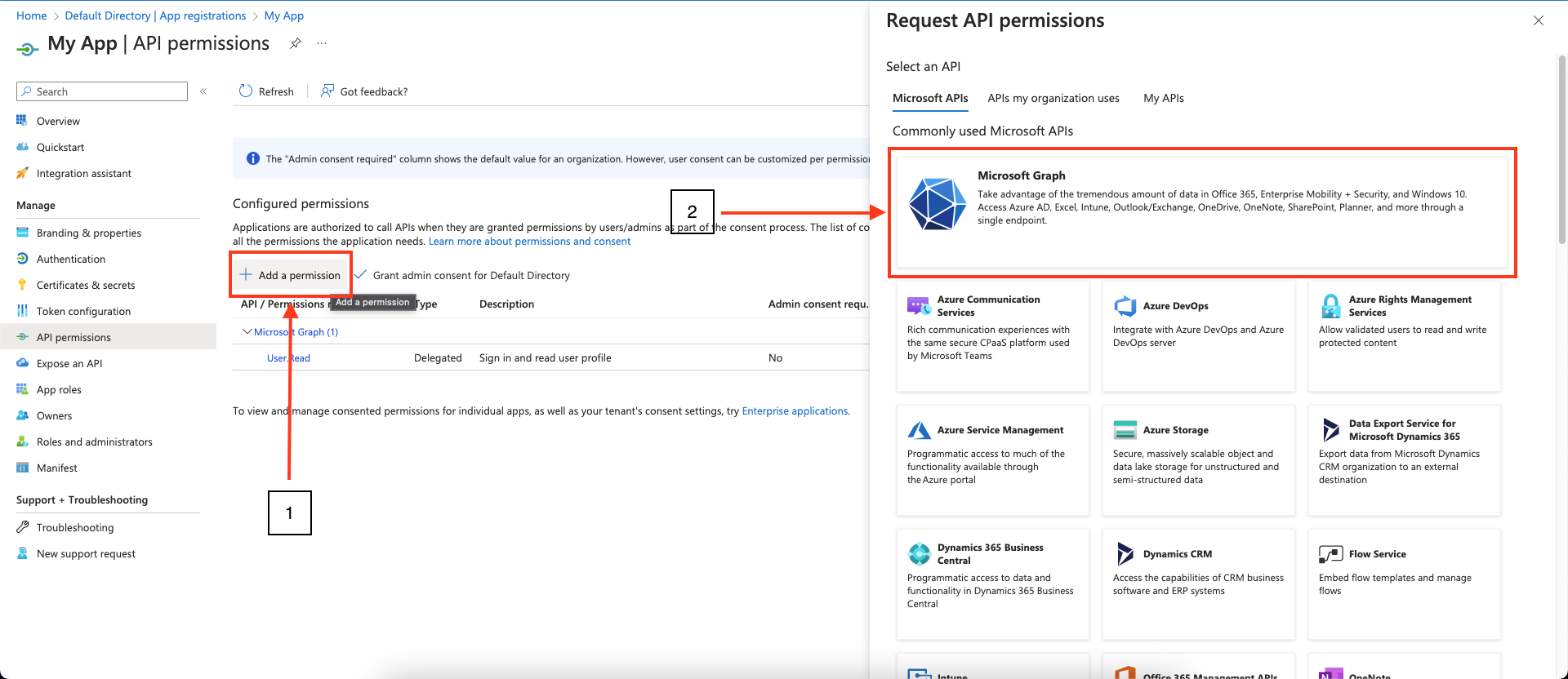 7. Choose **Application permissions** and mark the permissions you wish to add.
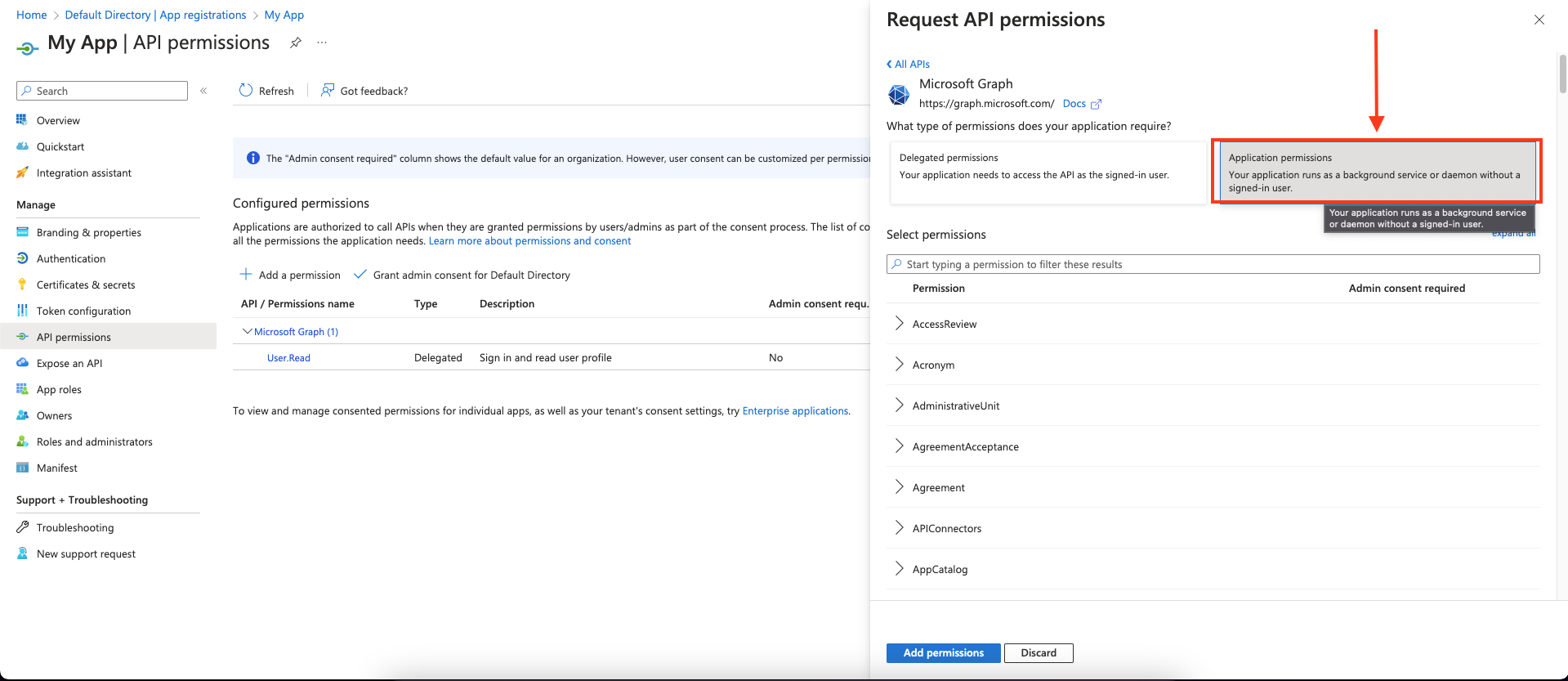 To support all Blink actions, these are the required **application** permissions:
As a best practice, request the **least privileged permissions** that your app
needs in order to access data and function correctly. Requesting permissions
with more than the necessary privileges is poor security practice, which may
cause users to refrain from consenting and affect your app's usage. For
additional information, refer to [Microsoft Graph
permissions](https://learn.microsoft.com/en-us/graph/permissions-reference).
| Least privileged permissions | Higher privileged permissions |
| ------------------------------- | ----------------------------- |
| GroupMember.ReadWrite.All | Directory.AccessAsUser.All |
| IdentityRiskyUser.ReadWrite.All | Directory.ReadWrite.All |
| Group.Create | Group.ReadWrite.All |
| User.ReadWrite.All | User.ReadWrite.All |
| Group.ReadWrite.All | Directory.Read.All |
| User.Read.All | SecurityAlert.ReadWrite.All |
| SecurityAlert.Read.All | GroupMember.ReadWrite.All |
| GroupMember.Read.All | Group.Read.All |
| LicenseAssignment.ReadWrite.All | User.EnableDisableAccount.All |
| User.ManageIdentities.All | |
| Directory.Read.All | |
8. Click **Add permissions** to save the changes.
9. Click **Grant admin consent for ``** on the API permissions page. **Only admins can grant consent**.
To support all Blink actions, these are the required **application** permissions:
As a best practice, request the **least privileged permissions** that your app
needs in order to access data and function correctly. Requesting permissions
with more than the necessary privileges is poor security practice, which may
cause users to refrain from consenting and affect your app's usage. For
additional information, refer to [Microsoft Graph
permissions](https://learn.microsoft.com/en-us/graph/permissions-reference).
| Least privileged permissions | Higher privileged permissions |
| ------------------------------- | ----------------------------- |
| GroupMember.ReadWrite.All | Directory.AccessAsUser.All |
| IdentityRiskyUser.ReadWrite.All | Directory.ReadWrite.All |
| Group.Create | Group.ReadWrite.All |
| User.ReadWrite.All | User.ReadWrite.All |
| Group.ReadWrite.All | Directory.Read.All |
| User.Read.All | SecurityAlert.ReadWrite.All |
| SecurityAlert.Read.All | GroupMember.ReadWrite.All |
| GroupMember.Read.All | Group.Read.All |
| LicenseAssignment.ReadWrite.All | User.EnableDisableAccount.All |
| User.ManageIdentities.All | |
| Directory.Read.All | |
8. Click **Add permissions** to save the changes.
9. Click **Grant admin consent for ``** on the API permissions page. **Only admins can grant consent**.
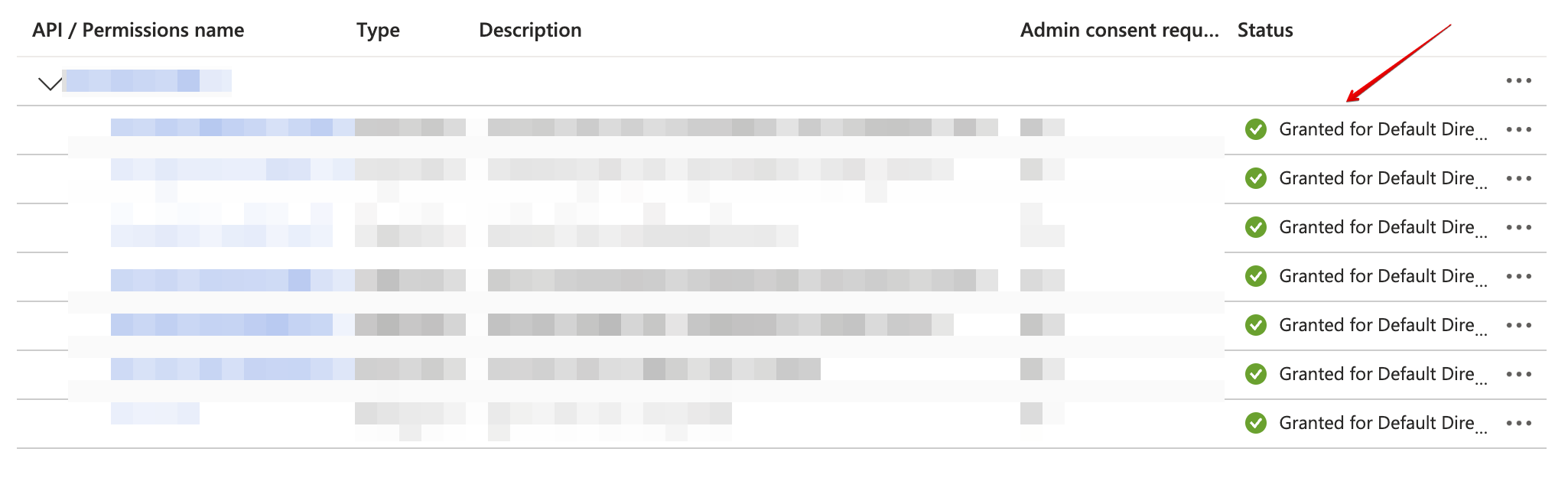
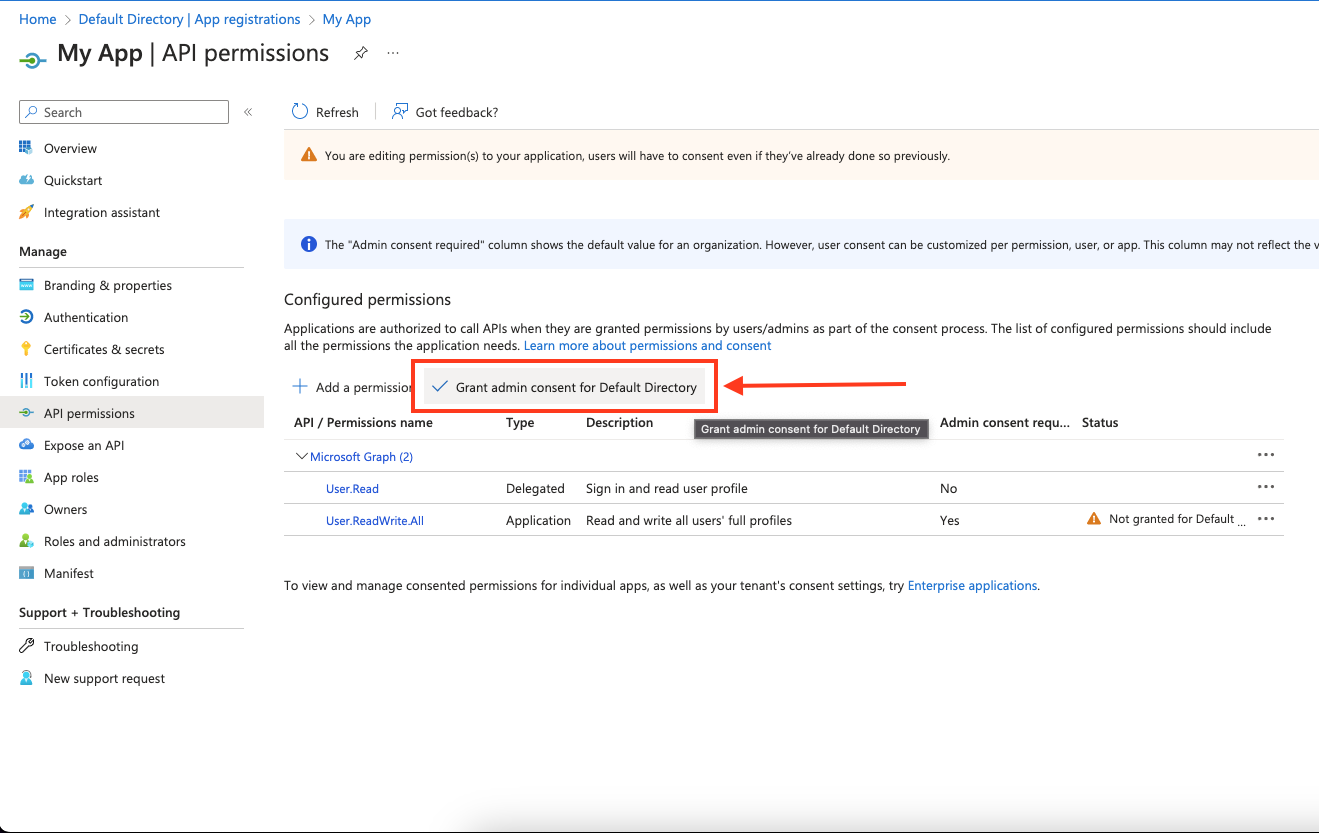 10. Confirm that the added permissions are now verified.
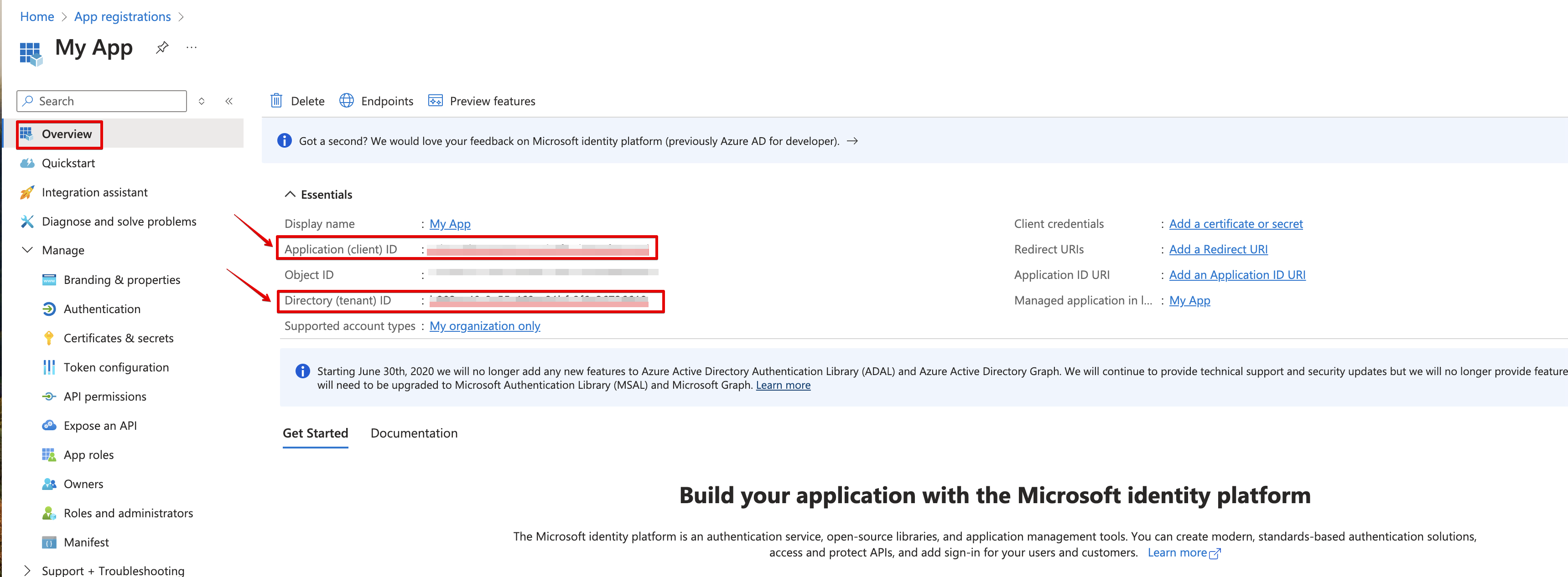
 11. Navigate to **Overview** and Copy your **client ID** and **tenant ID**.
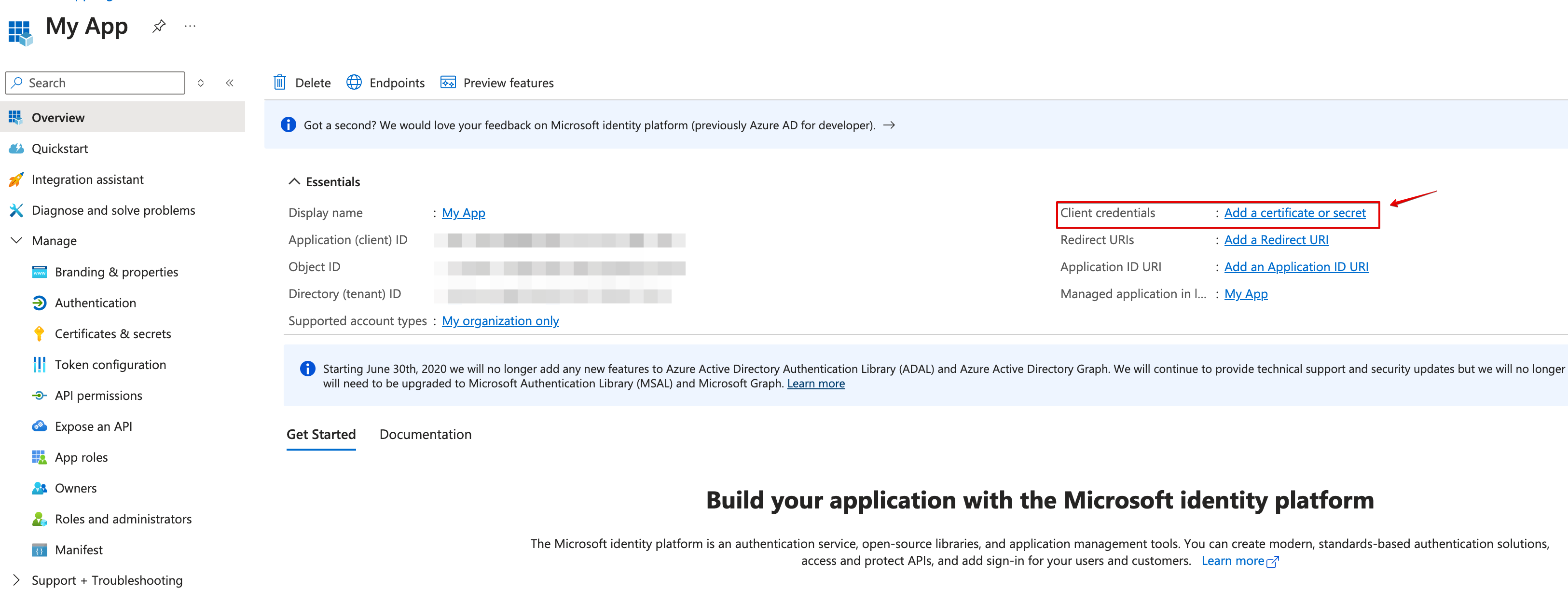
 12. Create a new **client secret**.
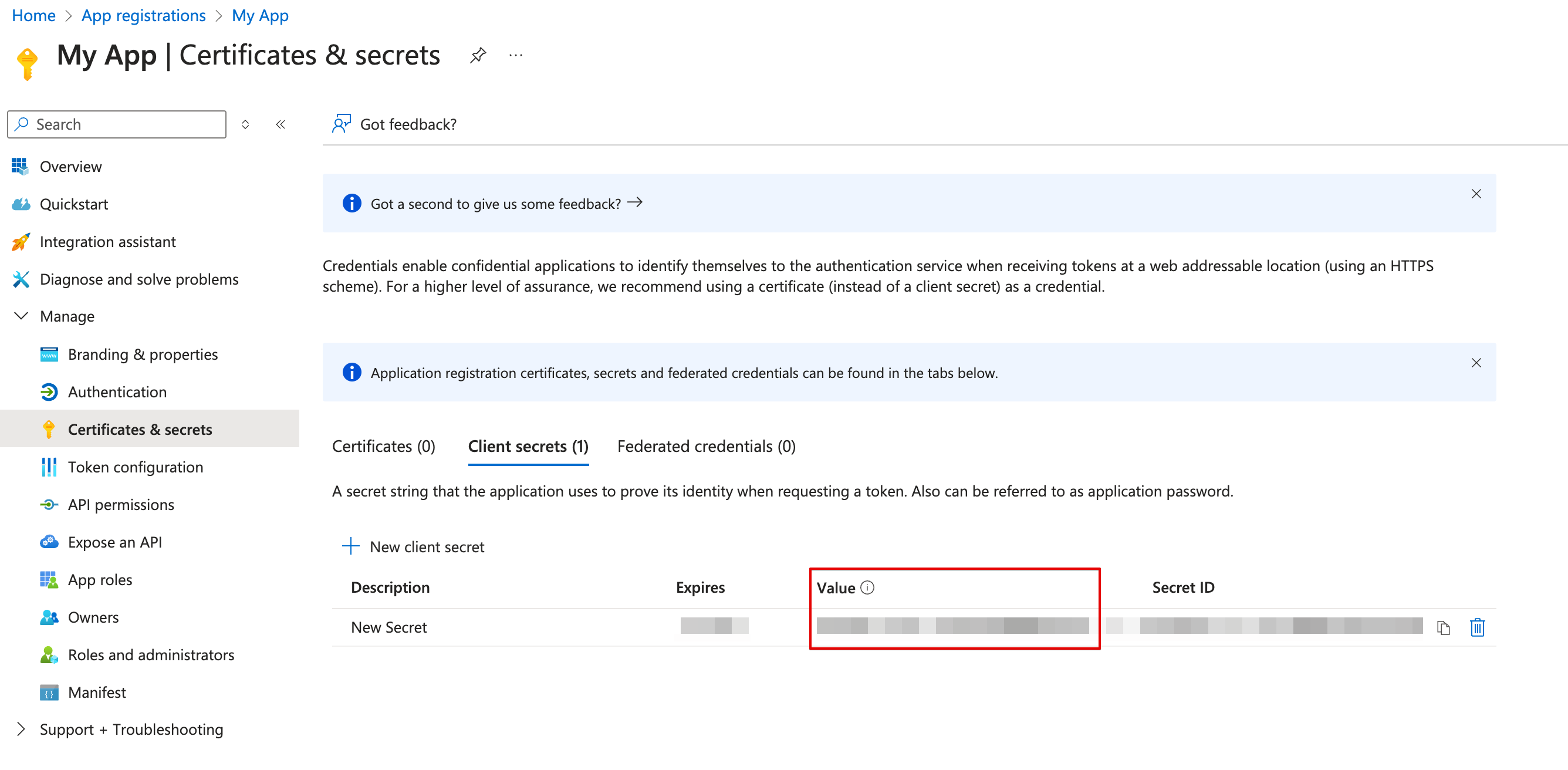
 13. Copy the **secret value**.
 #### Creating your connection
1. In the Blink platform, navigate to the **Connections** page > **Add connection**. A New Connection dialog box opens displaying icons of external service providers available.
2. Select the **Microsoft Entra ID** icon. A dialog box with name of the connection and connection methods appear.
3. (Optional) Edit the name of the connection. At a later stage you cannot edit the name.
4. Select **App Registration** as the method to create the connection.
5. Fill in the parameters:
* The client ID
* The client secret
* The tenant ID
6. (Optional) Click **Test Connection** to test it.
7. Click **Create connection**. The new connection appears on the **Connections** page.
### Using LDAP
Microsoft Entra ID supports administration using the LDAP protocol, allowing you to manage your workspace using Blink's [LDAP actions](/docs/workflows/building-workflows/actions/advanced-actions/database-actions/ldap-actions#ldap-actions) instead of the Microsoft Entra ID integration.
In order to expose your Microsoft Entra ID workspace as an LDAP server, follow these steps:
1. Set up an [Microsoft Entra ID Domain Services managed domain](https://learn.microsoft.com/en-us/azure/active-directory-domain-services/tutorial-create-instance).
2. Access the domain controller's virtual subnet.
3. If your runner is running on premises and connected to the Azure virtual subnet, your LDAP server URL is the domain controller's IP address.
4. Otherwise, in order to use an external runner, you need to add a [public IP to the virtual subnet](https://learn.microsoft.com/en-us/azure/virtual-network/ip-services/public-ip-addresses) and assign it to your [domain controller](https://learn.microsoft.com/en-us/azure/virtual-network/ip-services/associate-public-ip-address-vm).
5. To create an LDAP connection to this server:
* Use the IP address accessible to the runner as your URI, with `ldap://` protocol, or `ldaps://` if you enabled "Secure LDAP"
* Acquire the Distinguished Name of a Microsoft Entra ID user who has permissions to the server. You can use [dsquery](https://learn.microsoft.com/en-us/previous-versions/windows/it-pro/windows-server-2012-r2-and-2012/cc725702\(v=ws.11\)) on a connected Windows Server to obtain the full name of a user.
* Use the password of the specified user. After activating your domain controller, the user should reset their password so that it is properly synced.
### Interactive Tutorial Guides
You can also refer to the following tutorial guides for a more in-depth understanding of how to create a Microsoft Entra ID connection.
[Creating a Microsoft Entra ID Connection](https://demo.arcade.software/LDGQ1Rl32jv3al0gvqhI?embed\&show_copy_link=true)
[Creating a Microsoft Entra ID Connection in Blink Ops ](https://demo.arcade.software/17aB7jN1XOuoNO9K3KT8?embed\&show_copy_link=true)
#### Creating your connection
1. In the Blink platform, navigate to the **Connections** page > **Add connection**. A New Connection dialog box opens displaying icons of external service providers available.
2. Select the **Microsoft Entra ID** icon. A dialog box with name of the connection and connection methods appear.
3. (Optional) Edit the name of the connection. At a later stage you cannot edit the name.
4. Select **App Registration** as the method to create the connection.
5. Fill in the parameters:
* The client ID
* The client secret
* The tenant ID
6. (Optional) Click **Test Connection** to test it.
7. Click **Create connection**. The new connection appears on the **Connections** page.
### Using LDAP
Microsoft Entra ID supports administration using the LDAP protocol, allowing you to manage your workspace using Blink's [LDAP actions](/docs/workflows/building-workflows/actions/advanced-actions/database-actions/ldap-actions#ldap-actions) instead of the Microsoft Entra ID integration.
In order to expose your Microsoft Entra ID workspace as an LDAP server, follow these steps:
1. Set up an [Microsoft Entra ID Domain Services managed domain](https://learn.microsoft.com/en-us/azure/active-directory-domain-services/tutorial-create-instance).
2. Access the domain controller's virtual subnet.
3. If your runner is running on premises and connected to the Azure virtual subnet, your LDAP server URL is the domain controller's IP address.
4. Otherwise, in order to use an external runner, you need to add a [public IP to the virtual subnet](https://learn.microsoft.com/en-us/azure/virtual-network/ip-services/public-ip-addresses) and assign it to your [domain controller](https://learn.microsoft.com/en-us/azure/virtual-network/ip-services/associate-public-ip-address-vm).
5. To create an LDAP connection to this server:
* Use the IP address accessible to the runner as your URI, with `ldap://` protocol, or `ldaps://` if you enabled "Secure LDAP"
* Acquire the Distinguished Name of a Microsoft Entra ID user who has permissions to the server. You can use [dsquery](https://learn.microsoft.com/en-us/previous-versions/windows/it-pro/windows-server-2012-r2-and-2012/cc725702\(v=ws.11\)) on a connected Windows Server to obtain the full name of a user.
* Use the password of the specified user. After activating your domain controller, the user should reset their password so that it is properly synced.
### Interactive Tutorial Guides
You can also refer to the following tutorial guides for a more in-depth understanding of how to create a Microsoft Entra ID connection.
[Creating a Microsoft Entra ID Connection](https://demo.arcade.software/LDGQ1Rl32jv3al0gvqhI?embed\&show_copy_link=true)
[Creating a Microsoft Entra ID Connection in Blink Ops ](https://demo.arcade.software/17aB7jN1XOuoNO9K3KT8?embed\&show_copy_link=true)