> ## Documentation Index
> Fetch the complete documentation index at: https://docs.blinkops.com/llms.txt
> Use this file to discover all available pages before exploring further.
# Keeper Secrets Manager
> Keeper Secrets Manager is a cloud-based platform designed to securely manage sensitive information like passwords, API keys, and certificates.
## Creating a Keeper Secrets Manager connection[](#creating-a-keeper-secrets-manager-connection "Direct link to Creating a Keeper Secrets Manager connection")
To create the connection you need:
* A Configuration File
### Obtaining the credentials[](#obtaining-the-credentials "Direct link to Obtaining the credentials")
1. Make sure your account has the **Keeper Secrets Manager** role.
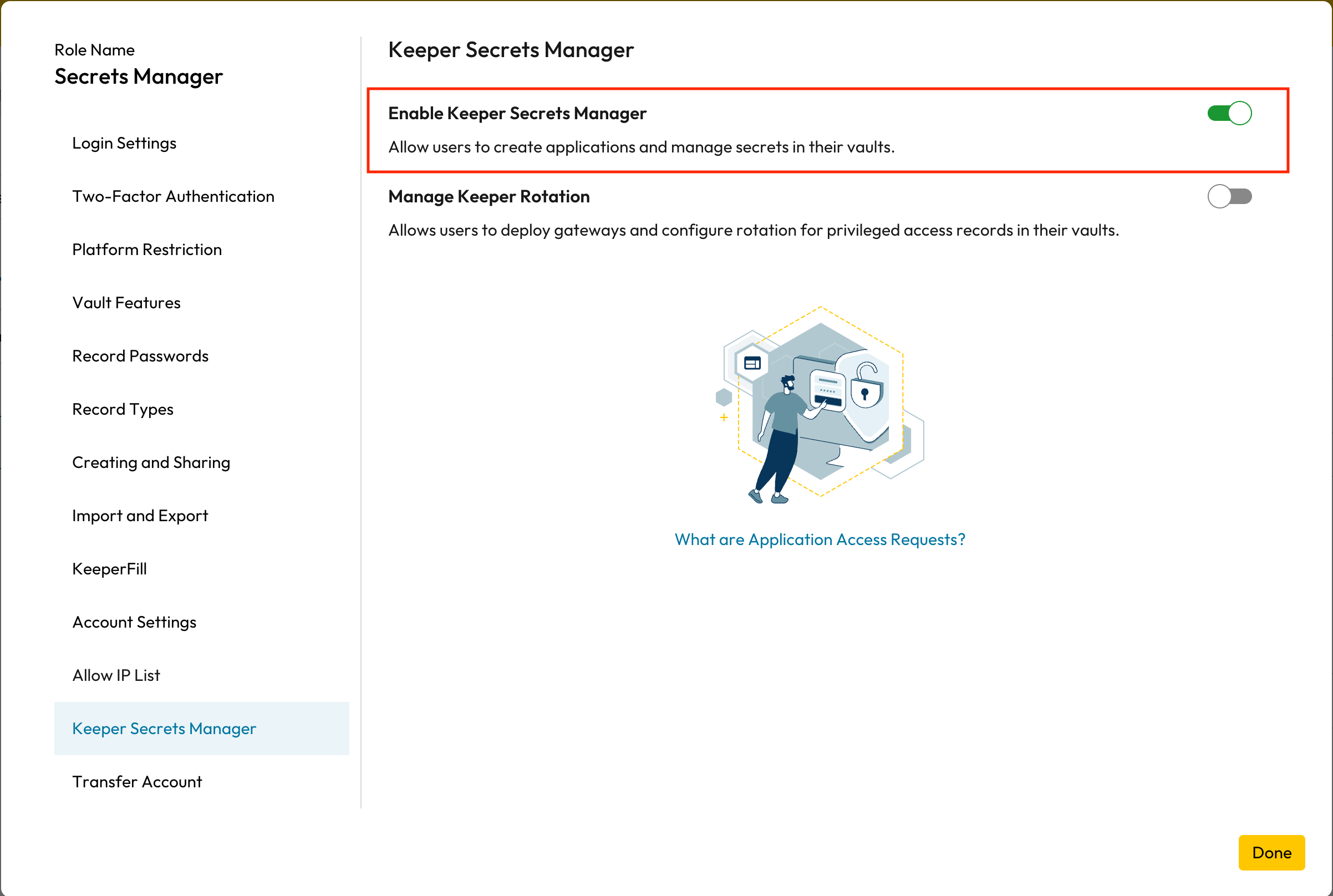 2. In Keeper Vault, select **Secrets Manager** on the left hand menu.
3. Click on **Create Application**, select the folder you would like to access and click on **Generate Access Token**.
Unfortunately, Keeper doesn't allow multiple sessions with the same onetime
access tokens, so we can not work with it, and you can disregard the generated
token.
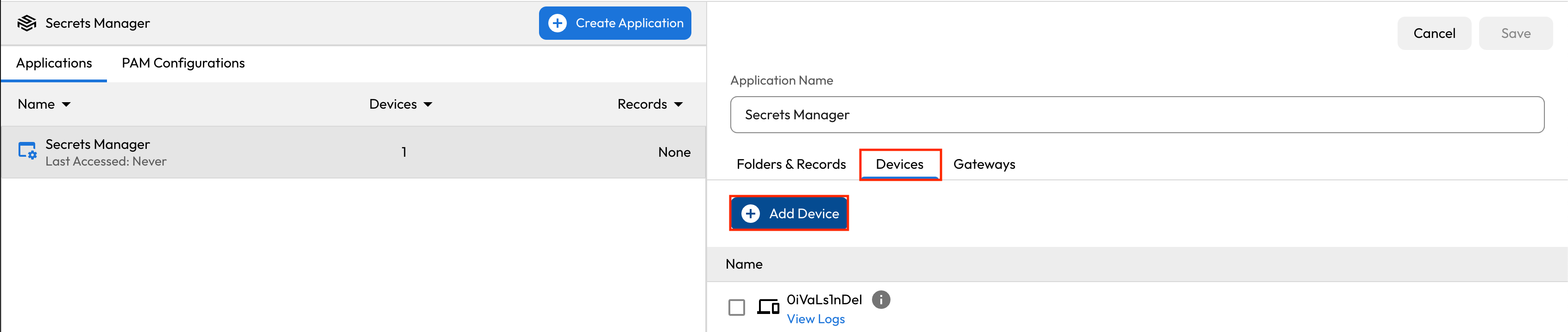
4. Click on the newly created application and in the top-right corner click on **Edit**.
2. In Keeper Vault, select **Secrets Manager** on the left hand menu.
3. Click on **Create Application**, select the folder you would like to access and click on **Generate Access Token**.
Unfortunately, Keeper doesn't allow multiple sessions with the same onetime
access tokens, so we can not work with it, and you can disregard the generated
token.
4. Click on the newly created application and in the top-right corner click on **Edit**.
 5. In the newly opened menu click on **Devices** > **Add Device**.
 6. Enter your desired device name, change the method to **Configuration File** and select the configuration type to be **JSON**.
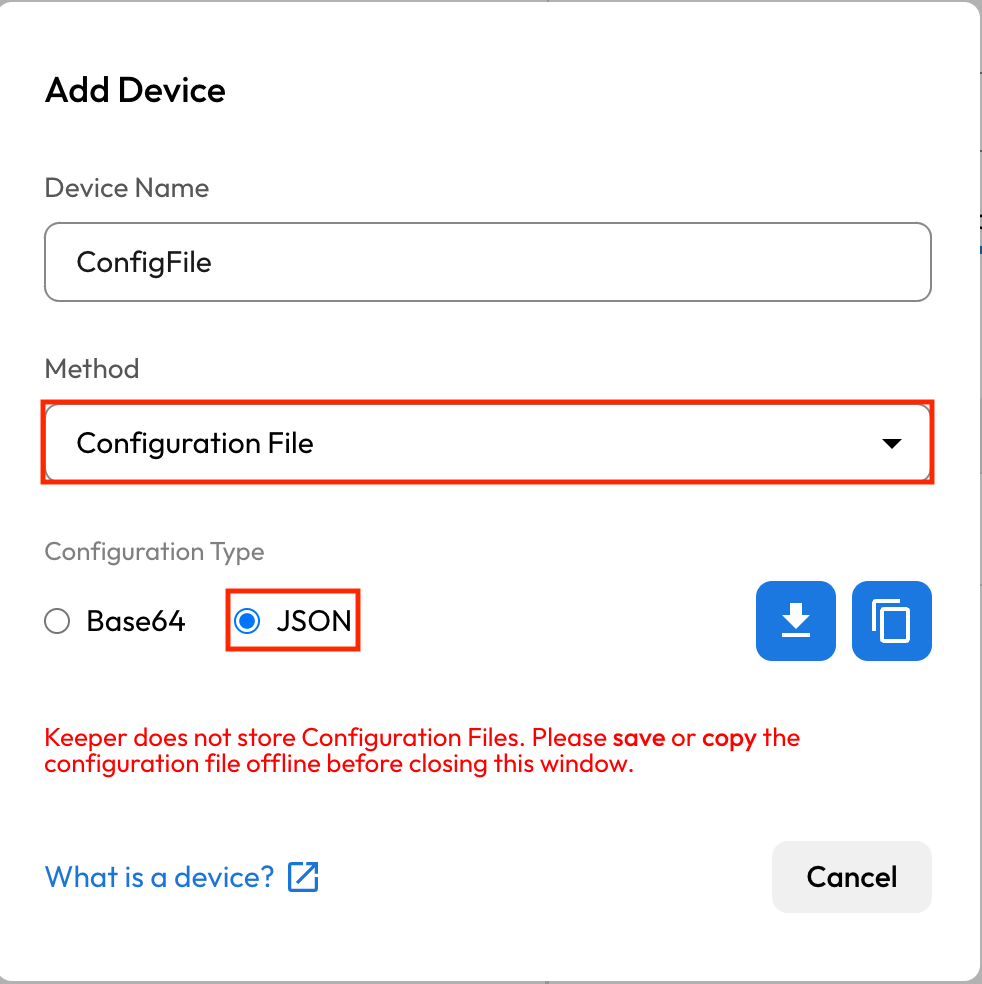 7. Copy your configuration file.
For more information please see [Keeper Secrets Manager's Documentation](https://docs.keeper.io/en/v/secrets-manager/secrets-manager/quick-start-guide).
### Creating your connection[](#creating-your-connection "Direct link to Creating your connection")
1. In the Blink platform, navigate to the **Connections** page > **Add connection**. A New Connection dialog box opens displaying icons of external service providers available.
2. Select the **Keeper Secrets Manager** icon. A dialog box with name of the connection and connection methods appear.
3. (Optional) Edit the name of the connection. At a later stage you cannot edit the name.
4. Select **Configuration File** as the method to create the connection.
5. Fill in the parameters:
* Configuration File
6. (Optional) Click **Test Connection** to test it.
7. Click **Create connection**. The new connection appears on the **Connections** page.
7. Copy your configuration file.
For more information please see [Keeper Secrets Manager's Documentation](https://docs.keeper.io/en/v/secrets-manager/secrets-manager/quick-start-guide).
### Creating your connection[](#creating-your-connection "Direct link to Creating your connection")
1. In the Blink platform, navigate to the **Connections** page > **Add connection**. A New Connection dialog box opens displaying icons of external service providers available.
2. Select the **Keeper Secrets Manager** icon. A dialog box with name of the connection and connection methods appear.
3. (Optional) Edit the name of the connection. At a later stage you cannot edit the name.
4. Select **Configuration File** as the method to create the connection.
5. Fill in the parameters:
* Configuration File
6. (Optional) Click **Test Connection** to test it.
7. Click **Create connection**. The new connection appears on the **Connections** page.