> ## Documentation Index
> Fetch the complete documentation index at: https://docs.blinkops.com/llms.txt
> Use this file to discover all available pages before exploring further.
# Kandji
> Kandji is an MDM for Apple devices. There are two primary components to Kandji: the Kandji web app and Kandji’s proprietary macOS Agent. The web app is used to configure, review, and report settings on enrolled devices. The Kandji Agent enforces settings, remediates discrepancies, and reports data back to the web app. Both components also have many other capabilities.
## Creating a Kandji connection[](#creating-a-kandji-connection "Direct link to Creating a Kandji connection")
To create the connection you need:
* An API token
* An API address
### Obtaining the credentials[](#obtaining-the-credentials "Direct link to Obtaining the credentials")
Kandji uses instance-level bearer tokens to control access to the API.
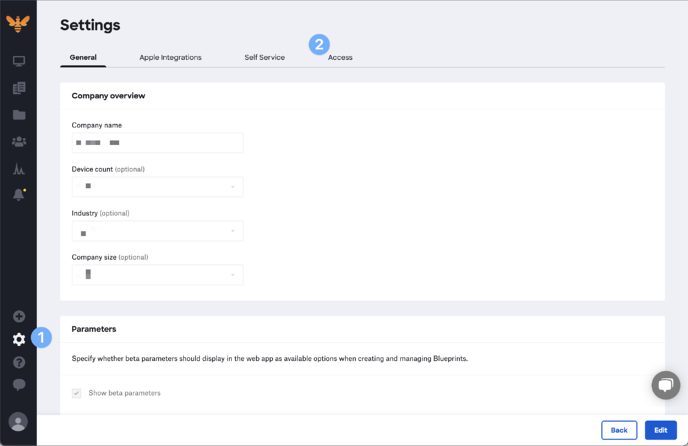
1. Log in and click **Settings**.
2. Click **Access**.
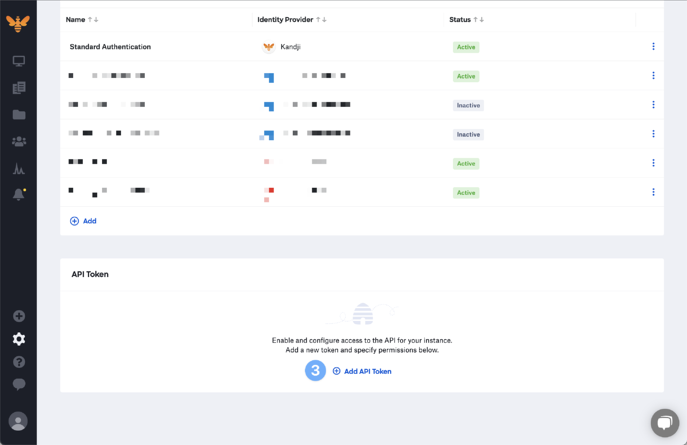
3. Click **Add API Token** to create a new API key.
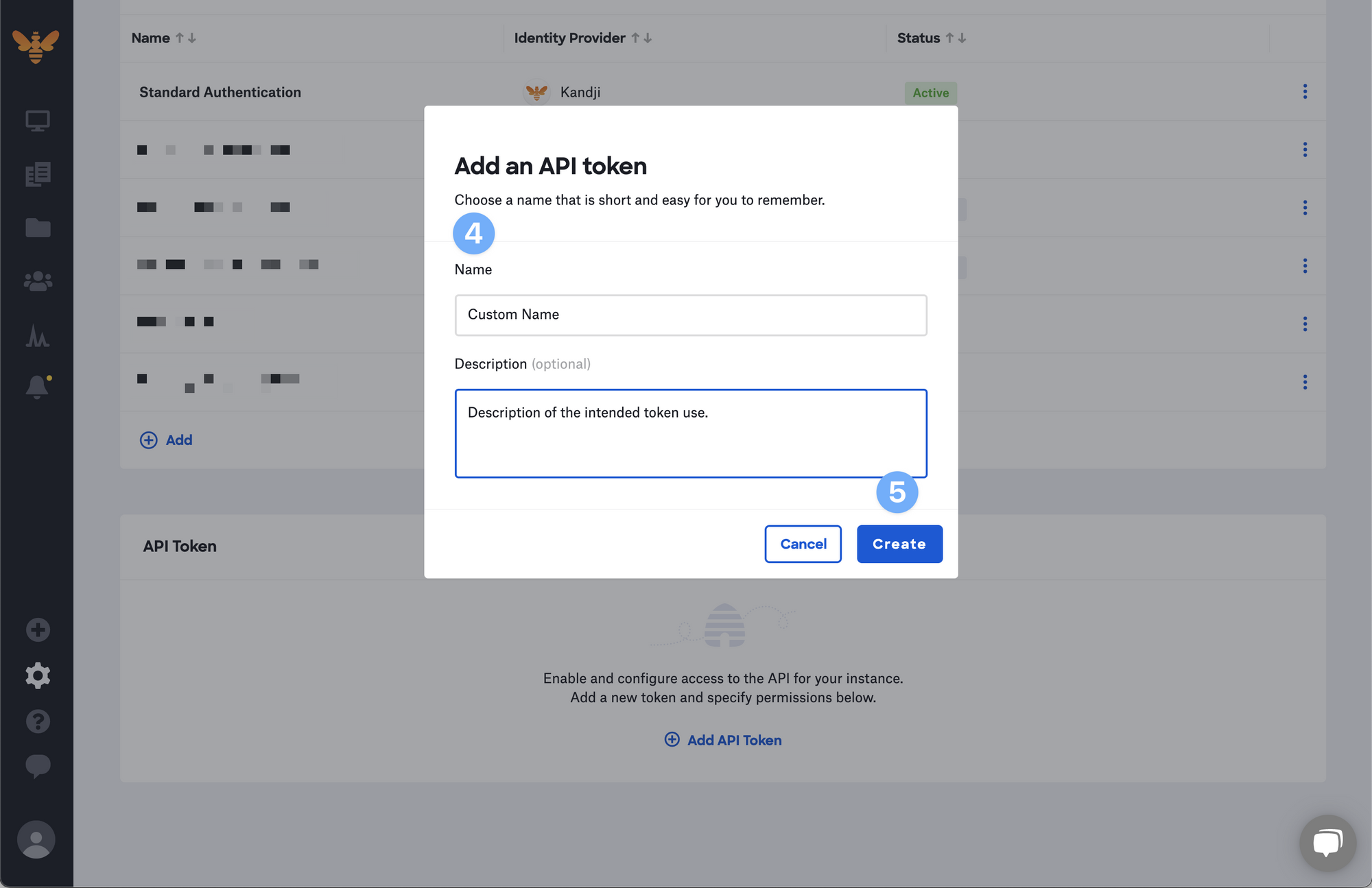
 4. Provide a *Name* and a *Description* for your API token.
5. Click **Create**.
4. Provide a *Name* and a *Description* for your API token.
5. Click **Create**.
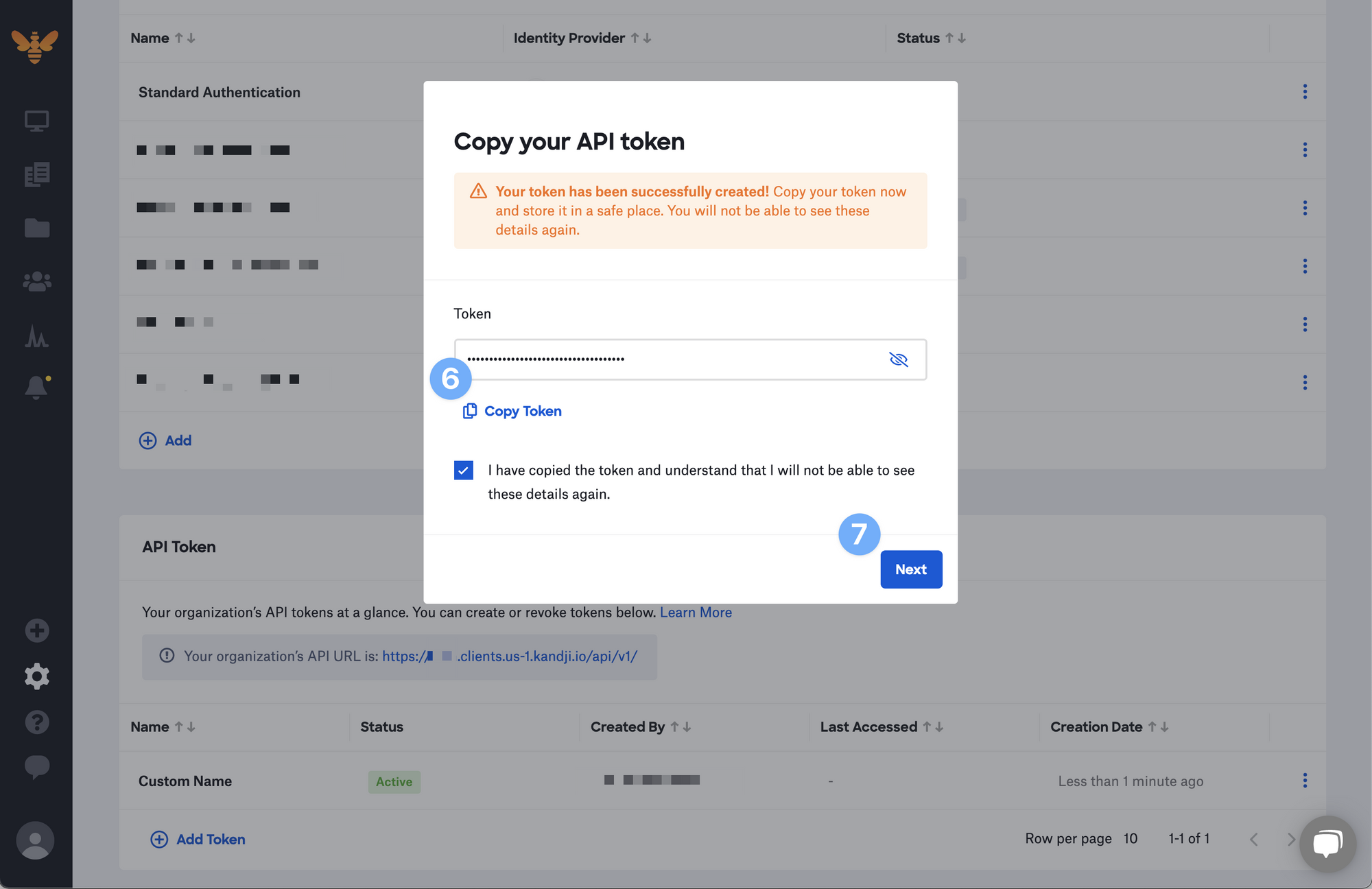
 6. Kandji will display a modal with the API token. Click the visibility symbol to expose it or use the **Copy Token** button to copy the API token to your clipboard, storing it in a safe place. You will not be able to see the token details again.
7. Click **Next**.
6. Kandji will display a modal with the API token. Click the visibility symbol to expose it or use the **Copy Token** button to copy the API token to your clipboard, storing it in a safe place. You will not be able to see the token details again.
7. Click **Next**.
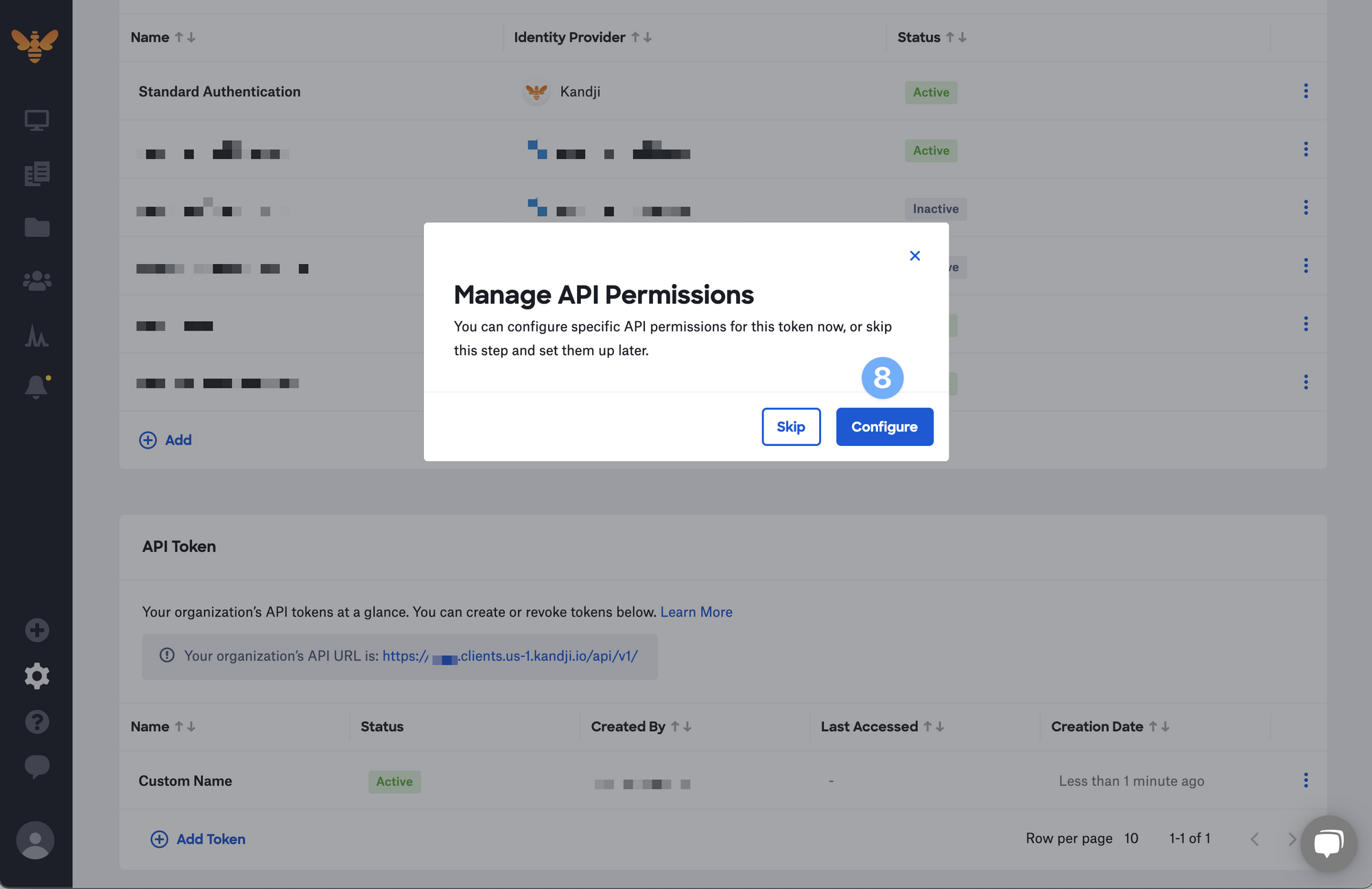
 8. Click **Configure** to manage the API permissions for this specific token or **Skip** to change them later.
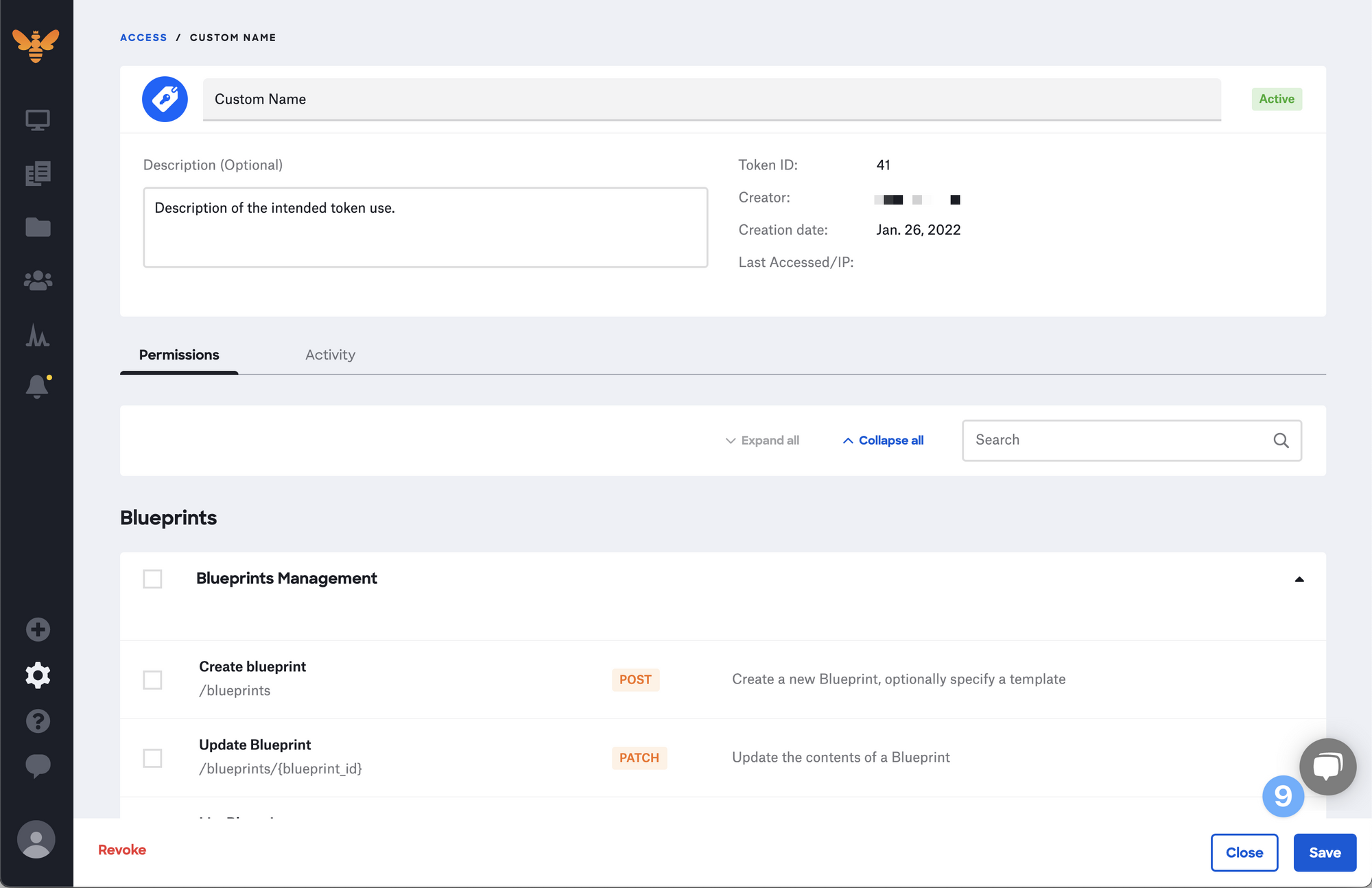
 9. After making your modifications, click **Save**.
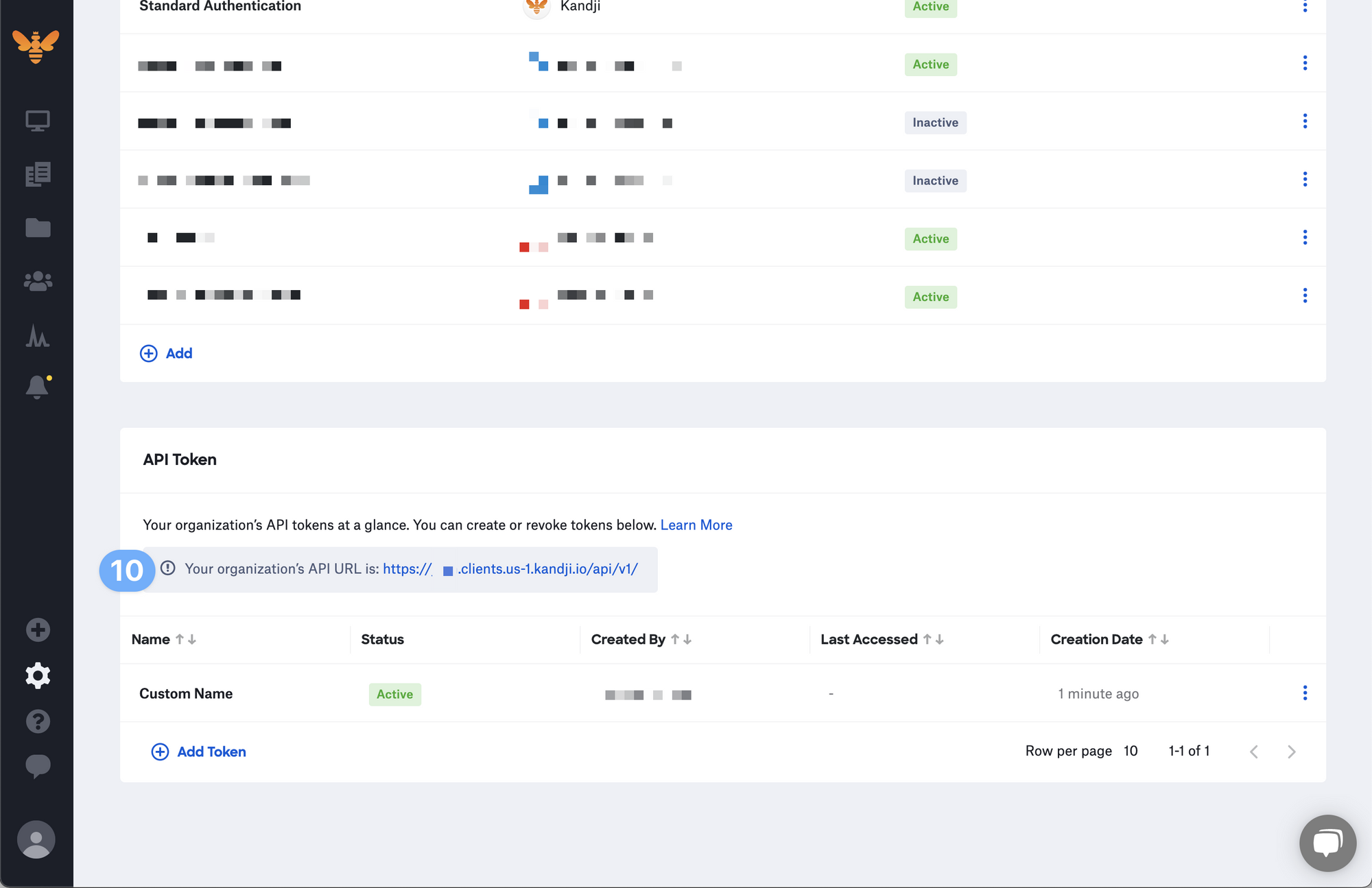
 10. Once you create your first token, you will see your instance-specific **API URL**.
 ### Creating your connection[](#creating-your-connection "Direct link to Creating your connection")
1. In the Blink platform, navigate to the **Connections** page > **Add connection**. A New Connection dialog box opens displaying icons of external service providers available.
2. Select the **Kandji** icon. A dialog box with name of the connection and connection methods appears.
3. (Optional) Edit the name of the connection. At a later stage you cannot edit the name.
4. Select **API Token** as the method to make the connection.
5. Fill in the parameters:
* The API token
* The API URL
6. (Optional) Click **Test Connection** to test it.
7. Click **Create connection**. The new connection appears on the **Connections** page.
### Creating your connection[](#creating-your-connection "Direct link to Creating your connection")
1. In the Blink platform, navigate to the **Connections** page > **Add connection**. A New Connection dialog box opens displaying icons of external service providers available.
2. Select the **Kandji** icon. A dialog box with name of the connection and connection methods appears.
3. (Optional) Edit the name of the connection. At a later stage you cannot edit the name.
4. Select **API Token** as the method to make the connection.
5. Fill in the parameters:
* The API token
* The API URL
6. (Optional) Click **Test Connection** to test it.
7. Click **Create connection**. The new connection appears on the **Connections** page.