> ## Documentation Index
> Fetch the complete documentation index at: https://docs.blinkops.com/llms.txt
> Use this file to discover all available pages before exploring further.
# JumpCloud
> JumpCloud is an open directory platform that enables secure, frictionless access to any resource, from any device, anyplace. The objective of JumpCloud is to Make Work Happen by providing simple, secure access to company IT resources from any device or location.
## Creating a JumpCloud connection[](#creating-a-jumpcloud-connection "Direct link to Creating a JumpCloud connection")
To create the connection you need:
* An API key
### Obtaining the credentials[](#obtaining-the-credentials "Direct link to Obtaining the credentials")
1. Log into the [JumpCloud Admin Console](https://console.jumpcloud.com/).
2. In the top-right of the console, go to the username drop-down menu.
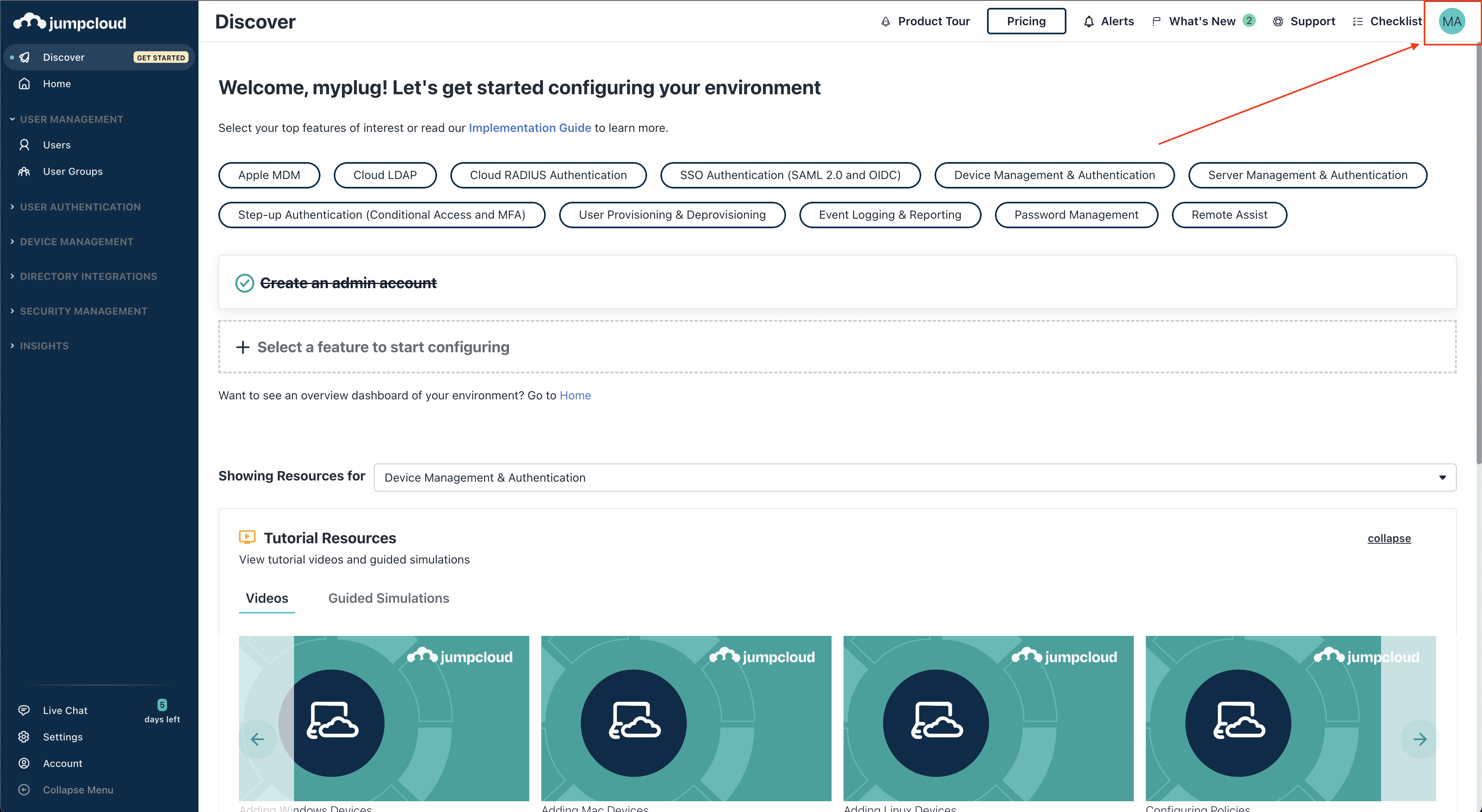 3. Click **My API Key**.
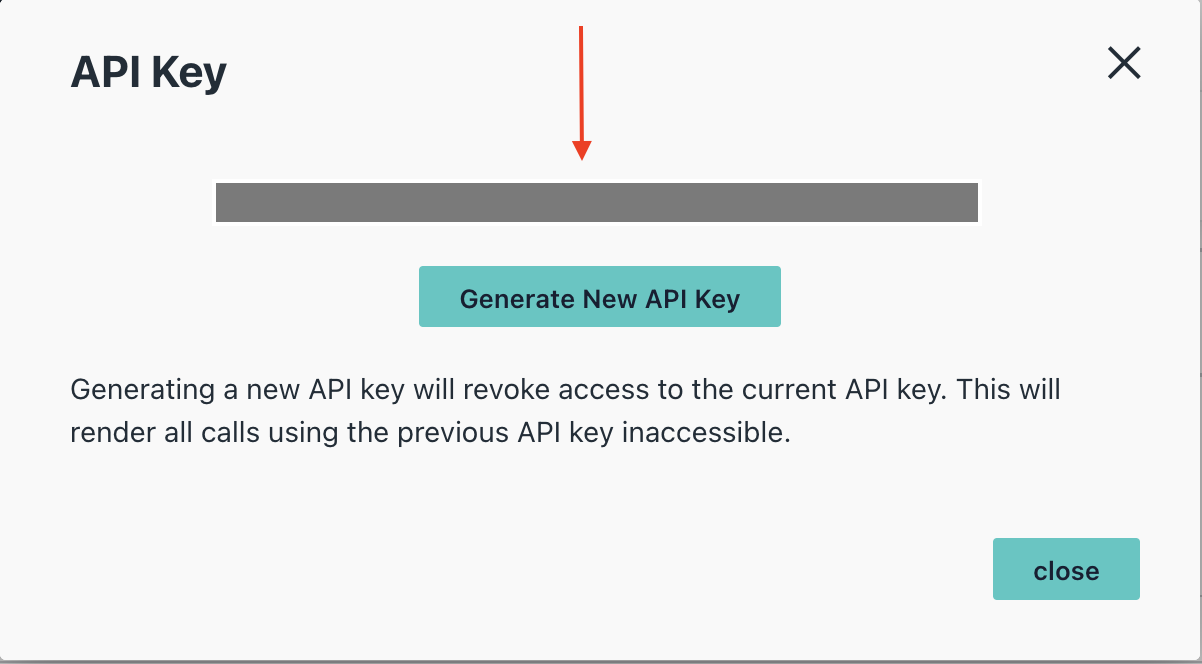
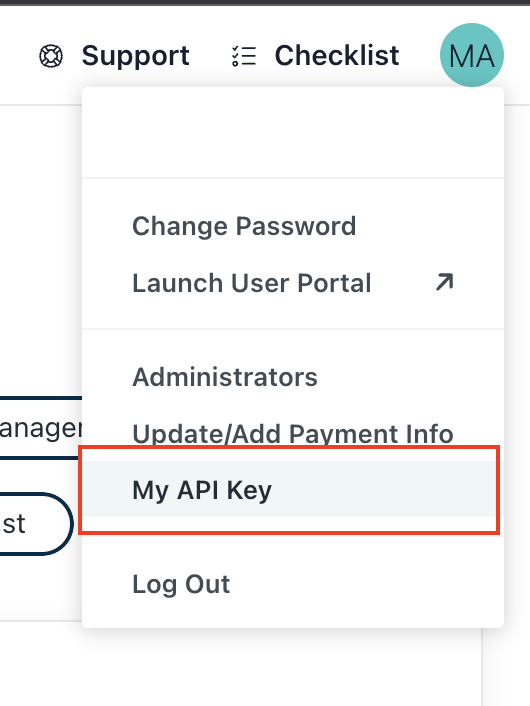 4. Retrieve your API key from the **API Settings**.
 ### Creating your connection[](#creating-your-connection "Direct link to Creating your connection")
1. In the Blink platform, navigate to the **Connections** page > **Add connection**. A New Connection dialog box opens displaying icons of external service providers available.
2. Select the **JumpCloud** icon. A dialog box with name of the connection and connection methods appear.
3. (Optional) Edit the name of the connection. At a later stage you cannot edit the name.
4. Select **API Key** as the method to create the connection.
5. Fill in the parameters:
* The API key
6. (Optional) Click **Test Connection** to test it.
7. Click **Create connection**. The new connection appears on the **Connections** page.
### Creating your connection[](#creating-your-connection "Direct link to Creating your connection")
1. In the Blink platform, navigate to the **Connections** page > **Add connection**. A New Connection dialog box opens displaying icons of external service providers available.
2. Select the **JumpCloud** icon. A dialog box with name of the connection and connection methods appear.
3. (Optional) Edit the name of the connection. At a later stage you cannot edit the name.
4. Select **API Key** as the method to create the connection.
5. Fill in the parameters:
* The API key
6. (Optional) Click **Test Connection** to test it.
7. Click **Create connection**. The new connection appears on the **Connections** page.