> ## Documentation Index
> Fetch the complete documentation index at: https://docs.blinkops.com/llms.txt
> Use this file to discover all available pages before exploring further.
# Ironscales
> Ironscales is a cybersecurity company that provides an AI-powered, self-learning email security platform designed to detect and prevent phishing attacks in real-time.
## Creating an Ironscales connection
## Using API token
To create the connection you need:
* A type of Ironscales account. For more details refer to the [Ironscales Documentation](https://support.ironscales.com/hc/en-us/articles/4414072094354).
* The Ironscales Account API Address (can be referenced from the account's country - default for all non-EU accounts).
* An Ironscales Application API Token (can be referenced from the account's country).
### Obtaining the credentials
To obtain the Application API token,
1. Go to [Settings > Account Settings > General & Security](https://members.ironscales.com/settings/account/general):
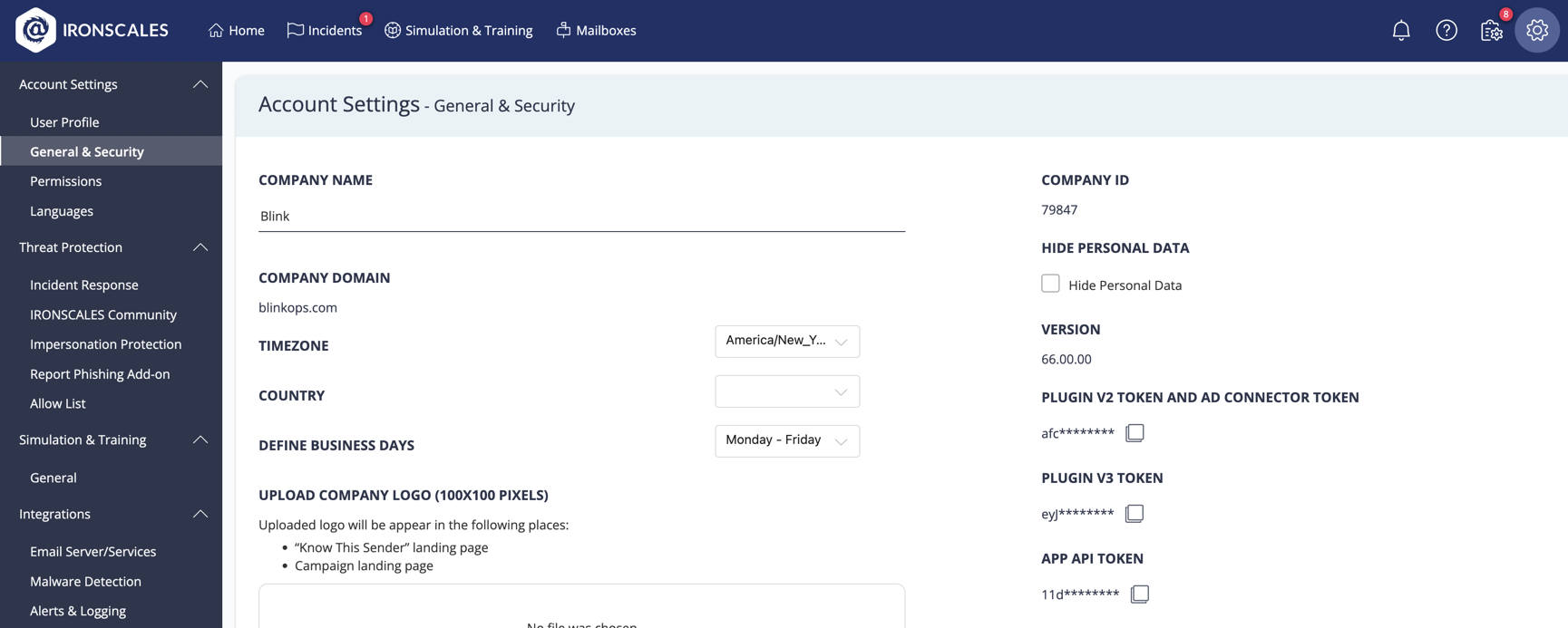 2. Copy the **APP API TOKEN** (as shown in the image).
For all non-Multipartner accounts, The COMPANY ID parameter can be found in
this page as well - This parameter is required for most Ironscales actions
and will not change unless the account manages more than one company.
### Creating your connection
1. In the Blink platform, navigate to the **Connections** page > **Add connection**. A New Connection dialog box opens displaying icons of external service providers available.
2. Select the **Ironscales** icon. A dialog box with name of the connection and connection methods appear.
3. (Optional) Edit the name of the connection. At a later stage you cannot edit the name.
4. Select **API Token** as the method to create the connection.
5. Fill in the parameters:
* The Account Type
* The API Address
* The API Token
6. (Optional) Click **Test Connection** to test it.
7. Click **Create connection**. The new connection appears on the **Connections** page.
2. Copy the **APP API TOKEN** (as shown in the image).
For all non-Multipartner accounts, The COMPANY ID parameter can be found in
this page as well - This parameter is required for most Ironscales actions
and will not change unless the account manages more than one company.
### Creating your connection
1. In the Blink platform, navigate to the **Connections** page > **Add connection**. A New Connection dialog box opens displaying icons of external service providers available.
2. Select the **Ironscales** icon. A dialog box with name of the connection and connection methods appear.
3. (Optional) Edit the name of the connection. At a later stage you cannot edit the name.
4. Select **API Token** as the method to create the connection.
5. Fill in the parameters:
* The Account Type
* The API Address
* The API Token
6. (Optional) Click **Test Connection** to test it.
7. Click **Create connection**. The new connection appears on the **Connections** page.