> ## Documentation Index
> Fetch the complete documentation index at: https://docs.blinkops.com/llms.txt
> Use this file to discover all available pages before exploring further.
# Intel Owl
> Intel Owl is an Open Source Intelligence, or OSINT solution, to get Threat Intelligence data about a specific digital artifact from a single API at scale.
## Creating an Intel Owl connection
### Using API Key
To create the connection you need:
* An Instance URL
* An API Key
#### Obtaining the credentials
1. Navigate to your Intel Owl instance and log in to your account.
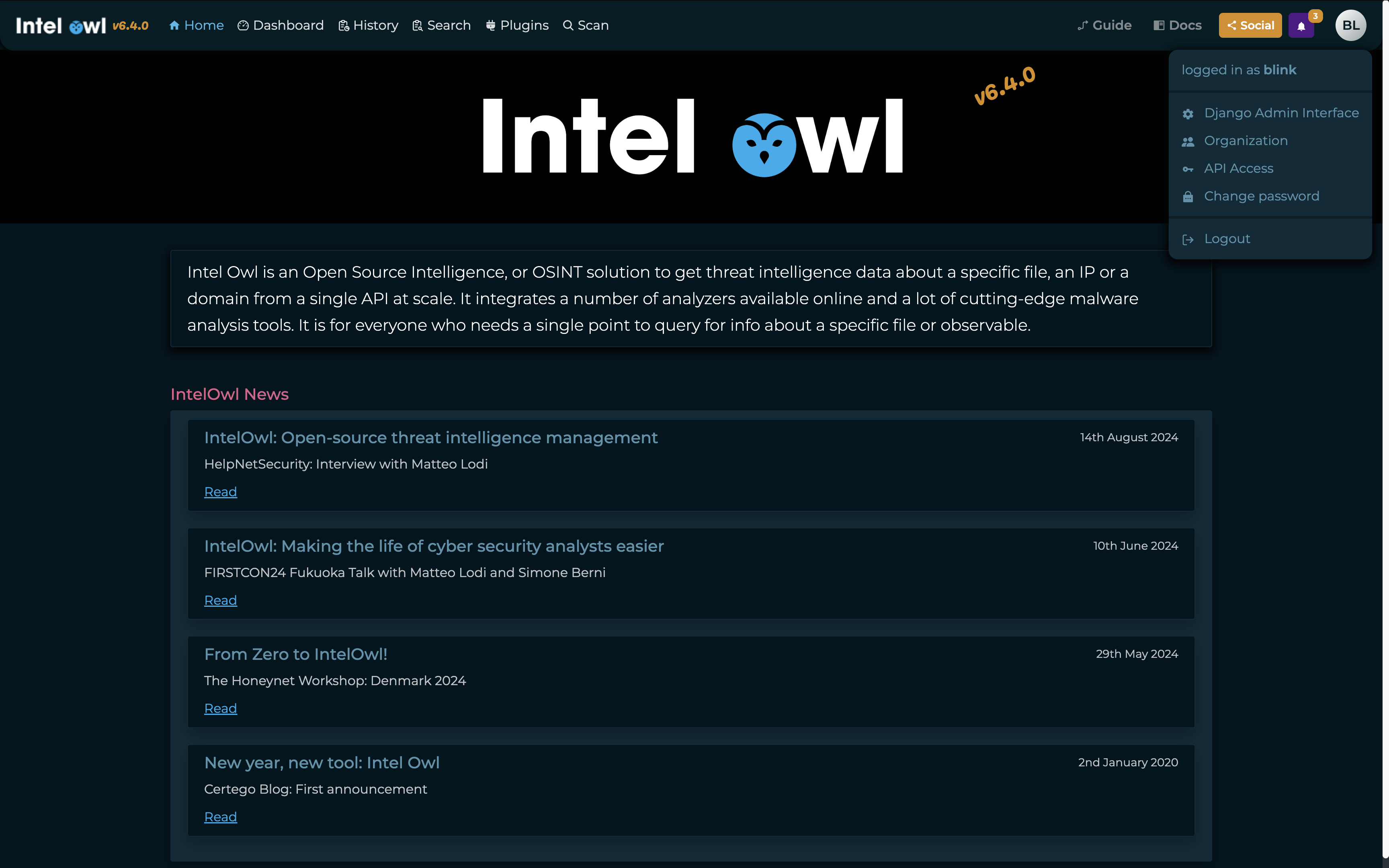
2. From the user menu in the top-right corner, select **API Access** from the dropdown.
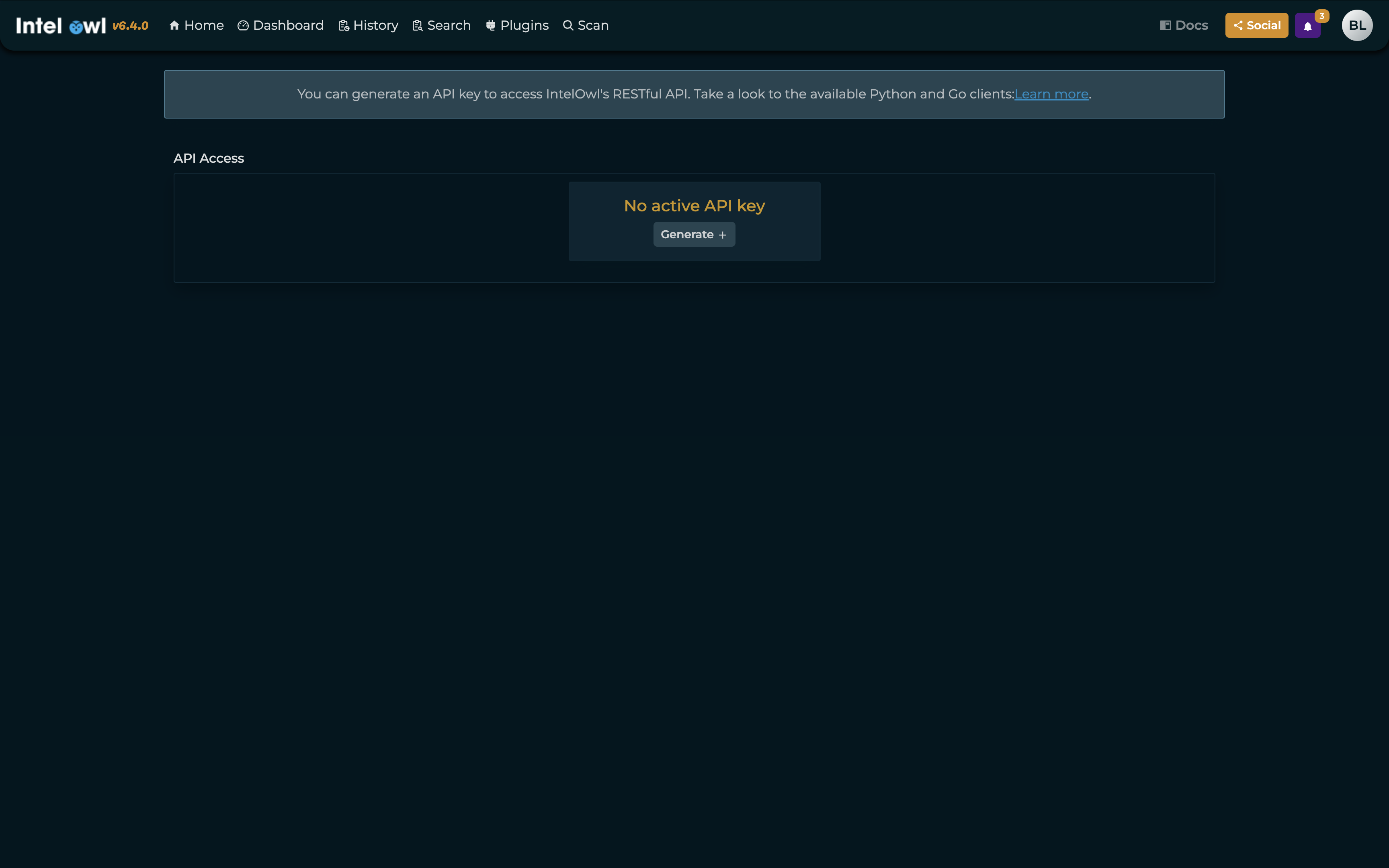
 3. Click **Generate** to generate a new API key.
 4. You'll see your API key creation timestamp and the generated key (blurred).
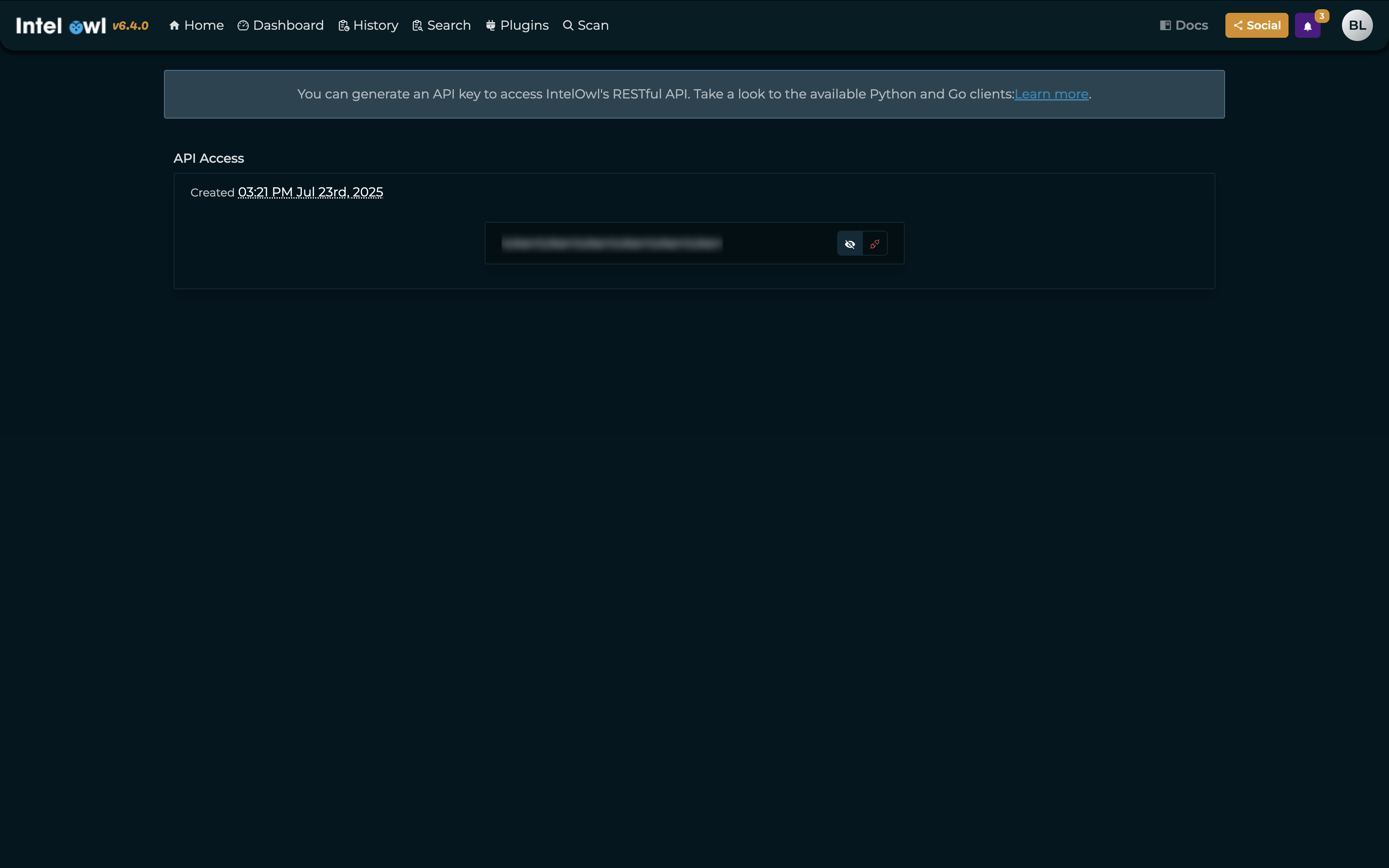 5. Click **Show API Key** and copy your **API key**.
#### Creating your connection
1. In the Blink platform, navigate to the **Connections** page > **Add connection**. A New Connection dialog box opens displaying icons of external service providers available.
2. Select the **Intel Owl** icon. A dialog box with name of the connection and connection methods appear.
3. (Optional) Edit the name of the connection. At a later stage you cannot edit the name.
4. Select **API Key** as the method to create the connection.
5. Fill in the parameters:
* The Instance URL
* The API Key
6. (Optional) Click **Test Connection** to test it.
7. Click **Create connection**. The new connection appears on the **Connections** page.
5. Click **Show API Key** and copy your **API key**.
#### Creating your connection
1. In the Blink platform, navigate to the **Connections** page > **Add connection**. A New Connection dialog box opens displaying icons of external service providers available.
2. Select the **Intel Owl** icon. A dialog box with name of the connection and connection methods appear.
3. (Optional) Edit the name of the connection. At a later stage you cannot edit the name.
4. Select **API Key** as the method to create the connection.
5. Fill in the parameters:
* The Instance URL
* The API Key
6. (Optional) Click **Test Connection** to test it.
7. Click **Create connection**. The new connection appears on the **Connections** page.