> ## Documentation Index
> Fetch the complete documentation index at: https://docs.blinkops.com/llms.txt
> Use this file to discover all available pages before exploring further.
# HiBob
> HiBob is an all-in-one, cloud-based HR and benefits platform that gives fast-growing businesses a better way to engage and manage their employees. bob radically streamlines admin and improves employees experiences with a smart mobile app, a personalised benefits store and inviting onboarding and survey tools.
## Creating a HiBob connection
Create the connection by using one of the following methods:
* [Service User](#using-service-user)
* [API Key](#using-api-key)
### Using Service User
To create the connection you need:
* An API Address
* A Service User ID
* A Service User Token
#### Obtaining the credentials
Follow the [HiBob Service User documentation](https://apidocs.hibob.com/docs/api-service-users) to obtain the credentials.
#### Creating your connection
1. In the Blink platform, navigate to the **Connections** page > **Add connection**. A New Connection dialog box opens displaying icons of external service providers available.
2. Select the **HiBob** icon. A dialog box with name of the connection and connection methods appear.
3. (Optional) Edit the name of the connection. At a later stage you cannot edit the name.
4. Select **Service User** as the method to create the connection.
5. Fill in the parameters:
* The Service User ID
* The Service User Token
6. (Optional) Click **Test Connection** to test it.
7. Click **Create connection**. The new connection appears on the **Connections** page.
### Using API Key
To create the connection you need:
* An API Address
* An API key
#### Obtaining the credentials
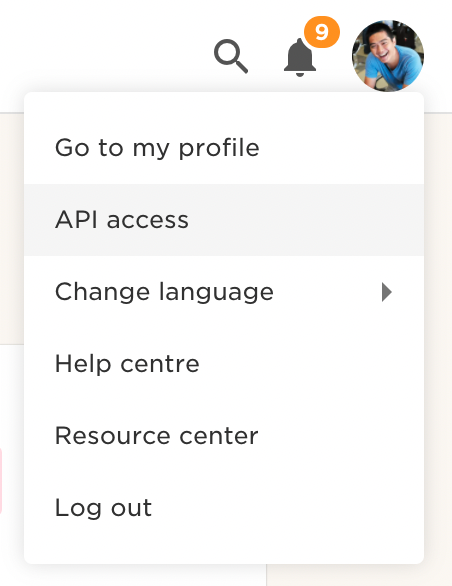
1. Click your profile picture, and then select API access.
 2. Click **Generate token**.
 Your API token has the same access levels as your HiBob user, for example,
if you are an administrator your token will have full access to all APIs.
For this reason API tokens are personal and should not be shared.
3. Copy the generated token.
#### Creating your connection
1. In the Blink platform, navigate to the **Connections** page > **Add connection**. A New Connection dialog box opens displaying icons of external service providers available.
2. Select the **HiBob** icon. A dialog box with name of the connection and connection methods appear.
3. (Optional) Edit the name of the connection. At a later stage you cannot edit the name.
4. Select **API Key** as the method to make the connection.
5. Fill in the parameters:
* The API key
6. (Optional) Click **Test Connection** to test it.
7. Click **Create connection**. The new connection appears on the **Connections** page.
Your API token has the same access levels as your HiBob user, for example,
if you are an administrator your token will have full access to all APIs.
For this reason API tokens are personal and should not be shared.
3. Copy the generated token.
#### Creating your connection
1. In the Blink platform, navigate to the **Connections** page > **Add connection**. A New Connection dialog box opens displaying icons of external service providers available.
2. Select the **HiBob** icon. A dialog box with name of the connection and connection methods appear.
3. (Optional) Edit the name of the connection. At a later stage you cannot edit the name.
4. Select **API Key** as the method to make the connection.
5. Fill in the parameters:
* The API key
6. (Optional) Click **Test Connection** to test it.
7. Click **Create connection**. The new connection appears on the **Connections** page.