> ## Documentation Index
> Fetch the complete documentation index at: https://docs.blinkops.com/llms.txt
> Use this file to discover all available pages before exploring further.
# HackerOne
> HackerOne is a powered security platform that connects businesses with penetration testers and cybersecurity researchers.
## Creating a HackerOne connection
### Using API Token
To create the connection you need:
* An API Token Identifier
* An API Token
#### Obtaining the credentials
1. Sign in to [HackerOne](https://hackerone.com/users/sign_in) with your organization administrator credentials.
2. Once logged in, you'll see your organization's dashboard with submission statistics and program metrics.
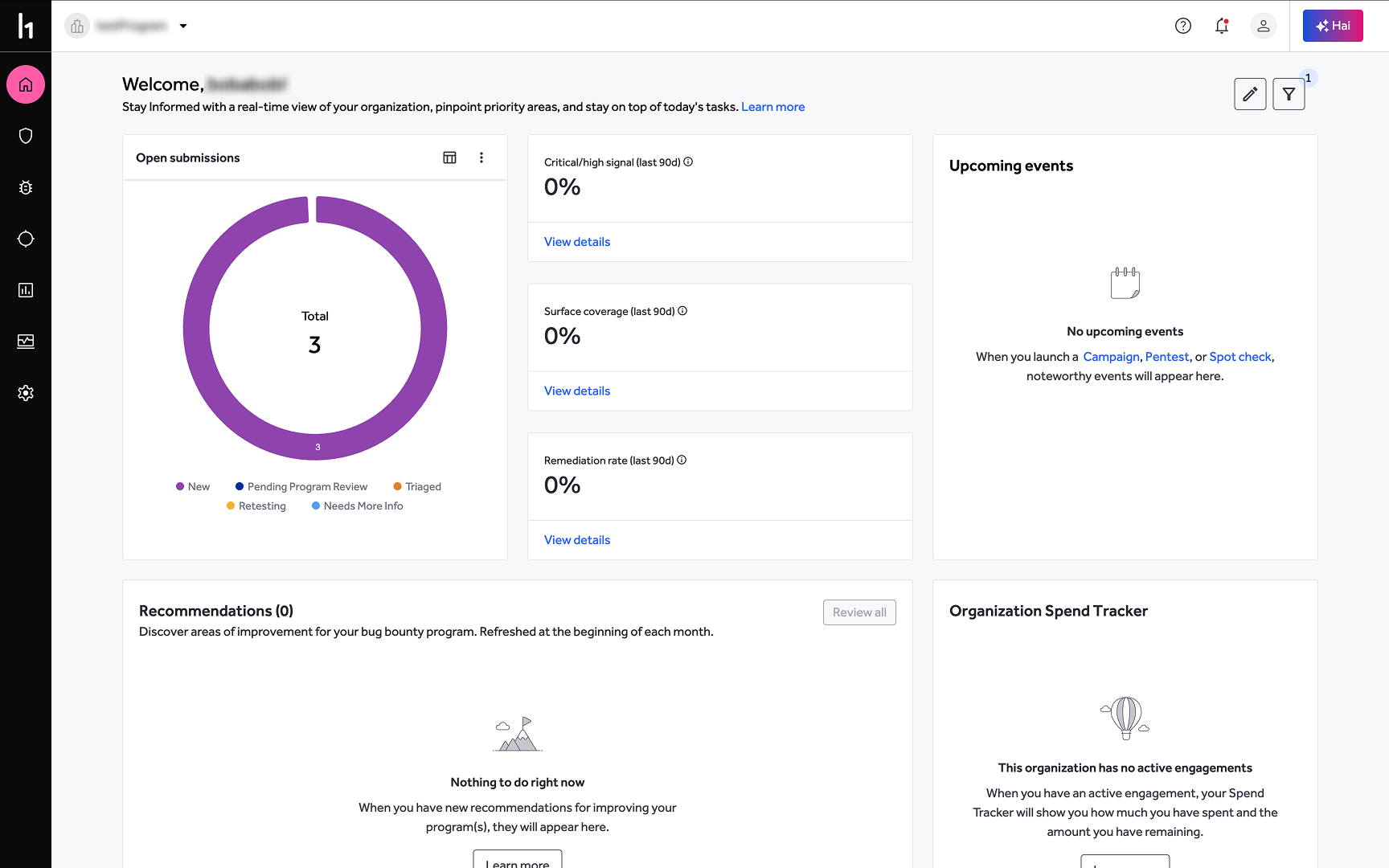 2. If you have access to multiple organizations, use the dropdown menu in the top-left corner to select the organization for which you want to create an API token.
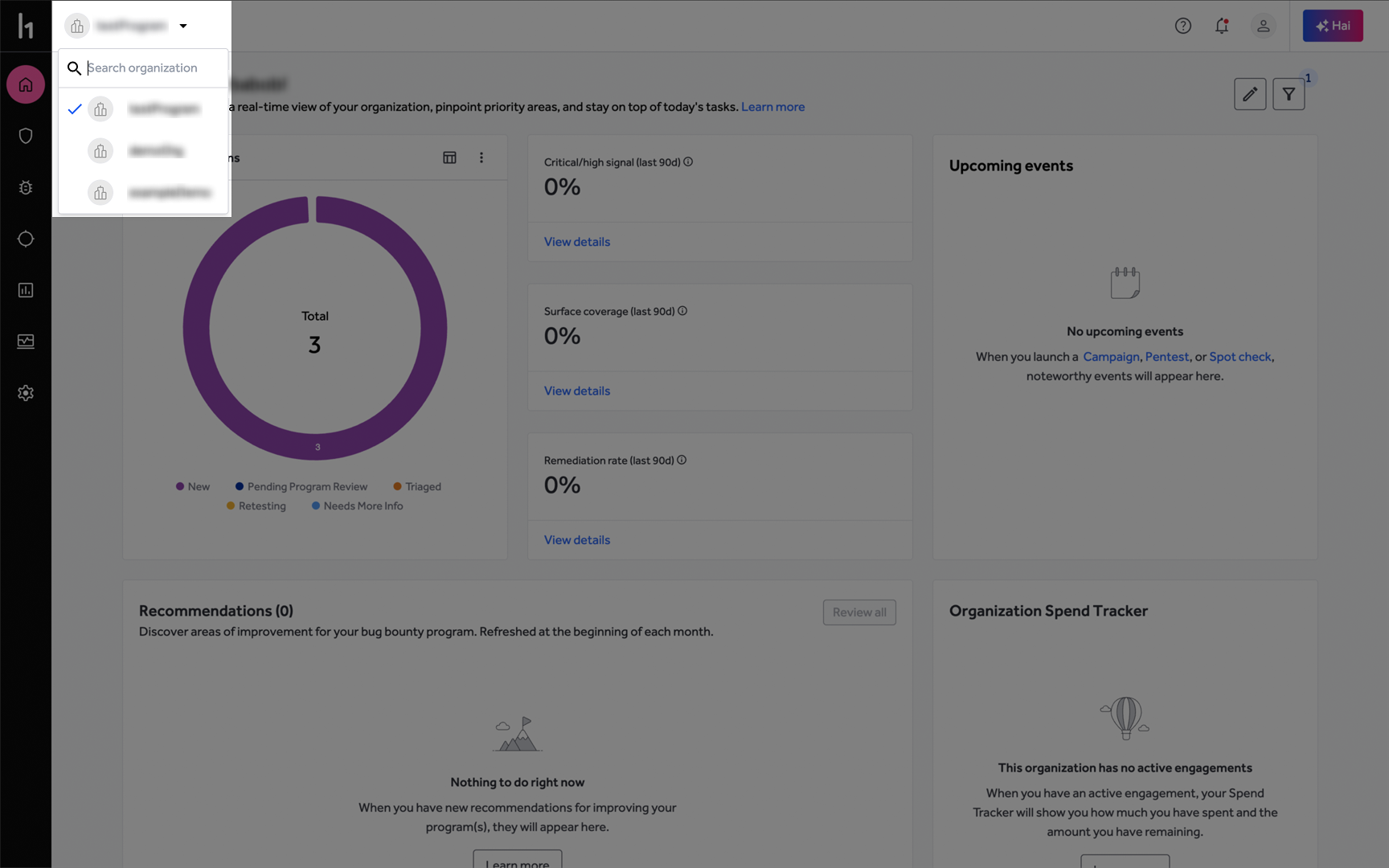 3. Click on the **settings gear icon (⚙️)** in the left sidebar navigation. This will take you to the organization's settings.
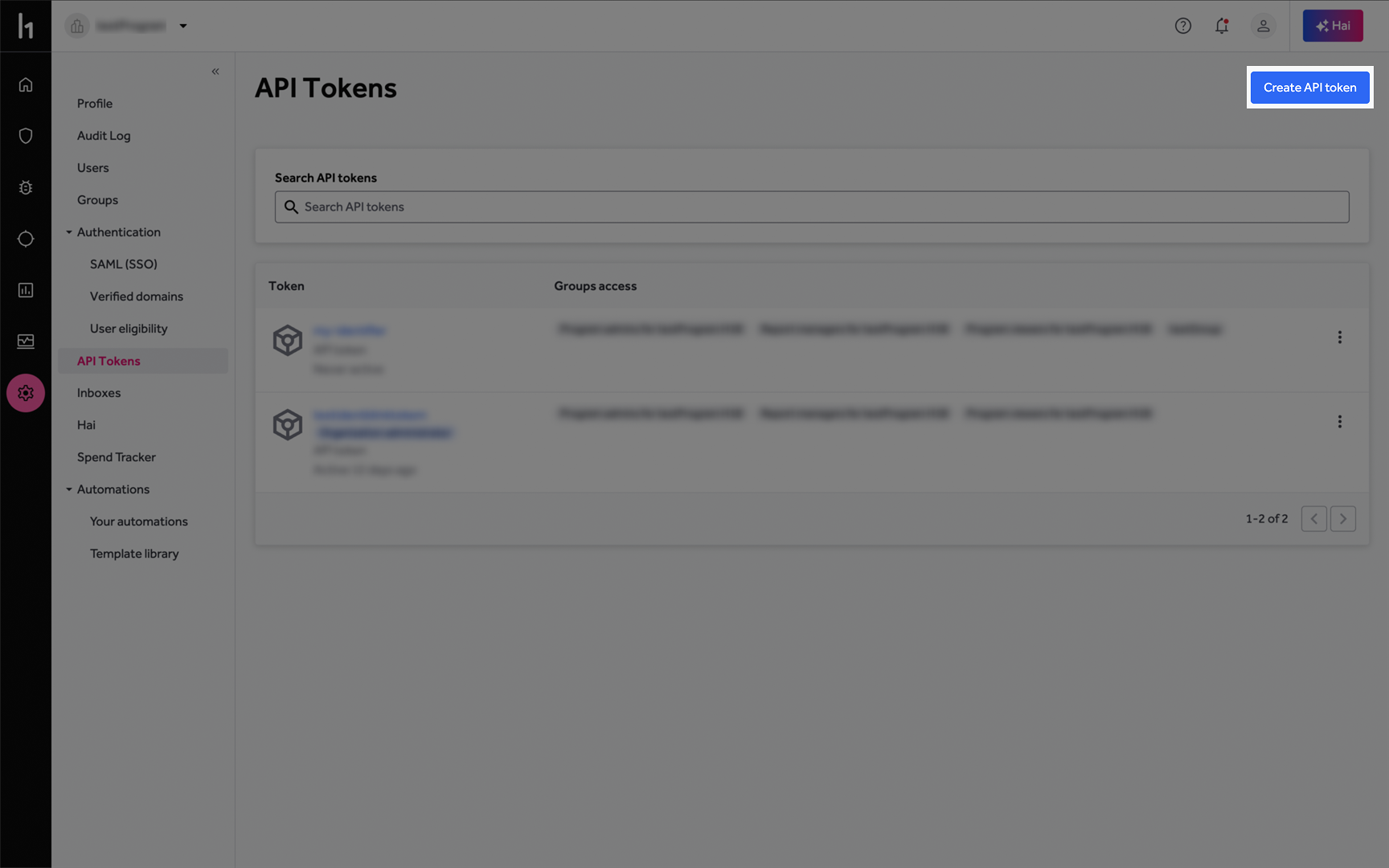
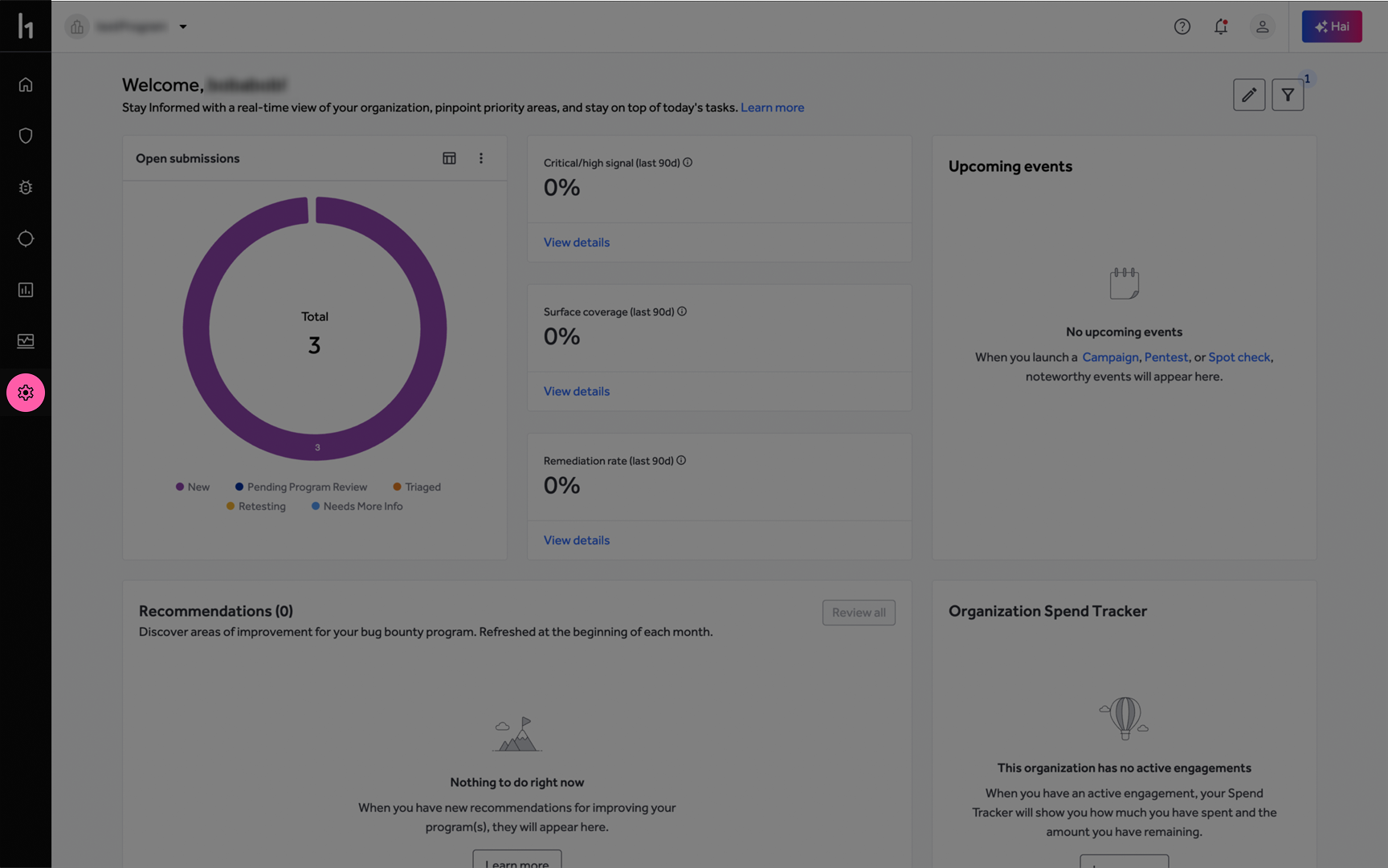 4. In the settings sidebar menu, locate and click on **API Tokens**.
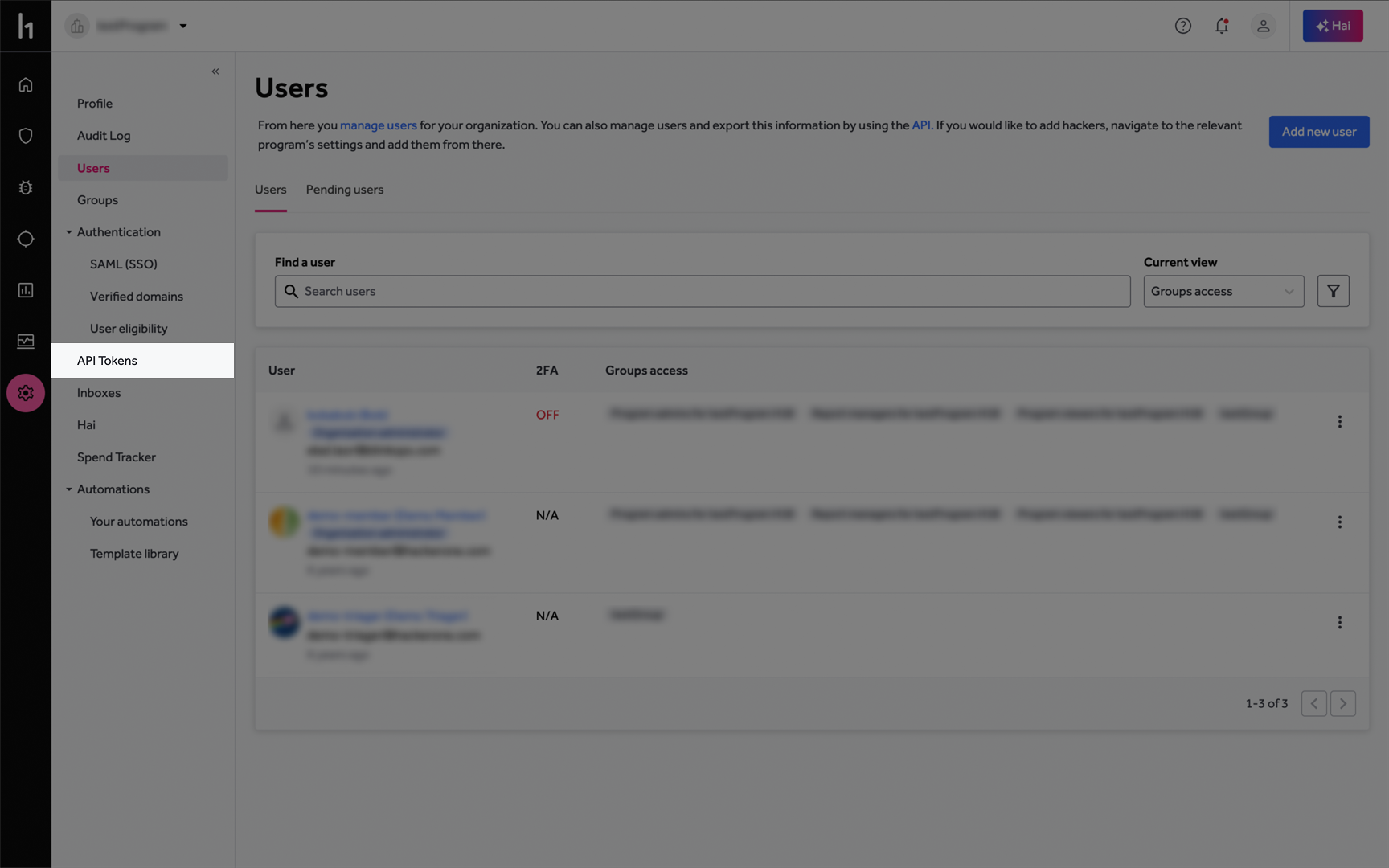 5. Click the **Create API token** button in the top-right corner of the API Tokens page.
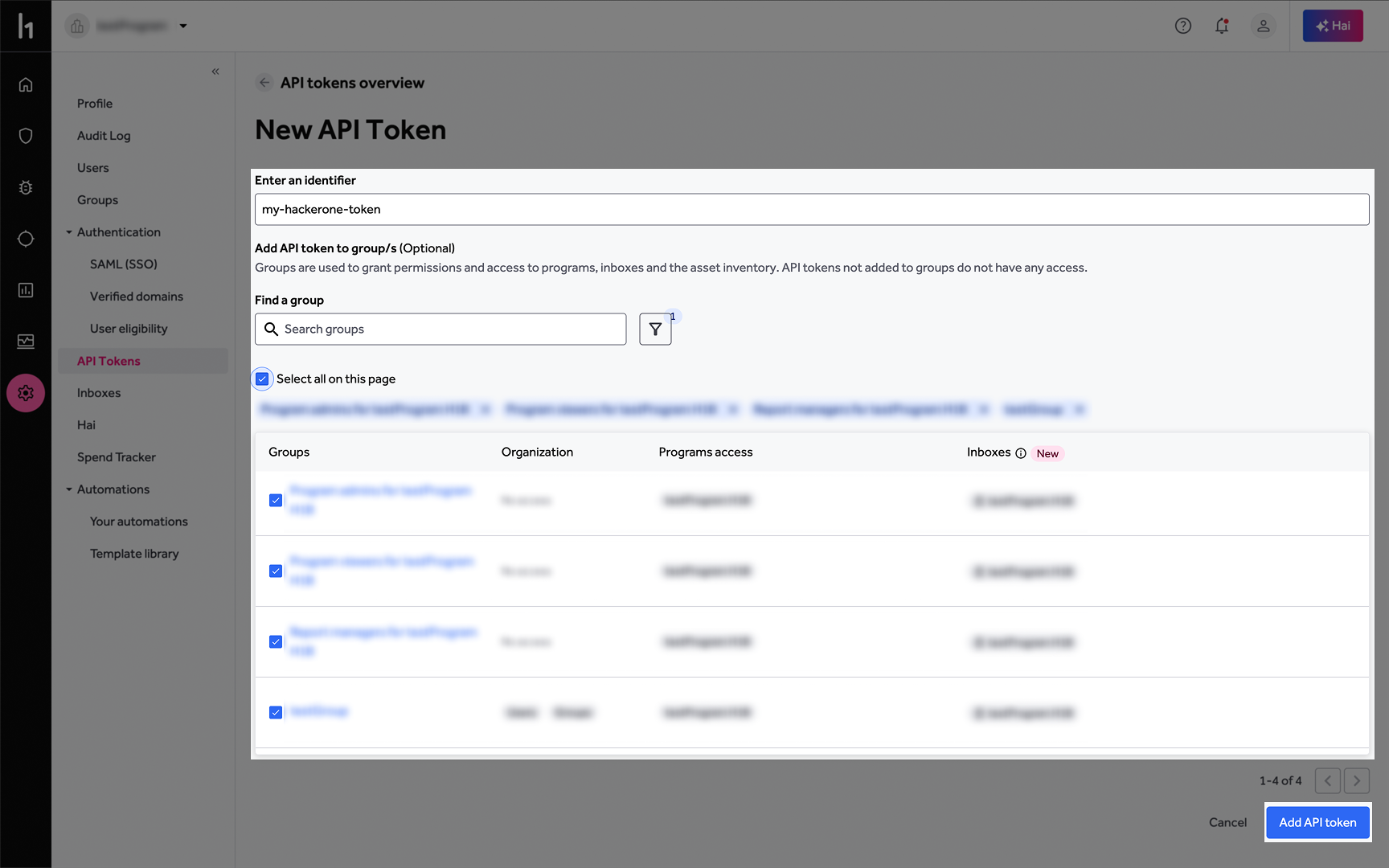
 6. Create a new API token:
* Provide an identifier for the token. Save it for later, this will be your **API Token Identifier**.
* (Optional) Select the required permissions groups if needed, according to HackerOne instructions.
* Click on **Add API token**.
6. Create a new API token:
* Provide an identifier for the token. Save it for later, this will be your **API Token Identifier**.
* (Optional) Select the required permissions groups if needed, according to HackerOne instructions.
* Click on **Add API token**.
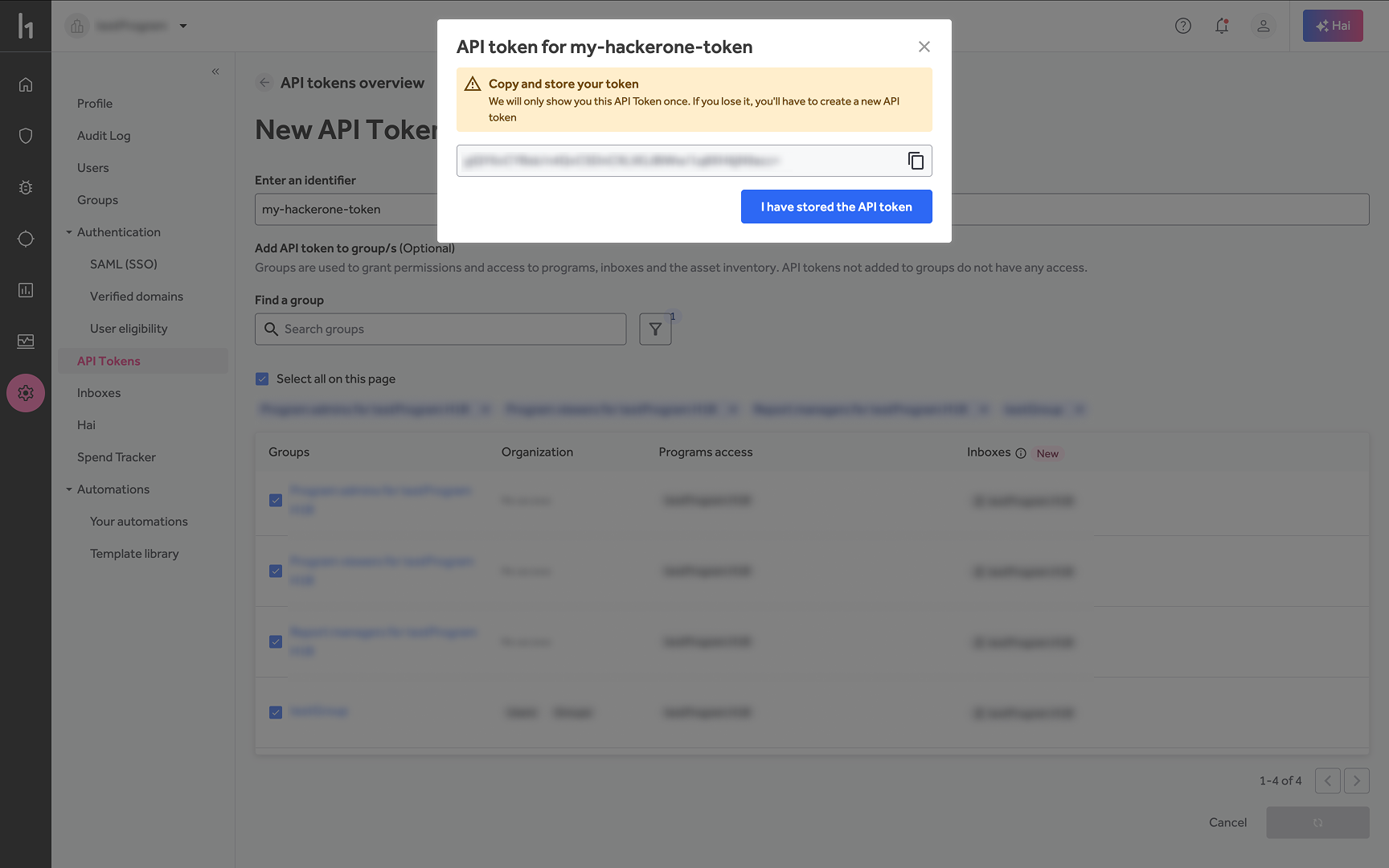
 7. Copy the newly created **API token**.
 #### Creating your connection
1. In the Blink platform, navigate to the **Connections** page > **Add connection**. A New Connection dialog box opens displaying icons of external service providers available.
2. Select the **HackerOne** icon. A dialog box with name of the connection and connection methods appear.
3. (Optional) Edit the name of the connection. At a later stage you cannot edit the name.
4. Select **API Token** as the method to create the connection.
5. Fill in the parameters:
* The API Token Identifier
* The API Token
6. (Optional) Click **Test Connection** to test it.
7. Click **Create connection**. The new connection appears on the **Connections** page.
#### Creating your connection
1. In the Blink platform, navigate to the **Connections** page > **Add connection**. A New Connection dialog box opens displaying icons of external service providers available.
2. Select the **HackerOne** icon. A dialog box with name of the connection and connection methods appear.
3. (Optional) Edit the name of the connection. At a later stage you cannot edit the name.
4. Select **API Token** as the method to create the connection.
5. Fill in the parameters:
* The API Token Identifier
* The API Token
6. (Optional) Click **Test Connection** to test it.
7. Click **Create connection**. The new connection appears on the **Connections** page.