> ## Documentation Index
> Fetch the complete documentation index at: https://docs.blinkops.com/llms.txt
> Use this file to discover all available pages before exploring further.
# Google Workspace
> Google Workspace (formerly known as Google Apps and later G Suite) is a collection of cloud computing, productivity and collaboration tools, software and products developed and marketed by Google. It consists of Gmail, Contacts, Calendar, Meet and Chat for communication; Currents for employee engagement; Drive for storage; and the Google Docs suite for content creation. An Admin Panel is provided for managing users and services.
**Note**
Google Workspace does not support any actions itself. It serves only as a general connection that can be used across all Google Workspace integrations for extra convenience.
## Creating a Google Workspace connection
To reduce the number of scopes, we recommend using separate connections for each of the following integrations rather than the general Google Workspace connection.
1. [Gmail](/docs/integrations/gmail)
2. [Google Admin Console](/docs/integrations/google-admin-console)
3. [Google Calendar](/docs/integrations/google-calendar)
4. [Google Chat](/docs/integrations/google-chat)
5. [Google Cloud Identity](/docs/integrations/google-cloud-identity)
6. [Google Docs](/docs/integrations/google-docs)
7. [Google Drive](/docs/integrations/google-drive)
8. [Google Meet](/docs/integrations/google-meet)
9. [Google Sheets](/docs/integrations/google-sheets)
You can continue to use the general connection if you wish to do so.
Create the connection by using one of the following methods:
* [OAuth](#using-oauth)
* [Service Account](#using-service-account)
**Ensure the relevant APIs from the following list are enabled:**
* [Gmail API](https://console.cloud.google.com/apis/api/gmail.googleapis.com)
* [Admin SDK API](https://console.cloud.google.com/apis/api/admin.googleapis.com)
* [Google Drive API](https://console.cloud.google.com/apis/api/drive.googleapis.com)
* [Google Docs API](https://console.cloud.google.com/apis/api/docs.googleapis.com)
* [Google Sheets API](https://console.cloud.google.com/apis/api/sheets.googleapis.com)
* [Google Chat API](https://console.cloud.google.com/apis/api/chat.googleapis.com)
* [Google Calendar API](https://console.cloud.google.com/apis/api/calendar-json.googleapis.com)
* [Google Meet API](https://console.cloud.google.com/apis/api/meet.googleapis.com)
* [Google Workspace Alert Center API](https://console.cloud.google.com/apis/api/alertcenter.googleapis.com)
* [Enterprise License Manager API](https://console.cloud.google.com/apis/api/licensing.googleapis.com)
* [Cloud Identity API](https://console.cloud.google.com/apis/api/cloudidentity.googleapis.com)
You do not have to enable all APIs, only the ones relevant to the actions you wish to perform with Blink.
## Using OAuth
Some actions do not support GCP connections created with OAuth.
1. In the Blink platform, navigate to the **Connections** page > **Add connection**. A New Connection dialog box opens displaying icons of external service providers available.
2. Select the **Google Workspace** icon. A dialog box with name of the connection and connection methods appear.
3. (Optional) Edit the name of the connection. At a later stage you cannot edit the name.
4. Click **Google Workspace** to authenticate using OAuth.
5. Sign in using your credentials.
### Using service account
#### Creating a service account
This step is only necessary if you don't already have a service account.
1. In the Google Cloud console, go to
the [Create service account page](https://console.cloud.google.com/iam-admin/serviceaccounts/create).
2. Enter a name in the **Service account name** field.
* (optional) Edit the service account ID.
* (optional) If you want to grant the service account access to the project, or to grant users access to this service account, click on **Create and continue**.
This is not required for the integration with Blink.
3. Click **Done** to finish creating the service account.
#### Create a service account key
1. In the Google Cloud console, go to
the [service account page](https://console.cloud.google.com/iam-admin/serviceaccounts).
2. Select the service account that you want to create a key for.
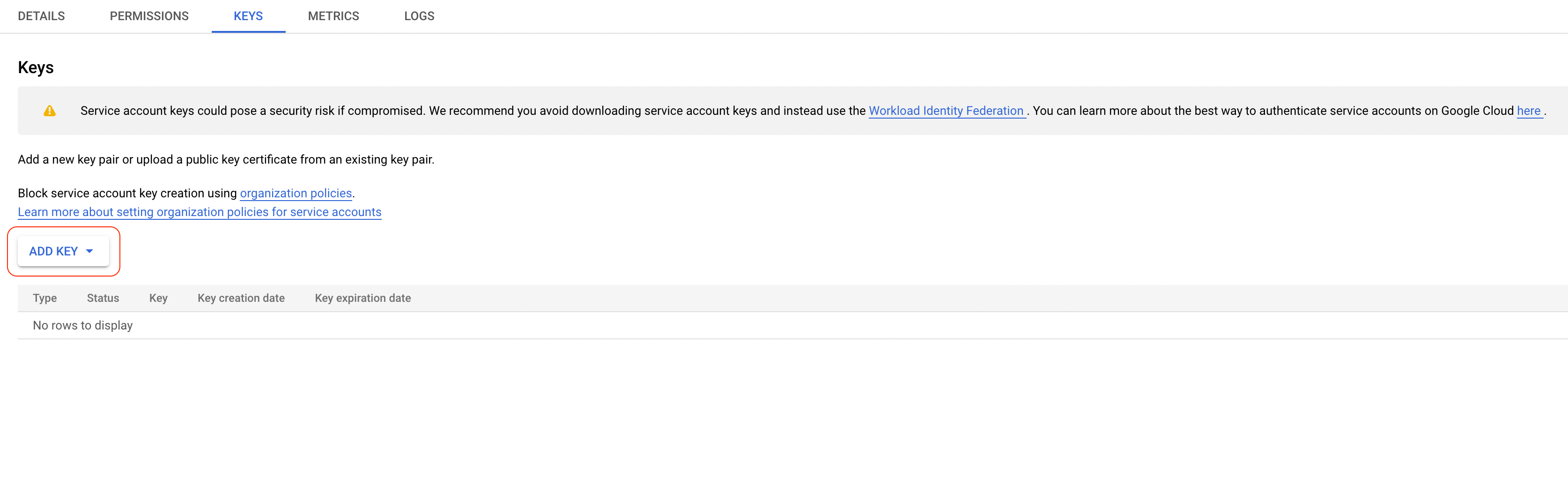
3. Click the **Keys** tab.
4. From the dropdown menu, select **Add key** > **Create new key**.
5. Select *JSON* as the key type and click **Create**.
6. Copy the key.
#### Enable service account delegation in your Google Workspace
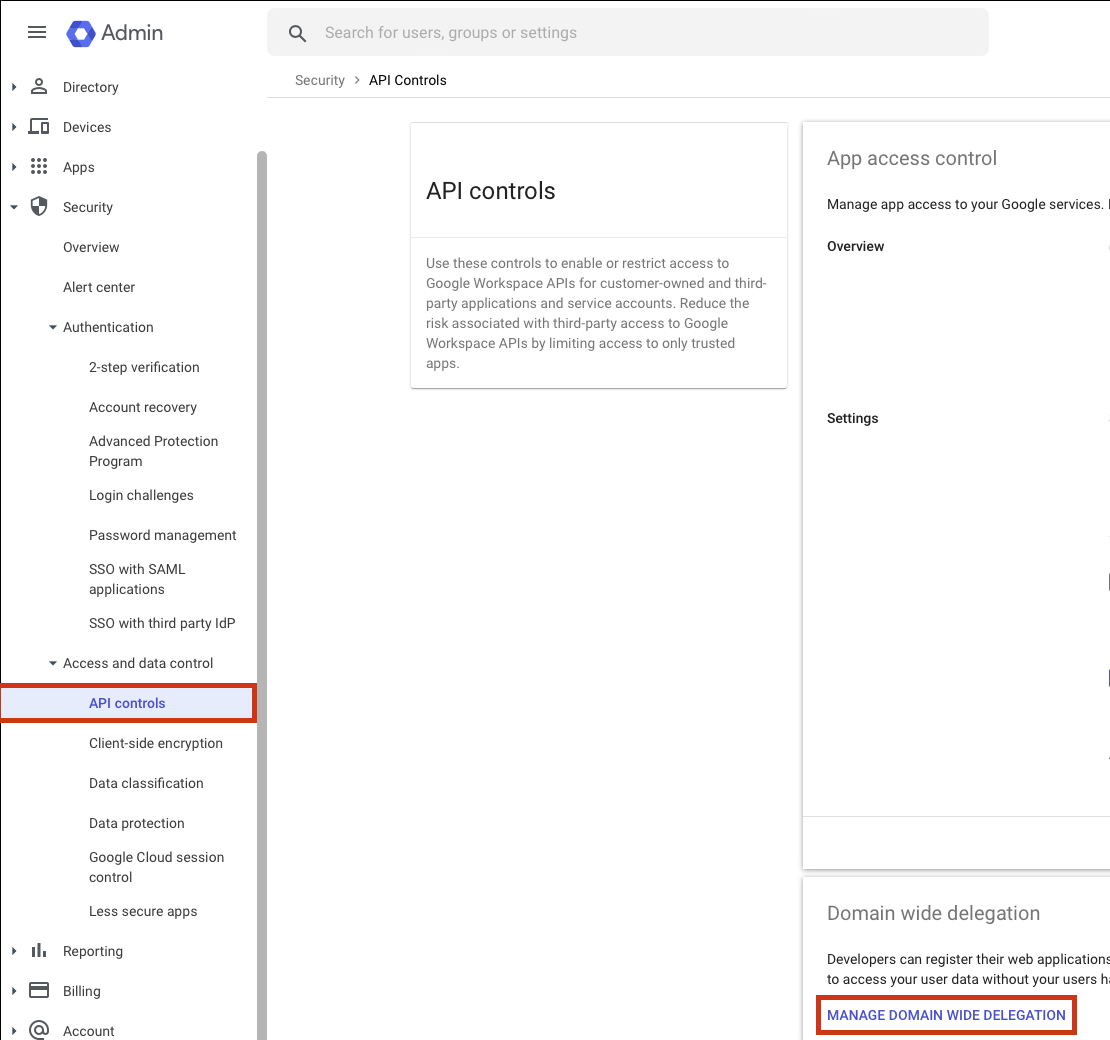
1. In the Google Admin console, go to the [API controls page](https://admin.google.com/u/3/ac/owl) and then click on **Manage domain wide delegation**.
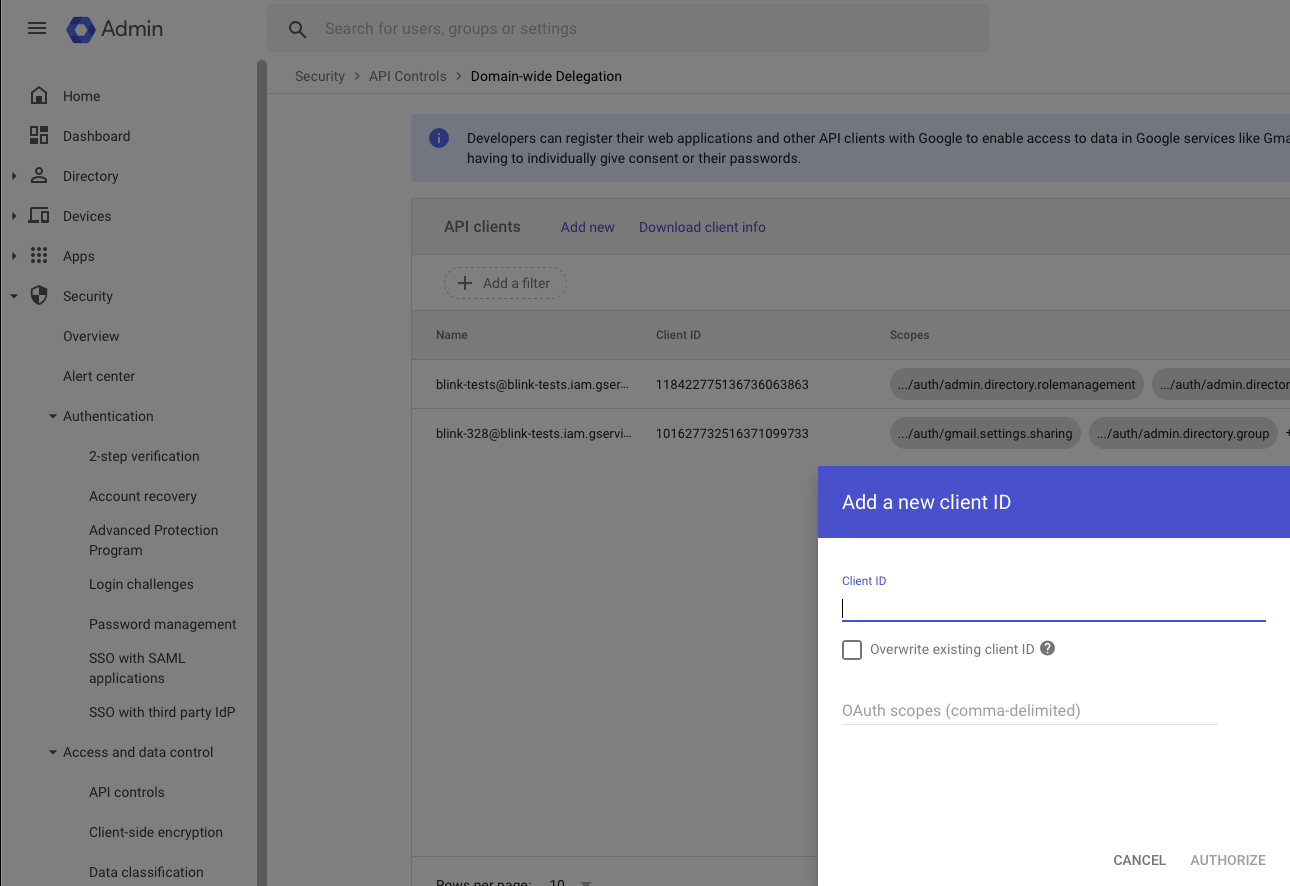
2. Add a new client to your workspace. In **Client ID**, use the client ID from the downloaded JSON service account from the previous step.
3. To allow all actions in Blink to run, add the following scopes used by Blink to access your Google APIs:
```
https://www.googleapis.com/auth/admin.directory.user,
https://www.googleapis.com/auth/admin.directory.user.security,
https://www.googleapis.com/auth/admin.directory.group,
https://www.googleapis.com/auth/admin.directory.group.member,
https://www.googleapis.com/auth/admin.directory.rolemanagement,
https://www.googleapis.com/auth/admin.datatransfer,
https://www.googleapis.com/auth/apps.licensing,
https://www.googleapis.com/auth/drive,
https://www.googleapis.com/auth/apps.alerts,
https://www.googleapis.com/auth/spreadsheets,
https://mail.google.com,
https://www.googleapis.com/auth/gmail.settings.basic,
https://www.googleapis.com/auth/cloud-identity.devices,
https://www.googleapis.com/auth/admin.directory.orgunit.readonly,
https://www.googleapis.com/auth/chat.spaces,
https://www.googleapis.com/auth/chat.memberships,
https://www.googleapis.com/auth/chat.delete,
https://www.googleapis.com/auth/chat.messages,
https://www.googleapis.com/auth/calendar.readonly,
https://www.googleapis.com/auth/calendar,
https://www.googleapis.com/auth/calendar.events.readonly,
https://www.googleapis.com/auth/calendar.events,
https://www.googleapis.com/auth/meetings.space.created,
https://www.googleapis.com/auth/admin.reports.audit.readonly,
https://www.googleapis.com/auth/cloud-identity.groups,
https://www.googleapis.com/auth/forms.body,
https://www.googleapis.com/auth/forms.responses.readonly
```
**Note #1**
You can adjust the scopes according to your requirements.
Ensure that the scopes configured in `Domain-Wide Delegation` align with those specified in the service account connection in Blink. Remember, having a high-level permission does not automatically grant access to its subordinate permissions.
**Note #2**
It usually takes a few minutes for impersonation access to be granted after the client ID was added.
#### Creating your connection
1. In the Blink platform, navigate to the **Connections** page > **Add connection**.
2. Select the **Google Workspace** icon. A dialog box with name of the connection and connection methods appear.
3. (Optional) Edit the name of the connection. At a later stage you cannot edit the name.
4. Select **Service Account** as the method to create the connection.
5. Fill in the parameters:
* Paste the JSON key into the *Credentials* field.
* Specify the email address of the *Delegated User* for which Blink will use for access.\
Many actions contain a `Delegated User Override` parameter which lets you perform specific operations on behalf of a different user.\
When this parameter is not specified, it will default to the one provided in the connection.
The delegated user has to be a user in the same domain. For the list of the available users, navigate to the [users tab](https://admin.google.com/u/3/ac/users).
* A comma-separatedlist of *Scopes* you want this connection to request. This list should not exceed the scopes you added in your domain-wide delegation.
6. (Optional) Click **Test Connection** to test it.
7. Click **Create connection**. The new connection appears on the **Connections** page.
### Interactive Tutorial Guides
You can also refer to the following tutorial guides for a more in-depth understanding of how to create a Google Workspace connection.