> ## Documentation Index
> Fetch the complete documentation index at: https://docs.blinkops.com/llms.txt
> Use this file to discover all available pages before exploring further.
# Google Cloud Identity
> Google Cloud Identity is an identity and access management (IAM) service that enables organizations to securely manage users, devices, and app access across cloud and on-premises environments.
## Creating a Google Cloud Identity connection
Create the connection by using one of the following methods:
* [OAuth](#using-oauth)
* [Service Account](#using-service-account)
### Using OAuth
#### Creating your connection
1. In the Blink platform, navigate to the **Connections** page > **Add connection**. A New Connection dialog box opens displaying icons of external service providers available.
2. Select the **Google Cloud Identity** icon. A dialog box with name of the connection and connection methods appear.
3. (Optional) Edit the name of the connection. At a later stage you cannot edit the name.
4. Click **Google Cloud Identity** to authenticate using OAuth.
5. Sign in using your credentials.
## Using Service Account
To create the connection you need:
* A Credentials
* A Delegated User
* A Google Oauth 2.0 Scopes
**Ensure the relevant APIs from the following list are enabled:**
* [Google Cloud Identity API](https://console.cloud.google.com/apis/api/cloudidentity.googleapis.com)
#### Creating your connection
**Note**
This step is only necessary if you don't already have a service account.
1. In the Google Cloud console, go to the [Create service account page](https://console.cloud.google.com/iam-admin/serviceaccounts/create).
2. Enter a name in the **Service account name** field.
* (optional) Edit the service account ID.
* (optional) If you want to grant the service account access to the project, or to grant users access to this service account, click on **Create and continue**.
3. Click **Done** to finish creating the service account.
#### Create a service account key
1. In the Google Cloud console, go to the [service account page](https://console.cloud.google.com/iam-admin/serviceaccounts).
2. Select the service account that you want to create a key for.
3. Click the **Keys** tab.
4. From the dropdown menu, select **Add key** > **Create new key**.
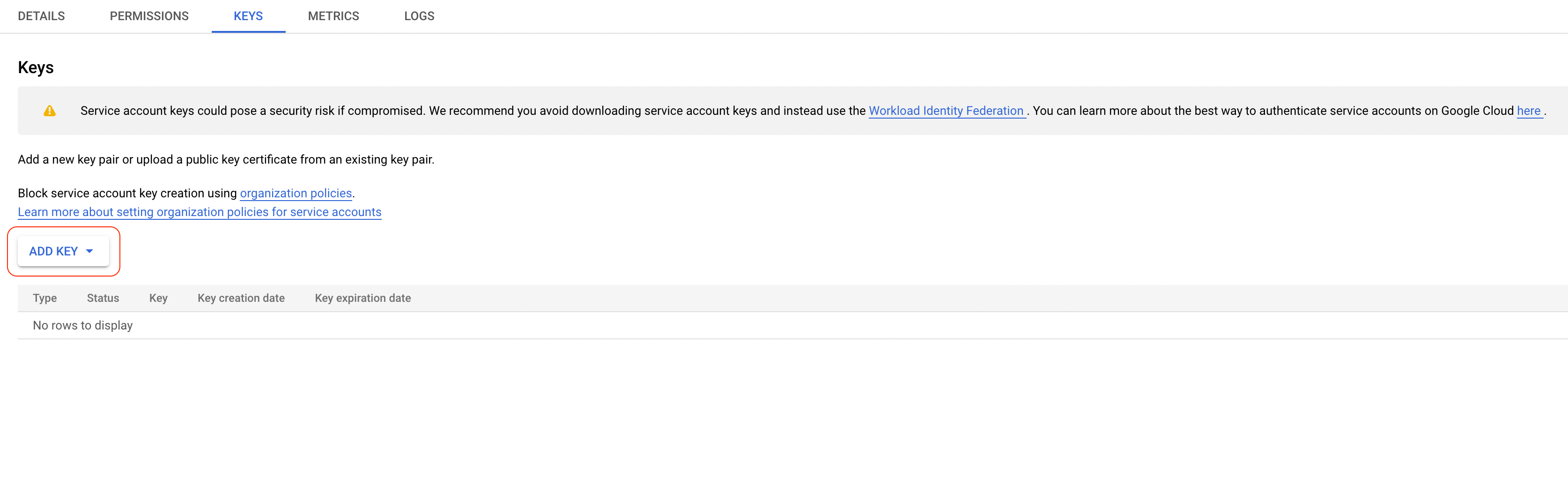 5. Select *JSON* as the key type and click **Create**.
6. Copy the key.
#### Enable service account delegation in your Google Workspace
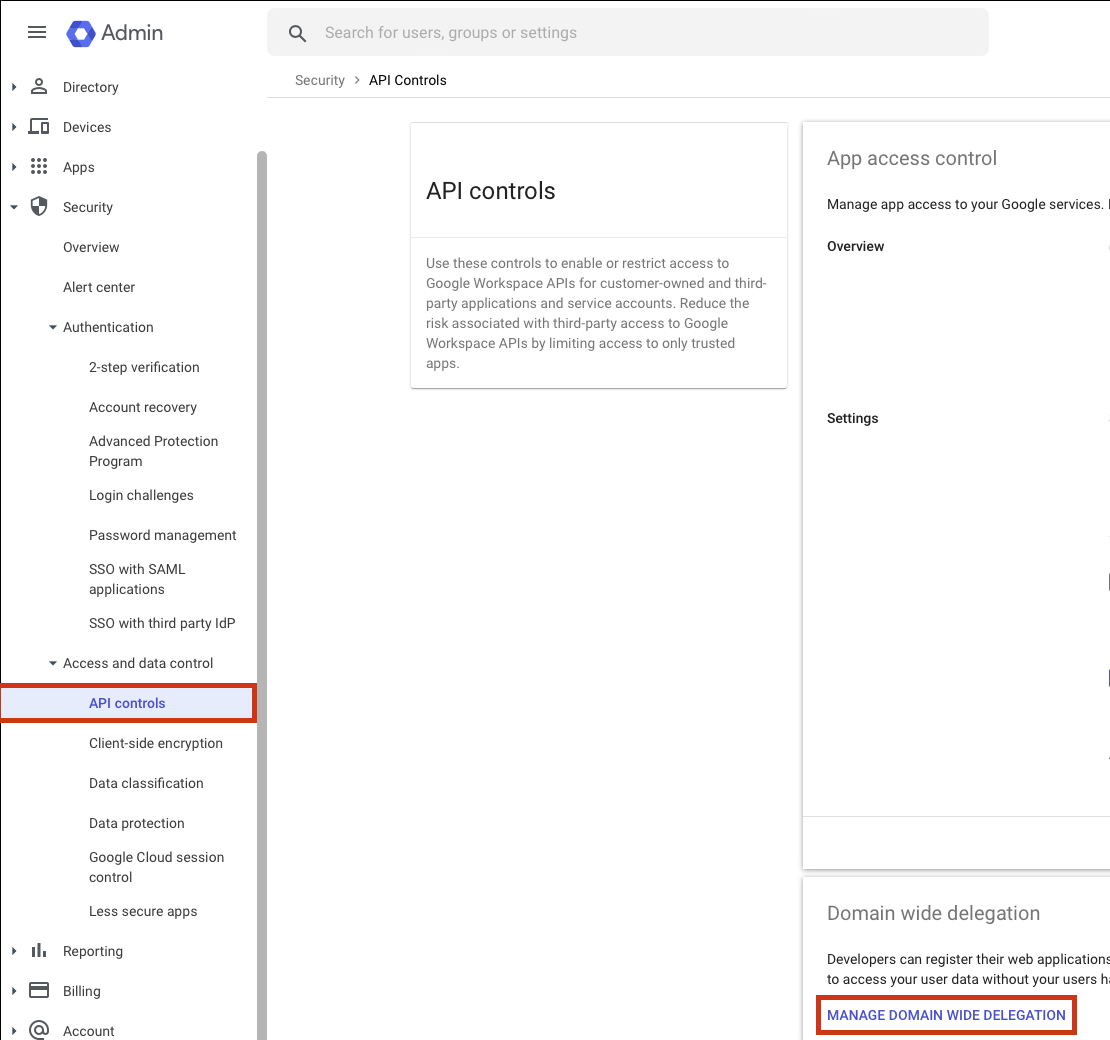
1. In the Google Admin console, go to the [API controls page](https://admin.google.com/u/3/ac/owl) and then click on **Manage domain wide delegation**.
5. Select *JSON* as the key type and click **Create**.
6. Copy the key.
#### Enable service account delegation in your Google Workspace
1. In the Google Admin console, go to the [API controls page](https://admin.google.com/u/3/ac/owl) and then click on **Manage domain wide delegation**.
 2. Add a new client to your workspace. In **Client ID**, use the client ID from the downloaded JSON service account from the previous step.
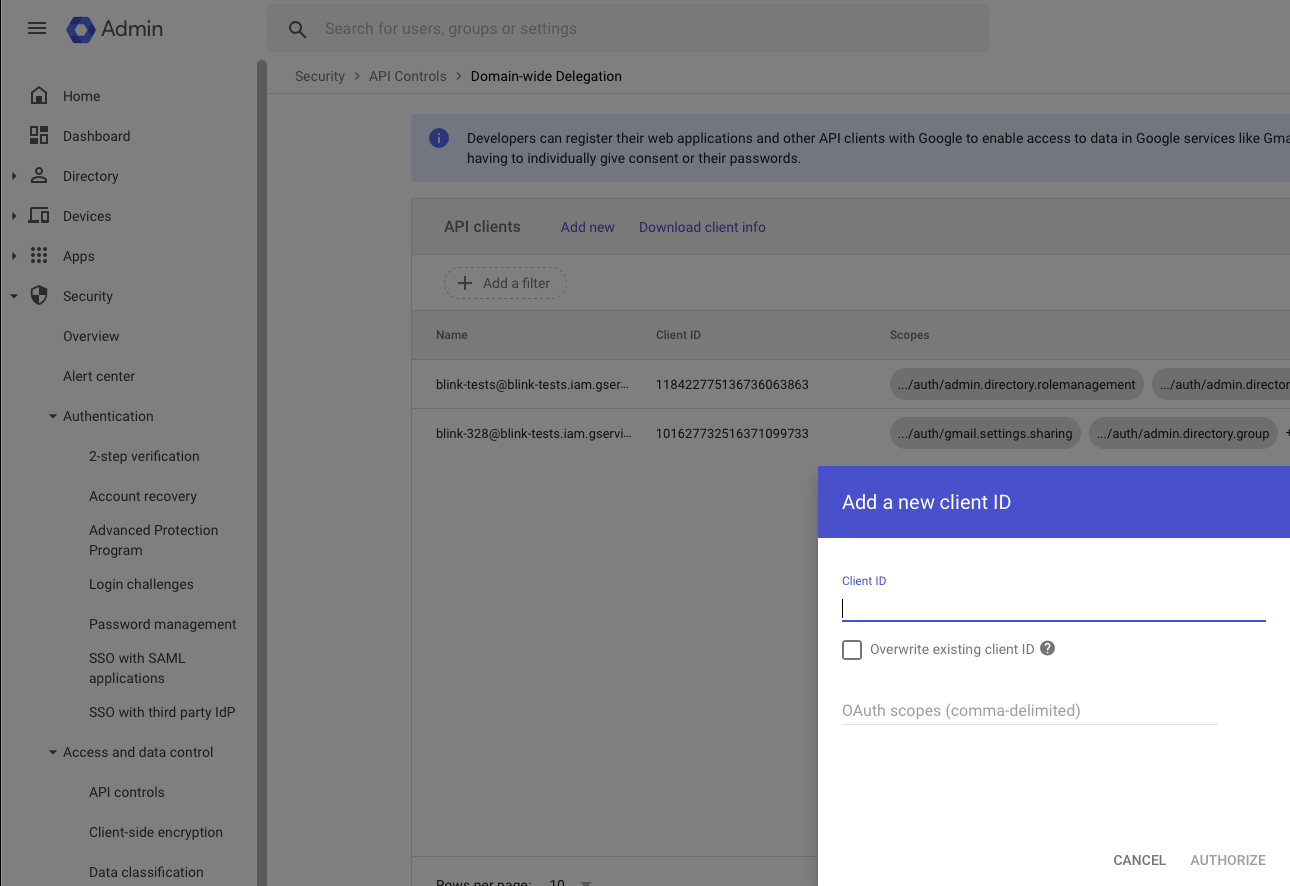 3. Add the following scopes:
```
https://www.googleapis.com/auth/cloud-identity.devices,
https://www.googleapis.com/auth/cloud-identity.groups
```
**Note #1**
You can adjust the scopes according to your requirements.
**Note #2**
It usually takes a few minutes for impersonation access to be granted after the client ID was added.
### Creating your connection
1. In the Blink platform, navigate to the **Connections** page > **Add connection**.
2. Select the **Google Cloud Identity** icon. A dialog box with name of the connection and connection methods appear.
3. (Optional) Edit the name of the connection. At a later stage you cannot edit the name.
4. Select **Service Account** as the method to create the connection.
5. Fill in the parameters:
* Paste the JSON key into the *Credentials* field.
* Specify the email address of the *Delegated User* for which Blink will use for access.
Many actions contain a `Delegated User Override` parameter which lets you perform specific operations on behalf of a different user.
When this parameter is not specified, it will default to the one provided in the connection.
The delegated user has to be a user in the same domain. For the list of the available users, navigate to the [users tab](https://admin.google.com/u/3/ac/users).
* A comma-separatedlist of *Scopes* you want this connection to request. This list should not exceed the scopes you added in your domain-wide delegation.
3. Add the following scopes:
```
https://www.googleapis.com/auth/cloud-identity.devices,
https://www.googleapis.com/auth/cloud-identity.groups
```
**Note #1**
You can adjust the scopes according to your requirements.
**Note #2**
It usually takes a few minutes for impersonation access to be granted after the client ID was added.
### Creating your connection
1. In the Blink platform, navigate to the **Connections** page > **Add connection**.
2. Select the **Google Cloud Identity** icon. A dialog box with name of the connection and connection methods appear.
3. (Optional) Edit the name of the connection. At a later stage you cannot edit the name.
4. Select **Service Account** as the method to create the connection.
5. Fill in the parameters:
* Paste the JSON key into the *Credentials* field.
* Specify the email address of the *Delegated User* for which Blink will use for access.
Many actions contain a `Delegated User Override` parameter which lets you perform specific operations on behalf of a different user.
When this parameter is not specified, it will default to the one provided in the connection.
The delegated user has to be a user in the same domain. For the list of the available users, navigate to the [users tab](https://admin.google.com/u/3/ac/users).
* A comma-separatedlist of *Scopes* you want this connection to request. This list should not exceed the scopes you added in your domain-wide delegation.
6. (Optional) Click **Test Connection** to test it.
7. Click **Create connection**. The new connection appears on the **Connections** page.
### Interactive Tutorial Guides
You can also refer to the following tutorial guides for a more in-depth understanding of how to create a Google Cloud Identity connection.
[Creating a Google Cloud Identity Connection](https://demo.arcade.software/wonbnWVjGuvSmDAAw9W7?embed\&show_copy_link=true)
[Creating a Google Cloud Identity Connection in Blink Ops](https://demo.arcade.software/9RhI5jieOQlq6pP1cIk9?embed\&show_copy_link=true)