> ## Documentation Index
> Fetch the complete documentation index at: https://docs.blinkops.com/llms.txt
> Use this file to discover all available pages before exploring further.

# Google Chat Interactivity

The *"Google Interactivity"* action integrates the Blink Bot (part of the Blink app) into your Google Chat account and Spaces, allowing you to perform common Google Chat actions within your workflows. Messages from Blink to Google Chat are sent through this bot.

<Tip>The 'Blink Bot' is named **Blink** by default and displays the Blink logo.</Tip>

This action allows you to send a personalized message to a user or space. The message can include a variety of interactive components, such as date pickers, checkboxes, text inputs, multiple choice selections, and more. Use this action to gather all the necessary information in a single interaction, formatted to best suit the type of data you're collecting.

<Tip>
  * To use the **Google Chat Interactivity** action, it is essential to use the [Google Chat Cards](https://addons.gsuite.google.com/uikit/builder) for building and previewing your messages before executing the step.

  * You can only send [Google Chat Cards](https://addons.gsuite.google.com/uikit/builder) to a Google Chat Space where the Blink app has been installed and added.

  * Please note that the **Footer Element** is not currently supported. Do not include this element when building your card, as it will disrupt the card's functionality and prevent interactivity.
</Tip>

***

## Creating a Workflow using the *Google Chat Interactivity* Action

### Add the Blink App to your Google Chat Account

<Steps>
  <Step title="Search for Blink in Google Workspace Marketplace">
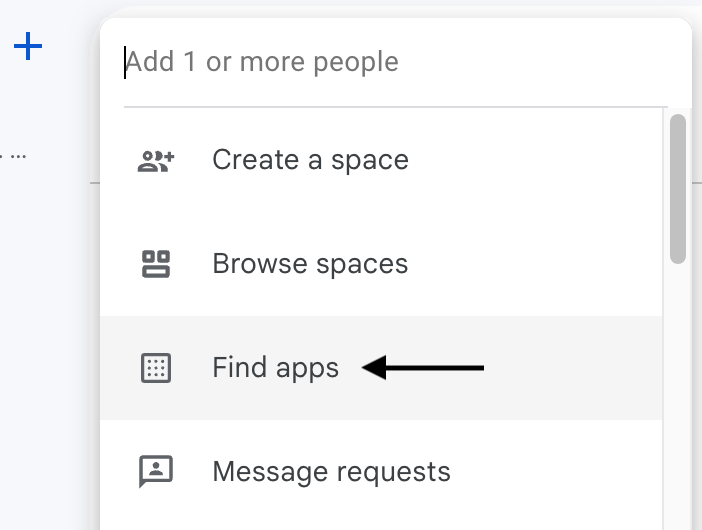
    Go to your [Google Chat](/docs/integrations/google-chat/google-chat) account and click the **+** icon in the right-hand navigation bar.
    This will open the **Google Workspace Marketplace**. In the search bar, type *Blink* and select the Blink app card.

    <Frame>
      <img src="https://mintcdn.com/blinkops-2/-eoT09amno25RB5l/img/Actions/GoogleChatFindApps.png?fit=max&auto=format&n=-eoT09amno25RB5l&q=85&s=190c8de24fe4ee96dd70cdc975cc2e0e" width="702" height="530" data-path="img/Actions/GoogleChatFindApps.png" />
    </Frame>
  </Step>

  <Step title="Install the Blink App">
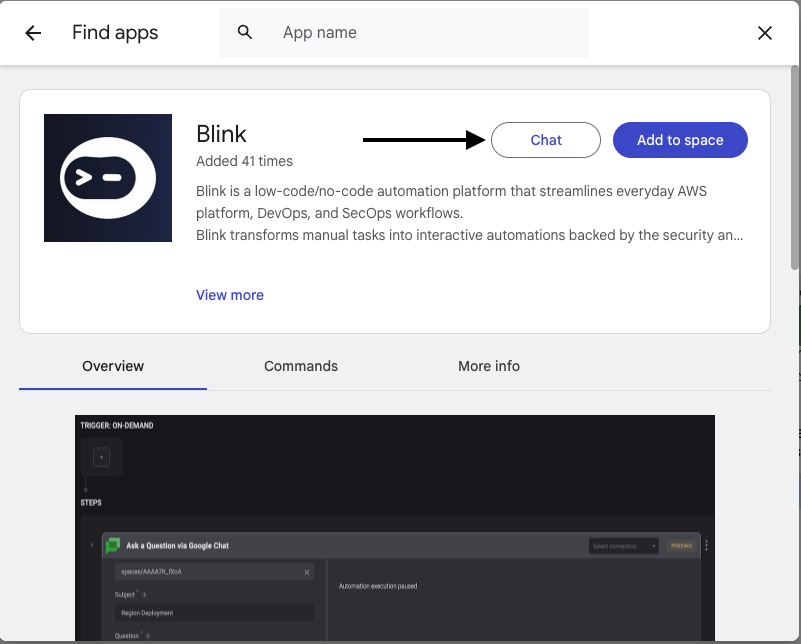
    Click the **Install** option.

    <Frame>
      <img src="https://mintcdn.com/blinkops-2/-eoT09amno25RB5l/img/Actions/GoogleChatSelectChatOption.png?fit=max&auto=format&n=-eoT09amno25RB5l&q=85&s=ec706e6b132203898e4827dcd0b04993" width="801" height="644" data-path="img/Actions/GoogleChatSelectChatOption.png" />
    </Frame>
  </Step>

  <Step title="Authorize Access to Blink">
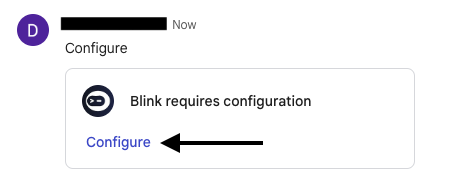
    You'll be taken to a page prompting you to sign in to your Blink account and authorize access to your Google Chat account information.

    <Frame>
      <img src="https://mintcdn.com/blinkops-2/-eoT09amno25RB5l/img/Actions/GoogleChatConfigure.png?fit=max&auto=format&n=-eoT09amno25RB5l&q=85&s=6834e92254d27ca0f169f07d85bceab9" width="469" height="191" data-path="img/Actions/GoogleChatConfigure.png" />
    </Frame>
  </Step>

  <Step title="Confirm Blink Installation">
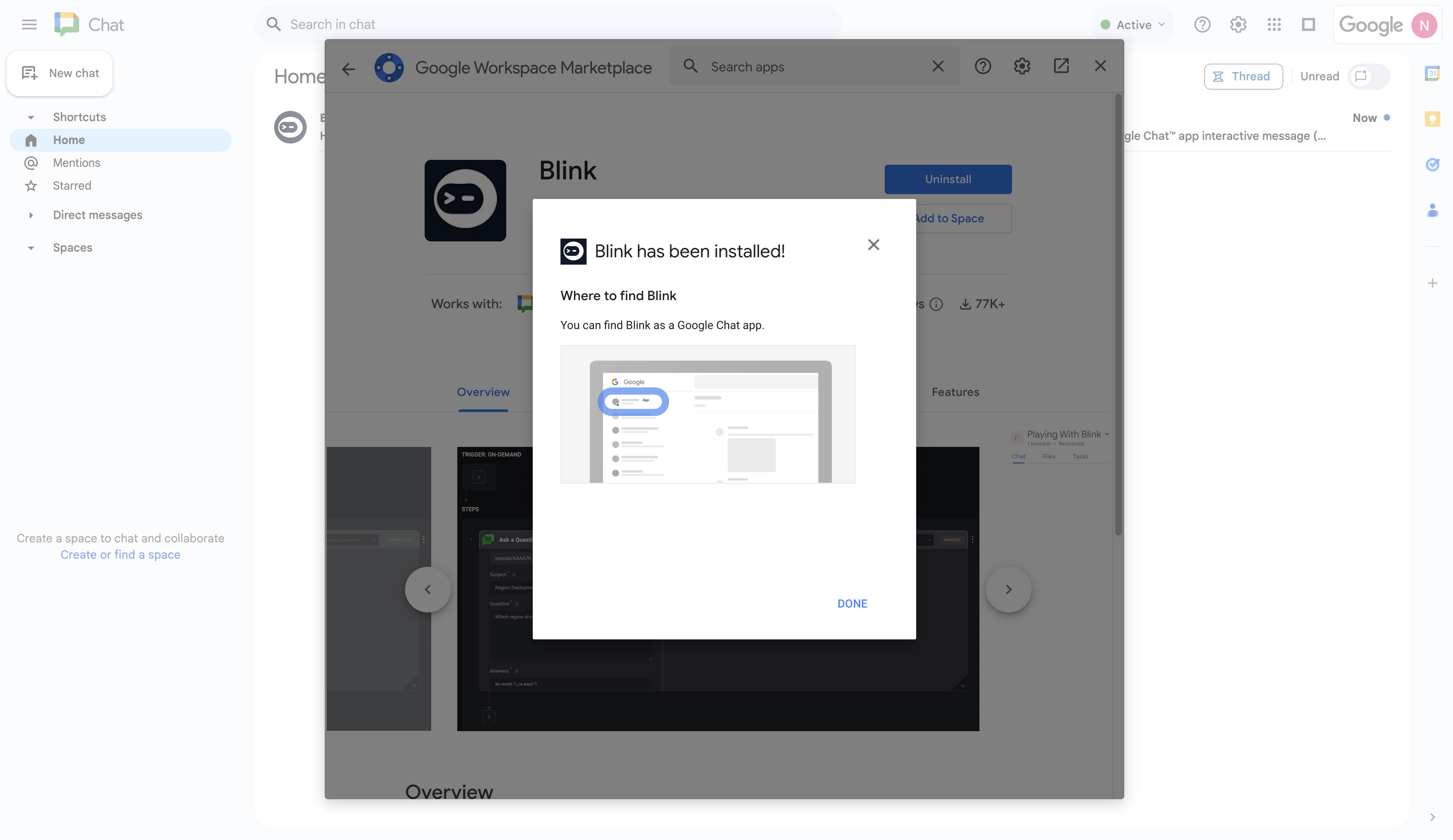
    You will then receive confirmation that the Blink App has been successfully installed. Proceed by clicking the **Done** button.

    <Frame>
      <img src="https://mintcdn.com/blinkops-2/-eoT09amno25RB5l/img/Actions/GoogleChatInstalled.png?fit=max&auto=format&n=-eoT09amno25RB5l&q=85&s=e08f7b51cc69133c5a875a3d836ce19a" width="3562" height="2060" data-path="img/Actions/GoogleChatInstalled.png" />
    </Frame>
  </Step>

  <Step title="Add Blink App to a Space">
    Next, you need to add the Blink app to your Space. Click on the **Add to space** button.

    <Frame>
      <img src="https://mintcdn.com/blinkops-2/-eoT09amno25RB5l/img/Actions/GoogleChatSelectSpace.png?fit=max&auto=format&n=-eoT09amno25RB5l&q=85&s=5d5e1f96d9f87643100bbf2dc15e6fec" width="1596" height="1284" data-path="img/Actions/GoogleChatSelectSpace.png" />
    </Frame>
  </Step>

  <Step title="Grant Blink Access to the Space">
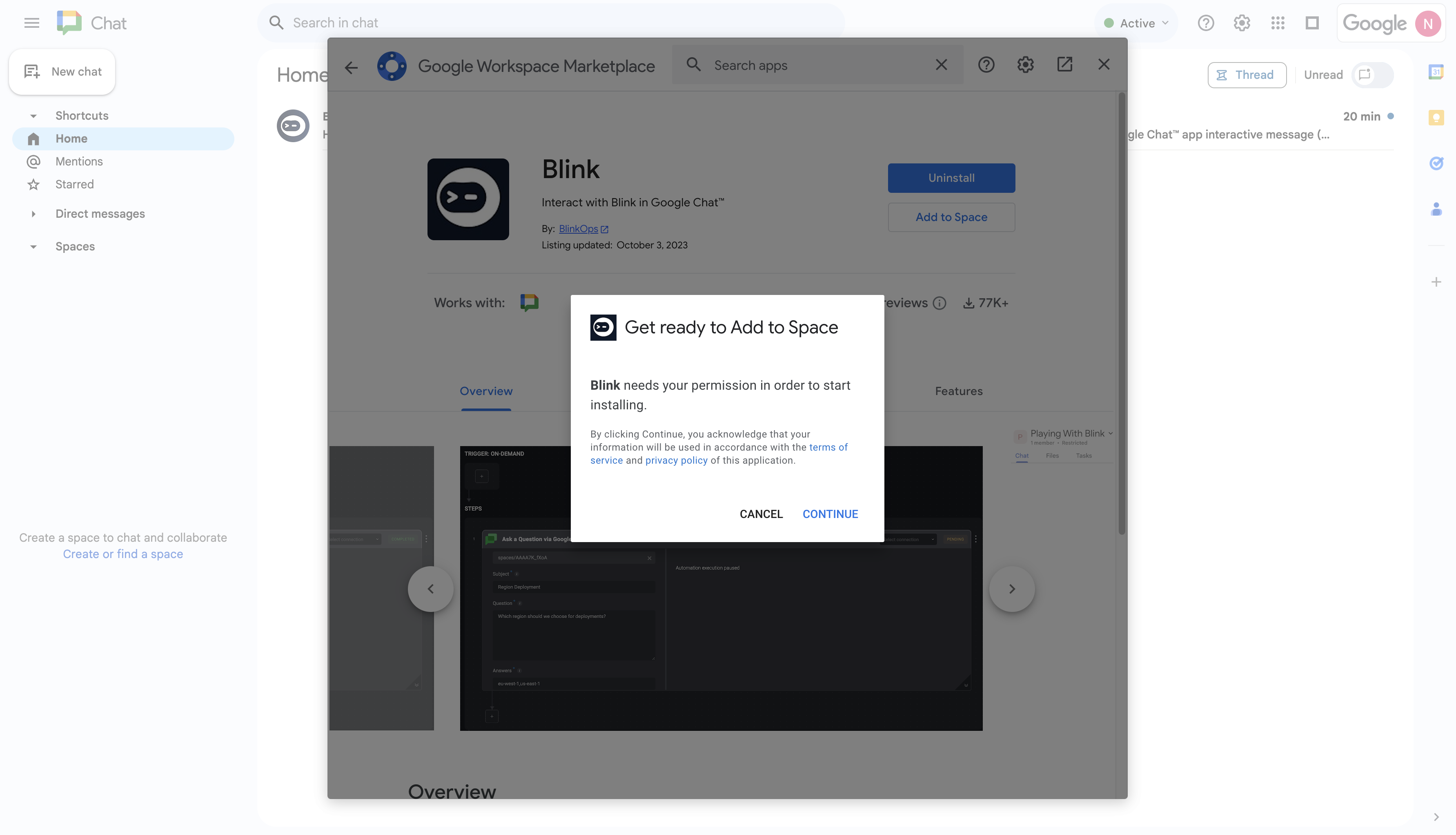
    Proceed by granting the Blink app permissions to your Space and then click **Continue**.

    <Frame>
      <img src="https://mintcdn.com/blinkops-2/yRkQ-wRlnQIXwr-A/img/Actions/AccessToSpace.png?fit=max&auto=format&n=yRkQ-wRlnQIXwr-A&q=85&s=5053b6e26b07a19921275c8b23699bbb" width="3566" height="2044" data-path="img/Actions/AccessToSpace.png" />
    </Frame>
  </Step>

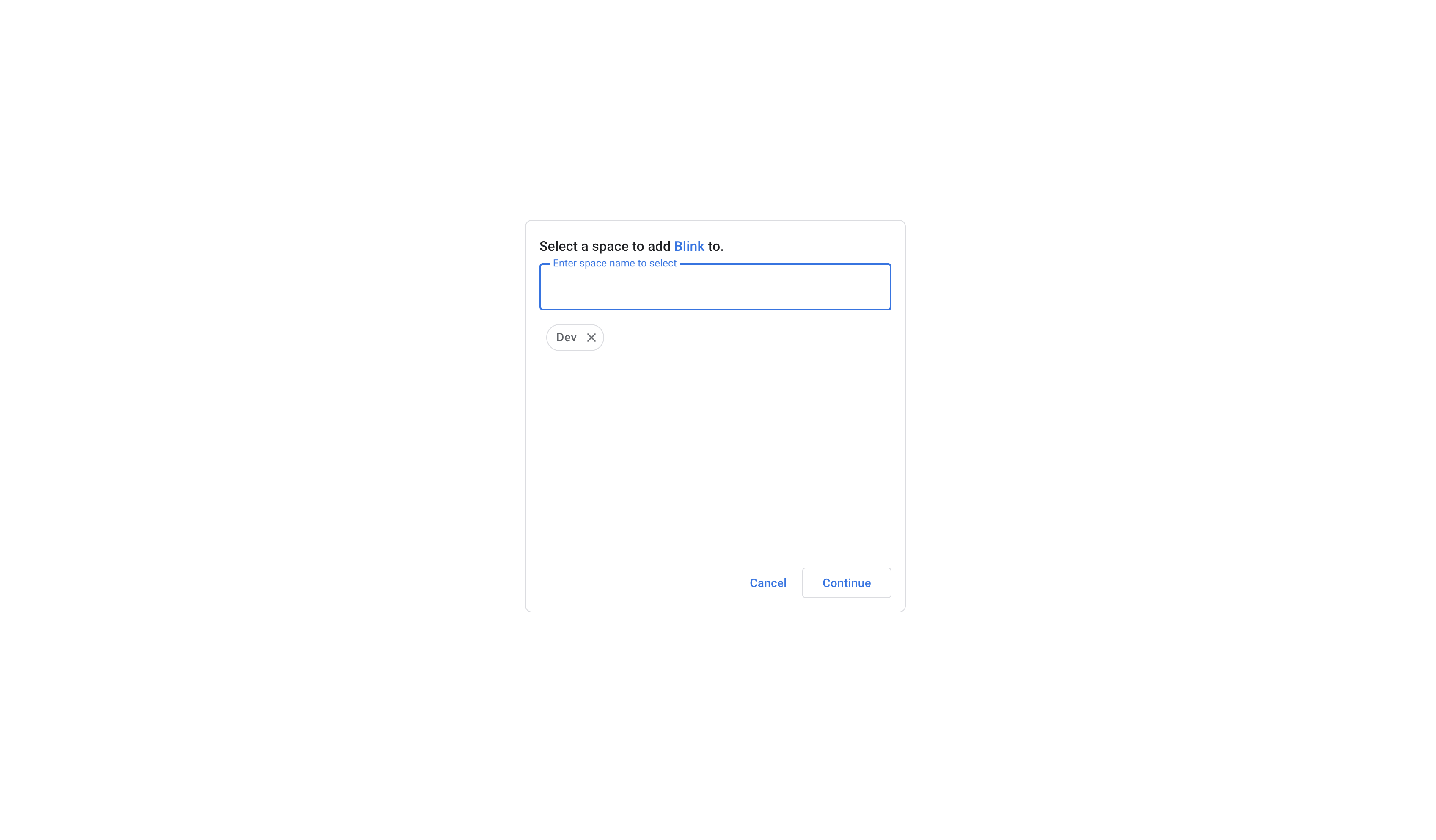
  <Step title="Select a Space to Add the Blink App">
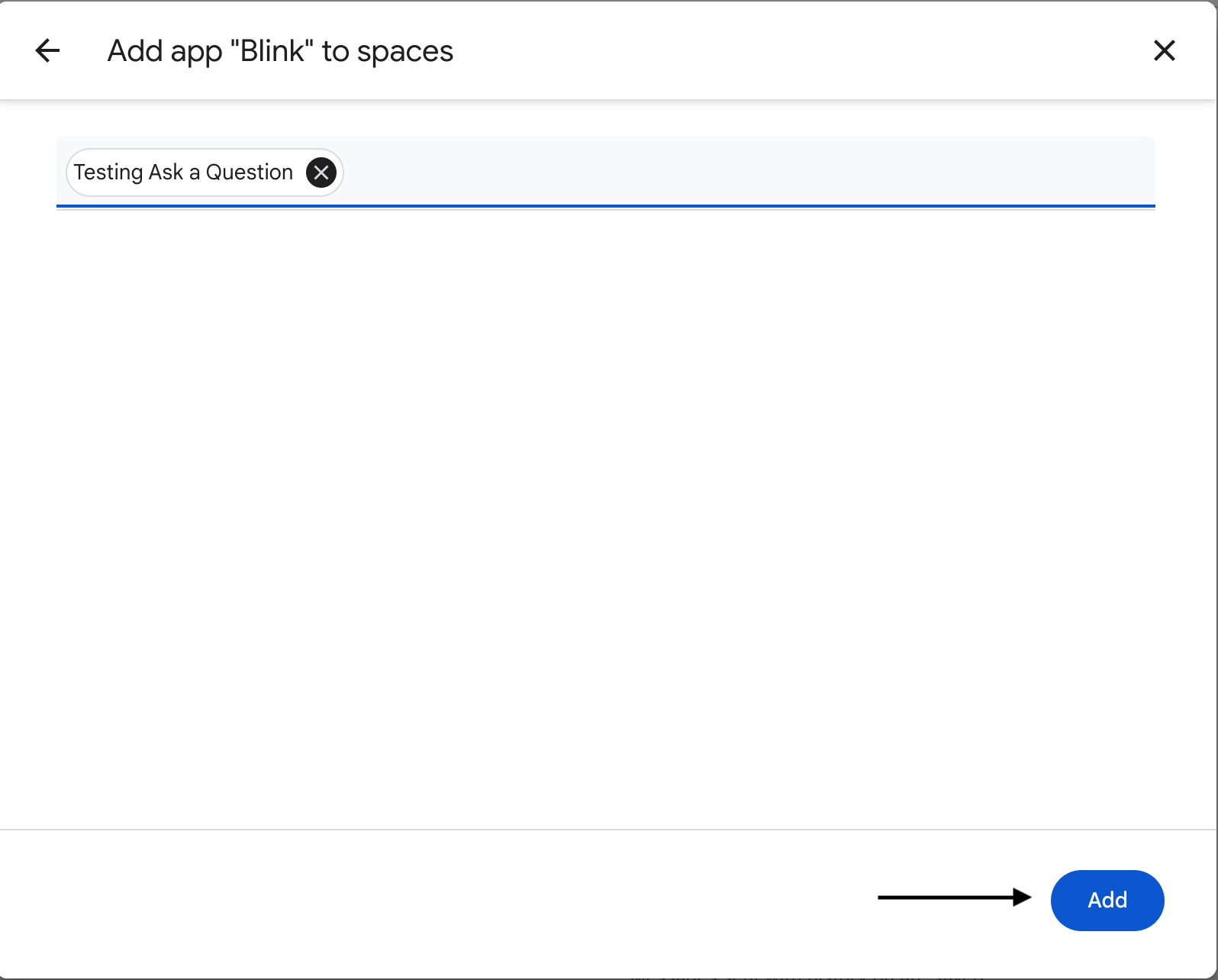
    Enter the name and select the Space you would like to add the Blink App to.

    <Frame>
      <img src="https://mintcdn.com/blinkops-2/deay2AiePWJDKGEh/img/Actions/SpaceName.png?fit=max&auto=format&n=deay2AiePWJDKGEh&q=85&s=5a28b34b83d8e98d42b9ac0c6469e208" width="3394" height="1986" data-path="img/Actions/SpaceName.png" />
    </Frame>
  </Step>

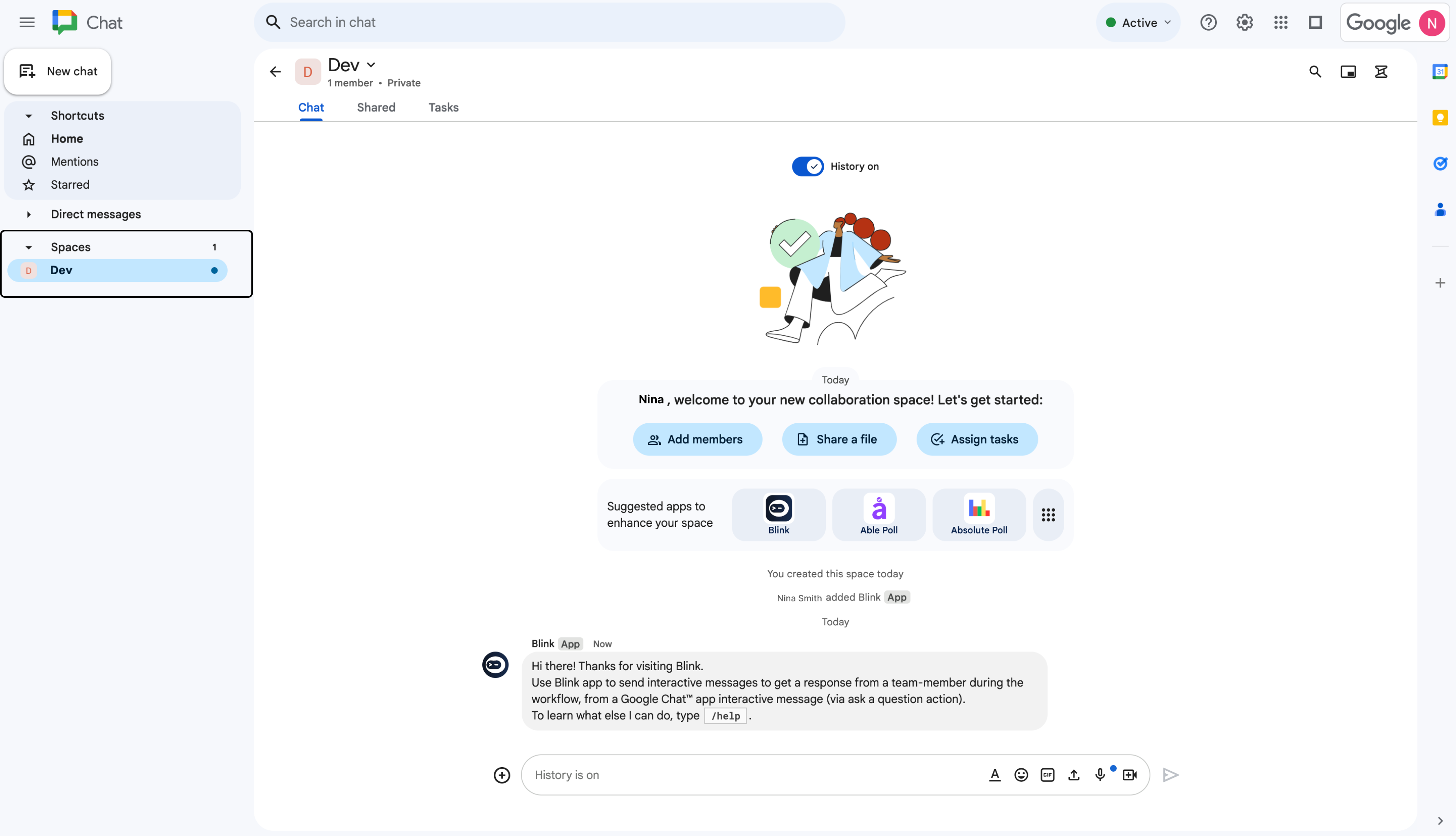
  <Step title="Receive Confirmation in Google Chat">
    You will be redirected to your selected Space and receive a message from the Blink App.

    <Frame>
      <img src="https://mintcdn.com/blinkops-2/yRkQ-wRlnQIXwr-A/img/Actions/BlinkAppInSpace.png?fit=max&auto=format&n=yRkQ-wRlnQIXwr-A&q=85&s=829073b0967aecc4f9eaa2432acc0ecb" width="3574" height="2052" data-path="img/Actions/BlinkAppInSpace.png" />
    </Frame>
  </Step>
</Steps>

***

### Build Your Workflow

<Steps>
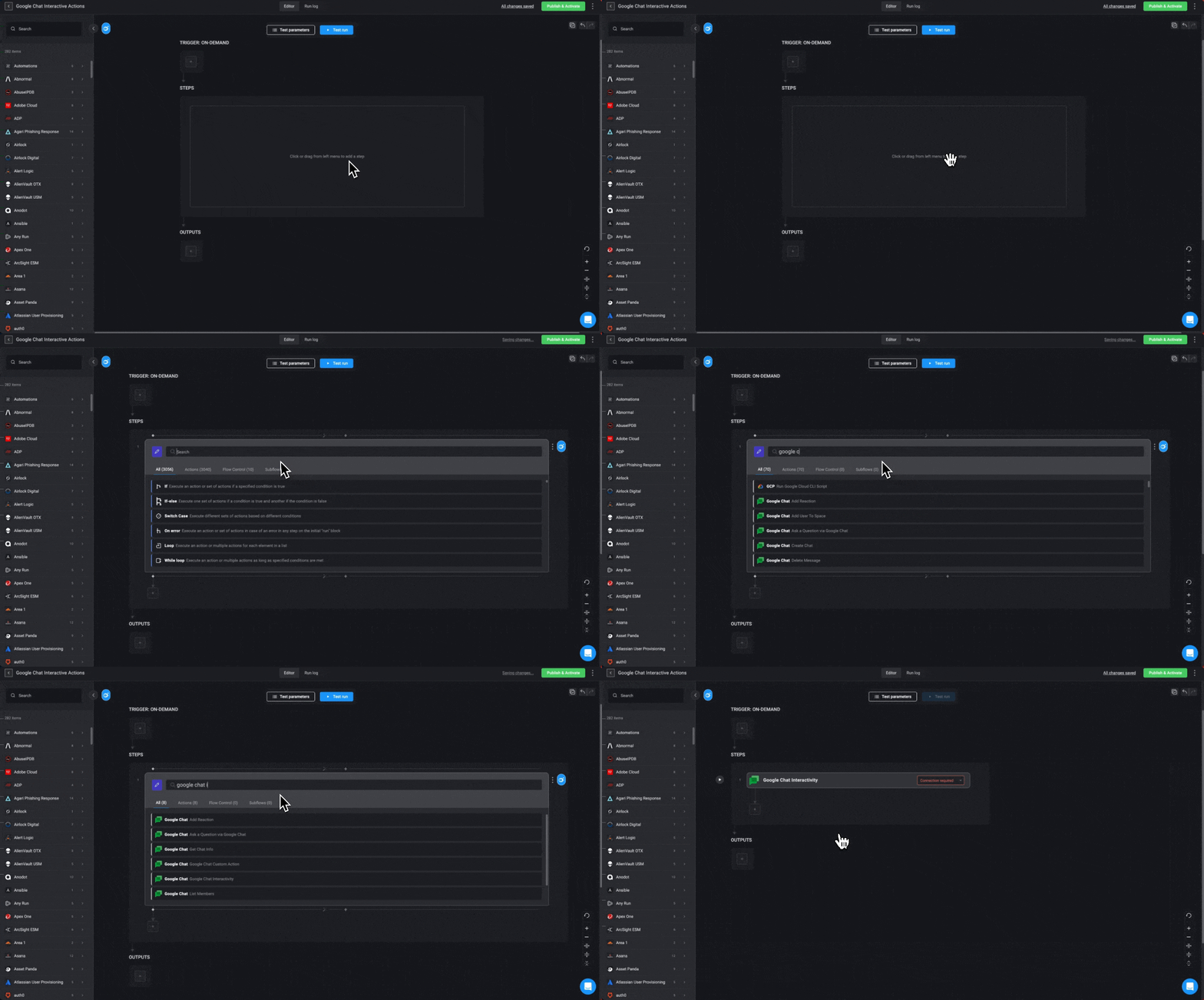
  <Step title="Add Google Chat Interactivity Action to Workflow">
    In the Workflow Editor, click to open the **Action panel** and search for *"Google Chat Interactivity"* action.
    Alternatively, drag the action into the step.

    <Frame>
      <img src="https://mintcdn.com/blinkops-2/-eoT09amno25RB5l/img/Actions/GoogleInteractivity.gif?s=cc5909292bbc37142259c9b34968f76f" width="1300" height="720" data-path="img/Actions/GoogleInteractivity.gif" />
    </Frame>
  </Step>

  <Step title="Enter Google Chat Interactivity Parameters">
    Within this step, enter the following parameters:

    <div className="integrations-table">
      | Parameter                                     | Description                                                                                         |
      | --------------------------------------------- | --------------------------------------------------------------------------------------------------- |
      | Space                                         | The recipient’s email address.                                                                      |
      | Card Content                                  | Array of [Google Chat Cards](https://addons.gsuite.google.com/uikit/builder) composing the message. |
      | Timeout in minutes (optional)                 | Timeout in minutes for the recipient to respond.                                                    |
      | Include user info                             | Includes the user's information together with their response.                                       |
      | **Advanced** – Keep cards after user response | Keeps the Card interactivity after the user responds, together with the user’s response.            |
    </div>
  </Step>

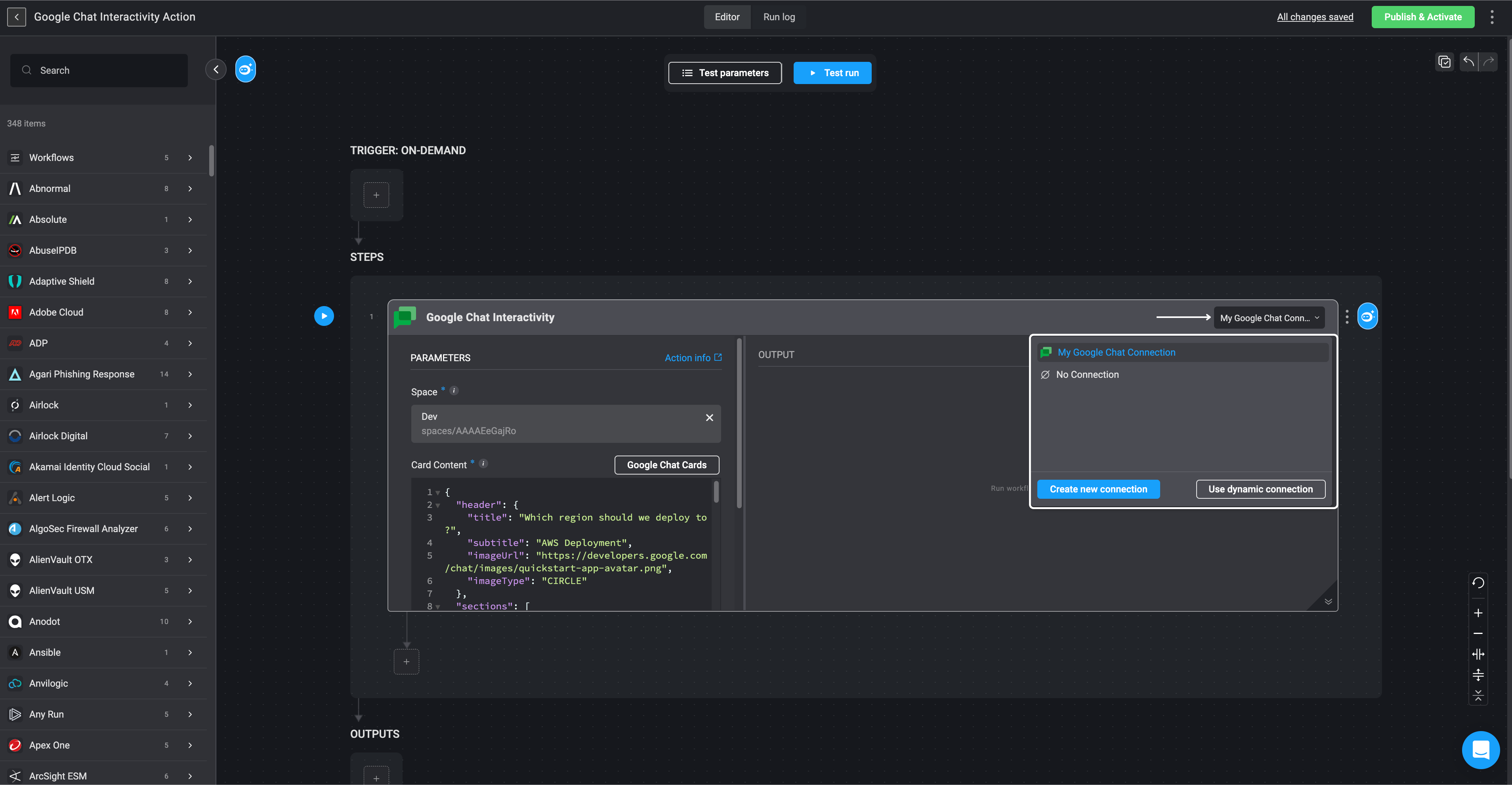
  <Step title="Create or Select Google Chat Connection">
    Next, create a connection with Google Chat.
    Click ***Connection required*** in the top-right corner of your Step.
    If you’ve already set up a Google Chat connection, select one from the available options.
    Otherwise, create a new connection by selecting **Google Chat connection** and following the steps outlined in the [Google Chat connection guideline](/docs/integrations/google-chat/google-chat#obtaining-the-credentials).
    Once done, click **Create connection** to proceed.

    <Frame>
      <img src="https://mintcdn.com/blinkops-2/ZUtie3exEe7_7B_M/img/Actions/GCConnection.png?fit=max&auto=format&n=ZUtie3exEe7_7B_M&q=85&s=143cb9a536b4b23f3baf29dd15d46deb" width="3816" height="1980" data-path="img/Actions/GCConnection.png" />
    </Frame>
  </Step>

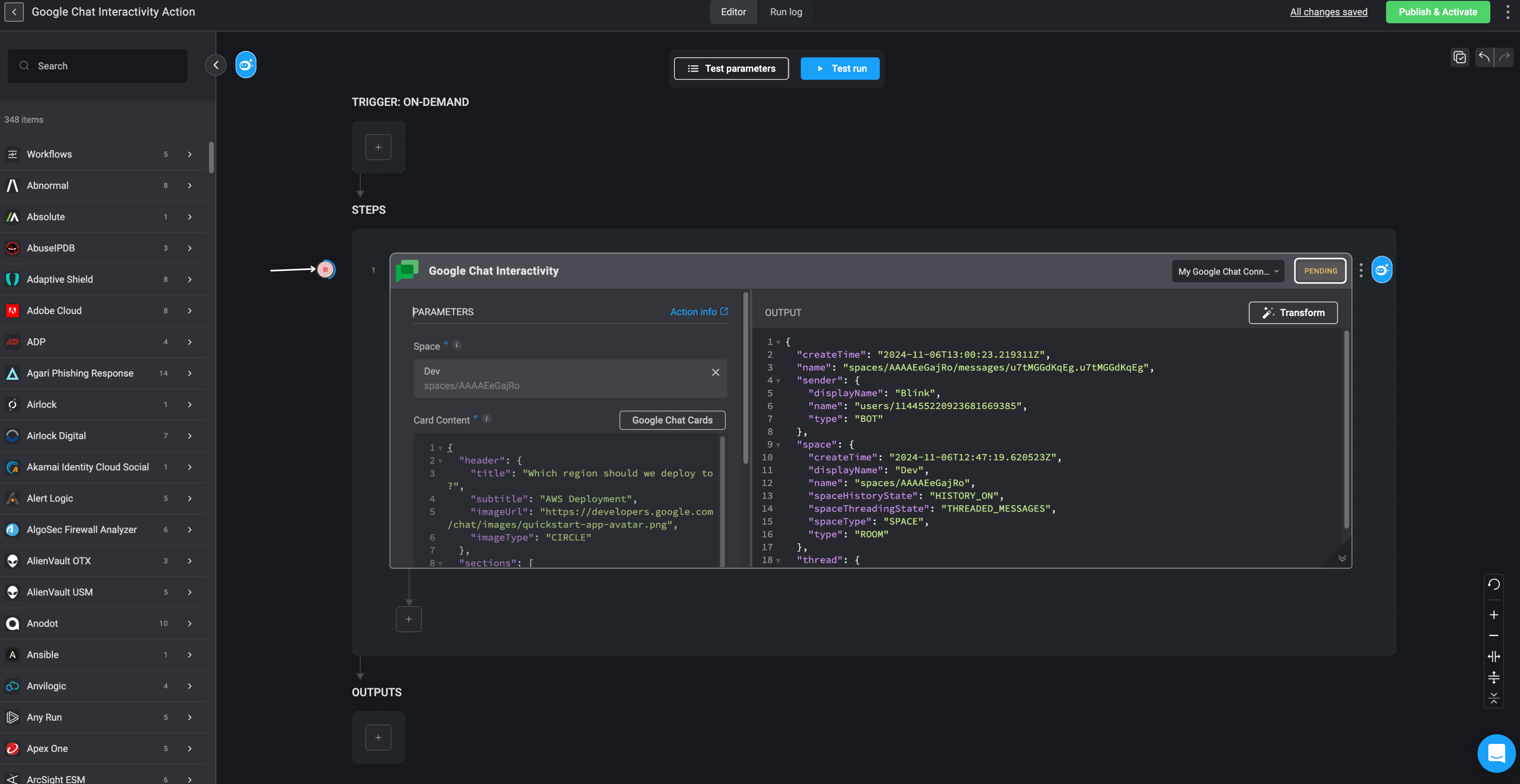
  <Step title="Run a Test Execution of the Step">
    <p>Once these steps are completed, you can select the <Icon icon="play" /> button to execute a trial run of the step,\
    or click the **Test run** button to test your Workflow. This refers specifically to testing the Google Chat Interactivity steps.</p>

    <Frame>
      <img src="https://mintcdn.com/blinkops-2/-eoT09amno25RB5l/img/Actions/GCTestRun.png?fit=max&auto=format&n=-eoT09amno25RB5l&q=85&s=fc356927c49eff61aaee8b103801df3c" width="3793" height="1957" data-path="img/Actions/GCTestRun.png" />
    </Frame>
  </Step>

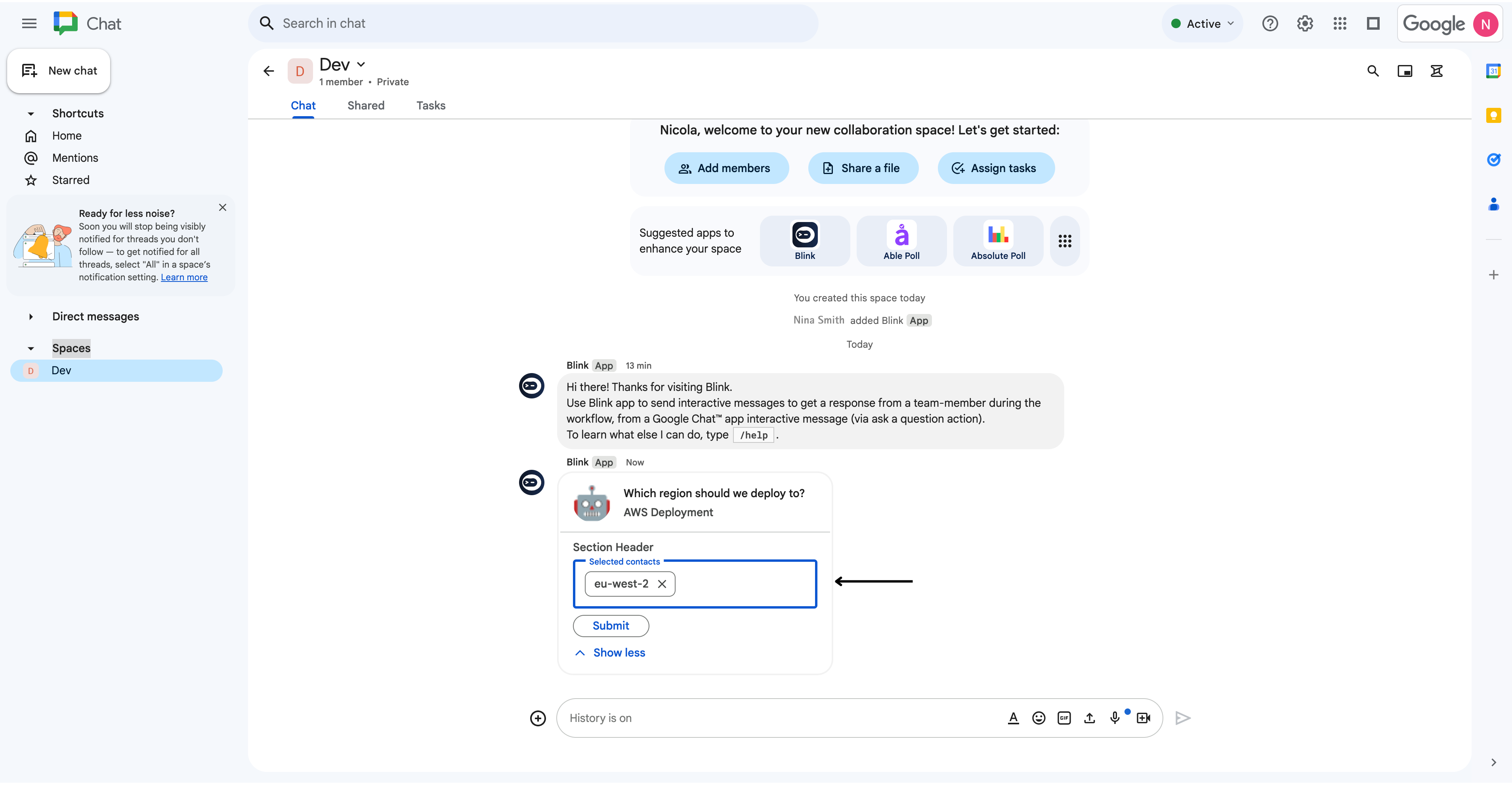
  <Step title="Receive and Respond to Google Chat Message">
    When this Workflow runs, the selected *Space* in your Google Chat account—specified in the **Space** field—will receive the message.
    Users in the Space can interact with the card and submit a response.

    <Frame>
      <img src="https://mintcdn.com/blinkops-2/yRkQ-wRlnQIXwr-A/img/Actions/AnswerGC.png?fit=max&auto=format&n=yRkQ-wRlnQIXwr-A&q=85&s=1d61459d131a5b1976b9ea4f88b3638a" width="3816" height="1980" data-path="img/Actions/AnswerGC.png" />
    </Frame>
  </Step>

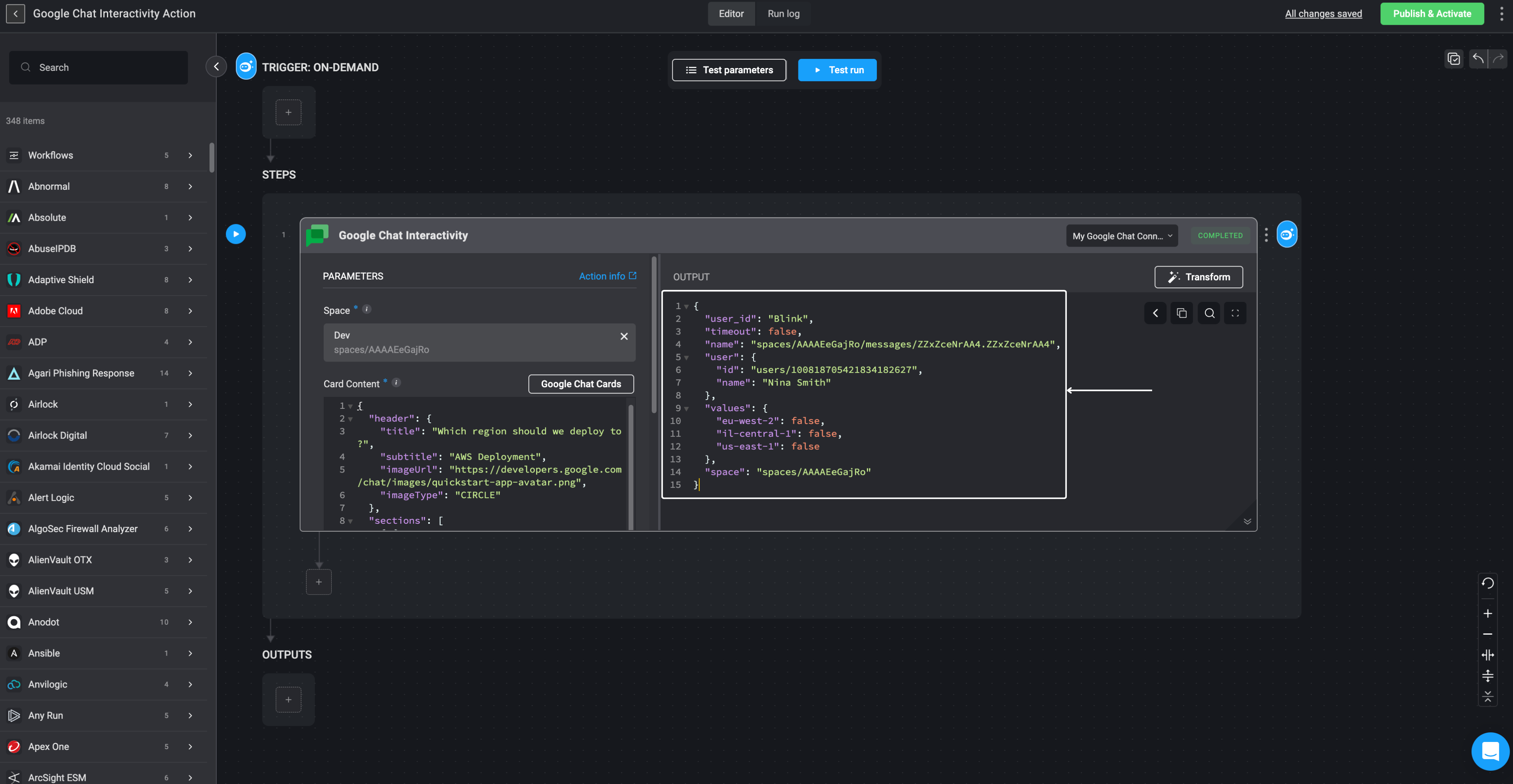
  <Step title="View Google Chat Response in Workflow Output">
    You can then navigate back to your Workflow, where the Google Chat response will appear in the output.
    <Frame>
      <img src="https://mintcdn.com/blinkops-2/ZUtie3exEe7_7B_M/img/Actions/GCOutput.png?fit=max&auto=format&n=ZUtie3exEe7_7B_M&q=85&s=94859c0867d9e90d7201dcfa7cceba67" width="3777" height="1958" data-path="img/Actions/GCOutput.png" />
    </Frame>
  </Step>
</Steps>